
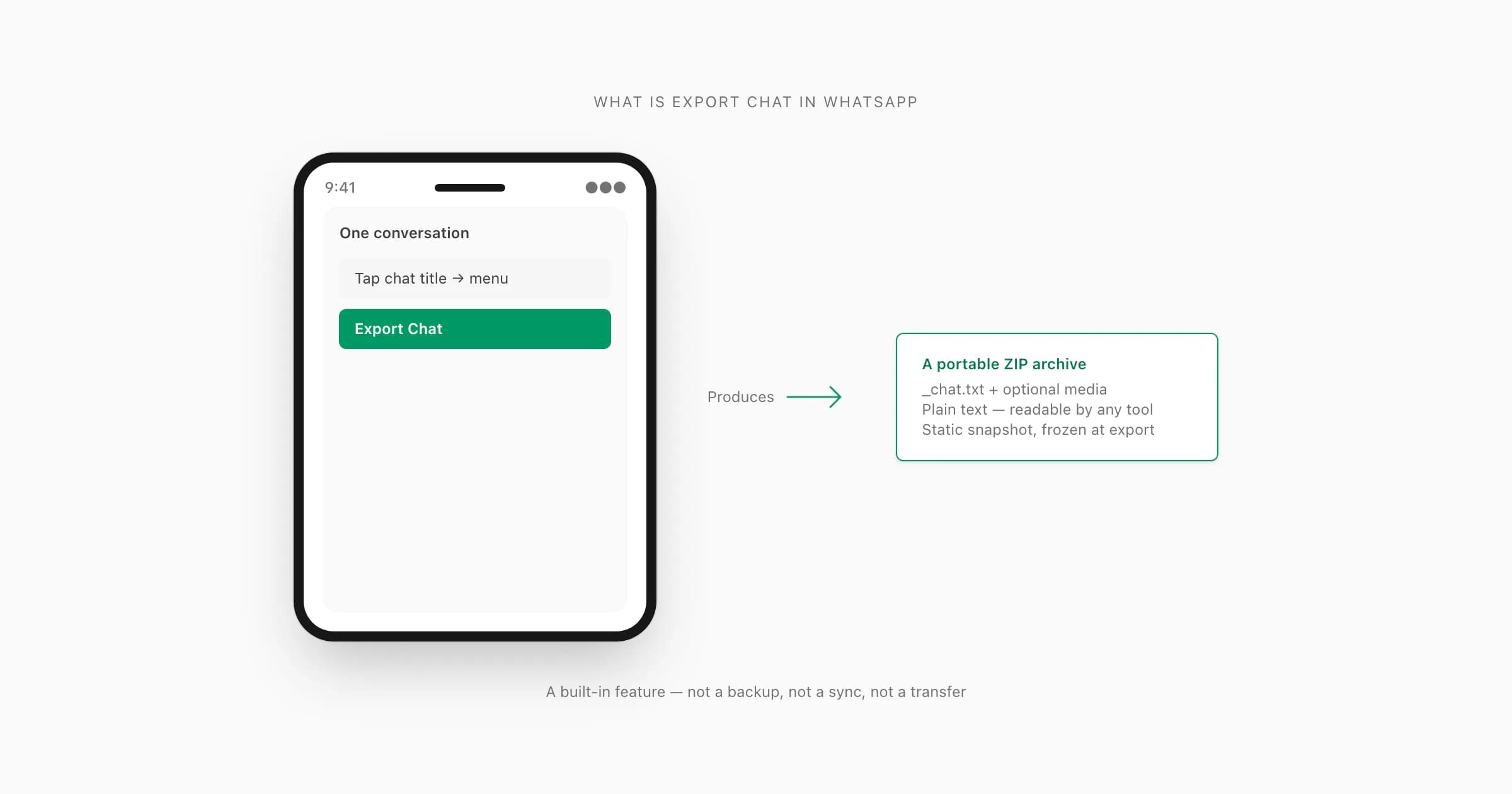
Export Chat in WhatsApp is the built-in feature that turns one conversation into a ZIP file containing _chat.txt (all messages with timestamps and sender names) plus optional media files. It is a portable, plain-text snapshot — not a backup, not a transfer, and not reversible back into WhatsApp. The ZIP is designed so any tool can read it; upload it to ChatToPDF to get a formatted, sender-attributed PDF in about 30 seconds.
The formal definition — what export chat is
Let me give you the dictionary-style answer first, since that is what most people land on this page looking for. Export Chat in WhatsApp is a built-in feature that copies the contents of one conversation from your phone into a ZIP archive. The archive holds a plain-text file named _chat.txt, with every message written line-by-line, plus an optional folder of attached media — photos, voice notes, videos, and documents — if you choose Including Media at the prompt.
That is the feature. Six clauses, and you have the whole thing.
The verb "export" is doing real work in that sentence. It does not mean "send", "back up", "transfer", or "delete and move". It means copy out into a portable file format. The destination is a ZIP archive, the source is the chat that already lives on your device, and the result is a snapshot you can store, share, or feed into another tool. The companion guide Export chat WhatsApp: what the feature actually does walks through the menu mechanics step by step — where it lives on iPhone and Android, what the share sheet does, where the ZIP lands. This guide is the definitional one. We are answering "what is this thing?" rather than "how do I tap through it?".
If you came here because someone said "you should export the chat" and you wanted to know what they meant, you can stop reading after this section and you would have enough. The rest of the guide is for people who want to understand why the feature exists, where it fits among the alternatives, and when it is or is not the right tool.
Why WhatsApp shipped this feature in the first place
I find this part interesting because it explains the design choices that shape the feature today. WhatsApp did not invent the export-chat menu as an afterthought. It exists because WhatsApp's encryption model, by design, makes the chat data hard to reach from outside the app. Every conversation is end-to-end encrypted in transit, decrypted only on the participants' devices, and stored locally on each phone. There is no server-side copy of the plaintext anyone — including WhatsApp staff — can hand back to you.
That model is great for privacy. It is also a problem if you ever need the chat data outside WhatsApp itself: for a court submission, an HR record, a personal archive, a research project, or a presentation slide. Without an export feature, the only way to get the conversation out would be screenshots, which scale poorly to thousands of messages and lose all structure.
So the feature exists to give the user — the person who already legitimately holds the chat data on their device — a clean, portable way to get it out. The output is plain text in a ZIP, on purpose. Plain text means any programming language, file viewer, or third-party tool can read it. ZIP means the media files travel with the messages. The format is intentionally boring so it survives version changes and platform shifts.
Apple's Files app overview describes how those archives are handled on iOS once they leave WhatsApp; the ZIP is a normal file from that point onward. WhatsApp's own export-chat FAQ describes the feature at a high level but does not get into the design rationale.
Technical scope — what the feature does and does not include
I want to be precise about what the feature technically scopes. People assume scope based on the verb "export" — and the verb is broad enough that the assumptions vary wildly. Let me name the scope explicitly.
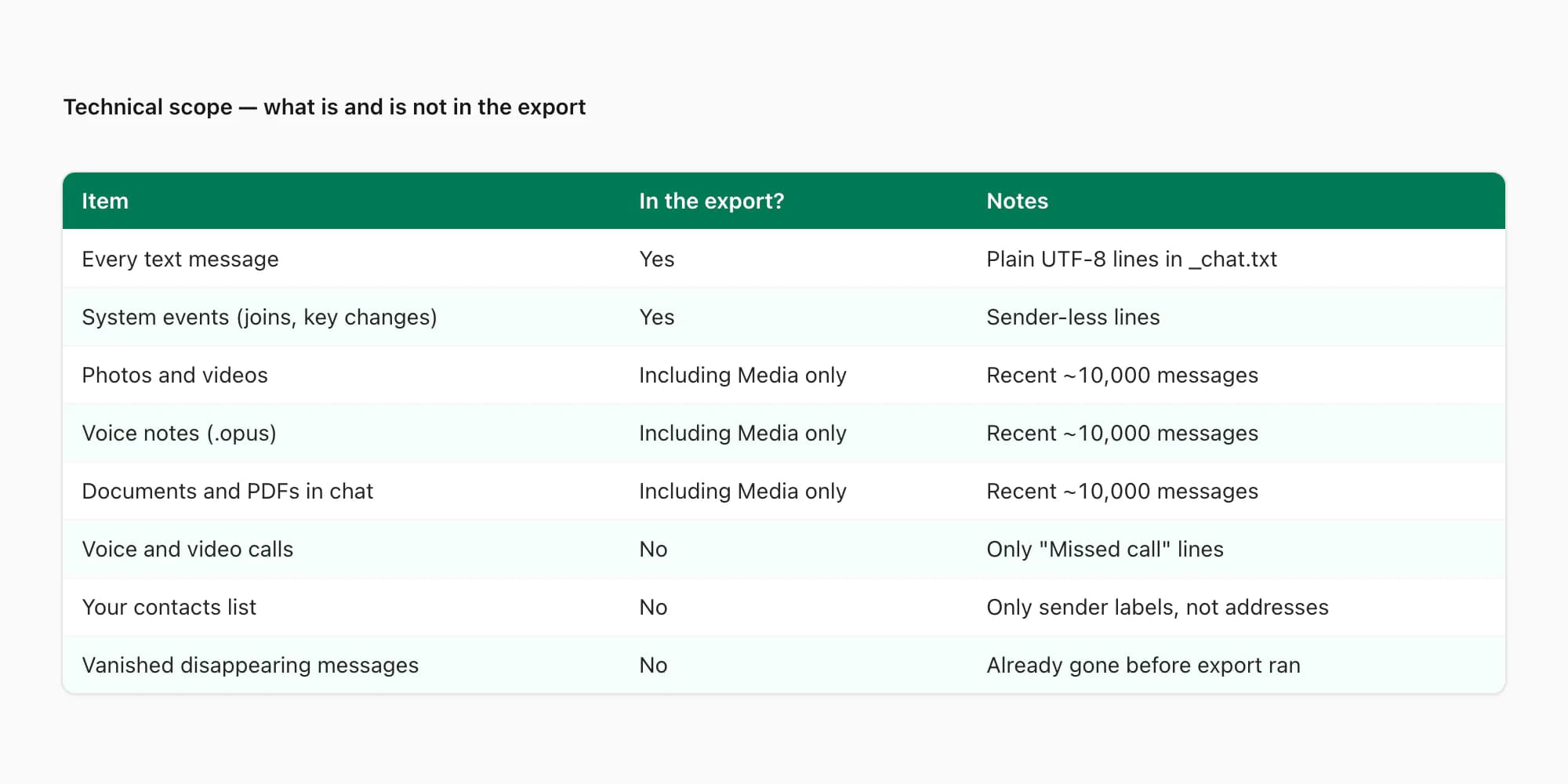
The export covers, in order:
- Every text message in the chat, attributed to the sender by saved name or phone number, with timestamp. Always included.
- System messages like "Alice added Bob to the group", "Encryption key changed", "You joined the group". Always included as lines without a sender.
- Photos and images as separate
IMG-*.jpgfiles. Only if you choose Including Media, and only for the most-recent ~10,000 messages. - Voice notes as
PTT-*.opusfiles. (PTT is "push-to-talk" — WhatsApp's internal name for voice notes.) Including Media only, recent window only. - Videos as
VID-*.mp4files. Including Media only, recent window only. - Documents and PDFs sent in chat as
DOC-*.*files. Including Media only, recent window only.
For the audio entries, the WhatsApp audio format guide explains the difference between an .opus filename, an Ogg container and the codec inside the file.
- Disappearing-message lines that were still visible at the moment of export. Already-vanished messages are gone — they were not in the chat data when the menu ran.
The feature does not cover:
- Voice and video calls. The ZIP contains the call-event lines ("Missed voice call", "Voice call · 12:34") but never the audio or video itself.
- Your contacts list. Saved contact names appear as sender labels because they were already attached to the messages — but the contacts themselves never travel.
- Vanished disappearing messages. By the time the export menu reads the chat, those messages are already gone.
- Older media beyond the recent ~10,000-message window, even with Including Media.
- Group chat history from before you joined. That data was never on your device.
Two undocumented ceilings worth knowing. The export tops out at 40,000 messages per chat, with no warning. And media bundling tops out at roughly the most-recent 10,000 messages, again with no warning. Neither limit appears in any WhatsApp UI. The WhatsApp chat export pillar walks both ceilings in detail.
How export chat differs from a backup, a screenshot, and a migration tool
This is the part that gets people. "Export chat", "WhatsApp backup", and "WhatsApp transfer" sound related, and casual writing on the topic uses them interchangeably. They are not the same feature, and using the wrong one can cost you data.
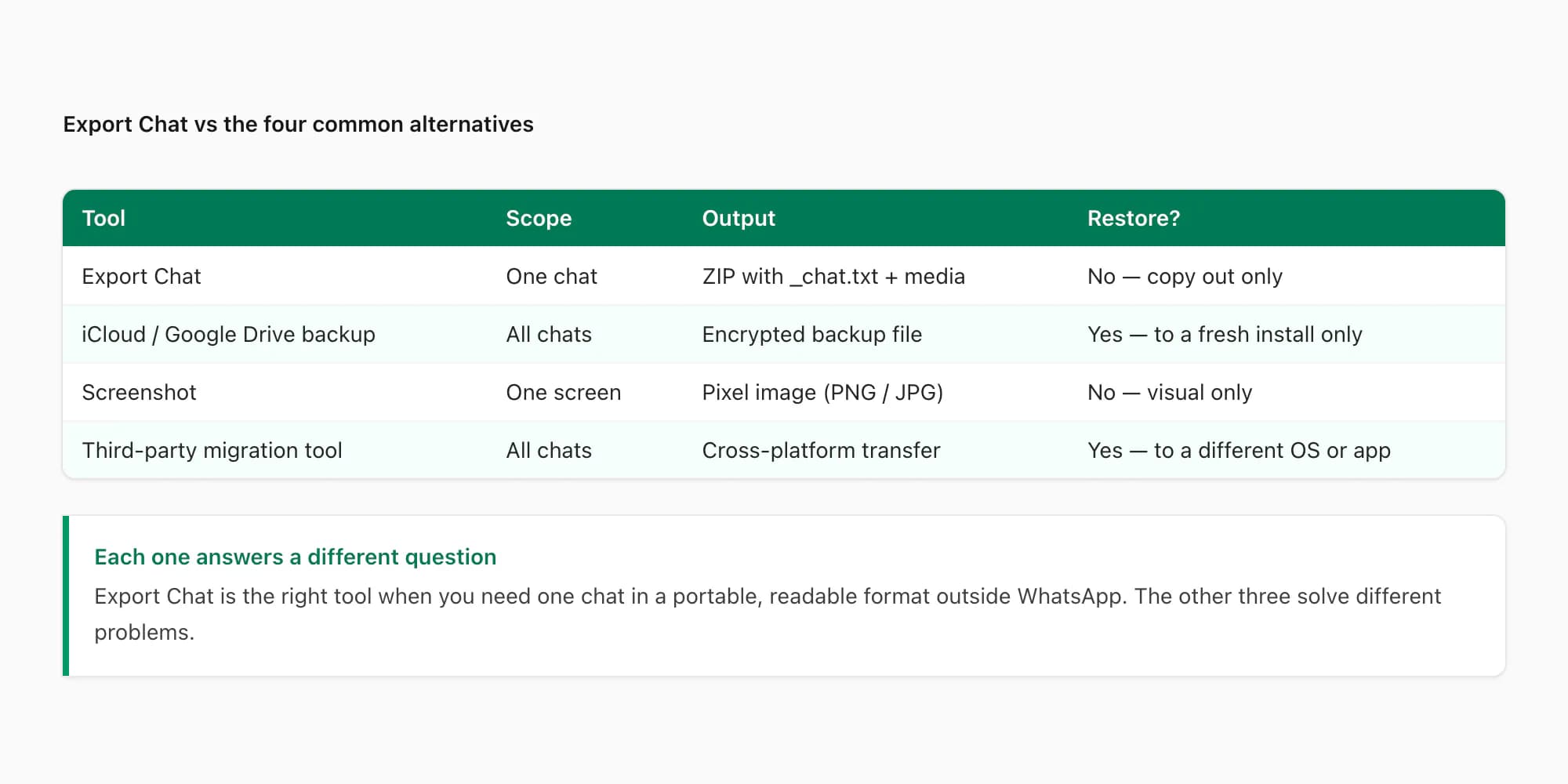
Export chat versus the iCloud / Google Drive backup. The backup is a complete, encrypted copy of every conversation on your phone, kept at the cloud-account level, designed for restoring after a phone change or wipe. You cannot open it, read it, edit it, or extract one chat from it — only WhatsApp itself, on a fresh install, can read the backup. Export Chat, by contrast, produces a single-chat ZIP you can read in any text editor. You use the backup when you want to restore the chat on a new phone. You use Export Chat when you want the chat data out of WhatsApp entirely.
Export chat versus a screenshot. A screenshot is a pixel snapshot of what your screen showed at one moment. It loses sender attribution if the labels are off-screen, loses search-ability completely (you can OCR but it is unreliable), and scales terribly — a 5,000-message chat would need hundreds of screenshots stitched together. Export Chat keeps every message in structured plain text and produces one file you can search, parse, and convert.
Export chat versus a third-party migration tool. Tools like Backuptrans or iMyFone read backup files (or hook into the phone over USB) and can move chat history between iOS and Android, or between WhatsApp and other apps. They produce richer outputs but require a desktop, a USB cable, sometimes a paid licence, and a fair amount of technical setup. Export Chat is built into WhatsApp itself, runs on the phone, takes one tap, and outputs a portable ZIP — but it does not migrate the chat anywhere; it only copies it out.
Each tool answers a different question. The mistake is using one when you needed another — taking a screenshot when you needed structured text, or running a migration tool when a one-tap export would have done the job in 30 seconds.
Static snapshot — a property, not a bug
The single most important design property of the export-chat feature is that the output is static. Once the ZIP is written, it never updates. New messages arriving after the export are not added to the file. Edits, deletions, and reactions that happen later are not reflected. The ZIP is frozen at the millisecond you tapped Export Chat.
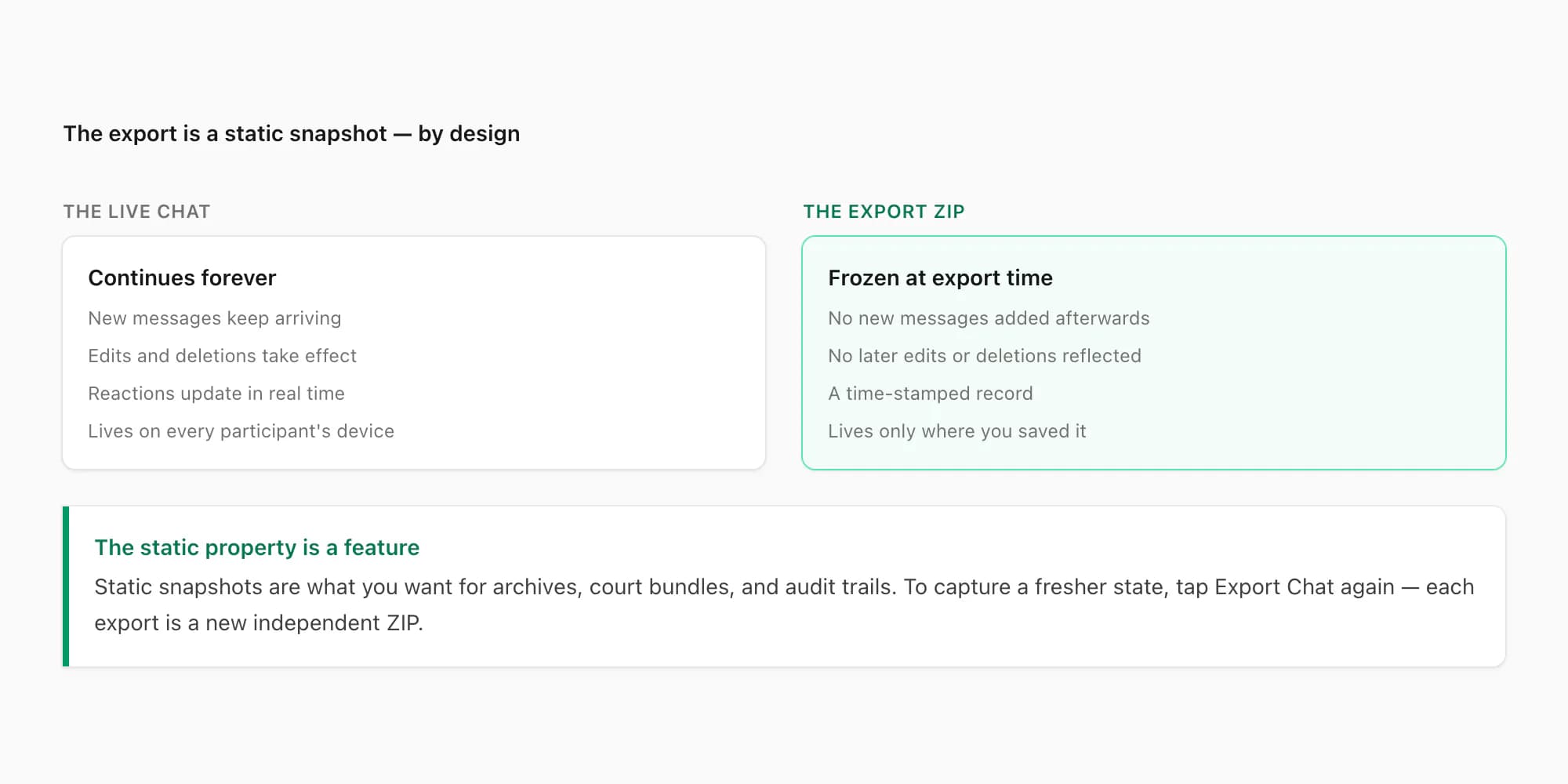
That property catches people out the first time they re-open an export from a few weeks ago and notice the chat in WhatsApp has moved on. Nothing is broken — the export is doing exactly what it was designed to do. The static-snapshot property is a feature, not a flaw, for three reasons:
- A snapshot is what you want for legal evidence, archival records, and time-stamped audit trails. A live link would be useless for those uses, because the data could shift between when the export was taken and when it is reviewed.
- A snapshot can be safely stored, shared, and re-reviewed without WhatsApp's involvement. Once the ZIP is on your device, it does not depend on the chat continuing to exist, on your account staying active, or on the other person not blocking you.
- A snapshot avoids privacy ambiguity. The other person's recent messages did not leak into your archive after the fact — only what was visible at the moment of export made it through.
The companion guide What does export chat mean on WhatsApp covers the privacy implications of this in more detail, especially around what the other person sees (nothing) and what happens to the file at rest (it is yours).
If you need a more current export, the answer is to tap Export Chat again. Each new tap produces a new ZIP capturing whatever the chat looks like at that fresh moment. Old exports remain valid; new exports are independent.
What export chat is not
The cleanest way to define a feature is sometimes to name what it is not. Let me list the most-common conflations.
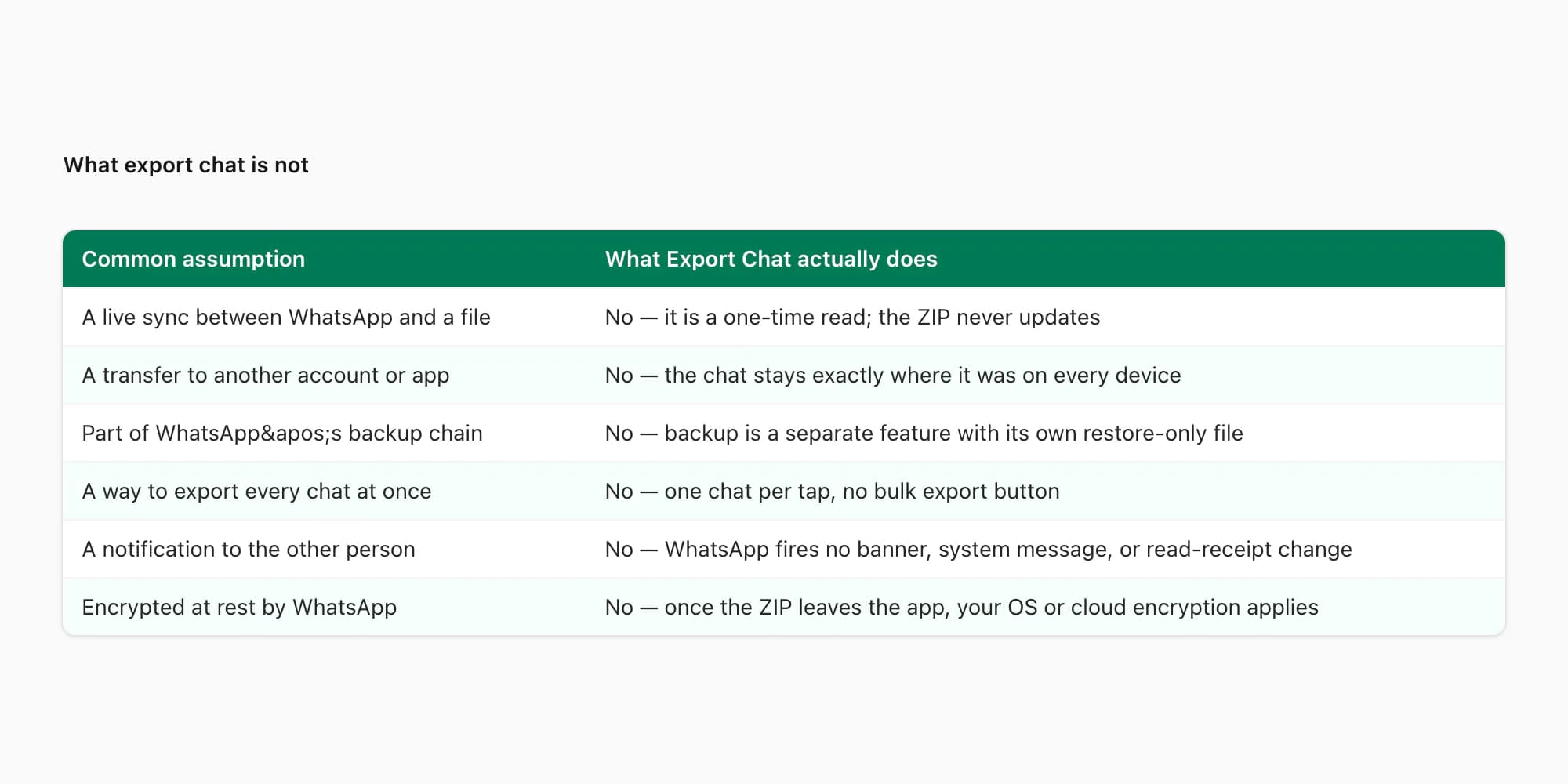
- Not a sync. The ZIP does not stay in any kind of live link with the chat. After export, the ZIP and the chat are unrelated files.
- Not a transfer. Exporting does not move the chat to another account, app, or phone. The chat stays exactly where it was, on your device, on the other person's device, on every group member's device.
- Not a real-time stream. No data flows continuously. The export is a single read operation that completes in seconds.
- Not a backup. WhatsApp's backup feature is a separate thing entirely (iCloud / Google Drive, encrypted, restore-only). The export is not part of any backup chain.
- Not a screenshot generator. It produces a structured text file, not pixel images of the conversation.
- Not a delete-and-move. Exporting does not remove the chat from your phone or from anyone else's. The original conversation continues exactly as it was.
- Not a notification. WhatsApp does not tell the other person you exported. There is no banner, no system message, no read-receipt change.
- Not encrypted at rest by WhatsApp. Once the ZIP leaves the app, WhatsApp's end-to-end protection ends. The file is protected by whatever encryption your operating system or cloud provider applies — your iPhone passcode, your Google account, your Drive folder.
If you find yourself thinking the feature does any of those things, the model in your head is probably borrowed from a different app's "export" menu — email exports, CRM exports, database exports — that does work that way. WhatsApp's export does not.
When export chat is the right tool — and when something else is
Knowing what a feature is is useful only insofar as you can decide whether to use it. Here is the practical mapping.
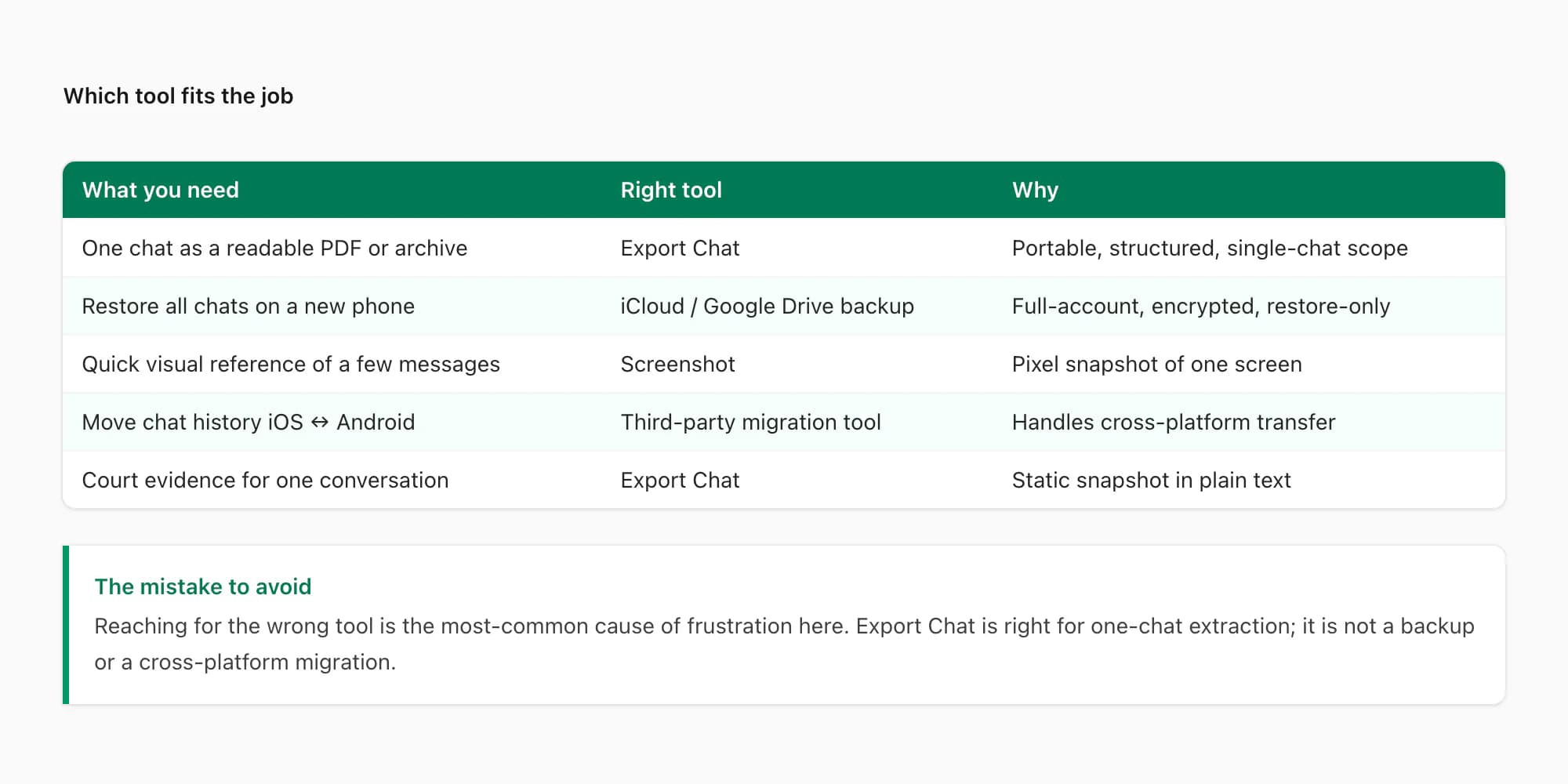
Use Export Chat when:
- You need the chat data outside WhatsApp — for a PDF, court submission, HR record, research dataset, or personal archive.
- You only need one chat (or a handful), not your entire WhatsApp history.
- You want a portable file format that any tool, on any platform, can read.
- You want a time-stamped snapshot of the conversation as it stands now, not a live link.
Use the iCloud / Google Drive backup when:
- You are restoring chats on a new phone after a wipe, transfer, or platform switch.
- You want every chat preserved for recovery, not extracted.
- You do not need the chat data in any third-party tool.
Use a screenshot when:
- You only need a small piece of one conversation as a quick reference image.
- The visual layout of the bubbles matters more than the text content.
- You are sharing one funny exchange to a friend and do not need search or structure.
Use a third-party migration tool when:
- You are moving the entire chat history between iOS and Android.
- You need richer formats than
_chat.txt(HTML, native database files, Telegram imports). - You have a desktop, USB cable, and twenty minutes — and you are okay paying for a licence.
For most converting-to-PDF, archiving, and legal-evidence use cases, Export Chat is the right answer because the output is portable, the workflow is one tap, and the resulting file feeds into any tool you choose to use afterwards.
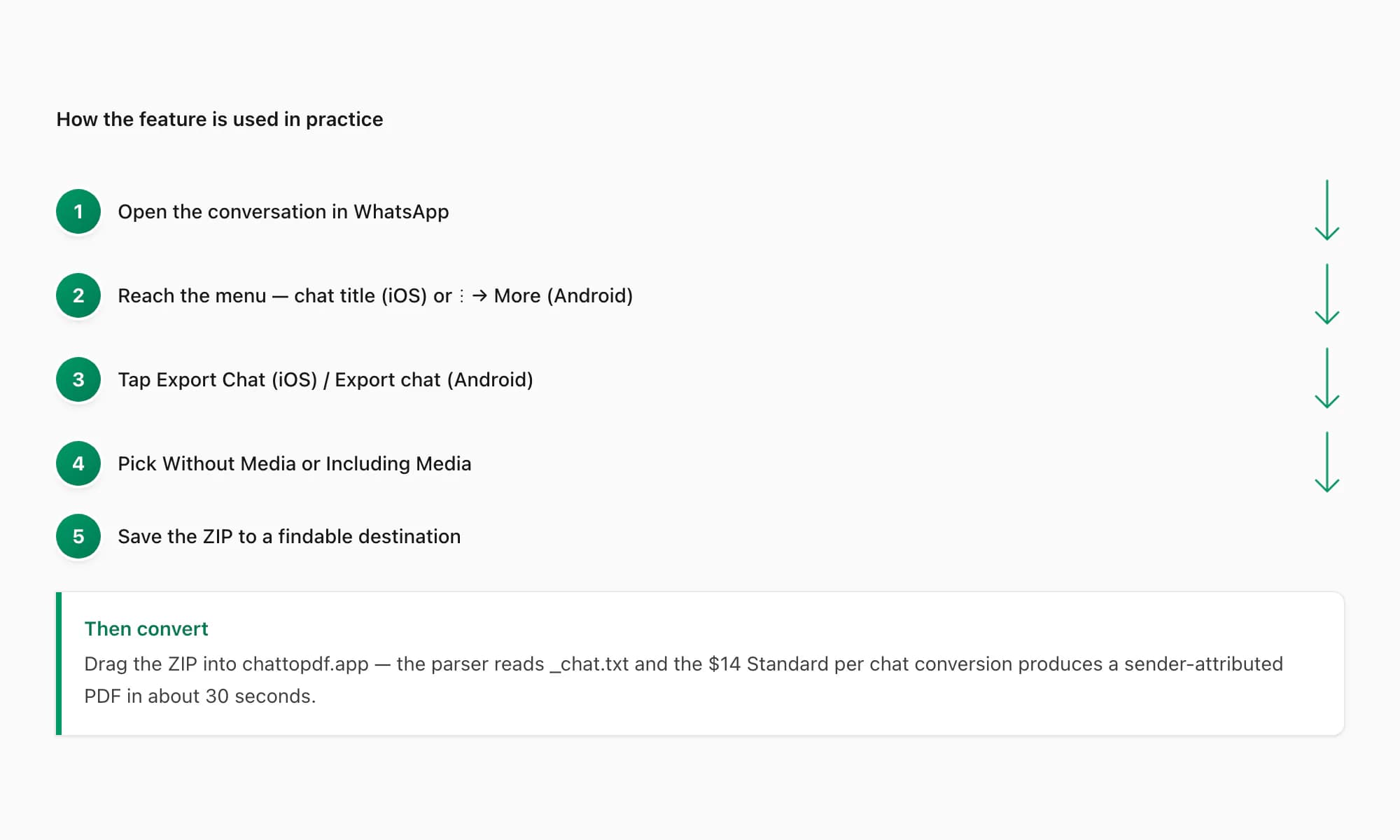
The four-step flow is short.
Open the conversation in WhatsApp
On iPhone, open the chat you want to export. On Android, do the same.
Reach the Export Chat menu
On iPhone, tap the chat title at the top, then scroll to Export Chat. On Android, tap the three-dot overflow menu (⋮), then More, then Export chat.
Choose Without Media or Including Media
Without Media is faster and produces a smaller ZIP (text only). Including Media bundles photos and voice notes for roughly the most-recent 10,000 messages.
Save the ZIP to a findable destination
On iPhone, choose Save to Files (avoid the Quick Look preview, which lands the file in a temporary cache folder). On Android, save to your file manager or a cloud destination.
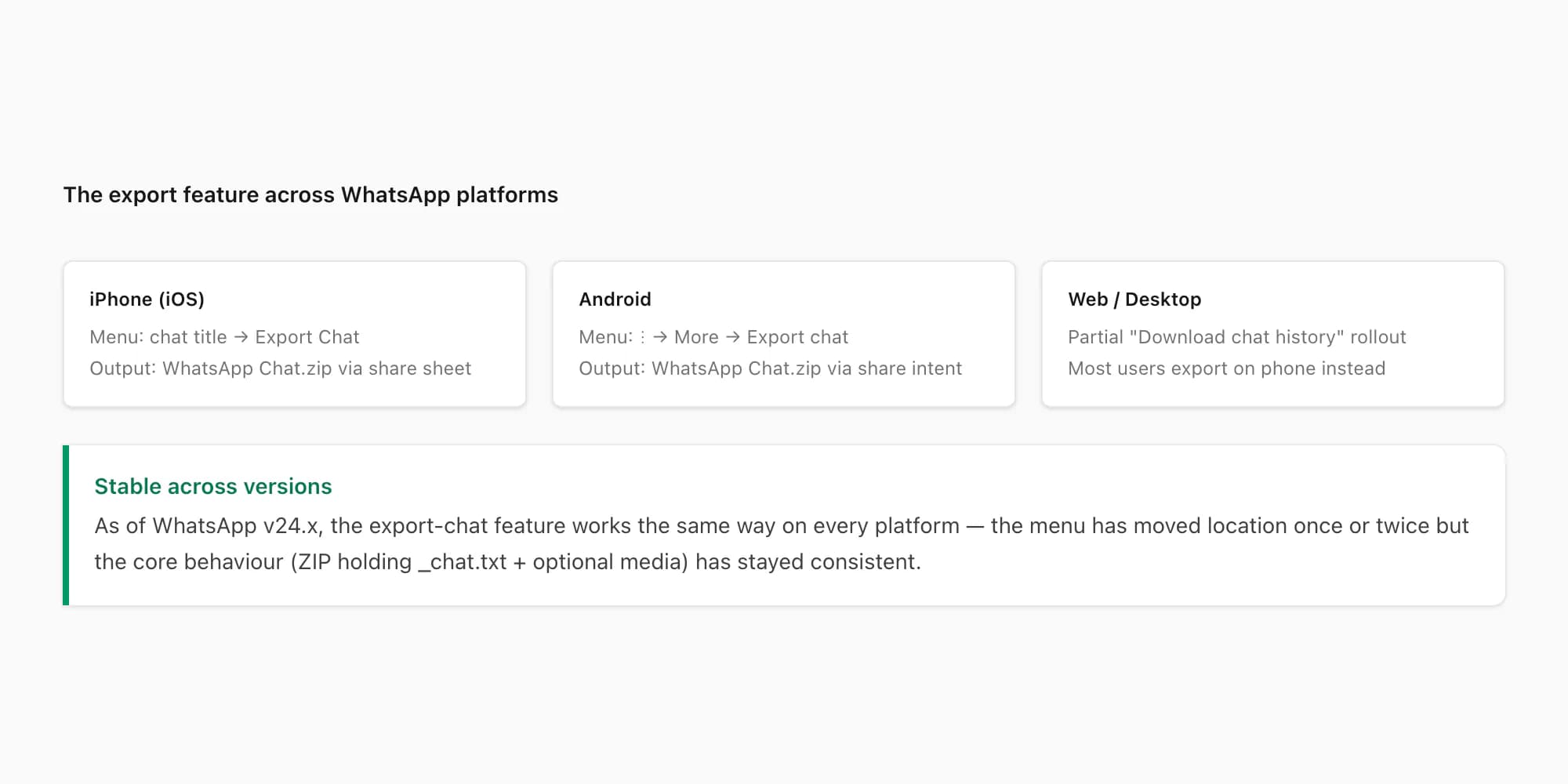
A note on history. The export-chat feature has been part of WhatsApp across iOS, Android, and the web/desktop apps for years; the menu has moved location once or twice but the core behaviour — produces a ZIP holding _chat.txt plus optional media — has stayed remarkably stable. As of WhatsApp v24.x, the feature works the same way across every supported platform. If you saw a guide from a few years ago describing the same flow, it is almost certainly still accurate.
Pricing guidance — turning the export into a readable PDF
The export feature, on its own, gives you a ZIP. For most people that is a means to an end, not the end itself. The end is usually a readable PDF you can print, share, file, or attach to an email. Here is the practical pricing mapping for that conversion step.
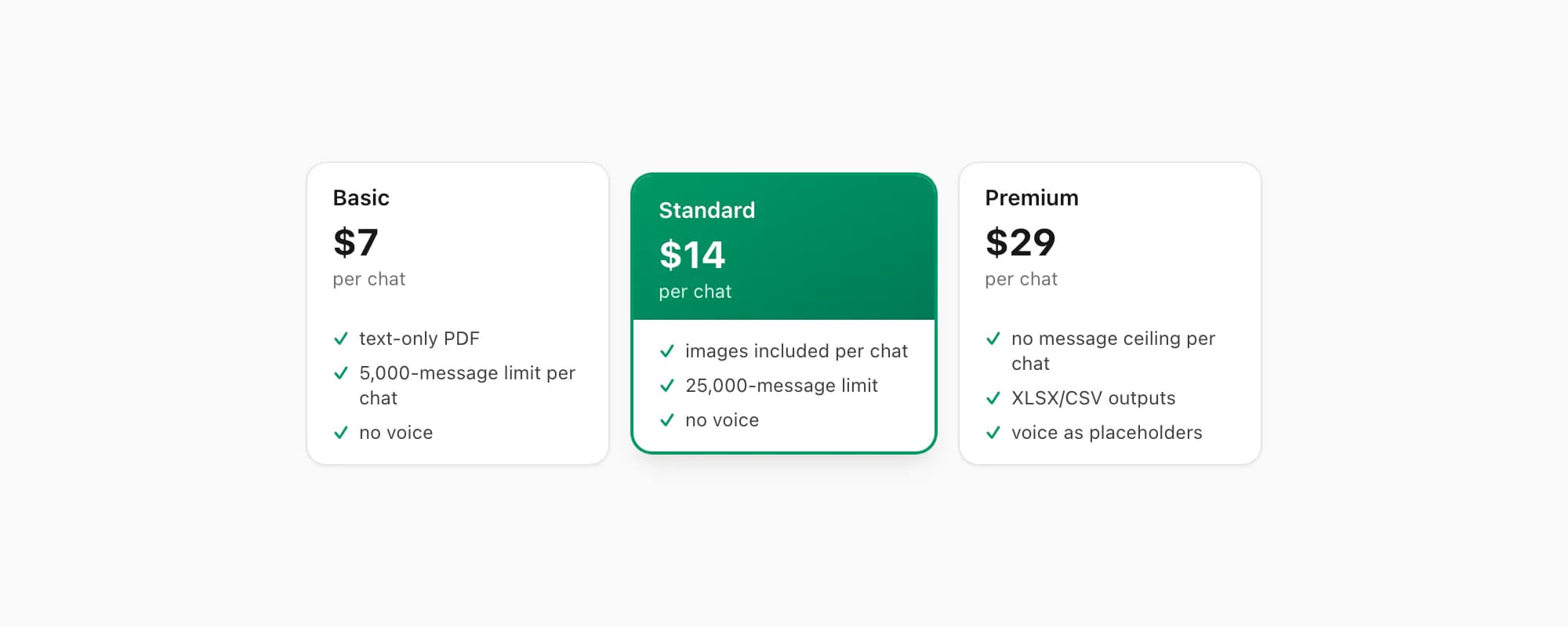
$7 Basic per chat is the entry-level conversion. Text-only PDF, capped at 5,000 messages per chat, no embedded images, no voice transcription. Right when the export is small and you only need the message text in a clean document.
$14 Standard per chat is where most personal exports land. Embedded images appear inline in the PDF (assuming you exported with Including Media), the message ceiling sits at 25,000 per chat, and there is no voice transcription. This tier handles the bulk of exports I see in support.
$29 Premium per chat removes the message ceiling and adds XLSX/CSV outputs alongside the PDF. Voice notes appear as placeholders rather than transcribed text. Right for long-running individual chats, big group threads, or cases where you also want to do data analysis on the conversation in a spreadsheet.
If voice transcription matters, the $49 Premium+Voice per chat tier adds language-aware Nova-3/Scribe v2 transcription with an extended audio cap, so voice notes appear as readable text inside the PDF. The $99 Power User per chat tier adds priority queue processing and bulk uploads — useful if you have a folder of 10 export ZIPs to convert in one session.
Each conversion is a single payment for a single chat. There is no recurring billing on any tier. If you re-export the same chat tomorrow and convert that fresher ZIP, you pay again — but only because each conversion is genuinely separate work, against a different snapshot of the conversation.
Key takeaways
- What is export chat in WhatsApp: the built-in feature that copies one conversation into a ZIP archive holding
_chat.txtplus optional media. - The feature exists because WhatsApp's encryption model keeps chat data inside the app — the export is the official, supported way to get that data out.
- The output is a static snapshot, not a sync or transfer. The ZIP is frozen at the moment of export and never updates afterwards.
- Export chat is not a backup, not a screenshot generator, not a migration tool, and not a notification — it is structurally different from each.
- Use the feature when you need one chat in a portable, readable format. Use the iCloud/Google Drive backup for full-phone restores, and a migration tool for cross-platform transfers.
- The fastest route from ZIP to a readable PDF: drop it into chattopdf.app — the $14 Standard per chat conversion produces a sender-attributed PDF in about 30 seconds.
- For the complete guide to turning the exported ZIP into a formatted PDF — upload steps, tier comparison, and output quality — see the WhatsApp to PDF guide.
FAQ
What is export chat in WhatsApp in plain terms?
It is the built-in feature that copies one conversation from your phone into a ZIP file. The ZIP holds _chat.txt (every message in plain text, line by line, with timestamps and sender names) and optionally a folder of attached photos, voice notes, videos, and documents if you choose Including Media. The feature gives you a portable, readable copy of the chat outside WhatsApp itself.
What is export chat on WhatsApp the same as — a backup or a transfer?
Neither. The iCloud / Google Drive backup is a complete encrypted copy of all your chats meant for restoring on a new phone — you cannot open it or read it directly. A transfer (third-party migration tool) moves chat history between platforms or apps. Export chat is different: it produces a single-chat ZIP holding plain text plus optional media, designed to leave WhatsApp and feed into any tool that can read text and ZIP archives.
What does the export chat WhatsApp meaning come down to?
The export chat WhatsApp meaning, in one sentence: a one-tap menu that writes one conversation into a portable ZIP file on your device, as a static snapshot, without changing the chat or notifying anyone else. The ZIP is plain text plus optional media, the chat stays exactly as it was, and the file is yours to do whatever you want with — store, share, or convert.
Does Export Chat copy my whole WhatsApp account?
No. Each export covers exactly one conversation. There is no "export all" button — to export thirty chats, you tap Export Chat thirty times, once per conversation. The feature also does not copy your contacts, your account settings, your cloud backups, or any chat you are not currently viewing. It is single-chat scope by design.
When should I use Export Chat instead of a screenshot or a backup?
Use Export Chat when you need the chat data in a portable, readable format outside WhatsApp — for a PDF, a court bundle, an HR record, an archive, or a research dataset. Use a screenshot when you only need a small visual reference of one or two messages. Use the iCloud / Google Drive backup when you are restoring your full WhatsApp history on a new phone. The three tools answer different questions, and the export sits in the middle: structured, portable, single-chat.
Does the export update if the chat changes after I tap it?
No. The ZIP is a static snapshot, frozen at the moment you tapped Export Chat. New messages received afterwards are not added. Edits, deletions, and reactions that happen later are not reflected. If you want a more current export, tap Export Chat again — a fresh ZIP captures everything up to the new moment. Each export is independent of every other; old exports remain valid, new ones are separate files.
I'm Paul, the founder of ChatToPDF. I built it after needing a long WhatsApp conversation as a readable PDF for a legal matter. I test and document WhatsApp exports, PDF conversion, voice-note transcription, and the limits people should check before relying on the result.