

Export Chat on WhatsApp turns a single conversation into a ZIP file containing _chat.txt and optional media — it is a one-time snapshot, not a backup or sync. On iPhone, reach it by tapping the chat title at the top; on Android, tap the three-dot menu then More. The ZIP is the source file for further use: upload it to ChatToPDF to produce a sender-attributed PDF in about 30 seconds.
- Action
- Export Chat
- Purpose
- Create a portable snapshot of one conversation
- Can restore into WhatsApp?
- No
- Readable outside WhatsApp?
- Yes, as TXT/ZIP; easier after conversion
- Action
- Cloud backup
- Purpose
- Restore your WhatsApp account and history
- Can restore into WhatsApp?
- Yes, through WhatsApp's restore flow
- Readable outside WhatsApp?
- No — it is not a normal document
- Action
- Chat transfer
- Purpose
- Move an account between supported phones
- Can restore into WhatsApp?
- Yes
- Readable outside WhatsApp?
- No independent archive is created
- Action
- Convert the export
- Purpose
- Turn the snapshot into PDF, XLSX or CSV
- Can restore into WhatsApp?
- No
- Readable outside WhatsApp?
- Yes — designed for reading, filing and sharing
| Action | Purpose | Can restore into WhatsApp? | Readable outside WhatsApp? |
|---|---|---|---|
| Export Chat | Create a portable snapshot of one conversation | No | Yes, as TXT/ZIP; easier after conversion |
| Cloud backup | Restore your WhatsApp account and history | Yes, through WhatsApp's restore flow | No — it is not a normal document |
| Chat transfer | Move an account between supported phones | Yes | No independent archive is created |
| Convert the export | Turn the snapshot into PDF, XLSX or CSV | No | Yes — designed for reading, filing and sharing |
Already have the file and only need to inspect it? Open it in the WhatsApp export chat viewer. Convert it only when you need a durable PDF or spreadsheet rather than a browser reading view.
What "export chat" on WhatsApp actually does
I get this question more than any other in my support inbox, so let me answer it plainly. The export chat WhatsApp menu reads the conversation that lives on your phone right now, writes every message line-by-line into a plain text file called _chat.txt, and packages that file into a ZIP. If you choose to include media, the ZIP also bundles the photos, voice notes, videos, and documents attached to the chat.
That is the whole feature. It is not a sync, not a live link to WhatsApp's servers, and not a way to restore the chat into a different account. The export chat WhatsApp meaning, in one sentence: a one-time, local snapshot of one conversation in a portable file format.
A few things follow from that definition. The ZIP is yours — once it lands on your device, WhatsApp does not touch it again. The file format is plain text wrapped in a standard ZIP archive, so any computer, phone, or browser can open it. And the snapshot is frozen at the moment you tapped Export Chat. New messages that arrive after the export are not in the file.
There is one quiet limitation worth flagging up front. Very long exports can begin later than expected, and WhatsApp does not provide a date-range selector. Users commonly report a text-only window near 40,000 messages and a smaller media-inclusive window, but WhatsApp does not publish a fixed cap. Inspect the first timestamp in _chat.txt; the deeper WhatsApp chat export pillar explains the check.
If you are researching platform scale rather than the mechanics of one file, use the sourced WhatsApp statistics reference instead.
Where to find Export Chat on iPhone, Android, and Web
The menu lives in slightly different places depending on which device you are exporting from. The label is also subtly different — iOS calls it "Export Chat" with a capital C, Android calls it "Export chat" lowercase. The behaviour is identical.
On iPhone. Open the conversation. Tap the contact name (for an individual chat) or the group name (for a group) at the very top of the screen. That opens the contact or group info sheet. Scroll past participants, the media gallery, links, and the various toggle settings. Near the bottom of the sheet you will see Export Chat. Tap it.
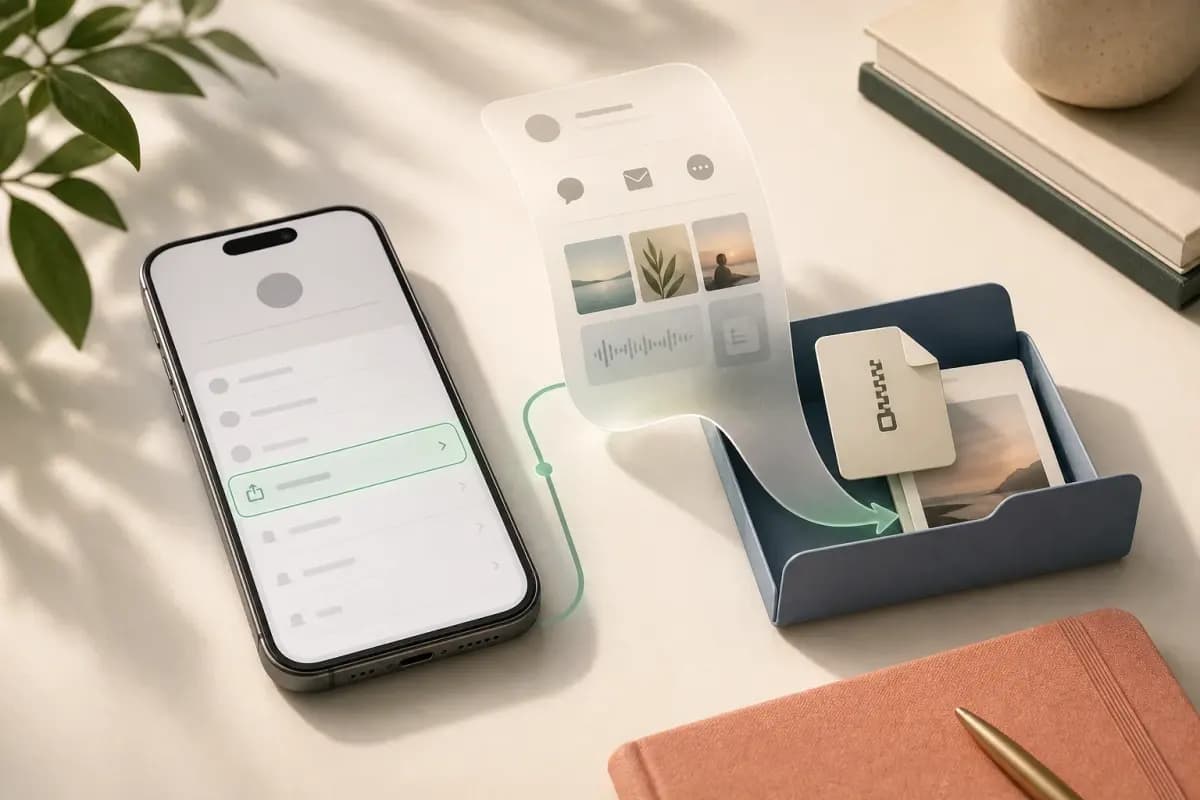
On Android. Open the conversation. Tap the three-dot overflow menu (⋮) in the top-right corner. Tap More. Tap Export chat. The exact path varies slightly across Android skins — Samsung One UI sometimes labels the parent menu "Settings", Xiaomi MIUI reorders the More submenu items — but every variant routes through the overflow menu in the chat header. There is no Android skin that hides the feature entirely.

On WhatsApp Web and WhatsApp Desktop. This is where most people get tripped up. WhatsApp Web and the standalone Desktop app are mirrors of your phone's connection. They display your chats on a computer screen, but the data lives on your phone. As of 2026, WhatsApp Desktop has a partial "Download chat history" rollout for some accounts, but it is not universally available. If you do not see a download option in WhatsApp Desktop, the answer is to export on your phone and move the ZIP to your computer afterwards. Apple's iCloud Drive support page covers the AirDrop and iCloud Drive paths if you want to ship the ZIP from iPhone to Mac without a cable.
After you tap Export Chat (or Export chat), WhatsApp asks one question: Without Media or Including Media. Pick Without Media if you want a small, fast file. Pick Including Media if you want the photos and voice notes bundled in. WhatsApp then shows a share sheet — that is where you choose where the ZIP lands.
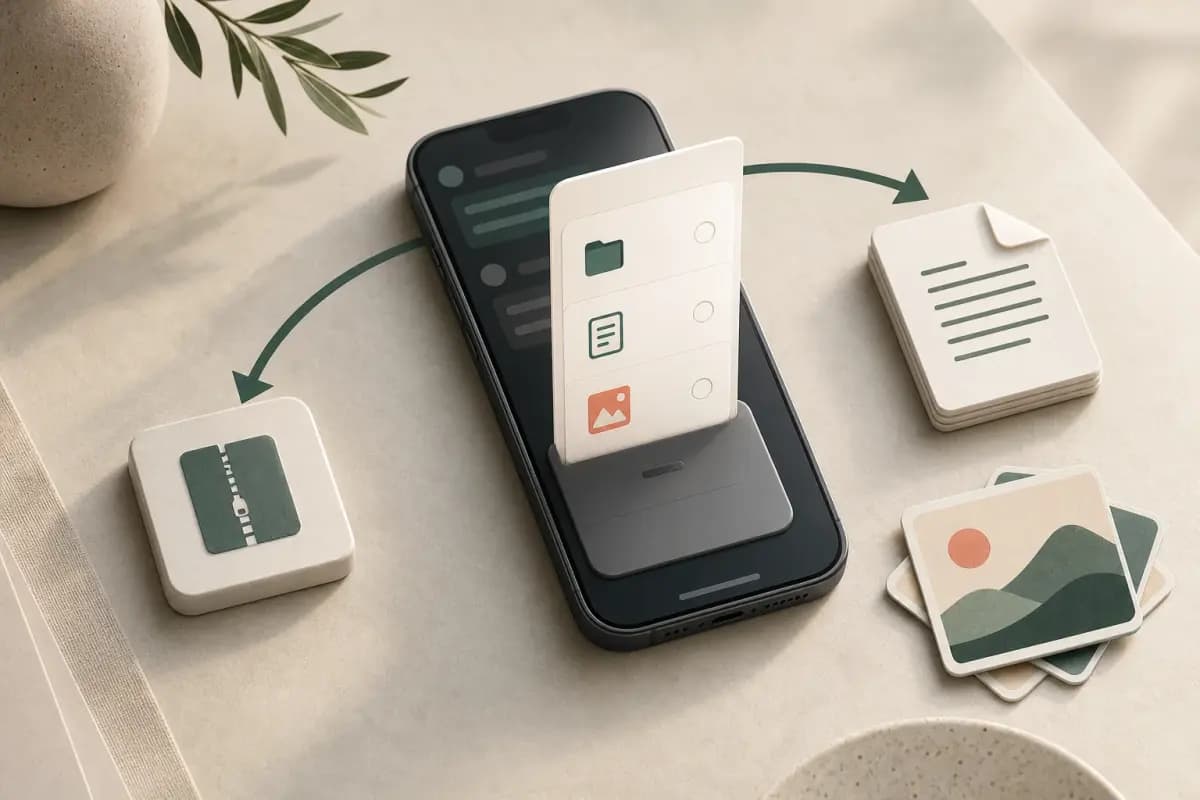
A practical note on iPhone specifically. The share sheet has a tempting Quick Look preview path that looks like a save action but is not. If you tap the ZIP attachment in Files without saving it explicitly, the file lands in a temporary cache folder that the upload picker on chattopdf.app cannot reach. Tap Save to Files, choose On My iPhone → Downloads (or any folder you will remember), and the ZIP is then findable by every app on your phone. This one detail alone resolves about a third of the support tickets I see in any given week.
What is inside the ZIP after you export
Unzip the file and you find two things: _chat.txt and (if you chose Including Media) a folder of attached files.
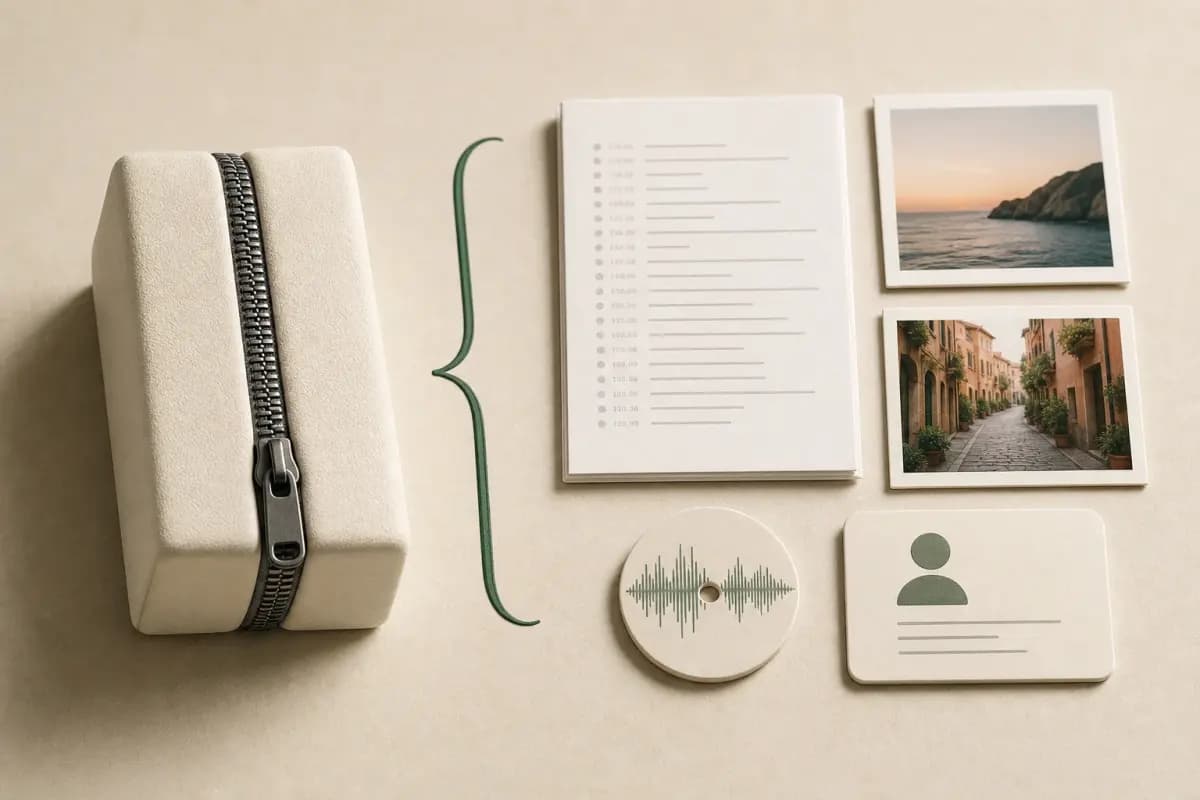
The _chat.txt file is plain UTF-8 text. One message per line. Each line starts with a date-time bracket, then the sender name, then a colon, then the message content. Photos and voice notes appear either as filename references (Including Media) or as <Media omitted> placeholders (Without Media). System events — group adds, encryption-key changes, "you joined the group" notices — appear as lines with no sender name.
The media folder, when present, holds files named in WhatsApp's own convention: IMG-YYYYMMDD-WA####.jpg for images, PTT-YYYYMMDD-WA####.opus for voice notes (PTT stands for push-to-talk), VID-YYYYMMDD-WA####.mp4 for videos, DOC-YYYYMMDD-WA####.pdf (or other extension) for documents. The naming convention matters because the parser that turns the ZIP into a PDF uses these patterns to match <Media omitted> lines back to their files.
Including Media creates a much larger archive and commonly yields a smaller history window than a text-only export. Around 10,000 media-inclusive messages and 40,000 text-only messages are widely reported rules of thumb, not official guarantees. Inspect the first timestamp and the attachment filenames in your own ZIP. The WhatsApp FAQ on exports describes the mechanics but does not promise a fixed ceiling.
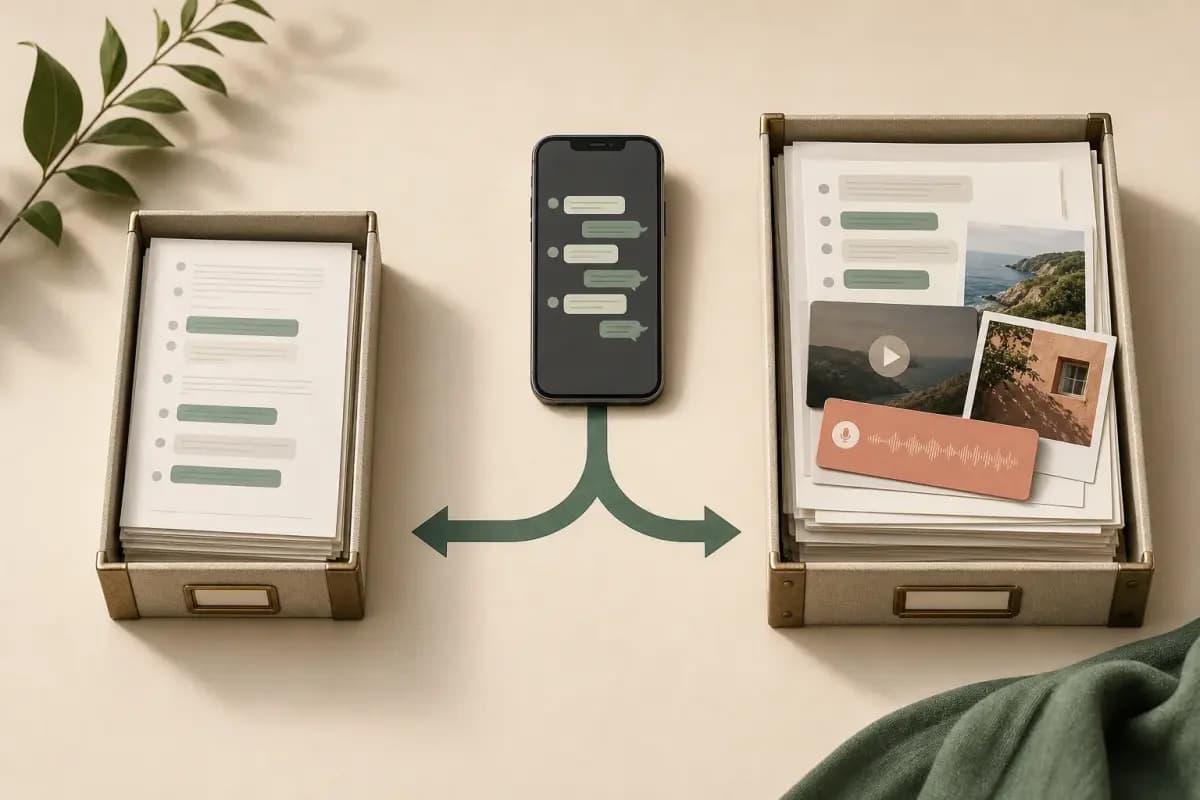
The fact that _chat.txt is plain text is the reason the export chat WhatsApp feature is genuinely useful. Plain text means any tool can read it. A parser written in any programming language can produce CSV rows, sender-attributed PDFs, search indexes, sentiment analyses — whatever you need.
Common misconceptions (contacts, calls, group chats, all-at-once)
I see the same five misconceptions over and over. Listing them up front saves a lot of confusion.

It does not export your contacts. The ZIP holds messages, not your address book. Contact names that already appear in messages are preserved as sender labels. Numbers without saved names appear as raw phone numbers — +27 82 555 0100 rather than a name. To export contacts, you need WhatsApp's separate contact-share feature, which is a different menu entirely.
It does not back up your chat to WhatsApp servers. The ZIP is a local file on your device. It does not touch WhatsApp's cloud. WhatsApp's actual backup feature — the iCloud or Google Drive backup that runs on a schedule — is separate, and you cannot extract individual chats from a backup file the way you can from an export ZIP.
It does not export every chat in one go. Each export produces one ZIP for one chat. There is no "export all" button. If you want to export 30 conversations, you tap Export Chat 30 times, once per conversation. For people who need this regularly, the bulk import flow on the Power User tier accepts multiple ZIPs in one upload session — but you still have to tap through 30 export menus on the phone first.
It does not export calls or vanished disappearing messages. Voice and video calls are not in the ZIP — only the chat-history events that record them ("Missed voice call" lines). Disappearing messages that have already vanished from your view are not in the file either; only the ones still visible at export time make it through.
It does not output a PDF directly. This is the one I find most worth correcting. The export chat WhatsApp feature produces a ZIP, and the ZIP holds plain text. If you want a sender-attributed, readable, shareable PDF, you need a separate tool that reads _chat.txt and renders it. That tool is what I built.
For the formal definition — the kind you might cite in a help-desk ticket — see my companion piece What is export chat in WhatsApp. For the longer-form explanation of the same feature in plain language, see export chat in WhatsApp meaning.
Turning the export chat ZIP into something readable
Once the ZIP is on your phone, computer, or in your cloud drive, the question is what to do with it. Reading _chat.txt directly is unpleasant — every message is one cramped line, timestamps clutter the view, and media references look like file system artifacts. Most people want a document, not a log file.

The five-step flow that turns the ZIP into a readable PDF is short.
Export the chat from WhatsApp
On iPhone: tap the chat title at the top, scroll down, tap Export Chat. On Android: tap ⋮, tap More, tap Export chat. Pick Without Media for speed or Including Media for photos and voice notes.
Save the ZIP somewhere findable
Use Save to Files on iPhone, or your file manager on Android. Avoid the Quick Look preview path on iOS — it looks like a save but lands the ZIP in a temporary folder.
Drag the ZIP into chattopdf.app
Drop the ZIP onto the upload zone. The parser reads
_chat.txtand matches<Media omitted>lines to the media folder if you chose Including Media.Pick a tier and pay per chat
$7 Basic per chat for a text-only PDF up to 5,000 messages. $14 Standard per chat for embedded images and 25,000 messages. $29 Premium per chat for no message ceiling and XLSX/CSV exports.
Download the PDF
The PDF is sender-attributed (left/right bubbles), timestamped, and paginated. Download from the success screen or from the email link sent within seconds.
The reason the flow is fast is that _chat.txt is already structured. The parser does not have to scrape a screen, intercept a network call, or guess at message boundaries. WhatsApp formats every line consistently, so the work of turning it into a document is mostly typesetting.
Pricing guidance — which tier fits your chat
The tier you pick depends on the chat itself, not on what you are willing to spend. Let me work through the practical mapping.
$7 Basic per chat. Text-only PDF, capped at 5,000 messages per chat. Right for short individual conversations — a few months of texting with one person, a brief group chat for a one-off project. No voice transcription, no embedded images. The PDF reads cleanly and is enough for most archival cases.
$14 Standard per chat. Embedded images, capped at 25,000 messages per chat. This is the tier that fits roughly 70% of personal use cases I see. Images appear inline (assuming you exported with Including Media), the message ceiling covers a couple of years of moderate daily messaging, and there is no voice transcription.
$29 Premium per chat. No message ceiling per chat conversion, XLSX and CSV outputs in addition to PDF. Voice notes appear as placeholders rather than transcribed text. Right for very long-running individual chats, big group chats with active history, or cases where you want to do data analysis on the conversation in a spreadsheet alongside the readable PDF.
If you need voice notes transcribed into the PDF, the $49 Premium+Voice per chat tier adds language-aware Nova-3/Scribe v2 transcription with an extended audio cap. The $99 Power User per chat tier adds priority queue processing and bulk uploads for handling multiple chats in one session — useful if you have a folder of 10 export ZIPs to convert.
A small note on what "per chat" means. Each conversion is a single payment for a single chat. There is no recurring billing on any tier. If you export the same chat twice, you pay twice — but only because each conversion is genuinely separate work.
Key takeaways
- Export chat WhatsApp is a one-tap menu that produces a local ZIP holding
_chat.txtand optional media — a snapshot, not a backup or sync. - On iPhone the menu lives under the chat title at the top; on Android it lives under ⋮ → More → Export chat.
- The ZIP caps at 40,000 messages per chat; Including Media bundles attachments only for the most-recent ~10,000 messages.
- The feature does not export contacts, calls, vanished disappearing messages, or every chat at once — it is one chat per tap.
- The ZIP does not produce a PDF directly. A separate parser reads
_chat.txtand renders it as a sender-attributed document. - The fastest route from ZIP to readable PDF: drag into chattopdf.app, pay $14 Standard per chat for embedded images, download in about 30 seconds.
- For a deeper look at what the finished PDF contains, how voice notes are handled, and how the tiers differ, the full WhatsApp-to-PDF walkthrough covers all of it.
FAQ
Can you export WhatsApp chat to PDF directly from the menu?
No. The export chat WhatsApp menu produces a ZIP file holding _chat.txt and optional media — never a PDF. To get a readable PDF, you upload the ZIP to a converter. On chattopdf.app, the $14 Standard per chat conversion produces a sender-attributed PDF with embedded images in about 30 seconds.
What does export chat WhatsApp actually mean?
The export chat WhatsApp meaning is straightforward: a one-time local snapshot of a single conversation, written to a ZIP file on your device. The ZIP holds _chat.txt (every message in plain text) and, if you chose Including Media, a folder of the attached photos, voice notes, videos, and documents. It is not a backup, not a sync, and not a link to WhatsApp's servers.
Can you export WhatsApp chat from a computer using WhatsApp Web?
Mostly no. WhatsApp Web mirrors your phone's connection — it shows the chats but does not export them. WhatsApp Desktop has a partial "Download chat history" rollout for some accounts as of 2026, but it is not universal. The reliable path is to export on your phone (Without Media or Including Media), then move the ZIP to your computer via AirDrop, USB cable, Google Drive, or iCloud Drive.
Does the export include group chats and group participants?
The export includes every message in the group from the date you joined onwards, attributed to the sender's saved name (or phone number if not saved). It does not include the group's history before you joined — that data was never on your device. System messages like "Alice added Bob" appear in _chat.txt as lines with no sender name. Save unsaved participants' contacts before exporting if you want names rather than numbers in the resulting PDF.
Why does Including Media miss some of my older photos?
WhatsApp applies an undocumented media-window cap of roughly the most-recent 10,000 messages. Media files are bundled into the ZIP only for that window. Older messages keep their <Media omitted> placeholders even though you chose Including Media. The 40,000-message overall export ceiling also applies — chats longer than that lose their oldest history entirely. Neither limit appears in WhatsApp's UI.
Is it safe to upload my export chat ZIP to a converter?
Depends on the converter. Generic AI chatbots and unfamiliar online ZIP openers carry training-data and retention risk. chattopdf.app deletes uploaded ZIPs within 24 hours, does not train on uploads, and processes the file on a single server with no third-party data sharing. If you are dealing with sensitive content, prefer a converter with a clear deletion policy and avoid pasting chat content into general-purpose chatbots.
I'm Paul, the founder of ChatToPDF. I built it after needing a long WhatsApp conversation as a readable PDF for a legal matter. I test and document WhatsApp exports, PDF conversion, voice-note transcription, and the limits people should check before relying on the result.
If you chose Including Media, the archive may contain .opus, .ogg or related voice-note files beside _chat.txt. The transcript file tells a converter where each recording belongs. That is what makes a whole-chat audio-to-text conversion different from uploading anonymous clips one by one: the sender, date and surrounding messages can stay attached to the recognized speech.