
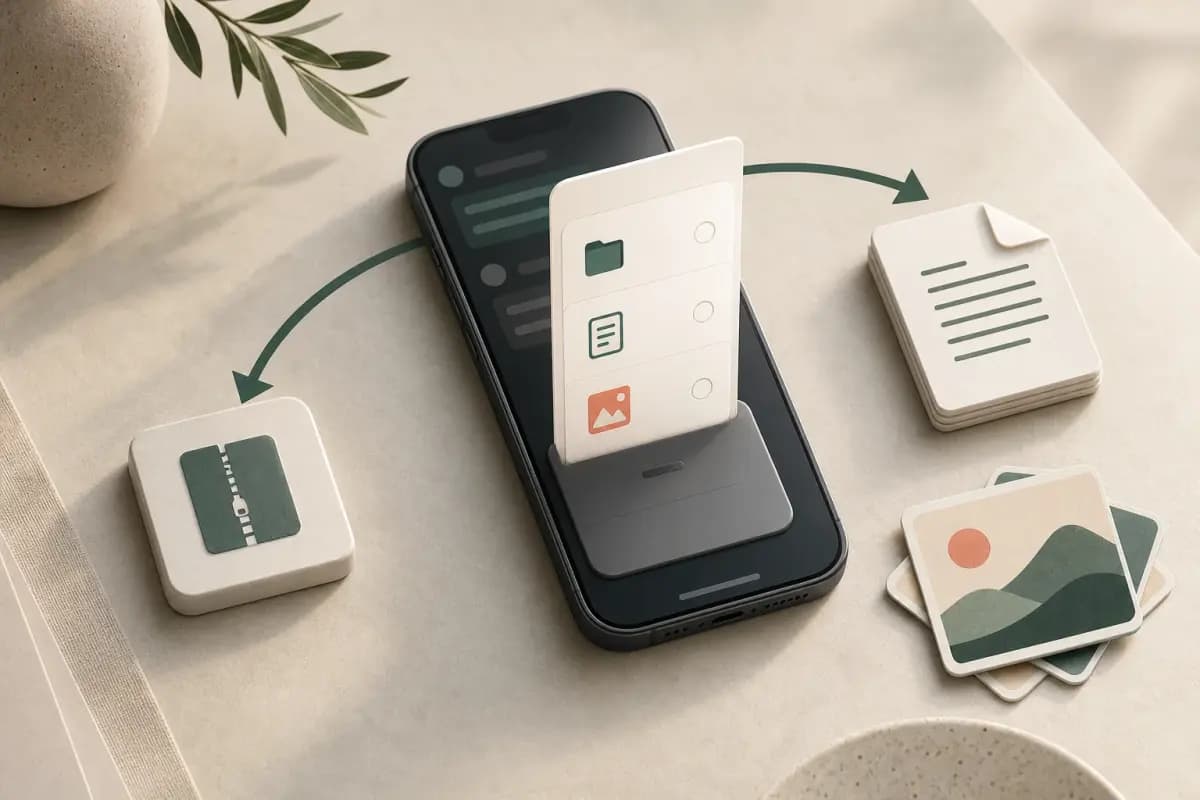
- WhatsApp option
- Without Media
- Includes
- _chat.txt with messages, senders and timestamps
- Leaves out
- Photos, video, documents and voice-note files
- Choose it when
- You need the smallest, fastest text record
- WhatsApp option
- Including Media
- Includes
- _chat.txt plus the attachments WhatsApp includes in the ZIP
- Leaves out
- Anything already deleted or omitted by WhatsApp
- Choose it when
- Photos or voice notes matter to the final record
- WhatsApp option
- Cloud backup
- Includes
- App data intended for restoring WhatsApp
- Leaves out
- A portable document you can read or share
- Choose it when
- You are moving or restoring the account, not creating an archive
| WhatsApp option | Includes | Leaves out | Choose it when |
|---|---|---|---|
| Without Media | _chat.txt with messages, senders and timestamps | Photos, video, documents and voice-note files | You need the smallest, fastest text record |
| Including Media | _chat.txt plus the attachments WhatsApp includes in the ZIP | Anything already deleted or omitted by WhatsApp | Photos or voice notes matter to the final record |
| Cloud backup | App data intended for restoring WhatsApp | A portable document you can read or share | You are moving or restoring the account, not creating an archive |
If your immediate goal is simply to open and read the exported file, use the WhatsApp export chat viewer before choosing a paid document format. It targets the high-intent "export chat reader online" workflow directly and lets you verify the transcript structure first.
For sourced market context rather than export instructions, the separate WhatsApp statistics page tracks usage, message volume and major countries.
8-minute Android walkthrough — the three taps that export a chat, and the three traps that catch people.
What WhatsApp Export Chat actually does (and what it doesn't)
I see this confused constantly in support tickets, Reddit threads, and WhatsApp help forums. People assume "export" means backup. It does not. WhatsApp's Export Chat feature produces a snapshot — a text file of the conversation as it exists right now, wrapped in a ZIP archive. It is not a sync, not a live connection to WhatsApp's servers, and not a way to restore the chat into a different WhatsApp account.
What it does: it reads the exportable chat history on the device, writes the messages included in that export line-by-line into a plain text file called _chat.txt, and packages that file with the attachments WhatsApp includes when you choose Including Media. The process takes seconds for short chats and can take longer for large, media-heavy ones.
What it doesn't do: it does not export calls, recover disappearing messages that already vanished, or retrieve history from a device you no longer own. Very long exports can also begin later than expected. Treat the widely repeated 40,000 figure as an observed rule of thumb, not a guarantee, and verify the actual file.
The output file is a standard ZIP archive. You can open it with any file manager, any decompression app, or any browser that handles ZIP files. The contents are plain text and media files — nothing proprietary, nothing encrypted.
Here is the practical upshot: if you want a portable, human-readable record of a WhatsApp conversation, the Export Chat menu is your starting point. What you do with the ZIP after that depends on what you actually need — a PDF, a spreadsheet, a backup, or just a local archive.

Without Media vs Including Media — when each one is the right call
WhatsApp offers two export modes. The choice you make here affects file size, export speed, and what you can do with the result.
Without Media exports _chat.txt only. Messages included in that export appear in plain text, with photo and video references shown as <Media omitted> placeholders. Voice notes, stickers, and documents are also replaced by placeholders. The resulting file is usually much smaller than a media-inclusive export.
Including Media bundles _chat.txt with the attachments WhatsApp makes available for that export, such as images, voice notes, and documents. Deleted, unavailable, or truncated media may still be absent, and large exports can contain <Media omitted> placeholders even when you chose Including Media. Check the ZIP contents and compare its dates with the history you expected instead of assuming the media set is complete.
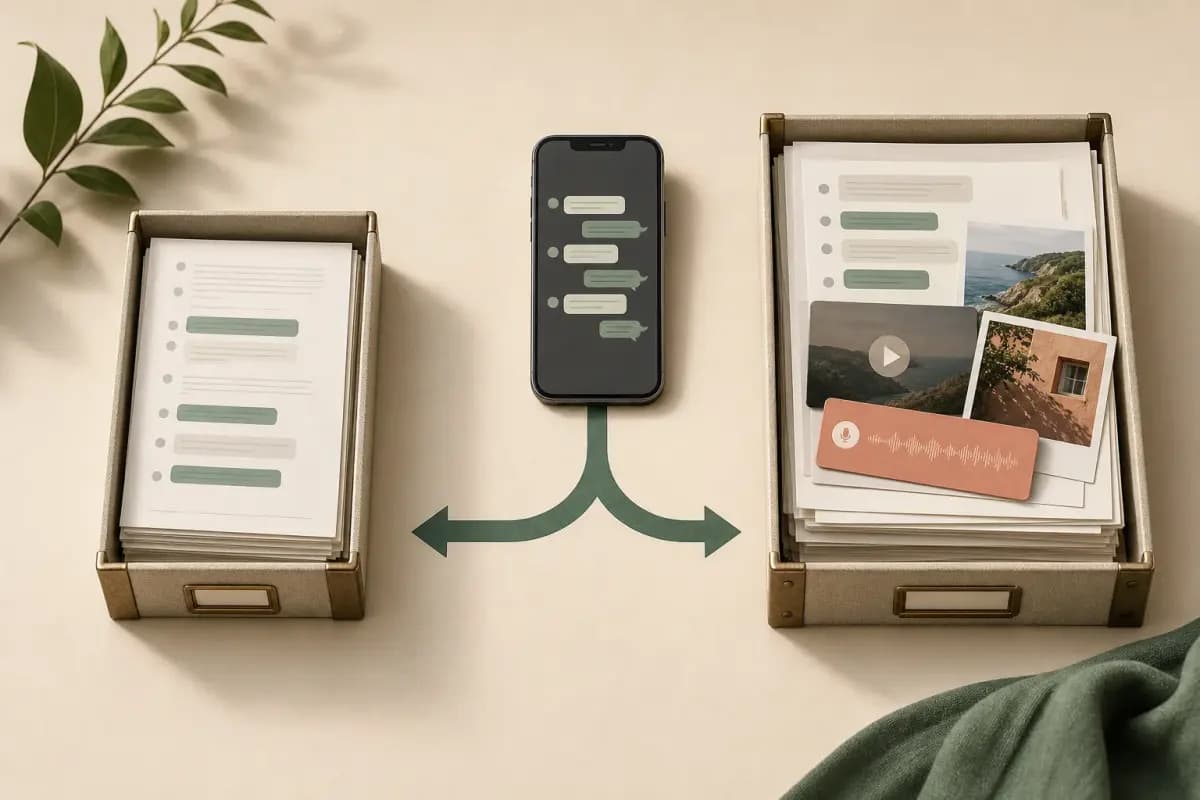
Which should you choose? I use Without Media as my default when the goal is documentation, archiving, or legal evidence. The text record is what matters in those cases, and the smaller file is faster to handle. I switch to Including Media when photos and voice notes are part of what needs to be preserved — a family chat where images have sentimental value, a business conversation where a shared document is relevant to a dispute.
One practical note: if you are converting to PDF using ChatToPDF, supported images that are present in the export can appear inline rather than as <Media omitted> placeholders. The $14 Standard per chat conversion includes embedded photos. Voice-note transcription starts at the $49 Premium+Voice tier — see my WhatsApp audio transcription guide for detail on language coverage and recording-quality caveats.
One situation where Including Media is always the right call: preserving a conversation with someone who has died, where the voice notes are usually what matters most. That situation has its own gentle guide.
The commonly observed export-history limit
Users repeatedly observe that text-only exports cover roughly the most-recent 40,000 messages, while media-inclusive exports can cover a smaller history. WhatsApp does not publish a precise limit in its current help material, so app version, device, available storage and media volume can change the practical result. The safe test is simple: open _chat.txt, inspect its first timestamp and compare that date with the history you expected.

How do you know if you hit the ceiling? Open the exported _chat.txt and check the earliest timestamp. If it is more recent than you expect — if a chat you know started in 2019 only shows messages from 2022 — you hit the limit.
The bad news is that there is no simple way to ask WhatsApp's Export Chat menu for an older slice. You cannot set a date range or request only messages from a particular year. Third-party database tools may expose different history, but their coverage depends on the device, local backup, encryption, and tool rather than a guaranteed export depth.
For many personal use cases, the available export will be enough. Very active group chats and long-running individual conversations are more likely to begin later than expected, so verify the first timestamp rather than relying on a repeated fixed-limit figure.
If you need an ongoing archive, export at regular intervals so each new file overlaps with the previous one. That is not a perfect reconstruction method, but it reduces the risk of discovering later that an older portion was not included.
Inside the ZIP — what's in _chat.txt and how it's formatted
Unzip a WhatsApp export and you find two things: the _chat.txt file and, if you chose Including Media, a folder of attached files.
The _chat.txt file is plain UTF-8 text. Each message is one line. The format looks like this:
[2024-03-15, 14:32:18] John Doe: Hello there
[2024-03-15, 14:33:02] Jane Smith: Hey! How are you?
[2024-03-15, 14:33:45] John Doe: IMG-20240315-WA0001.jpg (file attached)

The brackets, the date format, the separator between date and time — all of these vary by locale. US-locale exports use M/D/YY, H:MM AM/PM format. ISO-locale exports use YYYY-MM-DD, HH:MM:SS. European exports often use DD/MM/YYYY, HH:MM. A parser that handles only one date format silently misreads every message in a differently-formatted file, which is how you end up with a PDF showing incorrect timestamps or merged messages.
Media file names follow WhatsApp's own naming convention: IMG-YYYYMMDD-WA####.jpg for images, PTT-YYYYMMDD-WA####.opus for voice notes (PTT stands for Push-to-Talk), VID-YYYYMMDD-WA####.mp4 for videos, and DOC-YYYYMMDD-WA####.pdf for documents. Each referenced file appears in both the _chat.txt line and as an actual file in the ZIP. If a media file is missing from the ZIP — because you chose Without Media, or because it fell outside the media window — the _chat.txt line shows <Media omitted> in place of the file reference.
System messages — events like "John added Jane to the group" or "The encryption key for this chat changed" — appear as lines with no sender name. They look like this:
[2024-03-15, 09:00:01] Messages and calls are end-to-end encrypted. No one outside of this chat, not even WhatsApp, can read or listen to them. Tap to learn more.
A well-built parser detects these and renders them differently from regular messages. ChatToPDF handles them as formatted system notices rather than treating them as messages from an unnamed sender.
Group chats: the export quirks (joined messages, anonymised contacts, system messages)
Group chat exports follow the same format as individual chats, but with a few quirks that consistently catch people off guard.
Anonymised contacts. If a participant has not saved their name in your contacts — or if their number is not in your phonebook — they appear as a phone number instead of a name. A line like [2024-03-15, 10:22:04] +27 82 555 1234: Hello everyone is normal in a group chat export with participants you do not have saved. The PDF output from ChatToPDF preserves this number as the sender attribution; it cannot invent a name that is not in the file.
System messages. Group chats generate more system messages than individual ones: additions, removals, subject changes, admin assignments. These clutter the export if left unhandled. In _chat.txt they are distinguishable from regular messages because they have no sender name — the line starts with the timestamp bracket and goes directly to the event text. Parsers that do not handle this end up attributing system events to the previous sender, producing confusing output.
Join-date cutoff. This is the one I see cause the most confusion. Your export only shows messages from the date you joined the group. If you joined a group in March 2023 and the group started in January 2020, your exported _chat.txt starts at March 2023. The history before your join date was never on your device and cannot be exported by you. If you need the full history, you need the export from someone who has been in the group since the beginning.
Forwarded messages. Forwarded messages appear in _chat.txt with a Forwarded tag prepended to the content, sometimes followed by the original content. This is a special Unicode character (the left-to-right mark, U+200E), not a regular space. Parsers that do not strip it correctly render forwarded messages with a stray character artifact at the start.
For a full walk-through of how the parser handles these cases — and how they affect the PDF output — see my WhatsApp to PDF guide. If you are exporting a group chat that originally lived on Android and now need it on iPhone, my Android to iPhone transfer guide covers the full handoff.
Exporting on Android (every Android skin has a different menu)
The core path is the same across all Android versions: open the chat, find a menu with "Export Chat," tap it. The specific route to get there changes depending on your Android skin and WhatsApp version.
Stock Android and Pixel: Open the chat. Tap the three-dot menu icon (⋮) in the top-right corner. Tap More. Tap Export Chat. WhatsApp presents the Without Media / Including Media choice, then a share sheet. Tap Save to Files (or any cloud option you prefer).
Samsung One UI: The three-dot menu is present, but the label may say "Settings" on some One UI versions rather than going straight to "More." If you see Settings, tap it and look for Export Chat inside. Alternatively, long-press the chat title in the chat list — Samsung sometimes exposes Export Chat in the context menu at that level.
Xiaomi MIUI / HyperOS: The three-dot menu is present. The path is ⋮ → More → Export Chat. Some MIUI versions reorder the "More" submenu items; scroll down if Export Chat is not visible immediately.
OnePlus OxygenOS: Same as stock Android. ⋮ → More → Export Chat. No known deviations from the standard path as of OxygenOS 14.
Motorola and Nokia (close to stock): Follow the stock Android path. These manufacturers make minimal changes to the Android shell.

After tapping Export Chat and choosing your media option, WhatsApp shows a share sheet. The options visible depend on what apps you have installed. For moving the file off your Android without a cable, the most reliable options are:
- Save to Files (if you have a file manager installed) — saves to
Internal storage/Downloads/or equivalent - Drive — saves to your Google Drive, where you can download it from any device
- Email to yourself — works, but be aware that large ZIPs may be blocked by email attachment limits
The exported file name follows the pattern WhatsApp Chat - [Contact Name].zip or WhatsApp Chat with [Contact Name].zip depending on your WhatsApp version.
Exporting on iPhone
On iPhone the menu path is slightly different from Android. You navigate to it through the contact sheet rather than a three-dot overflow menu.
Open the chat you want to export. Tap the contact name or group name at the very top of the screen — this opens the contact or group info sheet. Scroll down past participants, media gallery, links, and other settings. Near the bottom you will see Export Chat. Tap it.
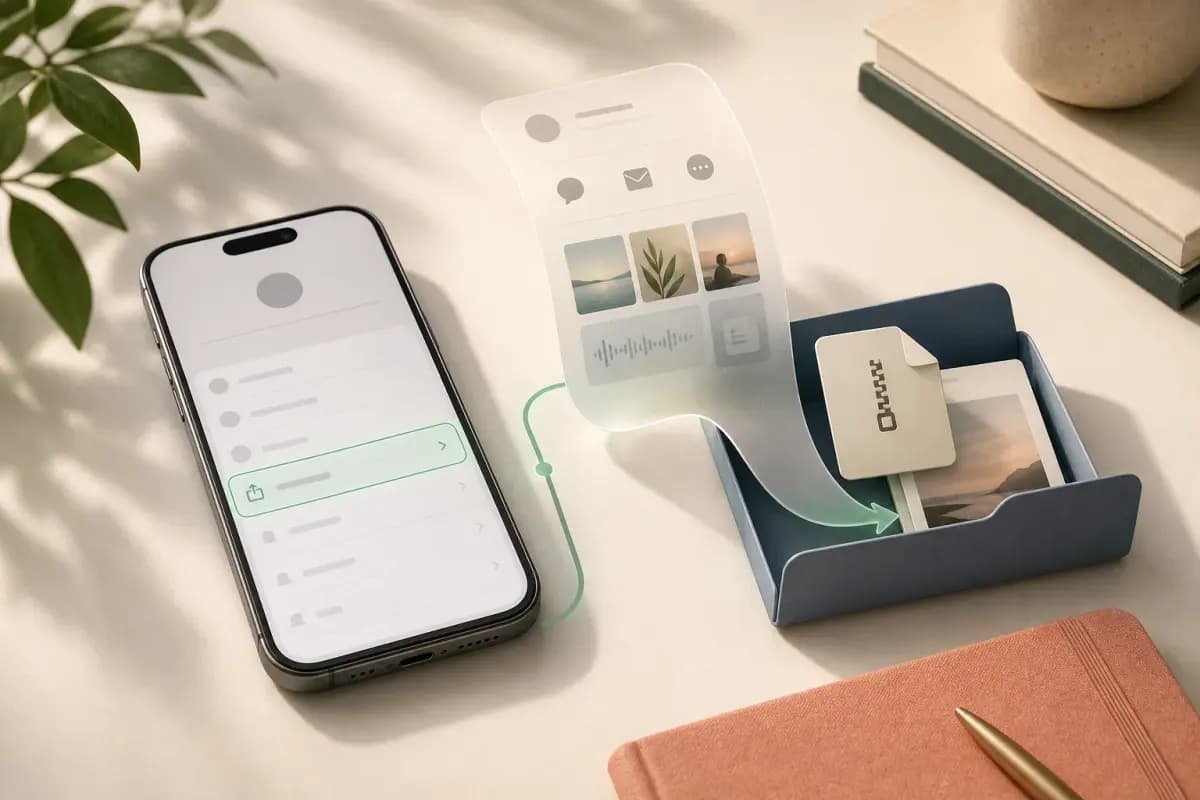
WhatsApp for iOS then shows the same two choices: Without Media or Including Media. After you select one, WhatsApp prepares the ZIP and hands you an iOS share sheet. The share sheet options you see depend on your installed apps and iCloud configuration.
For keeping the file on your iPhone: tap Save to Files and choose a location you will remember. "On My iPhone → Downloads" is a good default. Avoid the Quick Look preview path — if you tap the ZIP attachment in Files without saving it first, you may see the contents but the file is only in a temporary location that the browser's file picker cannot reach.
For moving the ZIP to a Mac: AirDrop is the fastest option. Tap the share icon, tap AirDrop, select your Mac. The ZIP appears in your Mac's Downloads folder. Alternatively, saving to iCloud Drive syncs it to your Mac automatically if iCloud Drive is enabled.
For transferring to an Android or Windows device: save to iCloud Drive or email it to yourself. iCloud.com is accessible from any browser, so you can download from there.
One thing worth knowing about iPhone exports specifically: WhatsApp on iOS tends to include more complete media in the Including Media export than WhatsApp on Android, at least in my testing. The Android media window seems to cap earlier than iOS does on equivalent chats. If you have the option to export from either device, prefer iPhone for Including Media exports when full photo coverage matters.
Exporting to your computer — the three honest options
There is a persistent myth that WhatsApp Web or WhatsApp Desktop lets you export chats directly from your computer. It does not. WhatsApp Web is a mirror of your phone's connection — it displays your chats on a computer screen, but the data lives on your phone.
Video: the mirror-vs-file distinction, the Android and iPhone export flows, and the zip-to-PDF conversion — chapters jump to each step.
Here are the three options that actually work.
Option 1: Export on your phone, transfer the ZIP. This is the most reliable path. Export the chat on your phone using the steps above (Android or iPhone), then move the ZIP to your computer. On iPhone, AirDrop or iCloud Drive. On Android, USB cable drag-and-drop, Google Drive, or email. This approach works on every device, every OS version, and does not depend on any third-party software.
Option 2: WhatsApp Desktop's limited download feature. In 2024, WhatsApp added a chat history download option to WhatsApp Desktop on Windows and Mac for some accounts. It is not available to everyone — it appears to be a staged rollout — and it produces the same ZIP format as the phone export. If you see a "Download chat history" option in WhatsApp Desktop (typically under the three-dot menu in a chat), it works the same way. If you do not see it, you are not in the rollout and Option 1 is your path.
Option 3: Third-party backup tools. Tools like Backup Trans, iMazing (for iPhone), or Android Backup Extractor can access WhatsApp data through device backups and may offer date-range filtering or more history and media than the in-app export. Results depend on the device, backup, encryption, and tool. These tools require a desktop app, a USB connection, and in some cases root access or a local encrypted backup.
WhatsApp's own FAQ page covers the export feature in general terms but does not publish a fixed contractual message or media-history limit. Verify the file you actually receive.
Excel and CSV exports (and why most people actually want a PDF)
WhatsApp does not natively export to Excel or CSV. When people ask for this, what they actually want is _chat.txt transformed into structured rows — sender in one column, timestamp in another, message text in a third. That transformation requires a parser. ChatToPDF supports both PDF and CSV output from the same ZIP upload.
Why you might want CSV/Excel: If your goal is analysis — counting messages per sender, calculating response times, doing sentiment scoring, building a frequency chart — structured rows are the right format. You can import CSV into Excel, Google Sheets, or any data tool. You can sort by sender, filter by date range, run formulas. The structure that makes PDFs readable (chronological flow, visual bubbles, timestamps as prose) makes them poor inputs for analysis.
Why most people actually want PDF: The PDF output from ChatToPDF reads like a document. Every message has a sender name, a timestamp, and the message content in order. You can scroll through it the way you would read a printed conversation. You can share it with someone who has never heard of WhatsApp and they will understand it immediately. You can attach it to an email, upload it to a legal case file, or print it. PDFs are universally readable; CSV files require a spreadsheet application to make sense.
I built ChatToPDF with PDF as the primary output because that is what the overwhelming majority of people want when they say "I need to save this conversation." If you need CSV, it is available — but I would ask yourself first: what are you actually going to do with that spreadsheet? If the answer is "read through the conversation" or "share it," you want PDF. If the answer is "count how many times this person said X" or "build a chart of message frequency by hour," you want CSV.
For the specific case of exporting WhatsApp to a format compatible with Excel, the CSV download button on ChatToPDF produces a three-column file: timestamp, sender, message. Import that into Excel and use Data → Text to Columns if any values contain commas.
Privacy-safe export workflow (what NOT to upload anywhere)
An exported WhatsApp chat contains private conversation data — often including names, phone numbers, locations, photos, and the full text of personal communications. The moment you upload that ZIP to a third-party service, you are trusting that service with all of it.

Here is what I look for before I upload any chat export anywhere, and what I recommend you check.
Do not upload to: Free unnamed converters with no privacy policy, services whose terms say "we may use uploaded content to improve our services" (a common clause that means your conversation data may feed a training set), or any tool hosted in a jurisdiction with weak data protection enforcement.
Before uploading anywhere, check: Does the service delete your file after conversion? Is there a stated retention period? Does the privacy policy explicitly say your content is not used for model training? Does the service process files on the server, or in your browser? Server-side processing is not inherently bad, but it means your file leaves your device.
ChatToPDF's approach: the ZIP is processed on the server and the resulting PDF is stored for download. Deletion of source exports, extracted media, and generated downloads for paid and unpaid jobs is scheduled when files reach seven days. A job still processing at that point can receive a bounded grace period of up to 24 hours. Use a local-only tool if your policy cannot accept any server processing.
On the device side: after you have downloaded and verified the converted PDF, decide whether your own retention policy still requires the source ZIP. A future WhatsApp export may not reproduce the same history or attachment set, so do not delete the source solely on the assumption that it can always be regenerated.
Special consideration for group chats: you do not own the content in a group chat — each participant owns their own messages. Exporting a group chat and uploading it to a service means you are uploading other people's messages without their knowledge. For personal archiving this is generally fine. For business purposes, or for any situation where those other participants might have objections, it is worth a moment's thought.
For more on privacy-conscious handling of WhatsApp data, WhatsApp's privacy FAQ covers their data handling practices in reasonable detail.
Pricing and tier guidance
ChatToPDF uses per-conversion pricing. You pay for the specific chat you are converting today. There is no recurring fee attached to your account — each conversion stands alone.
Here is how I think about which tier fits which export scenario.
$7 Basic per chat conversion handles text-only exports up to 5,000 messages. Right for short conversations, quick records, and any chat where photos do not need to appear in the output. If you chose Without Media during the WhatsApp export and the chat is a few hundred messages, this is the tier you want.
$14 Standard per chat conversion handles exports up to 25,000 messages and includes embedded photos. This is the right tier for the majority of individual chat exports — it covers several years of normal messaging frequency and supports Including Media exports with inline images in the PDF.
$29 Premium per chat conversion removes the product message-count ceiling and can render supported media that WhatsApp included in the export. Voice notes appear as placeholder references in the PDF — transcription is not included at this tier. If your export has no voice notes, or you do not need them transcribed, this is the tier for very long chats.
$49 Premium+Voice per chat conversion adds a language-aware Deepgram Nova-3 and ElevenLabs Scribe v2 router across the current 93-language registry. Up to 8 hours of audio per chat is included. Coverage does not guarantee accuracy for every recording, so verify important passages against the source audio.
$99 Power User per chat conversion is for large exports: multi-year group chats, legal evidence compilations, and business communication archives. It includes no product message-count ceiling, supported media from the export, the same 93-language transcription router with no audio-duration cap, a full output bundle, and priority processing for that one chat. For HR, customer-service, and contract-trail archiving specifically, the WhatsApp Business PDF guide walks through the team workflows and retention patterns. For evidence preparation specifically, see the WhatsApp evidence court PDF guide for hash chains and admissibility considerations.
For a typical individual chat export — one conversation, a few thousand messages, maybe some photos — the $14 Standard per chat conversion covers almost every case. For group chats that have been active for years, step up to $29 Premium per chat or $99 Power User per chat depending on whether voice notes are present and how long the history runs.
If you are converting multiple individual chats — say, five conversations from a business dispute — each is a separate conversion at its applicable tier. There is no account-level access that bundles them.
If the ZIP contains voice notes, use the WhatsApp audio-to-text converter to compare the free one-note route with the $49 whole-chat package. If the app itself shows an error, the Transcript not available troubleshooting guide runs through the device fixes before you pay for anything.
Related guides — exporting WhatsApp chats deeper
I split the export-mechanics topic into 15 focused guides, each one solving a specific question. The vocabulary you searched for tells me what you actually need; pick the entry that matches the question in your head.
Start here if you are new to it:
- Export from WhatsApp — start here — entry-level overview that routes you to the right deeper guide
What "export chat" actually is:
- What "export chat" is at a feature level — what the menu produces, what it isn't, when to use it
- What it does for your data and privacy — what happens to the chat, the file, and the other person
- What "export chat" means as a phrase — why WhatsApp uses "export" rather than "download"
- The mechanics — menu, ZIP, what's inside — the menu, the ZIP, what's really inside
Step-by-step workflows:
- Export a single chat — one conversation focus — for when you only want to save one specific chat
- Export WhatsApp chat to PDF — the real path — ZIP to PDF in 30 seconds, with photos
- Download chat history — what users mean — three intents, three different answers
- Download chat history — step-by-step — three walkthroughs across iOS, Android, and Web
- Export while using WhatsApp Web — why the native archive starts on the phone, plus safe Web fallbacks
Vocabulary variants:
- "Messages" vocabulary variant — when you only want some messages, not the whole chat
- "Conversation" vocabulary variant — when you think in conversations, not chats
Contacts (not chats):
- General contacts — four workarounds for the missing contacts-export feature
- Group contacts specifically — four workarounds for pulling a participant list
Analytical framing:
- Extract WhatsApp chat data — what fields you can pull, what to do with them
When the export itself goes wrong — troubleshooting
The Export Chat menu is reliable, but a few things still trip people up. Here's the fix for each:
- Export ZIP too big, or only some messages came through — media bloat and the 40,000-message cap
- Exporting without media — what you actually get — the text-only export, and when it's the right call
- Export stuck on "Preparing file…" — large chats, storage, background limits
- The exported ZIP won't open / is "damaged" — interrupted transfers and how to avoid them
- Arabic / Hebrew text reversed in the export — bidi rendering, and how the ChatToPDF output handles RTL
One more trap that isn't really an export problem but sends people here anyway: the Google Drive backup. It is encrypted, only WhatsApp can restore it, and there is no way to open it on a computer. If that's the wall you hit, this walkthrough covers the way out:
Video: why the Drive backup can't be opened, and the export route that gets your chats out as a readable PDF.
Key takeaways
- A WhatsApp export contains
_chat.txtwith the messages included in that export and, for Including Media, whatever attachments WhatsApp made available in the ZIP - Including Media does not guarantee a complete attachment set; deleted, unavailable, or truncated files may be absent, so inspect the ZIP and its timestamps
- Users commonly observe a limited history window, but WhatsApp does not publish a fixed contractual cap; compare the first export timestamp with the history you expected
- The
_chat.txtdate format varies by locale: US exports useM/D/YY, H:MM AM/PM, ISO exports useYYYY-MM-DD, HH:MM:SS, and European exports often useDD/MM/YYYY, HH:MM; a parser must handle all three - Group chat exports include system messages with no sender name, phone-number-only contacts for anyone not in your phonebook, and history only from your personal join date — not from the group's founding date
- The $14 Standard per chat conversion handles exports up to 25,000 messages with supported inline photos; voice-note transcription starts at $49 Premium+Voice and uses a 93-language Deepgram Nova-3 and ElevenLabs Scribe v2 router
- Before uploading any chat export to a third-party service, verify their deletion policy, data-use terms, and whether they exclude user content from model training
FAQ
What does an exported WhatsApp chat actually contain?
The export produces a _chat.txt plain-text file, often inside a ZIP. Messages included in the export are formatted with date, time, sender, and text. If you chose Including Media, the ZIP can also contain attachments WhatsApp made available — images, voice notes, and documents — named with WhatsApp's own conventions. Deleted, unavailable, truncated, and already-expired content may be absent.
How do I export a WhatsApp chat on iPhone?
Open the chat on iPhone, tap the contact or group name at the top to open the info screen, scroll to the bottom, and tap Export Chat. Choose Without Media for a text-only ZIP or Including Media to bundle photos and voice notes. iOS shows a share sheet — tap Save to Files and choose a folder you will remember. To convert the ZIP to a PDF, upload it to chattopdf.app; the $14 Standard per chat conversion handles most individual chats including photos.
What is the 40,000-message limit and how do I work around it?
WhatsApp does not publish a fixed contractual maximum in its current help material, although users commonly report a limited history window and often cite roughly 40,000 messages for text-only exports. There is no date-range filter. Open _chat.txt and compare its first timestamp with the history you expected; if it begins later, the export is incomplete. Third-party database tools may expose different history but require a compatible local backup or device access and do not guarantee complete recovery.
Why do some contacts appear as phone numbers in my group chat export?
WhatsApp uses the contact name from your phonebook as the sender name in _chat.txt. If a group participant's number is not saved in your contacts, their messages appear with the raw phone number as the sender — something like +27 82 555 1234: Hello everyone. ChatToPDF preserves this phone number as the sender attribution in the PDF output; it cannot infer a name that is not in the source file. If you want names, save the number in your phone contacts and re-export.
Can I export a WhatsApp chat directly from a computer?
Not reliably. WhatsApp Web and WhatsApp Desktop mirror your phone's connection but do not offer a native export on most accounts. The only direct path is to export on your phone (Android: ⋮ → More → Export Chat; iPhone: tap the contact name → scroll down → Export Chat), then transfer the ZIP to your computer via AirDrop, USB, Google Drive, or iCloud Drive. A limited chat history download was added to WhatsApp Desktop for some accounts in 2024, but it is not available universally.
Is it safe to upload my WhatsApp export to ChatToPDF?
ChatToPDF processes the ZIP on the server and stores generated downloads in the job directory. Deletion is scheduled when source files, extracted media, and generated downloads reach seven days; a job still processing can receive a bounded grace period of up to 24 hours. Content is not used to train ChatToPDF models. For group chats where other participants' messages are included, consider whether the export contains sensitive information before uploading to any service — including this one. WhatsApp's end-to-end encryption does not extend to a file you export and upload elsewhere.
Which ChatToPDF tier do I need for a group chat export?
It depends on message count and whether voice notes need transcription. The $14 Standard per chat conversion covers up to 25,000 messages with supported photos. For longer group chats, the $29 Premium per chat conversion removes the product message-count ceiling but keeps voice notes as placeholders. Transcription starts at the $49 Premium+Voice tier; $99 Power User removes its 8-hour audio cap and adds priority processing for that one chat. Check the preview diagnostics before choosing.
Print the export in your language
- Português: como imprimir conversas do WhatsApp
- Italiano: come stampare da WhatsApp
- Français : imprimer une conversation WhatsApp
- Nederlands: WhatsApp-berichten printen
- Español: imprimir conversaciones de WhatsApp
I'm Paul, the founder of ChatToPDF. I built it after needing a long WhatsApp conversation as a readable PDF for a legal matter. I test and document WhatsApp exports, PDF conversion, voice-note transcription, and the limits people should check before relying on the result.