
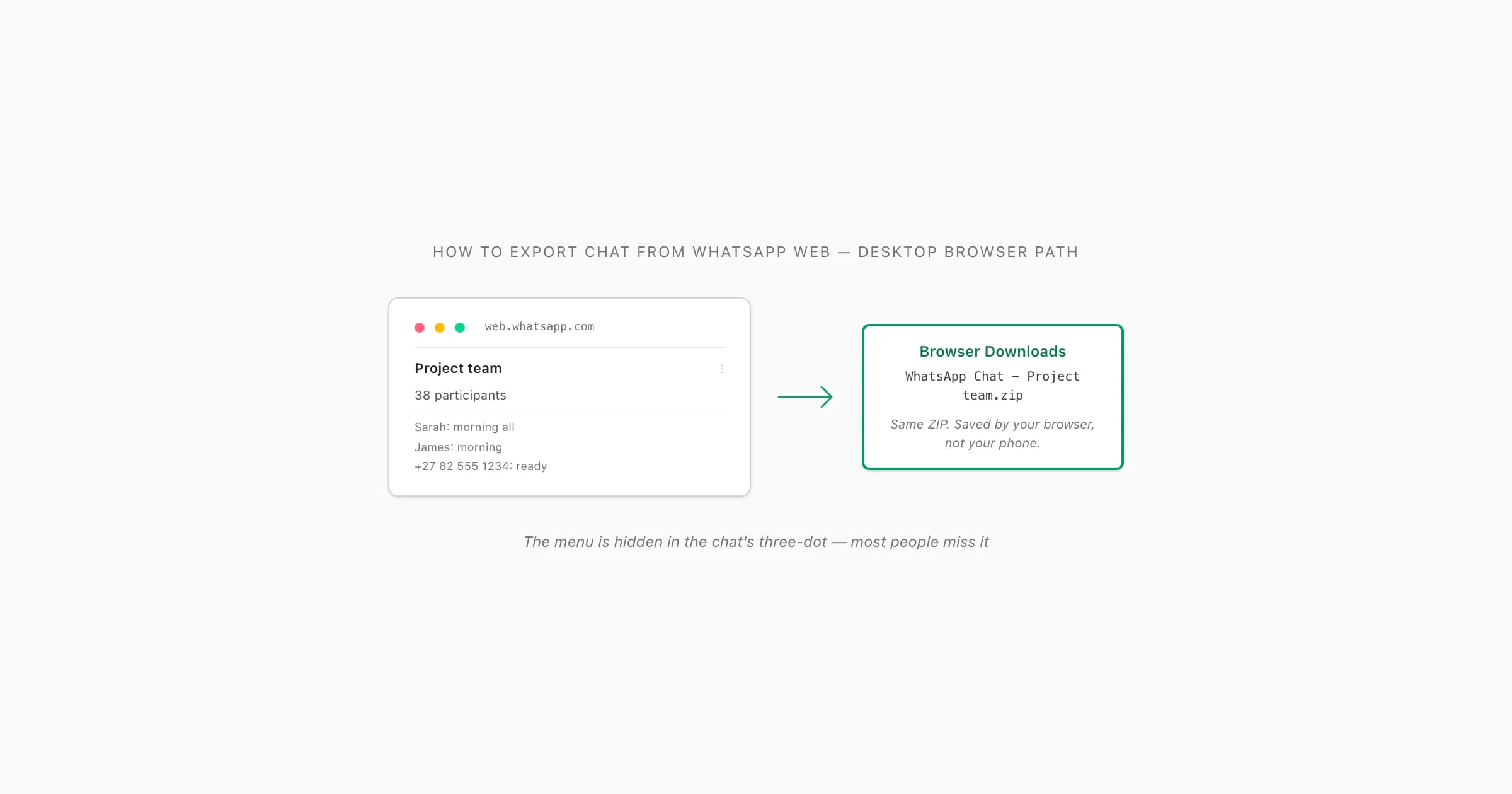
WhatsApp Web does not have a native button that exports a complete chat archive. To export a full conversation while working on a computer, start the native Export chat command in the WhatsApp phone app, save or transfer its TXT/ZIP file to the computer, then open or convert that file there. WhatsApp Web itself can copy a short visible selection or print what the browser has loaded, but neither method is a complete native export. I would use the phone route whenever completeness matters.
Can you export a chat directly from WhatsApp Web?
No—not as a complete native chat archive. In July 2026, WhatsApp Web lets you search a conversation, select visible text and download individual attachments, but it does not expose the phone app's supported Export chat workflow. You should not spend time looking for a secret three-dot option that downloads a full _chat.txt or ZIP.
This distinction matters because several methods are described online as “WhatsApp Web export” even when they are actually one of these:
- a phone export that is later opened on a computer;
- a browser printout of the messages currently rendered on screen;
- copied text from a short selection;
- a third-party browser extension injecting its own export control;
- a proprietary desktop extraction tool reading a backup or connected device.
Those methods have different completeness, privacy and evidential value. A control added by an extension is not a native WhatsApp feature. A browser printout is not the same file as the transcript created by the phone's Export chat command.
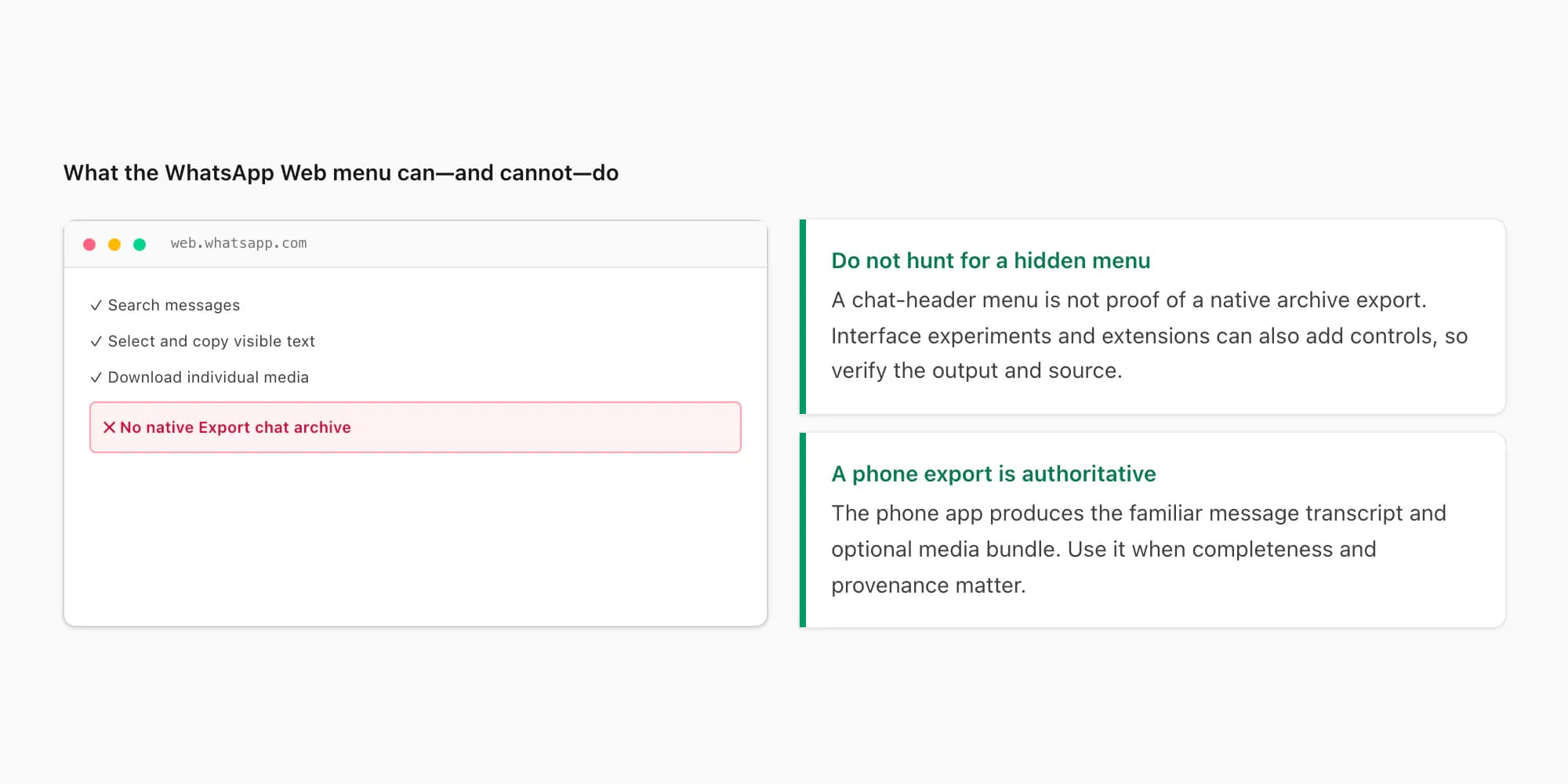
The official Help Center documents chat export from the mobile app. The Android help route is How to export your chat history. WhatsApp can change interface labels, so treat the current app as the final authority; the stable pattern is to open one chat and find Export chat in that chat's settings or information screen.
Choose the right Web or phone route
Start with the output you need. That prevents a quick copy-and-paste job from becoming a supposed archive, and it stops you granting a browser extension access when the native phone export already solves the task.
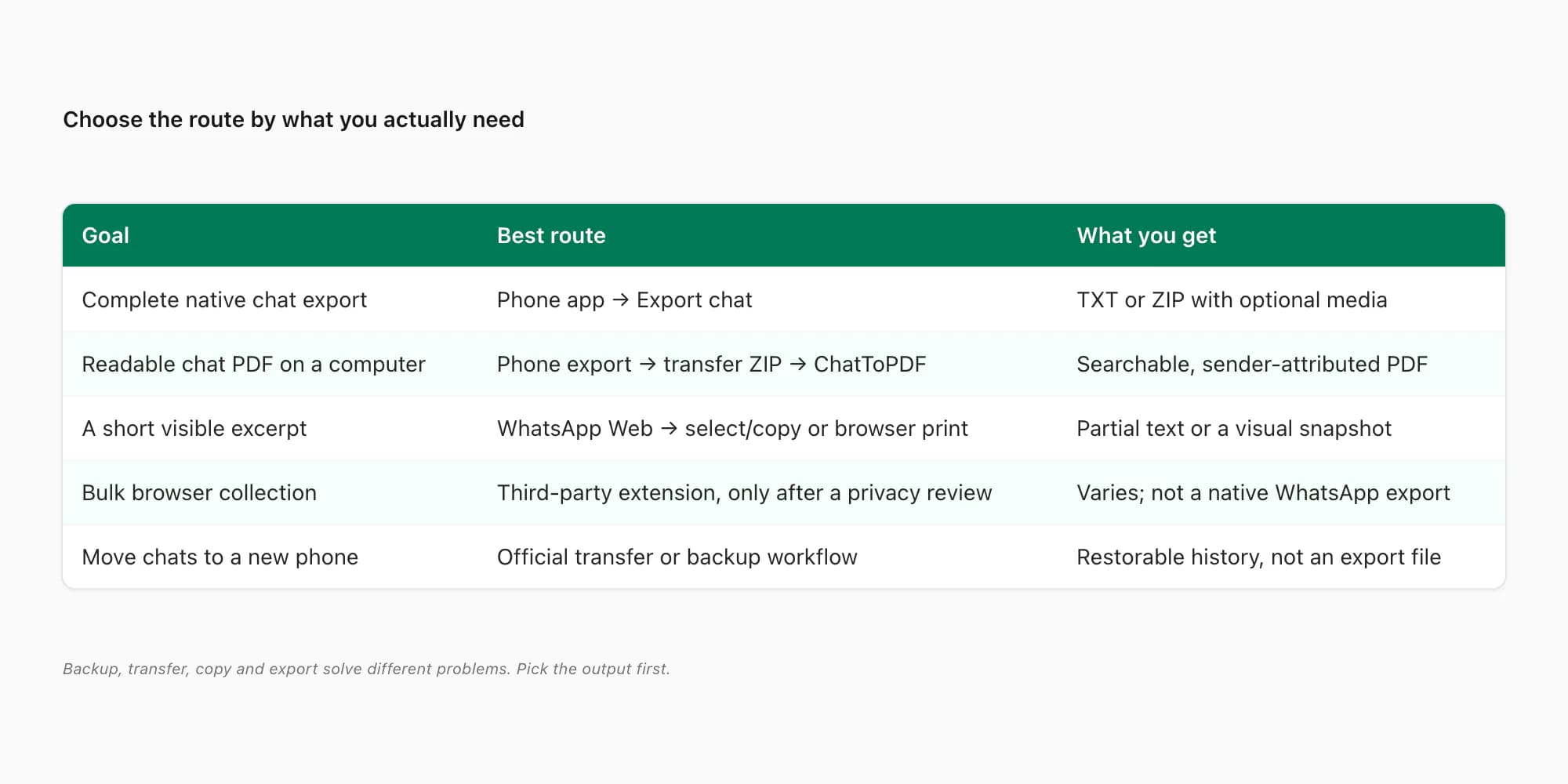
For a complete supported transcript: use the native phone export. It creates a text transcript and, when requested, a bundle containing available media. This is the best starting point for archiving, analysis, a PDF conversion or a record that may need provenance.
For a few visible messages: select and copy the text in WhatsApp Web, or use the browser's Print command to save a limited snapshot. Record the date, chat and visible range. Do not call it a complete export.
For an entire Web-loaded history without the phone export: that requires third-party code or manual collection. It may miss unloaded messages, system messages, replies or media, and it requires more trust. Use the extension checklist below.
For moving WhatsApp to a new phone: use WhatsApp's official transfer or backup process, not Export chat. An exported TXT/ZIP is designed for reading and sharing; it cannot normally be imported back into WhatsApp as live history. See WhatsApp export versus Google Drive backup for the exact difference.
Export on the phone, then move it to the computer
This is the reliable answer to “how do I download a WhatsApp chat from Web?” You initiate the archive on the phone and finish the computer workflow with the resulting file.
Android
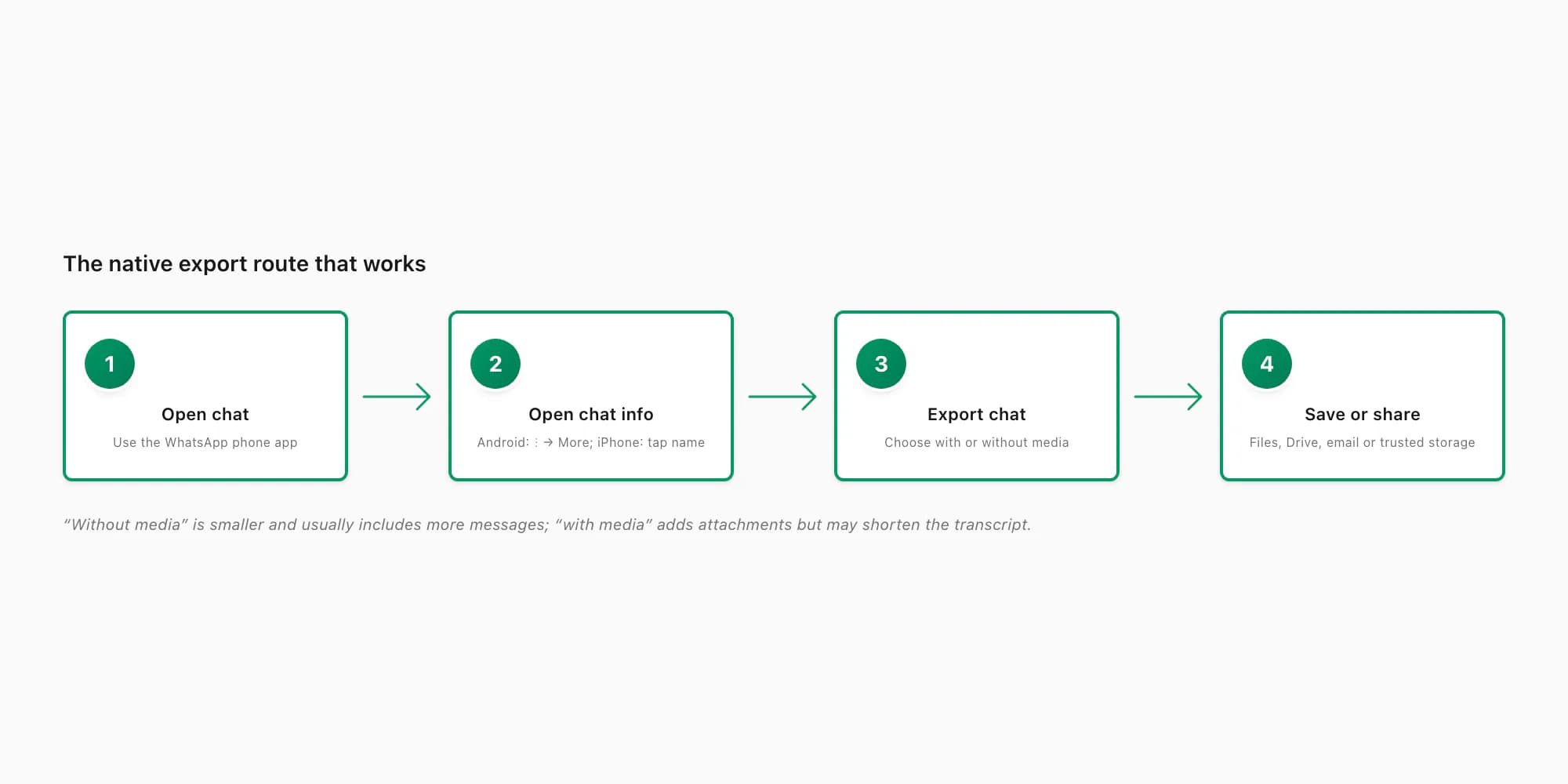
- Open WhatsApp on the phone and open the individual or group chat.
- Tap the three-dot menu at the top-right.
- Choose More, then Export chat.
- Choose Without media for a smaller transcript or Include media for available attachments.
- Save or share the result to a location you control, such as Google Drive, the Files app, email or a direct device transfer.
iPhone
- Open the chat in WhatsApp.
- Tap the contact or group name at the top to open Chat Info.
- Scroll and tap Export Chat.
- Choose Without Media or Attach Media.
- Use the iOS share sheet to save the file to Files/iCloud Drive, AirDrop it to a Mac, or send it through another trusted route.
Choosing media changes more than file size. WhatsApp's export can include fewer messages when attachments are included, while a text-only export generally reaches farther back. Limits can vary with platform, version, language and share destination. After export, check the first and last message dates rather than assuming the file contains the entire lifetime of the chat. The 40,000-message export limit guide explains why older messages may be absent.
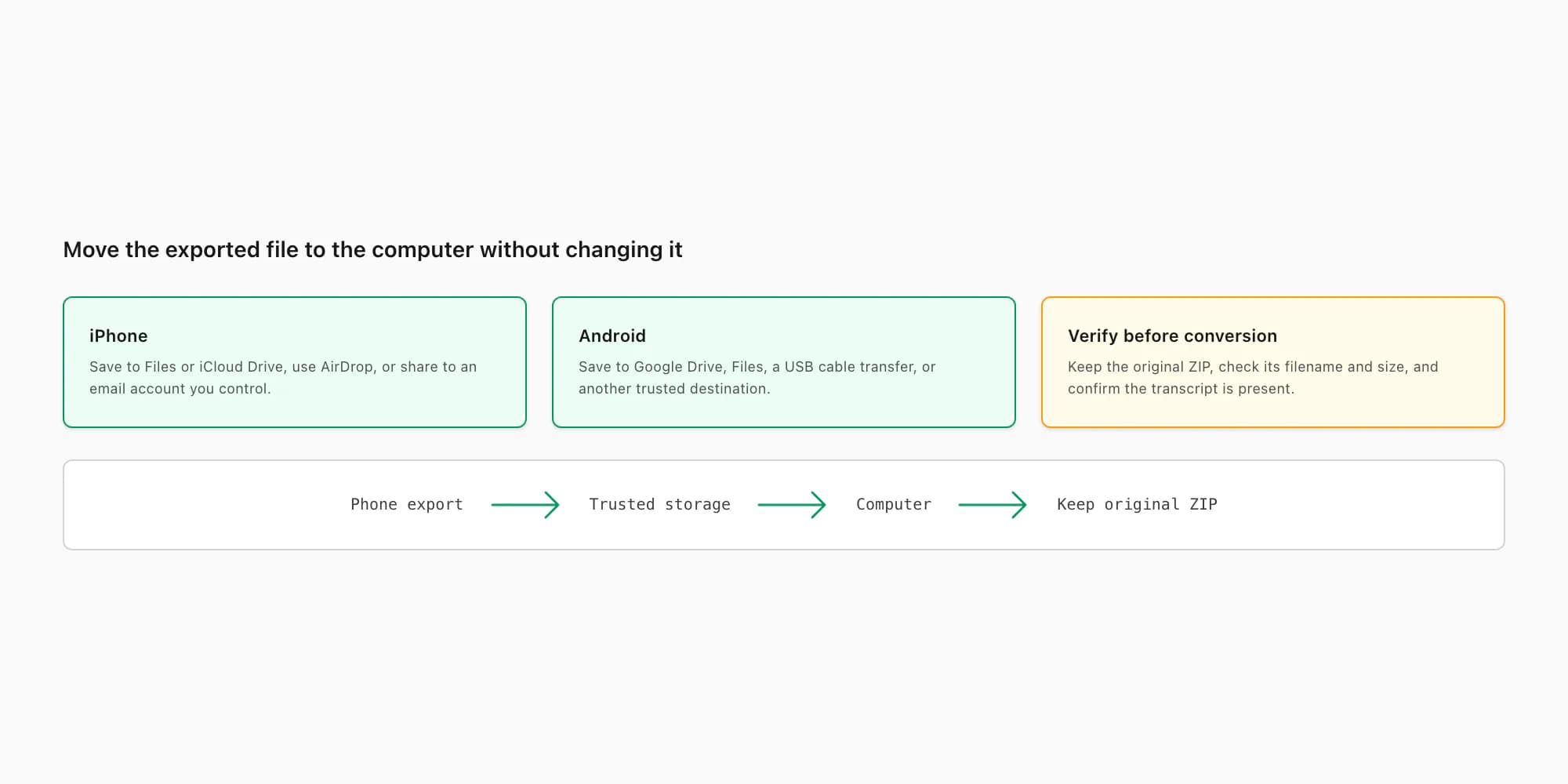
Keep the original export unchanged. If it is a ZIP, do not rename media or edit _chat.txt before preserving a source copy. On the computer, note the filename, file size and export date. For sensitive or legal material, hash the original or store it read-only and document who performed the export. A working copy can then be unzipped, analysed or converted without altering the source.
Copy or print a short WhatsApp Web excerpt
WhatsApp Web is useful when the goal is deliberately small: a handful of messages for a meeting note, a customer reference number, or a quick visual record.
Copy visible message text
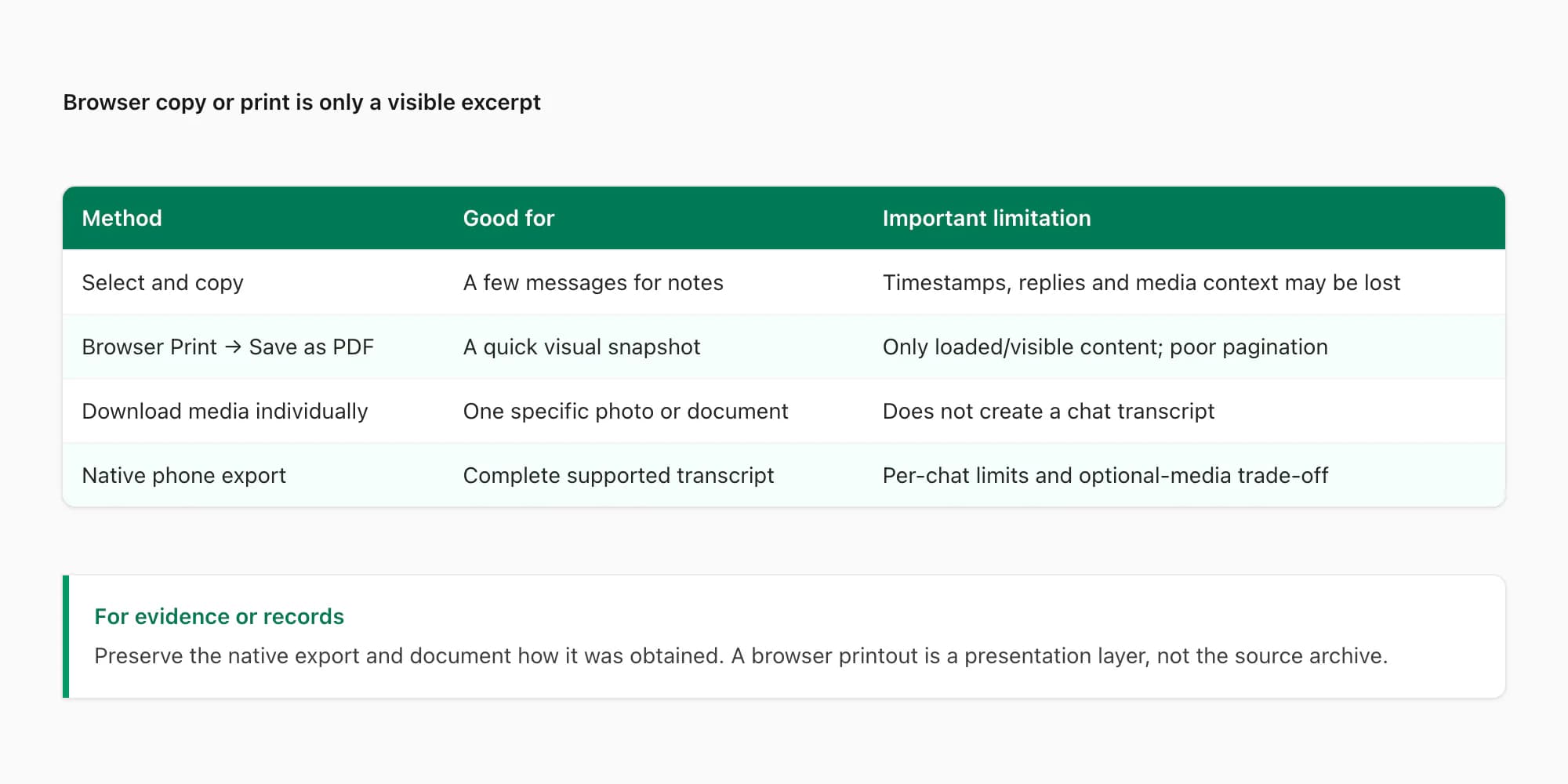
Scroll to the relevant section, select only the needed text and copy it into a document. Add the chat name and capture date yourself because copied text may not preserve every sender label, timestamp, reply relationship or reaction. Check the first and last copied messages against the Web view before relying on it.
Print the visible browser view
Use the browser's Print command and choose Save as PDF. This captures a presentation of whatever the browser has rendered; it does not force WhatsApp Web to load the whole chat. Long chats use virtualised scrolling, so messages outside the loaded section may be absent. Page breaks, sticky controls and background colours can also render poorly.
Use this route for a short snapshot, not a full archive. If the result could be evidence, include a clear note that it is a browser-rendered excerpt and preserve the native phone export alongside it. The WhatsApp PDF versus screenshot comparison covers searchability, context and verification trade-offs.
Download one attachment
For a particular photo, document or audio file, open it in WhatsApp Web and use its download control. Save the surrounding messages separately if context matters. A folder of downloaded media is not a transcript and does not preserve the conversation's message-to-file relationships by itself.
Browser extensions: privacy and completeness checks
Some browser extensions market “WhatsApp Web export” or bulk-download features. They can be useful, but they are not endorsed simply because they appear inside the WhatsApp interface. To collect a chat, an extension may need permission to read and change content on web.whatsapp.com, which can expose names, phone numbers, messages and session data.
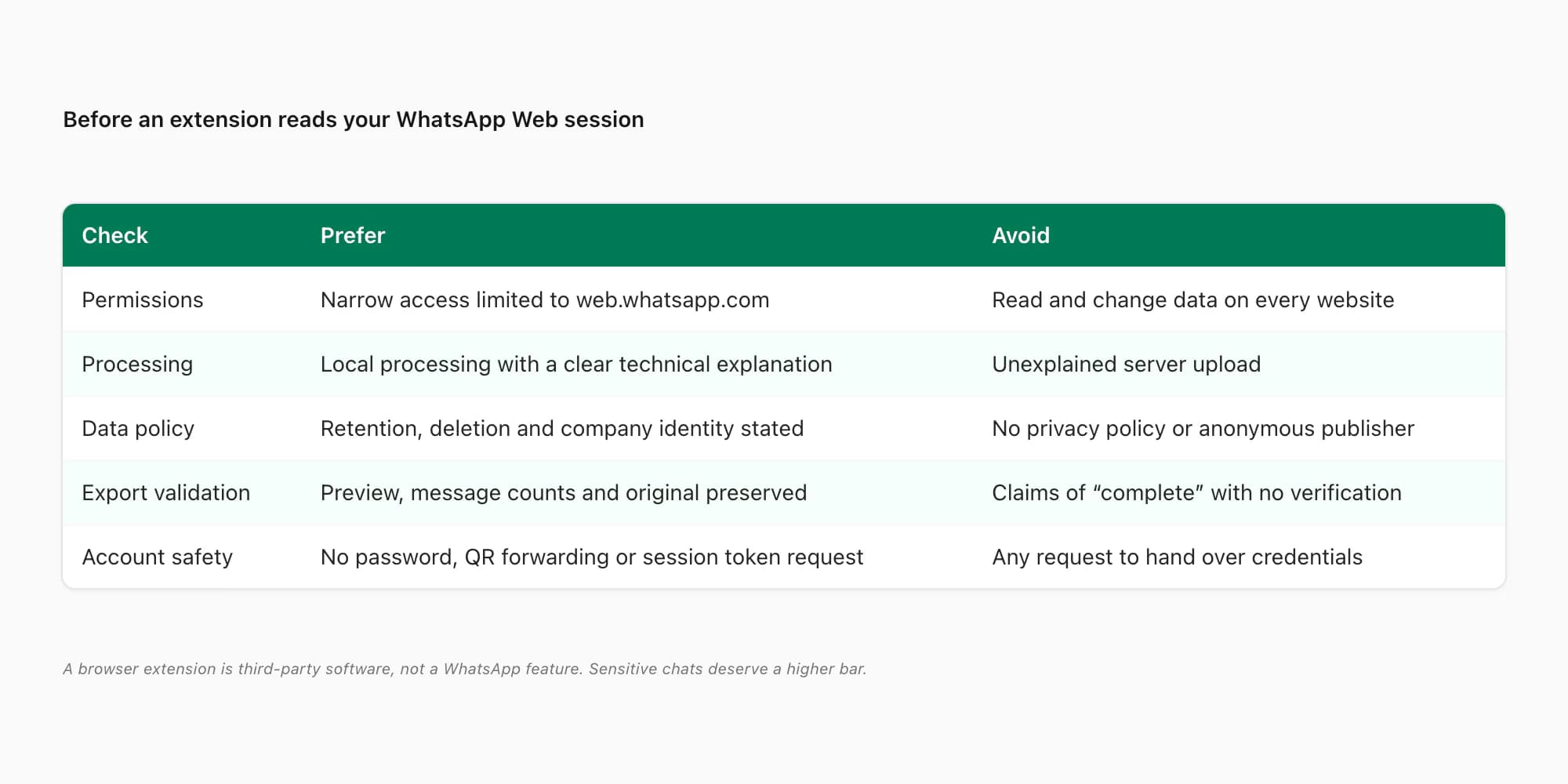
Before installation, check:
- Publisher identity. Is there a named company, support route and verifiable history?
- Permissions. Prefer access limited to WhatsApp Web. “Read and change all your data on all websites” is unnecessarily broad for this task.
- Processing location. “Runs locally” should be explained, not merely asserted. Inspect whether content is uploaded to a server and why.
- Retention and deletion. The privacy policy should say what is collected, how long it is retained and how deletion works.
- Credential handling. Never provide a WhatsApp password, forwarded QR code, session token or remote-control access.
- Completeness claims. Ask how the tool loads older messages, handles media, reports omissions and verifies message counts.
- Export format. Prefer an inspectable TXT, JSON, HTML or ZIP with stable timestamps over a locked proprietary format.
- Sensitive-chat suitability. Legal, medical, employment and intimate conversations deserve a higher bar than a casual personal archive.
Even a well-designed extension sees only what the Web session can access and load. Compare its earliest/latest timestamps and a sample of replies/media with the phone. If a native export is available, preserve that too. For confidential chats, the phone-export route usually reduces the number of third parties touching the data.
Backup, transfer and export are not interchangeable
Three WhatsApp features are often mixed together:
- Export chat creates a human-readable copy of one conversation, with optional media. It is intended for use outside WhatsApp.
- Chat backup stores application data for restoration, usually through an account-linked backup service. It is not a normal TXT/ZIP archive you browse on a computer.
- Chat transfer moves live history between supported phones. It is for migration, not documentation.
An export cannot normally be re-imported into WhatsApp as a live conversation. A backup may restore into WhatsApp but is not suitable as a portable readable report. A phone-to-phone transfer can preserve working history without giving you a stand-alone archive. If the real goal is “keep this before I change phones,” use both the official transfer/backup route and a separate native export for critical chats.
Turn the native export into a readable PDF
The native transcript is valuable as source data but not especially pleasant to read. A conversion can add page structure, sender distinction, timestamps and inline media while retaining the original ZIP separately.
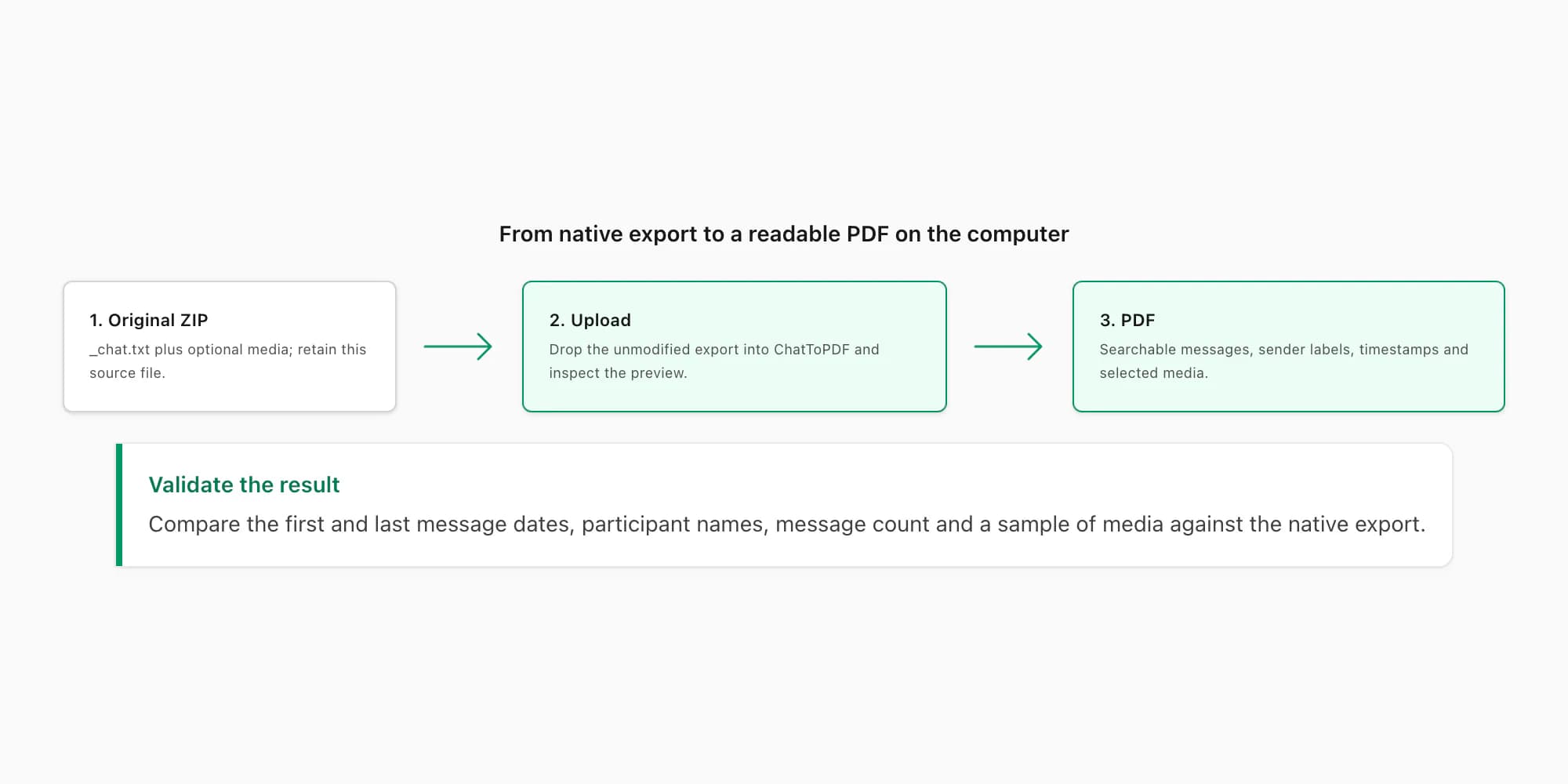
With ChatToPDF, move the unmodified phone export to the computer, open the upload page, drop in the TXT or ZIP, and inspect the preview before continuing. The complete WhatsApp-to-PDF guide explains media choices, output styles and validation in detail.
After conversion, compare:
- chat title and participants;
- first and last dates;
- message count, if available;
- a sample of multiline messages, emoji and links;
- a sample of photos, audio and documents;
- timezone and day/month ordering;
- the PDF's ability to search and copy text.
Keep the native export next to the PDF. The export is the source; the PDF is a readable rendering. If the ZIP is unusually large, use the WhatsApp ZIP export too-big guide rather than deleting files at random.
Troubleshooting and verification
Export chat is missing on the phone. Confirm you opened a specific conversation rather than general WhatsApp Settings. Update WhatsApp from the official app store, restart it and check the chat's info/More menu. Managed or unusual builds may expose different controls.
The share sheet fails or closes. Export without media first. A large with-media bundle may exceed the receiving app's attachment limit even when WhatsApp can create it. Save to local Files or cloud storage instead of email, then move the file.
The computer receives only a TXT file. That is normal for a without-media export. A with-media export is commonly bundled, but the exact wrapper can depend on platform and share destination.
The oldest messages are missing. This is usually an export-volume limit, not a WhatsApp Web issue. Repeat without media and compare the earliest date. Preserve both attempts and do not claim completeness unless you verified it.
The ZIP appears corrupt. Download or transfer it again before editing. Compare file size on phone and computer. If the archive remains invalid, create a fresh export and choose a different save destination.
You only have Web access. You can preserve a carefully labelled visible excerpt or evaluate a third-party tool using the checklist above. Do not present either as WhatsApp's native export. If completeness is essential, regain access to the linked phone or obtain the native export from the account holder.
Key takeaways
- WhatsApp Web has no native complete Export chat archive button; the supported export begins in the phone app
- Android uses chat → three-dot menu → More → Export chat; iPhone uses chat → contact/group name → Export Chat
- Move the resulting TXT/ZIP to the computer through Files, Drive, AirDrop, email or another trusted route, and preserve the original
- Copying or browser printing from WhatsApp Web is suitable for a short visible excerpt, not a complete chat
- Browser extensions are third-party software; assess permissions, processing, retention, identity and completeness before giving one access
- Backup and phone transfer preserve restorable WhatsApp history, while Export chat creates a readable external copy
- When converting to PDF, validate participants, date range, message count and media against the original export
FAQ
Can I export a complete chat directly from WhatsApp Web?
No. WhatsApp Web does not provide the phone app's native complete Export chat archive. You can copy visible text, print the currently rendered view or download individual media. For the supported transcript, export the chat in WhatsApp on the phone and transfer the resulting TXT/ZIP to the computer.
Where is Export chat in WhatsApp Web?
There is no native Export chat item in WhatsApp Web. A button shown by a browser extension belongs to that extension, not WhatsApp. On Android, open the phone chat and use three-dot menu → More → Export chat. On iPhone, open the chat, tap the contact or group name and choose Export Chat.
Can I save a WhatsApp Web conversation as a PDF?
You can use the browser's Print → Save as PDF for a short visible snapshot, but it may contain only messages currently loaded in the browser and can have poor pagination. For a complete, searchable result, create the native phone export, transfer its TXT/ZIP to the computer and convert that source file to PDF.
Are WhatsApp Web export extensions safe?
Safety varies. An extension may be able to read everything visible in your logged-in WhatsApp Web session. Check publisher identity, exact site permissions, whether processing is local or server-side, data retention/deletion, and how completeness is verified. Never provide credentials, a forwarded QR code or session token. Prefer the native phone export for sensitive chats.
Can I import an exported TXT or ZIP back into WhatsApp?
Normally no. Export chat creates a readable external copy, not a restorable WhatsApp backup. To move live history to a new phone, use WhatsApp's official transfer or backup workflow. Keep exports for reading, evidence, analysis and PDF creation.
Why does my export not include the oldest messages?
WhatsApp limits how much one export can include, especially when media is attached. Repeat the export without media and compare the earliest date. The exact result can vary by platform, version, language and share destination, so verify the actual file rather than assuming it contains the whole chat.
I'm Paul, the founder of ChatToPDF. I built it after needing a long WhatsApp conversation as a readable PDF for a legal matter. I test and document WhatsApp exports, PDF conversion, voice-note transcription, and the limits people should check before relying on the result.