
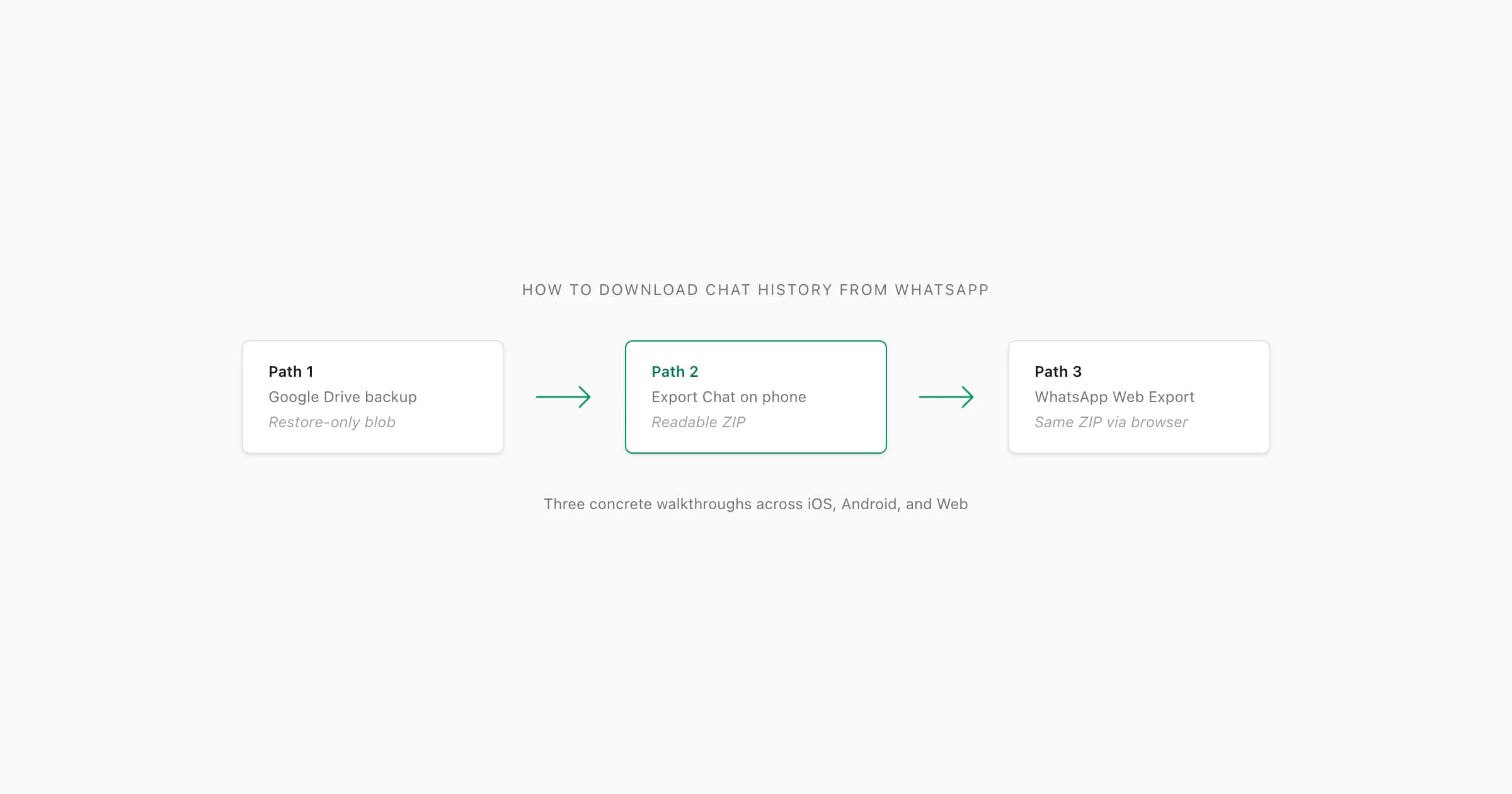
To download chat history from WhatsApp, use Export Chat — open the conversation, tap the title (iOS) or three-dot menu → More (Android), choose Export Chat, select Without Media or Including Media, and save the ZIP. There is no single "download history" button: the Google Drive or iCloud backup is encrypted and restore-only, not the same as a readable download. Upload the ZIP to ChatToPDF to get a formatted PDF of the chat history.
The three walkthroughs at a glance
Before I walk through the steps, I want to be honest about what "download chat history from WhatsApp" actually means in practice. It maps to three different mechanisms, and I have lost count of how many support emails I have written explaining that the right path depends on what you want to do with the file. The companion piece Download chat history WhatsApp — what users actually mean covers the disambiguation in detail; this guide is the one with the screenshots and tap-by-tap steps.
Here is the short version. If you want the cloud safety net used when switching phones, use Google Drive backup on Android or iCloud on iPhone. It is encrypted and restore-only; you cannot open it as a normal document. If you want one chat as a readable file, use Export Chat on the phone. It creates TXT or ZIP output with optional media. If you are at a desktop, transfer that native phone export through Files, Drive, AirDrop, email or USB. WhatsApp Web itself can preserve a visible excerpt, not create the complete native archive.
The pillar WhatsApp chat export covers the underlying mechanics — file format, the 40,000-message ceiling, locale-specific timestamps. The companion guide Export chat WhatsApp: what the feature actually does is the definitional piece. This page is the one I send people who say "just tell me which buttons to tap".
So three walkthroughs. Three different files. Pick by goal, not by guess.
Walkthrough 1 — Google Drive backup (Android)
If your goal is "I want WhatsApp's stored copy of my chats so I do not lose them when I switch phones", this is the path. It is the most-talked-about download path in articles, even though the file you end up with is not actually downloadable in any user-facing sense. Let me show you the steps anyway, because the search query bundles this case in with the others.
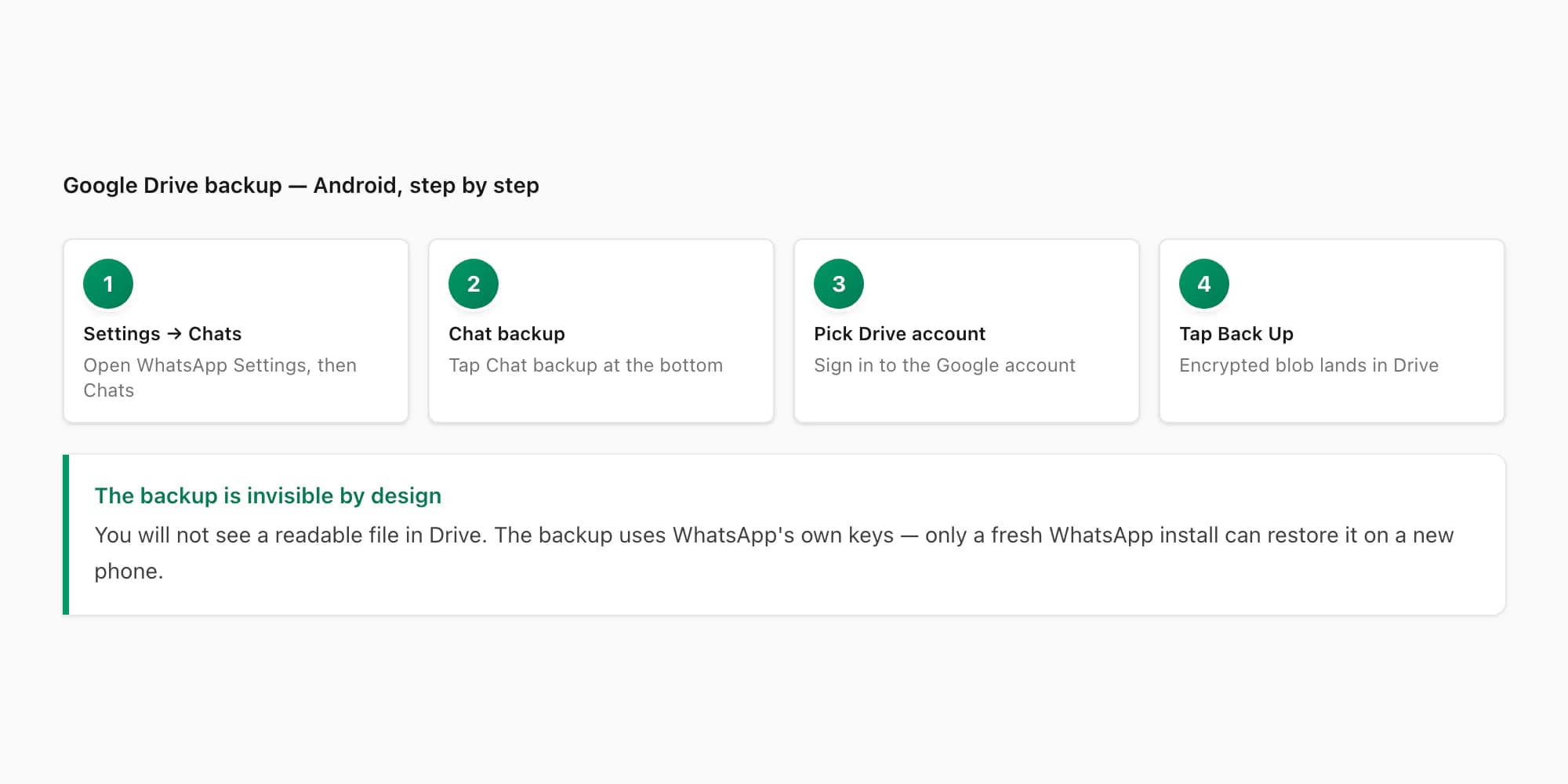
The flow is in WhatsApp's own settings, not in a file manager. Open WhatsApp on Android, tap the three-dot menu (⋮) at the top-right of the chat list, tap Settings. Inside Settings, tap Chats. At the bottom of the Chats screen there is a Chat backup option — tap it. WhatsApp asks you to pick a Google account, and once you have signed in, the Back Up button becomes active. Tap it. WhatsApp uploads an encrypted backup of every chat in your account to Google Drive, takes a few seconds to a few minutes depending on size and connection, and then sets a recurring schedule (daily, weekly, monthly, or only when you press the button) so future backups happen automatically.
Two things to know about what you just did. First, the backup file lives in your Google Drive in a hidden area you cannot browse — Drive shows it under Settings → Manage apps as "WhatsApp Messenger" with a quota, but does not let you open or download the encrypted blob. Second, the backup is restore-only by design. The only way to use that backup file is to install WhatsApp on a new phone with the same account, and answer Yes when WhatsApp asks if you want to restore from backup. WhatsApp then pulls the file from Drive, decrypts it with your account keys, and reconstructs the chats. There is no other tool, on any platform, that can read the file. Google Drive itself does not know how to open it.
iPhone has the same mechanism via iCloud — Settings → Chats → Chat Backup → Back Up Now — and the same caveat applies. The backup is encrypted, invisible, and restore-only.
So this walkthrough delivers a backup, not a download in the readable sense. If you wanted a file you can open, you want Walkthrough 2. The companion piece What "export chat" actually means on WhatsApp explains why the backup is a different feature from the export.
Walkthrough 2 — Export Chat on iPhone and Android
This is the walkthrough most people actually need. Export Chat is the menu that produces a portable, readable ZIP — _chat.txt plus optional media — from one conversation. It is the only WhatsApp feature that gives you a file you can open. The taps are short, but they differ between iOS and Android, so I will run through both.
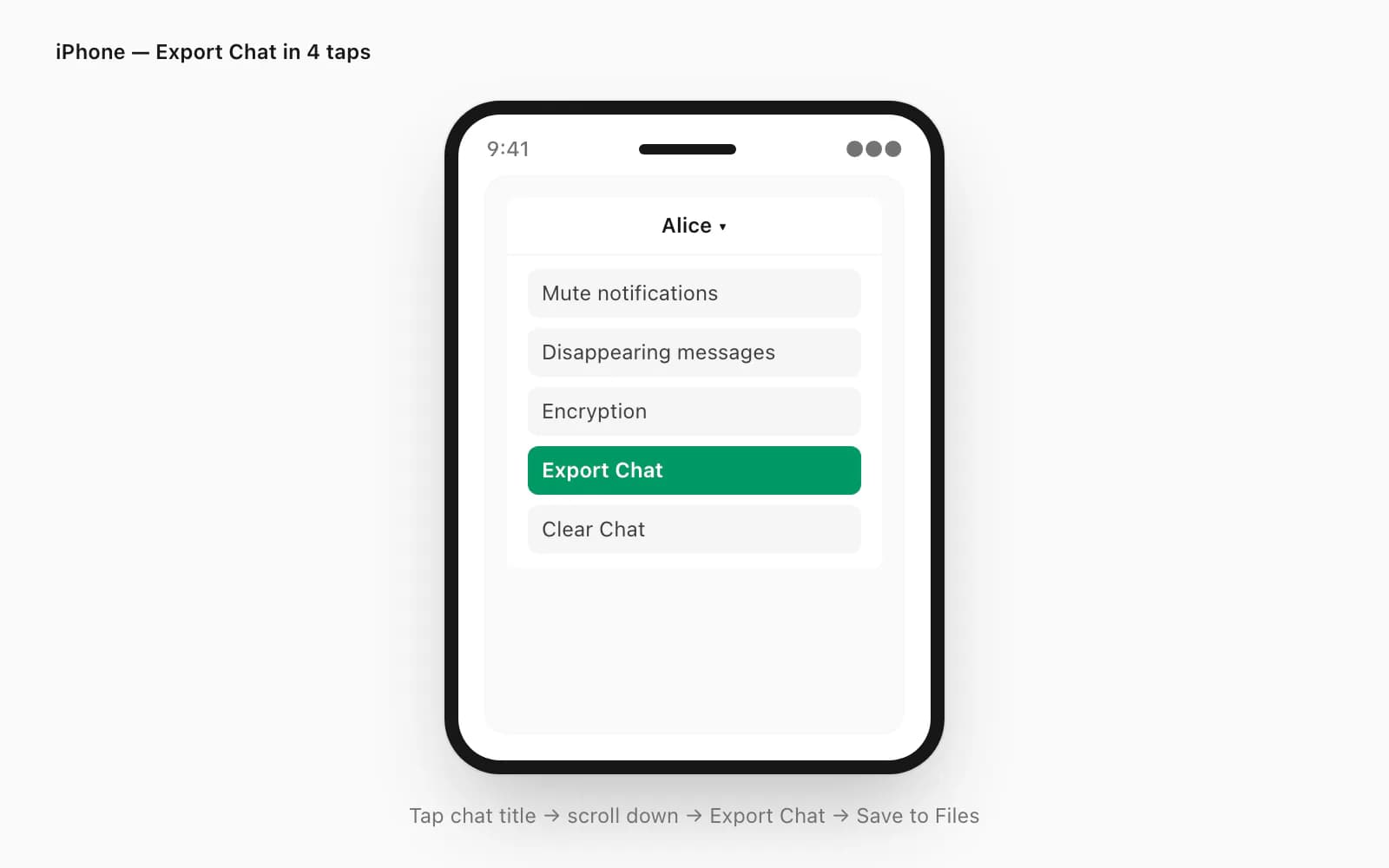
On iPhone, the Export Chat menu lives behind the contact info screen, which throws people off. Open the chat. Tap the contact or group name at the very top — a tappable area people miss because nothing about it looks like a menu trigger. The contact info screen opens. Scroll past participants, shared media, links, and starred messages. Near the bottom you will see Export Chat. Tap it. WhatsApp asks Without Media or Including Media. Pick Without Media for a fast text-only export, or Including Media to bundle photos, voice notes, and documents (with the ~10,000-message media window). iOS hands you a share sheet next. Tap Save to Files, pick a folder you will remember (On My iPhone → Downloads is a good default), and tap Save. The ZIP is now on your iPhone.
If the recordings themselves are the reason for the export, use the WhatsApp voice-note download walkthrough after saving the ZIP. It shows how to find the audio files without separating them from the untouched source archive you may want to keep.
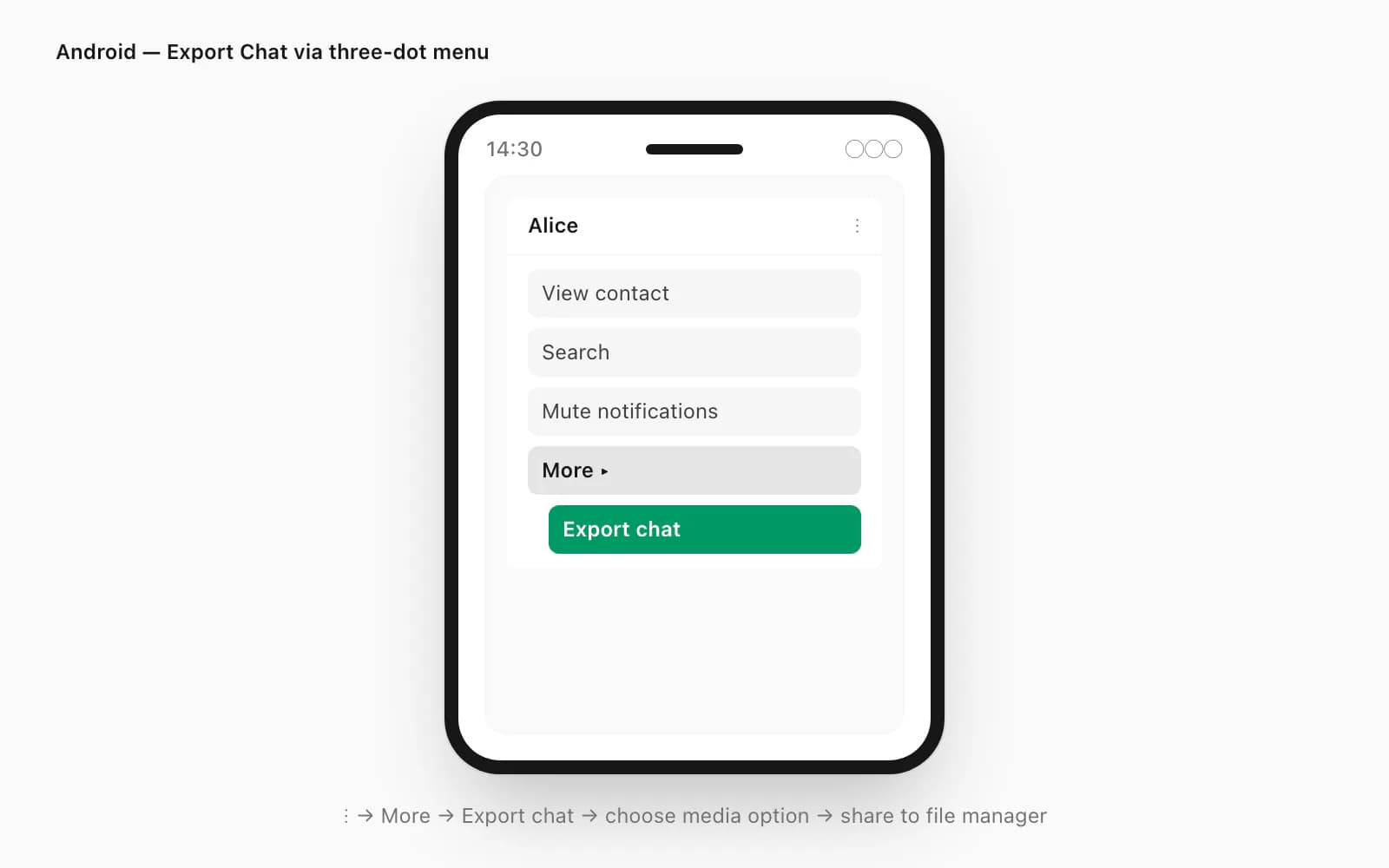
On Android, the menu is in a different place but the result is the same. Open the chat. Tap the three-dot overflow icon (⋮) at the top-right. Tap More from the dropdown. Tap Export chat. WhatsApp asks Without Media or Including Media — same choice as iOS. Once you pick, Android's share intent fires. Pick a destination: your file manager, Drive, Gmail to yourself, or any app that handles ZIPs. The file lands wherever the app you chose puts incoming files — Files by Google sends it to Internal storage → Download by default.
I want to spell out the formal version of this walkthrough because the schema markup matters for search engines that want to surface it as a step-by-step result.
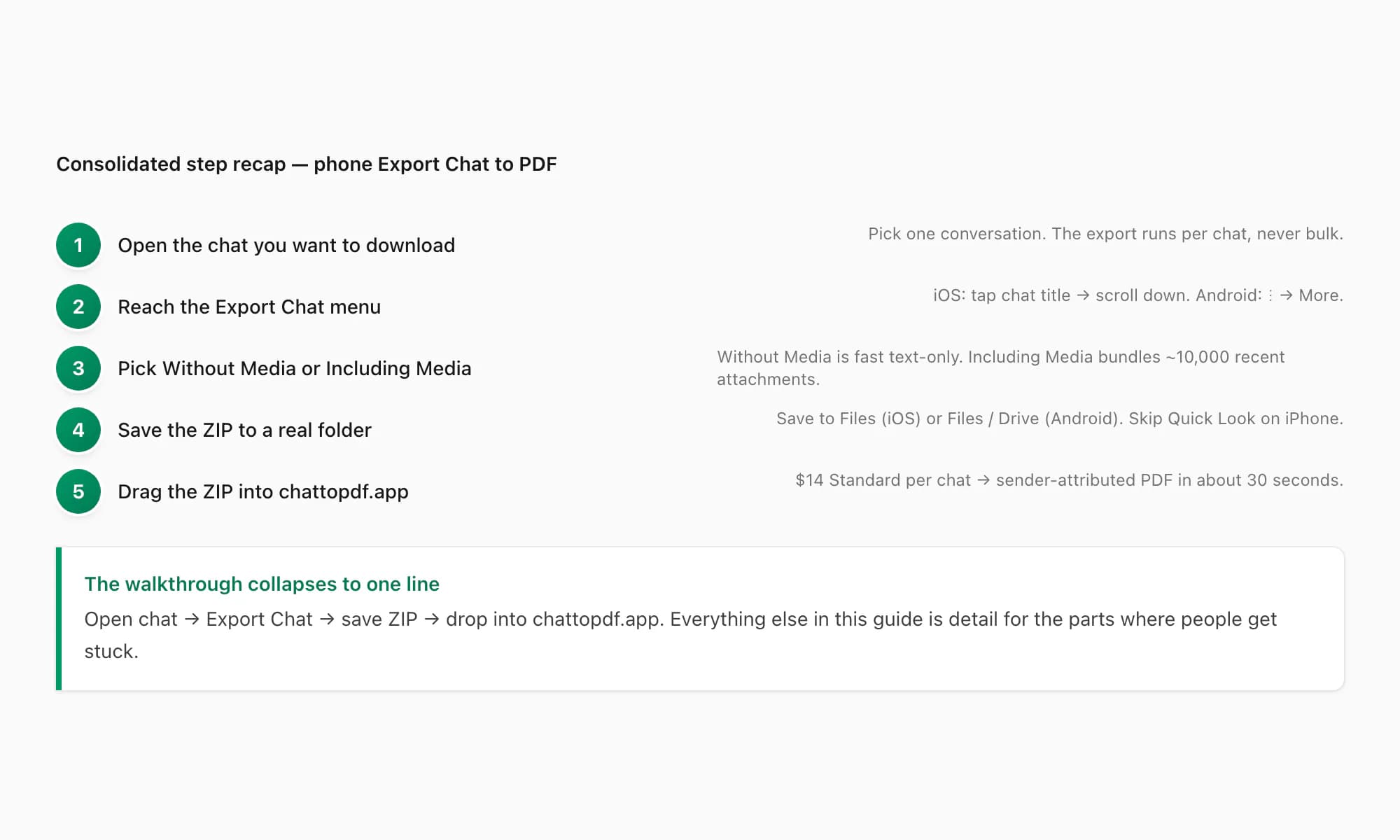
Open the chat you want to download
Pick one conversation — Export Chat runs per chat, never bulk. Open it normally on your phone. The chat does not need any special state; you can have unread messages, you can be scrolled to the top, none of that matters.
Reach the Export Chat menu
On iPhone, tap the contact or group name at the very top of the chat. The contact info screen opens — scroll all the way down past participants, shared media, and starred messages. Near the bottom is Export Chat. On Android, tap the three-dot overflow icon (⋮) at the top-right of the chat, then tap More, then Export chat.
Pick Without Media or Including Media
WhatsApp asks which one. Without Media gives you a small fast text-only ZIP under 1 MB even for thousands of messages — right when the message text is what matters. Including Media bundles photos, voice notes, and documents for roughly the most-recent 10,000 messages — right when the chat had pictures or voice notes you want to preserve.
Save the ZIP to a real folder
On iPhone, tap Save to Files on the share sheet, pick a folder (On My iPhone → Downloads is a safe default), and tap Save. Skip the Quick Look preview path — it looks like saving but lands the ZIP somewhere the file picker cannot reach. On Android, pick Files, Drive, or your file manager from the share intent. Avoid sending it to Gmail or WhatsApp itself unless you actually want it as an attachment.
Confirm the file landed where you expected
Open Files (iOS) or your file manager (Android) and verify the ZIP exists and has a non-zero size. iOS: Files → Browse → On My iPhone → Downloads. Android: Files by Google → Downloads, or your file manager's Download folder. If you cannot find it, see the troubleshooting section below — the three usual suspects are listed there.
That is the readable-download path on the phone. Most personal-chat conversions I see in chattopdf support land here — the ZIP is the input, and the $14 Standard per chat output is what people came for. The companion piece Export chat WhatsApp: what the feature actually does walks through what is in the ZIP if you open it before converting.
Walkthrough 3 — the limited WhatsApp Web fallback
If you only need a short section that is already visible in the browser, WhatsApp Web can copy the text, print the loaded view to PDF, or download one attachment. It does not have a native complete Export chat archive.
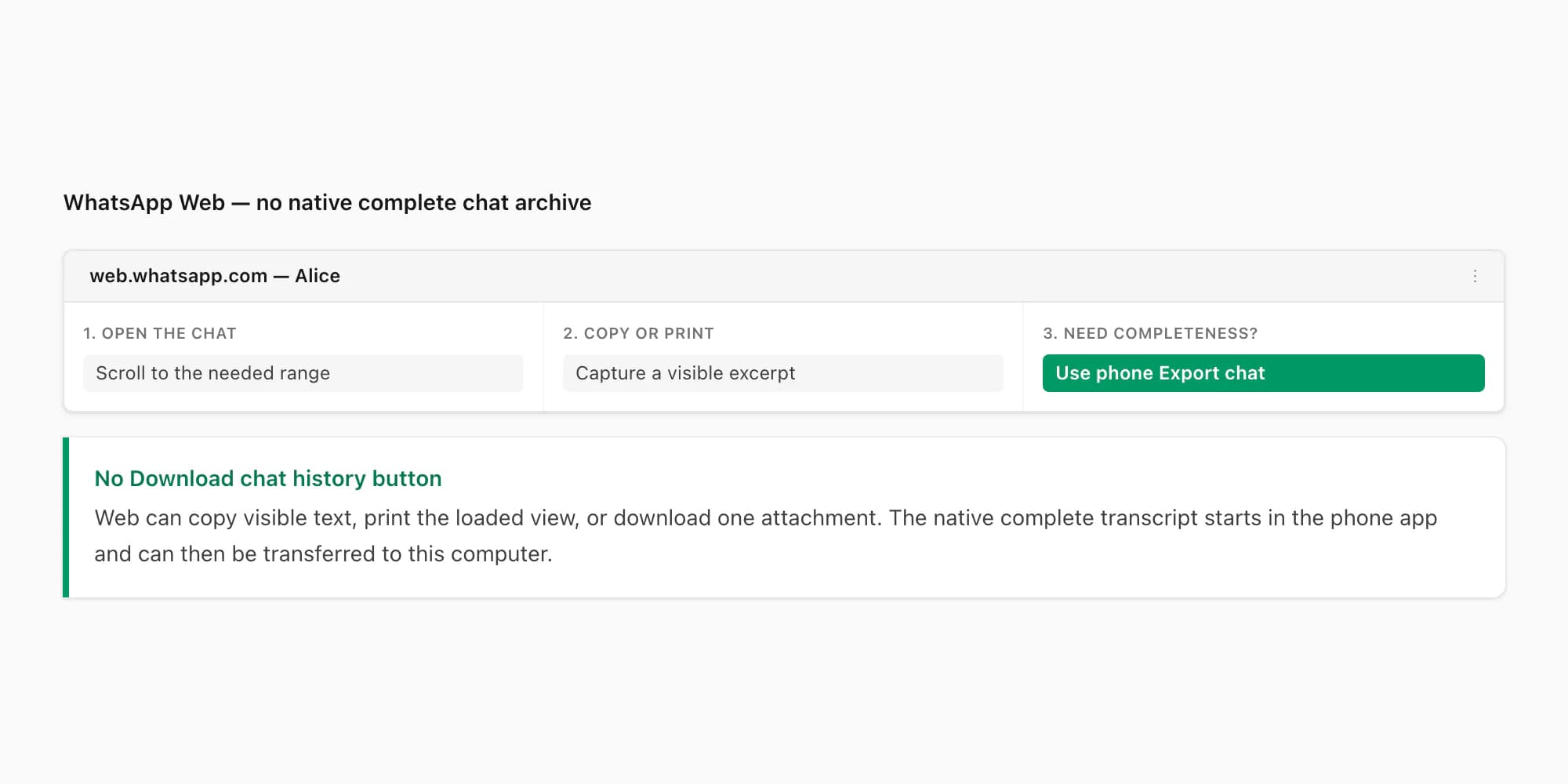
For a copied excerpt, scroll to the relevant range, select the text and paste it into a document. Add the chat name, capture date and visible start/end messages because copy-and-paste can lose sender, reply and media context. For a visual snapshot, use the browser's Print command and choose Save as PDF. Long chats use virtualised scrolling, so the result covers only loaded content and should be labelled as an excerpt.
For a complete source transcript, use Walkthrough 2 on the phone. Save the TXT/ZIP to a trusted destination, open that destination on the computer, and compare file size after transfer. The dedicated How to export chat from WhatsApp Web guide explains why third-party extension buttons are not native and provides a permissions, retention and completeness checklist.
Where the downloaded file actually lands
This is where most "I downloaded my chat but cannot find it" support tickets start. The default save locations differ across platforms in non-obvious ways, and the share sheet step in the middle adds a layer of confusion. Here is the actual map.
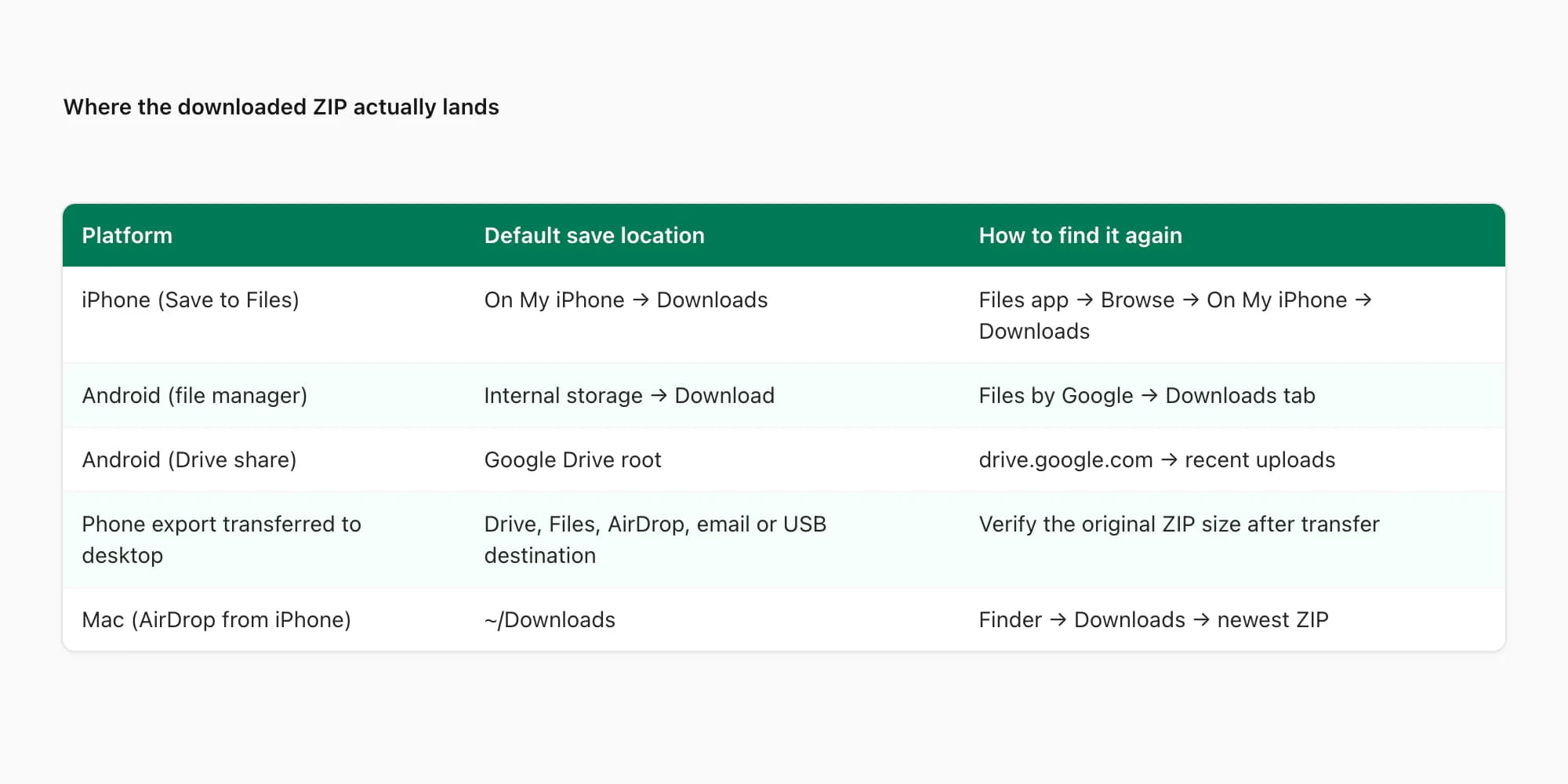
The pattern, once you know it, is consistent: an Export Chat output is a TXT file or ZIP archive named for the conversation. The size depends on message count, included media, platform and share destination. Check the actual output instead of relying on a generic size estimate.
What changes is where the phone's share sheet sends the output. On iPhone with Save to Files, you pick the folder yourself; On My iPhone → Downloads is easy to find later. On Android with a file manager, it usually lands in Internal storage/Download/. With Drive, it appears in the folder chosen during sharing after sync. AirDrop commonly puts an iPhone export in the Mac's Downloads folder. For USB, copy the file to an explicit case or project folder and keep the phone original until you have verified the transfer.
A practical note: do not save to a temporary folder you cannot navigate back to later. iOS's Quick Look preview path is the most common offender — tapping the ZIP attachment opens a preview, but the file is in a temporary cache the file picker cannot see. Always tap Save to Files first if you want the ZIP to be reachable later.
Three reasons your download does not show up
I see these three failure modes in support more often than every other download problem combined. Each has a quick fix, and each is invisible enough that people often retry the export multiple times before realising the problem is somewhere else.
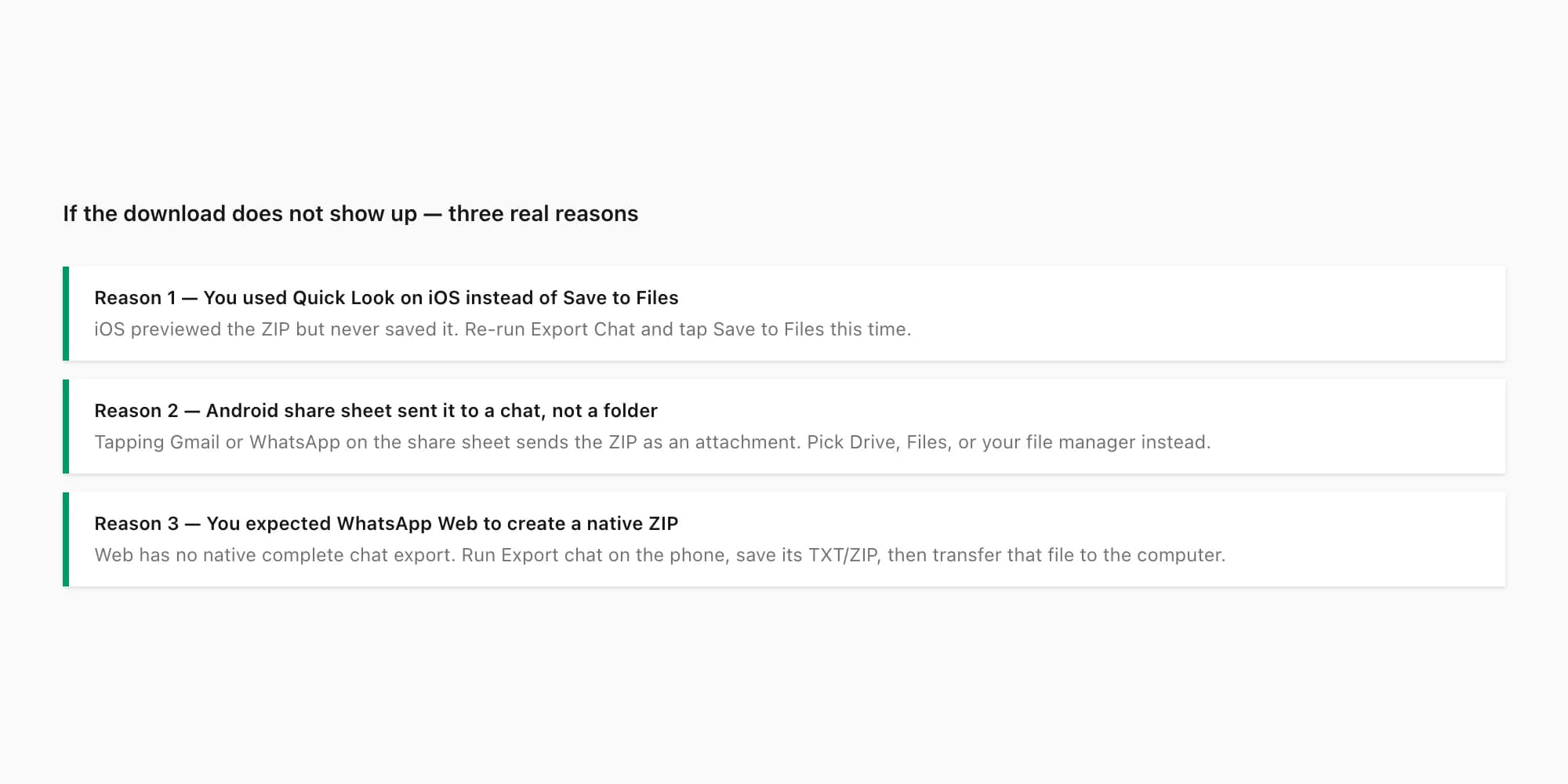
Reason 1 — Quick Look on iOS instead of Save to Files. When WhatsApp finishes preparing the ZIP and the iOS share sheet appears, the very first action many people take is tap the file preview at the top of the sheet. iOS opens a Quick Look preview showing the ZIP contents. It feels like the file was saved — you can see what is inside it. But it was not saved anywhere reachable. The ZIP is in a temporary cache, and once you close the preview and try to find the file from chattopdf.app's upload zone, the file picker cannot reach it. The fix: re-run Export Chat, this time tap Save to Files on the share sheet (it is one of the icons in the second row), pick On My iPhone → Downloads, and tap Save.
Reason 2 — Android share sheet sent the ZIP as a chat attachment. When the Android share intent fires after Export chat, the share sheet shows every app that registered as a target. Gmail. WhatsApp itself. Telegram. Slack. If you tap one of those, the ZIP is attached to a message in that app — not saved as a file. The chat may have failed to send if the file was over the app's attachment size limit. The fix: pick Files (your file manager), Drive, or "Save to device" from the share sheet next time. Those land the ZIP as a file in a location you can browse to later.
Reason 3 — You expected WhatsApp Web to create the native ZIP. It cannot. Run Walkthrough 2 on the phone, save the TXT/ZIP to Files, Drive or another trusted destination, then transfer it to the computer. If you used Web copy or print, the result is a deliberately limited excerpt rather than a missing full export.
If none of those are the issue, the next thing to check is whether the export silently truncated. The pillar WhatsApp chat export covers the 40,000-message ceiling and the ~10,000-message media-window cap that affect long chats — neither produces a warning, and both are common reasons exports look smaller than expected.
Pricing — turning the ZIP into a PDF
Once the ZIP is sitting in your Downloads folder, most people are not done. The ZIP is the means; the PDF is usually the end. Here is how the chattopdf tiers map to the chats I see most often.
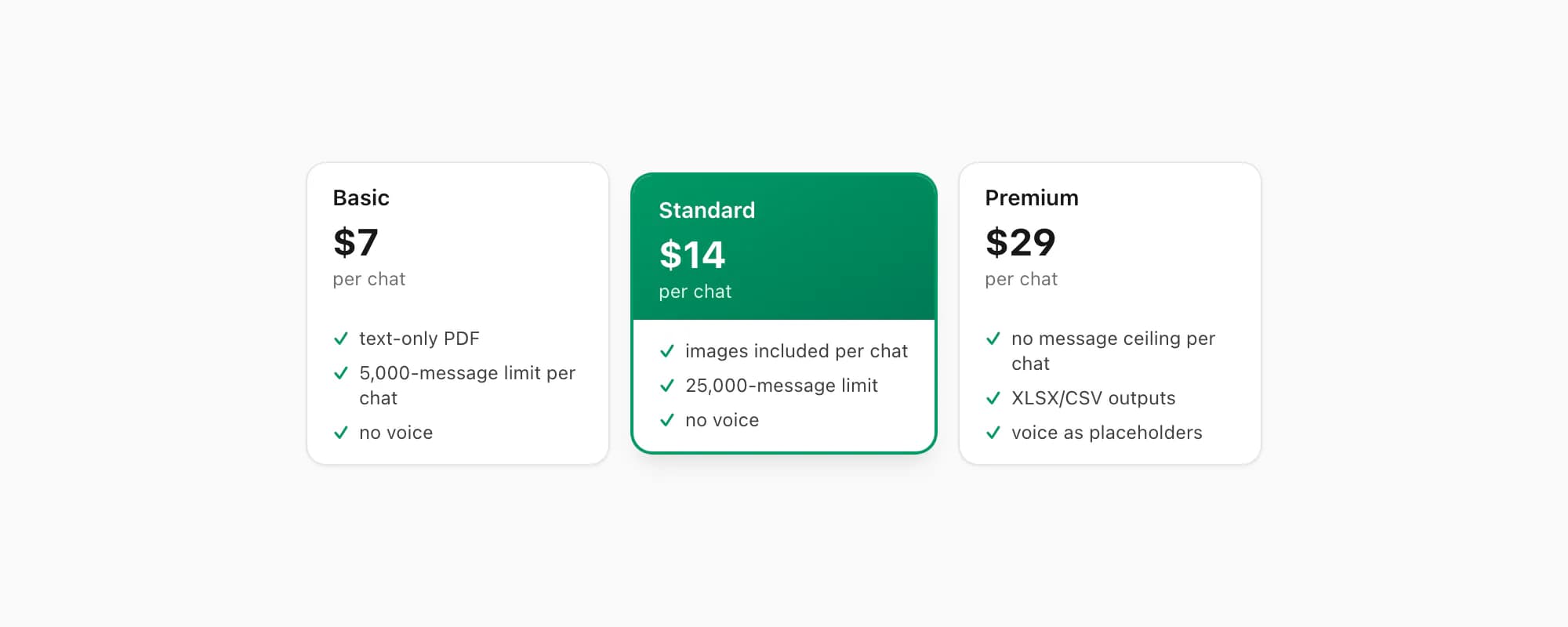
$7 Basic per chat is the entry tier. Text-only PDF, capped at 5,000 messages per chat, no embedded images, no voice transcription. Right when the chat is short — a couple of months of messaging or a one-off conversation — and you only need the message text in a clean readable document. If you ran Without Media and the chat is small, this tier covers it.
$14 Standard per chat is where most personal chats land. Embedded images appear inline in the PDF (assuming you exported with Including Media), the message ceiling is 25,000 per chat, voice transcription is not included. This is the tier I push hardest in support because it covers the bulk of cases — multi-year personal chats, family group threads with photos, and most one-on-one work conversations.
$29 Premium per chat removes the message ceiling and adds XLSX/CSV outputs alongside the PDF. Voice notes appear as placeholders rather than transcribed text. Right for very long chats, big group threads, or when you also want a spreadsheet to do analysis on. If you have a chat older than three or four years of moderate daily messaging, this is the tier — the $14 Standard ceiling will cut it short.
If voice transcription matters, the $49 Premium+Voice per chat tier adds language-aware Nova-3/Scribe v2 transcription. The $99 Power User per chat tier adds priority queue processing and bulk-conversion support — useful when you have a folder of 10 ZIPs from different chats to convert in one session.
Each conversion is a single payment for a single chat. There is no recurring billing on any tier, and no account-level access. Re-export the same chat tomorrow and convert that fresher ZIP, you pay again — because each conversion is real work against a different snapshot.
Key takeaways
- "How to download chat history from WhatsApp" maps to a restore-only backup, a readable phone Export Chat file, or a limited WhatsApp Web excerpt
- The Google Drive (Android) and iCloud (iPhone) backup is encrypted and restore-only — you cannot open the file, and it only matters when you reinstall WhatsApp on a new phone.
- Export Chat on the phone produces a readable ZIP holding
_chat.txtplus optional media — that ZIP is the actual readable download, and the iOS path is "tap chat title → scroll down → Export Chat", while Android is "⋮ → More → Export chat". - WhatsApp Web has no native complete archive export; export on the phone and transfer the TXT/ZIP to the computer
- Common missing-file causes are iOS preview instead of Save to Files, Android sharing to another chat instead of storage, or expecting Web to create a native ZIP
- For "I downloaded the ZIP and want a readable PDF", the route is: drop the ZIP into chattopdf.app → $14 Standard per chat → done in about 30 seconds.
- For a detailed look at exactly what the PDF contains and how the conversion handles photos, voice notes, and long chats, see the WhatsApp to PDF guide.
FAQ
How do I download my entire WhatsApp chat history at once?
You cannot—there is no native bulk-download feature. Export Chat runs one conversation at a time in the phone app. The closest full-account safety net is Google Drive backup on Android or iCloud backup on iPhone, but that is encrypted and restore-only. To get readable files, export each needed conversation separately. Third-party tools have different access and privacy risks.
How do I download WhatsApp chat history on iPhone step by step?
Open the chat. Tap the contact or group name at the very top to open the contact info screen. Scroll all the way down past participants, shared media, and starred messages. Tap Export Chat. Pick Without Media for a fast text-only ZIP, or Including Media to bundle photos and voice notes for the recent ~10,000 messages. On the share sheet, tap Save to Files. Pick a folder (On My iPhone → Downloads is the safe default). Tap Save. The ZIP is now reachable from any file picker on your iPhone.
How do I download WhatsApp chat history on Android step by step?
Open the chat. Tap the three-dot overflow icon (⋮) at the top-right of the chat. Tap More from the dropdown. Tap Export chat. Pick Without Media or Including Media. Android's share intent opens — pick Files, Drive, or your file manager (avoid Gmail or WhatsApp itself unless you actually want the ZIP as an attachment). The file lands in Internal storage → Download with most file managers, or in Drive's root if you picked Drive.
Can I download WhatsApp chat history from my computer?
Not as a complete native archive directly from WhatsApp Web. For a source-quality computer copy, run Export Chat in the phone app and move the resulting TXT/ZIP through Files, Drive, AirDrop, email or USB. WhatsApp Web itself can copy visible text, print the loaded view or download individual attachments; label those results as excerpts.
Why does my downloaded ZIP have so much less history than the chat shows?
WhatsApp silently caps every Export Chat at 40,000 messages — only the most-recent 40,000 make it into the ZIP, with no warning if your chat is longer. Including Media bundles attachments only for roughly the most-recent 10,000 messages — older photos appear as filename references in _chat.txt but the actual files are not in the ZIP. For most personal chats neither limit matters. For multi-year group threads or very active conversations, both do.
Is downloading my chat history the same as backing it up?
No. A backup (Google Drive on Android, iCloud on iPhone) is an encrypted full-account snapshot designed for restoring on a new phone — you cannot open or read it. A "download" via Export Chat is a single-chat ZIP holding plain text plus optional media — you can open it in any text editor or convert it to a PDF. The two mechanisms produce two completely different files for two completely different purposes. Pick backup if you want the ability to restore later, pick Export Chat if you want a readable file you can share or convert today.
I'm Paul, the founder of ChatToPDF. I built it after needing a long WhatsApp conversation as a readable PDF for a legal matter. I test and document WhatsApp exports, PDF conversion, voice-note transcription, and the limits people should check before relying on the result.