
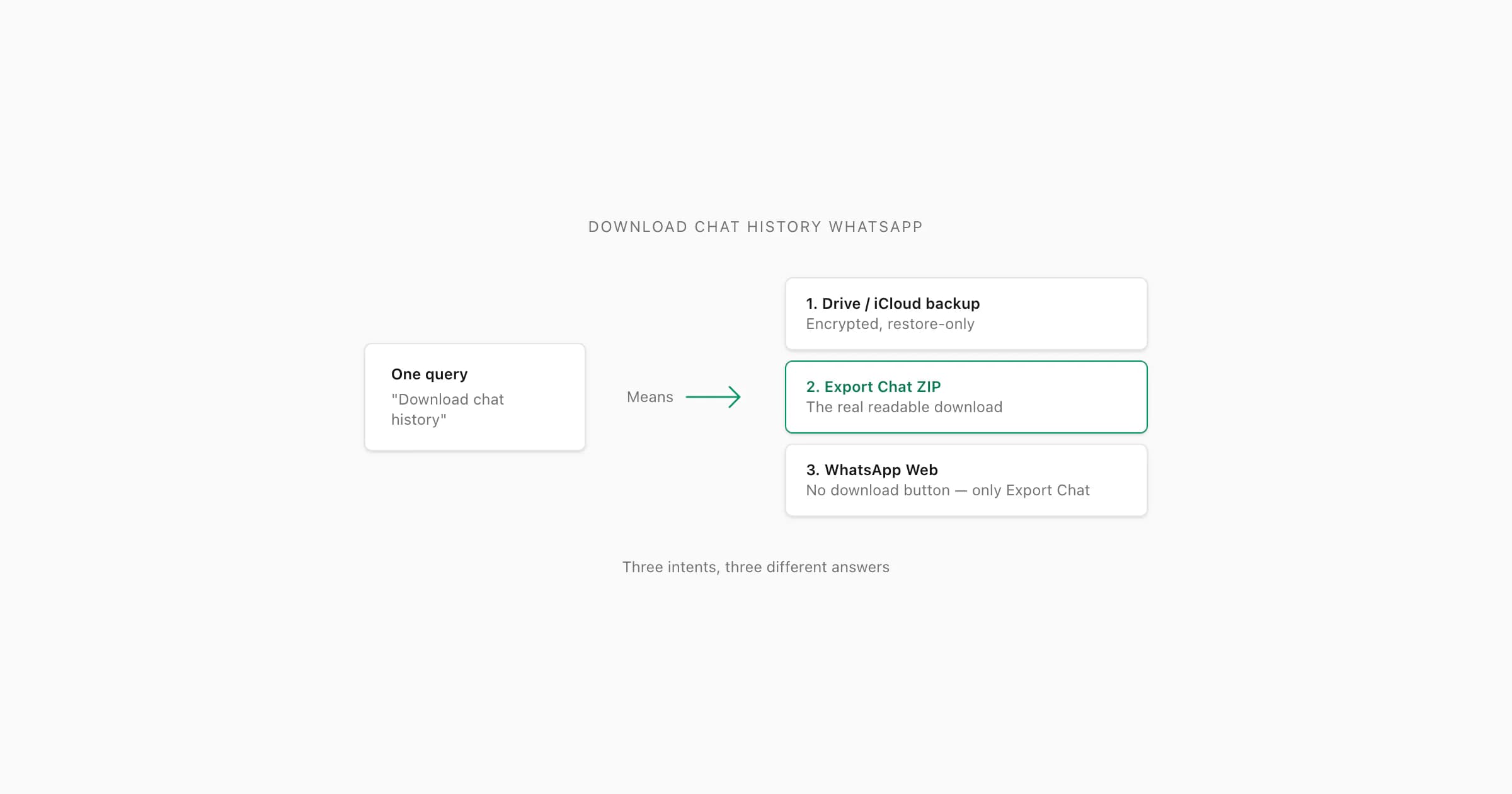
To download WhatsApp chat history, use the built-in Export Chat feature: open the chat, tap the menu (iOS: tap the title bar; Android: tap the three-dot menu → More), choose Export Chat, select Without Media or Including Media, and save the ZIP to your phone. There is no single "download all" button — Export Chat works one conversation at a time. Upload the ZIP to ChatToPDF to convert the history to a readable PDF.
The three things "download chat history" usually means
I have spent enough time in support emails to recognise when a query is hiding three different intents under the same words. "Download chat history WhatsApp" is one of those. Some people typing it want the Google Drive backup they have heard about. Some want the Export Chat ZIP. Some are sitting at WhatsApp Web on a desktop, looking for a download button that does not exist. The single phrase covers all three, and the answer changes completely depending on which one you are after.
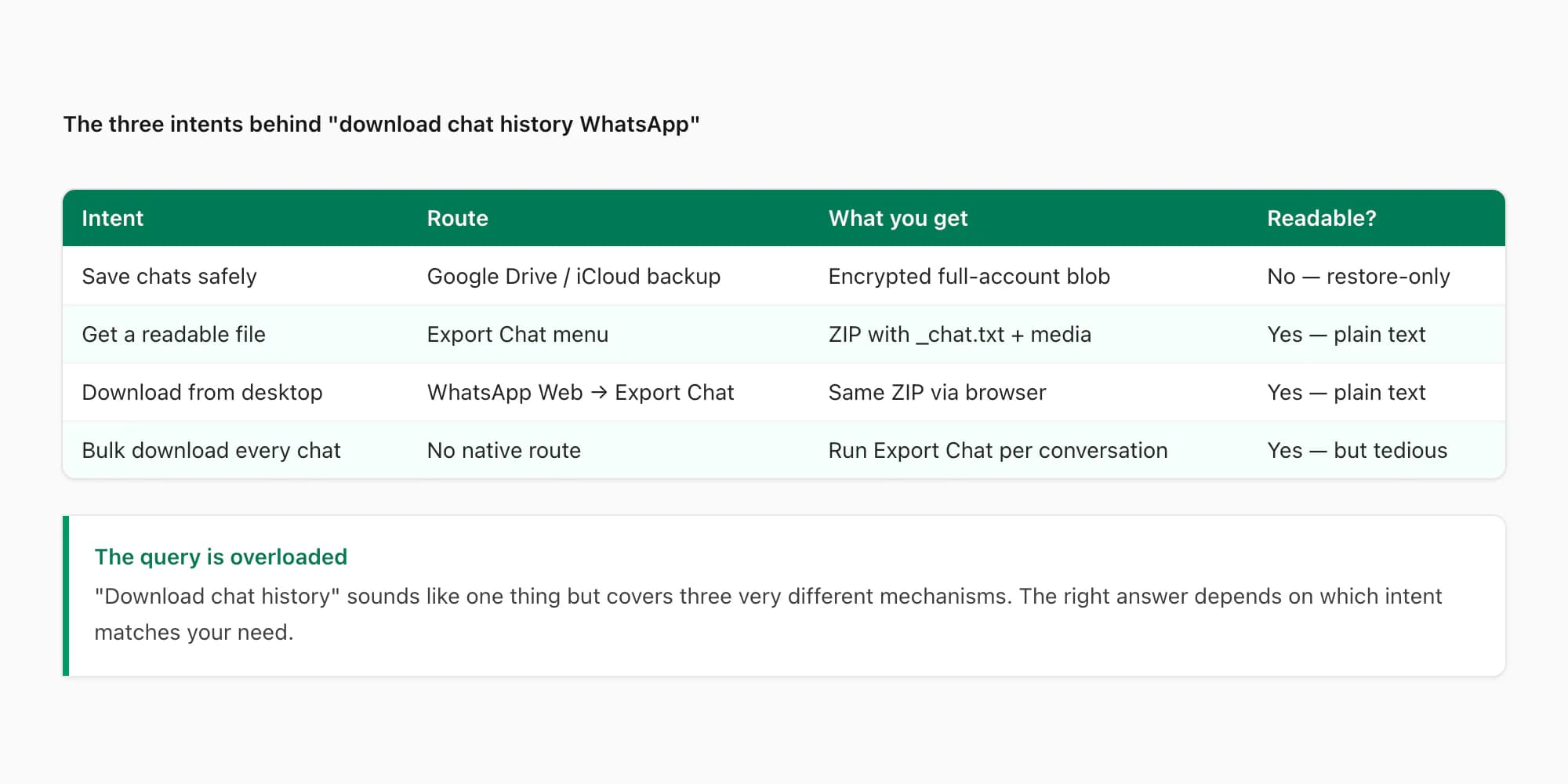
So before I explain mechanics, let me name the three intents and what each one actually delivers.
- Intent 1: a backup. "I want WhatsApp's stored copy of my chats so I can keep it." The route here is the Google Drive backup (Android) or iCloud backup (iOS). What you get back is an encrypted blob you cannot read directly — only a fresh WhatsApp install can use it, and only to restore the chats onto a new phone.
- Intent 2: a readable file. "I want to download my chat as something I can open and read." The route here is the Export Chat menu — that is the actual "download" feature, even though WhatsApp does not call it that. The output is a ZIP holding
_chat.txtplus optional media, and you can open_chat.txtin any text editor on any device. - Intent 3: a Web excerpt or computer copy. WhatsApp Web can copy or print messages already loaded in the browser, but it has no native complete archive export. For a source-quality computer copy, export on the phone and transfer the TXT/ZIP.
The companion guide Export chat WhatsApp: what the feature actually does walks through Intent 2 in step-by-step menu detail. The pillar WhatsApp chat export covers the technical details — file format, message ceilings, locale-specific timestamps. This guide stays at the disambiguation level: which intent is yours, and what the right route looks like end-to-end.
Route 1 — the Google Drive / iCloud backup (not really a download)
Most people who say "download" first think of the cloud backup. It is the most-talked-about WhatsApp feature for people switching phones, and the wording in articles often blurs "backup" and "download" together. So let me draw the line clearly.
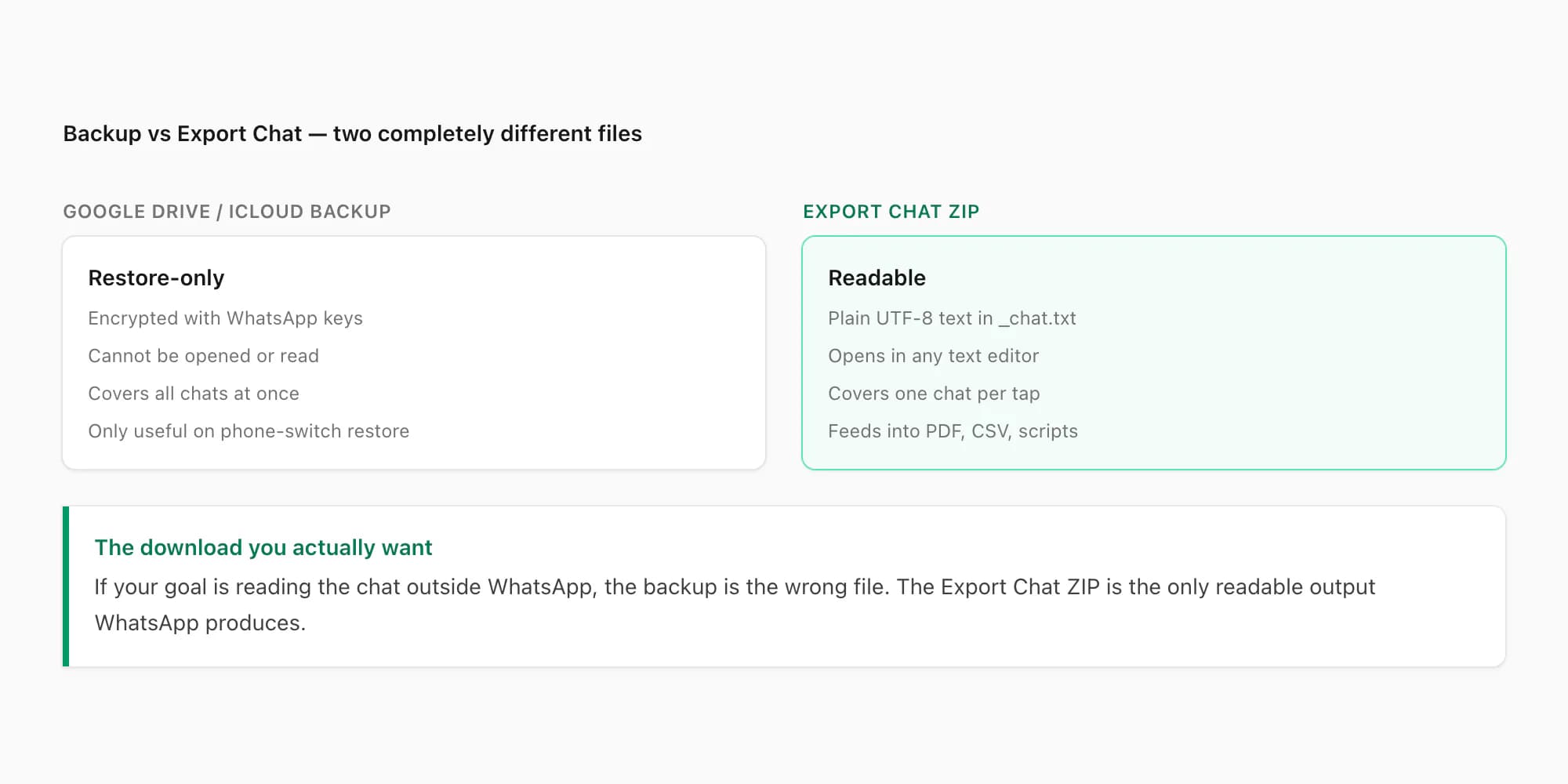
A WhatsApp backup is an encrypted copy of every chat on your phone, written to your Google Drive (Android) or iCloud (iOS) account on a schedule you set. The backup file lives in your cloud account, not on your phone in any readable form. You cannot open it. You cannot extract one chat from it. You cannot view its contents in a text editor or a file explorer. The backup is restore-only — when you install WhatsApp on a new phone with the same account, WhatsApp asks if you want to restore from backup, and only then does it pull the encrypted file and reconstruct your chats.
Two consequences fall out of that design. First, the backup is not a "download" in any user-facing sense. You cannot click anywhere to retrieve a copy you can read. The backup is invisible by design. Second, "downloading the backup" — if you mean copying that encrypted file onto your computer — is technically possible on Android via Google Drive support but pointless: the file uses WhatsApp's own end-to-end encryption keys, and no tool outside WhatsApp can decrypt it.
So if your goal was "I want my chats stored somewhere safe", the backup already does that — automatically. If your goal was "I want to read my chats outside WhatsApp", the backup is the wrong tool. You want Route 2.
The companion piece What "export chat" actually means on WhatsApp walks through how the export, by contrast, gives you a file you can actually open — and what that means for privacy.
Route 2 — the Export Chat ZIP (the real download)
This is the answer that fits the most common reading of "download chat history WhatsApp". Export Chat is the one feature in WhatsApp that produces a portable file you can open, read, and feed into other tools. Every time someone in support says "I downloaded my chat", they mean this — even if they did not realise the menu was called Export Chat.
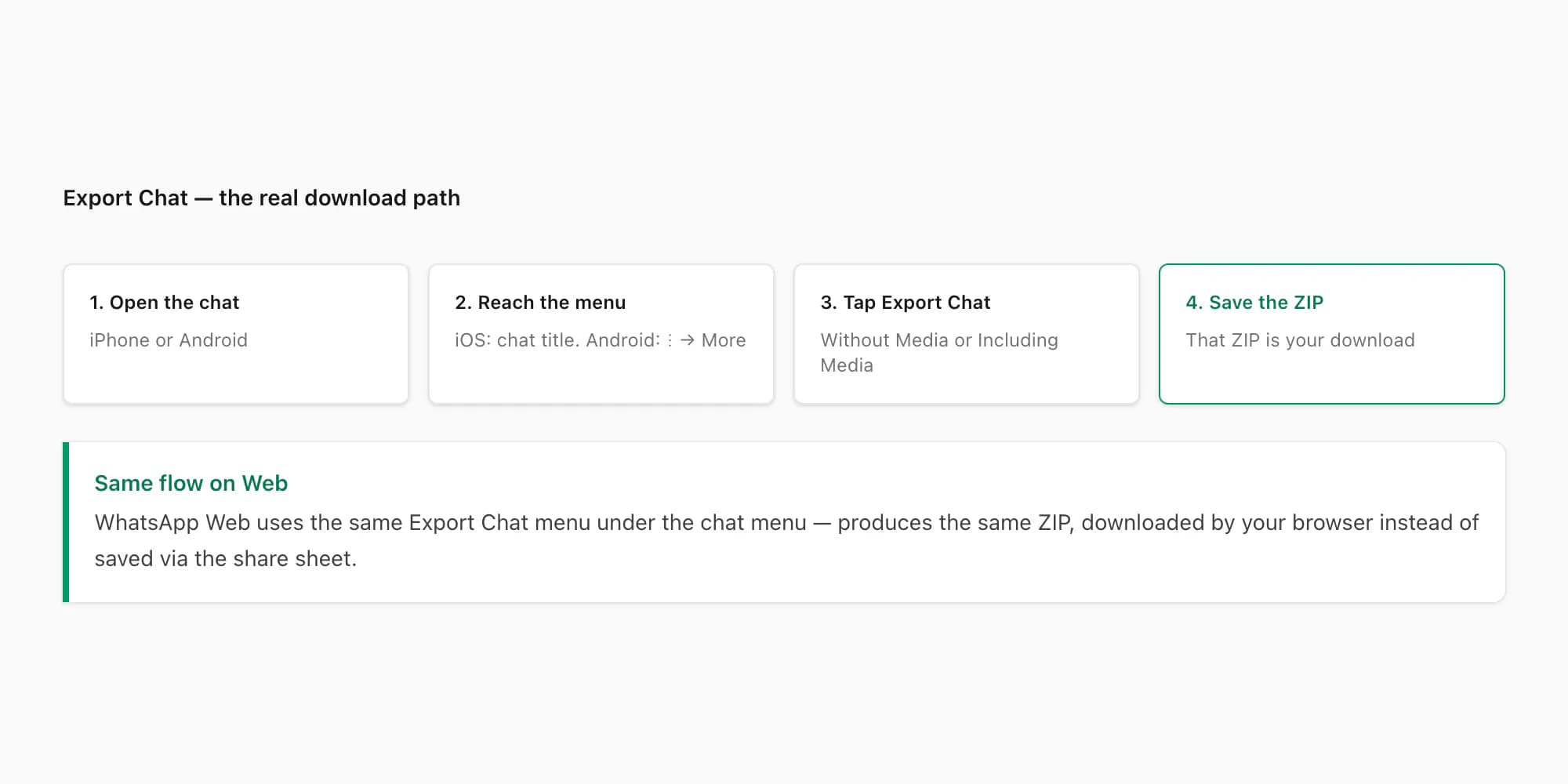
The flow is short. On iPhone, open the chat, tap the contact or group name at the top, scroll down, tap Export Chat. On Android, open the chat, tap the three-dot overflow menu (⋮), tap More, tap Export chat. WhatsApp asks Without Media or Including Media — Without Media gives you a small, fast text-only ZIP, Including Media bundles photos, voice notes, and videos for roughly the most-recent 10,000 messages. iOS hands you a share sheet; tap Save to Files and pick a folder you will remember. Android does the same with its share intent.
The output, in both cases, is a ZIP archive named something like WhatsApp Chat with Alice.zip. Inside the ZIP is a plain-text file (_chat.txt on iPhone, WhatsApp Chat with Alice.txt on Android) holding every message line by line, with timestamps and sender names. If you chose Including Media, the ZIP also contains the attached media files — IMG-*.jpg, PTT-*.opus for voice notes, VID-*.mp4, DOC-*.*. The structure is intentionally boring so any tool, on any platform, can read it.
The extension alone does not tell you every codec or container detail. The WhatsApp audio format guide explains what .opus, .ogg and other exported audio names mean, plus how to inspect a specific file before converting it.
I want to flag one undocumented ceiling here, because it catches people out. The export tops out at 40,000 messages per chat, with no warning. If your chat is longer than that, only the most-recent 40,000 messages make it into the ZIP. There is no banner, no error, no truncation notice. The pillar WhatsApp chat export covers that ceiling and the related ~10,000-message media-bundling cap in detail. For short and medium chats, neither limit matters; for chats running into the tens of thousands, both do.
The Export Chat ZIP is what you actually download. It is the file you can open. It is the file you can email to a lawyer, drop into chattopdf.app to convert to a PDF, or feed into a script. The companion piece What "export chat" actually is — the feature definition explains what the feature is and is not, in case you want the definitional version.
Route 3 — WhatsApp Web (which has no download button)
This is the route that surprises people most. If you are on WhatsApp Web at web.whatsapp.com, sitting at a desktop with a keyboard and mouse, the natural assumption is that there must be a download button somewhere — every other web app has one. There is not.
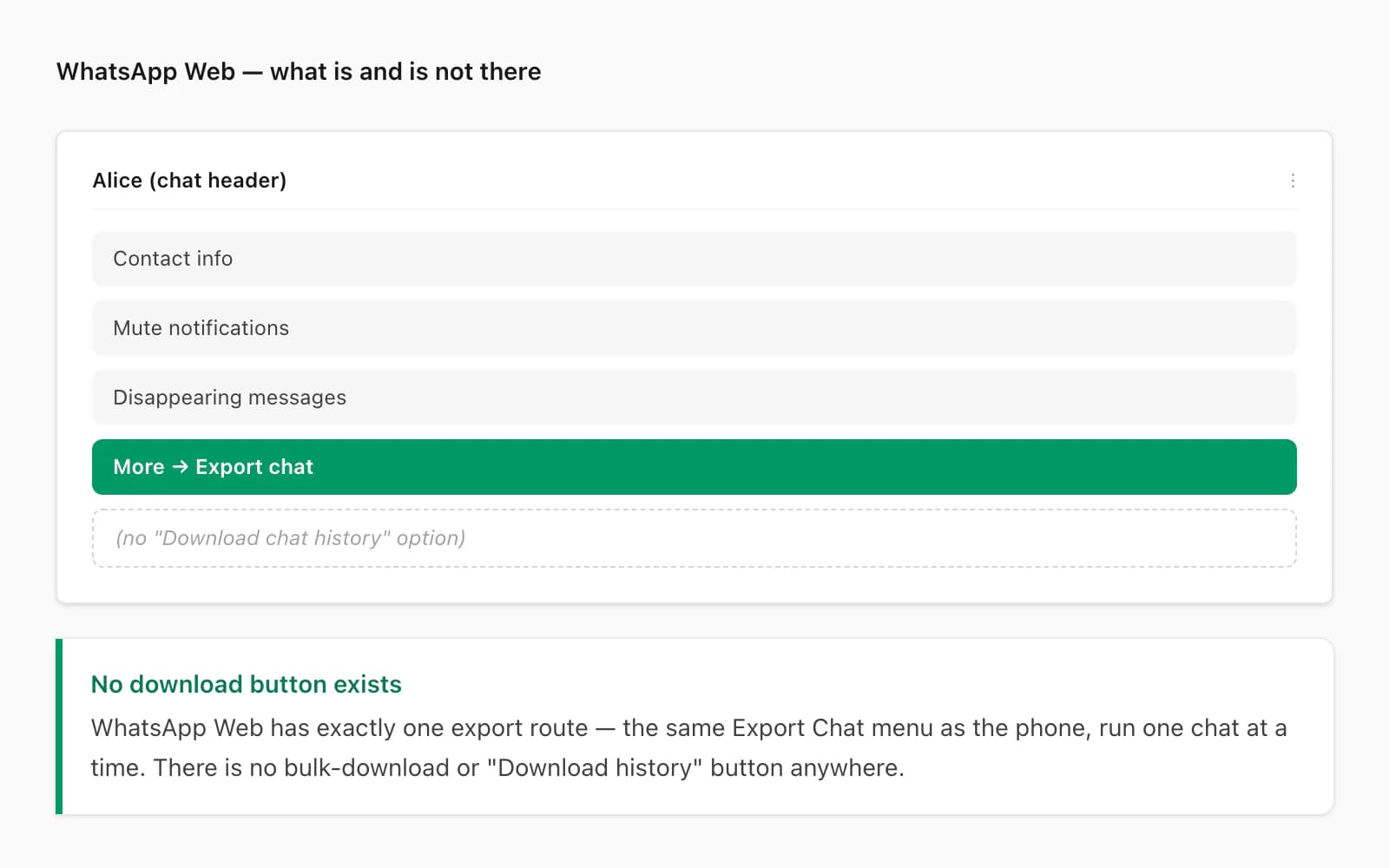
WhatsApp Web has no native complete chat-archive export. It can copy visible messages, print the browser's loaded view and download individual attachments. Those are useful for a deliberately short excerpt, but they do not force the full conversation to load and they do not produce the phone app's supported transcript bundle.
For a complete native export while you are working at a computer, start Export chat on the linked phone, save the TXT/ZIP to Files, Drive, AirDrop, email or another trusted location, then open that original file on the computer. The dedicated WhatsApp Web export guide compares native phone export, Web copy/print and third-party extensions, including the privacy checks an extension needs.
There is no bulk native download for every chat. Export Chat runs one conversation at a time on the phone. A button injected into Web by an extension belongs to that third party, not to WhatsApp, and should not be treated as equivalent without checking permissions, processing and completeness.
What "download chat history" never includes
Whichever route you take, certain things are not part of the chat-history download. Let me list them so you do not assume scope you are not getting.
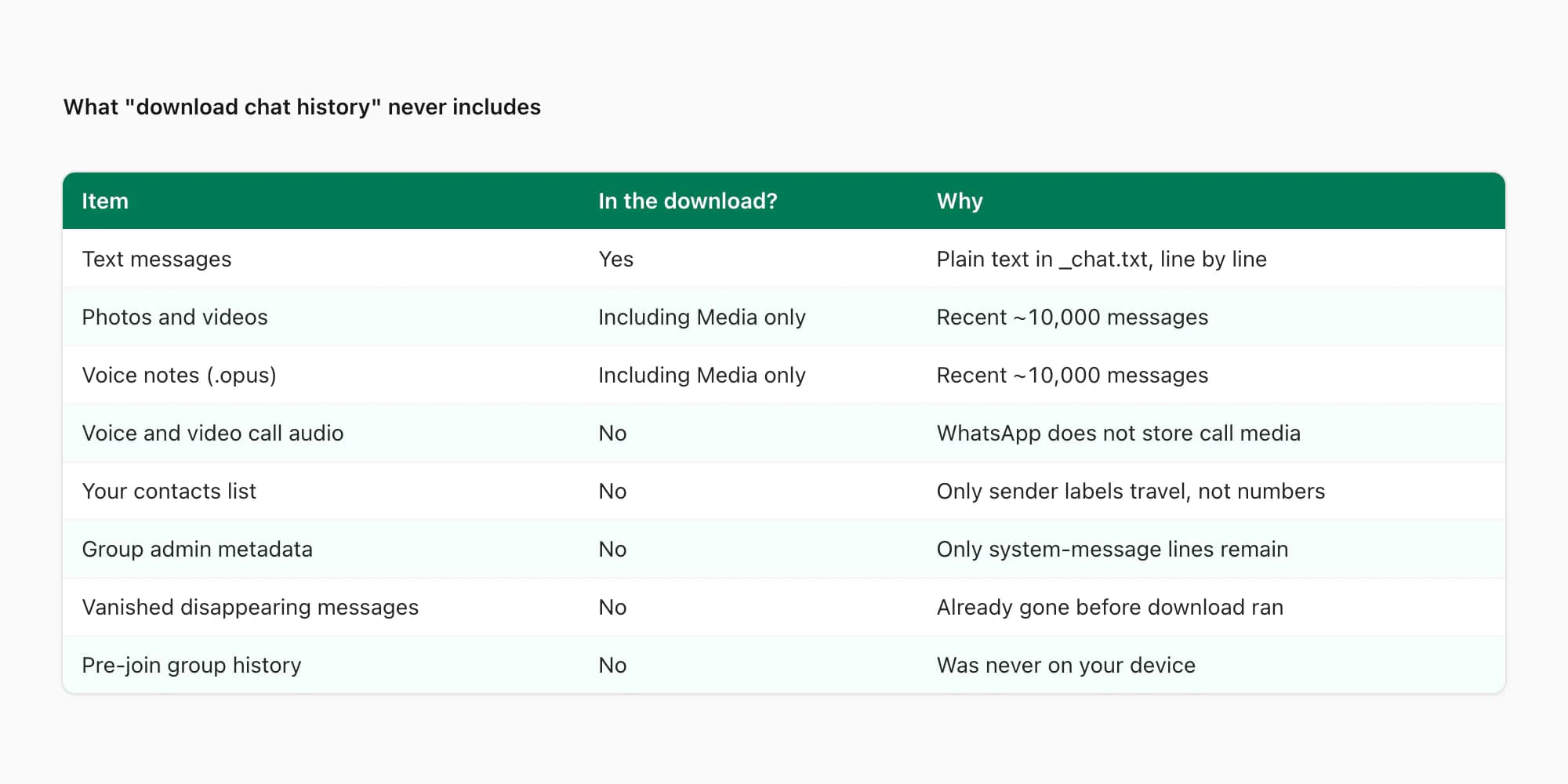
- Voice and video calls. The exported
_chat.txtcontains lines like "Missed voice call" or "Voice call · 12:34" — but the audio or video itself is never recorded. WhatsApp does not store call media on your device. - Your contacts list. Saved contact names show up as sender labels in the export, because they were already attached to the messages on your phone. The contacts themselves never travel — no phone numbers, no email addresses, no nothing.
- Group metadata changes. The export shows system messages like "Alice added Bob" or "Encryption key changed", but the underlying admin actions, member-permission changes, and group-setting tweaks are not separately preserved.
- Vanished disappearing messages. Anything that disappeared before you ran the export is gone. The export reads the chat as it currently exists on your device — it cannot recover messages WhatsApp already deleted.
- Messages from before you joined a group. The chat history in the export starts at your join date, not the group's founding date.
- Older media beyond the recent ~10,000 messages. Even with Including Media, WhatsApp only bundles attachments for the most-recent stretch. Older photos and voice notes appear as filename references in
_chat.txtbut are not in the ZIP.
If your goal involves any of those things — call recordings, contact metadata, pre-join group history — the answer is that no download route gets them, because WhatsApp does not have them in the first place.
Picking the right route for your goal
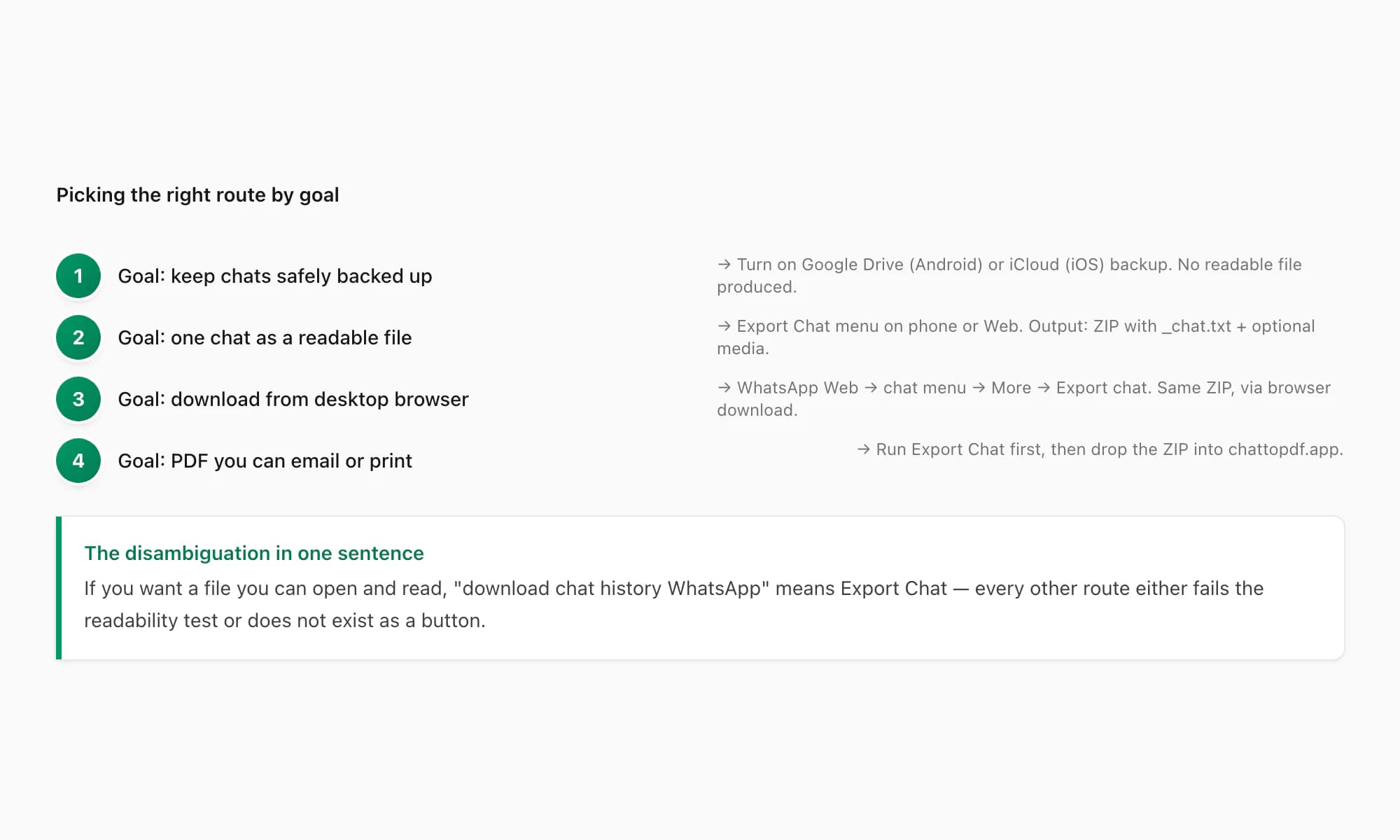
Here is the disambiguation, applied to common goals I see in chattopdf support.
"I want my chats backed up safely." Use Route 1. Turn on the Google Drive (Android) or iCloud (iOS) backup, set a schedule, leave it. You do not need a readable file for this — you just need the ability to restore on a new phone, which the backup handles automatically.
"I want one chat as a readable PDF I can email to my lawyer." Use Route 2. Open the chat, tap Export Chat (Without Media for speed, Including Media if photos matter), save the ZIP, drop it into chattopdf.app. The $14 Standard per chat conversion produces a sender-attributed PDF in about 30 seconds.
"I want to read a few of my chats outside WhatsApp on my computer." Use Route 2: run Export Chat on the phone, transfer the resulting TXT/ZIP to the computer, and preserve the original. If you only need a few visible messages, a clearly labelled Web copy or print excerpt may be enough.
"I want every chat ever, all at once." No route covers that. WhatsApp does not have a bulk-export feature. The closest you can get is running Export Chat repeatedly, one conversation at a time. Some people use a third-party migration tool for this, but those are paid, desktop-only, and overkill for most use cases.
"I want to recover messages I deleted last week." No route covers that either. The backup might still hold them if the deletion happened after the most-recent backup ran, in which case restoring on a fresh install would bring them back — but this is fragile, and it cannot be done while keeping your current install. Export Chat reads only what is currently on your device.
If your goal is "readable file from one chat", Route 2 is almost always the right answer. The other routes are for narrower, often-misunderstood needs.
Pricing — turning the downloaded ZIP into a readable PDF
Once you have the Export Chat ZIP — Route 2's actual output — most people want to convert it to a PDF. The ZIP is the means; the PDF is the end. Here is how the chattopdf tiers map to common chat sizes.
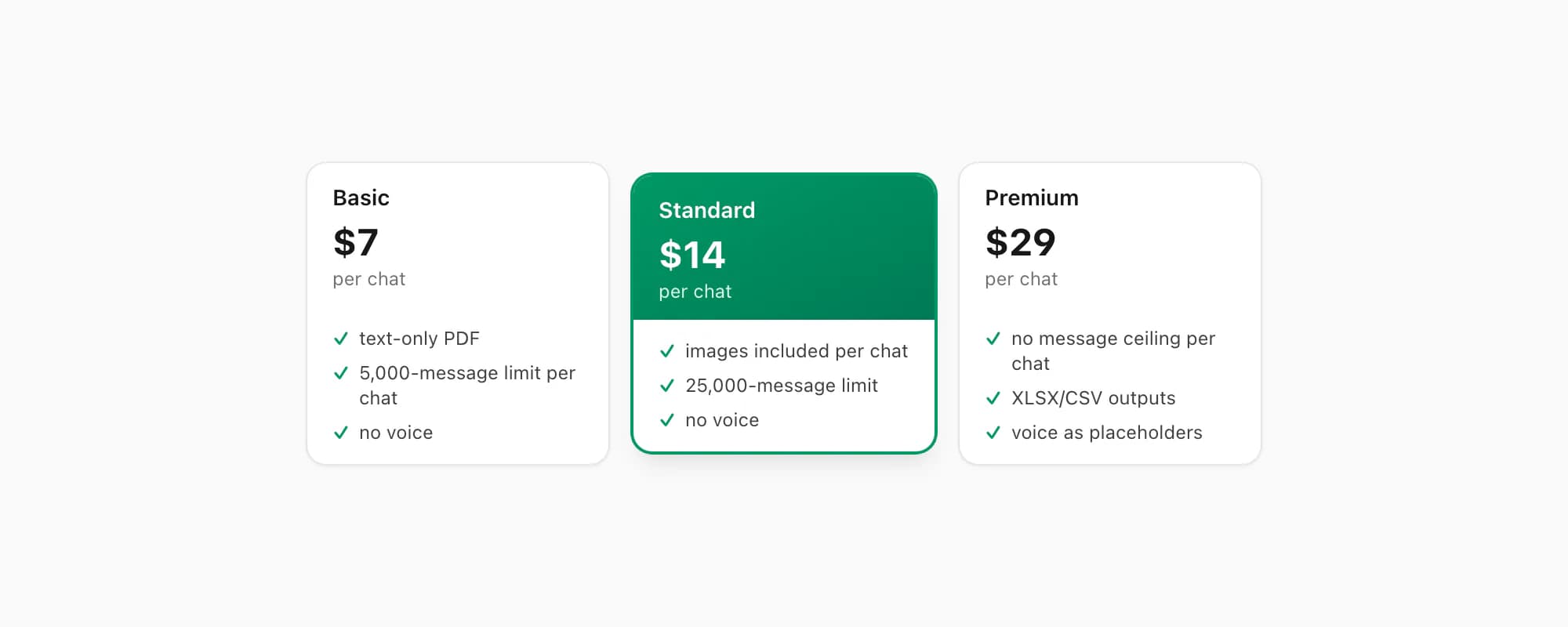
$7 Basic per chat is the entry point. Text-only PDF, capped at 5,000 messages per chat, no embedded images, no voice transcription. Right when the chat is short and you only need the message text in a clean, readable document.
$14 Standard per chat is where most personal chats land. Embedded images appear inline in the PDF (assuming you exported with Including Media), the message ceiling sits at 25,000 per chat, and voice transcription is not included. This is the tier I push hardest in support because it covers the bulk of cases.
$29 Premium per chat removes the message ceiling per chat and adds XLSX/CSV outputs alongside the PDF. Voice notes appear as placeholders rather than transcribed text. Right for long-running individual chats, big group threads, or when you also want to do data analysis on the conversation in a spreadsheet.
If voice transcription matters, the $49 Premium+Voice per chat tier adds language-aware Nova-3/Scribe v2 transcription with an extended audio cap. The $99 Power User per chat tier adds priority queue processing and bulk uploads — useful if you have a folder of 10 ZIPs to convert in one session.
Each conversion is a single payment for a single chat. There is no recurring billing on any tier, and no account-level access. Re-export the same chat tomorrow and convert that fresher ZIP, you pay again — because each conversion is real work against a different snapshot.
Key takeaways
- "Download chat history WhatsApp" maps to three intents — a restore-only backup, a readable phone Export Chat file, or a limited WhatsApp Web excerpt
- The Google Drive / iCloud backup is encrypted and restore-only — you cannot read it directly, and "downloading" it onto your computer is pointless because no tool outside WhatsApp can decrypt it.
- The Export Chat ZIP is the only route that gives you a readable file. It holds
_chat.txt(every message in plain text) plus optional media, and you can open it in any text editor or convert it to a PDF. - WhatsApp Web has no native complete chat-archive export; use phone Export Chat and transfer the original TXT/ZIP to a computer
- A chat-history download never includes voice or video call recordings, your contacts list, group admin metadata, or messages that vanished before you ran the export.
- For "I want a readable PDF of one chat", the route is: Export Chat → ZIP → drop into chattopdf.app → $14 Standard per chat → done in about 30 seconds.
- For the complete picture of every conversion option, pricing tier, and what the resulting PDF looks like, see the WhatsApp to PDF guide.
FAQ
Where is the download chat history button on WhatsApp?
There is not one. For a readable source file, use Export Chat in the phone app—on iPhone tap the chat title and scroll to Export Chat; on Android tap the three-dot menu, More, then Export chat. WhatsApp Web can copy or print a visible excerpt but does not create the native complete archive. Transfer the phone's TXT/ZIP to the computer if needed.
How do I download my whole WhatsApp chat history at once?
You cannot. WhatsApp does not have a bulk-download feature. The Export Chat menu runs one conversation at a time. To get every chat, you would tap Export Chat once per conversation — thirty taps for thirty chats. Some people use a third-party migration tool to bulk-extract from a backup, but those tools are paid, desktop-only, and require a USB cable and twenty minutes of setup. For most users, running Export Chat per chat is the practical route.
Can I download my WhatsApp chats from Google Drive?
Technically the backup file lives in your Google Drive account on Android, but downloading it onto your computer is pointless. The file uses WhatsApp's own end-to-end encryption keys, and no tool outside WhatsApp can decrypt it. The backup is restore-only — only a fresh WhatsApp install can read it, and only to put the chats back on a new phone. If you want a readable file, use the Export Chat menu inside WhatsApp instead.
Is downloading my WhatsApp chat the same as backing it up?
No. A backup (Google Drive on Android, iCloud on iOS) is an encrypted full-account copy designed for restoring on a new phone — you cannot read or open it. A "download" via Export Chat is a single-chat ZIP holding plain text plus optional media — you can open it in any text editor or convert it to a PDF. They are completely different mechanisms and produce completely different file types. Choose based on whether you want to restore later (backup) or read now (Export Chat).
Does the other person know when I download our chat history?
No. The Export Chat feature runs entirely on your device — WhatsApp does not send a notification to the other person, change any read-receipt state, or post a system message in the chat. The other person has no way to detect that you ran the export. The same is true for the cloud backup, which is account-level and invisible by design. Only you and the platforms you choose to share the resulting file with know that the download happened.
Why is my downloaded chat missing some old messages or media?
Two undocumented ceilings explain almost every "missing data" report I see. The export tops out at 40,000 messages per chat — only the most-recent 40,000 make it into the ZIP, with no warning. And media bundling tops out at roughly the most-recent 10,000 messages, again with no warning — older photos and voice notes appear as filename references in _chat.txt but the actual files are not in the ZIP. For most personal chats, neither limit matters; for long-running threads, both do.
I'm Paul, the founder of ChatToPDF. I built it after needing a long WhatsApp conversation as a readable PDF for a legal matter. I test and document WhatsApp exports, PDF conversion, voice-note transcription, and the limits people should check before relying on the result.