
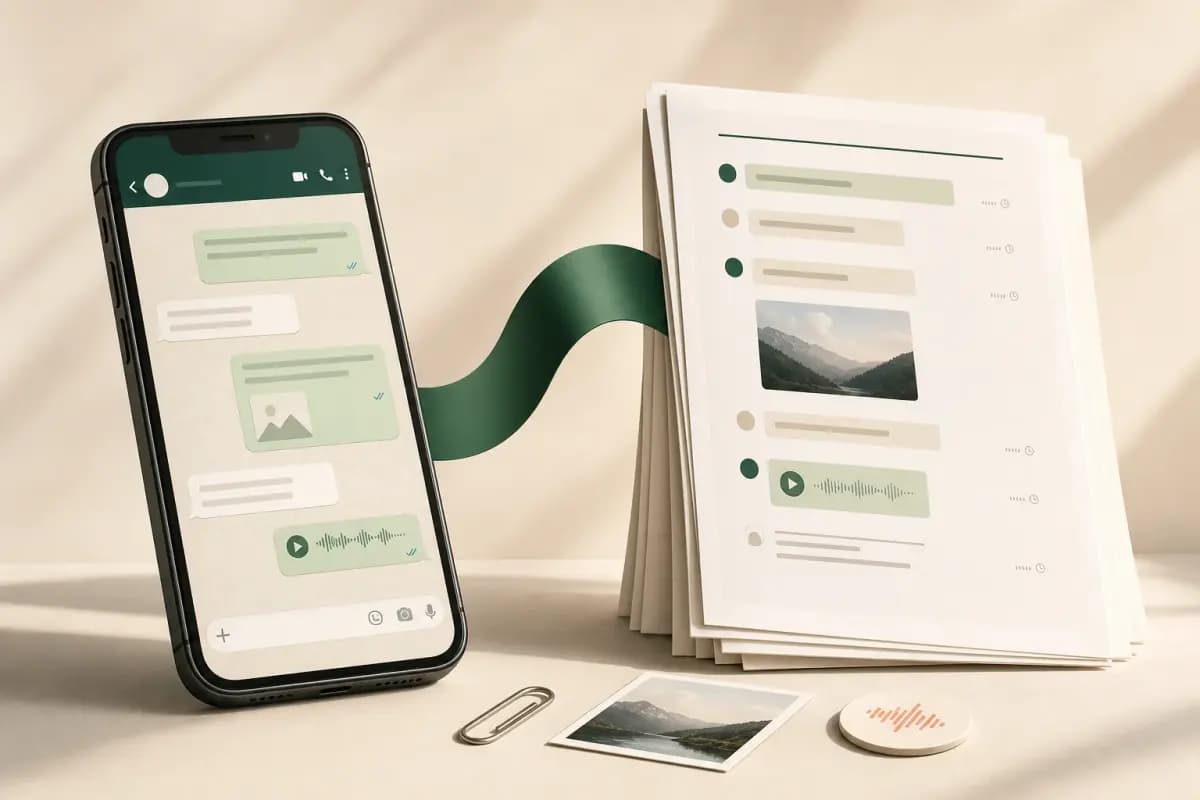
To export a WhatsApp chat to PDF on iPhone: open the chat, tap the contact or group name at the top, scroll to Export Chat, choose Including Media, and tap Save to Files. WhatsApp produces a ZIP — not a PDF. Upload that ZIP to ChatToPDF and a sender-attributed PDF arrives by email in about 30 seconds. The full flow from chat to PDF takes roughly one minute.
- iPhone choice
- Without Media
- File WhatsApp creates
- A small text export
- Use it when
- You only need searchable messages and timestamps
- iPhone choice
- Including Media
- File WhatsApp creates
- A ZIP with the transcript and available attachments
- Use it when
- Photos, documents or voice notes need to stay with the record
- iPhone choice
- Save to Files
- File WhatsApp creates
- A persistent file you can pick in Safari
- Use it when
- You want the most reliable upload path on the same iPhone
- iPhone choice
- Mail or AirDrop
- File WhatsApp creates
- The same export sent to another device
- Use it when
- You plan to convert or archive it on a Mac or PC
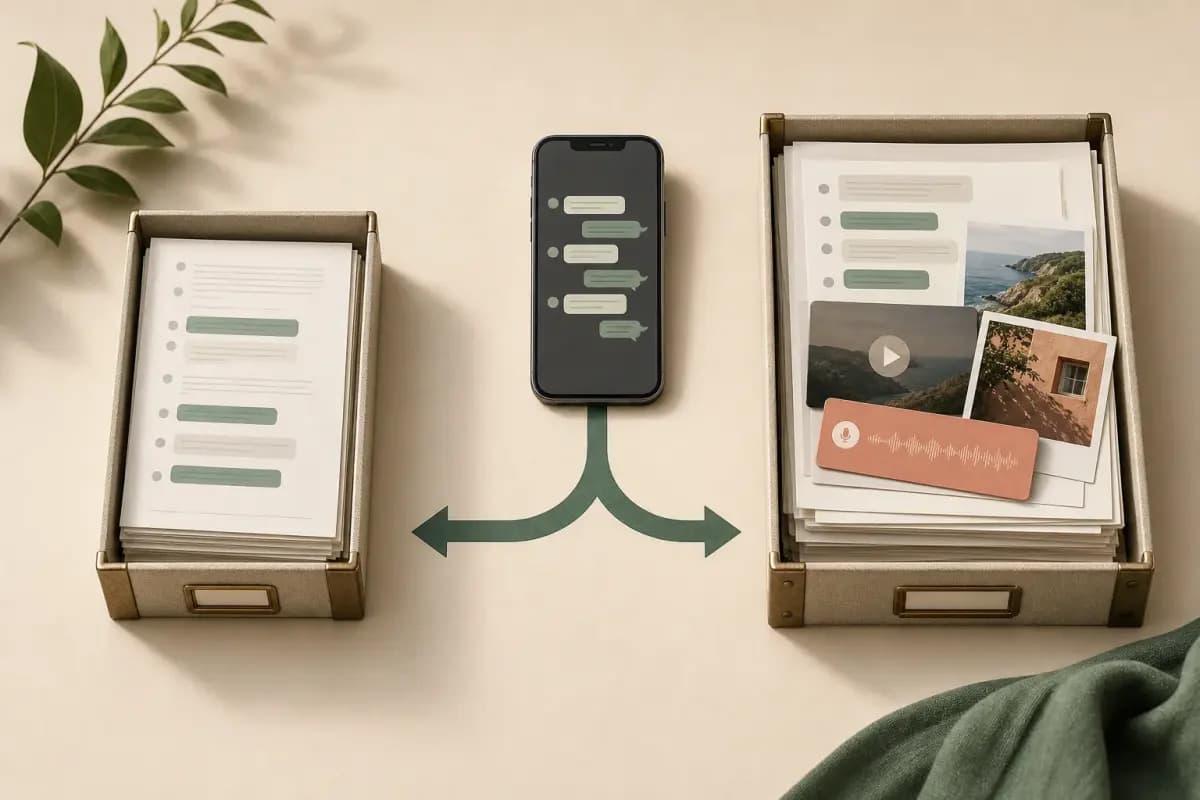
| iPhone choice | File WhatsApp creates | Use it when |
|---|---|---|
| Without Media | A small text export | You only need searchable messages and timestamps |
| Including Media | A ZIP with the transcript and available attachments | Photos, documents or voice notes need to stay with the record |
| Save to Files | A persistent file you can pick in Safari | You want the most reliable upload path on the same iPhone |
| Mail or AirDrop | The same export sent to another device | You plan to convert or archive it on a Mac or PC |
8-minute iPhone walkthrough — where the Export Chat button actually is, and which options to pick.
Why WhatsApp on iPhone doesn't export to PDF directly
If you searched "export WhatsApp chat to PDF iPhone", you probably expected a menu option labelled "Export to PDF" somewhere inside WhatsApp. There isn't one. WhatsApp's Export Chat menu — the iOS feature that actually moves a chat off the app — outputs one of two file types depending on what you pick.
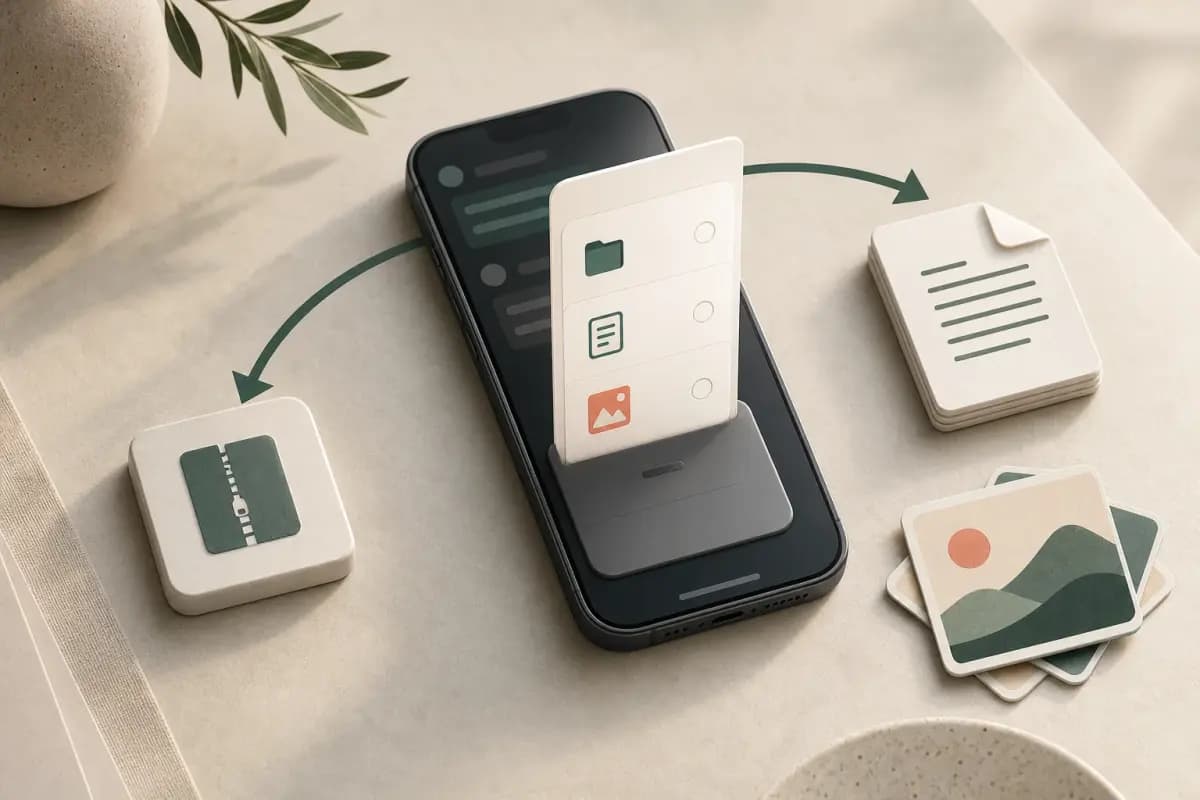
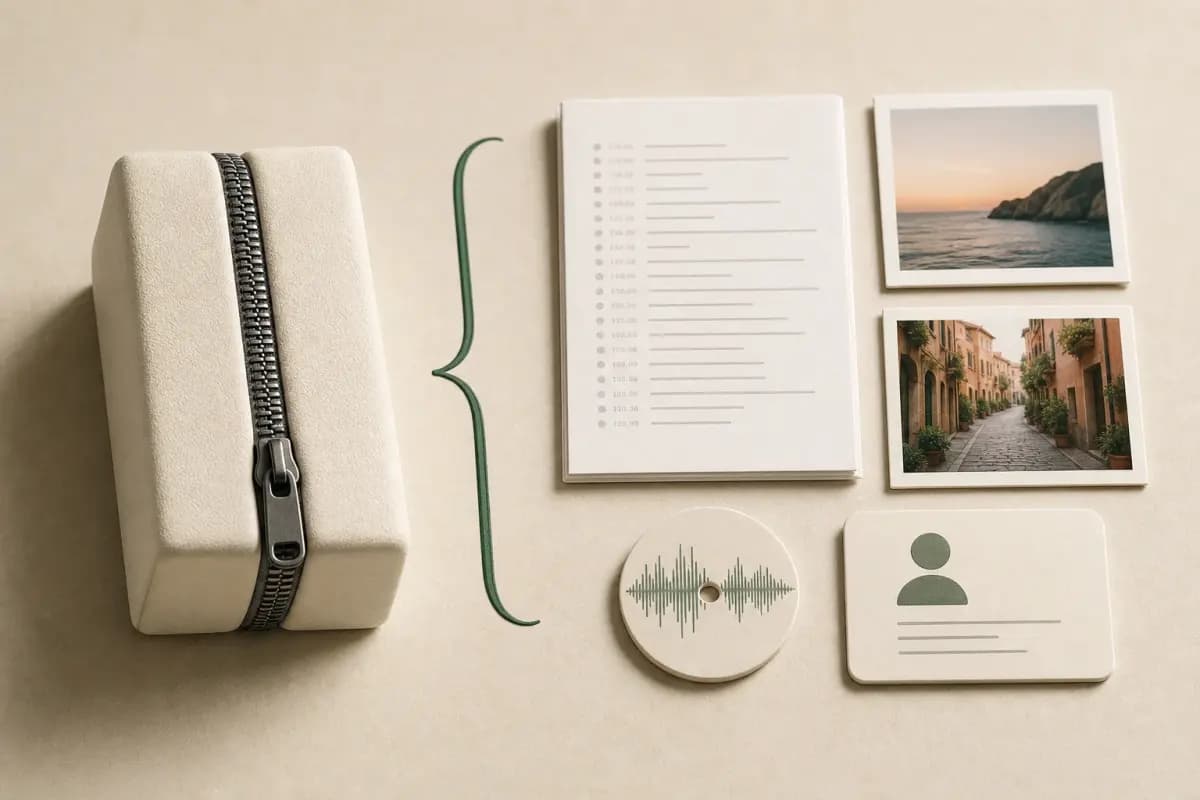
Pick Without Media and you get a .txt file with timestamped messages, no images. Pick Including Media and you get a .zip file with the same .txt plus every photo, video, and voice note from the conversation as separate files inside the archive. Both formats are readable but neither is what most people want when they say "PDF". A PDF is one fixed document, paginated, printable, with the messages and the photos rendered together in a layout that survives moving between devices and emailing to anyone. The ZIP is a folder. The TXT is a wall of text.
That's why this guide exists. The bridge between WhatsApp's Export Chat output and an actual PDF is a converter — chattopdf.app reads the ZIP and lays out messages with sender attribution, timestamps and inline media on PDF pages. You stay on the iPhone the whole time, with no separate app install or desktop required. The general PDF angle is covered in the export WhatsApp chat to PDF companion guide; this page is the iPhone-specific path. For the broader iOS workflow, see how to export WhatsApp chat on iPhone. If your exported file begins later than expected, the observed history-limit checks live at how to export a large WhatsApp chat on iPhone.
The iPhone flow — five taps to a PDF
Five taps in WhatsApp on iPhone, plus the chattopdf upload, is the whole flow. I count the taps on purpose because most iPhone walkthroughs make this look longer than it is.

Tap the chat you want to export
Open WhatsApp on the iPhone, tap the Chats tab at the bottom, tap the conversation you want as a PDF. You should be inside the chat looking at message bubbles. Don't tap the camera or phone icons at the top right — those go elsewhere. Tap one.
Tap the contact name at the top
The contact's name (or the group name) sits at the very top of the chat as a small piece of header text. Tap it. iOS slides up the contact info or group info screen — a longer scrollable list with Mute, Encryption, Block, and so on. This is the iOS entry point that trips most people up because the iOS version uses the title as the menu, where Android uses a three-dot icon. Tap two.
Scroll to the bottom and tap Export Chat
Scroll past Mute, Encryption, Chat Lock, Media-Links-and-Docs, Starred Messages, Block, Report, and Clear Chat. Export Chat sits near the bottom in red text. Tap it. Tap three.
Pick Including Media
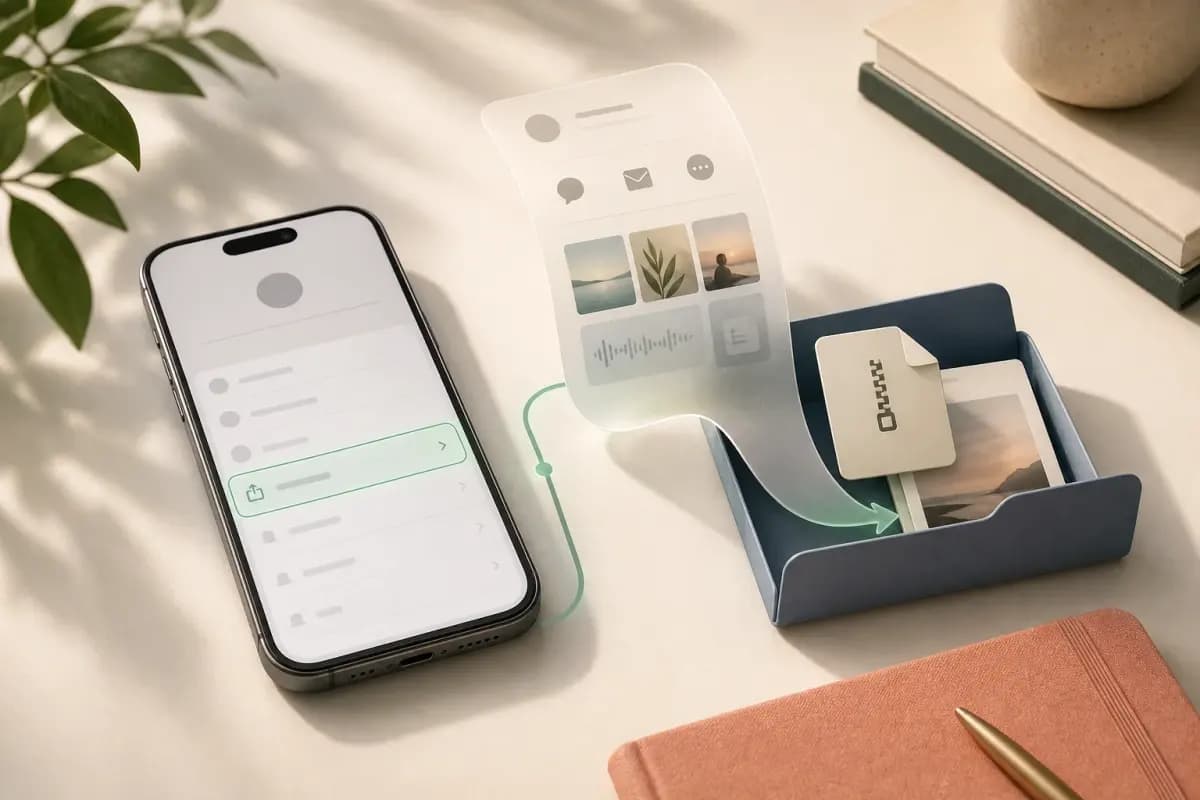
WhatsApp asks one question — Without Media or Including Media. For a PDF that has photos rendered inline alongside the messages, pick Including Media. Without Media gives you a tiny TXT-only export, fine if you genuinely want text only, but you lose the photos and voice notes from the PDF. Tap four.
Save to Files → On My iPhone → Downloads
The iOS share sheet appears. Tap Save to Files. The save dialog asks where the ZIP goes — pick On My iPhone, then Downloads, then tap Save. The ZIP is on the iPhone, ready for upload in the next step.
Tap five. That's the WhatsApp half of the flow done. iCloud Drive works just as well as the destination if you already use it, but On My iPhone is fastest because the file lives locally and Safari finds it instantly.
If you tapped Mail or AirDrop on the share sheet by mistake, no harm done — back out and start at step 2 again. The export is non-destructive; nothing inside WhatsApp changes when you export. WhatsApp's export chat history FAQ confirms the same flow if you want the official source.
Upload the ZIP and what the PDF looks like
Now switch to Safari on the same iPhone and open chattopdf.app. The home page has a file-upload area at the top — that's where the ZIP goes.

Tap the upload area. iOS opens its file picker. Tap Browse at the bottom, tap On My iPhone, tap Downloads, tap the WhatsApp Chat - <name>.zip file you just saved. The upload begins. Recent ZIPs also appear under Recents in the iOS picker if you forgot the folder. From here, pick a tier (the page walks you through them), pay via the integrated checkout, and chattopdf processes the ZIP server-side.
The output PDF is what most people imagine when they say "WhatsApp chat as a PDF". Each message renders as a bubble with the sender's name labelled above, the timestamp shown, photos rendered inline at sensible thumbnail sizes, and voice-note placeholders where audio sits in the original conversation (transcribed inline if you picked the Premium+Voice tier). Pagination is automatic — the PDF wraps cleanly across pages without splitting messages awkwardly.

The PDF arrives by email at the address you used at checkout, typically in 30 seconds for a chat under 25,000 messages. Larger chats take a couple of minutes. From there, the PDF behaves like any other PDF — open it on the iPhone, AirDrop it to a Mac, attach it to an email, print it, send it to a lawyer, archive it. That's the format advantage over the WhatsApp ZIP: the PDF is one self-contained document, while the ZIP is a folder of separate files that only makes sense if you have a tool to read them.
Pricing — $14 Standard per chat is the right tier
ChatToPDF charges per chat conversion. No subscription. No monthly fee. You pay once for the chat you uploaded, get the PDF by email, and that conversion stands alone.
$7 Basic per chat — text-only PDF, no inline photos. Fine for short text-only chats or if you exported with Without Media.
$14 Standard per chat — recommended for most iPhone exports. Inline photos render in the PDF if the ZIP came from Including Media, sender-attributed bubbles, timestamps, up to 25,000 messages per chat. This is the right tier for a typical iPhone WhatsApp export.
$29 Premium per chat — adds an XLSX/CSV export alongside the PDF and removes the message ceiling. Useful for chats over 25,000 messages or when you want spreadsheet data.
$49 Premium+Voice per chat — adds voice-note transcription through the language-aware Nova-3/Scribe v2 router. iPhone WhatsApp chats often include .opus voice notes; supported notes that transcribe successfully appear inline in the PDF. The current registry covers 93 languages, including 57 in provider-published excellent or high bands. The transcribe WhatsApp audio guide covers the voice pipeline in more depth.
$99 Power User per chat — priority queue and bulk handling for several chats in one session.
For an iPhone export-to-PDF, the answer is almost always $14 Standard per chat unless your chat has voice notes you want transcribed (then $49 Premium+Voice) or you're over 25,000 messages (then $29 Premium).
Key takeaways
- WhatsApp on iPhone doesn't export to PDF directly — Export Chat produces a ZIP (with media) or a TXT (without media), not a PDF
- Five taps in WhatsApp gets you the ZIP — chat → title → Export Chat → Including Media → Save to Files → On My iPhone → Downloads
- ChatToPDF reads the ZIP and produces a sender-attributed PDF with timestamps, inline photos, and clean pagination
- The end-to-end flow runs about a minute from chat to PDF — 30 seconds in WhatsApp, 30 seconds at chattopdf
- $14 Standard per chat is the right tier for most iPhone WhatsApp-to-PDF exports — inline photos, up to 25,000 messages, sender attribution
- $49 Premium+Voice per chat is the upgrade if your chat has voice notes you want transcribed inline in the PDF
- The PDF arrives by email so the same iPhone can forward, AirDrop, print, or archive it without any app install
FAQ
How do I export a WhatsApp chat as PDF on iPhone?
WhatsApp on iPhone doesn't export to PDF directly — its Export Chat menu outputs a ZIP (with media) or a TXT (without media). Five taps gets you the ZIP: tap the chat in WhatsApp, tap the contact name at the top, scroll to Export Chat, pick Including Media, tap Save to Files and pick On My iPhone → Downloads. Then open chattopdf.app in Safari on the same iPhone, tap the upload area, pick the ZIP from Files, pay the $14 Standard per chat tier, and the sender-attributed PDF arrives by email in roughly 30 seconds. No app install, no desktop, no cable.
Why isn't there an Export to PDF option in WhatsApp on iPhone?
Because WhatsApp's Export Chat feature predates the per-chat PDF use case and was built around plain text and media archives, not document export. The iOS menu only offers Without Media (a TXT file) or Including Media (a ZIP with the TXT plus every photo, video, and voice note). Both are usable archives but neither is a paginated, formatted document. To get an actual PDF — one self-contained file with messages laid out as bubbles, sender attribution, timestamps, and inline photos — you run the ZIP through a converter. ChatToPDF does that step in roughly 30 seconds.
How long does the iPhone WhatsApp-to-PDF flow take end-to-end?
About one minute for a typical chat. The WhatsApp half — open chat, tap title, scroll to Export Chat, pick Including Media, Save to Files — runs about 30 seconds once you know the iOS path. The chattopdf upload and processing takes another 30 seconds for chats under 25,000 messages at the $14 Standard per chat tier. Larger chats run one to three minutes for processing depending on the number of messages and inline photos. Both halves happen on the iPhone in Safari and the Files app — no desktop, no cable.
Can I save a WhatsApp chat as PDF iPhone without installing any app?
Yes — that's exactly the path this guide walks. WhatsApp is already installed (you have the chat). Safari is already installed (it ships with iOS). The Files app is already installed (it ships with iOS). ChatToPDF runs entirely in the browser at chattopdf.app — there's no iOS app to install, no Mac App Store download, no Chrome extension. You drop the ZIP on the upload area in Safari, pay, get the PDF emailed back. The whole stack is the iPhone you already have.
Which chattopdf tier do I need for an iPhone WhatsApp chat to PDF?
$14 Standard per chat is the right answer for most iPhone exports. It produces a sender-attributed PDF with inline photos rendered (if you exported with Including Media), timestamps on every message, and supports chats up to 25,000 messages. Step up to $49 Premium+Voice per chat if your chat has voice notes you want transcribed inline through the Nova-3/Scribe v2 router across the current 93-language registry. Step up to $29 Premium per chat if you have over 25,000 messages or you want a spreadsheet alongside the PDF. $7 Basic per chat is text-only — fine for short chats with no photos but most iPhone exports include media.
For a voice-heavy chat, use the WhatsApp audio-to-text converter instead of manually sharing each recording. If WhatsApp's native one-note transcript fails, try the Transcript not available fixes first.
I'm Paul, the founder of ChatToPDF. I built it after needing a long WhatsApp conversation as a readable PDF for a legal matter. I test and document WhatsApp exports, PDF conversion, voice-note transcription, and the limits people should check before relying on the result.