
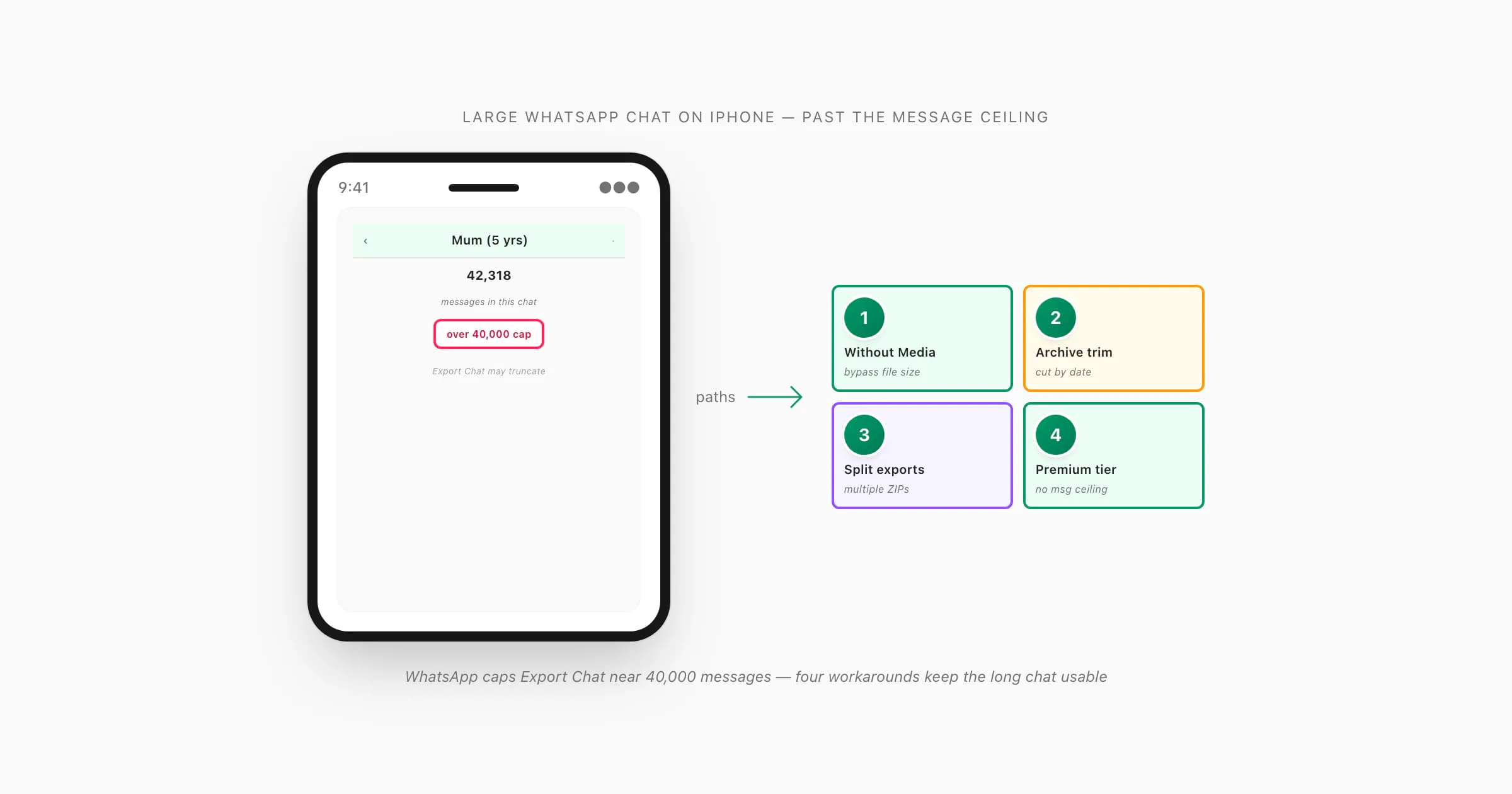
To export a large WhatsApp chat on iPhone, switch to Without Media to keep the ZIP small — this avoids the ~40,000-message truncation limit and the file-size failures that happen with Including Media on big chats. If the chat exceeds 40k messages, archive or trim the older half first, or split it by date and export each portion separately. Upload the resulting ZIP to ChatToPDF; the Premium tier removes the message-count ceiling for PDF conversion, and since June 2026 the renderer chunks and merges very large exports server-side — the largest single delivered PDF is 2,341 pages from one 40k-plus-message chat.
The 40,000-message cap — what WhatsApp actually does on iPhone
If you have searched "how to export large WhatsApp chat iPhone" you have probably already hit the wall this guide is about. The first thing I want to be honest about is that WhatsApp does have a message ceiling on Export Chat, and on iPhone it lives somewhere near 40,000 messages in my testing. Past that the per-chat Export Chat option does not error — it silently truncates the export and gives you only the most recent slice of the conversation. You will not get a warning. You will get a ZIP that opens fine and looks complete until you scroll back far enough to notice the older messages are missing.
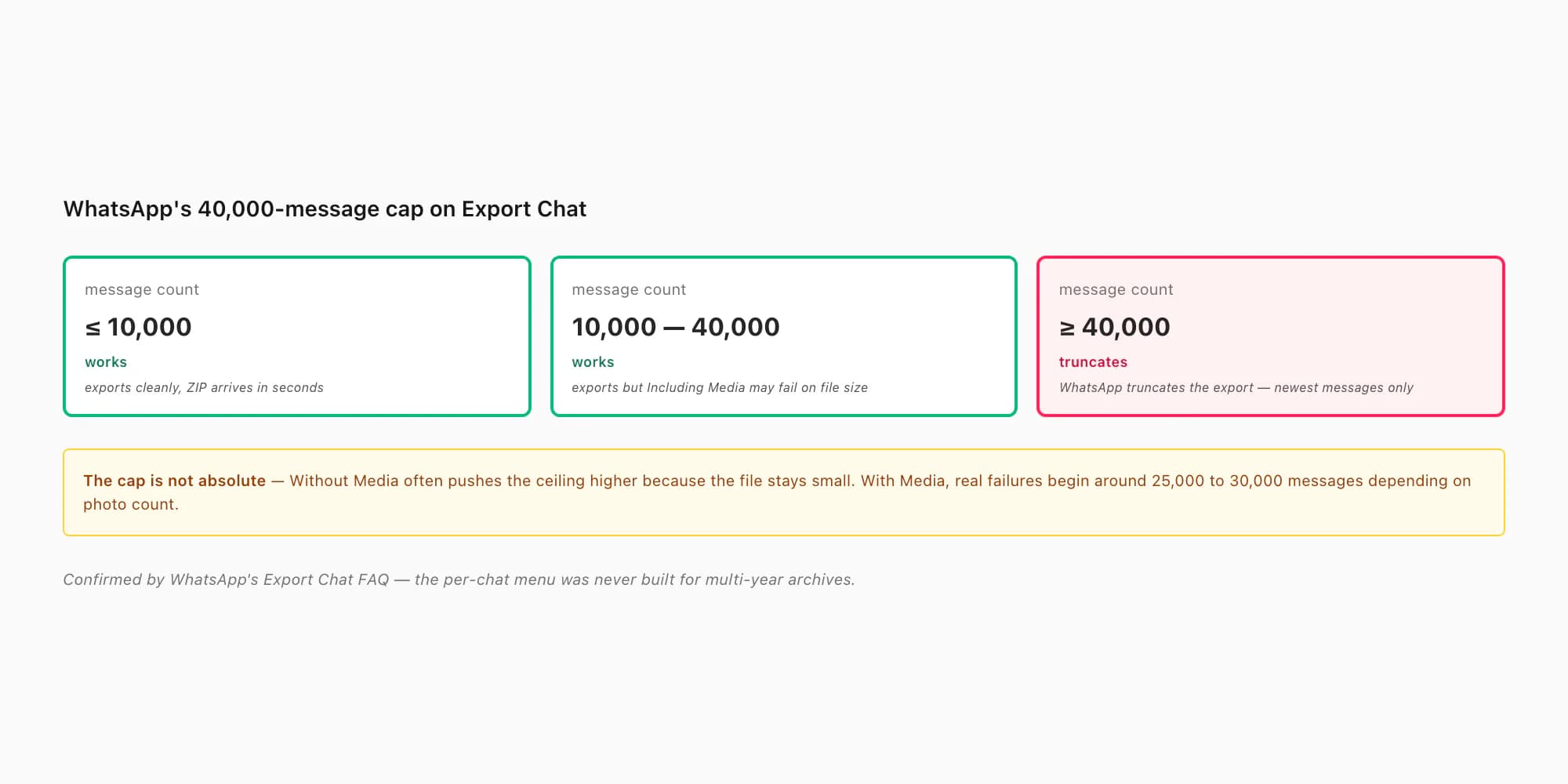
The cap is not a single sharp line. With Including Media the practical wall arrives earlier — typically around 25,000 to 30,000 messages, depending on how many photos and voice notes are in the chat. The failure mode there is not truncation but file size: the ZIP grows past 1 GB, the iOS share sheet stalls, Save to Files refuses, and the share-by-mail option errors with "this file is too large." Without Media pushes the ceiling much higher because the ZIP stays small — long multi-year chats that fail with media often export cleanly text-only, even past 50,000 messages.
WhatsApp's export chat history FAQ confirms the per-chat menu mechanics and acknowledges that very long chats can hit limits, though the FAQ is vague about the exact ceiling. The 40,000 figure is what users have repeatedly observed across iOS versions; treat it as approximate, not contractual.
The pillar WhatsApp Android to iPhone sits over the iPhone-side guides; the per-chat walk-through that this guide builds on lives at how to export a WhatsApp chat on iPhone, and the bulk-export sibling at how to export all WhatsApp chats at once iPhone covers the related-but-different problem of many chats rather than one large chat. The cluster-12 pillar WhatsApp chat export goes deeper on the 40,000 limit across both Android and iPhone.
The Without Media trick — biggest single fix for large chats
If you only do one thing from this guide, switch to Without Media. It is the single biggest lever for large iPhone chats and almost always solves the export by itself.
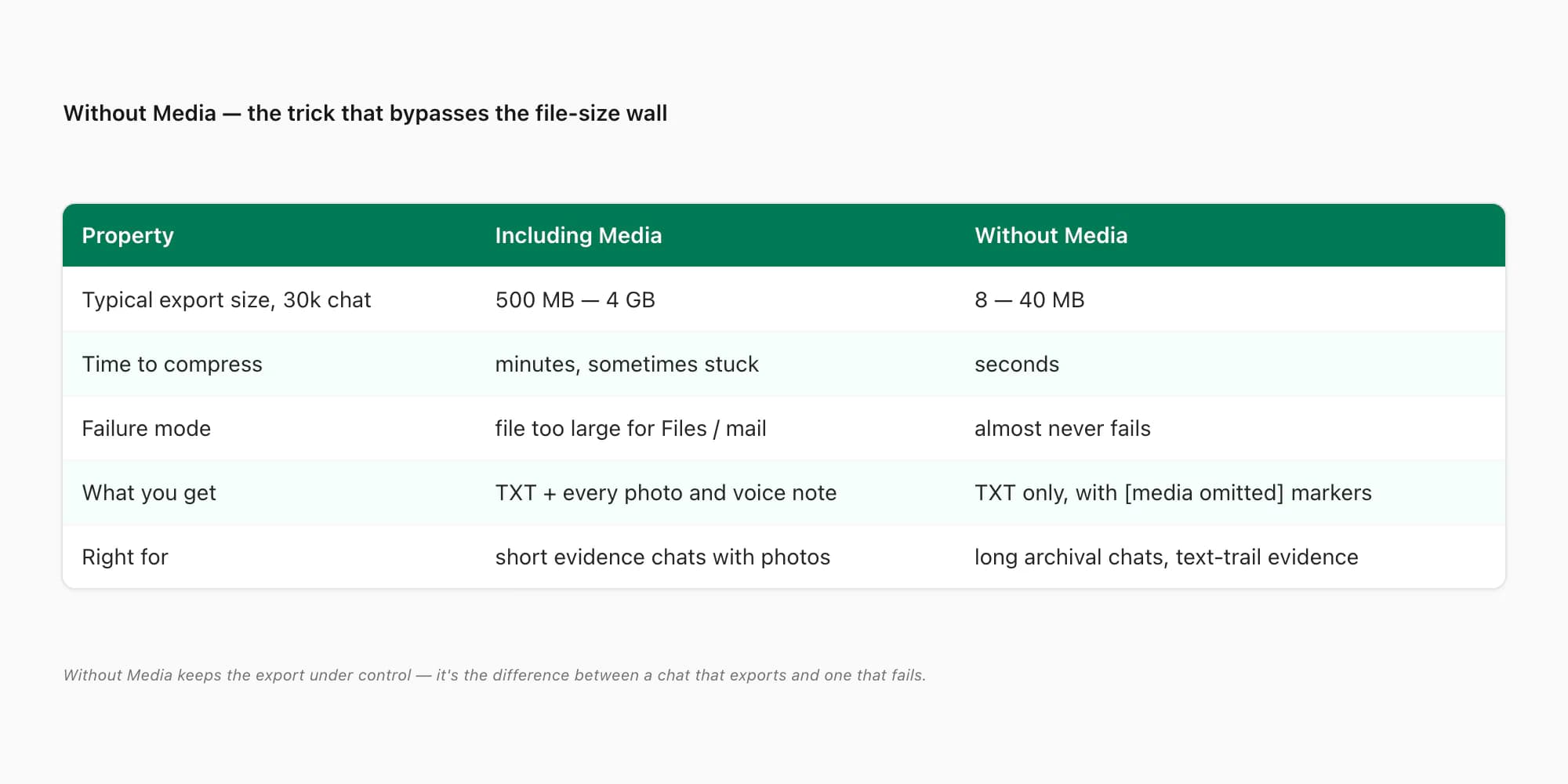
Here is what changes when you tap Without Media instead of Including Media on the Export Chat menu:
- File size collapses. A 30,000-message chat that exports as a 4 GB ZIP with media often comes out as 12 to 40 MB without media. The compress step that was sticking on "Preparing chat..." finishes in seconds.
- Failure rate drops to near zero. Including Media fails on file size, on storage, on share-sheet caps, on mail attachment limits. Without Media is small enough that none of those walls apply.
- The TXT is still complete. Every message, every timestamp, every sender — preserved. Photos and voice notes are replaced with
[image omitted]or[voice note omitted]markers in the text. - What you lose. The visual record. If the chat is a five-year text conversation with maybe two dozen photos, that's a fair trade. If it's a baby's first year with hundreds of photos, you'll need a different workaround.
For evidence work and most archival saves, Without Media is the correct default on a large chat. Lawyers care about the text-trail; courts work from transcripts; most preservation goals are about what was said, not what was attached. The companion guide save WhatsApp chat as PDF goes deeper on the preservation angle. Note that the export ZIP — Without Media or Including Media — never contains the call log; if the matter involves voice or video calls, how to export WhatsApp call history from iPhone covers the four workarounds for that missing record.
For very long chats where you genuinely want every photo, the answer is to combine Without Media for the text-trail with the archive-and-trim workaround in the next section, exporting smaller date ranges with media and stitching them back together.
Archive or delete older messages, then export the trimmed chat
If your chat has grown past the 40,000-message ceiling and Without Media is not enough — say you really do want every photo — the next workaround is to trim the chat down to a size WhatsApp can handle, export that, then move on to the older slice.
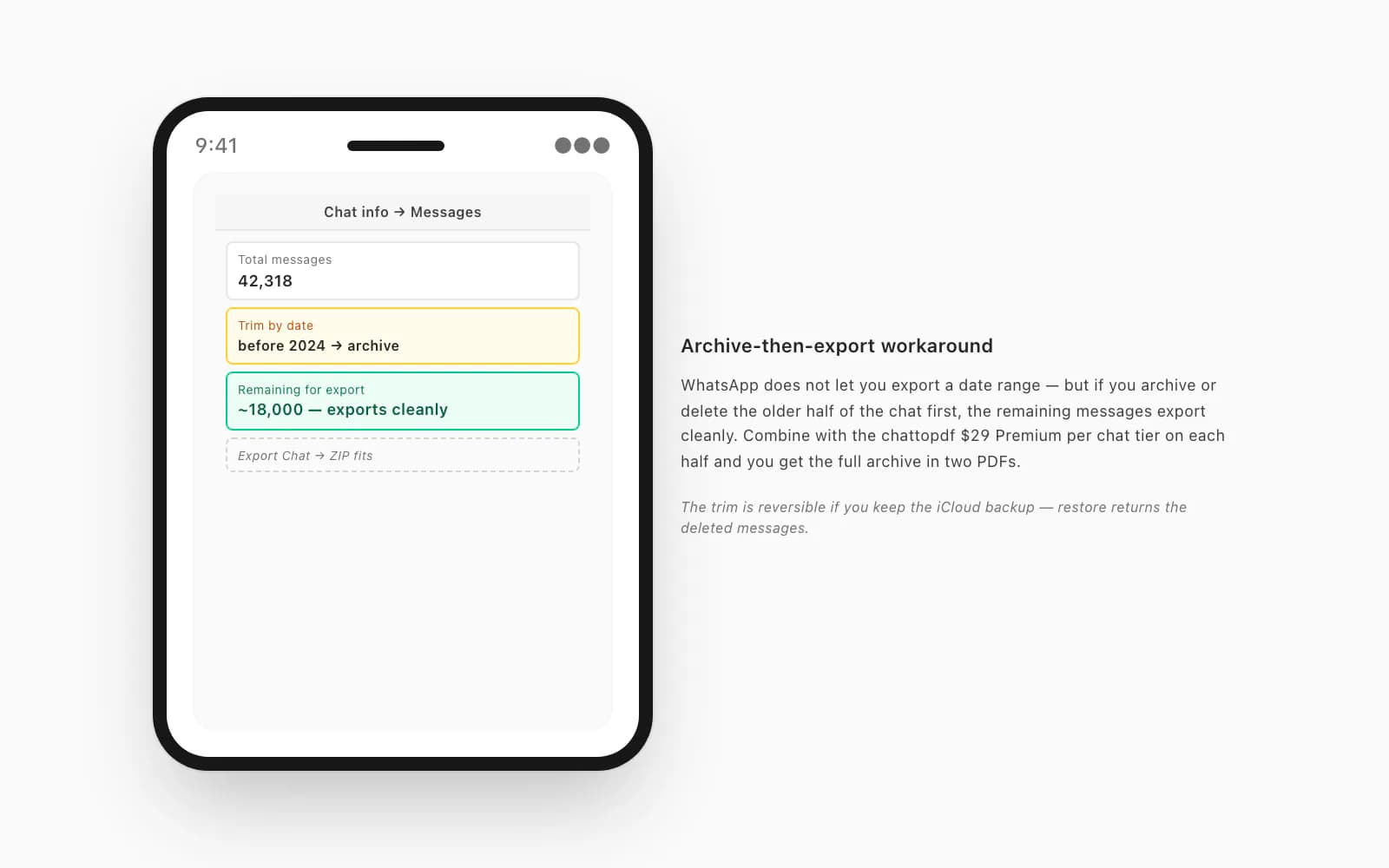
WhatsApp on iPhone does not give you a date-range export. There is no "export messages from 2022 only" option. But you can produce the same effect by archiving or deleting older messages from the chat first, so what's left fits within the cap.
The archive route is the safe one if you keep an iCloud backup. Here is the loop:
Confirm an iCloud backup exists and is recent
Settings → Chats → Chat Backup. The Last Backup line should be today or yesterday. This is your safety net — if the trim goes wrong you can restore the deleted messages.
Open the chat in WhatsApp on iPhone
Tap the Chats tab, tap the conversation you want to export. You should be looking at message bubbles for that chat.
Scroll back to the date you want as the trim boundary
For a 42,000-message chat, scrolling to roughly the half-way mark gives you two halves of about 21,000 each — both well under the cap. WhatsApp's chat search and the date-jump feature can speed this up.
Long-press the boundary message and pick Delete for Me
Tap-and-hold a message to bring up the action menu, tap More, select-all-messages-before-this-one, then Delete → Delete for Me. This removes them from your local copy without affecting the other person's chat.
Now Export Chat the trimmed half
Tap the contact name at the top of the chat, scroll to Export Chat, pick Including Media or Without Media as needed. The remaining ~21,000 messages export cleanly because they fit within the cap.
Restore the iCloud backup to get the older messages back
Once the recent half is exported and saved to Files, you can restore the iCloud backup (Settings → Chats → Chat Backup, or factory reset and restore on first-run) to bring the deleted messages back. Then trim the new half and export it.
This is fiddly but it works, and it is the only path I know of that genuinely produces a complete export of a chat that has grown past 40,000 messages. The two ZIPs land in Files → On My iPhone → Downloads. Upload both to chattopdf and the $29 Premium per chat tier will produce two PDFs (one per half) that together cover the whole chat.
A simpler version if you don't care about the older messages — just delete them outright instead of restoring. Many people archiving a chat for evidence only need the period that's relevant to the case; older small-talk can go.
"Preparing chat..." stuck — what to actually do
The most common failure mode on a large iPhone WhatsApp export is the "Preparing chat..." spinner that never resolves. You tap Export Chat, pick Including Media, see the spinner appear, and ten minutes later it's still there with no progress bar moving.
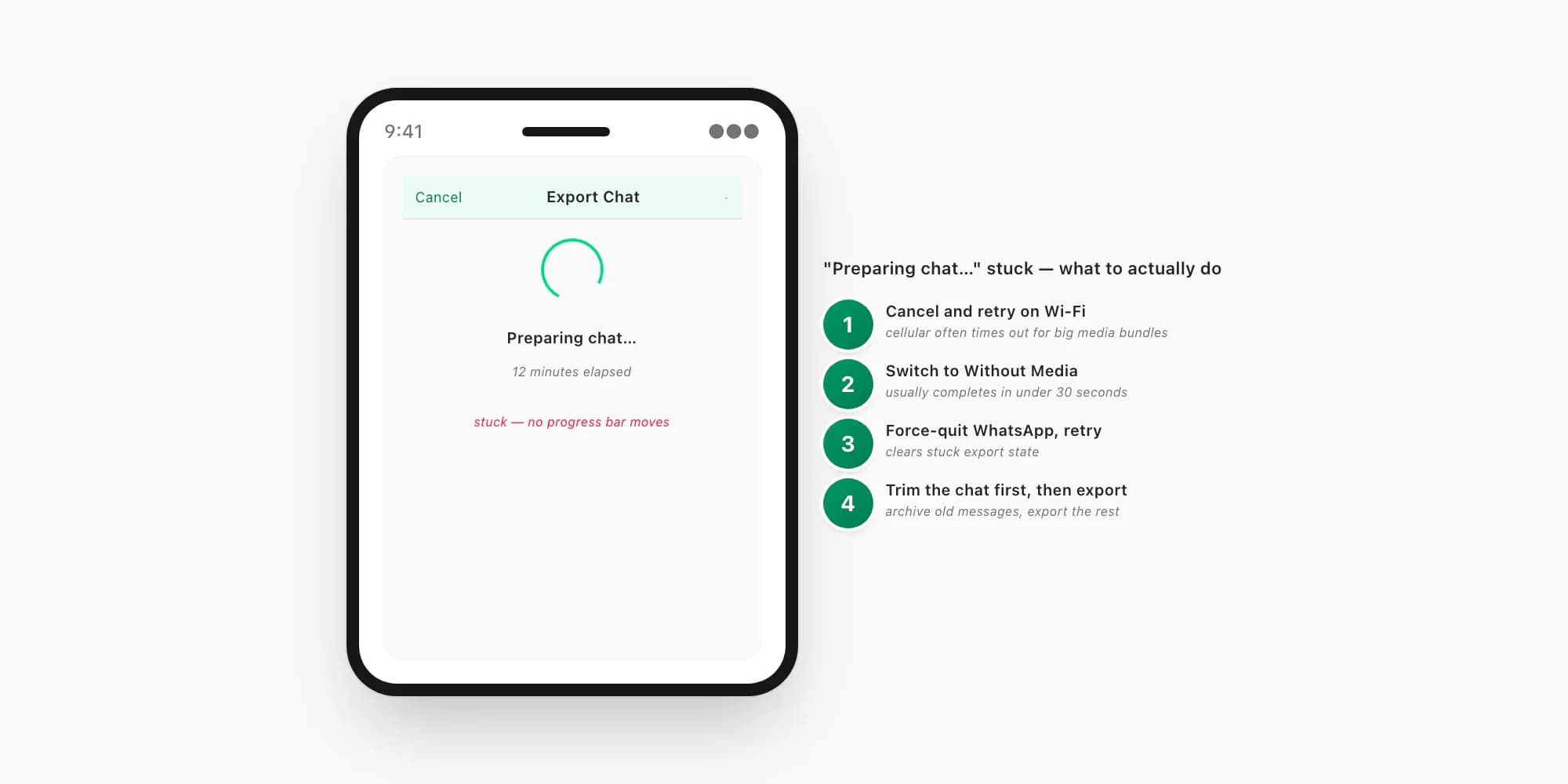
Four fixes, in the order I would try them:
1. Cancel and retry on Wi-Fi. Cellular often times out for large media bundles — WhatsApp uploads media references during the compress step, and a slow connection causes silent retries that compound into ten minutes of nothing. Connect to Wi-Fi, force-quit WhatsApp, retry the export. This solves it about half the time.
2. Switch to Without Media. If the chat is large enough to need this guide, Including Media is probably the wrong setting anyway. Without Media completes in under 30 seconds for chats up to 50,000 messages. Try it once with-media to be sure that's the failure mode, then drop to without-media and you'll have the export in seconds.
3. Force-quit WhatsApp and retry. Swipe up to the iPhone app switcher, swipe WhatsApp away to kill it, reopen and retry the export. This clears any stuck export state from the previous attempt. Cheap to try, sometimes the answer.
4. Trim the chat first, then export. If the chat is past 40,000 messages, the spinner is sticking because WhatsApp is trying to do something it can't reliably do. The archive-and-trim workaround above is the proper fix — bring the chat under the cap, then export.
The thing to avoid is sitting through 30 minutes of spinner hoping it'll resolve. Past about 5 minutes on a stuck "Preparing chat...", the export is not going to finish. Cancel, try one of the four fixes, and if all four fail, the chat is past the practical ceiling and you need the archive-and-trim path.
File-size errors and what each one really means
Beyond "Preparing chat..." stuck, large-chat exports surface a handful of distinct error messages. Each one points to a specific cause:
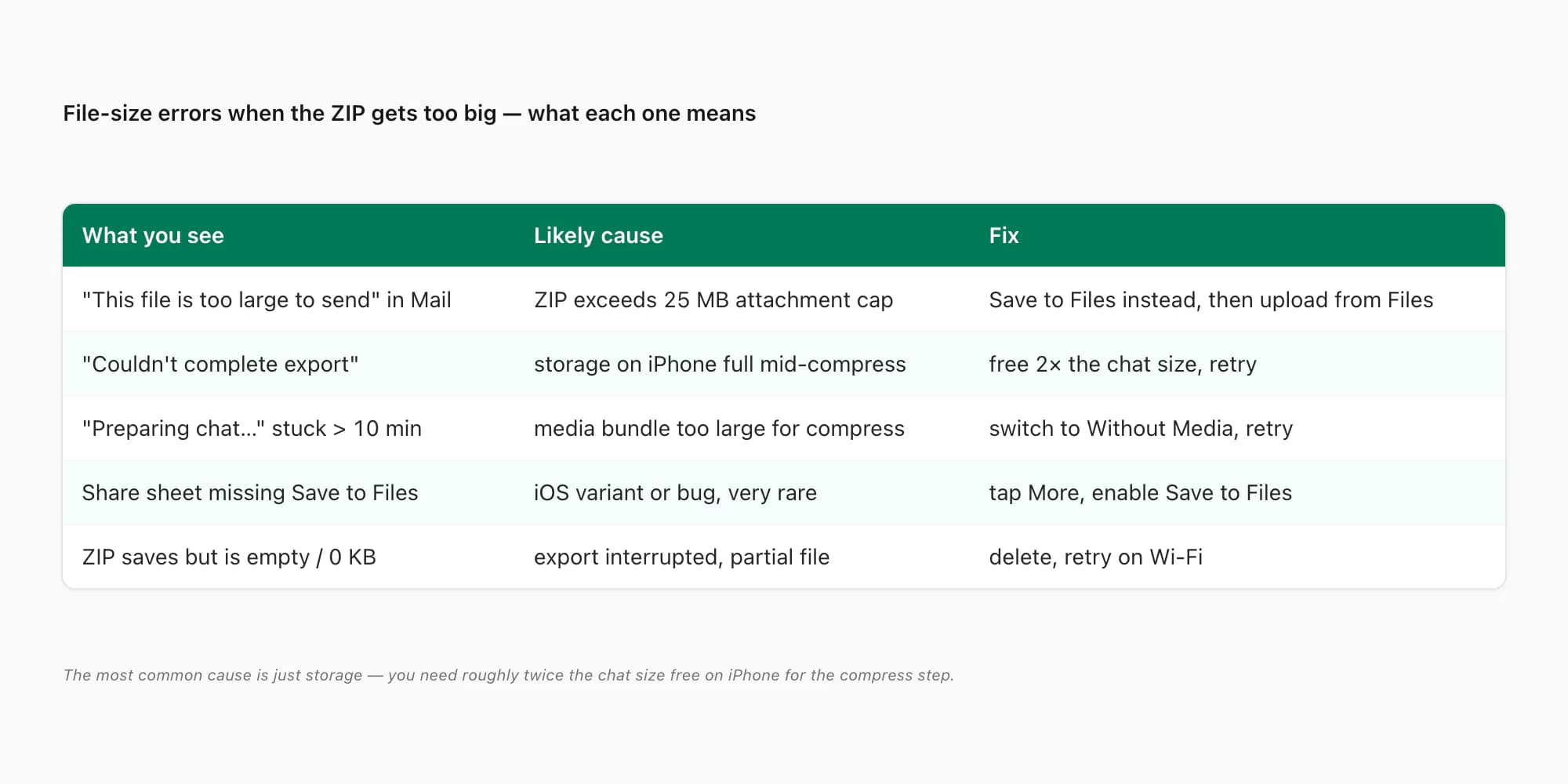
- "This file is too large to send" in Mail. The ZIP exceeds the 25 MB attachment cap that Apple Mail and most providers enforce. Fix: pick Save to Files in the share sheet instead of Mail. From Files you can upload to chattopdf without an attachment cap.
- "Couldn't complete export" or generic export error. Storage on iPhone has filled up partway through the compress step. WhatsApp needs roughly twice the chat size free to compress and write the ZIP. Fix: free 2× the chat size on iPhone (delete some old photos or videos), retry.
- "Preparing chat..." stuck for over 10 minutes. The media bundle is too large for the compress step on this device. Fix: switch to Without Media as the section above details.
- Share sheet missing the Save to Files option. Very rare — usually an iOS variant or a temporary share-sheet glitch. Fix: tap More in the share sheet and toggle Save to Files on; or switch to a different export destination temporarily (Mail, AirDrop, iCloud Drive) and move the file from there.
- ZIP saves but is empty / 0 KB. The export was interrupted before the file finished writing — usually because Wi-Fi dropped or the WhatsApp app got backgrounded. Fix: delete the empty ZIP, retry on stable Wi-Fi with the iPhone screen kept awake.
The single most common cause across all of these is just storage — the compress step needs space, and a phone with 200 MB free is going to fail every export above 5,000 messages. Free 5 to 10 GB before attempting a large-chat export and most of these errors disappear.
On Android instead? The limits and the fixes carry over
Everything above is written from the iPhone side, but the ~40,000-message truncation and the media file-size wall are WhatsApp behaviours, not iOS ones — Android users hit the same ceilings. The only real differences are the taps and where the file lands:
- Export path: open the chat → three-dot menu (top right) → More → Export chat → Without media / Include media. Newer Android versions hand you a ZIP through the share sheet exactly like iOS; older versions write a folder to internal storage instead.
- The Without Media trick works identically — it's still the biggest single fix, dropping the export from gigabytes to tens of megabytes and dodging the media wall entirely.
- Trim/archive-then-export and split-by-date work identically too, since they're WhatsApp features, not platform ones.
Once you have the ZIP or TXT, the upload-and-convert step is the same browser flow on both platforms.
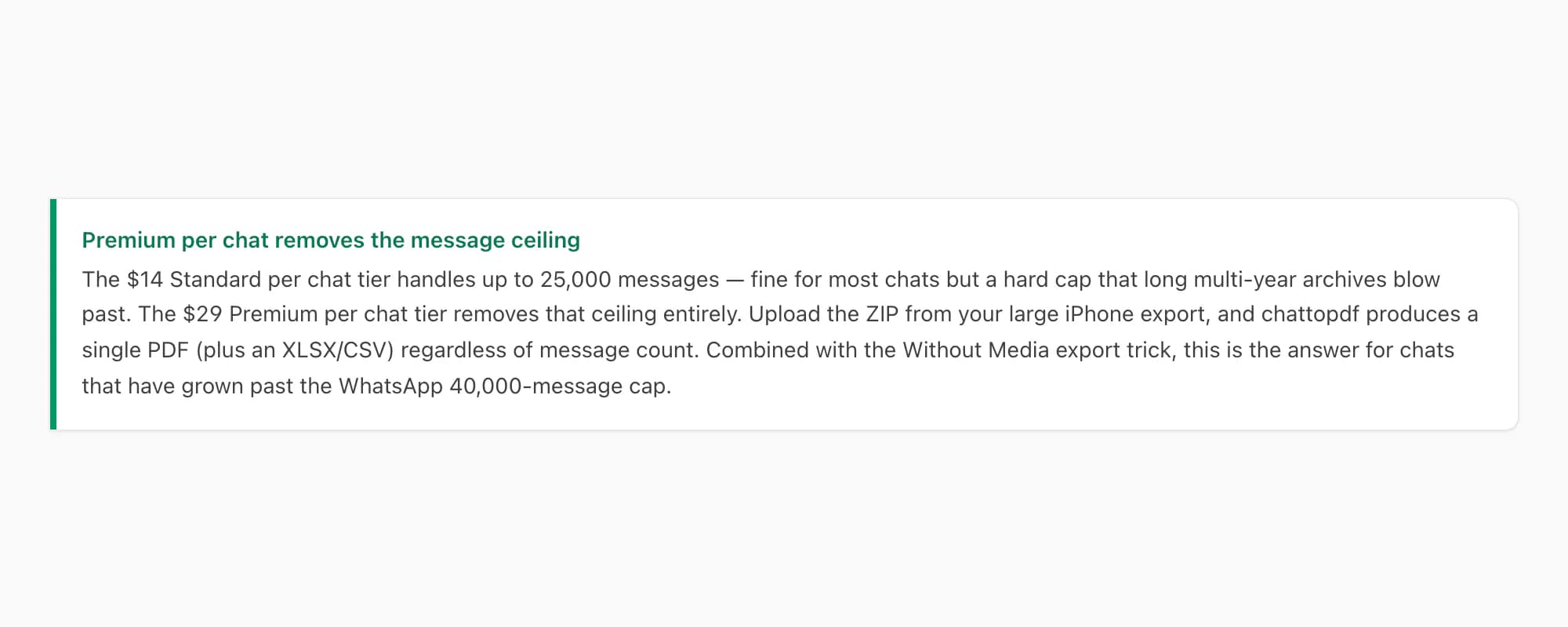
Pricing — $29 Premium per chat removes the message ceiling
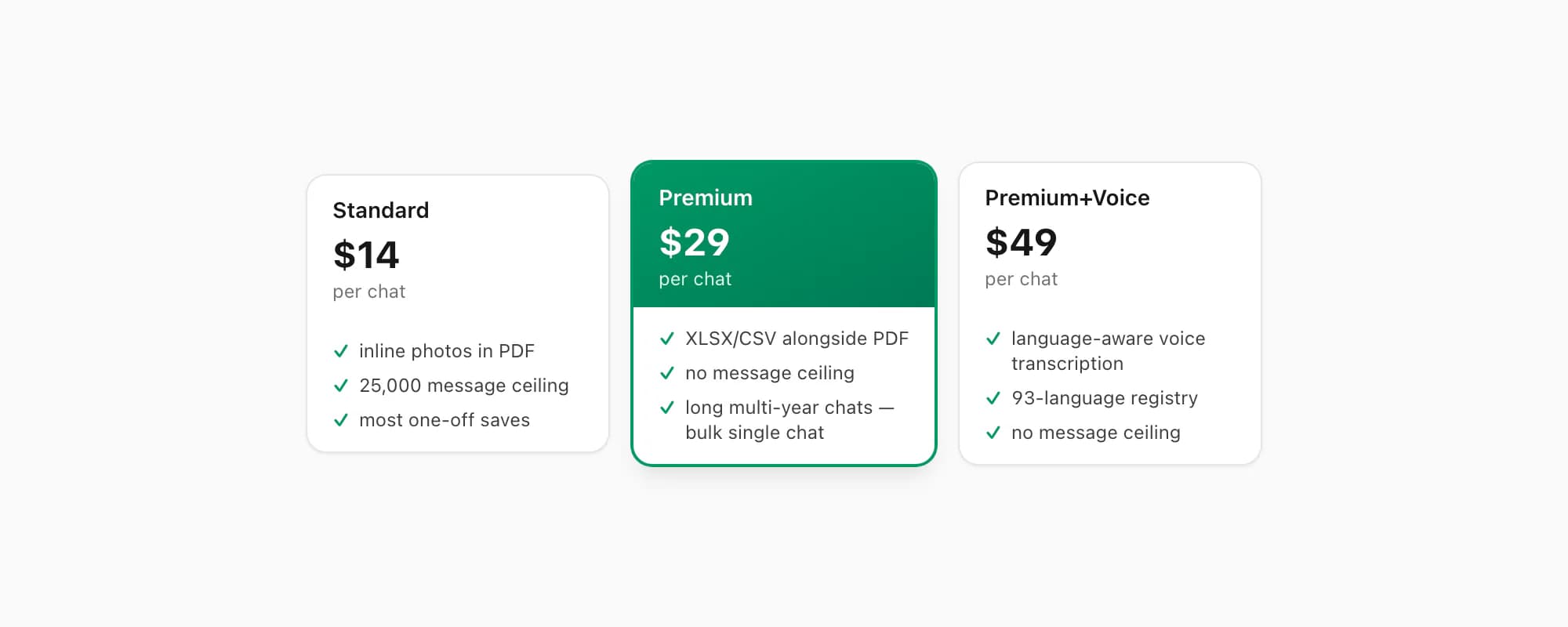
Once you have the ZIP off the iPhone — by Without Media or by trim-and-export — the next step is uploading to chattopdf for the PDF conversion. There are five tiers; for large chats the relevant one is Premium.
$7 Basic per chat — text-only PDF, no inline photos, 25,000 message ceiling. Cheap pick if your large chat is text-only and under the standard cap.
$14 Standard per chat — sender-attributed PDF, inline photos, timestamps, 25,000 message ceiling. The default for normal chats but the ceiling is exactly the wall that this guide is about — large chats blow past it.
$29 Premium per chat — the bulk single-chat tier. Adds an XLSX/CSV export alongside the PDF and removes the 25,000-message ceiling entirely. This is the right pick for long multi-year chats that have grown past the standard cap. The XLSX/CSV is genuinely useful too — it lets you search, filter, and run pivot tables across years of conversation in a way the PDF doesn't.
$49 Premium+Voice per chat — adds voice-note transcription through the language-aware Nova-3/Scribe v2 router. The current registry covers 93 languages, including 57 in provider-published excellent or high bands; supported notes that transcribe successfully appear inline. Right pick if your large chat contains voice notes you want transcribed. The transcribe WhatsApp audio guide covers the voice pipeline in detail.
$99 Power User per chat — priority queue, no per-session cap, batch turnaround. This is the bulk-of-many-chats tier rather than the single-large-chat tier; for one large chat the right answer is $29 Premium per chat. For many large chats, see how to export all WhatsApp chats at once iPhone which walks through the bulk path.
To be clear — the $29 Premium per chat is per chat, same billing structure as the other tiers. It is not a subscription; it is a one-time conversion charge for that specific large chat.
Quick decision — which workaround for which large chat
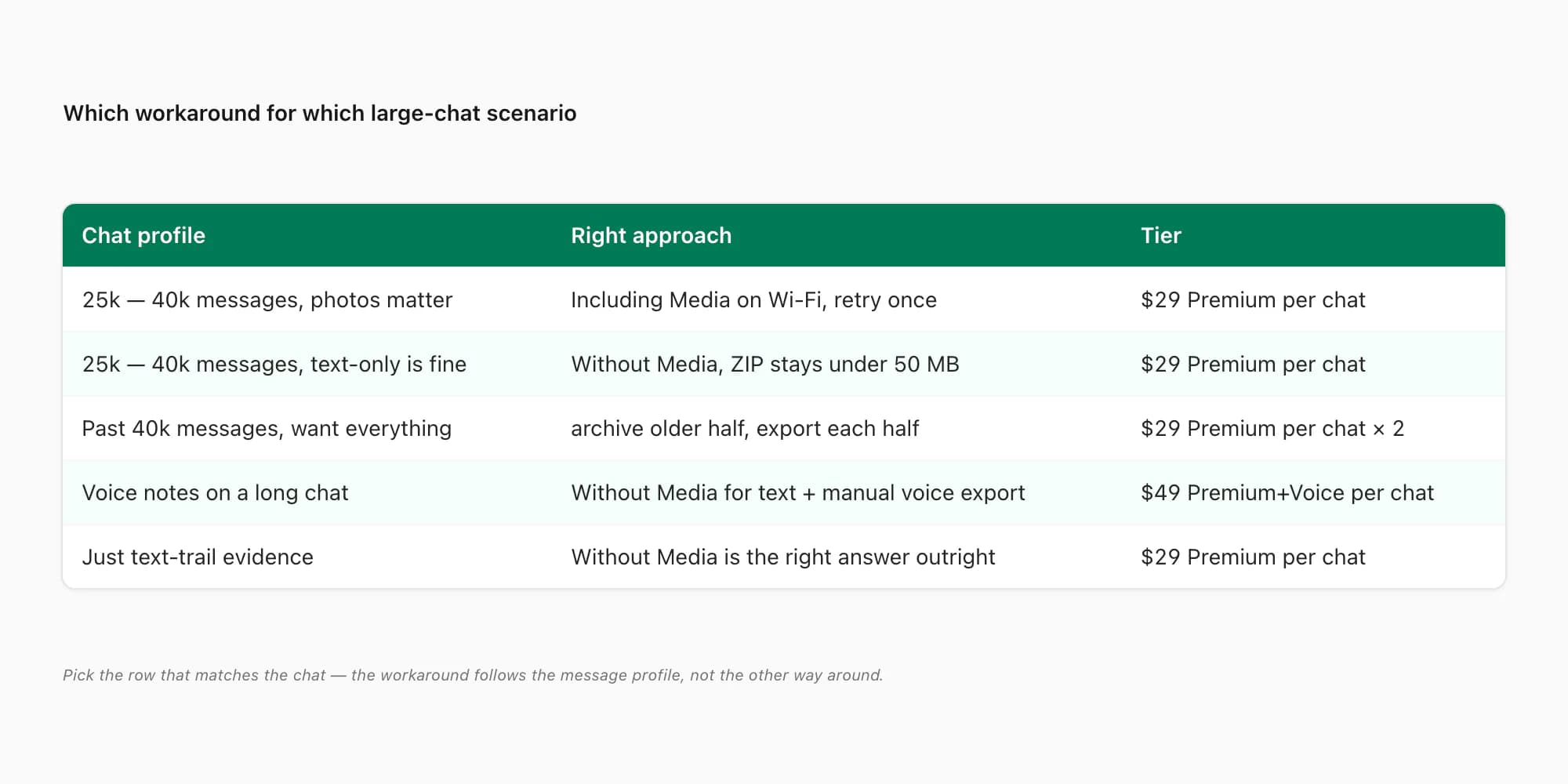
The honest matrix:
- Under 40,000 messages, photos matter — Including Media on Wi-Fi, retry once if the spinner gets stuck. $29 Premium per chat for the upload (the message count is past Standard's 25k ceiling).
- Under 40,000 messages, text-only is fine — Without Media. Fast, almost never fails. $29 Premium per chat for the upload to clear the message ceiling.
- Past 40,000 messages, want everything — archive or delete the older half, export each half separately. Restore the iCloud backup to recover the older half if you want a second pass. $29 Premium per chat × 2.
- Voice notes on a long chat — Without Media for the text-trail (because Including Media will fail on file size), and the voice notes have to come over by AirDrop or iCloud separately. $49 Premium+Voice per chat for the transcription.
- Just text-trail evidence (lawyer's case file, business compliance) — Without Media is the right answer outright; you don't need photos for the text-trail. $29 Premium per chat for the uncapped count.
For the legal-evidence framing specifically, see my WhatsApp evidence in court PDF guide — courts work from text-trails and a Without-Media PDF is exactly what most legal preservation orders ask for.
Key takeaways
- WhatsApp on iPhone caps Export Chat near 40,000 messages — past that the export silently truncates and gives you only the most recent slice
- With Including Media the practical wall arrives earlier, around 25,000 to 30,000 messages, where the ZIP grows past 1 GB and fails on file size or sticks on "Preparing chat..."
- The Without Media trick is the biggest single fix — drops a 30,000-message ZIP from gigabytes to tens of megabytes and almost never fails
- "Preparing chat..." stuck for over 10 minutes is not going to finish — cancel, retry on Wi-Fi, switch to Without Media, or trim the chat
- File-size errors usually mean storage — WhatsApp needs roughly 2× the chat size free on iPhone to compress and write the ZIP
- For chats past 40,000 messages, the archive-and-trim workaround is the only path to a complete export — split the chat by date, export each half separately
- $29 Premium per chat on chattopdf removes the 25,000-message ceiling — the right pick for long multi-year chats that have grown past the Standard tier cap
- Without Media is the correct default for evidence work and most archival saves — courts and lawyers work from text-trails, not photos
- For the full walkthrough of converting a large chat export into a formatted PDF — including how Premium tier handles the message cap — see the WhatsApp to PDF guide.
FAQ
Does WhatsApp really have a 40,000-message export limit on iPhone?
Approximately, yes. WhatsApp's per-chat Export Chat caps somewhere near 40,000 messages on iPhone — past that the export silently truncates and you only get the most recent slice. The cap is not a single sharp line and depends on iOS version, available storage, and whether you pick Including Media. With Including Media the practical wall arrives earlier (around 25,000 to 30,000 messages) because the file size becomes the binding constraint. Without Media pushes the effective ceiling higher because the ZIP stays small. WhatsApp's own FAQ acknowledges very long chats can hit limits but does not publish an exact number — 40,000 is what users have repeatedly observed.
What's the Without Media trick and why does it help so much?
On the Export Chat menu, after you pick Export Chat from the chat info screen, WhatsApp asks Including Media or Without Media. Including Media bundles every photo, video, and voice note into the ZIP — for a long chat this is gigabytes. Without Media bundles only the text TXT, replacing media with [image omitted] markers — typically 8 to 40 MB even for chats with tens of thousands of messages. The size collapse means the share sheet works, Save to Files works, the compress step finishes in seconds instead of stalling, and almost every file-size error disappears. For evidence and most archival saves Without Media is the correct default; you only need Including Media if the visual record itself matters (baby photos, holiday memories).
My chat is over 40,000 messages — is there any way to export everything?
Yes, with the archive-and-trim workaround. WhatsApp does not give you a date-range export, but you can produce the same effect by archiving or deleting the older half of the chat first (with an iCloud backup as your safety net), exporting the remaining half, then restoring the backup to bring the older messages back and exporting that half too. You end up with two ZIPs that together cover the whole chat. Upload both to chattopdf on the $29 Premium per chat tier and you'll get two PDFs that together cover everything. It's fiddly but it is the only complete-export path I know of for chats past the 40,000-message ceiling.
Why is 'Preparing chat...' stuck for 10+ minutes?
The compress step is choking on a media bundle that's too large for the device to handle reliably. Past about 5 minutes on a stuck "Preparing chat..." the export is not going to finish — cancel and try one of four fixes: switch to Wi-Fi (cellular times out for large media), switch to Without Media (almost always solves it), force-quit WhatsApp and retry (clears stuck export state), or trim the chat first if it's past 40,000 messages. Sitting through 30 minutes of spinner does not help — the answer is one of those four fixes.
How do I export an entire WhatsApp conversation without any limit?
There is no official no-limit route — the ~40,000-message cap is WhatsApp's, on every platform. Your realistic options, in order of effort: export Without Media (covers the most history per export), archive or trim older messages and export in pieces, or split by date and export each portion. Desktop backup tools ($30+ software plus a USB cable) can read the phone's full backup database past the cap — that's a real option if you genuinely need a 100,000-message archive in one pass, but for most chats the free Without Media export already captures everything, and the conversion side has no ceiling: since June 2026 very large exports are rendered in chunks and merged into one continuous PDF (the largest delivered so far: 2,341 pages).
Which chattopdf tier handles a chat past 25,000 messages?
$29 Premium per chat is the answer. The $14 Standard per chat tier has a 25,000-message ceiling that long multi-year chats blow past. The $29 Premium per chat tier removes that ceiling entirely — upload your ZIP and you get a single PDF (plus an XLSX/CSV) regardless of message count. Combined with the Without Media trick on the iPhone export side, the $29 Premium per chat tier is the right answer for almost every long-chat scenario. It is per chat, same billing structure as the other tiers — not a subscription, just a one-time conversion charge for that specific chat.
I'm Paul, the founder of ChatToPDF. I built it after needing a long WhatsApp conversation as a readable PDF for a legal matter. I test and document WhatsApp exports, PDF conversion, voice-note transcription, and the limits people should check before relying on the result.