
The three real ways to move WhatsApp Android to iPhone (and why two of them break)
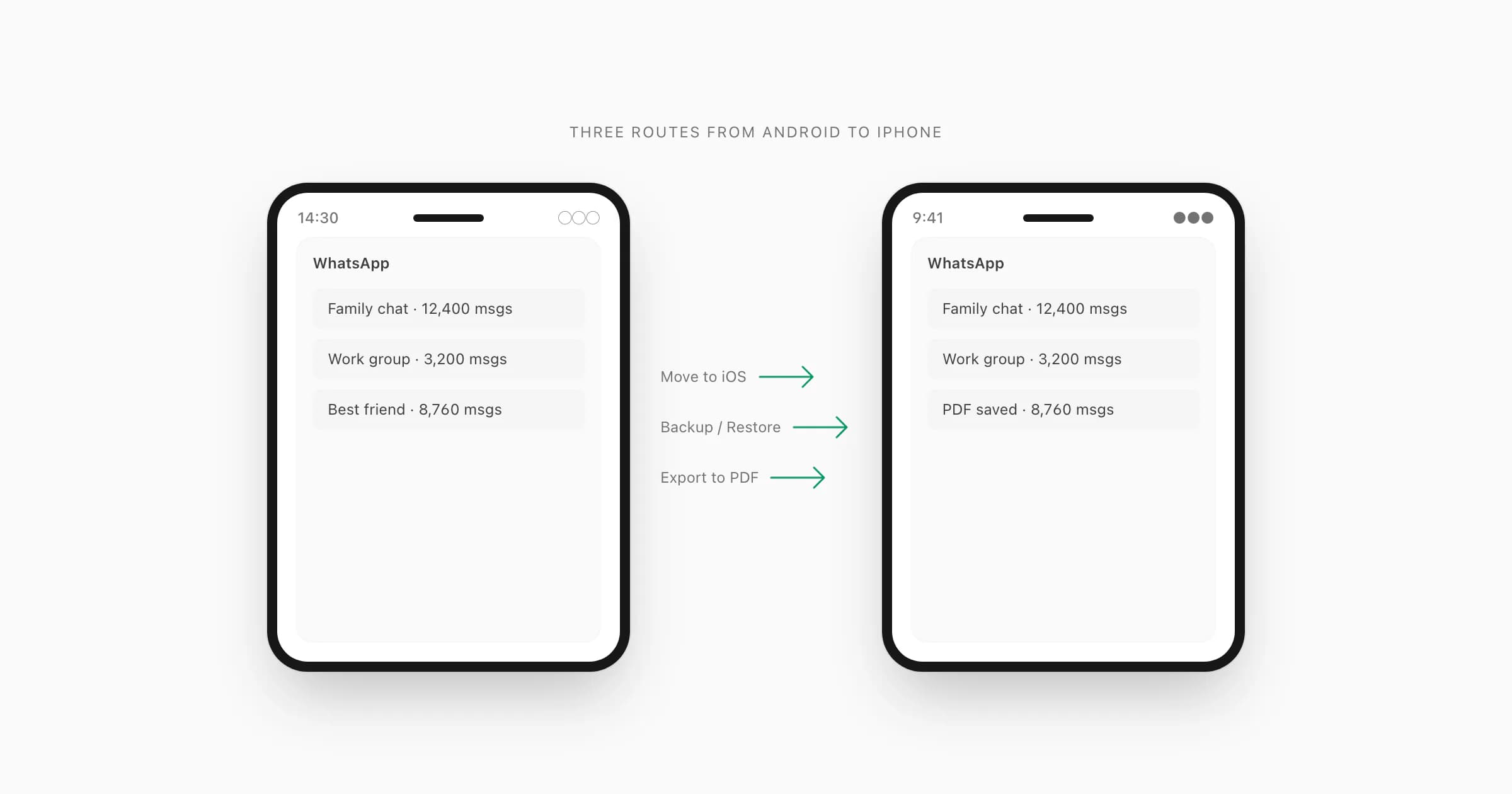
Every time someone searches for how to migrate WhatsApp Android to iPhone, they find the same three pieces of advice. Use Move to iOS. Back up to Google Drive then restore. Or export the chat file and convert it. The problem is that most guides treat all three as equally viable. They are not.
Move to iOS works — but only on a freshly-reset iPhone running iOS 15.5 or later. If your iPhone has been set up already, the tool blocks you cold. The error message tells you the device is already encrypted and offers you two options: factory reset or give up. Most people aren't prepared for that.
Backup and restore is the answer that appears in every Reddit thread, every YouTube tutorial, and most tech-support articles. I have seen it recommended confidently by people who clearly never tried it. The logic sounds right: back up WhatsApp on Android, restore it on iPhone. The catch is that Android WhatsApp backs up to Google Drive. iPhone WhatsApp restores from iCloud. Those two clouds do not talk to each other. The backup sits on Google Drive permanently unreachable from your new iPhone.
Export to PDF sidesteps both problems. You export the chat directly from WhatsApp's own menu, move the ZIP file to your iPhone, and upload it to ChatToPDF. No factory reset. No cloud-compatibility puzzle. Thirty seconds.
Here's a decision tree to help you figure out which route applies to your situation before reading further.
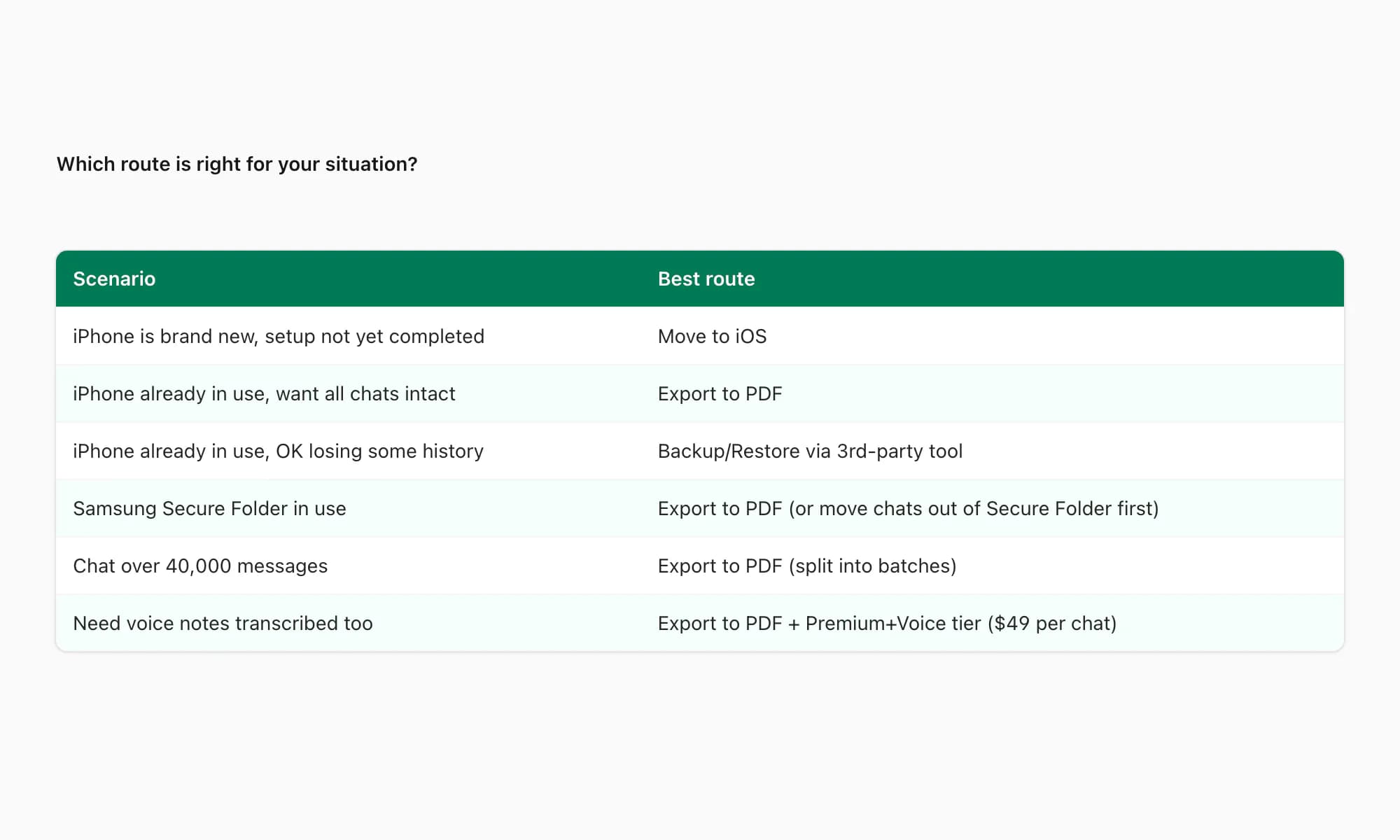
The rest of this guide walks through all three routes in detail — the steps, the traps, and the specific error messages you might see — so you can pick the one that actually fits your setup.
Option 1 — WhatsApp's official Move to iOS path (the one that should work)
Apple built Move to iOS to handle exactly this migration. When it works, it is the cleanest option: WhatsApp history lands on your iPhone inside the WhatsApp app itself, searchable and threaded exactly as it was on Android.
Here is what the flow looks like from both ends.
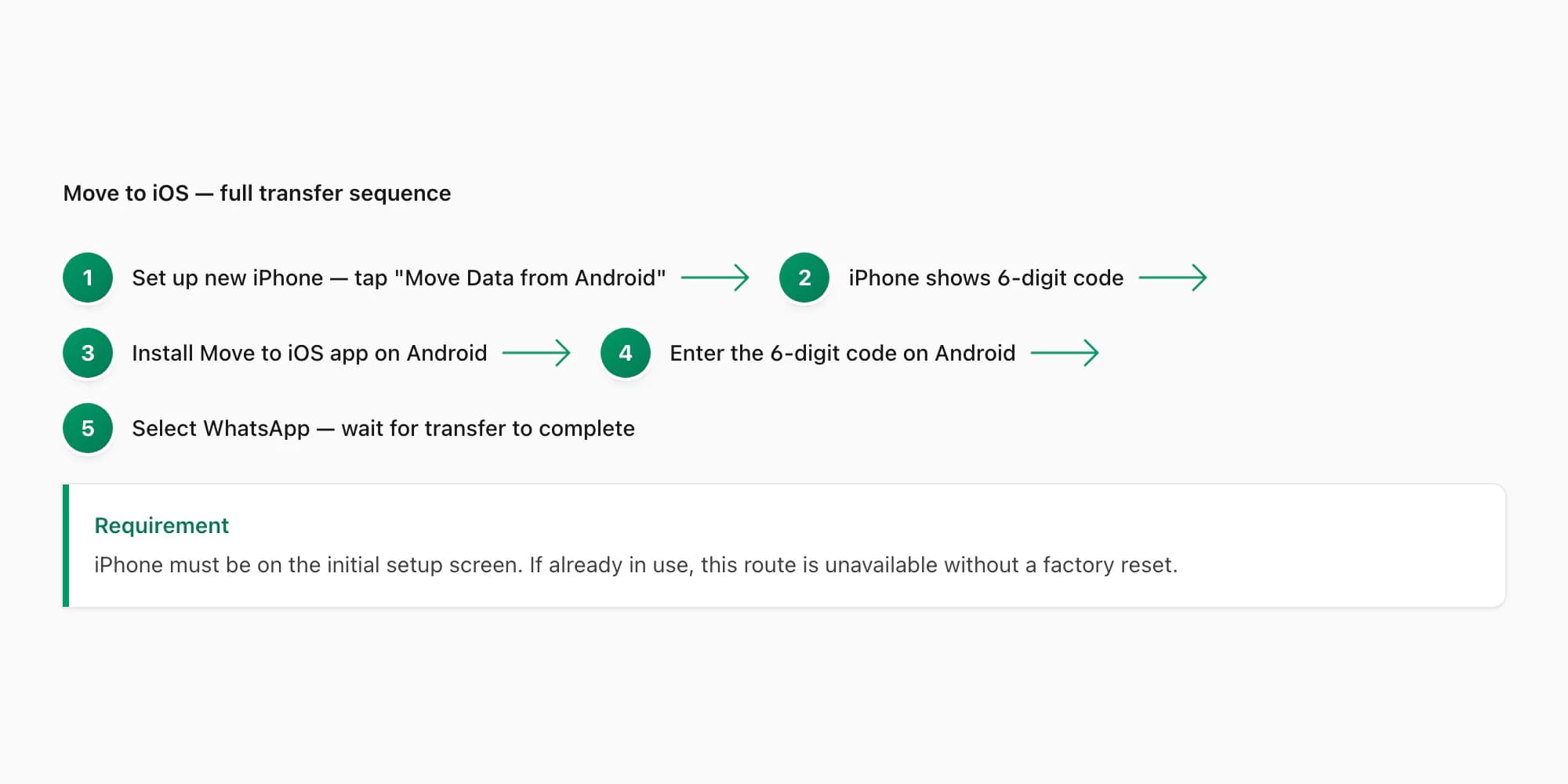
On the iPhone, power it on for the first time. You will reach the "Apps & Data" screen during setup. Tap "Move Data from Android." The phone displays a six-digit or ten-digit code.
On the Android, download the Move to iOS app from the Play Store if it is not installed. Open it, tap Continue, agree to the terms, and enter the code displayed on the iPhone. Your Android then connects to a temporary Wi-Fi network created by the iPhone — no router involved, no internet needed for this step.
The app shows a list of content types to transfer. WhatsApp appears as a separate item when your Android WhatsApp version is v2.21 or later. Select it, tap Continue, and wait. A chat history that fits in 5 GB typically transfers in under 15 minutes, but I have seen large archives take 45 minutes or more on older hardware.
WhatsApp v2.21 or later is required on Android. If your Android WhatsApp is older, update it from the Play Store before starting.
The critical constraint: this only works during iPhone first-run setup. If you have already set up your iPhone — even if you only opened one app — you will see the "device already encrypted" error and have to factory reset to retry. I cover that error and your options in a dedicated section below.
One thing worth knowing: Move to iOS transfers messages and media attachments stored locally on your Android. It does not reach into your Google Drive backup. If your local chat storage was cleared or your phone was reset before you ran this, the messages transferred will be whatever survived on-device.
Option 2 — Backup, restore, hope (the one most guides recommend)
Here is the part nobody tells you about the backup-restore route. It does not work. Not because of a bug or a version mismatch — because of a structural incompatibility that has existed since WhatsApp added cloud backup support.
Android WhatsApp backs up to Google Drive. Open WhatsApp on Android → Settings → Chats → Chat Backup → Back Up to Google Drive. You can set this to daily, weekly, or manual. The backup runs, Google Drive shows the file, everything seems fine.
Now you switch to iPhone. You install WhatsApp, enter your phone number, and WhatsApp prompts you to restore a backup. It looks for a backup in iCloud. Not Google Drive. iCloud. The two storage systems are separate, and WhatsApp has no mechanism to pull a Google Drive backup onto an iPhone. Your backup sits on Google Drive and stays there.
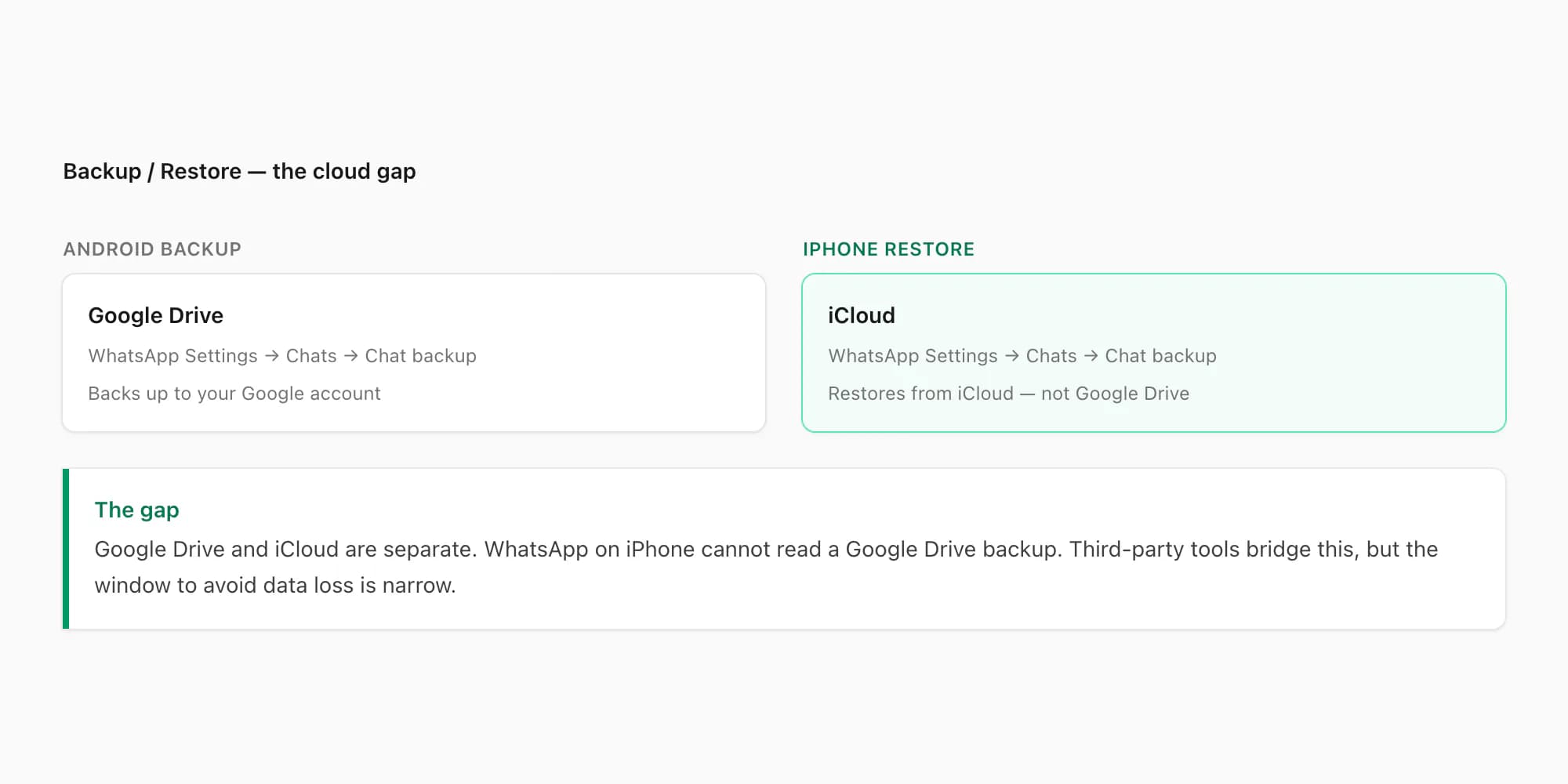
Most people hit this wall at the restore step and assume their backup was corrupted or deleted. It was not. It is still on Google Drive. It just cannot cross to iPhone without third-party help.
Third-party tools do exist for this crossing. Wondershare MobileTrans, iMyFone iTransGo, and Backuptrans all support Android-to-iPhone WhatsApp migration. Each requires a Windows or Mac desktop, a USB cable connecting both phones simultaneously, and a paid license. Wondershare MobileTrans runs around $30–$50 for a single migration. Backuptrans charges roughly $30 per year. These tools work — if you have a desktop available, a cable, and the patience for a 30-minute setup.
If you do not have those, the PDF route is faster and requires only a phone and a browser.
Option 3 — Export to PDF, keep on iPhone, never lose the history
I built ChatToPDF because I needed a legally-readable record of a WhatsApp conversation — something that could be opened, scrolled, and printed on any device, independent of whether WhatsApp was installed or whether a particular app version still supported the backup format. PDF is that format. It does not expire.
The export starts inside WhatsApp on your Android. Open the chat you want to keep. Tap the three-dot menu in the top-right corner — Android labels this ⋮. Tap More, then Export Chat. WhatsApp asks you two questions: Without Media or Including Media. Without Media produces a plain .txt chat log. Including Media asks WhatsApp to package that log with available attachments such as photos, videos, and voice notes.
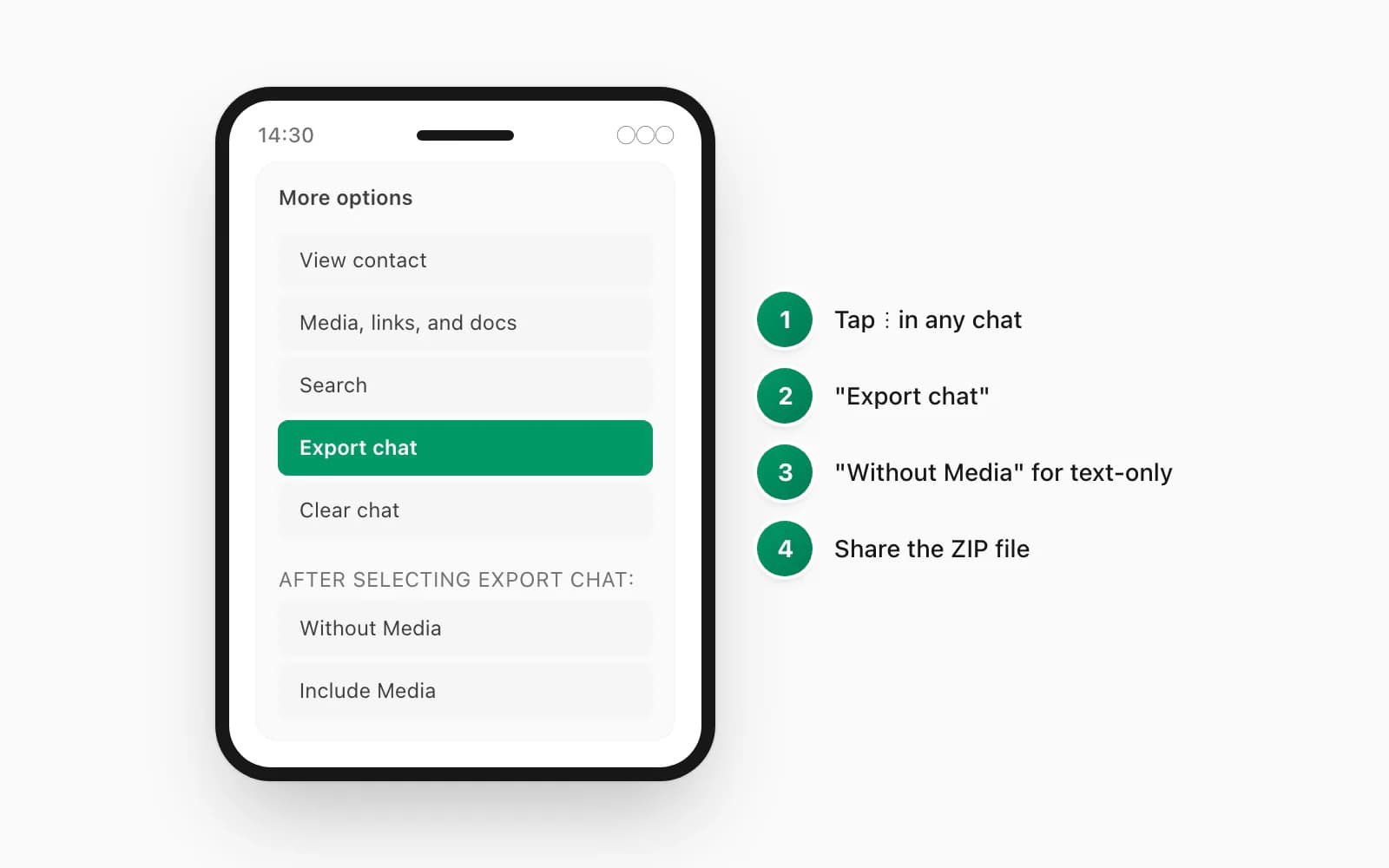
For text-heavy conversations — support threads, business negotiations, personal messages — Without Media produces a smaller file and a faster upload. For conversations where photos or voice notes matter, choose Including Media, then inspect the ZIP: deleted, unavailable, or truncated attachments may still be absent.
Once WhatsApp generates the ZIP, Android shows a share sheet. Tap Save to Files, or tap Google Drive if you want to move the file via cloud. I prefer Save to Files because it is immediate, but Drive works if your Android and iPhone are both logged into the same Google account.
To move the ZIP to your iPhone without a cable, email it to yourself, save it to Google Drive, or AirDrop it from a Mac if your Android is also on the same Wi-Fi. The file path on Android after saving is typically Internal storage/Downloads/WhatsApp Chat - [Name].zip.
Then open chattopdf.app, drop the ZIP onto the upload area, wait about 30 seconds, and download a PDF. The PDF opens in Files on iPhone, readable in any PDF viewer, shareable, printable, and completely independent of WhatsApp.
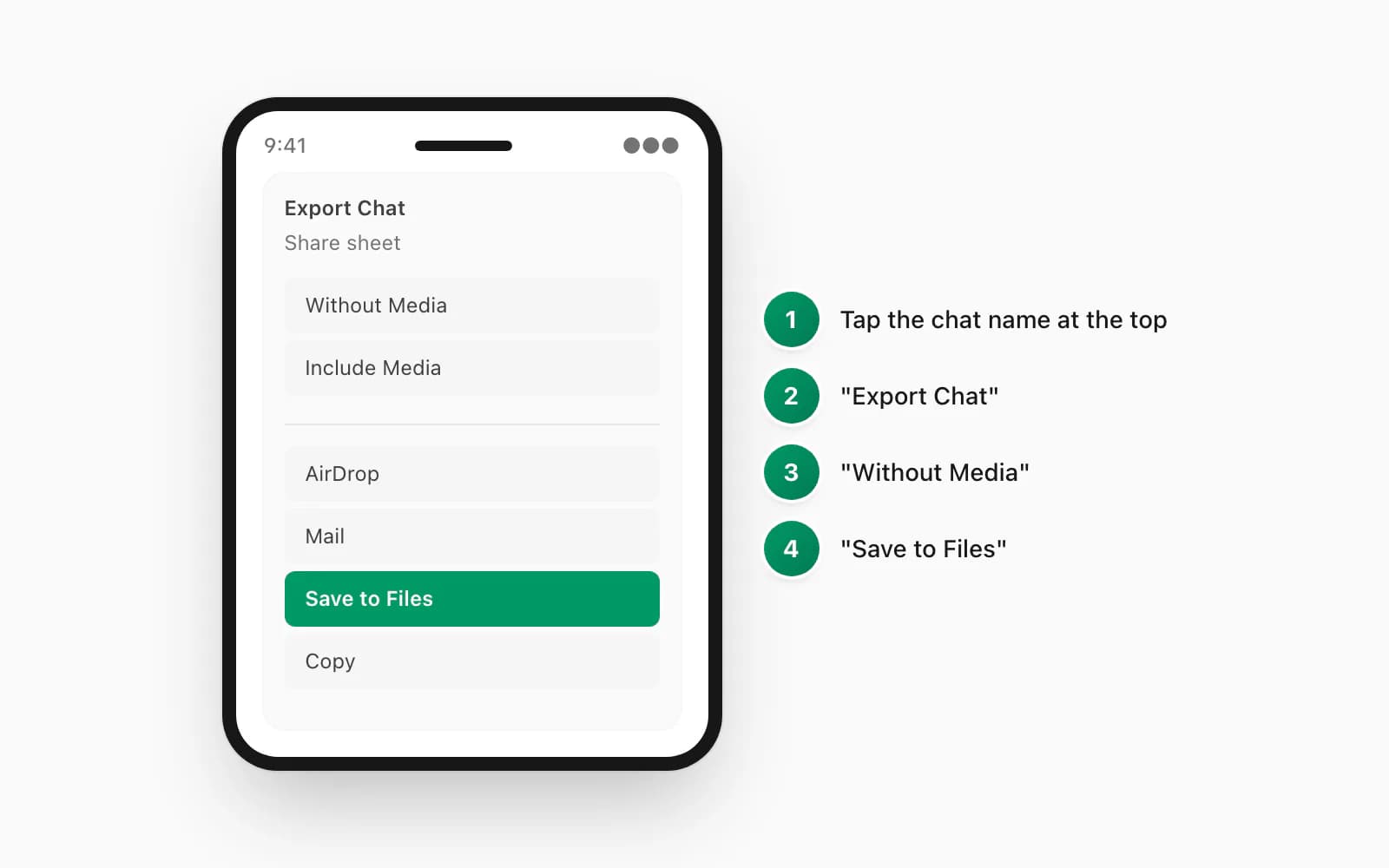
For completeness: if you have already moved to iPhone and want to export future chats from there, the menu path on iOS is slightly different. Tap the contact name or group name at the top of the chat, scroll to the bottom of the contact sheet, and tap Export Chat. The same Without Media / Including Media choice appears, and iOS hands you a share sheet to save the ZIP.
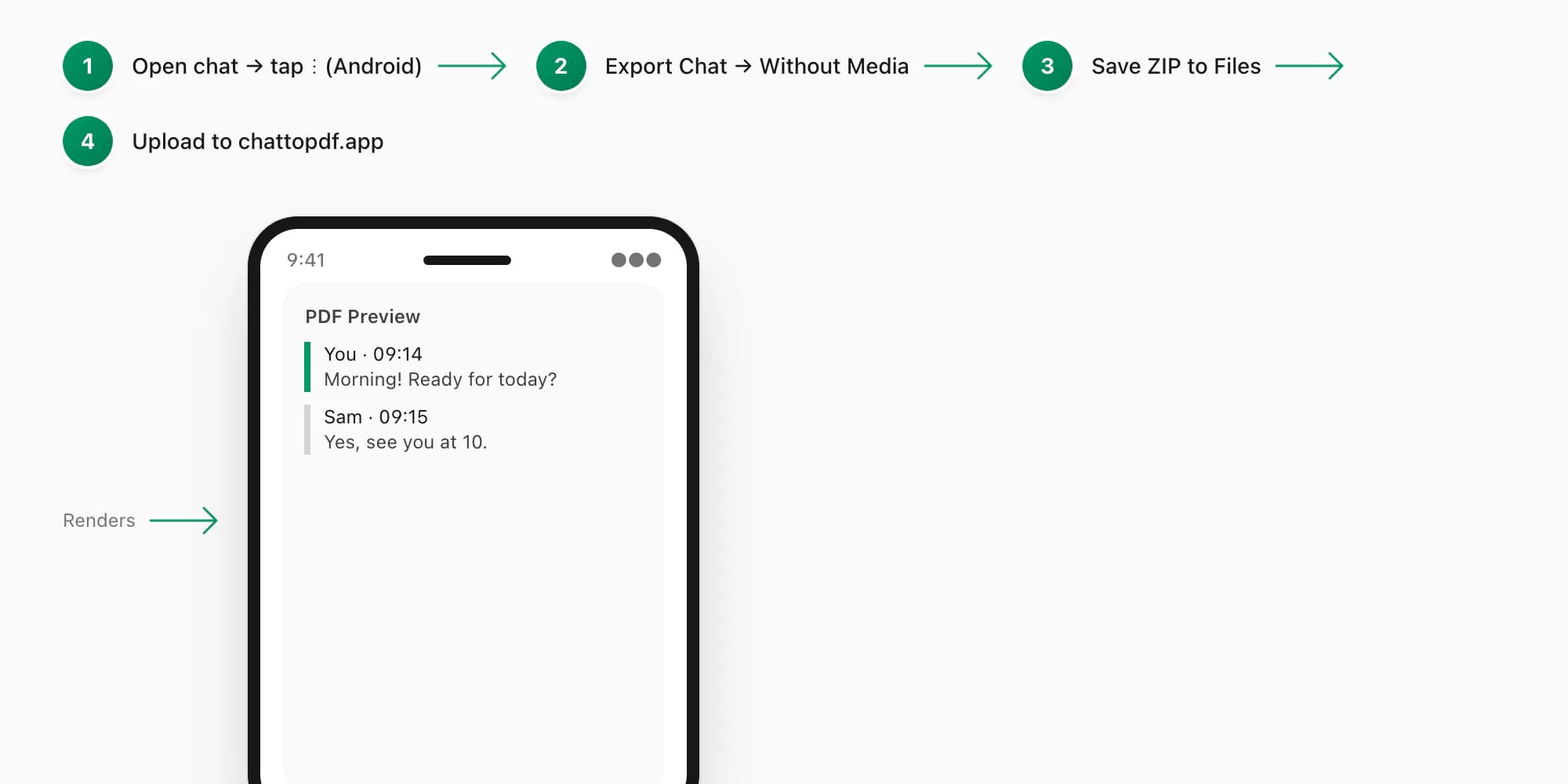
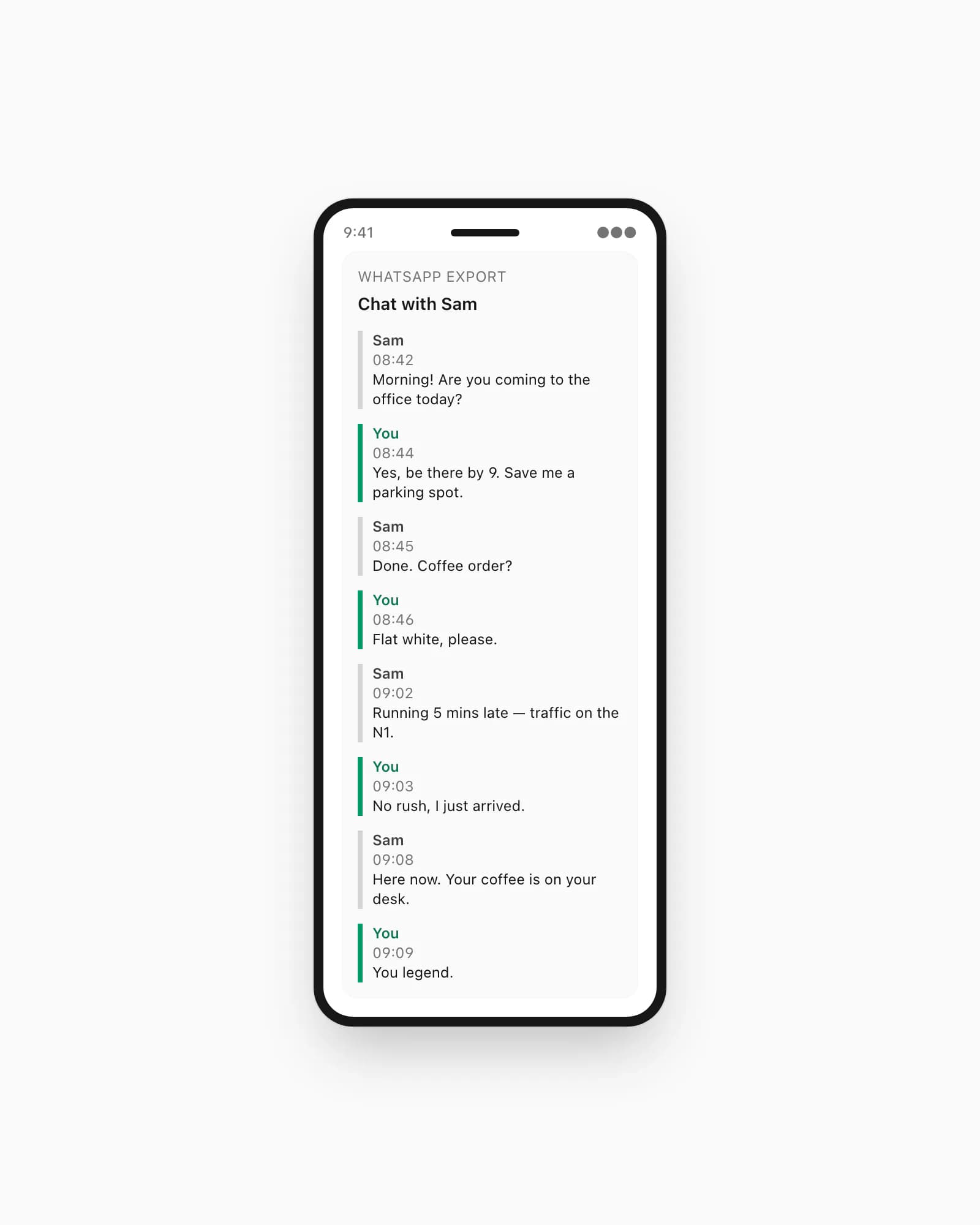
The PDF output from ChatToPDF keeps the messages included in the export in dated, sender-attributed order. Group chats use the participant information available in the source file. Voice-note transcription starts at the $49 Premium+Voice tier. The result looks like a document, not a screenshot stack.
If you want a deeper walk-through of the export and upload flow — including what the ZIP contains and how the parser handles different date formats — see my guide on converting WhatsApp to PDF.
What WhatsApp's Move to iOS actually moves (and what it silently drops)
Knowing what the transfer is intended to move saves you from unpleasant surprises after migration. Move to iOS can carry locally stored chat messages and attachments such as photos, videos, voice notes, and documents, along with available timestamps and sender information. The result depends on what remains on the Android device, so verify important chats and media before wiping it.
What it silently drops is a shorter list but worth knowing. Third-party sticker packs do not transfer. If you installed sticker packs from outside WhatsApp's official store, those slots appear blank on iPhone. The stickers themselves are gone from your chat display; the message placeholder shows an empty box.
"Delete for everyone" messages leave placeholder text on Android — something like "This message was deleted." Move to iOS does not preserve those placeholders. On iPhone you will see a gap where those messages were, with no indication a message existed.
Custom notification settings per contact — custom ringtones or vibration patterns — also do not carry over. These live in the operating system layer, not in the WhatsApp chat archive itself.
Messages that exist only in your Google Drive backup and not in local on-device storage are invisible to Move to iOS entirely. The tool reads from your phone's storage, not from the cloud.
The Samsung Secure Folder gotcha
Samsung devices running One UI include a feature called Secure Folder — an isolated encrypted space where apps can be installed separately from the main device. A lot of Samsung users install WhatsApp inside Secure Folder specifically because it lets them run a second WhatsApp account alongside the main one.
Here is the problem: Secure Folder WhatsApp is completely invisible to Move to iOS. The migration tool scans the main WhatsApp installation on your Android. Anything inside Secure Folder is isolated behind Samsung Knox encryption and does not appear in the transfer list.
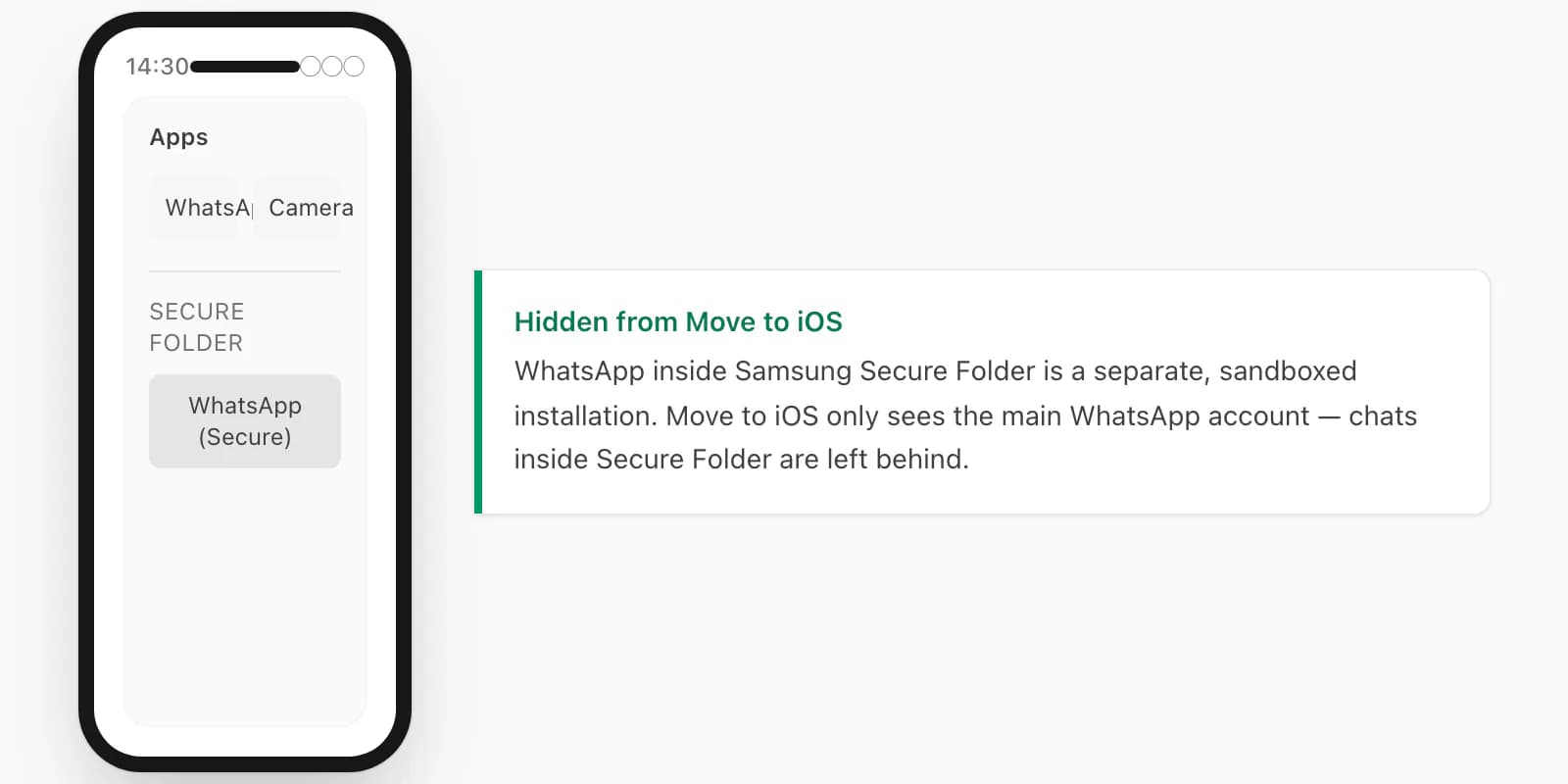
If your chats are inside Secure Folder WhatsApp, you have two options. First, you can export the chats from inside Secure Folder using the Export Chat menu (same path: ⋮ → More → Export Chat), then follow the PDF route to get a permanent record before you switch phones. Second, if you need those chats inside WhatsApp on iPhone rather than in a PDF, you need to move them to the main WhatsApp instance first: export from Secure Folder, then import the backup into your main WhatsApp installation, then run Move to iOS.
The second path requires WhatsApp to be in the same phone number on both instances, which is not always the case if Secure Folder was being used for a second number. In that scenario, the PDF route is the only practical one.
This gotcha catches a meaningful number of Samsung Galaxy users. If Move to iOS finishes quickly and your iPhone WhatsApp has fewer chats than expected, this is likely why.
The "device already encrypted" error and how to get past it
Move to iOS only works during iPhone first-run setup. The moment you complete setup — create a passcode, sign into Apple ID, install one app — the iPhone marks its storage as encrypted and blocks the migration tool.
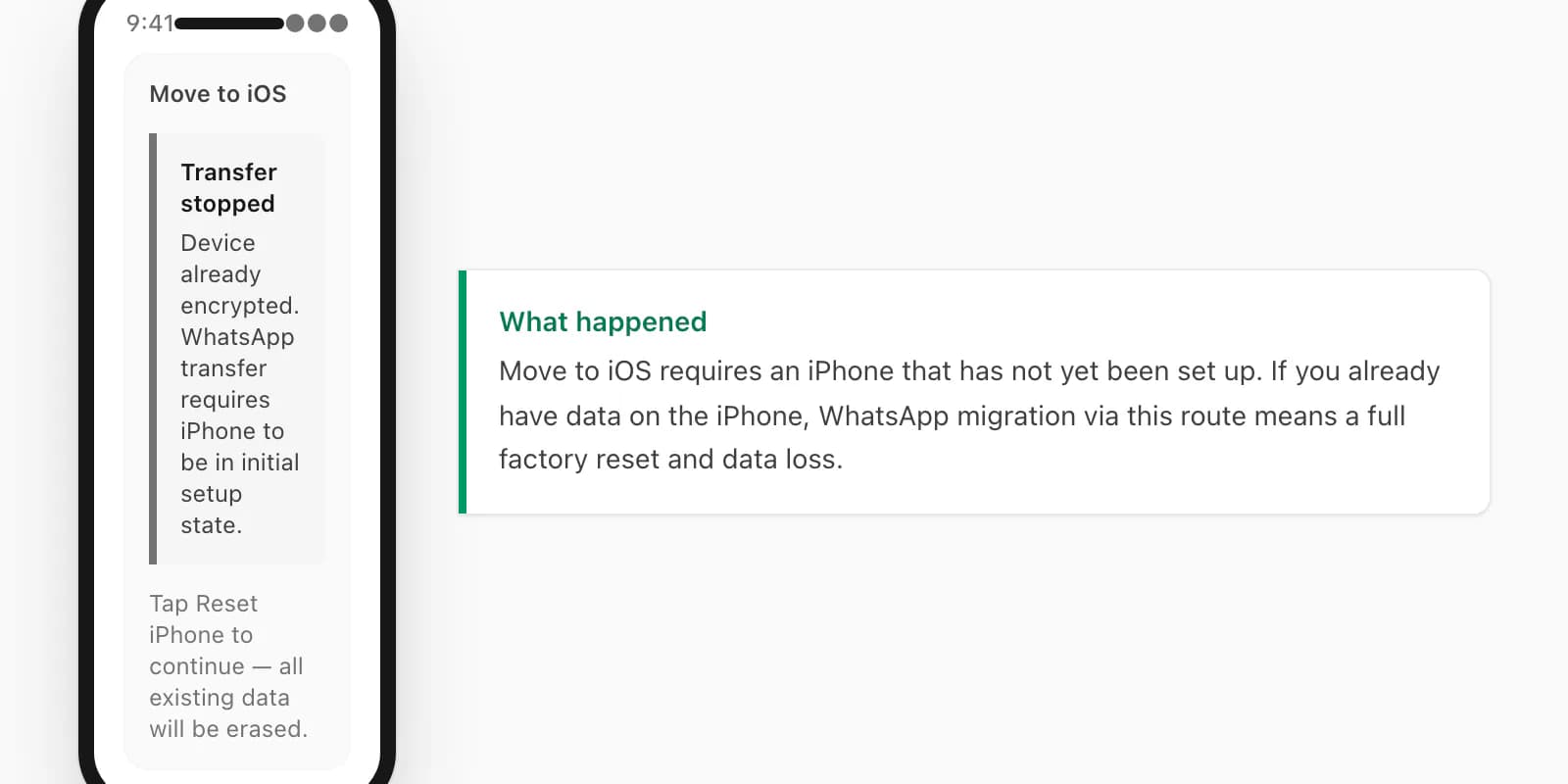
When you see the "device already encrypted" error, Move to iOS stops and offers to guide you through factory-resetting your iPhone. The reset wipes everything you have added since setup: photos, app data, messages from iMessage, everything. If you just bought the iPhone and have nothing valuable on it yet, a reset is reasonable. If you have been using it for a week or longer, the reset cost is real.
Three options from this point.
Option one: factory reset the iPhone. Go to Settings → General → Transfer or Reset iPhone → Erase All Content and Settings. Enter your Apple ID password to confirm. The iPhone restarts to the welcome screen. Start Move to iOS from the beginning. This gives you a clean migration but costs everything currently on the iPhone.
Option two: use the backup-restore route via a third-party desktop tool. As discussed above, Wondershare MobileTrans or Backuptrans can import your Android WhatsApp backup onto the iPhone without requiring a factory reset. This costs money and requires a desktop, but it preserves what is already on your iPhone.
Option three: use the Export to PDF route. Export your key chats from Android, move the ZIPs to iPhone, convert to PDF. You do not need to touch the iPhone's storage at all. This is the option most people choose once they see how fast it is.
File path differences: where Android stores the export vs where iOS does
Knowing where the file lands on each device prevents the common frustration of generating a ZIP, losing track of it, and having to re-export.
On Android, when you tap Save to Files after Export Chat, the ZIP lands in Internal storage/Downloads/ by default. The file name follows the pattern WhatsApp Chat - [Contact or Group Name].zip or WhatsApp Chat with [Contact or Group Name].zip depending on your WhatsApp version. Some Android manufacturers redirect "Downloads" to a different path — on Samsung devices it often goes to Phone storage/Downloads/ rather than Internal storage/Downloads/. Open the Files app, tap Downloads, and it will be there regardless of which path your manufacturer uses.
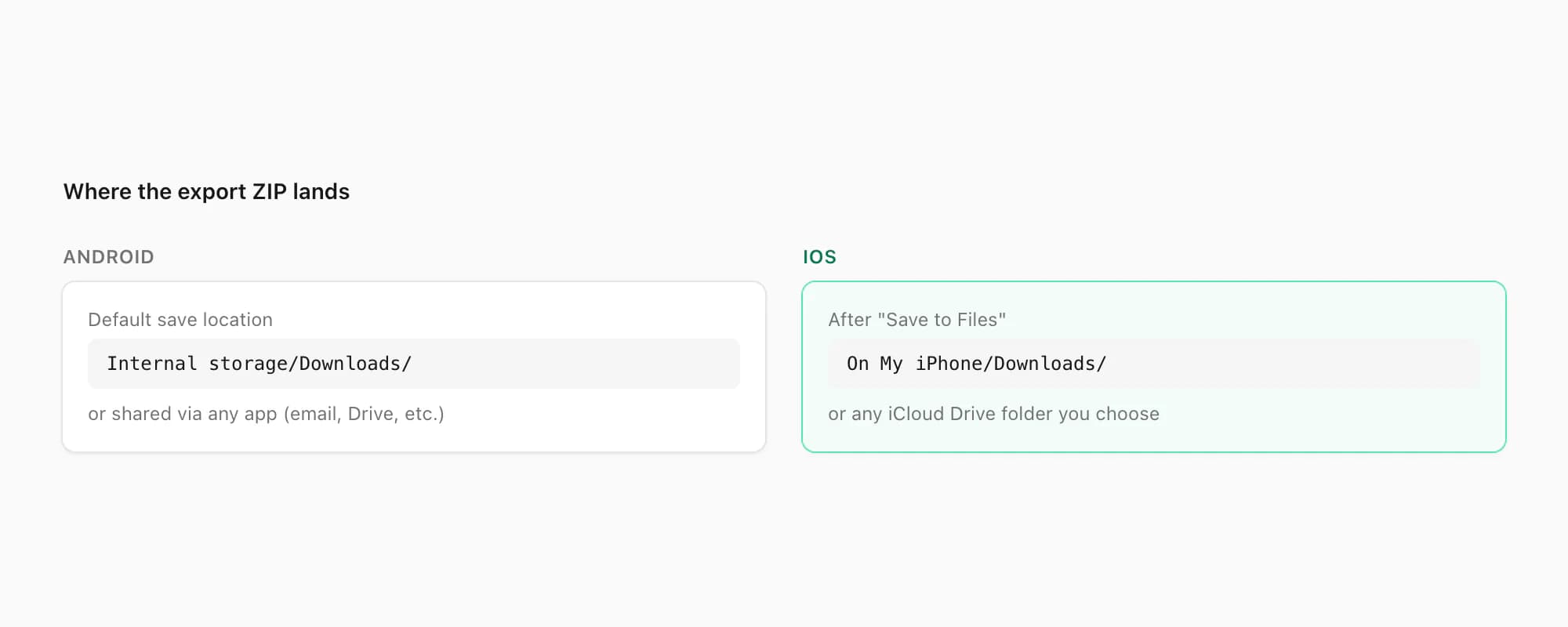
On iOS, the export ZIP lands wherever you direct it in the share sheet. If you tap Save to Files and choose "On My iPhone," it goes to On My iPhone/Downloads/. If you choose iCloud Drive, it lands in iCloud Drive/Downloads/ and syncs across your Apple devices. Either location works for uploading to ChatToPDF — open Files, find the ZIP, and tap to share or drag into a browser tab.
One specific issue to know: if you email the ZIP to yourself and open the attachment on iPhone, iOS may let you view the raw ZIP in Quick Look without saving it to Files. Do not use that preview path for uploading. Save the attachment to Files first — tap the share icon inside Mail, then Save to Files — and upload from there. Quick Look creates a temporary copy that may not be addressable by the browser's file picker.
For more detail on the ZIP structure and what the parser does with the text file inside it, see my WhatsApp chat export guide.
When to skip the transfer entirely and keep a PDF backup
Not every Android-to-iPhone situation requires moving your full WhatsApp history into the app. Three scenarios come up often enough that I think they are worth naming explicitly.
You need a legal or evidentiary record. If you are keeping the chat because it documents a dispute, a contract, a harassment incident, or any situation where you might need to show it to a lawyer, a court, or an employer, a PDF is a better format than an app archive. PDFs have fixed content and timestamps. WhatsApp archives can be questioned as editable. A PDF exported and stored independently of WhatsApp is an artifact — it exists whether or not WhatsApp's servers or your phone still hold the original.
You are switching numbers as well as phones. Move to iOS ties the migration to your phone number. If you are switching both devices and numbers at the same time — picking up a new SIM, for instance — the migration flow becomes more complicated. Exporting to PDF before the number change is a clean way to preserve the history without having to coordinate the timing.
You only need a few specific chats. Running a full Move to iOS migration to recover one conversation with a supplier or one thread with a family member is disproportionate effort. Export the specific chat, convert it, keep the PDF. The rest can stay on Android.
For any of these three scenarios, the Export to PDF path is the right default. It is faster, it requires no special hardware or iPhone setup state, and the output is more portable than an app-locked backup.
Apple's own support documentation for Move to iOS is thorough on the happy path but does not address most of these edge cases. Apple's Move to iOS support page is worth reading if you are going the official route and want to confirm your specific iOS version is supported.
Pricing and tier guidance for ChatToPDF (per-conversion)
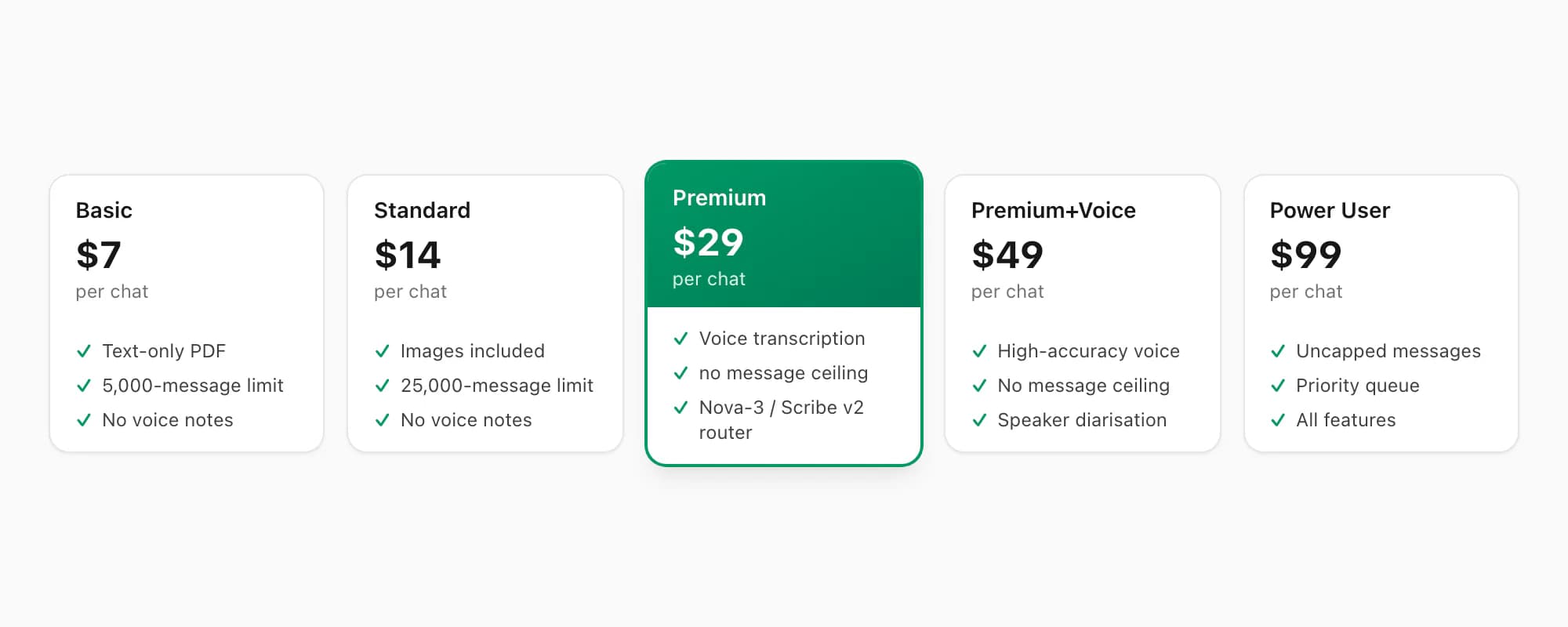
ChatToPDF uses per-conversion pricing — you pay for the specific chat you are converting today, not for access to a tool. There is no recurring billing. Here is how the tiers break down.
$7 Basic per chat conversion handles text-only exports up to 5,000 messages. Good for short conversations, quick records, simple chats.
$14 Standard per chat conversion handles exports up to 25,000 messages, includes embedded photos, and produces a clean formatted PDF. This covers the majority of individual chat exports.
$29 Premium per chat conversion removes the product message-count ceiling and can render supported media that WhatsApp included in the export. Voice notes appear as placeholder references in the PDF — transcription is not included at this tier. If your conversation has no voice notes, or you do not need them transcribed, this is the tier for very long chats.
$49 Premium+Voice per chat conversion adds a language-aware router between Deepgram Nova-3 and ElevenLabs Scribe v2 across the current 93-language registry. Up to 8 hours of audio per chat is included. Coverage does not guarantee accuracy for every recording, so verify important passages against the source audio.
$99 Power User per chat conversion is for large single-chat exports — group chats that have been running for years, legal archives, and business conversation histories. It adds no audio-duration cap, priority processing, and the full output bundle while using the same 93-language router. Supported media can render only when WhatsApp included it in the export.
For a typical Android-to-iPhone scenario, most people land on $14 Standard per chat or $49 Premium+Voice per chat depending on whether they have voice notes they want transcribed.
For the full walk-through of the ChatToPDF upload and conversion process — including what the PDF output looks like for group chats versus individual conversations — see my main WhatsApp to PDF guide.
If your Android WhatsApp contains voice messages you want transcribed, see my WhatsApp audio transcription guide for detail on how the voice pipeline handles different languages and audio quality levels.
Related guides — WhatsApp on iPhone, deeper
I split the iPhone side of the WhatsApp story into ten focused guides, each one answering a specific question I got tired of seeing buried in long generic articles. Pick the one that matches what you are actually trying to do — they're grouped by intent below.
Step-by-step iOS workflows:
- How to export a WhatsApp chat on iPhone — the formal iOS walk-through, every Files-app stop
- Export chat WA iPhone — shorthand path — same workflow, faster prose, for "WA" searchers
- Export WhatsApp chat FROM iPhone — out to where — Files, Mac, PC, cloud, email destinations
Convert to PDF:
- iPhone WhatsApp chat to PDF in 30 seconds — the conversion path, $14 Standard per chat
- Save WhatsApp chat as PDF — preservation framing — for archiving, sentiment, evidence
Edge cases:
- Bulk export — there is no "Export All" button — four workarounds for many chats
- Large WhatsApp chats — past the 40k cap — file-size and message-ceiling fixes
Cross-device transfer:
- Export from iPhone to a Windows PC — iCloud, iTunes, or cloud-bridge paths
Honest gaps in WhatsApp:
- Call history — WhatsApp doesn't export it cleanly — workarounds for the missing call log
- Importing an exported chat back — the honest answer — what works when WhatsApp's import isn't what you thought
Key takeaways
- Move to iOS (Apple's official tool) requires WhatsApp v2.21 or later on Android and iOS 15.5 or later on iPhone, and only works during iPhone first-run setup — a set-up iPhone blocks it with an encryption error
- The Google Drive to iCloud backup gap is the single most common reason the backup-restore route fails: Android backups land on Google Drive, iPhone restores from iCloud, and the two never connect without a paid third-party desktop tool
- Samsung Secure Folder WhatsApp is invisible to Move to iOS — chats stored there must be exported manually before switching phones
- The Export to PDF route requires no factory reset, no desktop, and no cable: tap ⋮ → More → Export Chat on Android, move the ZIP to iPhone via Files or Google Drive, and upload to chattopdf.app
- Export ZIPs land at
Internal storage/Downloads/on Android and atOn My iPhone/Downloads/or iCloud Drive when saved via the iOS share sheet - $14 Standard per chat conversion covers most individual chats up to 25,000 messages with supported photos; voice-note transcription starts at $49 Premium+Voice and uses the 93-language Nova-3 and Scribe v2 router
- For legal or evidentiary uses, a PDF is a stronger format than a WhatsApp in-app archive because it produces a fixed, printable artifact independent of WhatsApp's app and servers
FAQ
Can I transfer WhatsApp from Android to iPhone without resetting the iPhone?
Yes — use the Export to PDF route. Open WhatsApp on Android, tap ⋮ → More → Export Chat, save the ZIP to Files or Google Drive, move it to your iPhone, and upload to chattopdf.app. No iPhone reset needed. Move to iOS requires a fresh-out-of-box iPhone or a factory reset; the PDF route has no such requirement.
Why does WhatsApp say it can't restore my backup on iPhone?
WhatsApp on iPhone reads backups from iCloud, not Google Drive. Your Android backup sits on Google Drive and is invisible to the iPhone restore prompt. To cross the gap without a third-party desktop tool, use the Export Chat menu on Android to produce a ZIP file, then convert it to PDF via chattopdf.app.
Does Move to iOS transfer WhatsApp media (photos and videos)?
Yes, Move to iOS transfers photos and videos that are stored locally on your Android device at the time of migration. Media that was only in your Google Drive backup and not in local storage is not transferred. Third-party sticker packs do not transfer.
What happens to WhatsApp on Android after I switch to iPhone?
Nothing automatically happens to your Android WhatsApp. The app and its data remain on the Android device until you manually uninstall it or the device is wiped. WhatsApp will eventually deactivate the account on Android once the same phone number is active on the iPhone, but the data remains in local storage until you clear it.
How do I export a WhatsApp chat from inside Samsung Secure Folder?
Open the Secure Folder app on your Samsung device, launch WhatsApp from inside it, open the chat you want, tap ⋮ → More → Export Chat, choose Without Media or Including Media, and save the ZIP to your Downloads folder. Then follow the ChatToPDF upload steps to convert it. The Secure Folder WhatsApp instance is isolated from Move to iOS, so this manual export is the only way to get those chats onto your iPhone.
Is the $14 Standard tier enough for most Android-to-iPhone chat exports?
For most individual conversations, yes. The $14 Standard per chat conversion handles exports up to 25,000 messages and includes supported embedded photos. If your chat is longer than 25,000 messages, step up to $29 Premium; if voice notes need transcription, start at $49 Premium+Voice. The $99 Power User package is for one chat that needs no audio-duration cap, priority processing, or the full output bundle.
Can I use ChatToPDF to archive multiple chats from the same Android phone?
Yes, one at a time. Each chat export is a separate file and a separate conversion at the applicable tier. ChatToPDF does not currently provide a multi-ZIP batch uploader, bulk pricing, or account-level bundle.
I'm Paul, the founder of ChatToPDF. I built it after needing a long WhatsApp conversation as a readable PDF for a legal matter. I test and document WhatsApp exports, PDF conversion, voice-note transcription, and the limits people should check before relying on the result.