
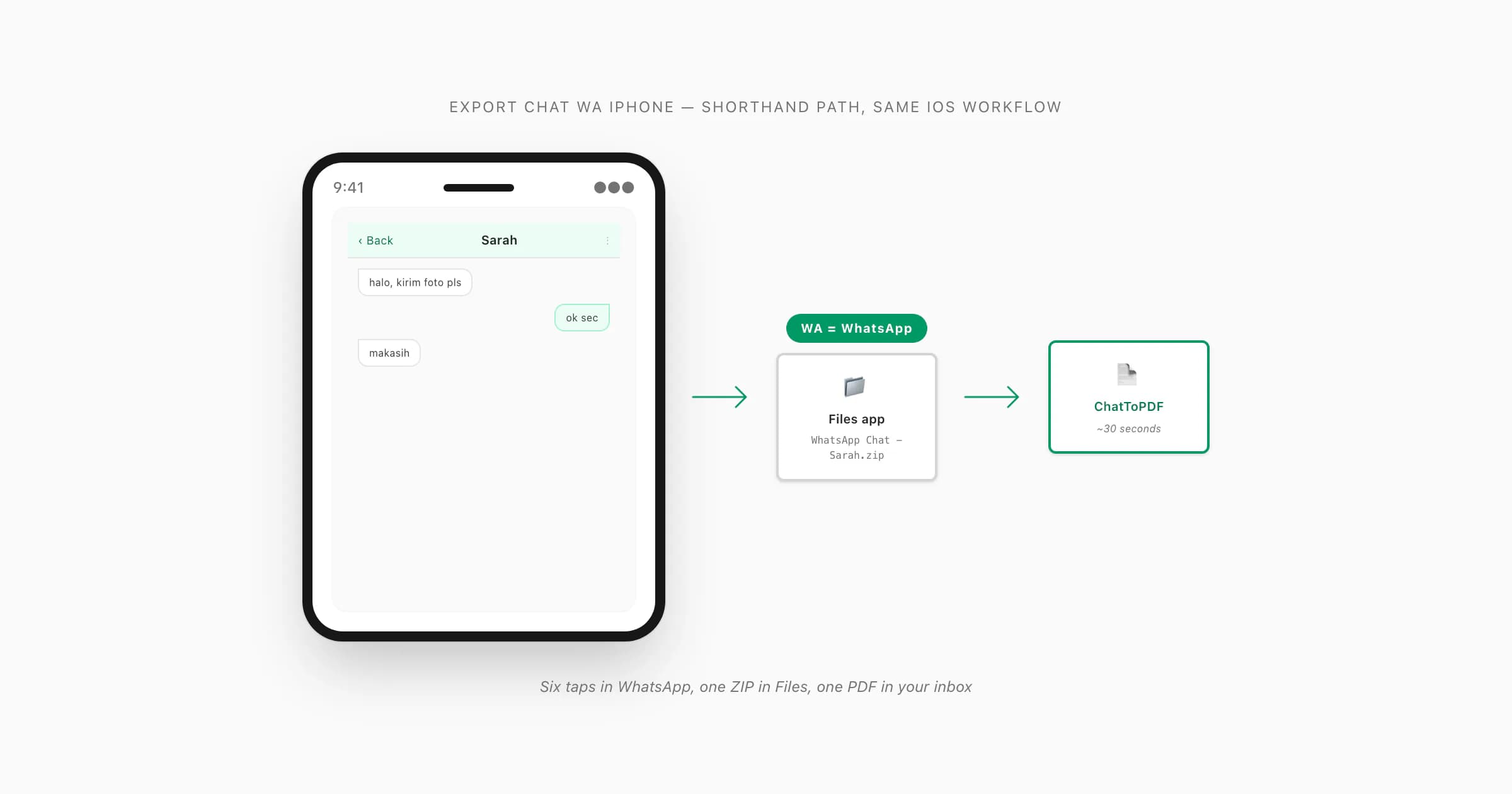
To export a WhatsApp (WA) chat on iPhone, open the chat, tap the contact or group name at the top, scroll to Export Chat, choose Without Media or Including Media, and save the ZIP to the iOS Files app. "WA" is shorthand for WhatsApp — the six-tap iOS export path is identical. Upload the ZIP to ChatToPDF to receive a sender-attributed PDF by email in about 30 seconds.
WA = WhatsApp — the shorthand and where it comes from
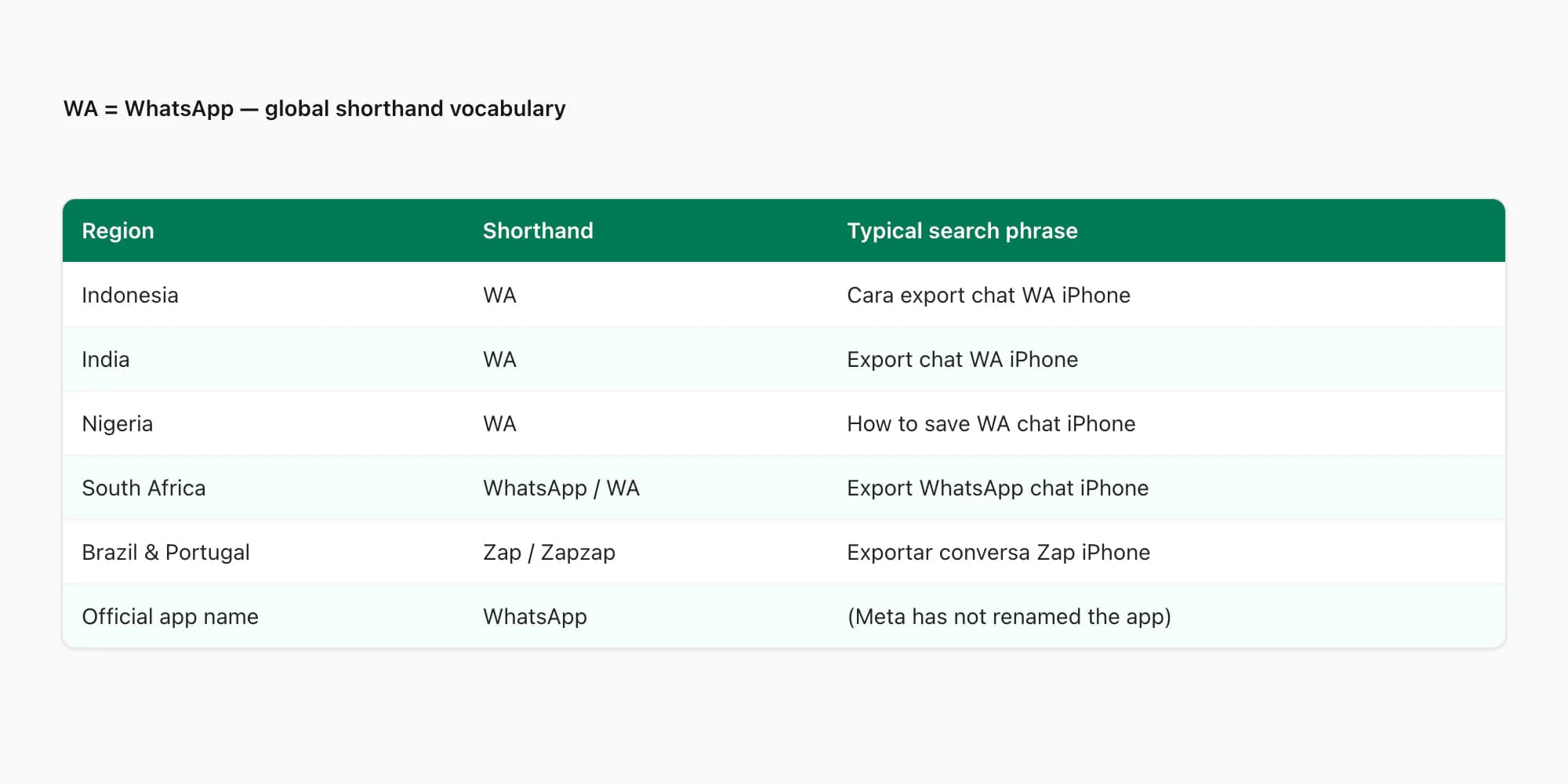
If you searched "export chat WA iPhone", you already know the trick: WA is just shorthand for WhatsApp. The app itself is still officially called WhatsApp — that hasn't changed — but in a lot of the world, nobody types out the long version. In Indonesia people search "Cara export chat WA". In Nigeria and India it's just "WA". In Brazil and Portugal it's "Zap" or "Zapzap". The pillar guide WhatsApp Android to iPhone covers the broader cross-platform case, but this page is for one thing only: getting a chat off your iPhone, fast, in shorthand.
I built ChatToPDF after going through this hunt myself — exporting a chat before swapping phones — and the first thing I learned is that the iOS export menu is hidden in a place nobody expects. Once you know where it lives, the whole thing takes about 90 seconds. That's the entire promise of this page. No long preamble, no lecture about backups versus exports. Just the path.
Six taps on iPhone — the whole iOS path
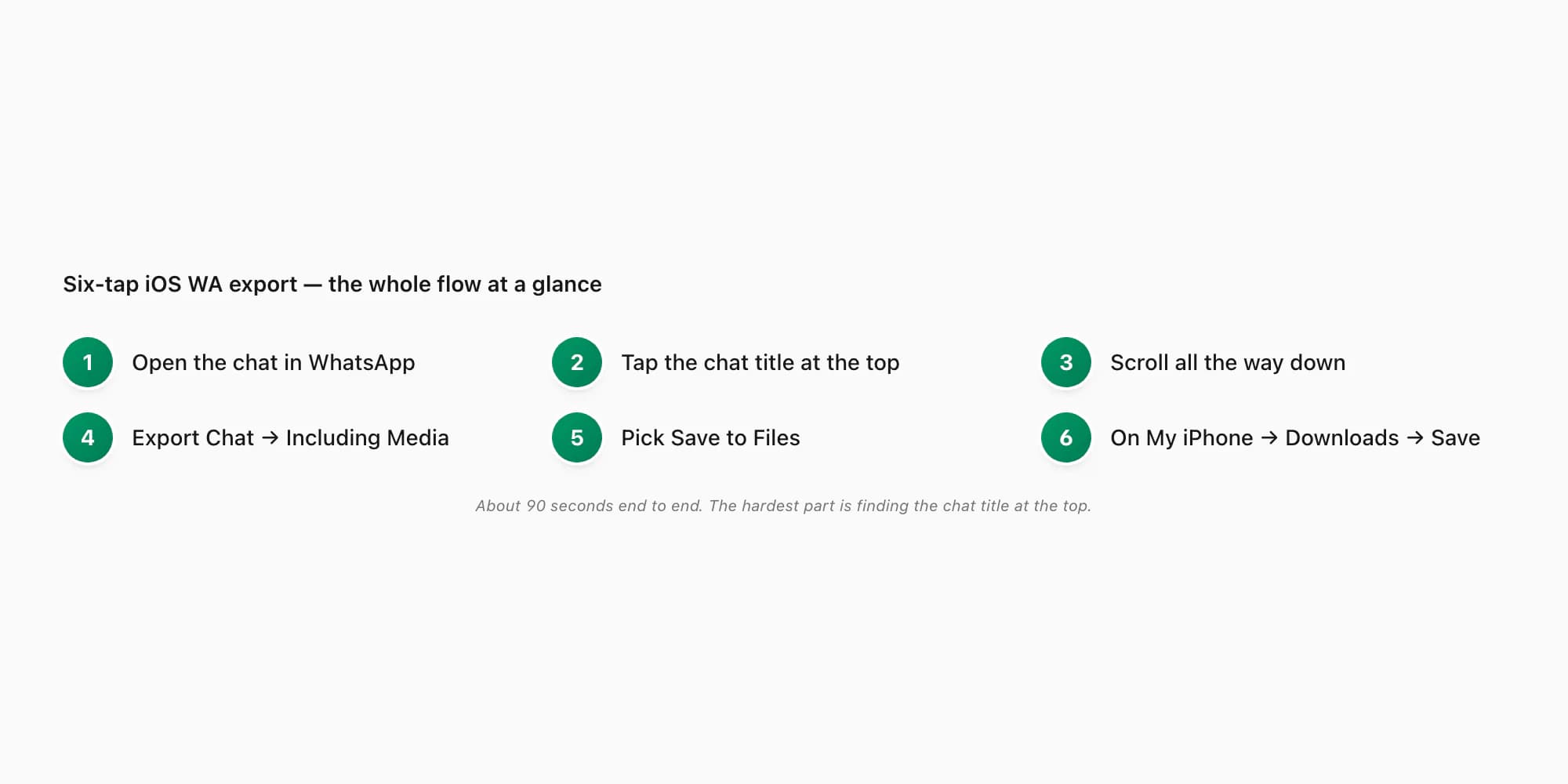
Here is the full iOS workflow. Six taps plus picking a save target. If you've used a WhatsApp Android export before, the menu is in a different place on iPhone — that's the only thing that trips people up.
Open the chat in WhatsApp
Tap the Chats tab at the bottom, scroll to the conversation, tap it open. You should be looking at the message bubbles. Don't tap the camera, the phone icon, or the three-dot button — those go elsewhere.
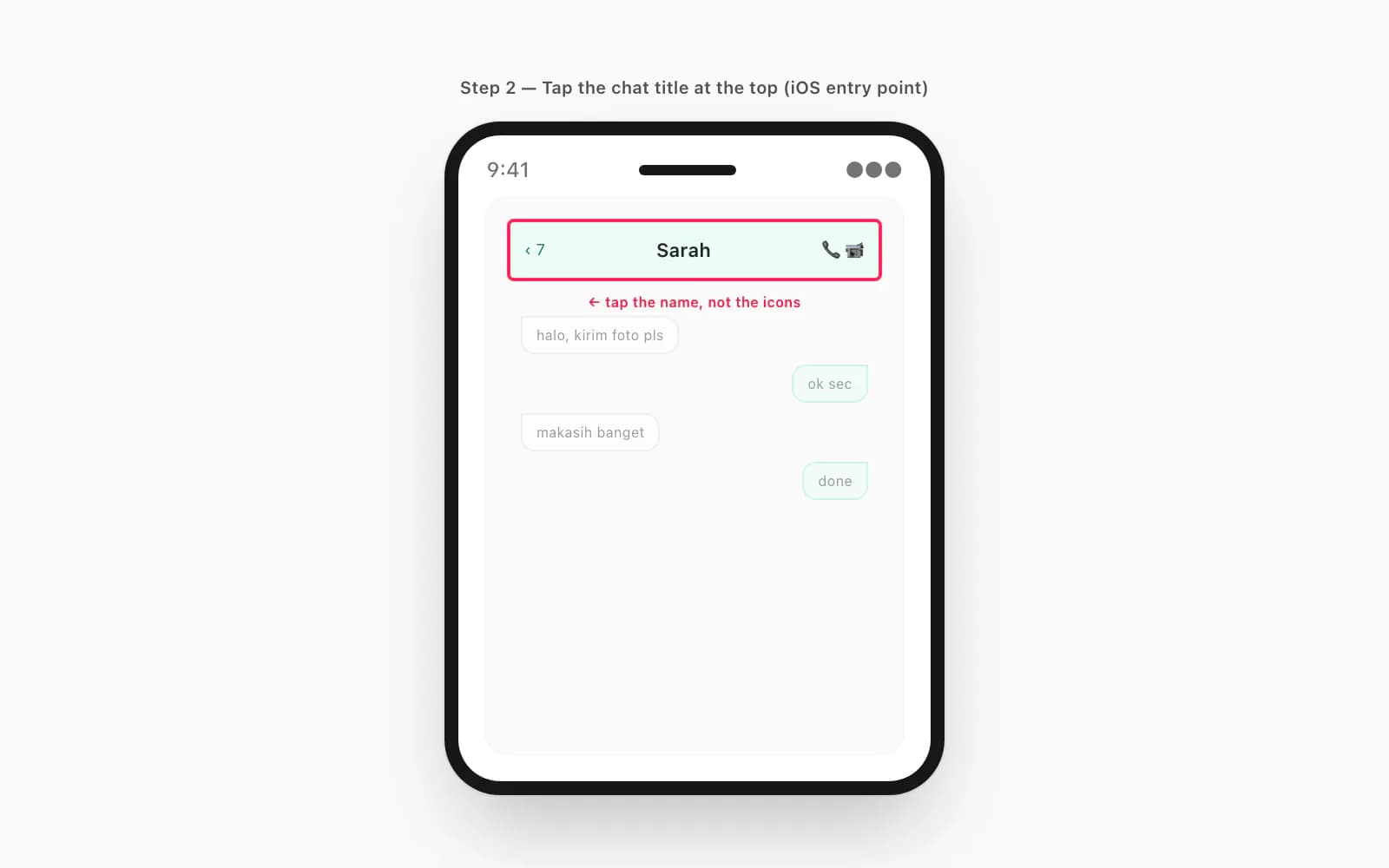
Tap the chat title at the very top
The contact name (one-on-one) or group name (group chat) sits at the top of the chat as a small piece of header text. Tap it. iOS slides up the contact info or group info screen — a longer scrollable list. This is the iOS entry point you have to learn once.
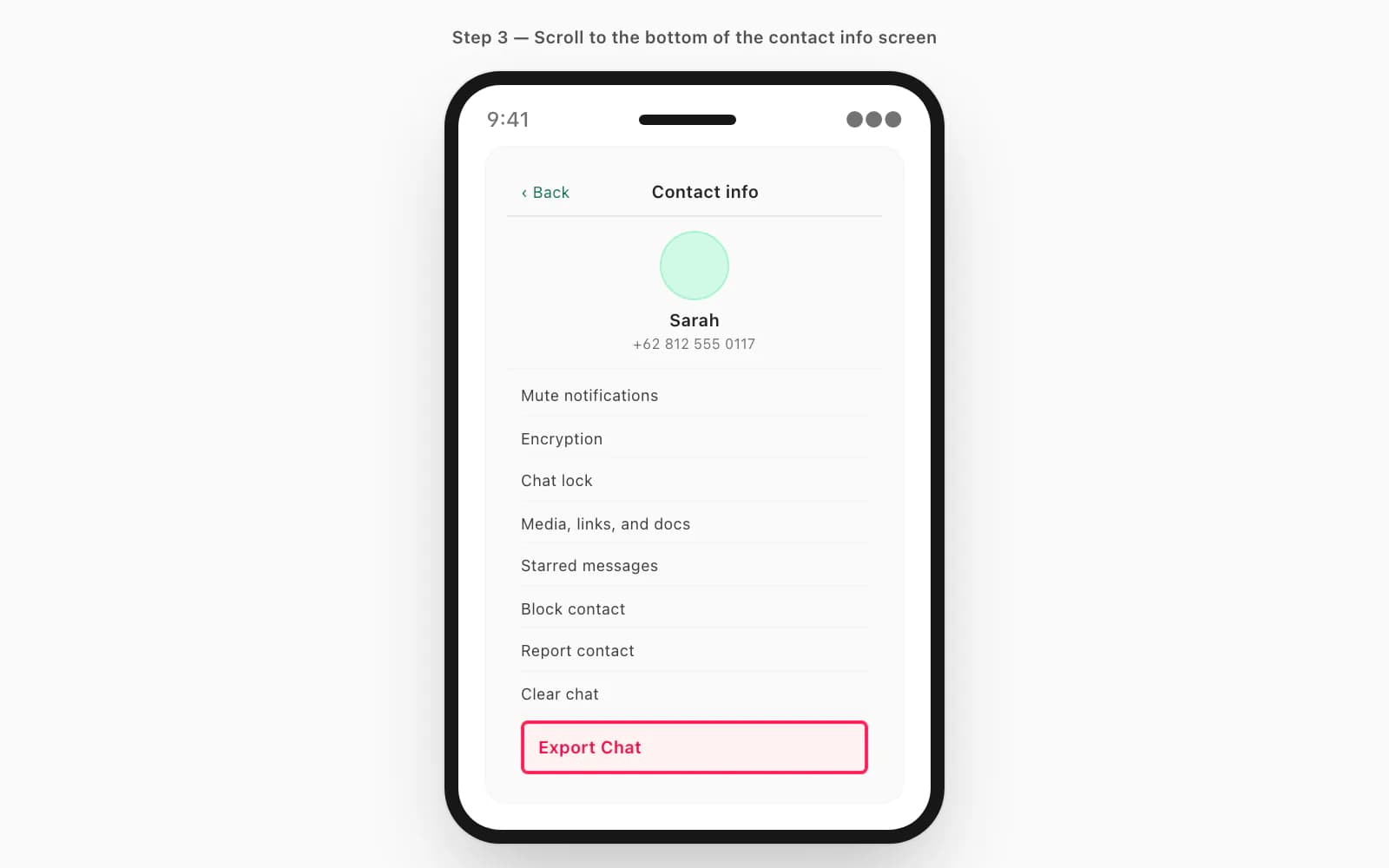
Scroll all the way down
The Export Chat button sits at the bottom — past Mute, Encryption, Chat Lock, Media-Links-and-Docs, Starred Messages, Block, Report, and Clear Chat. On most iOS WhatsApp versions (v24.x) the button is in red. If you can't see it, keep scrolling. It's there.
Tap Export Chat → Including Media
WhatsApp asks one question: photos and voice notes, or just text? Without Media gives you a small ZIP with only
_chat.txt. Including Media gives you the photos and voice notes too. For a PDF, almost always pick Including Media — that's what makes photos render inline.Pick Save to Files in the share sheet
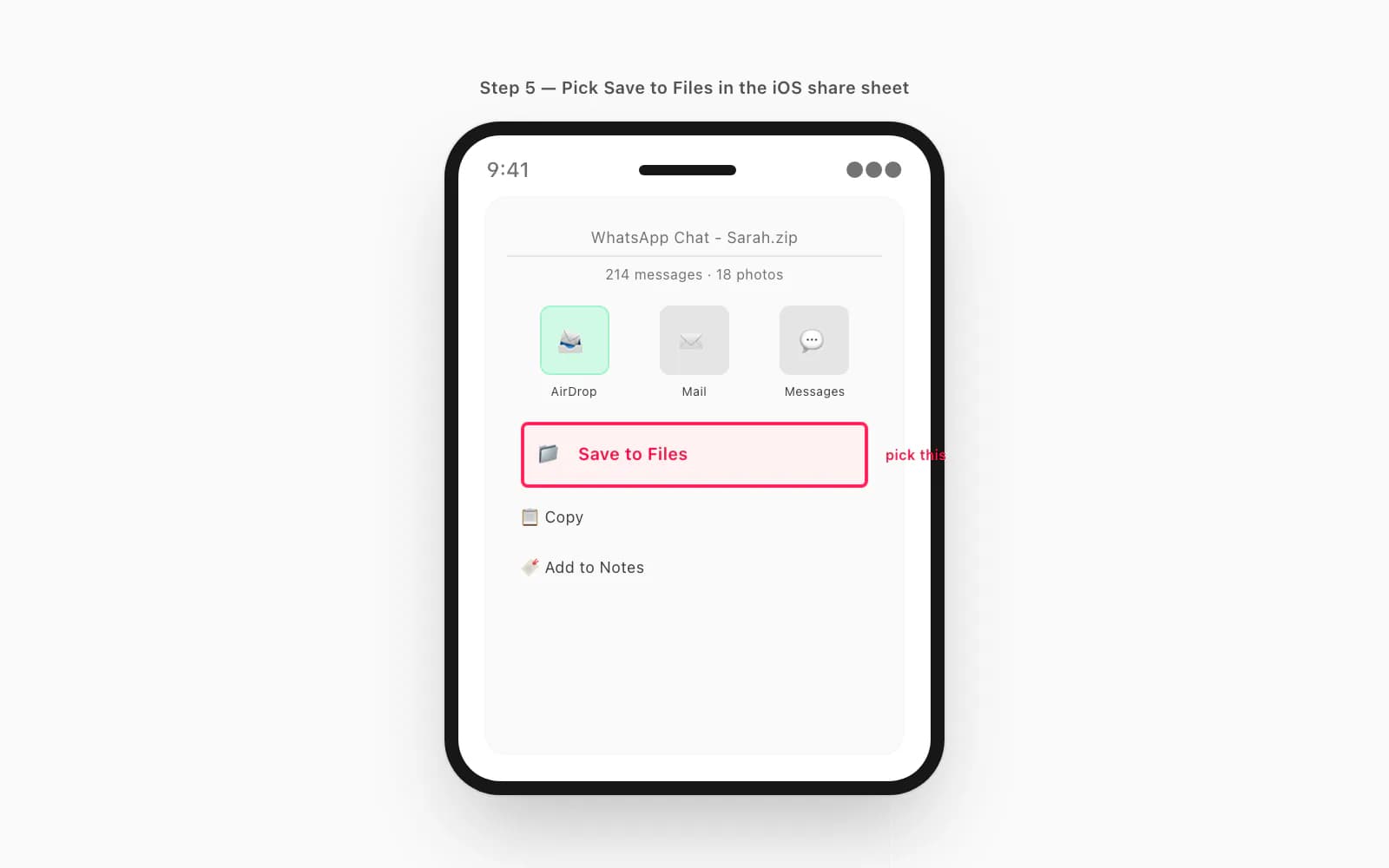
iOS hands you a share sheet next. AirDrop, Mail, Messages, and Save to Files are the common options. Pick Save to Files. AirDropping or emailing the ZIP works for tiny exports but breaks above ~25 MB. Save to Files always works.
Pick On My iPhone → Downloads → Save
The save dialog asks where the ZIP goes. On My iPhone is fastest and most reliable. iCloud Drive is fine if iCloud has space. Pick Downloads as the folder, tap Save. Done.
That's it for the WhatsApp side. From here the ZIP exists as a real file on your iPhone, and the rest happens at chattopdf.app. The companion guide How to export WhatsApp chat on iPhone covers the same workflow in more depth if you hit a snag. If your endpoint is a Windows PC rather than the iPhone Files app, export WhatsApp chat from iPhone to PC covers the iCloud, iTunes, and cloud-bridge paths.
Without Media or Including Media — the only thing WhatsApp asks
The single decision in the WA half of the workflow is the Without Media versus Including Media question. It shapes the entire output, so worth spelling out.
- Option
- Without Media
- What's in the ZIP
- Only `_chat.txt` — every message as plain text, in order
- When to pick it
- Quick text archive, very long chats, words-only legal record
- Option
- Including Media
- What's in the ZIP
- `_chat.txt` plus every photo, voice note, and document
- When to pick it
- Most cases — photos render inline in the PDF, voice notes can be transcribed
- Option
- ZIP size — Without
- What's in the ZIP
- Tens to hundreds of KB
- When to pick it
- Email-friendly, fits any cloud quota
- Option
- ZIP size — Including
- What's in the ZIP
- 50–500 MB typical, multi-GB for years-long chats
- When to pick it
- Save to Files only — Mail rejects above 25 MB
- Option
- Recommendation
- What's in the ZIP
- Including Media — almost always
- When to pick it
- Pick Without Media only if iCloud is full or you want text only
| Option | What's in the ZIP | When to pick it |
|---|---|---|
| Without Media | Only `_chat.txt` — every message as plain text, in order | Quick text archive, very long chats, words-only legal record |
| Including Media | `_chat.txt` plus every photo, voice note, and document | Most cases — photos render inline in the PDF, voice notes can be transcribed |
| ZIP size — Without | Tens to hundreds of KB | Email-friendly, fits any cloud quota |
| ZIP size — Including | 50–500 MB typical, multi-GB for years-long chats | Save to Files only — Mail rejects above 25 MB |
| Recommendation | Including Media — almost always | Pick Without Media only if iCloud is full or you want text only |
The choice is one-shot. WhatsApp doesn't let you switch later — you'd have to redo the whole export. Pick Including Media unless you've got a real reason not to.
Where the ZIP lands and how to find it later
The most common moment of friction after the export is "I exported it but where did it go?". Solvable in two taps.
Open the Files app — blue folder icon. If it's not on your home screen, swipe down on the home screen and search "Files". Tap Browse at the bottom. The top shows Locations: iCloud Drive, On My iPhone, Recents. Tap whichever location matches where you saved. Inside that, navigate to Downloads (or whatever folder you picked). The ZIP is there, named something like WhatsApp Chat - Sarah.zip or WhatsApp Chat - Project Group.zip.
If you forgot where you saved it, tap Recents at the bottom of Files. It lists the last 30-or-so files saved across all locations, ordered by save time. A fresh WA export is at the top.
Apple's Files app guide covers Files navigation in more depth if you haven't used the app much. Most people only need Browse → Recents to find a fresh export.
From iPhone Files to a PDF in 30 seconds
The chattopdf side of the workflow is short. Once the ZIP is in Files, two paths to upload it: from the iPhone in Safari, or from a Mac if you saved to iCloud Drive.
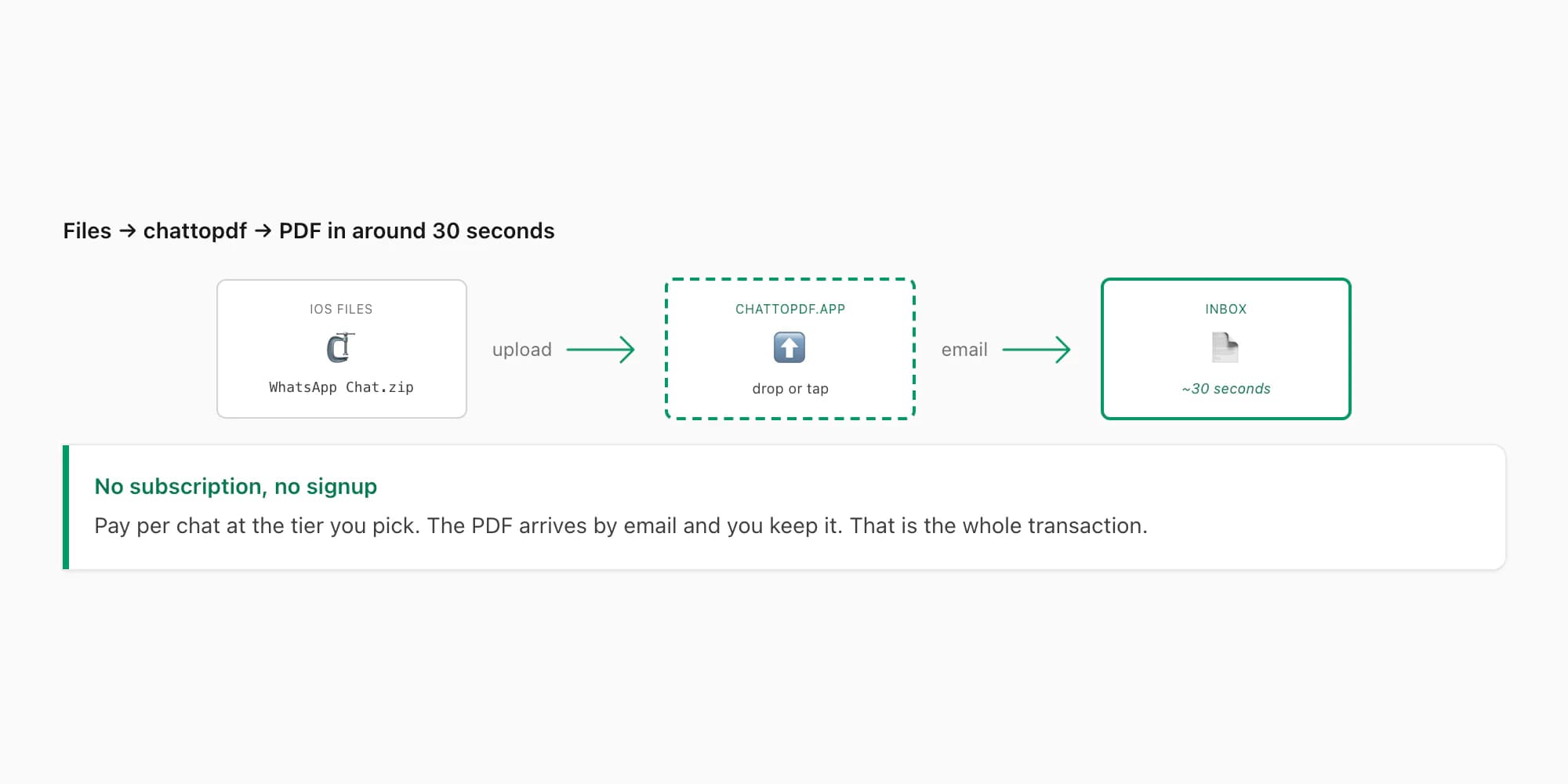
From the iPhone in Safari: open chattopdf.app, scroll to the upload area on the home page, tap. Safari opens a file picker. Pick "Choose File" → Files, navigate to your ZIP, tap it. Safari uploads it. You pick a tier, pay, and the PDF arrives by email.
From a Mac (iCloud Drive): open Finder → iCloud Drive → find the ZIP. Open chattopdf.app in any browser on the Mac. Drag the ZIP onto the upload area. Pick a tier, pay, get the PDF. Some people prefer this because typing card details on desktop is easier than on mobile.
The companion guide Export WhatsApp chat to PDF walks through the chattopdf upload screen and what the PDF actually looks like. The whole iPhone-to-PDF flow runs under two minutes for a typical conversation. WhatsApp's own export chat history FAQ confirms the menu structure and limits.
Pricing — which tier fits a WA export
The chattopdf side charges per chat. Five tiers, all per chat per conversion. No subscription, no monthly fee.
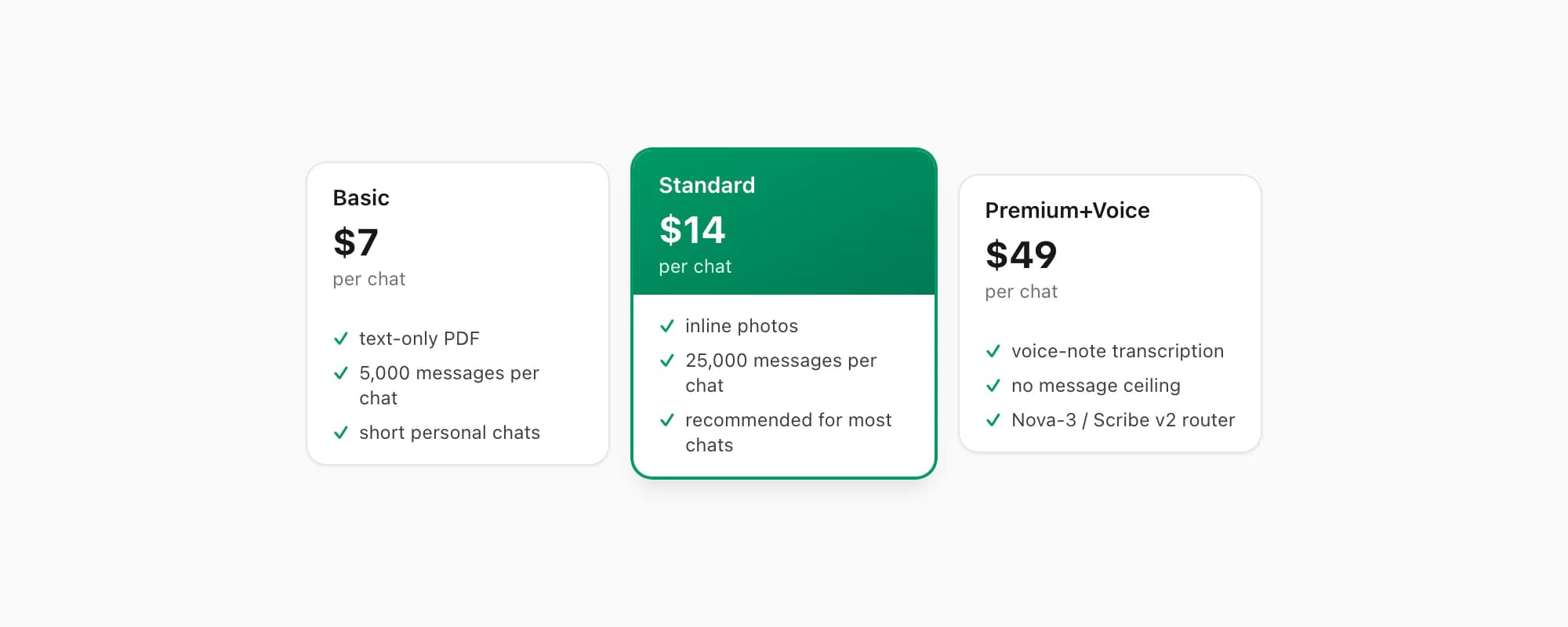
$7 Basic per chat — text-only PDF, fine for short personal chats with no photos and under 5,000 messages.
$14 Standard per chat — recommended for most WA exports. Inline photos render in the PDF if you exported with Including Media, the per-chat ceiling is 25,000 messages, every sender attributed by name. This is the typical iPhone-export choice.
$29 Premium per chat — removes the message ceiling, adds an XLSX/CSV export alongside the PDF. Useful for chats over 25,000 messages or when you want spreadsheet data.
$49 Premium+Voice per chat — adds voice-note transcription through the language-aware Nova-3/Scribe v2 router. WA chats often include voice notes; supported notes that transcribe successfully appear inline. The current registry covers 93 languages, including 57 in provider-published excellent or high bands. The transcribe WhatsApp audio guide goes deeper on the voice pipeline.
$99 Power User per chat — adds priority queue and bulk-conversion support. Useful when you've got several chats from the same iPhone to convert in one session.
Each conversion is real work against the chat as it existed at export time. Pay per chat, get the PDF, that's the bill.
Key takeaways
- "WA" is just shorthand for WhatsApp — common in Indonesia, India, Nigeria, and South Africa. The app itself is still officially WhatsApp; the shorthand is purely how people type it.
- The iOS export menu is hidden at the bottom of the contact info screen — reach it by tapping the chat title at the top, then scrolling all the way down past Block, Report, and Clear Chat.
- Six taps total: open chat → tap title → scroll down → Export Chat → Including Media → Save to Files. Pick On My iPhone → Downloads as the save target.
- Including Media is the right choice for almost every PDF export — that's what gets photos rendered inline and what makes voice notes available for transcription.
- Find the ZIP later in the iOS Files app under Browse → On My iPhone → Downloads, or under Recents if you forgot the folder.
- The chattopdf side runs in roughly 30 seconds — drag the ZIP into chattopdf.app in Safari, pick the $14 Standard per chat tier for most chats, pay, get the PDF by email.
- For everything about the conversion step — tier differences, what the PDF looks like, and how voice notes are handled — see the WhatsApp to PDF guide.
FAQ
Is WA the same thing as WhatsApp?
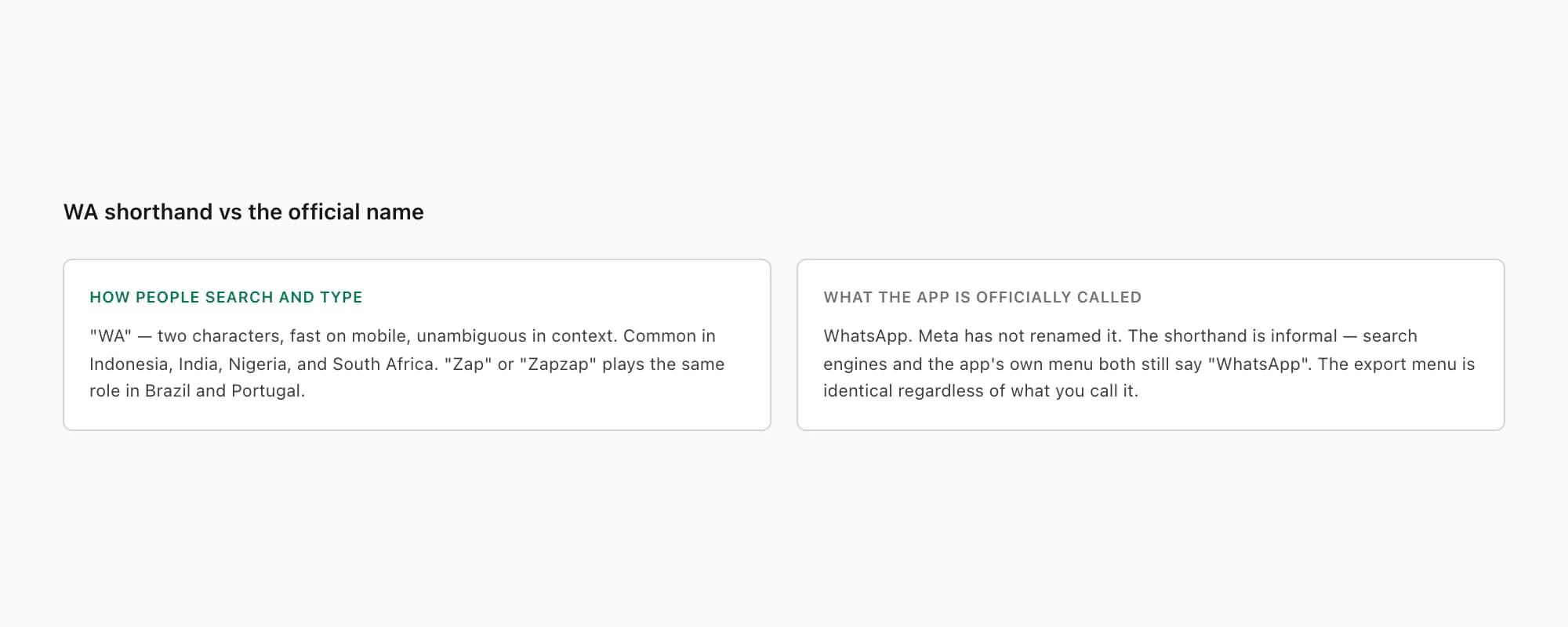
Yes. "WA" is shorthand for WhatsApp, used widely in Indonesia ("Cara export chat WA"), India, Nigeria, and South Africa. The app itself is still officially called WhatsApp — Meta has not renamed it. The shorthand exists because typing "WhatsApp" in the middle of a sentence or search query is slow on mobile, and "WA" is two characters and unambiguous in context. In Brazil and Portugal the equivalent shorthand is "Zap" or "Zapzap". All of them refer to the same app, the same export menu, and the same ZIP file structure.
Where exactly is Export Chat on iPhone WhatsApp?
At the bottom of the contact info or group info screen, which you reach by tapping the chat title at the top of the chat. The button is in red text on most iOS WhatsApp versions (v24.x and later). Path: open WhatsApp → tap the chat → tap the contact's or group's name at the top → scroll past Mute, Disappearing Messages, Encryption, Chat Lock, Media-Links-and-Docs, Starred Messages, Block, Report, and Clear Chat → Export Chat. There is no three-dot menu on iPhone WhatsApp — the layout is genuinely different from Android, which is why so many guides confuse people.
Why is my WA export ZIP so large?
Because you picked Including Media and the chat has photos, voice notes, or videos in it. A typical Including Media WA export runs 50–500 MB. A multi-year group chat with thousands of photos can hit 1–5 GB. That's normal — every photo and voice note is a separate file inside the ZIP. If you're storage-tight on the iPhone, save to iCloud Drive instead of On My iPhone (assuming iCloud has space), or pick Without Media to get a text-only ZIP that's tens of KB instead of hundreds of MB. For a PDF with inline photos, you need Including Media.
Can I export a WA chat from iPhone to my computer?
Yes — three paths work. iCloud Drive is the simplest: pick iCloud Drive at the Save to Files step and the ZIP appears on your Mac automatically once iCloud syncs. AirDrop is the second: iOS shows AirDrop alongside Save to Files in the share sheet, so you can send it directly to a nearby Mac. Email is the third, but only for tiny Without Media exports under 25 MB — Mail rejects larger attachments. Once the ZIP is on the computer, drag it into chattopdf.app in any browser to convert it.
How long does the iPhone WA export to PDF take?
About two minutes for a typical chat. The WhatsApp half — open chat, tap title, scroll down, Export Chat, Including Media, Save to Files — is roughly 90 seconds once you know the path. The chattopdf half — open chattopdf.app, upload the ZIP, pick a tier, pay, wait for the email — is roughly 30 seconds for a chat under 25,000 messages at $14 Standard per chat. The biggest variable is the Including Media ZIP size: a chat with thousands of photos and voice notes takes longer to upload over a slow connection. Processing time on the chattopdf side is consistent regardless of chat size at the Standard and Premium tiers.
I'm Paul, the founder of ChatToPDF. I built it after needing a long WhatsApp conversation as a readable PDF for a legal matter. I test and document WhatsApp exports, PDF conversion, voice-note transcription, and the limits people should check before relying on the result.