
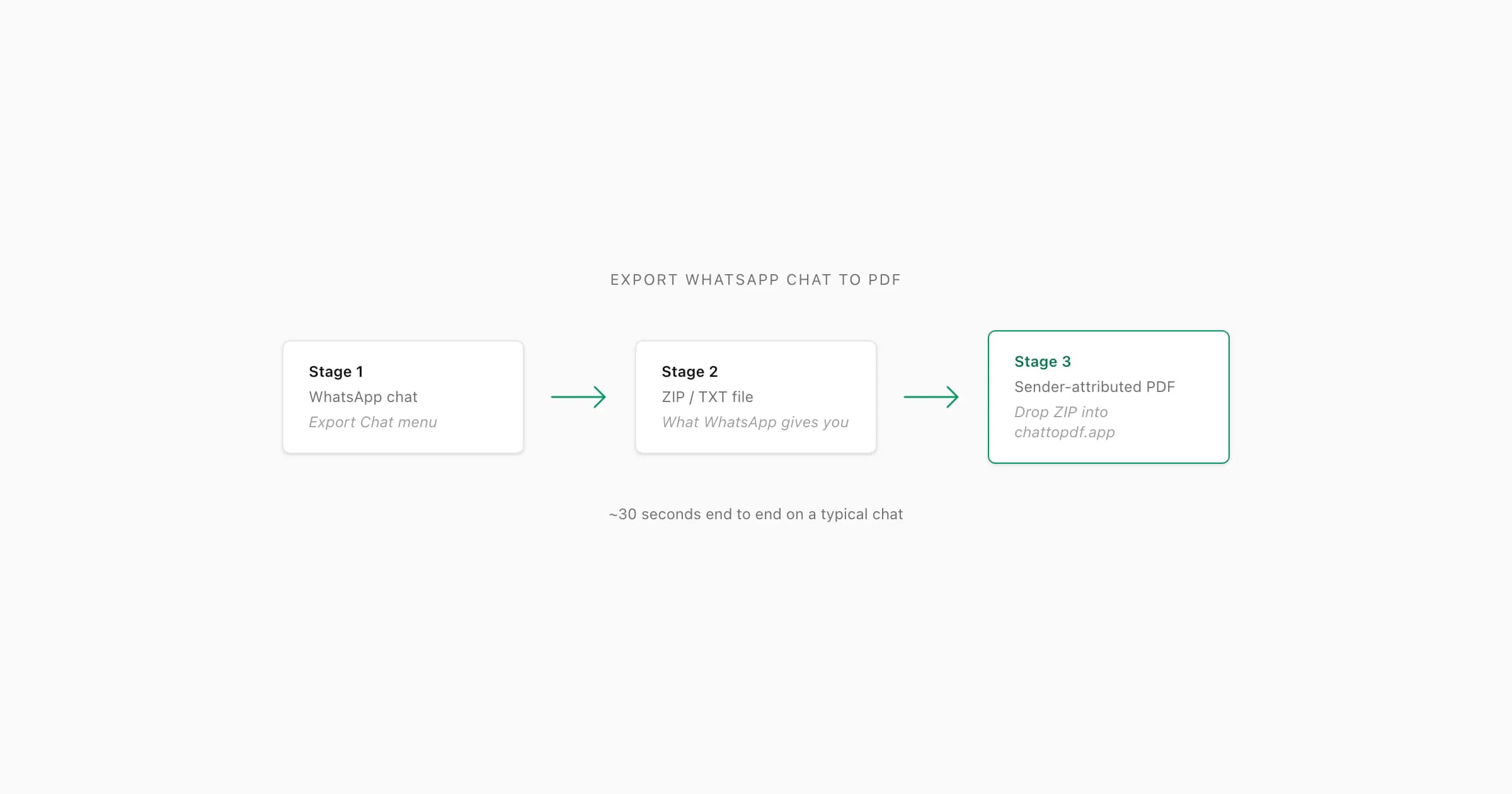
To export a WhatsApp chat to PDF: tap Export Chat in WhatsApp (iOS: tap the chat title → Export Chat; Android: three-dot menu → More → Export chat), save the ZIP to your device, then upload it to ChatToPDF. WhatsApp does not produce a PDF directly — it outputs a ZIP with _chat.txt inside. ChatToPDF bridges that gap and emails back a formatted, sender-attributed PDF in about 30 seconds for $14 per chat.
Full walkthrough of exporting a WhatsApp chat — the three taps that get you a clean export, and the three traps that ruin it.
WhatsApp does not export to PDF directly
- WhatsApp export ZIP
- A compressed archive (
.zip) produced by WhatsApp's Export Chat menu. It contains a plain-text file called_chat.txtwith every message in chronological order, plus an optional folder of attached media files (photos, voice notes, documents) if you chose Including Media. This ZIP is the starting point for any PDF conversion workflow — it is not a PDF itself.
I want to be honest about what is going on before I walk through any taps. The phrase "export WhatsApp chat to PDF" implies WhatsApp has a button that does exactly that. It does not. WhatsApp's Export Chat menu produces a ZIP archive holding a plain-text file called _chat.txt, plus an optional bundle of attached media (photos, voice notes, documents). Whatever device you tap Export Chat from — iPhone, Android, or WhatsApp Web — you end up with the same ZIP, and that ZIP is the only file WhatsApp's own export feature gives you.
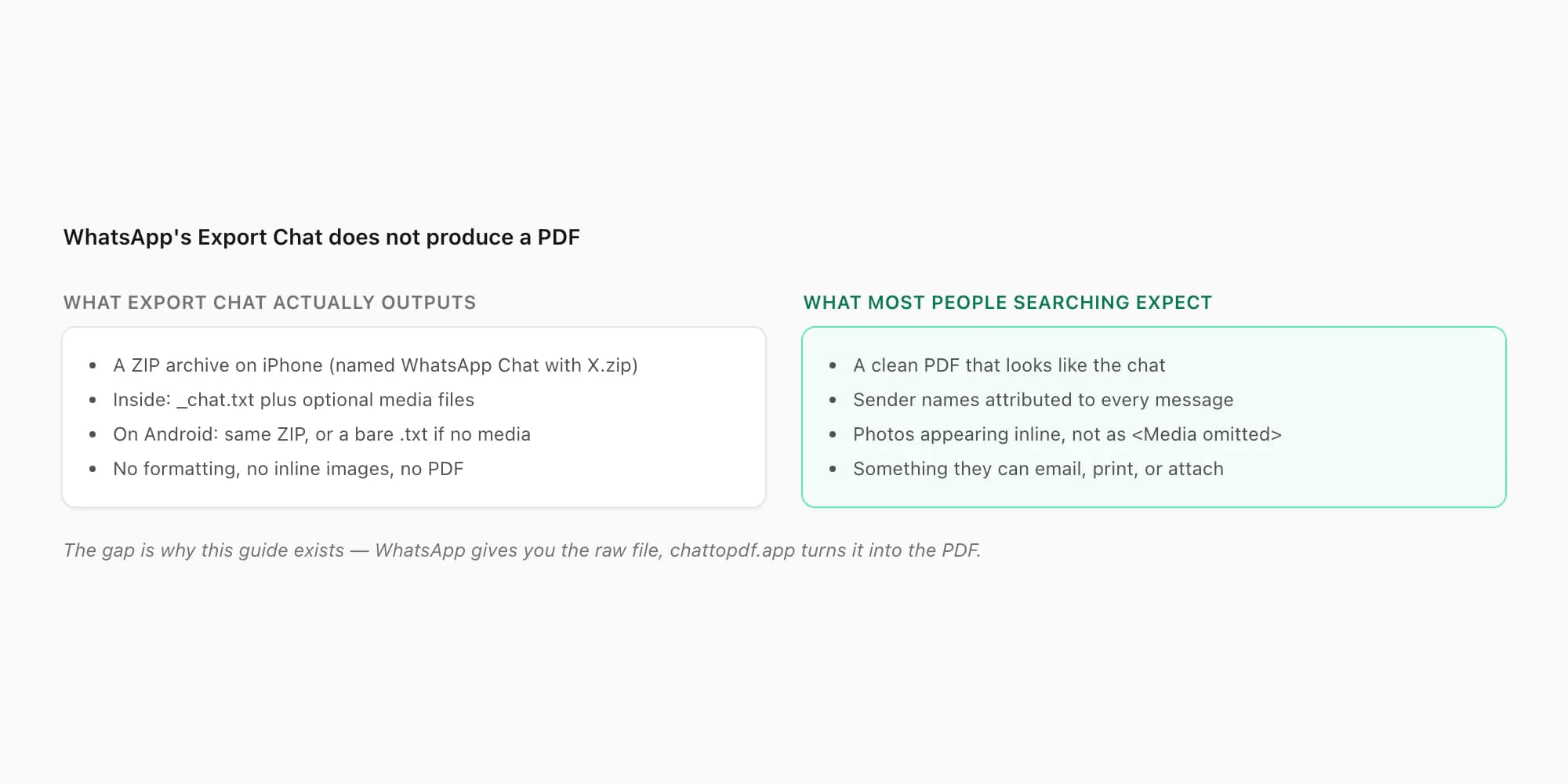
I have read enough support emails to know this is the single most common surprise people hit. Someone wants to keep a chat for posterity, or save it for a legal matter, or share an old conversation as a clean attached document — and they reasonably assume there is an "Export to PDF" button somewhere in the app. There is not, and there has never been. The companion guide What "export chat" actually does on WhatsApp covers the menu in detail, and the pillar WhatsApp chat export covers the file format and limits.
So the question "how to export WhatsApp chat to PDF" actually has two halves. The first half is run WhatsApp's own Export Chat menu to get the ZIP. The second half is convert that ZIP into a real PDF — which is the gap chattopdf.app exists to fill. The cluster pillar on the PDF side, WhatsApp to PDF, goes deep on the conversion step. This guide is the bridge piece — it walks the whole path end to end, with the keyword's actual user intent (a PDF in your hands) as the goal, not just the export.
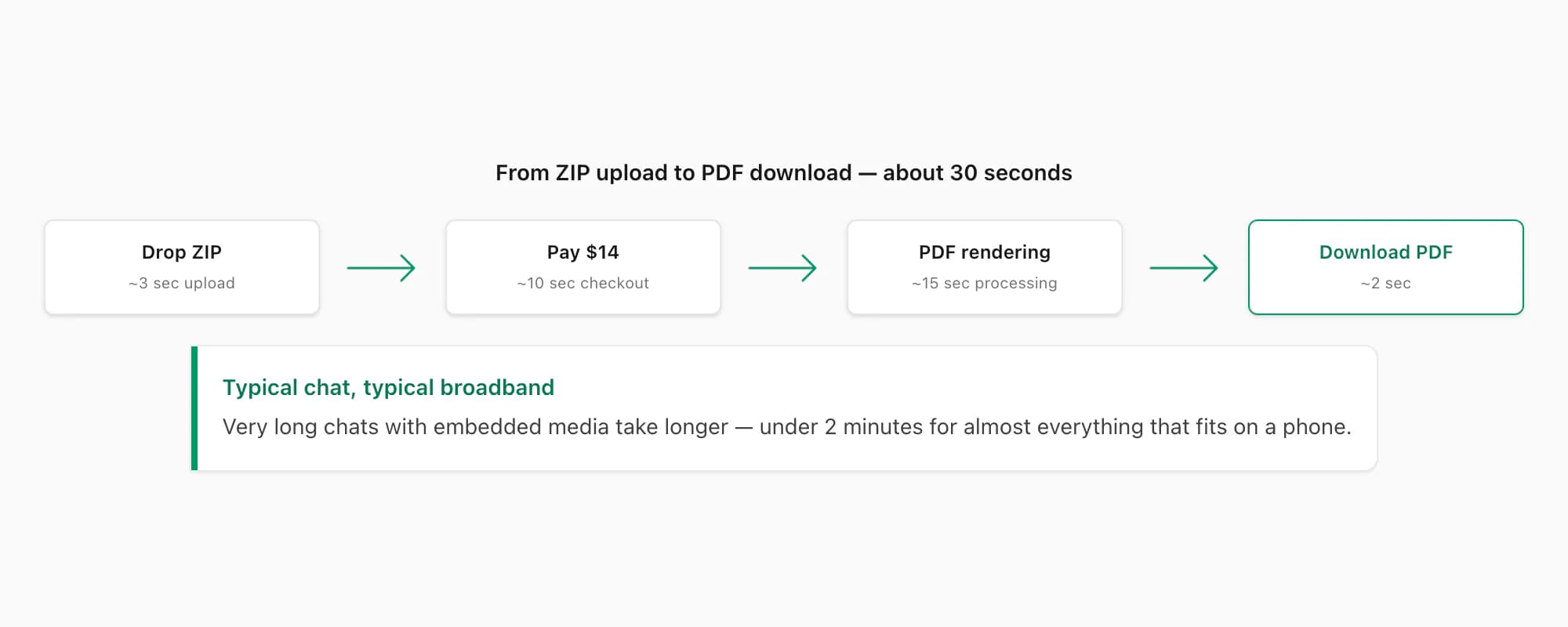
The end-to-end path is fast. Roughly 30 seconds from dropping the ZIP into chattopdf.app to downloading the finished PDF on a typical chat — most of that is the few seconds the conversion engine takes to render every message into a paginated document with sender-attributed bubbles, inline photos, and per-message timestamps. I will walk through the steps, the menu locations, and the tier choice below.
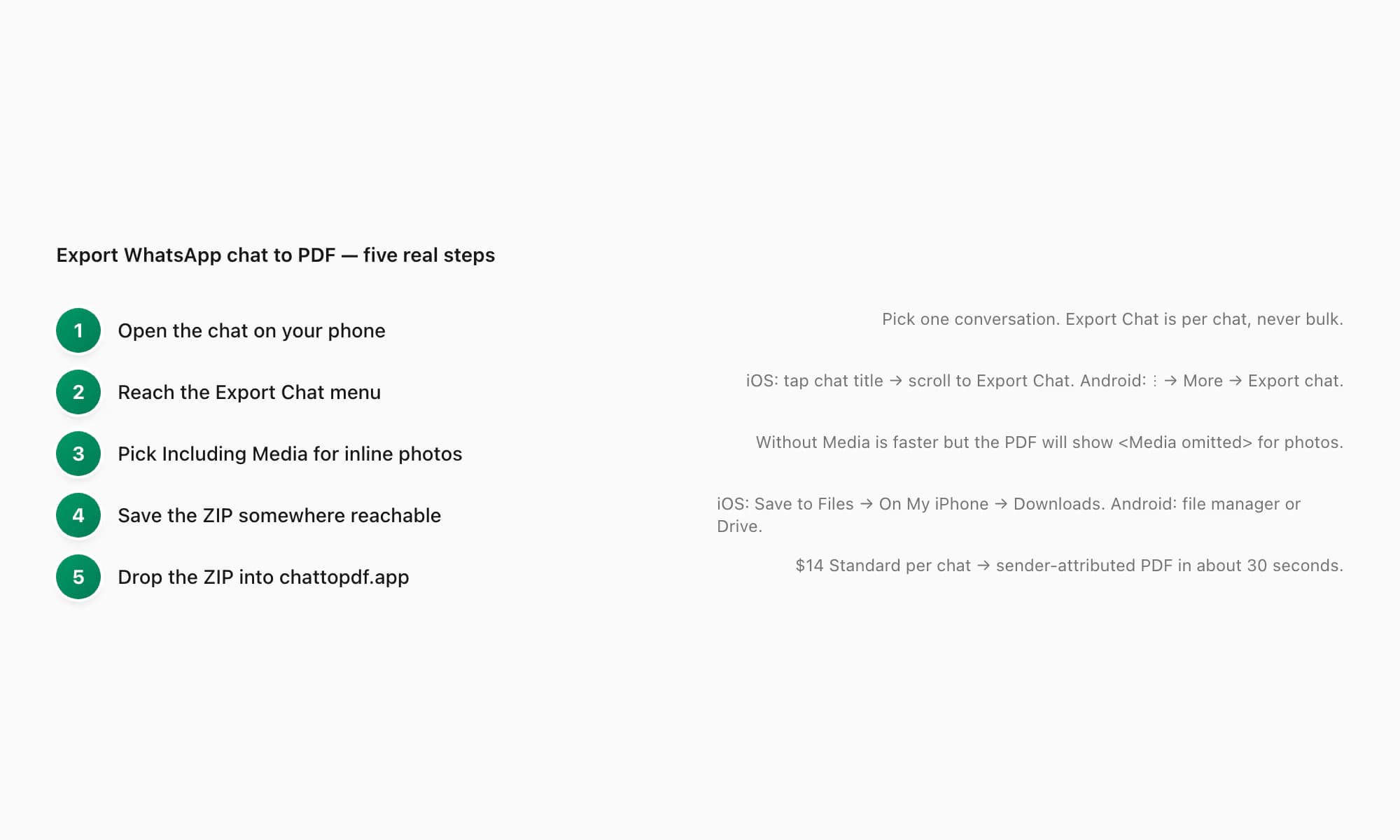
The real path — five concrete steps
Here are the five steps that turn a WhatsApp chat into a PDF, end to end. I am writing them down in the order most people actually do them, so you can follow along while you have your phone open.
The flow is short enough that the formal version is worth doing in <HowToStep> markup — search engines that recognise step-by-step schema will surface this guide as a structured result for "how to export WhatsApp chat to PDF" queries.
Open the chat on your phone
Pick one conversation. Export Chat is per chat, never bulk — there is no way to export every chat at once. Open the chat normally; nothing about its state matters (unread messages, scroll position, archive status all fine). If you are exporting a group chat, all the same steps apply, but I recommend reading the pillar's section on group exports first because participant attribution gets quirky.
Reach the Export Chat menu
On iPhone, tap the contact or group name at the very top of the chat. The contact info screen opens — scroll past participants, shared media, and starred messages. Near the bottom is Export Chat. On Android, tap the three-dot overflow icon (⋮) at the top-right of the chat, then tap More from the dropdown, then tap Export chat. On WhatsApp Web, click the same ⋮ icon in the chat header, hover or click More, then click Export chat.
Pick Including Media for inline photos in the PDF
WhatsApp asks Without Media or Including Media. For an export-to-PDF workflow, Including Media is the answer most of the time — it bundles photos and voice notes for roughly the most-recent 10,000 messages, and the PDF will embed them inline rather than showing
<Media omitted>placeholders. Pick Without Media only when the chat is text-heavy and you want the smallest, fastest possible export.Save the ZIP somewhere reachable
On iPhone, tap Save to Files on the share sheet, pick On My iPhone → Downloads, and tap Save. Avoid the Quick Look preview path — it looks like saving but lands the ZIP in a temporary cache the file picker cannot reach. On Android, pick Files (your file manager), Drive, or "Save to device" from the share intent. The ZIP lands as a real file you can browse to. On WhatsApp Web, the browser drops it into your operating-system default Downloads folder automatically.
Drop the ZIP into chattopdf.app for the PDF conversion
Open
chattopdf.appin any browser. Drag the ZIP onto the upload zone (or tap to pick it from Files / Downloads). The $14 Standard per chat tier covers most personal chats — embedded photos, sender-attributed bubbles, per-message timestamps, paginated PDF. Pay once for that single chat. The PDF is ready to download in about 30 seconds, no app to install, no account to create.
That is the whole path. Five steps, ~30 seconds of conversion work, a single payment per chat, and a real PDF at the other end. The remainder of this guide covers the platform-specific menu locations, the media choice in detail, what the PDF looks like, and how to pick a tier.
Where the Export Chat menu lives, by platform
The menu is in different places on iPhone, Android, and WhatsApp Web — and the difference is one of the bigger reasons the export-to-PDF question keeps coming up. People assume one device's instructions apply to another. They do not.
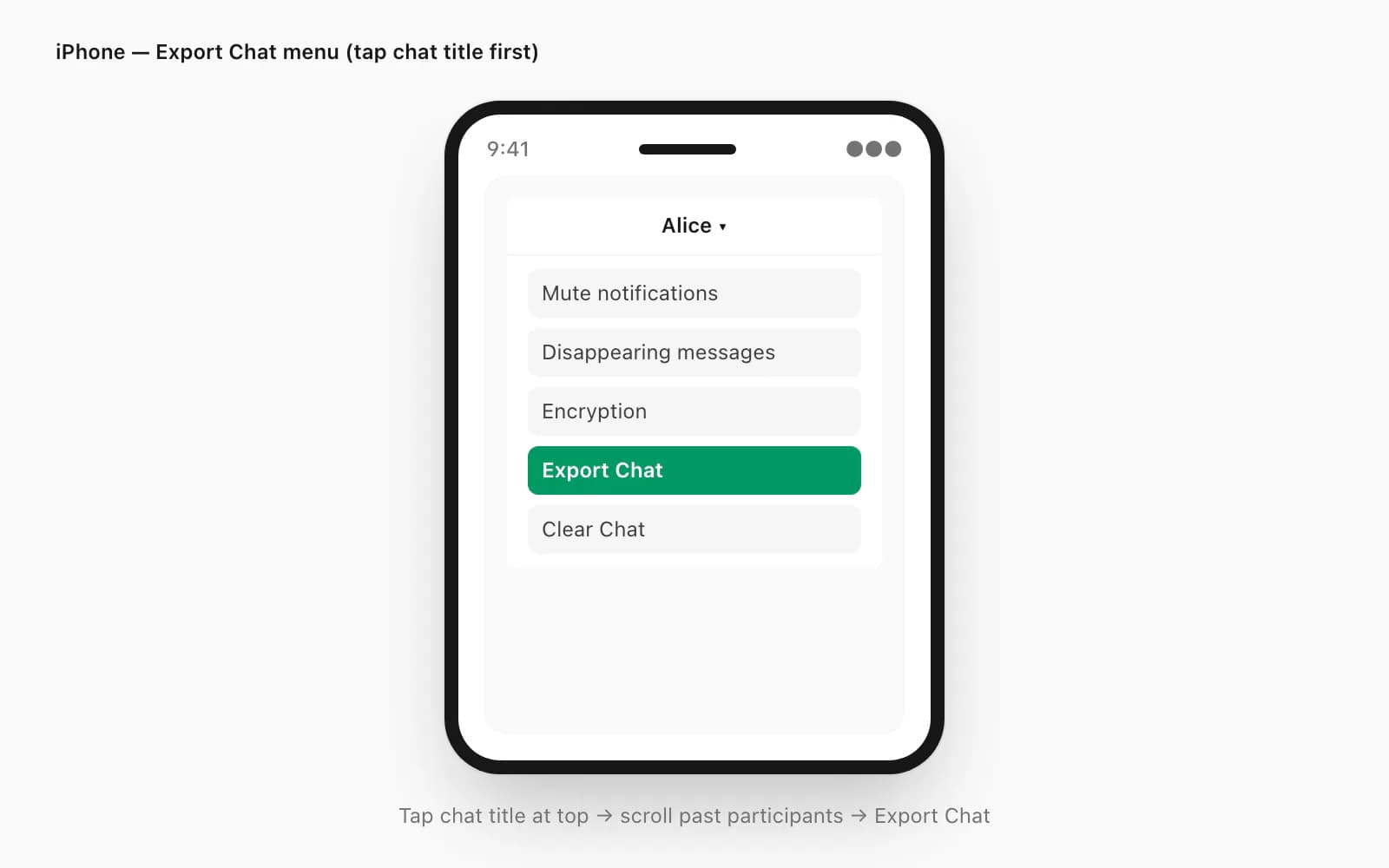
On iPhone, Export Chat is hidden behind the contact or group info screen. Open the chat. Tap the contact or group name at the very top — the part of the screen showing the name and (for groups) the participant list preview. Most users miss that this header area is tappable; it does not look like a button. The contact info screen opens. Scroll down past the avatar, the participants list, the shared media grid, the starred messages, and the disappearing-messages toggle. Near the bottom of that screen is Export Chat. Tap it. WhatsApp asks Without Media or Including Media, then iOS opens the share sheet so you can pick where to save the ZIP. The pillar WhatsApp chat export goes deep on what the share sheet actually does and which target apps preserve the file.
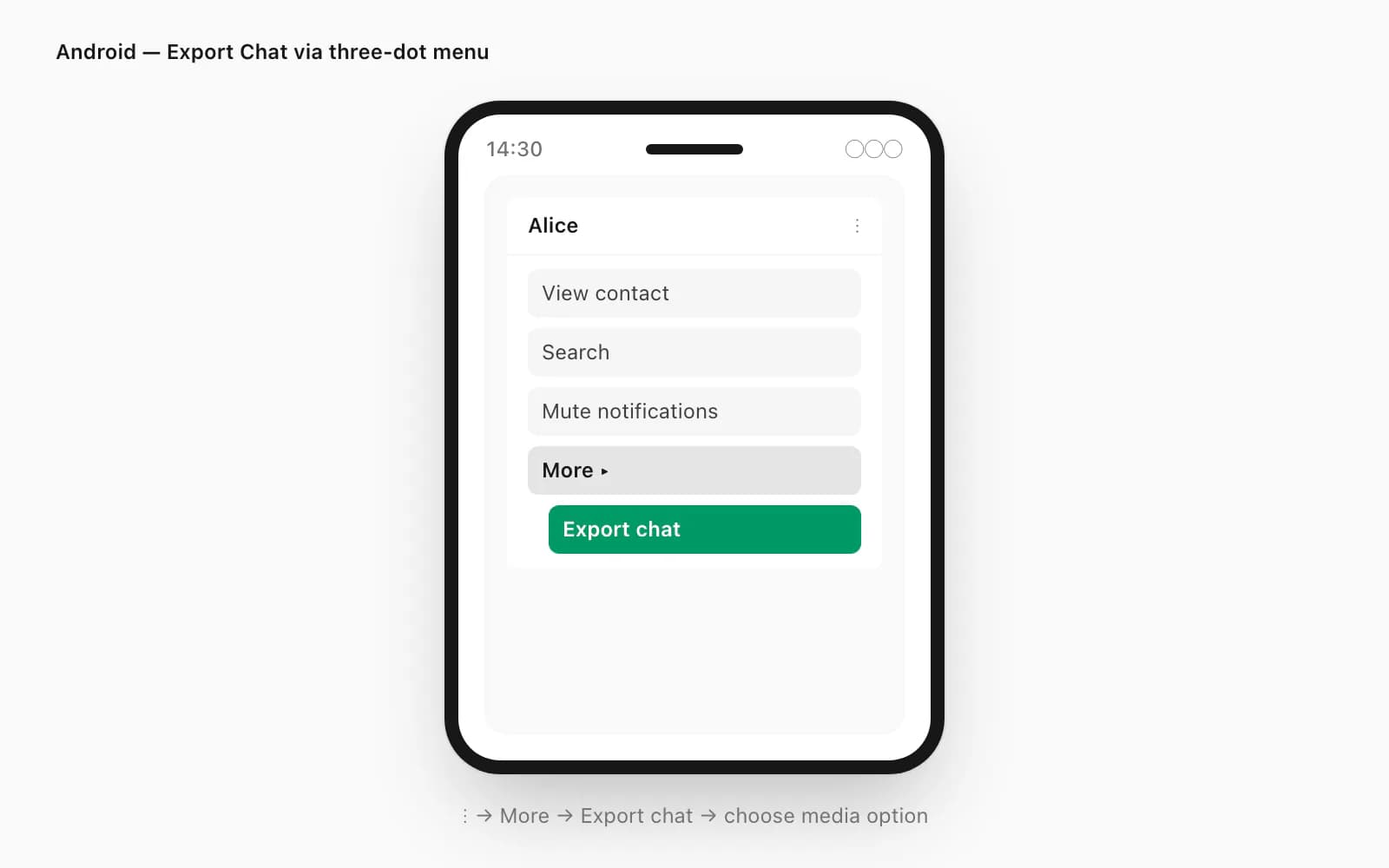
On Android, the menu lives behind the three-dot overflow icon (⋮) at the top-right of the chat. Open the chat. Tap the ⋮ icon. A dropdown opens with View contact, Search, Mute notifications, and More. Tap More. Another submenu opens with Export chat as one of its items. Tap it. WhatsApp asks the same Without Media or Including Media question, then fires Android's share intent. Pick Files (your file manager), Drive, or any app that handles ZIPs. Avoid Gmail or WhatsApp itself unless you specifically want to attach the ZIP to a message rather than save it as a file.
On WhatsApp Web, the menu mirrors the Android path. Sign in at web.whatsapp.com by scanning the QR code with your phone. Open the chat in the browser. The chat header at the top shows the contact name and a ⋮ icon on the right side. Click ⋮, hover or click More, click Export chat, pick Without Media or Including Media. The browser downloads the ZIP to your operating-system default Downloads folder — ~/Downloads on Mac and Linux, C:\Users\You\Downloads\ on Windows. There is no separate "Export to PDF" option on Web, just like there is none on the phone — Export chat produces the ZIP, and you bridge to PDF afterwards. Apple's Files documentation covers where the iOS Files app indexes saved attachments if you need a refresher on retrieving the ZIP later.
Without Media or Including Media — pick by what you need
The choice WhatsApp asks at export time is the single biggest factor in what your final PDF looks like. The pillar WhatsApp chat export covers the underlying limits in detail; here I want to focus on which one to pick when your goal is specifically a PDF.
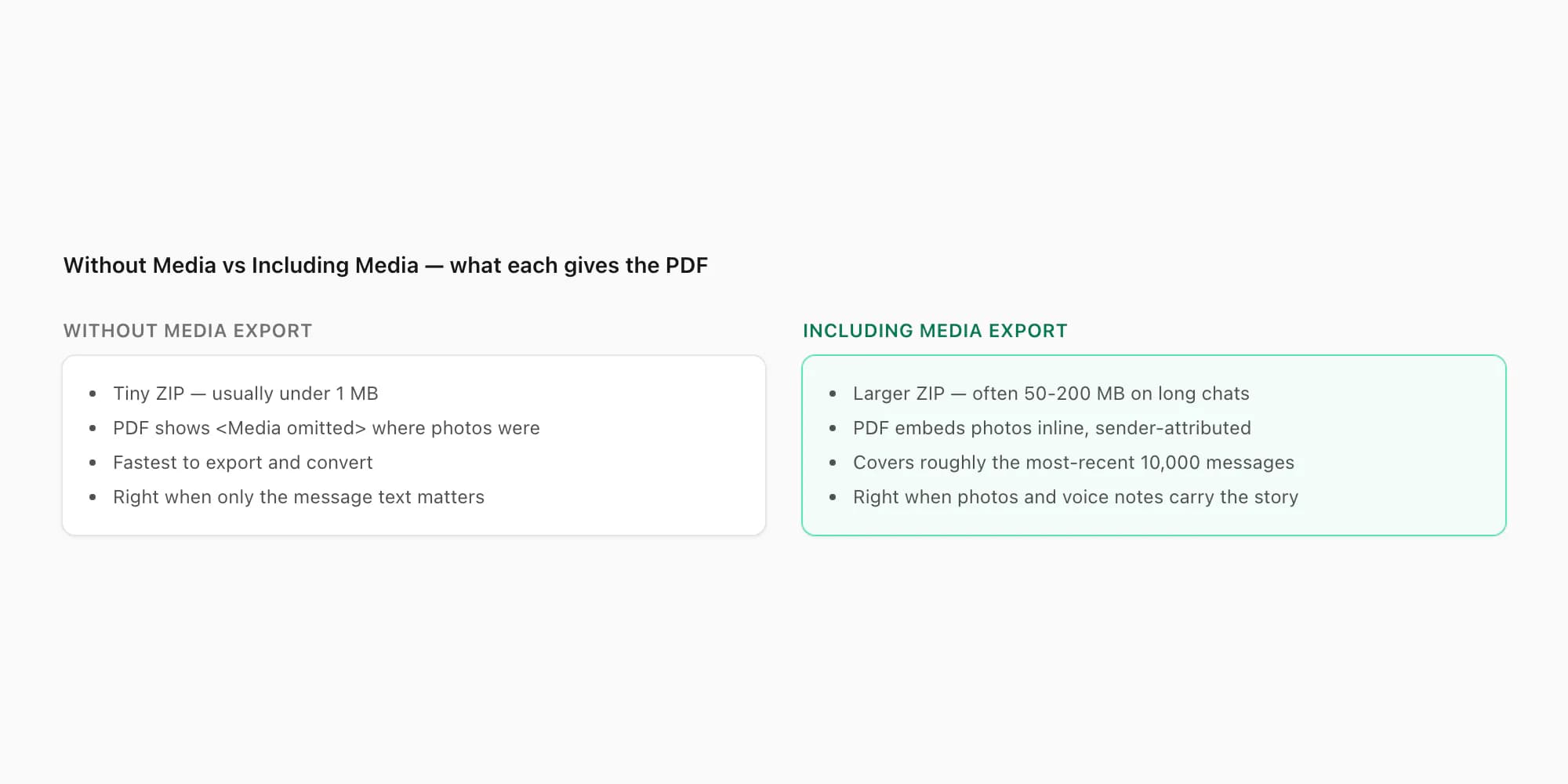
Without Media produces a ZIP usually under 1 MB even for thousands of messages. The ZIP contains _chat.txt and nothing else. When you convert to PDF, every photo, voice note, video, and document shows up as <Media omitted> — a literal text placeholder where the attachment used to be. Right when the message text is the only thing that matters: a transcript-style record of a conversation, an evidence file where the words are the point, or a quick share where speed beats fidelity.
Including Media produces a much larger ZIP — anywhere from a few MB for short chats up to 200 MB or more for long chats with thousands of photos. Inside, alongside _chat.txt, you get a flat folder of media files: IMG-20260109-WA0001.jpg, AUD-20260205-WA0017.opus, and so on. WhatsApp bundles attachments only for roughly the most-recent 10,000 messages — older photos appear in _chat.txt as filename references but the actual files are not in the ZIP. When you convert to PDF, every bundled photo appears inline in the PDF at the right spot in the conversation. Right when the chat had real visual content — family photos, work screenshots, evidence photographs — that the PDF needs to preserve.
For most export-to-PDF workflows, Including Media is the correct answer. The bigger ZIP is a one-time cost (you upload it once and then never deal with it again), and the inline photos are usually what the user actually wanted from the export.
What the PDF actually looks like
This is the part that surprises people most positively. The raw _chat.txt is a wall of unformatted text — readable, but ugly. Every line begins with a date-time bracket and a sender name, and there is no visual hierarchy. A long chat reads like a server log.
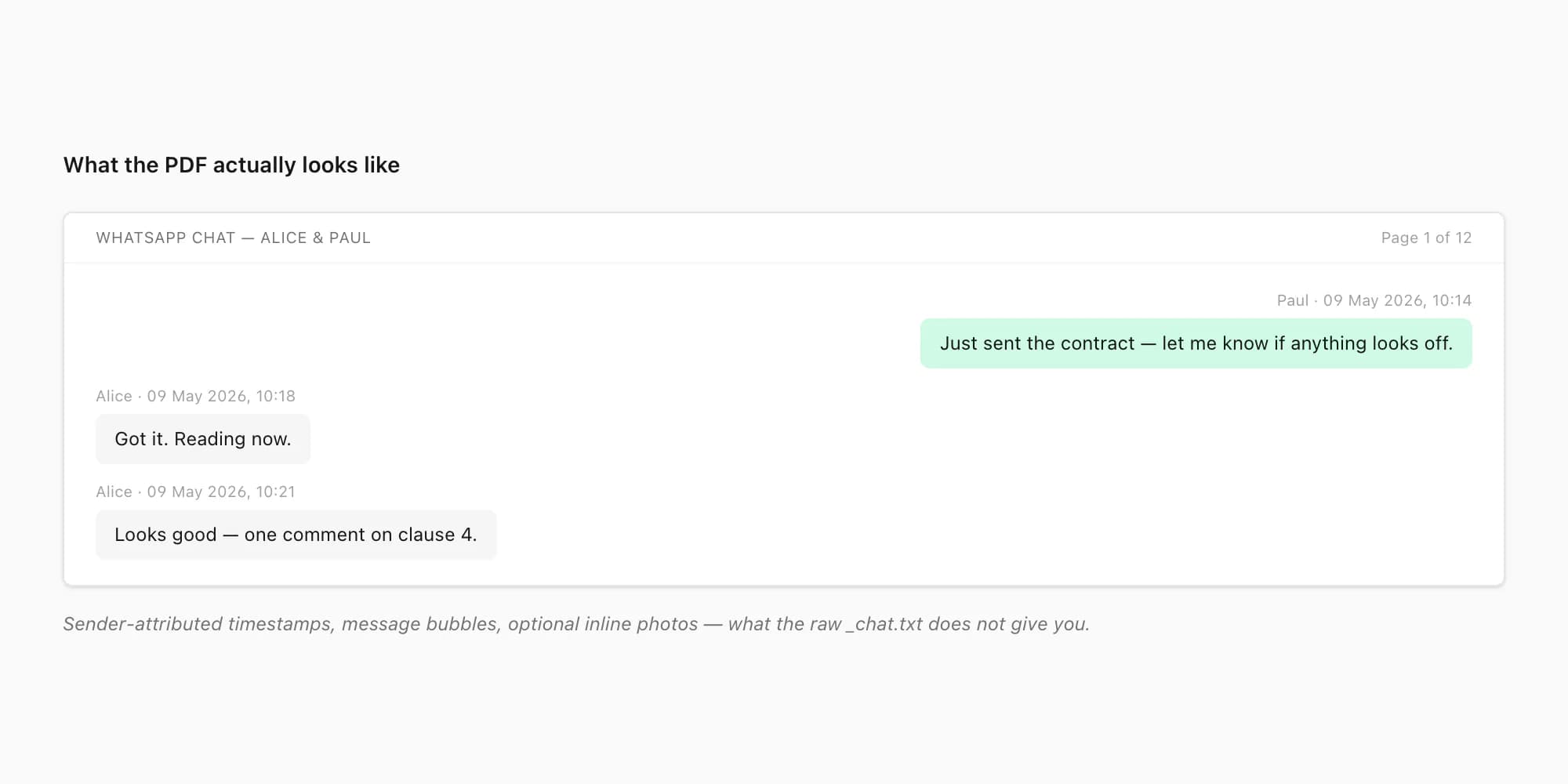
The PDF is a different thing. It paginates the conversation into reading-friendly pages. Every message becomes a bubble — green-tinted on the right for messages you sent, neutral on the left for messages your contact sent. Every message carries a sender name and a timestamp above the bubble, formatted naturally ("Paul · 09 May 2026, 10:14"). Messages from the same sender within a short window cluster together so the page does not become a sea of repeated names. Photos appear inline at full width within the conversation, attributed to whoever sent them. Voice notes appear as placeholders or, on the higher tiers, as transcribed text using language-aware routing between Deepgram Nova-3 and ElevenLabs Scribe v2.
The PDF also gets a header on every page (the chat name, the page number) and a small cover page with the chat metadata (participants, date range, message count). It looks like a document you would print or attach to an email — not like a developer-tool dump.
There is a subtle thing worth flagging. The PDF is paginated, which means a chat that displays as one infinite scroll on your phone becomes hundreds of discrete pages. A two-year personal chat with daily messaging often runs to 80-150 pages of A4. That is a feature, not a bug, but I mention it because people sometimes expect the PDF to be 5-10 pages and are taken aback when it is 120. The page count scales with the chat length, and the WhatsApp to PDF pillar walks through pagination tradeoffs in more detail.
Pricing and tier choice for export-to-PDF
Each PDF conversion is a single payment for a single chat. There is no recurring billing, no account-level access, no "convert as many chats as you want this month" tier — every conversion is real work against a specific snapshot of your chat, so each conversion is priced on its own.
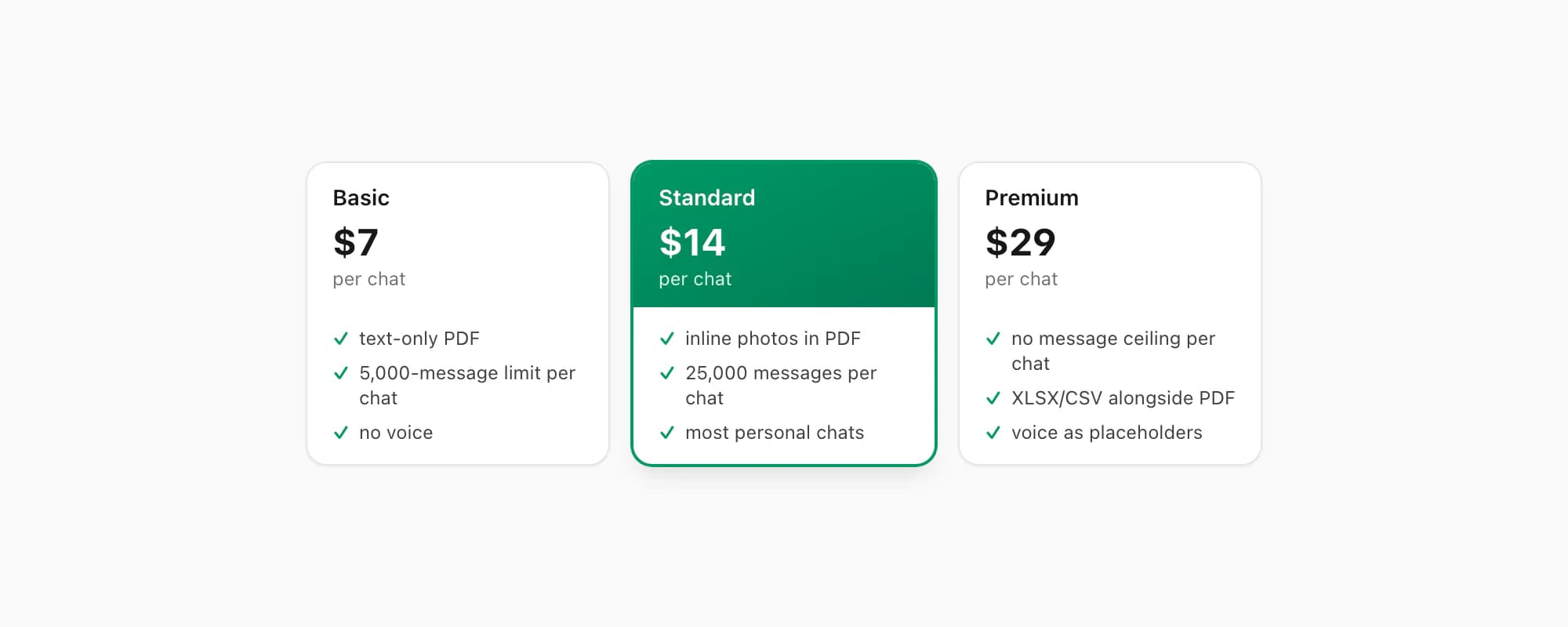
$7 Basic per chat is the entry tier. Text-only PDF, capped at 5,000 messages per chat, no embedded photos, no voice transcription. Right when the chat is short — a few weeks or months of messaging — and the message text is what you need preserved. If you ran Without Media at export time and the chat is small, this tier covers it.
$14 Standard per chat is where most personal export-to-PDF jobs land. Embedded photos appear inline in the PDF (assuming you exported with Including Media), the message ceiling is 25,000 per chat, voice notes appear as placeholders rather than transcribed text. This is the tier I push hardest in support because it covers most personal chats — multi-month or multi-year conversations, family group threads with photos, work conversations with screenshots. For "I just want my WhatsApp chat as a PDF I can email or print", the $14 Standard per chat is the right answer almost every time.
$29 Premium per chat removes the message ceiling and adds an XLSX/CSV output alongside the PDF. Voice notes still appear as placeholders. Right when the chat is genuinely long — multi-year group threads, very active conversations — or when you want a spreadsheet alongside the PDF for analysis or further processing.
If voice notes carry meaning that needs to be in the PDF, the $49 Premium+Voice per chat tier adds language-aware Nova-3/Scribe v2 transcription. Supported notes that transcribe successfully become real text blocks in the PDF, with sender attribution and timestamp. The $99 Power User per chat tier adds priority queue processing, no message ceiling, and bulk-conversion support across multiple ZIPs in a single session — useful when you have a folder of exports from different chats to convert.
Re-export the same chat tomorrow and convert that fresher ZIP, you pay again — because each conversion is real work against a different snapshot. There is no signup, no account, and no commitment beyond the single chat you upload.
Key takeaways
- WhatsApp's Export Chat menu does not produce a PDF directly — it gives you a ZIP holding
_chat.txtplus optional media files. - To export WhatsApp chat to PDF, you run WhatsApp's own Export Chat menu first, then drop the resulting ZIP into chattopdf.app to bridge the gap.
- The five steps are: open the chat, reach the Export Chat menu, pick Including Media for inline photos, save the ZIP somewhere reachable, drop it into chattopdf.app.
- The Export Chat menu lives in different places by platform — iOS hides it behind the contact info screen, Android puts it under ⋮ → More, WhatsApp Web mirrors the Android path.
- Including Media gives you a PDF with photos appearing inline; Without Media gives you a smaller text-only PDF with
<Media omitted>placeholders where attachments were. - The $14 Standard per chat tier is the right answer for most personal export-to-PDF jobs — inline photos, sender attribution, paginated PDF, ~30 seconds end to end.
FAQ
How do I export a WhatsApp chat to PDF directly inside WhatsApp?
You cannot — WhatsApp does not have an "Export to PDF" option anywhere in the app, on any platform. The Export Chat menu produces a ZIP archive holding _chat.txt plus optional media. To get a PDF, you run WhatsApp's Export Chat first, then drop the resulting ZIP into a converter like chattopdf.app, which renders a sender-attributed PDF for $14 Standard per chat in about 30 seconds. There is no native PDF export and no first-party WhatsApp tool that produces one.
Why does my exported chat come out as a ZIP and not a PDF?
Because WhatsApp's Export Chat feature is designed to produce a portable text record, not a formatted document. The ZIP holds _chat.txt (every message in plain text with date-time-sender brackets) plus a folder of attached media if you picked Including Media. The format is meant to be machine-readable so other tools can parse and convert it — which is exactly what chattopdf.app does to turn it into a PDF. The naming surprises people, but the ZIP is the right input shape for a PDF conversion step.
Can I export a WhatsApp chat to PDF on iPhone without installing an app?
Yes — chattopdf.app runs entirely in the browser. Run the Export Chat menu on your iPhone, save the resulting ZIP to Files (On My iPhone → Downloads is the safe default), then open chattopdf.app in Safari, drag the ZIP from Files onto the upload zone, and pay $14 Standard per chat for the PDF. No app to download, no signup, no account. The PDF is ready to download in about 30 seconds and lands in the Files app like any other download.
Does the PDF preserve photos and voice notes from the chat?
Photos yes if you exported with Including Media — they appear inline in the PDF at the right place in the conversation, attributed to whoever sent them. Voice notes appear as placeholders on the $14 Standard and $29 Premium tiers, and as fully transcribed text on the $49 Premium+Voice tier and above (using language-aware routing between Deepgram Nova-3 and ElevenLabs Scribe v2 transcription). The Including Media export covers attachments for roughly the most-recent 10,000 messages — older photos show up as filename references in _chat.txt but the actual files are not in the ZIP, and so cannot be embedded in the PDF.
How long does it actually take to export WhatsApp chat to PDF?
About 30 seconds end to end on a typical chat. Roughly: 3 seconds to upload the ZIP, 10 seconds for checkout, 15 seconds for the conversion engine to render every message into a paginated PDF, 2 seconds to download. Very long chats with embedded media take longer — a multi-year group chat with thousands of photos can take up to 2 minutes for the rendering step. The Export Chat step on the phone itself is usually 5-15 seconds depending on chat length and whether you chose Including Media.
I'm Paul, the founder of ChatToPDF. I built it after needing a long WhatsApp conversation as a readable PDF for a legal matter. I test and document WhatsApp exports, PDF conversion, voice-note transcription, and the limits people should check before relying on the result.