

WhatsApp has no Export Group Contacts button — tapping the group name shows a participants list, but there is no way to emit it as a CSV or vCard directly. Four workarounds exist: run Export Chat on the group and parse sender phone numbers from _chat.txt; screenshot the participants screen; save each member to your address book via Add to Contacts; or use a third-party CSV tool. ChatToPDF's PDF output surfaces every distinct sender name and number from the chat.
Parsing _chat.txt gives you the distinct people who appear as senders, not a guaranteed roster of every current member. Silent members may be missing, people who left may still appear in older messages, and saved contacts can appear under your local address-book names. Use the participants screen when you need the current full roster; use the export when you need active senders tied to message evidence.
- Your real goal
- Current full member roster
- Best method
- Participants screen or approved admin tool
- Main limitation
- Manual capture; privacy and consent still apply
- Your real goal
- Active senders with message context
- Best method
- Export Chat and parse `_chat.txt`
- Main limitation
- Silent members can be absent
- Your real goal
- Contacts saved to the phone
- Best method
- Add each member to Contacts
- Main limitation
- Slow and unsuitable for large groups
- Your real goal
- CSV for authorised analysis
- Best method
- Parse the export with a transparent local tool
- Main limitation
- Requires validation, deduplication and lawful handling
| Your real goal | Best method | Main limitation |
|---|---|---|
| Current full member roster | Participants screen or approved admin tool | Manual capture; privacy and consent still apply |
| Active senders with message context | Export Chat and parse `_chat.txt` | Silent members can be absent |
| Contacts saved to the phone | Add each member to Contacts | Slow and unsuitable for large groups |
| CSV for authorised analysis | Parse the export with a transparent local tool | Requires validation, deduplication and lawful handling |
For authorised analysis of active senders rather than the current full roster, the WhatsApp chat to Excel converter gives you filterable rows from the export. It cannot invent silent members who are absent from _chat.txt.
The missing button — what WhatsApp does not let you do
If you tap a group chat's name at the top of the screen, you land on the group info page. Description, media, mute notifications, and then a scrollable participants list with every member's name and avatar. Most people who search for "how to export WhatsApp group contacts" have just looked at this screen, hunted for an export action, and come away empty-handed. That is the right hunt — there really is nothing there.
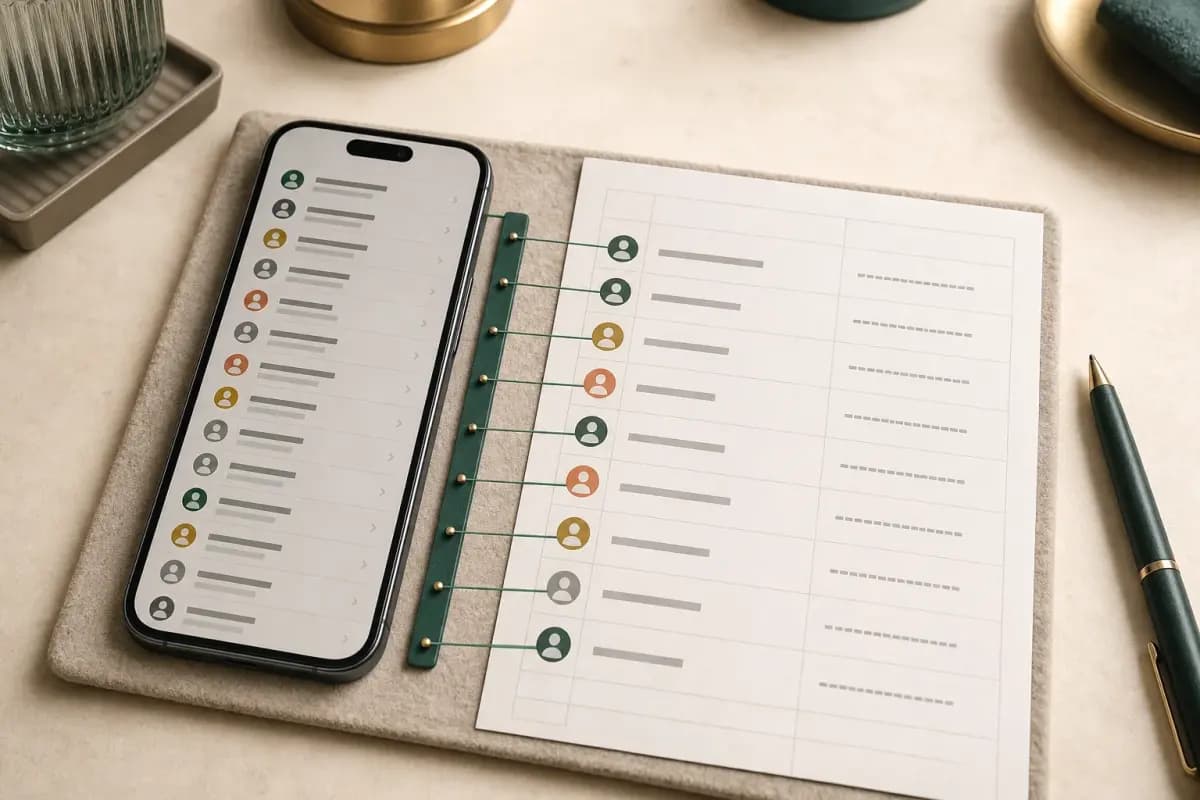
WhatsApp gives you no "Export Participants" menu, no "Save All to Contacts" action, no "Download CSV" button on the group info screen. You can tap each member individually to share their contact card, but there is no select-all option and no bulk version of that flow. On iOS, Android, and WhatsApp Web, the situation is identical — the participants list is for in-app viewing, not for export.
The reason traces back to a deliberate WhatsApp design choice: phone numbers in groups are user data that belongs to the participants, not the admin. Exposing a one-tap export would make harvesting numbers from large groups trivial, and the feature has been left out of every major WhatsApp release since Communities arrived. The pillar guide on WhatsApp chat export covers the chat-level mechanics that frame this missing-button situation in context — Export Chat exists, but contact-list export does not.
So if you have arrived here with a real need (legal evidence, an HR investigation, a community-moderation case, a research dataset), four workarounds get you to the same outcome through different paths. Pick the one that matches your case and your authority over the group.
Four real workarounds for the participant list

- Workaround
- Run Export Chat then parse senders
- What it delivers
- Every phone number that has sent at least one message — verbatim from `_chat.txt`
- Right when
- Recommended — gives you raw numbers with attribution to messages sent
- Workaround
- Screenshot the participants screen
- What it delivers
- Visual record of every member as WhatsApp displays them — names plus emoji avatars
- Right when
- Right when you need a snapshot for a moderator's audit but cannot run Export Chat
- Workaround
- Manually save each member via Add to Contacts
- What it delivers
- Each member ends up in your phonebook one at a time
- Right when
- Right when the group is small (under 30) and you genuinely want them as personal contacts
- Workaround
- Feed `_chat.txt` to a third-party CSV tool
- What it delivers
- A CSV of distinct phone numbers extracted from sender fields
- Right when
- Developer-track — for analytical work where the chat-extract route's PDF is not the right artefact
| Workaround | What it delivers | Right when |
|---|---|---|
| Run Export Chat then parse senders | Every phone number that has sent at least one message — verbatim from `_chat.txt` | Recommended — gives you raw numbers with attribution to messages sent |
| Screenshot the participants screen | Visual record of every member as WhatsApp displays them — names plus emoji avatars | Right when you need a snapshot for a moderator's audit but cannot run Export Chat |
| Manually save each member via Add to Contacts | Each member ends up in your phonebook one at a time | Right when the group is small (under 30) and you genuinely want them as personal contacts |
| Feed `_chat.txt` to a third-party CSV tool | A CSV of distinct phone numbers extracted from sender fields | Developer-track — for analytical work where the chat-extract route's PDF is not the right artefact |
The path I push hardest is workaround one — Export Chat plus sender parse. It produces the most structured, most auditable artefact, and works for both group admins and regular members. Everything else has tradeoffs that come down to either visual-only output (screenshot), tedious one-at-a-time work (manual save), or the need to write code (CSV tool). The companion guide export contacts from WhatsApp covers the broader four-bucket framing across non-group cases too, with the chat-extraction angle as bucket four.
A note up front: workaround one only captures members who have actually sent at least one message in the chat. Lurkers — people who joined the group but never posted — do not appear in _chat.txt as senders. For most extraction cases (active members, evidence work, moderation) this is the right filter, since silent participants rarely matter. If you need every member regardless of activity, screenshots of the participants screen are the only path that captures lurkers.
Workaround 1 — export the chat, parse the senders
This is the recommended route. The mechanics are straightforward and run through the Export Chat menu that already exists for chat-level export. You point Export Chat at the group, save the resulting ZIP, and then either parse _chat.txt yourself or hand the ZIP to chattopdf which does the parse automatically.

Open the group chat in WhatsApp
Tap the group from your chat list to open the conversation. The header shows the group name and member count. You do not need to be the admin — any member can run Export Chat on a group they belong to.
Tap the group name at the top of the screen
This opens the group info screen with the description, media gallery, members list, and below the members the action items including Export Chat. The export from WhatsApp step-by-step guide covers the full Export Chat tap path with the exact menu nesting on iOS and Android.
Scroll down and tap Export Chat → Without Media (faster) or Including Media (richer)
For contacts extraction specifically, Without Media is fine — the participant data lives in the text, not the media. Including Media still works, it just produces a larger file you do not need.
Save the ZIP somewhere accessible and inspect _chat.txt
Save to Files on iOS or to Downloads on Android. Open
_chat.txtin any text editor. Each line is structured[timestamp] sender: message— the sender field carries either a saved name or, for participants not in your phonebook, their raw phone number with country code.Pull the distinct senders out — manually or via a tool
Manually: scroll the file, note every distinct sender name and number. Tedious for active groups with thousands of messages. Better: upload the ZIP to chattopdf for a sender-attributed PDF, or use a small parser (a hundred lines of Python or JavaScript handles it) to emit a deduplicated list. The extract WhatsApp chat data guide covers the developer-track parsing route in detail.
There is one detail worth flagging about how _chat.txt represents the group's join history. When members joined, left, or were added by an admin, those events appear as system lines at the top of the file — for example, [09/05/2026, 09:00:00] Sarah created group "Project team" followed by lines like [09/05/2026, 09:01:14] +27 82 555 1234 was added. Those join lines preserve a partial member roster at export time, including some lurkers who were added but have not yet posted. Worth scanning for if your extraction needs include people who joined but stayed silent.
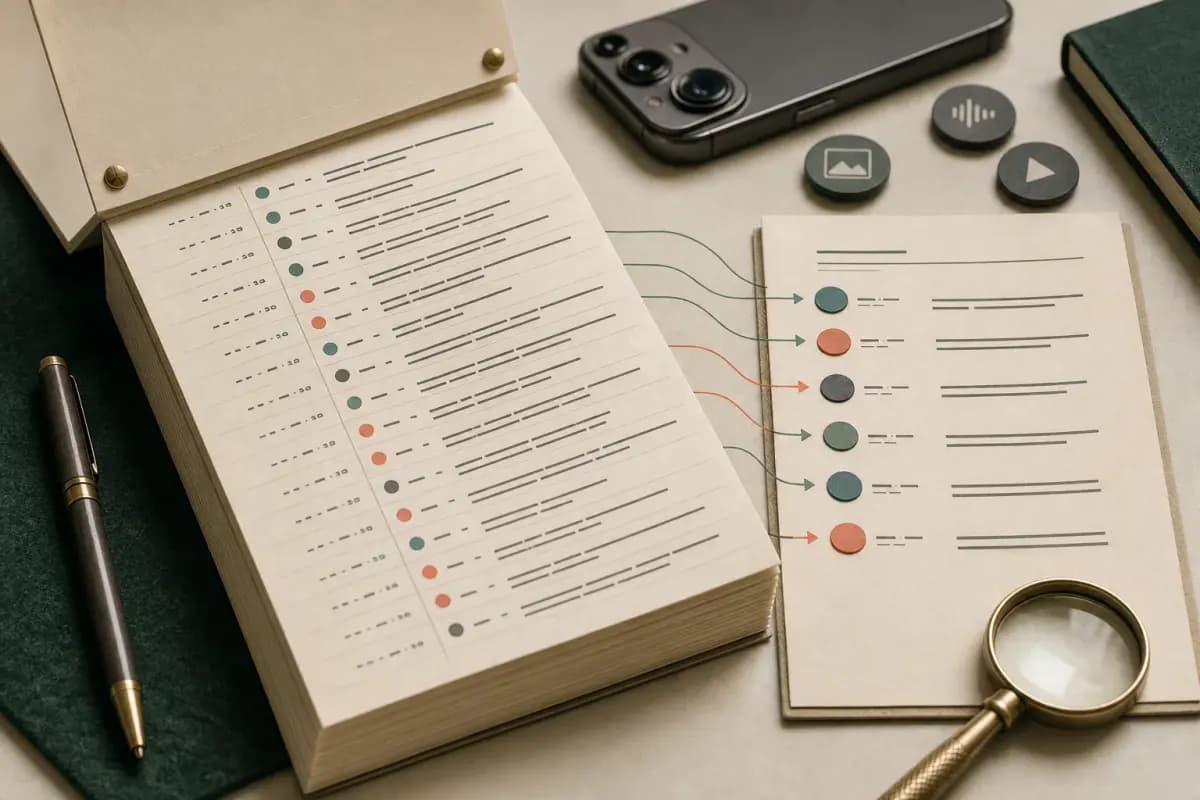
The chattopdf path takes the ZIP, runs the same parse automatically, and emits a sender-attributed PDF where every phone number from the group appears in attribution alongside the messages that number sent. For a 1,500-message group with 35 active senders, the output is a single readable artefact that lists all 35 numbers with their messages — usable directly as legal evidence, an HR exhibit, or a moderation record. Cheaper and faster than writing a parser yourself if you only need the contacts data once.
Workaround 2 — screenshot the participants screen
If the group is small enough that the participants list fits on a few phone screens, screenshots are the fastest path. Open the group info, scroll the members list, screenshot each chunk, and you have a visual record of every participant as WhatsApp displays them — names, avatars, role badges (admin marker if applicable), and whatever display name shows for unsaved numbers.
This is the only path that captures lurkers — members who have never sent a message — because the participants screen lists everyone regardless of activity. For moderation work where you need to see who is even in the group, screenshots beat the chat-export route.
The downside is the output is images, not searchable text. You cannot grep a screenshot, you cannot deduplicate phone numbers across screenshots without OCR, and a reviewer cannot easily verify that a screenshot has not been edited. For evidence work where authenticity matters, screenshots alone are weaker than a sender-attributed export. The honest framing: screenshots are right for small groups and personal records; they are weak for adversarial use.
A practical note for big groups: WhatsApp limits classic groups to 256 participants and Communities-era groups to 1,024 participants, so the worst case is roughly 30-40 phone screens of scrolling-and-screenshotting if you actually want every member. A long-screenshot tool (built into iOS 16+ and most Android skins) compresses this — capture the full scroll as a single tall image — but the result is still images, with the same searchability and authenticity tradeoffs.
Workaround 3 — manually save each participant
If your real intent is "get these people into my phonebook so I can call them later", the per-member save flow is the right path. Open group info, tap a member's avatar to surface their info card, tap Add to Contacts (iOS) or Save to Contacts (Android), fill in a name, save. Repeat for each member.
This is fine for small groups — a study group of 12, a project team of 20. It is brutal for big groups, and there is no bulk version inside WhatsApp itself. Plan for roughly 30 seconds per member if you are typing names yourself, faster if you are accepting WhatsApp's suggested name. A 200-member group is a literal hundred minutes of tapping.
The path is documented in detail in the export contacts from WhatsApp guide under workaround one — the iOS Add to Contacts flow and Android Save to Contacts flow are identical for group members and direct-chat contacts. The mechanism is the same, just applied per group member instead of per chat.
When manual save makes sense: research-cohort recruiting where you genuinely want every participant as a personal contact for follow-up, or community-of-practice groups where the members are known relationships. When it does not: any extraction case (legal, HR, moderation), big groups, or one-off needs where you do not actually want the people in your phonebook permanently.
Group admin vs member — what you can actually see
There is a meaningful asymmetry in what an admin sees compared to a regular member, and it affects which workarounds are available.

- Capability
- See the full participants list
- Group admin
- Yes — all members regardless of privacy settings
- Regular member
- Yes — same list, with the same emoji-or-name display each member chose
- Capability
- See raw phone numbers for unsaved members
- Group admin
- Yes — numbers visible in the participants screen and in _chat.txt sender field
- Regular member
- Yes — same data exposed, identical view
- Capability
- Run Export Chat on the group
- Group admin
- Yes
- Regular member
- Yes — any member can export
- Capability
- Add or remove members
- Group admin
- Yes
- Regular member
- No
- Capability
- See who joined or left historically (system lines)
- Group admin
- Yes — all events appear in _chat.txt
- Regular member
- Yes — every member sees the same system lines
- Capability
- See which members have read a given message
- Group admin
- No — read receipts are sender-side only
- Regular member
- No — same
| Capability | Group admin | Regular member |
|---|---|---|
| See the full participants list | Yes — all members regardless of privacy settings | Yes — same list, with the same emoji-or-name display each member chose |
| See raw phone numbers for unsaved members | Yes — numbers visible in the participants screen and in _chat.txt sender field | Yes — same data exposed, identical view |
| Run Export Chat on the group | Yes | Yes — any member can export |
| Add or remove members | Yes | No |
| See who joined or left historically (system lines) | Yes — all events appear in _chat.txt | Yes — every member sees the same system lines |
| See which members have read a given message | No — read receipts are sender-side only | No — same |
The summary: WhatsApp does not give admins extra extraction powers. An admin and a regular member running Export Chat get the same _chat.txt and the same media folder. The privileges that come with admin status are about group management (add/remove, change settings, edit description) — not about deeper data access. So if you are not the admin, you can still run every workaround on this page; you just cannot add or kick members.
One caveat for admin-only groups: some groups are configured as "Only admins can send messages" (Settings → Group permissions → Send messages → Only admins). In those groups, the chat-export route only captures admin senders, because regular members cannot post. The participants screen is the only path to a full member list in that configuration.
The display-name quirk — emoji and unsaved numbers
WhatsApp has a small but meaningful quirk in how it displays unsaved-number members in groups. When a member's phone number is not saved as a contact in your phonebook, WhatsApp falls back to showing whatever name that user has set on their own WhatsApp account — and many users set their display name to an emoji, a nickname, or a one-word handle. So a participant who is not in your phonebook may appear as "Sarah Mitchell" if she has used her real name, or as "🌷" if she has set her display name to a tulip emoji, or as "the boss" if that is what she chose.

In _chat.txt, what gets recorded is the phone number for unsaved contacts, not the display name. So a line that shows in WhatsApp as "🌷: meeting at 3" appears in the export as [09/05/2026, 14:32:01] +27 82 555 1234: meeting at 3. The export preserves the data that matters most — the verifiable phone number — and discards the cosmetic display name. For evidence work this is exactly the right behavior: a phone number is verifiable against telecom records, an emoji display name is not.
For saved contacts, _chat.txt records the name as it sits in your phonebook (not the display name they chose on WhatsApp). So if you have saved Sarah's number under "Sarah from work", that is what appears in the export — even if she shows in WhatsApp as "🌷". This means the export normalises naming inconsistencies for saved contacts but preserves raw numbers for unsaved ones.
The practical implication: when you parse the sender field for contacts extraction, expect a mix of saved names and raw E.164-format phone numbers. The chattopdf parser surfaces both verbatim — saved names appear as text, raw numbers appear with their full international prefix. Either way, every distinct sender is preserved.
Privacy and consent — exporting responsibly
I want to be plain about this without being preachy: the participants in a WhatsApp group did not necessarily consent to having their numbers harvested into a contact list. They consented to being in the group — usually because someone added them. Those are not the same agreement.

The responsible-export checks worth running before you extract group contacts:
- Are you the group admin or have admin permission? Admin status does not give you extra legal authority, but it does establish that you are entitled to view the membership. A casual visitor who briefly joined a group and exported the contact list is on weaker ground than the admin doing the same operation for a documented purpose.
- Do you have a documented reason — evidence, HR, moderation, research? A specific use case bounds what you do with the data. "I might want these numbers later" is weaker than "I am preparing exhibits for an HR investigation that is already open".
- Are you keeping the extracted list private? A sender-attributed PDF for a closed legal matter sits in a different ethical place from a CSV uploaded to a marketing tool.
- Have you considered whether you need the numbers at all, or only the messages? For many evidence cases, the message content matters and the senders' identities are already known from the case context — extracting the contacts list is unnecessary and you can run the chat export on text alone.
WhatsApp's own FAQ on group privacy covers what users can configure on their side (who can add them to groups, what their About visibility is). What it does not cover — because no app-level setting can — is what other members do with the data after they see it. That part is on you, the exporter.
For paid evidence work specifically, your local rules of professional conduct probably require you to handle extracted contact data in a particular way (chain of custody, retention rules, restricted distribution). Those rules apply whether the contacts came out of WhatsApp or any other source — exporting from WhatsApp does not change them.
Pricing for the chat-extraction route
Workaround one runs through chattopdf, and the pricing is per chat — single payment for a single conversion, no recurring billing, no account commitment. Each conversion is real work against a snapshot of the group at the moment you exported, so each conversion is priced on its own.
$7 Basic per chat is the entry tier. Text-only PDF, 5,000-message ceiling per chat, no inline photos, no voice transcription. Right when the group is small or you only need the senders list with text-message context — no media required.
$14 Standard per chat is the recommended tier for most group-contacts extraction work. Inline photos appear in the PDF if you exported with Including Media, the per-chat message ceiling lifts to 25,000, and every distinct sender (saved or raw-number) appears in attribution. This is the tier for legal-evidence and HR-investigation cases where the contacts data needs to sit in a defensible record alongside the messages.
$29 Premium per chat removes the per-chat message ceiling and adds an XLSX/CSV export alongside the PDF — useful for big active groups where the message volume is over 25,000, or when you want to do further analysis on the contacts list (deduplicate, sort by message count, cross-reference against another roster) in a spreadsheet.
$49 Premium+Voice per chat adds voice-note transcription through the language-aware Nova-3/Scribe v2 router — supported notes that transcribe successfully become real text blocks, with sender attribution preserved. The transcribe WhatsApp audio guide covers the transcription side end to end.
$99 Power User per chat adds priority queue processing and bulk-conversion support across multiple group exports in a single session.
Re-export and re-convert the same group tomorrow and you pay again — each conversion runs against a different snapshot of the group state. No signup, no recurring charge, no account-level access bundling.
Voice notes are a separate decision. If the group uses them for approvals, instructions or incident reporting, the WhatsApp audio-to-text converter explains the $49 contextual-transcript package. Do not buy it merely to extract phone numbers—the text/spreadsheet route is enough for that task.
Key takeaways
- WhatsApp has no "Export Group Contacts" button — the group info screen lets you view participants but never export them as a CSV, vCard, or any other shareable file, on iOS, Android, or WhatsApp Web.
- The recommended workaround is to run Export Chat on the group, then parse the sender field of the resulting
_chat.txtfor distinct phone numbers — anyone who has sent at least one message will appear, with raw numbers visible for unsaved contacts. - Three other workarounds exist with their own tradeoffs — screenshots of the participants screen (visual only, captures lurkers), manual Add to Contacts per member (slow, fine for tiny groups), and third-party CSV tools that read
_chat.txt(developer track). - Group admins do not get extra extraction privileges — both admins and regular members can run Export Chat on a group and see the same
_chat.txtdata with the same sender fields. - WhatsApp records phone numbers (not display names) for unsaved contacts in
_chat.txt, which is exactly the right behavior for evidence work — a number is verifiable, an emoji display name is not. - Group participants did not necessarily consent to having their numbers harvested into a contact list — responsible export means a documented reason, restricted distribution, and a sober look at whether the contacts data is actually needed.
- ChatToPDF's $14 Standard per chat tier produces a sender-attributed PDF that surfaces every distinct phone number from the group alongside the messages those numbers sent — useable directly as a legal exhibit, HR evidence, or moderation record.
- To understand the full conversion process — from the group export ZIP to a formatted PDF — see the WhatsApp to PDF guide.
FAQ
Does WhatsApp have an export button for group contacts?
No. There is no "Export Group Contacts" menu, no "Save All Members to Contacts" action, and no CSV or vCard download anywhere on the group info screen. WhatsApp's participants list is for in-app viewing only — you can tap each member individually to share their card, but there is no select-all option and no bulk version of that flow. The four workarounds (chat export plus sender parse, screenshots, manual save per member, third-party CSV tool over _chat.txt) get you to the same outcome through different paths. The recommended route is chat export plus sender parse, which chattopdf handles automatically when you upload the ZIP at the $14 Standard per chat tier.
Can I export contacts from a WhatsApp group without being the admin?
Yes. WhatsApp does not give admins extra extraction privileges — any member of the group can tap the group name, scroll to Export Chat, and run the export. The resulting _chat.txt carries the same sender fields and the same participant data regardless of whether the exporter is the admin or a regular member. Admin status only matters for group management actions (adding members, removing members, changing settings, editing the description). For contact extraction, member-level access is enough.
Does the export include members who have never sent a message?
The chat-export route captures only members who have sent at least one message — silent lurkers do not appear as senders in _chat.txt. Some join events may surface in the system lines at the top of the file (entries like "+27 82 555 1234 was added" preserve a partial roster at export time), but coverage is incomplete. For a complete member list including lurkers, the screenshot route on the participants screen is the only path that captures everyone regardless of activity. For most extraction cases — evidence, HR, moderation — only-active-senders is the right filter.
Why do some group members appear as phone numbers and others as names?
Because WhatsApp records the data that matters most: the verifiable phone number for members not in your phonebook, and the saved name for members already there. A line that shows in the WhatsApp UI as "🌷: meeting at 3" appears in _chat.txt as [09/05/2026, 14:32:01] +27 82 555 1234: meeting at 3 — the cosmetic emoji display name is discarded and the number is preserved. For saved contacts, _chat.txt uses your phonebook name (not the WhatsApp display name they chose). This normalisation is the right behavior for evidence work — phone numbers are verifiable against telecom records, emoji display names are not.
Is it legal to export a WhatsApp group's contact list?
"Legal" depends on jurisdiction, intent, and use, and this guide does not give legal advice. The narrower question — does WhatsApp's terms of service permit it? — is yes, in the sense that Export Chat is a feature WhatsApp itself ships and the data it produces is yours to handle. The wider question — does extracting and using a group's contact list comply with your local data-protection rules — depends on your role (admin, member, third party), your purpose (evidence, marketing, research), and how you handle the data after extraction. For paid evidence work specifically, your professional rules of conduct probably govern the chain of custody and distribution. Consult a lawyer for your specific case rather than relying on a how-to article.
What's the fastest way to get every phone number from a WhatsApp group?
Run Export Chat on the group, then upload the resulting ZIP to chattopdf.app and choose the $14 Standard per chat tier. The parser pulls every distinct sender from _chat.txt automatically, surfaces saved names and raw phone numbers in attribution, and produces a readable PDF where every contact appears alongside the messages they sent. For a 1,500-message group with 35 active senders, the conversion is a few minutes of work and gives you a single artefact usable directly as evidence or a moderation record. Faster than writing a parser, faster than tapping each member's contact card, and faster than screenshotting 30 phone screens.
I'm Paul, the founder of ChatToPDF. I built it after needing a long WhatsApp conversation as a readable PDF for a legal matter. I test and document WhatsApp exports, PDF conversion, voice-note transcription, and the limits people should check before relying on the result.