
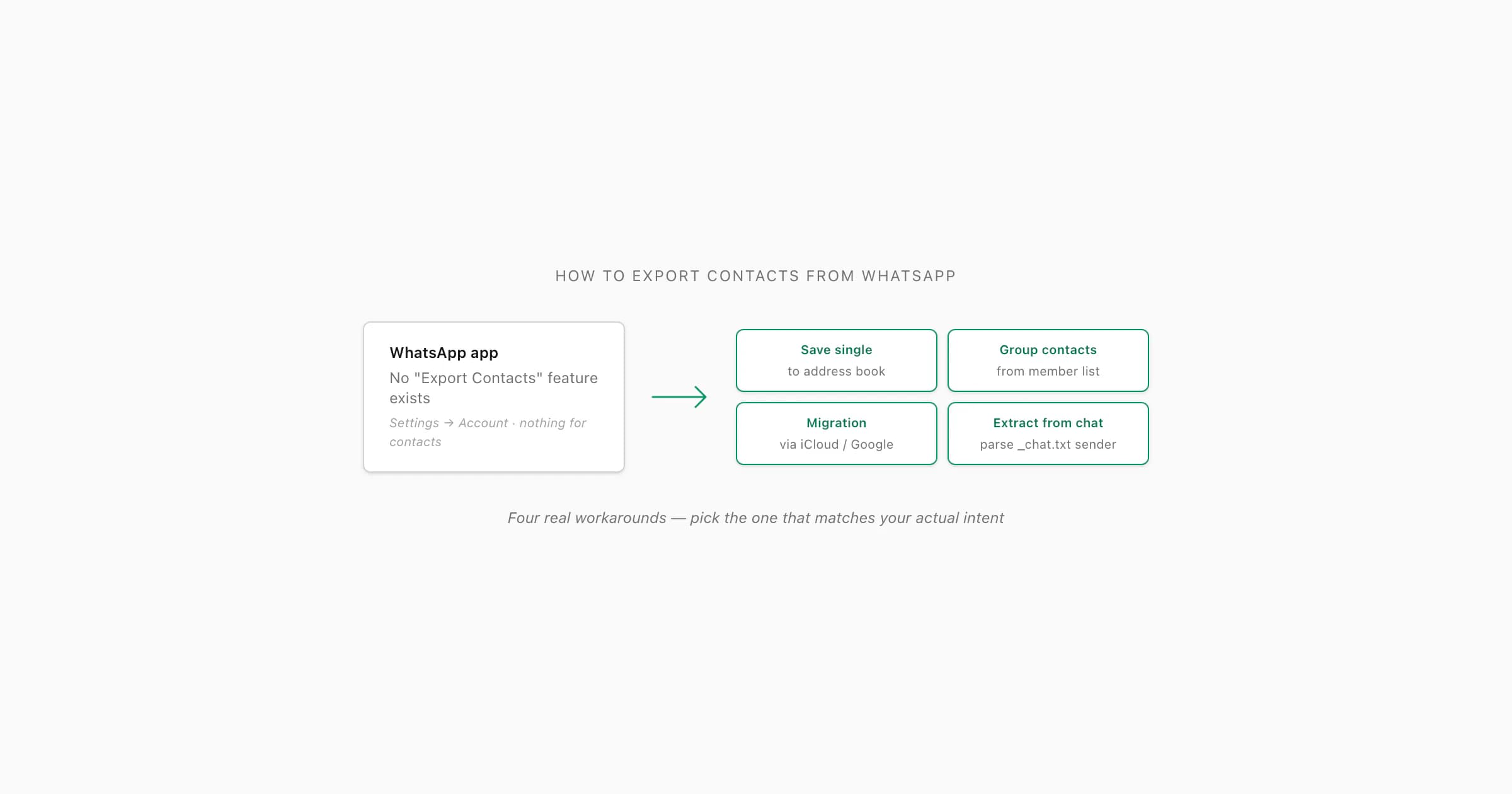
WhatsApp has no contacts-export feature — there is no Export Contacts button, CSV download, or vCard bundle anywhere in the app. To get contacts out, the real options are: save individual contacts to your phone's address book via the WhatsApp contact page, screenshot the group participants list, manually add group members one by one, or export a chat and extract sender phone numbers from _chat.txt. ChatToPDF produces a PDF that preserves all visible sender names and numbers.
Four things people mean when they ask this
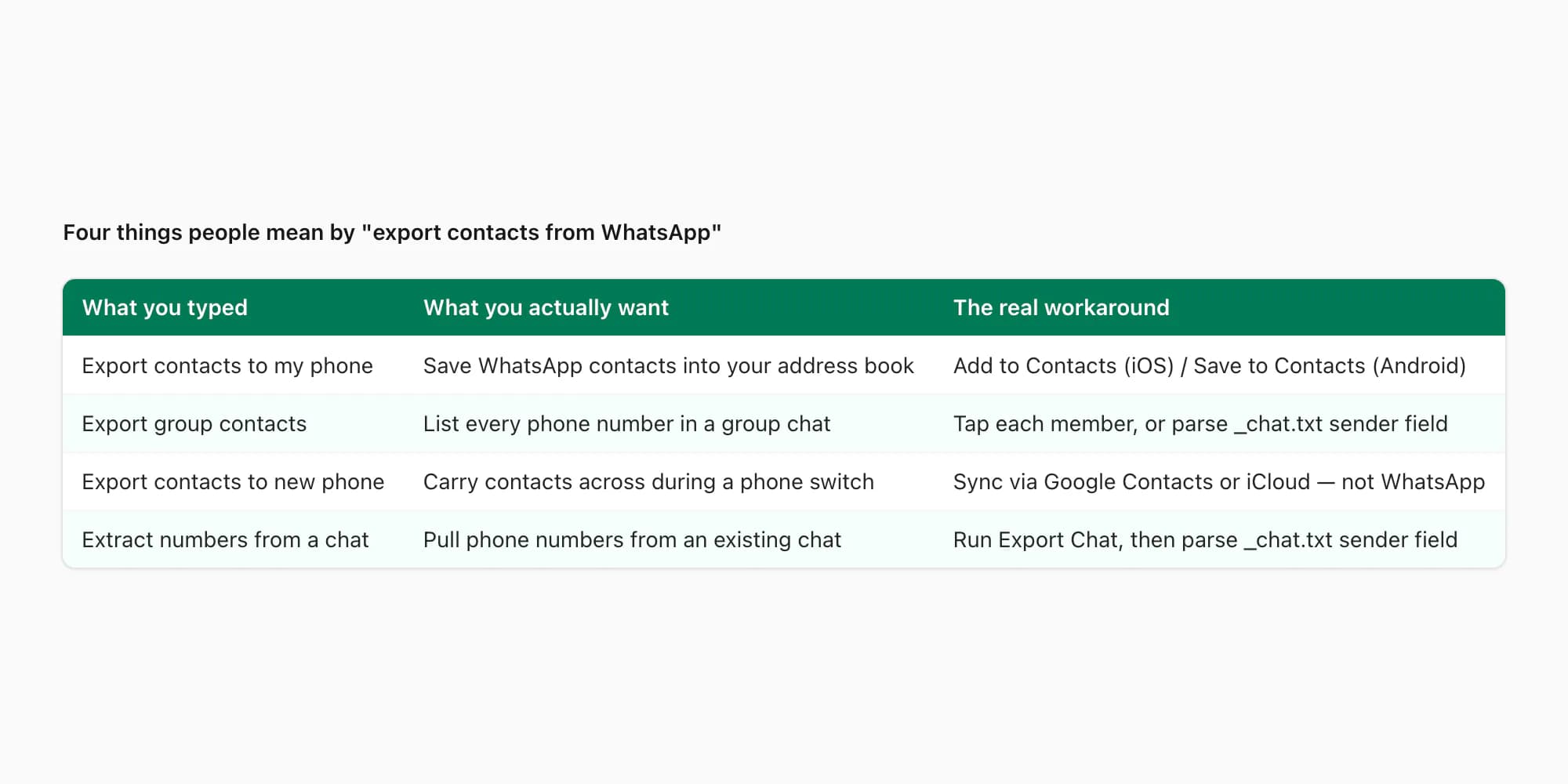
I have been answering "how do I export contacts from WhatsApp?" in support for long enough now to know the question almost never means what it literally says. WhatsApp doesn't have a contacts-export feature and never has — the search query is the symptom of an underlying need, and that need splits cleanly into four buckets. Naming them up front saves you reading three sections that don't match what you actually want.
- What you typed
- Export contacts from WhatsApp to my phone
- What you actually want
- Save one or more WhatsApp contacts into your phone's address book
- The workaround
- Tap the contact card → Add to Contacts (iOS) or Save to Contacts (Android)
- What you typed
- Export WhatsApp group contacts
- What you actually want
- List every phone number in a group chat — names plus numbers
- The workaround
- Either tap each member from the group info screen, or run an Export Chat and parse the sender field
- What you typed
- Export WhatsApp contacts to new phone
- What you actually want
- Carry contacts across to a new device alongside chats
- The workaround
- Sync your phonebook through Google Contacts or iCloud — the contacts ride along separately from the chat-migration flow
- What you typed
- Extract phone numbers from a chat I have
- What you actually want
- Get the phone numbers out of an exported chat for analysis or evidence
- The workaround
- Run Export Chat on the phone, then parse `_chat.txt` directly or upload to chattopdf.app for a sender-attributed PDF
| What you typed | What you actually want | The workaround |
|---|---|---|
| Export contacts from WhatsApp to my phone | Save one or more WhatsApp contacts into your phone's address book | Tap the contact card → Add to Contacts (iOS) or Save to Contacts (Android) |
| Export WhatsApp group contacts | List every phone number in a group chat — names plus numbers | Either tap each member from the group info screen, or run an Export Chat and parse the sender field |
| Export WhatsApp contacts to new phone | Carry contacts across to a new device alongside chats | Sync your phonebook through Google Contacts or iCloud — the contacts ride along separately from the chat-migration flow |
| Extract phone numbers from a chat I have | Get the phone numbers out of an exported chat for analysis or evidence | Run Export Chat on the phone, then parse `_chat.txt` directly or upload to chattopdf.app for a sender-attributed PDF |
The honest framing: my company's product helps with bucket four. Buckets one through three are WhatsApp-and-OS workflows that I document here for completeness, because someone landing on this page deserves a real answer regardless of which intent they brought. The companion guide extract WhatsApp chat data — analytical framing covers the field-level mechanics for bucket four; this page is the gateway that decides which path you actually need.
A note on the partner spoke: if you are specifically looking at a group chat — you want every member's number out of one big group — the dedicated guide export WhatsApp group contacts covers that flow in detail. This page covers the broader question across all four intents.
What WhatsApp doesn't let you do
I want to be plain about this because it saves you from chasing menu items that don't exist. WhatsApp's official contact-related features cover messaging, blocking, and adding new contacts to your phonebook one at a time. None of the following exist as built-in WhatsApp operations, no matter how deep you dig in Settings:
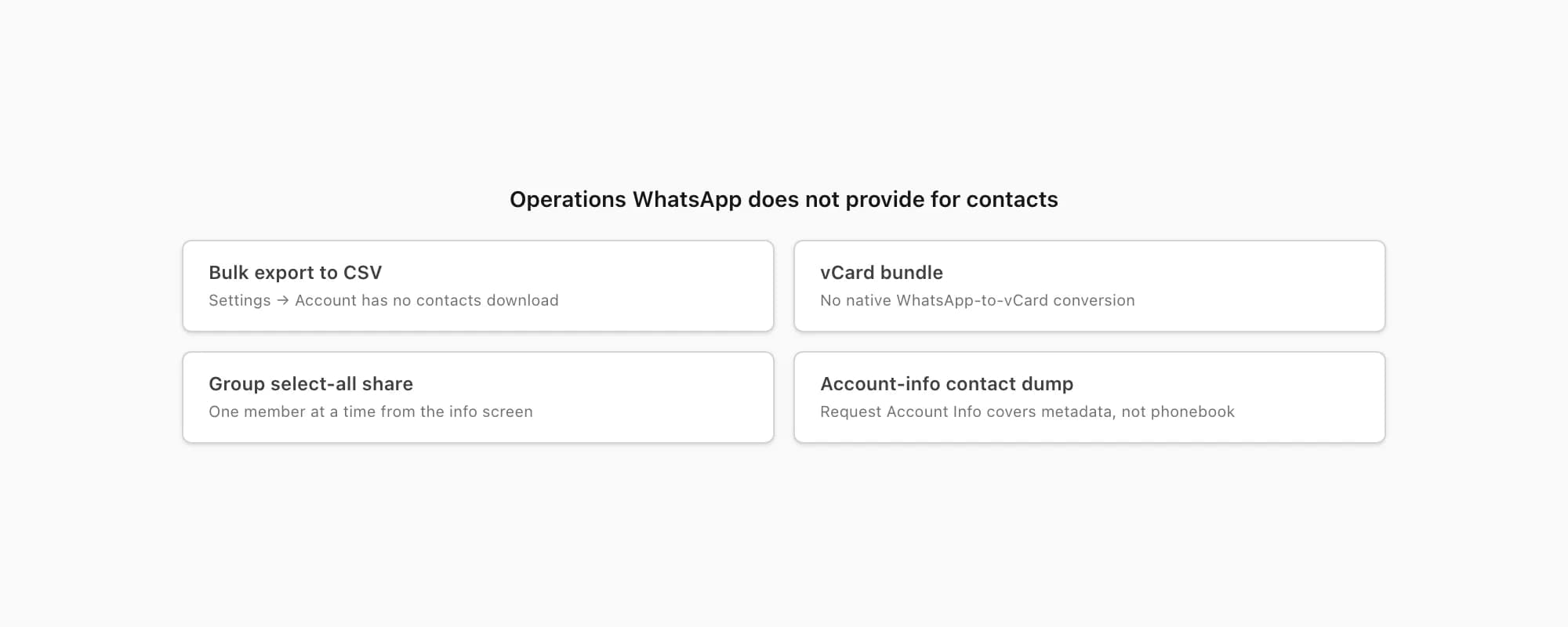
- Bulk export of all your WhatsApp contacts as a CSV or vCard file — the Settings → Account screen has nothing along these lines, on iOS, Android, or WhatsApp Web. WhatsApp's own FAQ on contacts confirms the app reads your phonebook but does not export it.
- One-tap "Share all contacts" from a group chat info screen — the group info screen lets you tap individual members and share each one as a contact card, but there is no select-all option.
- Direct download of contact data via Settings → Request Account Info — that data export covers your account metadata (settings, privacy preferences, blocked list), not your phonebook contents.
- Native WhatsApp-to-vCard conversion — there is no menu that takes a WhatsApp chat or group and emits a vCard or CSV file.
The reason is that WhatsApp doesn't actually own your contact list — your phone does. WhatsApp reads from your phone's address book on each launch and matches phone numbers in that book to WhatsApp accounts. The contacts you see in WhatsApp are just a filtered view of your phone's phonebook. So the right place to export, sync, or transfer contacts is at the operating-system level (Apple Contacts, Google Contacts), not inside WhatsApp. That reframing unlocks workarounds one through three.
The exception is bucket four — extracting phone numbers from chat history. There, the data lives inside WhatsApp's chat record (specifically in the sender field of _chat.txt), so the path runs through Export Chat. That is the one bucket where WhatsApp's mechanism is the answer, just not the menu item people expect.
Workaround 1 — save a single contact to your address book
This is by far the most common intent behind "how to export contacts from WhatsApp to phone". You see someone's name and number in a chat, you want them in your phonebook so you can call them or add them to other services. WhatsApp gives you a real path for this — it just isn't called "export". On iOS, the menu reads "Add to Contacts"; on Android, it reads "Save to Contacts". Same operation, different label.
iPhone — Add to Contacts
Open the chat with the person whose number you want to save
Tap the chat in your chat list and let it open to the message thread. The contact's name (or raw phone number, if not yet saved) appears at the top.
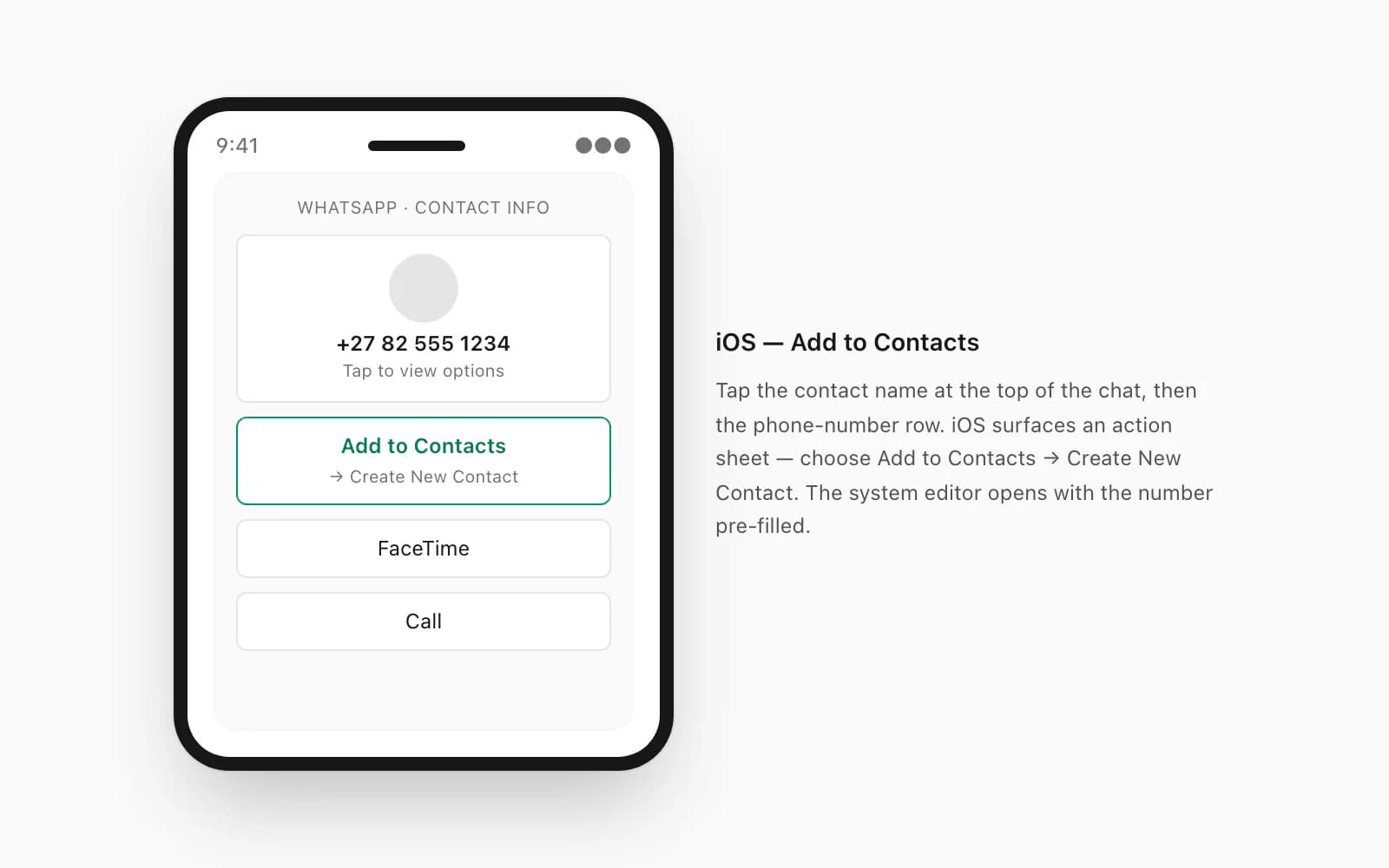
Tap the contact name at the top of the screen
This opens the contact info screen — same screen you would use for Export Chat or to mute notifications.
Tap the phone-number row to expose the action sheet
iOS shows a sheet with options including FaceTime, Call, and Add to Contacts. The action sheet is what gates the save — tapping the number itself dials, but a long press or the info-screen path reveals the save option.
Tap Add to Contacts → Create New Contact
iOS opens the standard Contacts editor pre-filled with the number. Add a name, save, and the contact now lives in your iPhone's address book. WhatsApp picks up the new name on its next contact refresh and starts displaying it instead of the raw number.
If the person sent their contact card as a vCard attachment in the chat, the path is simpler: tap the card in the chat, then tap Save to Contacts. iOS handles the vCard parsing natively. Apple's iCloud Contacts documentation covers the storage side for users who want to back the saved contacts up to iCloud automatically.
Android — Save to Contacts
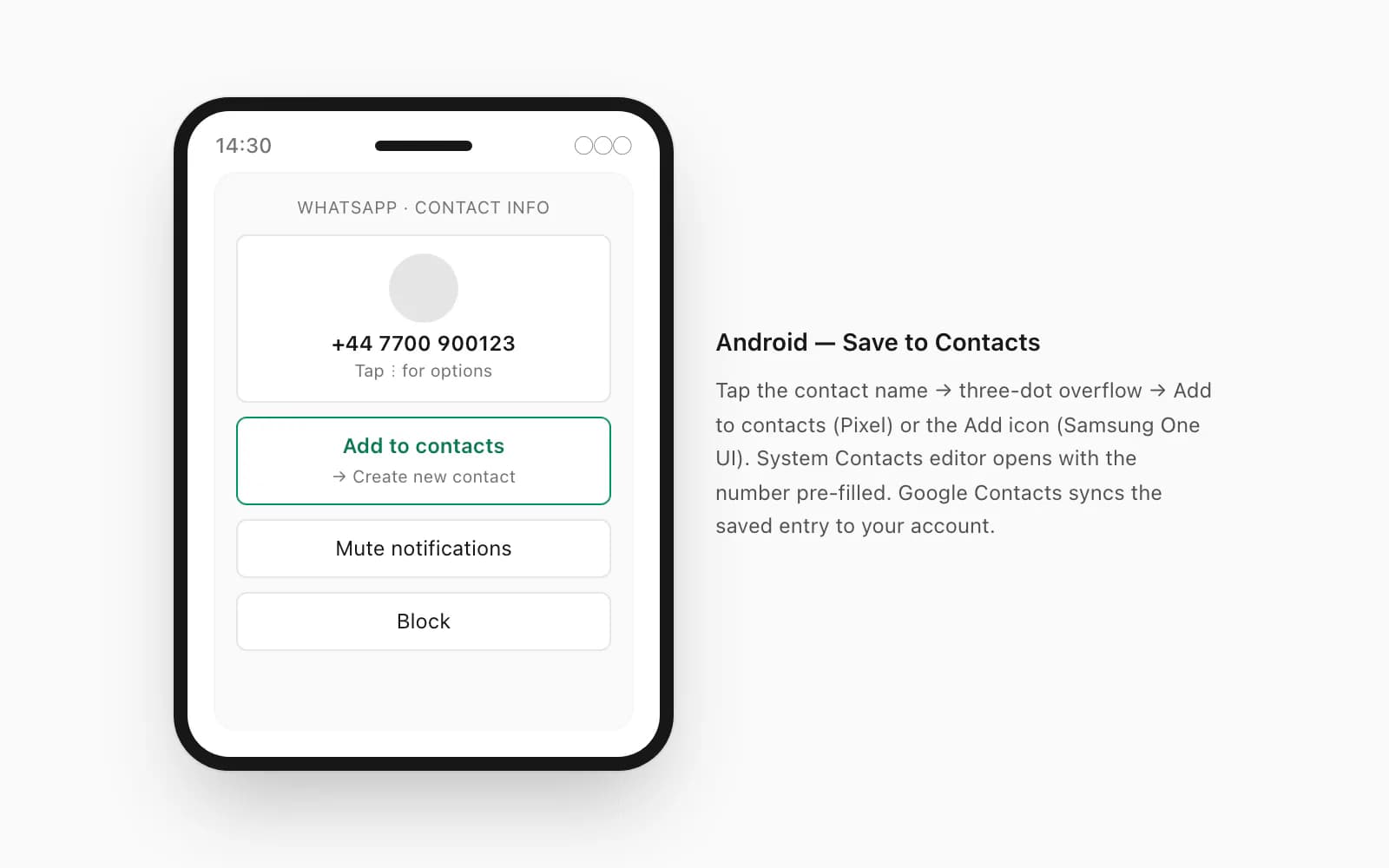
Open the chat with the person whose number you want to save
Tap the conversation from the chat list. The header shows the name or raw number.
Tap the contact name at the top to open contact info
The contact info screen lists the phone number, About, mute settings, and other options.
Tap the three-dot overflow icon → Add to contacts (or tap the Add icon)
Different Android skins (Samsung One UI, Pixel, Xiaomi) place the action slightly differently — Samsung shows a bold "Add to contacts" link at the top of the info screen; Pixel surfaces it in the overflow menu; some Xiaomi builds show a person-plus icon in the action bar.
Choose Create new contact or Add to existing
The system Contacts editor opens with the number pre-filled. Save the contact and your phonebook now carries it. Google Contacts syncs the saved contact to your Google account if your phone is set up to sync, which is the standard Android default.
The Android path also handles vCard attachments natively — if the contact arrived as a card in the chat, tap it and choose Save to Contacts. The system parses the vCard fields (name, number, email, photo if included) and pre-fills the editor with all of them.
This single-contact workflow is fine for ones and twos. It is painful at scale — saving fifty contacts means fifty round trips through the action sheet — which is why workaround two exists.
Workaround 2 — pull contacts out of a group chat
If you are in a group chat with thirty or two hundred members and you want every member's number, the single-contact-tap path takes too long. There are two paths that scale better, with different tradeoffs.
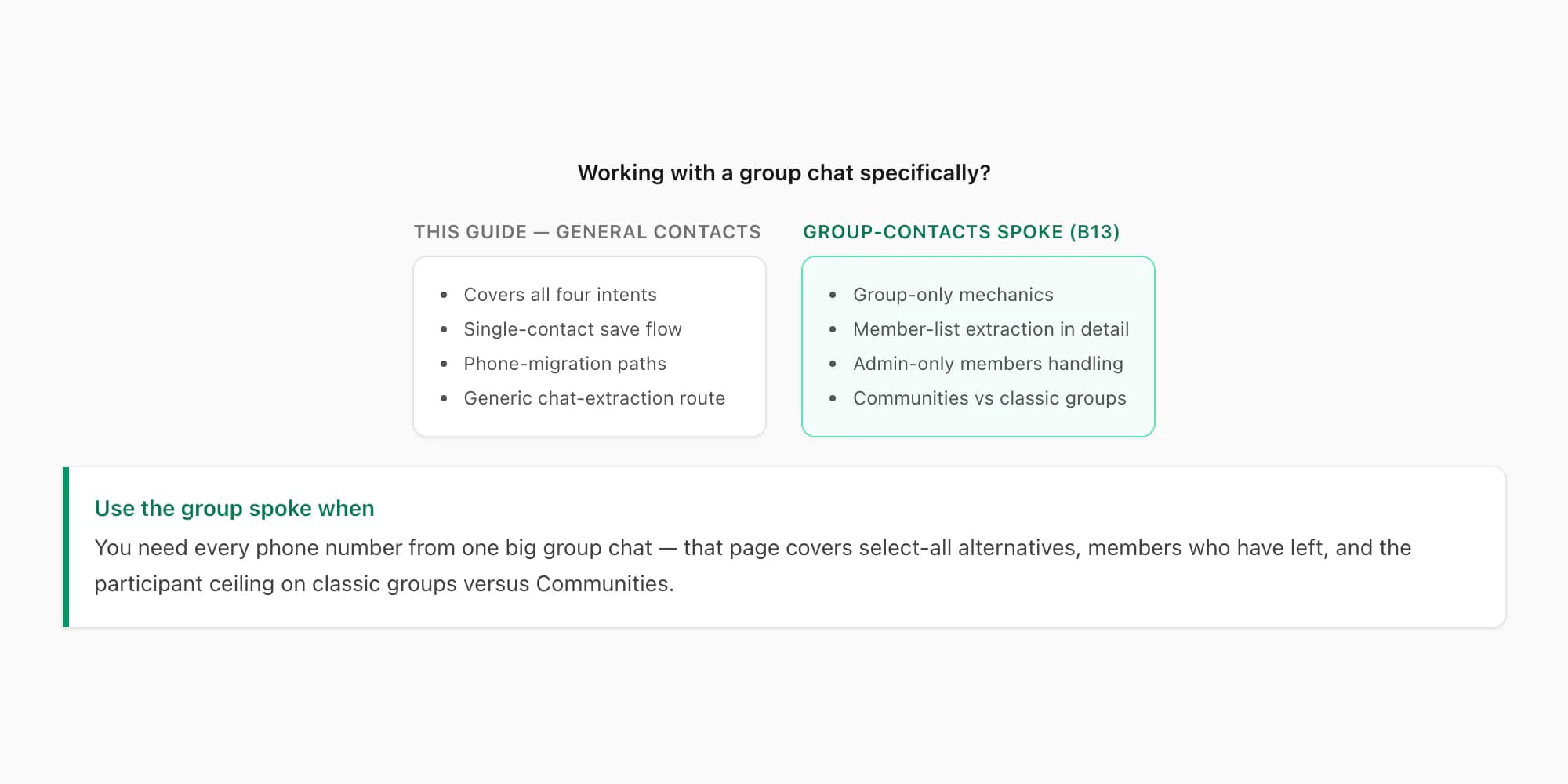
The first path is the manual but reliable one: open the group info screen (tap the group name at the top of the chat), scroll down to the members list, and tap each member individually to surface their info card and number. Tedious for big groups, but it gives you names and numbers in the order WhatsApp shows them.
The second path is the one that matches what most "export group contacts" searches actually want: run Export Chat on the group, then parse the sender field of _chat.txt to extract every distinct phone number that appears as a sender. This is faster than tapping each member, and it has a side benefit — the export only contains numbers for people who have actually sent at least one message in the chat, which for big groups can be a useful filter.
The dedicated guide export WhatsApp group contacts walks through the group-specific flow with the right tradeoffs for that case (admin-only members, members who have left, the 256-participant cap on classic groups, the 1,024-participant ceiling on newer Communities). For non-group chats, workaround four is the relevant route.
A WhatsApp-quirk note: when you Export Chat on a group, WhatsApp redacts the names of any members who are not in your phonebook — they appear in _chat.txt as raw phone numbers (+27 82 555 1234: Hello everyone) rather than names. This is a feature for the contacts-extraction angle — those raw numbers are the data you want. Members already saved in your phonebook show up by name, and you can cross-reference them against your existing contacts to find new numbers worth saving.
Workaround 3 — migrate contacts to a new device
This is the bucket where the answer is "WhatsApp is not the right tool". Contact migration during a phone switch has nothing to do with the WhatsApp app — the contacts live in your phone's address book, and the migration is an OS-level operation.
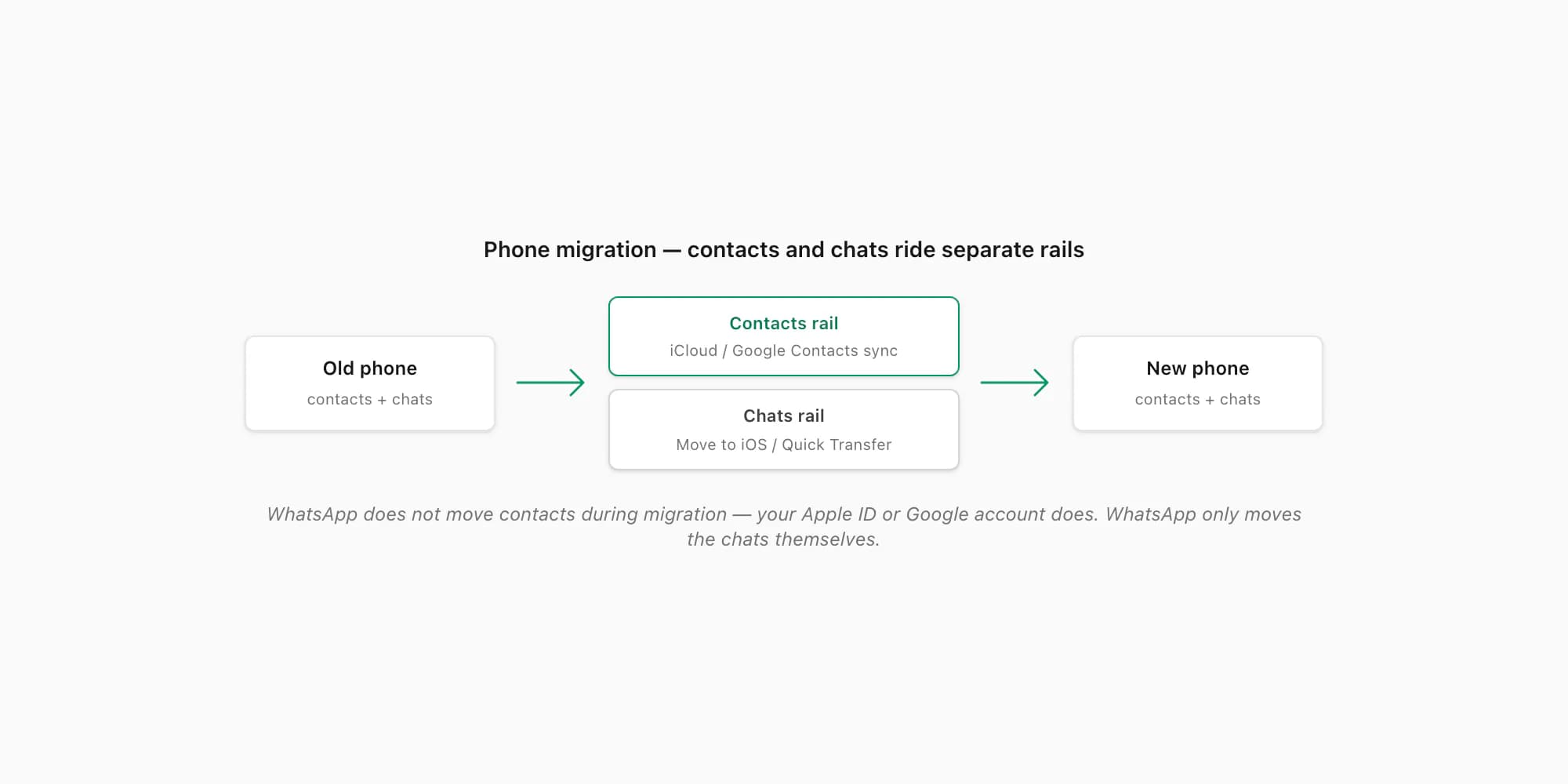
For an iPhone-to-iPhone migration: enable iCloud Contacts on the old phone (Settings → Apple ID → iCloud → Contacts), let it sync, then sign into the same Apple ID on the new phone and contacts populate. WhatsApp's own chat-migration flow runs separately — you use either Move to iOS, an iCloud chat backup, or the new Quick Transfer that arrived in WhatsApp 2024 — but the contacts ride across through Apple's own infrastructure, not WhatsApp's.
For an Android-to-Android migration: enable Google Contacts sync on the old phone (Settings → Accounts → Google → Contacts toggle), let the sync complete, then sign into the same Google account on the new phone. Contacts arrive automatically. The WhatsApp chat-migration step runs separately via Google Drive backup or the in-app Quick Transfer.
For a cross-platform migration (iPhone to Android, or Android to iPhone): contacts can ride across via a shared Google account if both phones sign into it, or via a one-time vCard export from the old phone's Contacts app and import on the new one. WhatsApp itself supports cross-platform chat migration through its Move Chats feature for accounts on the latest app versions, but again — chats and contacts move on separate rails.
The reason this matters for SEO: a meaningful share of "export WhatsApp contacts" searches are actually phone-migration searches in disguise. The user is switching phones, sees a "transfer your contacts" prompt during setup, opens WhatsApp, panics, and Googles. The right answer for them is "your contacts move through your Apple ID or Google account, not through WhatsApp" — once they hear that, the rest of the migration is straightforward.
Workaround 4 — extract numbers from an exported chat
This is the bucket where chattopdf is the relevant tool. You have a chat — usually a group chat for legal evidence, an HR investigation, or a research dataset — and you need every phone number that appears in it as a sender. The data is already inside WhatsApp's chat record; the question is how to get it into a usable artefact.
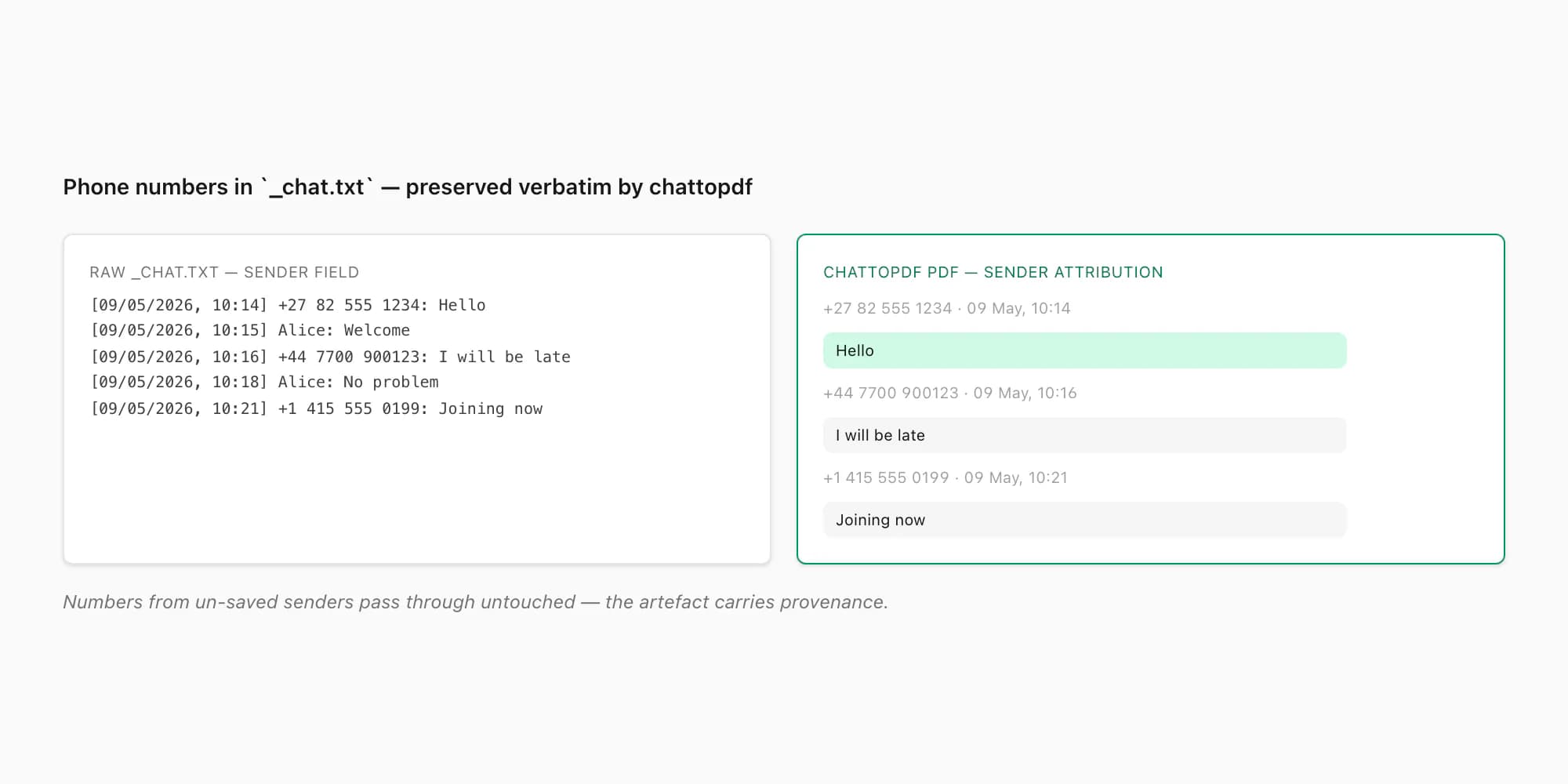
The mechanics: every line in _chat.txt carries a sender field, and for any participant whose number is not in your phonebook, that field is the raw phone number itself. Lines look like:
[09/05/2026, 10:14:32] +27 82 555 1234: Hello everyone
[09/05/2026, 10:15:01] Alice: Welcome
[09/05/2026, 10:16:45] +44 7700 900123: I will be late
A parse over the file pulls the sender field from each line, filters to entries that match a phone-number pattern, deduplicates, and you have the contacts list — phone numbers preserved verbatim from the chat. For developer-types this is a hundred lines of Python or JavaScript and is documented in extract WhatsApp chat data under the tooling section.
For non-developers — most users — the chattopdf path runs the same parse automatically and gives you a sender-attributed PDF where every phone number from the chat appears in its original form alongside every message that number sent. Useful for evidence work because the artefact preserves both the number itself (provenance) and the message content (context). The companion spoke how to download chat history from WhatsApp — step-by-step covers the Export Chat tap path that produces the ZIP this workflow takes as input.
A practical note for evidence cases: phone numbers in a sender-attributed PDF carry weight that names alone do not. A reviewer can verify a phone number against billing records, telecom logs, or a discovery response. A name in a phonebook is asserted by the person who built the phonebook; a phone number that WhatsApp itself recorded as a sender is harder to dispute. Preserving raw numbers — not just names — in the extracted artefact is one reason chattopdf surfaces them by default rather than rewriting them to a saved name.
Pricing for the chat-extraction route
Workaround four is the only one that runs through chattopdf, and it is priced per chat — single payment for a single conversion, no recurring billing, no account-level access. Each conversion is real work against a specific snapshot of your chat data, so each conversion is priced on its own.
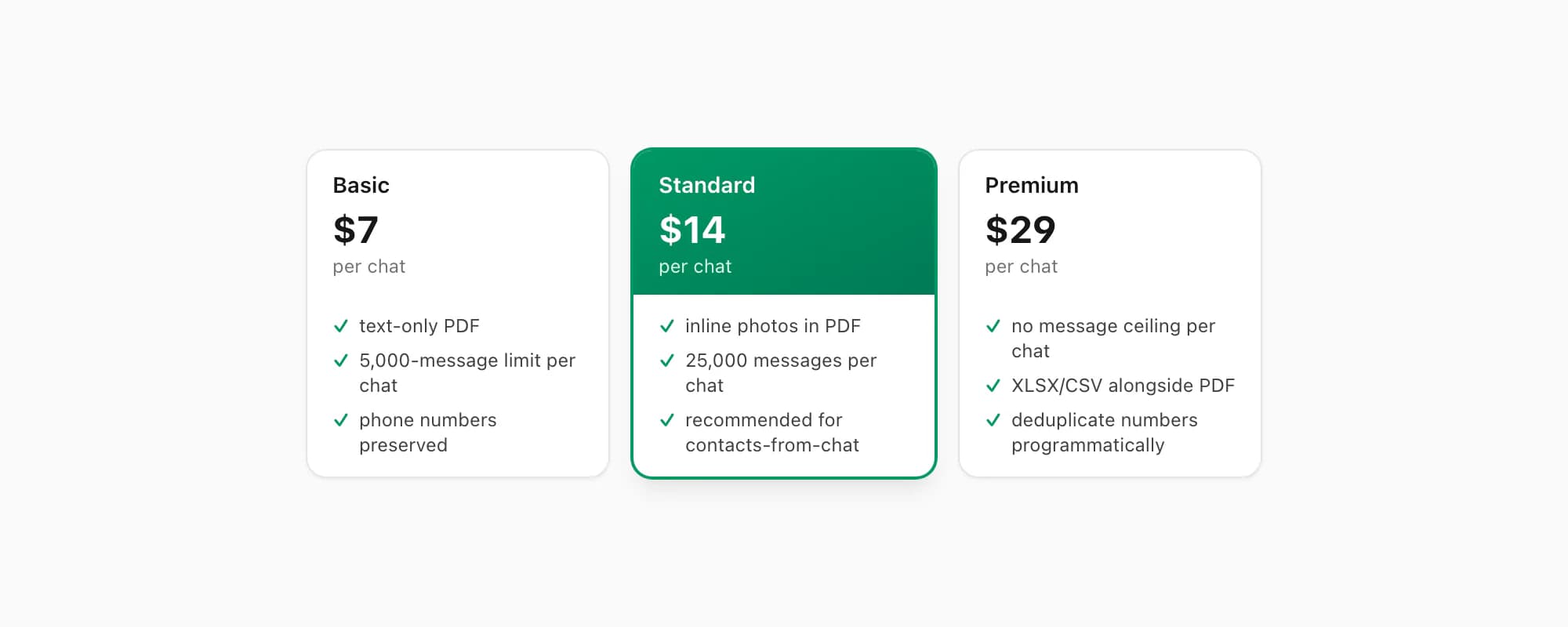
$7 Basic per chat is the entry tier. Text-only PDF, capped at 5,000 messages per chat, no embedded photos, no voice transcription. Right when you only need the phone numbers and message text from a small-to-medium chat — for example, a research project that just needs sender-attributed text rows.
$14 Standard per chat is the recommended tier for most extract-to-PDF jobs and the one I push hardest for contacts-from-chat work. The conversion includes inline photos in the PDF (assuming you exported with Including Media), the per-chat message ceiling lifts to 25,000, and voice notes appear as placeholders. Phone-number senders are preserved verbatim alongside named senders. This is the tier that fits most legal-evidence and investigation cases.
$29 Premium per chat removes the per-chat message ceiling and adds an XLSX/CSV output alongside the PDF — useful if you want to filter the contacts list, deduplicate phone numbers programmatically, or hand a structured spreadsheet to someone alongside the readable PDF.
$49 Premium+Voice per chat adds voice-note transcription through the language-aware Nova-3/Scribe v2 router — supported notes that transcribe successfully become real text blocks, with sender attribution preserved (including for raw-phone-number senders).
$99 Power User per chat adds priority queue processing and bulk-conversion support across multiple chats in a single session.
Re-export and re-convert the same chat tomorrow and you pay again — each conversion is real work against a different snapshot. There is no signup, no account, and no commitment beyond the single chat you upload.
Key takeaways
- WhatsApp does not have a contacts-export feature — no CSV download, no vCard bundle, no bulk export menu, on iOS, Android, or WhatsApp Web.
- The search query "how to export contacts from WhatsApp" usually means one of four things: save a single contact, pull numbers out of a group, migrate contacts to a new phone, or extract numbers from an exported chat.
- Saving a single contact runs through the contact info screen → Add to Contacts (iOS) or Save to Contacts (Android), one contact at a time.
- Migrating contacts to a new device runs through your Apple ID or Google account at the OS level — WhatsApp's chat-migration flow is separate from contact transfer.
- Extracting phone numbers from a chat runs through Export Chat, then parses the sender field of
_chat.txt— chattopdf's $14 Standard per chat tier produces a sender-attributed PDF that preserves every raw phone number alongside its messages. - For group-specific contacts extraction (every member of a big group), the dedicated export WhatsApp group contacts guide covers that flow with the right tradeoffs.
- Phone numbers in a sender-attributed PDF carry evidentiary weight that names alone do not — reviewers can verify numbers against telecom records, names cannot be cross-checked the same way.
- If the underlying goal is to turn a chat into a formatted document rather than just extract contacts, the full WhatsApp-to-PDF walkthrough explains every conversion option.
FAQ
Is there a way to export all my WhatsApp contacts at once?
No. WhatsApp does not have a bulk-export feature for contacts. There is no Export Contacts menu anywhere in the app, no CSV or vCard download, no Settings option that emits your phonebook. WhatsApp reads from your phone's address book — it does not own a separate contact list it could export. To bulk-export contacts, run the export from your phone's Contacts app (iOS Contacts, Google Contacts) directly. To extract phone numbers from a specific chat, run Export Chat and parse the resulting _chat.txt sender field, which chattopdf does automatically when you upload the ZIP at the $14 Standard per chat tier.
How do I export contacts from WhatsApp to my phone's address book?
Open the chat with the person whose number you want to save, tap the contact name at the top of the chat to open the info screen, then tap Add to Contacts (iOS) or Save to Contacts (Android). The system Contacts editor opens with the phone number pre-filled — add a name and save. The contact now lives in your phone's address book and WhatsApp picks up the saved name on its next contact refresh. For multiple contacts, repeat the path for each — there is no bulk version inside WhatsApp itself.
Can I export contacts from a WhatsApp group chat?
Not directly through WhatsApp's UI. The group info screen lets you tap each member individually to share their contact card, but there is no select-all option. The faster path is to Export Chat on the group, then parse the sender field of the resulting _chat.txt for distinct phone numbers — anyone who has sent at least one message will appear there, with their raw number visible if they are not in your phonebook. The dedicated export WhatsApp group contacts guide walks through that flow specifically.
How do I move my WhatsApp contacts to a new phone?
Through your phone's account-sync infrastructure, not through WhatsApp itself. On iPhone, enable iCloud Contacts (Settings → Apple ID → iCloud → Contacts) on both phones — contacts sync via your Apple ID. On Android, enable Google Contacts sync (Settings → Accounts → Google → Contacts) — contacts sync via your Google account. WhatsApp's chat-migration flow (Move to iOS, iCloud backup restore, Move Chats cross-platform) runs separately and does not touch your contact list — chats and contacts ride on separate rails during a phone migration.
What's the easiest way to extract phone numbers from an exported WhatsApp chat?
Upload the export ZIP to chattopdf.app and choose the $14 Standard per chat tier. The conversion produces a sender-attributed PDF that preserves every phone number from the chat verbatim — both named contacts and raw-number senders appear in the attribution alongside their messages. For developer-types, parsing _chat.txt directly with a hundred lines of Python or JavaScript also works — the sender field sits between the timestamp and the colon on every line. Both paths give you the same data; the chattopdf path adds the readable artefact and saves writing the parser.
I'm Paul, the founder of ChatToPDF. I built it after needing a long WhatsApp conversation as a readable PDF for a legal matter. I test and document WhatsApp exports, PDF conversion, voice-note transcription, and the limits people should check before relying on the result.