
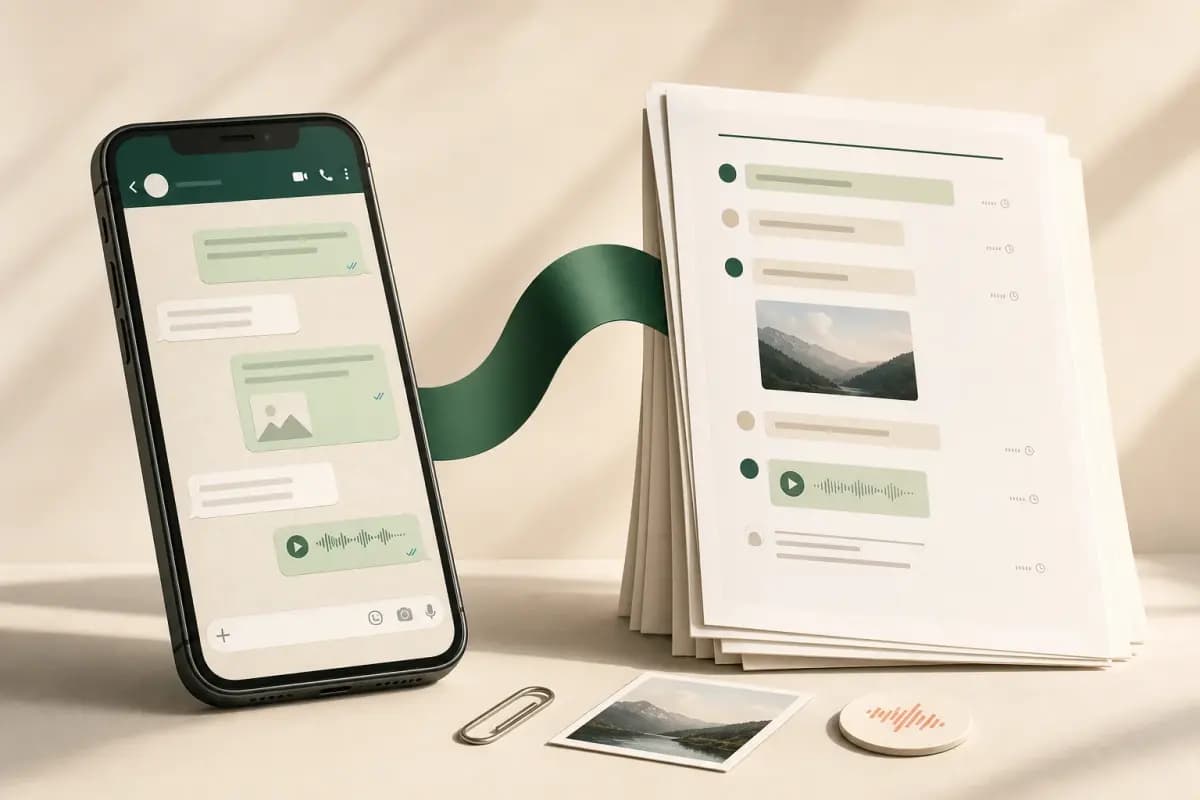
WhatsApp cannot export a conversation directly as a PDF. Use Export Chat to create a text file or a ZIP with media, then open the text in Pages, Word, or Google Docs and export it as PDF, or upload the original export to a specialist converter. Use the ZIP route when photos or voice notes matter.
For market and usage context behind this workflow, see the sourced WhatsApp statistics page; the conversion steps below stay focused on what an individual export actually contains.
- Your goal
- A few visible messages
- Best route
- Take screenshots, then print or combine them as PDF
- What survives
- The exact on-screen appearance
- Cost and trade-off
- Free, but not searchable and slow for a long chat
- Your goal
- A complete text-only chat for free
- Best route
- Export Without Media → Pages, Word, or Google Docs → PDF
- What survives
- Message text, sender labels, and timestamps from the TXT
- Cost and trade-off
- Free, but photos and voice notes are absent and formatting is basic
- Your goal
- A formatted chat with photos inline
- Best route
- Export Including Media → upload the ZIP to ChatToPDF
- What survives
- Text, dates, sender names, and supported images in conversation order
- Cost and trade-off
- Preview free; the supported-image PDF is $14 for one chat
- Your goal
- Nothing may leave your device
- Best route
- Use a reputable local-only converter or desktop document app
- What survives
- Depends on the tool
- Cost and trade-off
- Check permissions and output before trusting a privacy claim
- Your goal
- Voice notes need searchable text
- Best route
- Including Media ZIP → voice transcription package
- What survives
- Messages plus transcripts beside the original sender and time
- Cost and trade-off
- $49 for one chat with up to eight audio hours
| Your goal | Best route | What survives | Cost and trade-off |
|---|---|---|---|
| A few visible messages | Take screenshots, then print or combine them as PDF | The exact on-screen appearance | Free, but not searchable and slow for a long chat |
| A complete text-only chat for free | Export Without Media → Pages, Word, or Google Docs → PDF | Message text, sender labels, and timestamps from the TXT | Free, but photos and voice notes are absent and formatting is basic |
| A formatted chat with photos inline | Export Including Media → upload the ZIP to ChatToPDF | Text, dates, sender names, and supported images in conversation order | Preview free; the supported-image PDF is $14 for one chat |
| Nothing may leave your device | Use a reputable local-only converter or desktop document app | Depends on the tool | Check permissions and output before trusting a privacy claim |
| Voice notes need searchable text | Including Media ZIP → voice transcription package | Messages plus transcripts beside the original sender and time | $49 for one chat with up to eight audio hours |
Can WhatsApp export a chat directly to PDF?
No. WhatsApp's built-in Export Chat command creates a plain-text transcript, or a ZIP containing that transcript and the available media. It does not create a PDF of the conversation. You must turn the exported text into a PDF with a document app, or give the TXT/ZIP to a converter that understands WhatsApp's message structure.
This distinction matters because sending a PDF in WhatsApp is not the same task as turning a WhatsApp conversation into a PDF. WhatsApp can share and display PDF documents. Its native chat-export flow still produces TXT or ZIP, as described in the WhatsApp Help Center's export instructions.
Choose the right WhatsApp-to-PDF method
Start with the output you need, not with a tool:
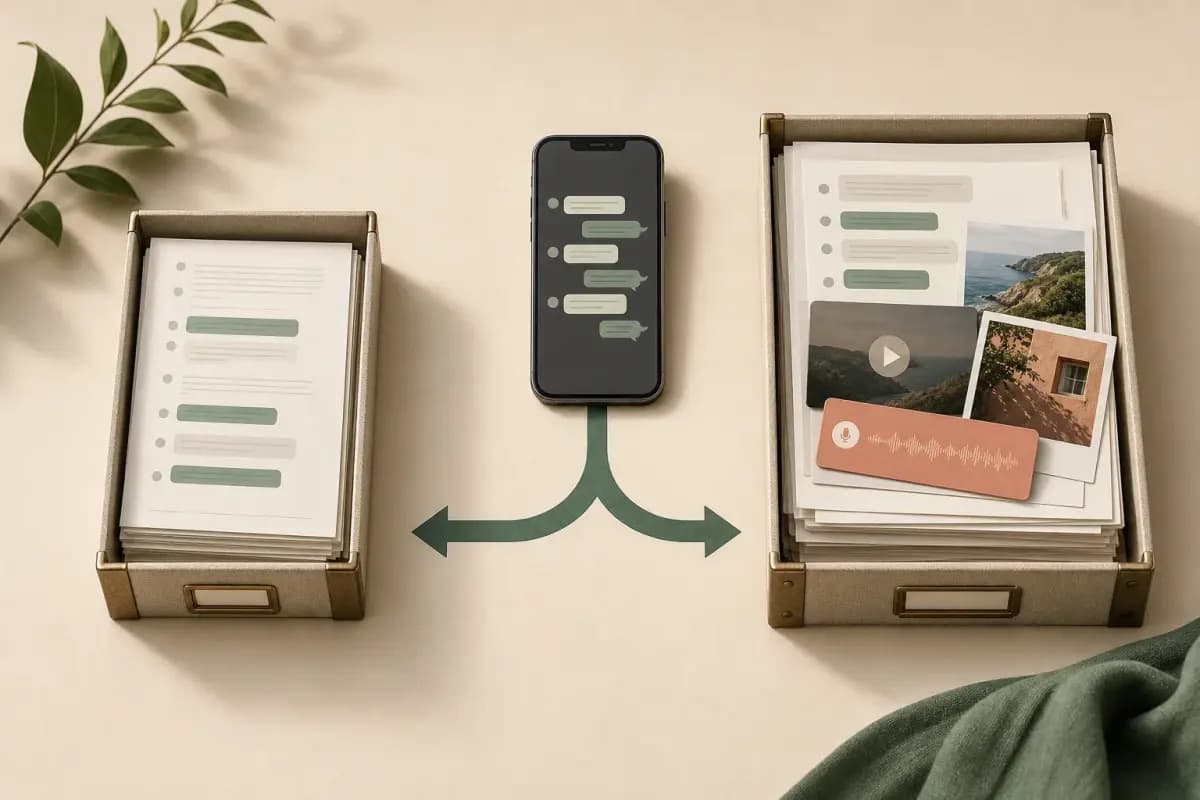
- Choose screenshots when you only need a handful of messages and the exact on-screen appearance matters more than searchability.
- Choose a free document-app conversion when text, senders, and timestamps are enough. Export Without Media, then use Pages, Word, Google Docs, or LibreOffice to create the PDF.
- Choose a specialist chat converter when the conversation is long, formatting matters, or photos need to stay beside the messages that referenced them.
- Choose a forensic acquisition workflow rather than an ordinary converter when a court, regulator, or investigator requires device extraction, chain-of-custody records, or a particular evidence format.
Before uploading anything private, confirm whether the tool works locally or on a server, how long files are retained, whether the output can be previewed, and what happens to media and voice notes. Marketing phrases such as “secure” or “private” are not substitutes for those four concrete answers.
I recommend starting with the free text-only route and moving to a specialist converter only when the conversation is too long to format manually or its supported photos and voice notes materially affect the record.
You can inspect a real sample ChatToPDF output before uploading your own conversation. For evidence work, also read the WhatsApp evidence PDF guide; a readable PDF can help with review, but it is not automatically a forensic extraction or a guarantee of admissibility.
Check the output you want before uploading
Try a fictional example in your usual PDF reader before using your own export. These files were generated by ChatToPDF's PDF pipeline from an invented conversation; they demonstrate layout, not a customer's result:
- Clean Document sample PDF: a compact document to inspect before printing.
- WhatsApp Classic sample PDF: the conversation-style option.
- Formal sample PDF: a layout to inspect for a review workflow.
- Book sample PDF: a keepsake layout to print yourself.
Search for a word in the sample, zoom into a timestamp and inspect a page break. With your own export, also compare the detected date range and participants against the original TXT. A preview checks parsing and layout; it does not recover messages that WhatsApp left out of the export.
If your next task is sorting messages, use the Excel converter and fictional workbook. If it is importing rows, use the CSV converter and import sample. If you only want to inspect an export, start with the chat viewer. These are different ways to use the same conversation; choose the one that matches the job.
Export the chat from WhatsApp
WhatsApp's Export Chat feature has been available on both iPhone and Android for several years, but it's not obvious to find. Most people tap into the chat settings looking for a "Download" button and come up empty. The actual path is a few taps deeper than you'd expect.
- Export Chat (Including Media)
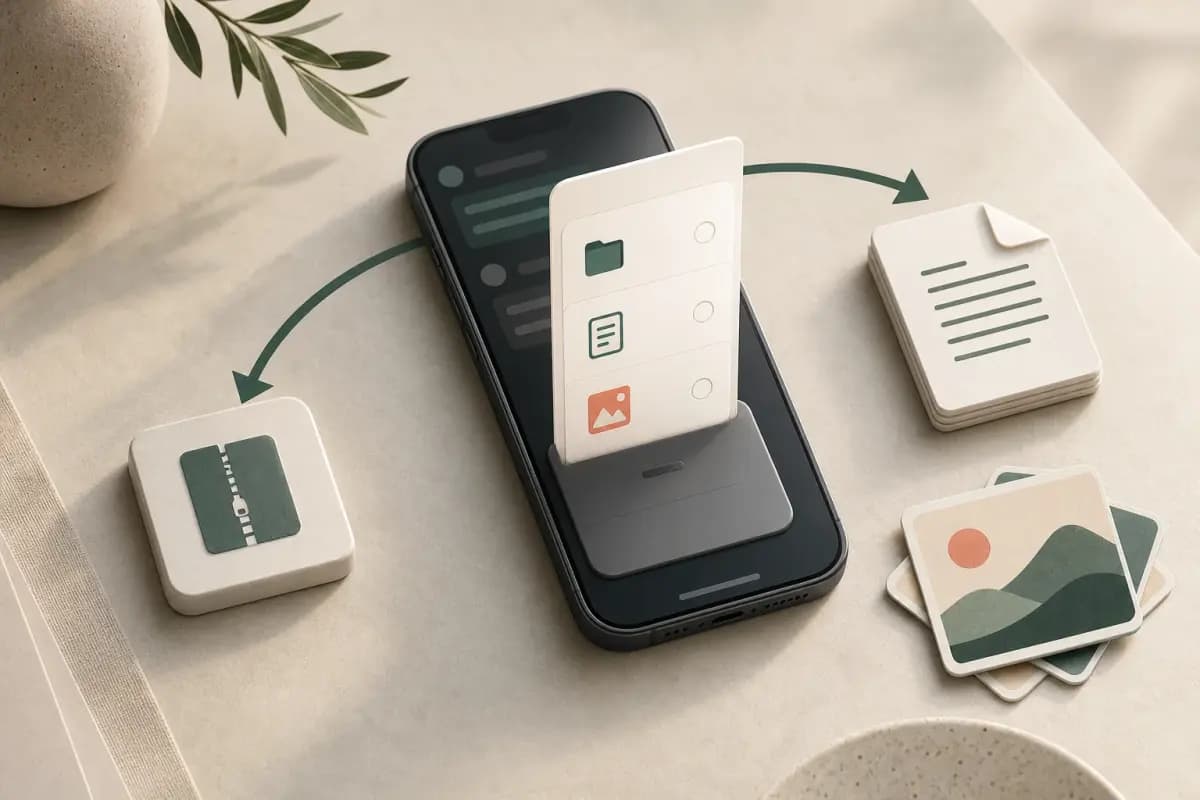
WhatsApp's built-in menu option that packages a conversation into a shareable file. Choosing "Include Media" produces a ZIP archive containing the
_chat.txtmessage log plus the attachments WhatsApp includes in that export. Choosing "Without Media" produces a smaller text transcript and omits the attachment files.
Open the chat you want to export
Open WhatsApp and navigate to the individual or group chat you want to convert to PDF. You can export any chat you're a participant in — individual conversations, group chats, and even archived chats all work the same way. Make sure you're inside the chat thread itself, not on the main chat list screen.
Tap the chat name at the top
On iPhone, tap the contact name or group name displayed at the top of the screen. This opens the Contact Info or Group Info panel. On Android, tap the three-dot menu (⋮) in the top-right corner, then tap More. Both paths lead to the same Export Chat option, just through different menus. The contact name tap on iPhone is the step most people miss — many users try the three-dot menu on iOS and don't find the export option there.
Scroll to Export Chat
On iPhone, scroll down past the participants list, mute settings, and media thumbnails. Export Chat appears near the bottom of the Contact Info screen. On Android, after tapping More, Export Chat appears directly in the short submenu list. Tap it on either platform to trigger the format prompt.
Choose Without Media for fastest results
WhatsApp asks: "Without Media" or "Include Media." Without Media exports the transcript without attachment files, so it is usually much smaller. Include Media can create a large ZIP because it adds the media available to the export. Choose Without Media for a text record; choose Include Media when supported photos or voice files matter. ChatToPDF accepts both—the $14 Standard conversion includes supported image rendering, while the $7 Basic conversion is text-only. After your choice, use the phone's share sheet to save the file.
WhatsApp documents the Export Chat flow in its official Help Center instructions. ChatToPDF's current parser reads the text transcript supplied by that flow and, for media exports, matches supported files found beside it in the ZIP. Recheck the preview after a WhatsApp update because export formats can change.
One practical note: iOS typically hands you the share sheet immediately after you confirm the media choice. Tap Save to Files and pick a folder you'll remember — something like iCloud Drive > Downloads. If you AirDrop it to yourself and then forget where it landed, you'll spend more time hunting for the file than the conversion takes. Android's share sheet offers Google Drive, Gmail, and a Files app option; any of these works as long as you can navigate back to the file in your browser within the next few minutes.
Choose ZIP or TXT
The file WhatsApp gives you depends on which export option you chose.
- WhatsApp export ZIP
The archive produced when you export a WhatsApp chat with Include Media. It contains the text transcript plus the attachments WhatsApp includes, which may contain
.opusaudio,.jpgor.webpimages,.mp4video, and documents. ChatToPDF accepts the ZIP and renders supported images; other recognised attachment types may appear as references or be handled by a feature-specific tier.
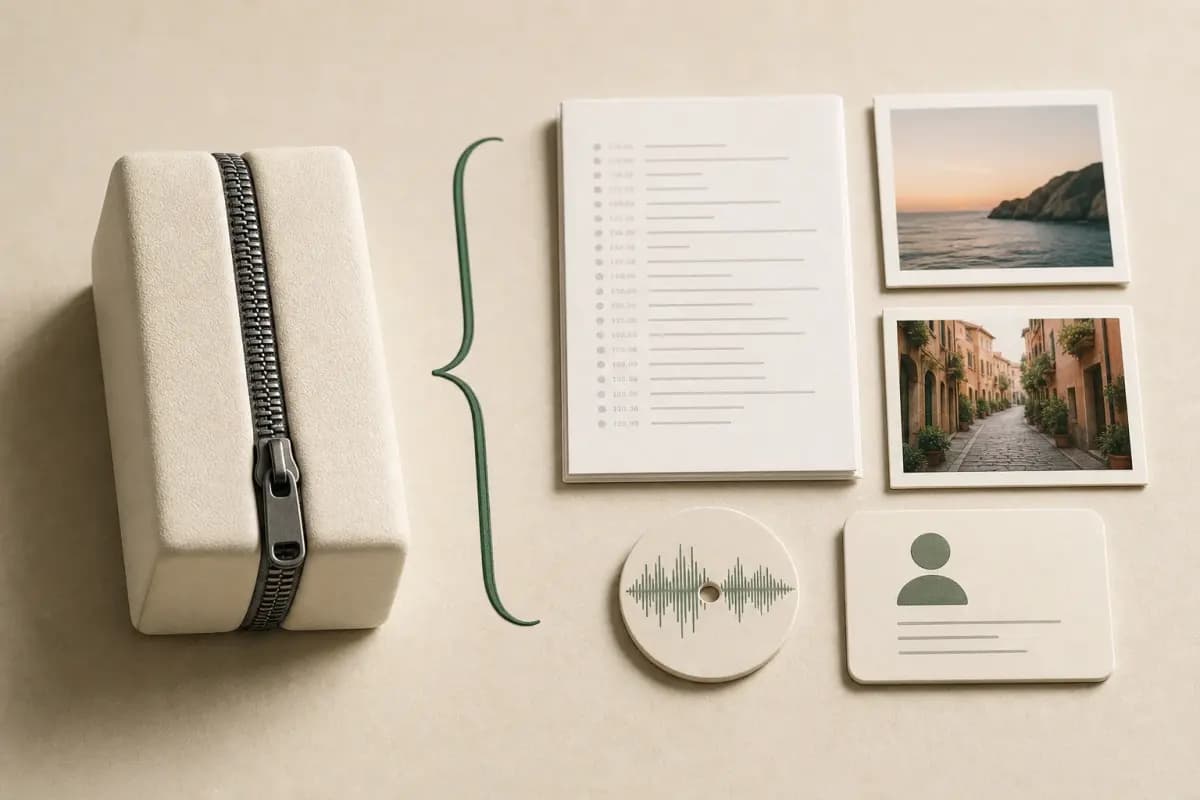
Without Media → a text transcript. It contains the messages WhatsApp included in that export, with timestamp and sender patterns that vary by device and locale. ChatToPDF accepts the text file directly.
Include Media → a .zip file. The ZIP contains the transcript plus the attachment files WhatsApp supplied. It can include .opus audio, .jpg and .webp images, .mp4 videos, .pdf documents, and .vcf contacts. ChatToPDF matches recognised attachments to the transcript; Standard and above render supported images, while voice tiers can transcribe supported audio through the configured provider.
Which should you upload? If you only need a readable text record, the text export is smaller and faster. If you want supported photos or audio transcripts in the output, upload the ZIP. You can export again with Include Media if you started with Without Media.
One edge case worth knowing: users commonly observe a smaller history window when exporting with media (often around 10,000 messages) and a larger text-only window (often around 40,000), but WhatsApp does not publish a contractual limit. For a long chat, inspect the first and last timestamps in _chat.txt instead of assuming the ZIP is complete. The WhatsApp chat export guide explains the checks and alternatives.
Free ways to convert a WhatsApp chat to PDF
The free route works best for a text-only record. It preserves whatever WhatsApp placed in _chat.txt, but it cannot reconstruct photos, videos, stickers, or voice notes that were excluded from the export.
iPhone: export the text and use Pages or Word
- Open the chat, tap the contact or group name, scroll down, and tap Export Chat.
- Choose Without Media, then save the file to Files.
- Open the text in Pages or Word. If the share sheet does not offer the app directly, create a blank document and paste the text.
- Export the document as PDF and save it back to Files. Apple documents More → Export → PDF in its Pages guide, and Microsoft documents the equivalent mobile Word PDF flow.
Android: use Word, Google Docs, or the system print dialog
- Open the chat, tap ⋮ → More → Export chat, and choose Without media.
- Save the text file to Files or Drive, then open it in a document app.
- In Word, use Print → Save as PDF. In Google Docs, use Share & export → Print, then select the Android PDF destination when it is available.
- Name the PDF clearly and compare its first and last timestamps with the original export before sharing it. Google documents the current Docs print flow on Android.
Desktop: use the original text file
Move the exported .txt file to your computer, open it in Word, Pages, LibreOffice, or another trusted editor, and export or print it as PDF. This is the simplest no-upload method. Its limitation is presentation: the result remains a text log, so inspect multiline messages, non-Latin scripts, emoji, and ambiguous date formats before relying on it.
Upload and preview
Drop your .zip or .txt onto the upload zone at chattopdf.app/upload. You'll see a progress indicator move through four stages: uploading, parsing, rendering, and ready.

The validation step checks for a WhatsApp-style transcript inside the TXT or ZIP, then the parser recognises supported timestamp and sender patterns. Files without a usable transcript are rejected before checkout. The public WhatsApp export parser benchmark publishes the fixture design, results and downloadable case data used to test format coverage.
After validation, the parser extracts sender names, timestamps, message bodies, and media references. Before paying, you see a sample of the parsed messages plus the detected message count, date range and participants. Check those values—especially the first and last dates—before choosing a package.
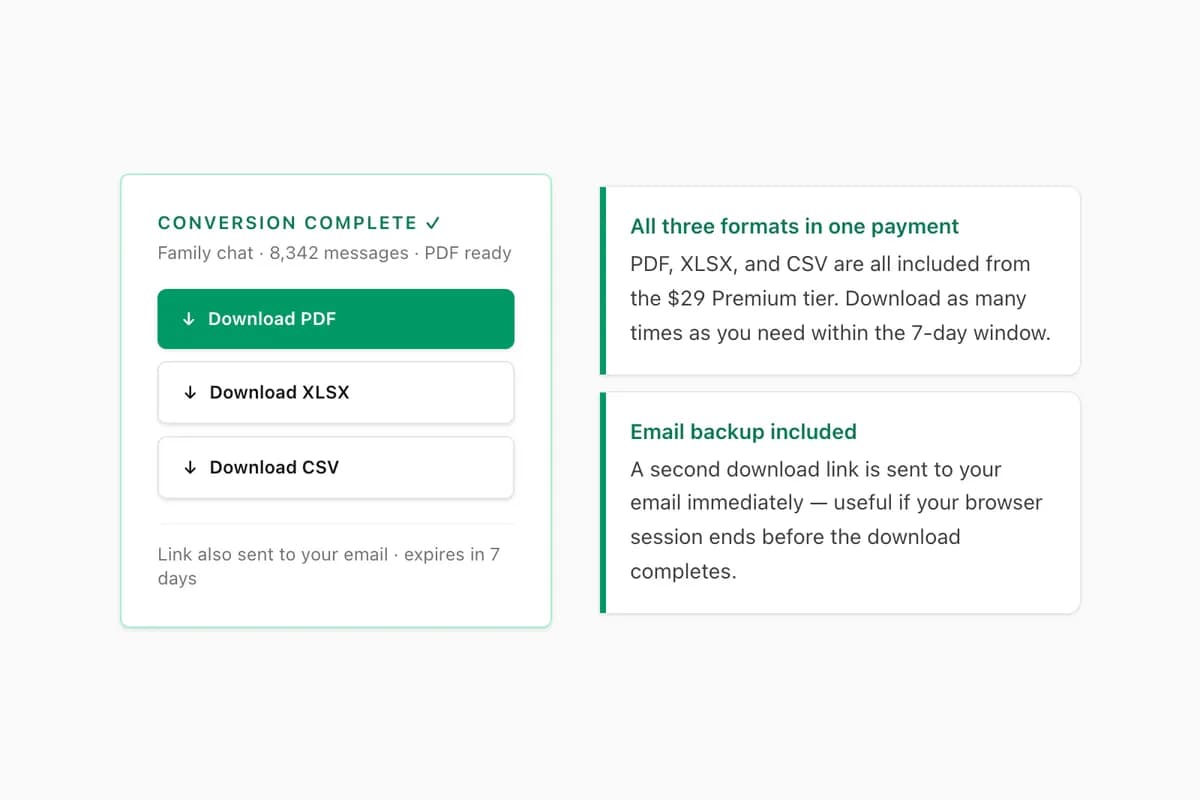
Most supported uploads reach the preview in under 30 seconds. A paid text or image PDF is usually ready within about 90 seconds; very large chats and voice transcription can take longer. When processing finishes, the download appears on-screen and an email provides a backup link.
The four PDF styles
ChatToPDF offers four visual styles for the rendered PDF. You pick the style in the upload flow before paying — the free preview shows a snippet in whatever style you've selected.
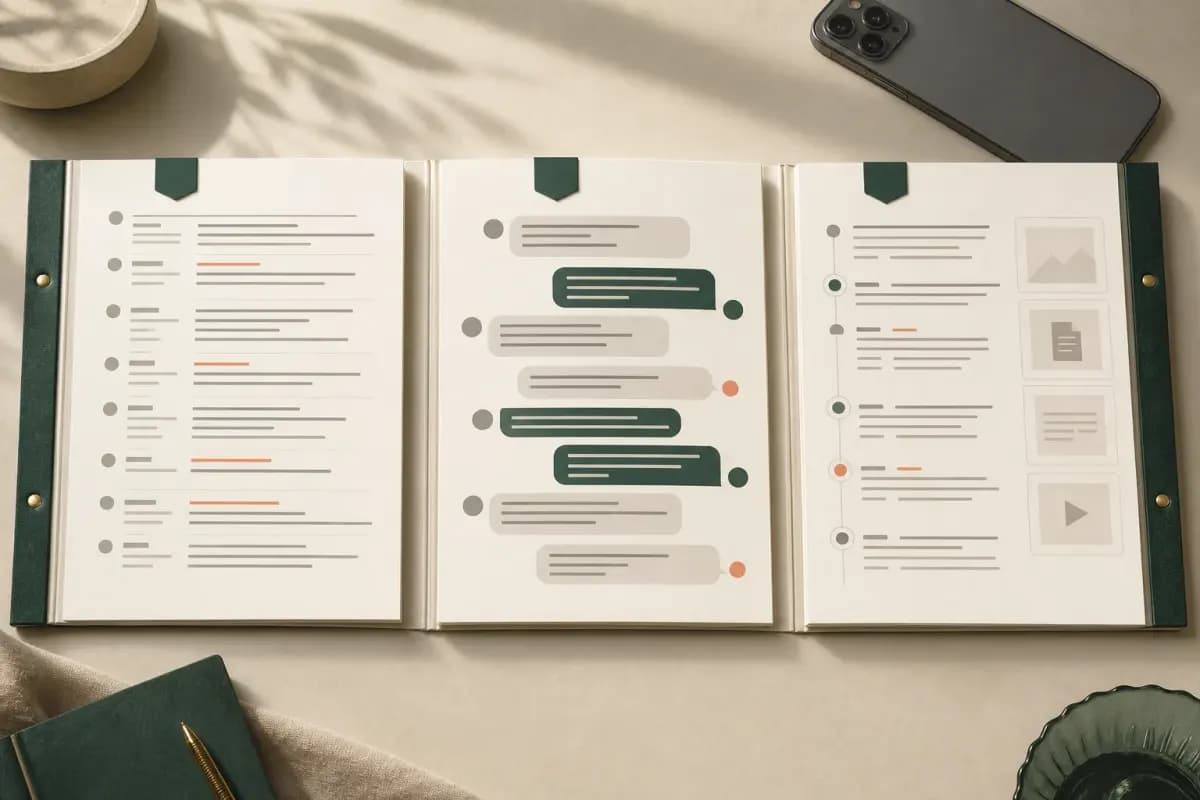
WhatsApp Classic is the closest to a familiar chat view. Messages appear in rounded bubbles with timestamps below them. This style works well when the reader values conversational context and recognisable visual grouping.
Clean Document strips away the bubble design. Messages use a simple transcript layout with clear sender and time labels, making long conversations easier to scan and print.
Formal / Legal adds a document-style cover and structured message chronology. It can make review easier, but a style name does not make a PDF admissible evidence. Preserve the original export and follow the requirements of the relevant court, regulator, or adviser. The WhatsApp evidence PDF guide covers those limits; the WhatsApp Business PDF guide covers HR and record-keeping workflows.
Book Format renders the chat as flowing chronological prose. It is intended for personal archives and conversations that may later be printed as a keepsake.
Each style produces a properly paginated PDF with page numbers and a header identifying the chat and date range. All four styles are available at every pricing tier.
Pricing tiers
ChatToPDF charges per chat conversion. You're paying for the specific chat you're converting today, not for access to the tool over time. There is no recurring billing.
$7 Basic per chat conversion covers text-only PDF export. Images, voice notes, and other media are noted in the PDF as [image omitted] or [voice note omitted] but not rendered. The message limit for Basic per chat conversion is 5,000 messages. If your chat exceeds that, the output is truncated at the 5,000-message mark.
$14 Standard per chat conversion enables supported image rendering. JPG, JPEG, PNG, GIF, and WebP images found and matched in the export can appear inline at the point in the conversation where they were sent; other attachment types remain references rather than image thumbnails. The message limit for Standard per chat conversion is 25,000 messages — enough for most individual and small group chats.
$29 Premium per chat conversion removes the message ceiling entirely. There is no per-chat message cap on Premium per chat conversion. Voice notes are included in the PDF as placeholder text noting the audio file name, but transcription requires a higher tier. XLSX and CSV outputs are included with every paid package, subject to the selected package’s message limit. You do not need Premium just to get a spreadsheet; Premium removes the product message-count cap.
$49 Premium+Voice per chat conversion adds batch voice-note transcription. A language-aware router uses Deepgram Nova-3 or ElevenLabs Scribe v2, depending on the detected language and provider availability. The current registry covers 93 languages, with accuracy bands published on the supported transcription languages page. The tier covers up to eight audio hours in one chat and has no message cap.
$99 Power User per chat conversion covers one very large chat with no audio cap, priority processing, and all features from the tiers above. It is designed for a multi-year group thread or evidence archive whose voice notes exceed the $49 tier's eight-hour audio allowance. All outputs for that one conversion (PDF, XLSX, CSV, voice transcripts and the downloadable bundle) are included. A second chat is a separate conversion.
The upload limit is 150 MB for every package, including Power User. “No audio cap” does not mean unlimited file size. Compare the current prices and package limits.
Each tier covers exactly one chat conversion. If you convert three chats on three different days, you pay three times. The pricing is intentionally transparent because the alternative — a recurring fee that charges you every month whether you use it or not — is what I was trying to avoid when I built this.
For a focused breakdown of what the converter produces at each tier — output formats, the free preview step, speed, and privacy — see the WhatsApp to PDF converter page.
Voice transcription
Voice notes are one of the trickiest parts of WhatsApp exports. The _chat.txt file contains an attachment reference, while the actual audio is a separate file inside the ZIP—commonly an .opus file. The WhatsApp audio format guide explains how to inspect or play those files directly.
If you need one file rather than a whole-chat transcript, first download the WhatsApp voice note, then use the WhatsApp audio-to-MP3 guide only when a target player needs a compatibility copy. Those single-file workflows do not produce a sender-attributed transcript of the whole chat.
Premium+Voice ($49) and Power User ($99) can transcribe supported voice notes in batch. The $49 tier covers up to eight audio hours in one chat; the $99 tier has no audio-duration cap for that conversion and receives priority processing. The current pipeline works as follows:
- ChatToPDF identifies supported audio candidates present in the uploaded ZIP.
- Each file is matched to its reference in
_chat.txtusing the filename and timestamp. - A language-aware router selects Deepgram Nova-3 or ElevenLabs Scribe v2 from the providers configured for that job.
- If the primary provider is unavailable, or a supported fallback condition is detected, the router can try the other provider.
- The returned text is placed beside the matched voice-note reference in the conversation chronology, formatted as:
🎤 [Voice note — 0:32] "transcript text here".
The supported-language registry currently contains 93 languages. Accuracy varies by language, speaker, recording quality and background noise, so important transcripts should be checked against the original audio. See the language directory for the published accuracy band for each language.
Voice notes that appear on the $7 Basic per chat conversion and $14 Standard per chat conversion are not transcribed. They appear in the PDF as [Voice note — 00000012-AUDIO-2024-03-15-09-22-31.opus]. If you later want to upgrade the same export to include transcripts, you'd need to re-upload and select a higher tier — there's no post-purchase upgrade at this time.
If you're weighing this against doing the transcription another way, the WhatsApp speech-to-text guide covers the built-in per-message transcription WhatsApp added natively, and the transcription tools comparison lines up the batch options — including the free ones — honestly.
One thing worth knowing: if a voice note file is missing from the ZIP — perhaps because you chose Without Media when exporting — the transcription tier still works for any voice notes that are present. You'll just see the placeholder text for any that are missing. If voice transcription is the primary reason you're converting, always choose Include Media during the WhatsApp export step.
For a deeper look at how the transcription works across languages and audio quality levels, I put together a dedicated guide at /blog/transcribe-whatsapp-audio, plus a step-by-step WhatsApp voice to text walkthrough.
If you are ready to process the export rather than read the model details, the WhatsApp audio-to-text converter is the direct product page. If WhatsApp's own one-note feature is failing, start with the free fixes in WhatsApp Transcript not available before choosing a paid batch package.
iPhone vs Android differences
The WhatsApp export experience differs between iOS and Android in a few ways that are worth knowing before you start. Both platforms export the same _chat.txt format, but the path to get there and the default share-sheet behaviour are different.
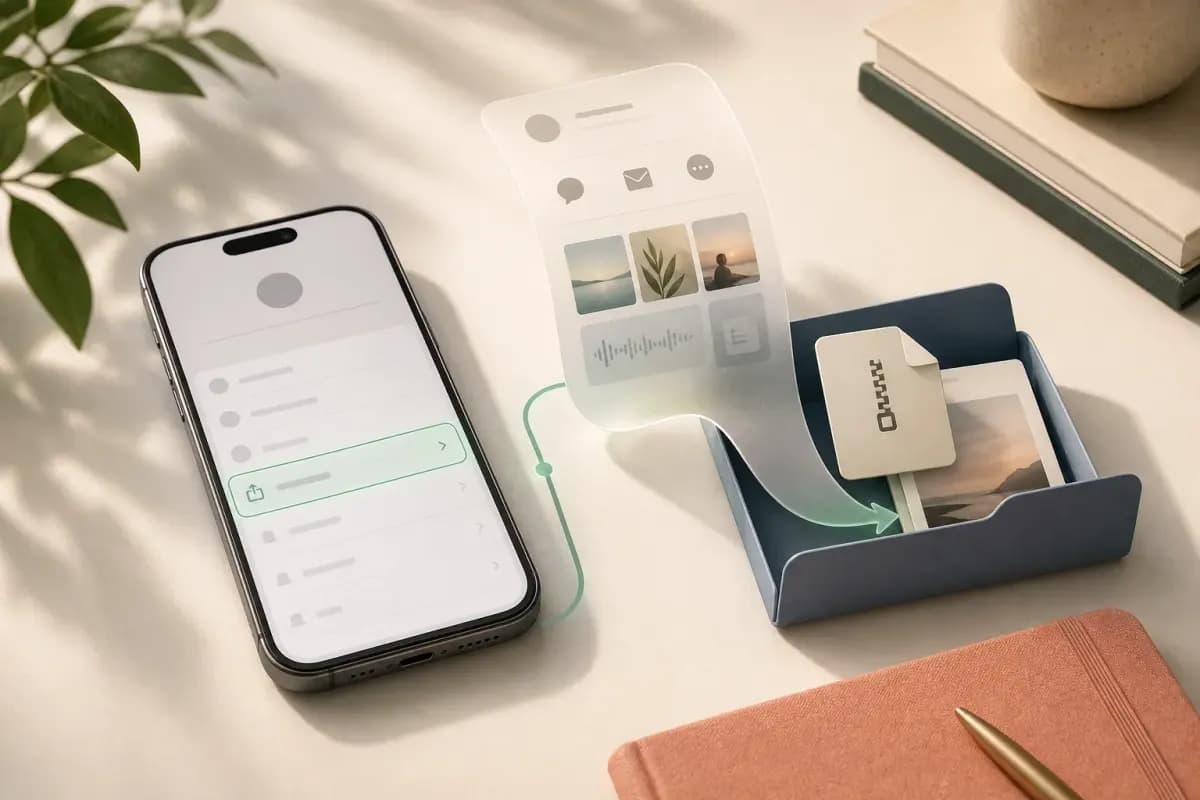
iPhone export path:
- Open the chat → tap the contact name or group name at the top of the screen
- Scroll down past participants, media, and settings
- Tap Export Chat
- Choose Without Media or Including Media
- iOS share sheet appears — tap Save to Files and choose a folder (iCloud Drive > Downloads is a good default)
On iPhone, the export produces either a .txt file (Without Media) or a .zip file (Including Media) and saves it wherever you directed the share sheet. The file is ready to upload immediately.
Android export path:
- Open the chat → tap the three-dot menu (⋮) in the top-right corner
- Tap More
- Tap Export Chat
- Choose Without Media or Including Media
- Android share sheet appears — save to Files or Google Drive
On Android the path is slightly shorter (three-dot menu is one fewer tap than the contact name workaround on iPhone), but the share sheet behaviour varies more between Android manufacturers. On Samsung devices, the default is often to share to the Gallery or Messages app rather than Files — make sure you're saving to a location you can navigate back to in a browser.
Date format differences: WhatsApp exports use different timestamp patterns depending on the device and locale. The parser supports bracketed and unbracketed variants, 12- and 24-hour time, DD/MM, MM/DD, and ISO-like year-first dates. A value such as 01/03/2024 can still be genuinely ambiguous. Compare the preview with the untouched _chat.txt before paying and retain that original file when the interpretation matters.
Emoji and non-Latin text: These characters are stored as Unicode text, but the final appearance can vary by character, font and PDF viewer. Inspect them in the free preview and open the finished file in a current browser or PDF reader before relying on it.
For device-specific instructions, see export WhatsApp chat on iPhone and the combined iPhone and Android export guide.
Privacy and current retention limits
When you're converting a personal conversation — especially one that involves a legal matter, a relationship dispute, or anything sensitive — you want to know exactly what happens to the file after you upload it.
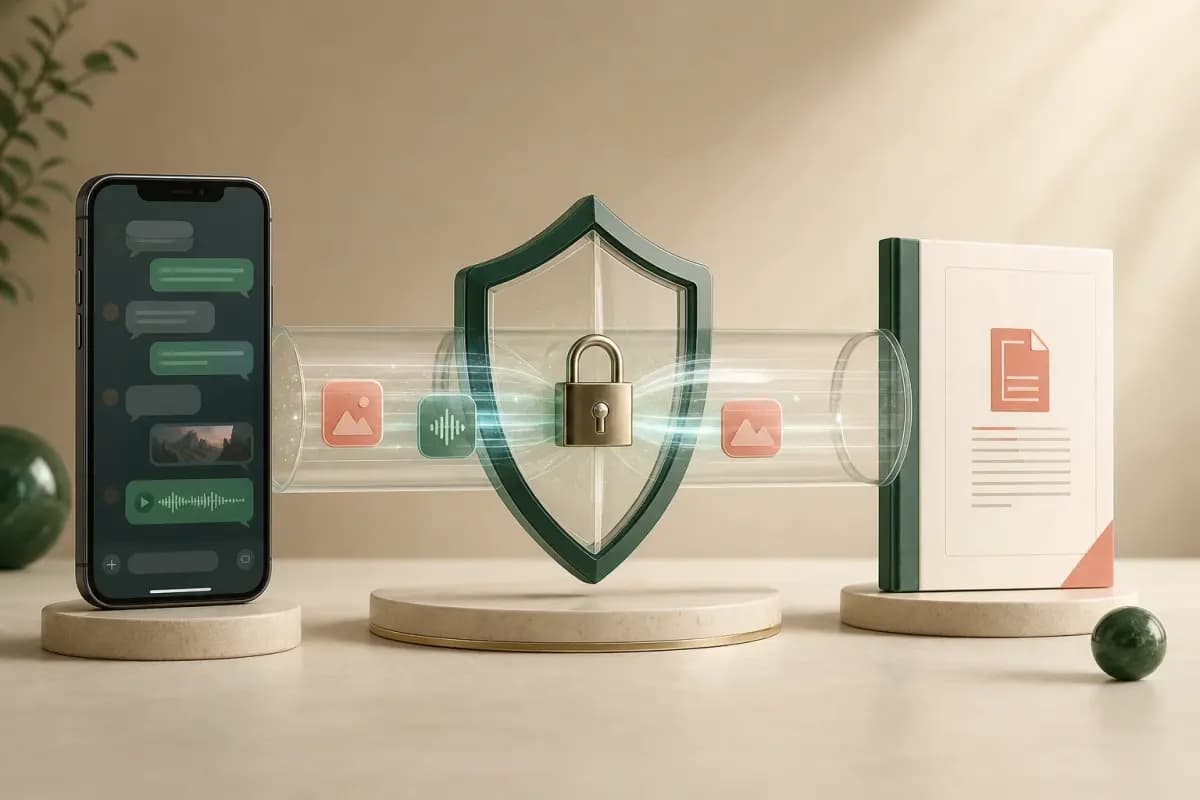
Here's what happens, step by step:
Upload: Your file is transmitted over HTTPS from your browser to the ChatToPDF server, so the connection is encrypted in transit.
Storage: The uploaded file is written to a server-side job directory while the preview, payment and conversion flow runs. ChatToPDF is a cloud processor; if your organisation prohibits uploading the conversation to a third-party server, use a local-only workflow instead.
Processing: The normal conversion is automated. The parser reads the export, builds the preview and renders the output without manual review of the conversation.
Delivery: After processing, the result page provides the download and an email sends a backup link to the address entered for delivery.
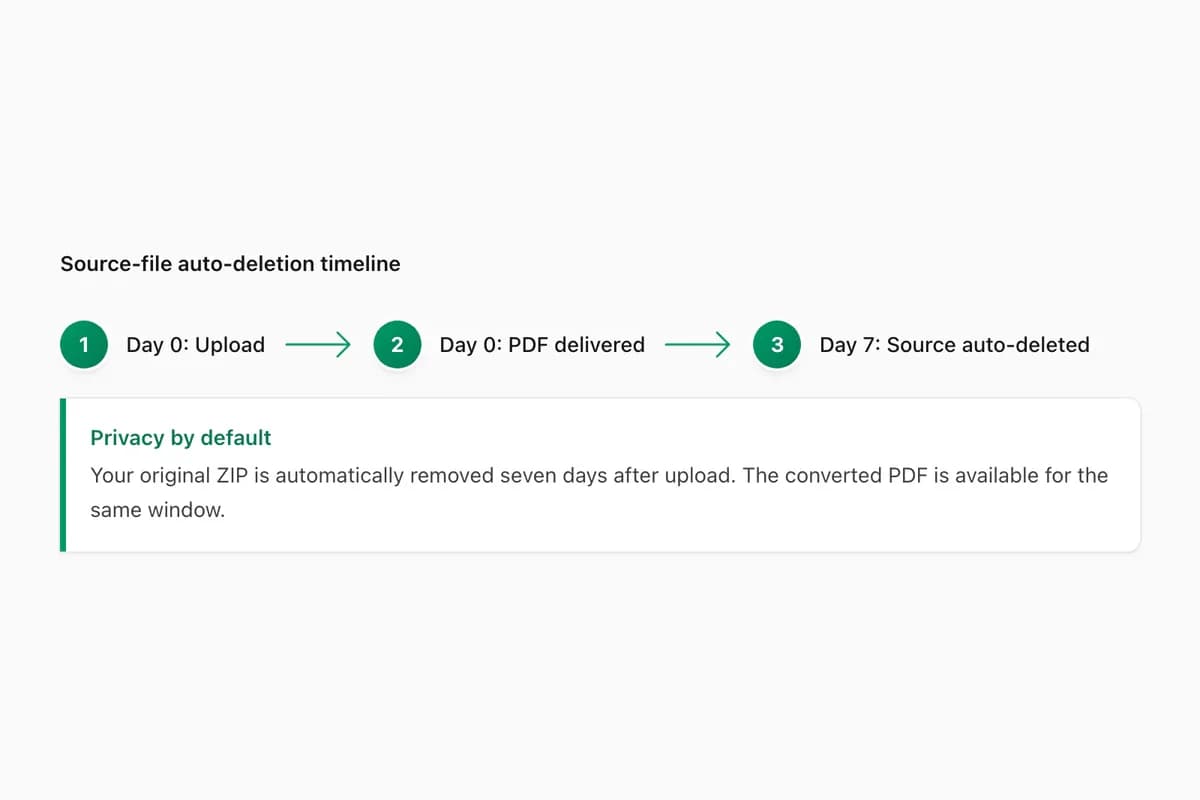
Retention: Production cleanup deletes source exports, extracted media and generated downloads at seven days after job creation for paid, unpaid and abandoned jobs. A job still processing at that boundary can receive a maximum 24-hour grace period so its source is not removed mid-conversion. Download what you need during that window and retain the untouched WhatsApp export as your source record.
No speech provider receives the full chat transcript. On a voice-enabled tier, the configured provider receives the audio needed for transcription. Deepgram requests use mip_opt_out=true; the ElevenLabs path sends enable_logging=false.
There is no ChatToPDF account creation or login. The service still processes the delivery email, job and order metadata needed to fulfil the conversion, and payment providers process their own checkout data. The privacy policy lists the retention periods, service providers and request options.
For organisations with specific data retention or compliance requirements, I'm happy to discuss custom processing arrangements via the contact form. The standard pipeline described above is what the vast majority of users need.
Verified capabilities and limits
The following facts were checked against the product code, published test artefacts and linked primary documentation on 24 July 2026:
- Claim
- Native WhatsApp output
- What is verified
- Export Chat creates a text transcript, optionally packaged with media; it does not create a conversation PDF
- Evidence or limit
- WhatsApp Help Center export instructions
- Claim
- Parser compatibility
- What is verified
- The published Node.js and Python fixture suites each pass 24 of 24 synthetic cases across 14 timestamp layouts
- Evidence or limit
- Public benchmark, fixtures and case-level results; not proof of every format in existence
- Claim
- Large-chat rendering
- What is verified
- The renderer splits jobs above 4,000 messages into separate render passes and merges them; an automated regression test produces one valid PDF from 9,000 synthetic messages
- Evidence or limit
- Implementation and automated test; not a promise that WhatsApp exported the full source history
- Claim
- Largest internal delivery record
- What is verified
- 2,341 PDF pages from one multi-year export
- Evidence or limit
- Internal production record, not an independently audited benchmark
- Claim
- File retention
- What is verified
- Source exports, extracted media and generated downloads are scheduled for deletion at seven days
- Evidence or limit
- A job still processing at that boundary can receive a maximum 24-hour grace period
- Claim
- Voice-language coverage
- What is verified
- The product registry lists 93 transcription languages routed across Deepgram Nova-3 and ElevenLabs Scribe v2
- Evidence or limit
- Coverage is not an accuracy guarantee; important transcripts require audio review
| Claim | What is verified | Evidence or limit |
|---|---|---|
| Native WhatsApp output | Export Chat creates a text transcript, optionally packaged with media; it does not create a conversation PDF | WhatsApp Help Center export instructions |
| Parser compatibility | The published Node.js and Python fixture suites each pass 24 of 24 synthetic cases across 14 timestamp layouts | Public benchmark, fixtures and case-level results; not proof of every format in existence |
| Large-chat rendering | The renderer splits jobs above 4,000 messages into separate render passes and merges them; an automated regression test produces one valid PDF from 9,000 synthetic messages | Implementation and automated test; not a promise that WhatsApp exported the full source history |
| Largest internal delivery record | 2,341 PDF pages from one multi-year export | Internal production record, not an independently audited benchmark |
| File retention | Source exports, extracted media and generated downloads are scheduled for deletion at seven days | A job still processing at that boundary can receive a maximum 24-hour grace period |
| Voice-language coverage | The product registry lists 93 transcription languages routed across Deepgram Nova-3 and ElevenLabs Scribe v2 | Coverage is not an accuracy guarantee; important transcripts require audio review |
You can inspect the underlying evidence: the official WhatsApp export instructions, public parser benchmark and downloadable data, real sample PDF, security overview, privacy policy, and evidence-pack templates. These links distinguish independently published platform instructions, reproducible tests, and ChatToPDF's own operational records instead of treating every claim as the same kind of proof.
Sources, authorship, and corrections
This guide is written by Paul, the founder of ChatToPDF, and was last fact-checked on 24 July 2026. Platform instructions are linked to WhatsApp, Apple, Microsoft, Google, and Adobe. Product limits are checked against the public pricing registry, cleanup policy, parser fixtures, and rendering tests in the current ChatToPDF codebase. Internal delivery records are labelled as internal rather than presented as independent research. The canonical URL is https://chattopdf.app/blog/whatsapp-to-pdf. If a linked platform changes its workflow or a product claim no longer matches the live service, report it through the contact page so the guide can be corrected.
Common issues
Most conversions go through without a hitch. Here are the issues I see most often and how to handle them.
"File not recognised" error on upload. This usually means the ZIP doesn't contain a _chat.txt file, or the .txt file doesn't match the expected WhatsApp format. Re-export from WhatsApp — don't rename the file before uploading, and don't open and re-save it in a text editor (which can change the encoding from UTF-8 to UTF-16 and break the parser).
Date order looks wrong in the PDF. Numeric dates can be ambiguous in short chats. Compare the preview with the first and last entries in the untouched export. If the interpretation is wrong, stop before checkout and contact support with a non-sensitive sample of the timestamp format.
Voice notes appear as placeholders on a Premium+Voice tier. Check that you exported with Including Media, not Without Media. The .opus files need to be inside the ZIP for transcription to work. See the voice transcription section above for the full explanation, or refer to /blog/transcribe-whatsapp-audio.
RTL text (Arabic, Hebrew) displaying incorrectly. Inspect right-to-left conversations in the free preview before paying. If character order or alignment is wrong, stop and contact support with a short redacted sample; do not rely on a PDF that changes the meaning of the source.
Emoji showing as boxes. Try a current browser or PDF reader, then compare the same character with the free preview and source export. Some emoji or composed characters may not exist in the renderer's fonts, so do not assume the viewer is always the cause.
Related WhatsApp PDF troubleshooting guides
Most of the time the export → ChatToPDF path just works. When something on the WhatsApp side goes sideways, here's the specific fix:
- WhatsApp won't open a PDF you were sent — the five causes, in order
- A PDF in WhatsApp won't finish downloading — storage, network, auto-download settings
- Recovering a PDF that was in a WhatsApp chat — Media folders, backup restore, the durable fix
- WhatsApp opens PDFs in the wrong app — setting the default reader on Android and iOS
- "Cannot open file" on a WhatsApp PDF — partial download vs corrupt file
- WhatsApp PDF won't open on iPhone — the iOS-specific checklist
- Xiaomi / Redmi / Poco won't open a WhatsApp PDF — the MIUI battery and permission traps
- Is there a "100 KB" WhatsApp PDF limit? — no, and here's the real number
- Dual / cloned WhatsApp and a "missing" PDF — sandboxed clone storage
- Emojis show as boxes in a converted WhatsApp PDF — font coverage, and how the ChatToPDF output renders them
ChatToPDF vs the alternatives
I'm not the only way to get a WhatsApp chat into a PDF. Here's an honest look at how ChatToPDF stacks up against the tools and workarounds people actually reach for:
| Method | Sender names & formatting | Supported images inline | Searchable text | Effort | Best for |
|---|---|---|---|---|---|
| ChatToPDF (formatted PDF) | Each parsed message is attributed with its available timestamp | Yes, when matched in the export (Standard tier and above) | Yes | Low — upload ZIP, pay, download | Readable review copies, HR records, and personal archives |
| Screenshots | Visible on screen but not structured data | Yes (if visible on screen) | No — images only | High — scroll and capture every screen manually | Quick reference for a handful of messages |
| Print to PDF (phone built-in) | Partial — app UI captured, no metadata layer | Only what fits on screen | Varies by viewer | Medium — becomes awkward on long chats | Very short chats where formatting doesn't matter |
| Desktop app (e.g. Backuptrans) | Yes | Yes | Yes | High — requires desktop, USB cable, and backup file | Power users with technical setup already in place |
| Manual copy-paste | Only if you paste and format manually | No | Yes | Very high — scales poorly as the chat grows | A few isolated quotes needed urgently |
- ChatToPDF vs iLovePDF (for WhatsApp) — why a general PDF toolkit can't do the chat job
- ChatToPDF vs Smallpdf — same story, different toolkit
- ChatToPDF vs PDFSimpli — TXT overlap, ZIP and media differences, plus trial and renewal terms checked against current sources
- ChatToPDF vs Backuptrans — the powerful desktop tool, and what it costs you in time
- ChatToPDF vs iMyFone — the recovery suite with a PDF export buried in it
- ChatToPDF vs your phone's "Print to PDF" — the free workaround, and where it breaks down
- ChatToPDF vs screenshotting the chat — why images of text aren't a real archive
- WhatsApp to PDF converter online free — what's genuinely free versus where you need to pay $7+
Does the new Adobe Acrobat for WhatsApp convert chats?
No. Adobe announced Acrobat-powered PDF tools for WhatsApp Web and WhatsApp on Windows on 22 July 2026. The integration can open, review, mark up, edit, and send back a PDF that is already in a conversation. It does not add a command that exports the conversation itself as a PDF.
Adobe's announcement and Acrobat for WhatsApp FAQ describe PDF viewing and editing on supported web and Windows surfaces. To convert the messages in a chat, start with WhatsApp's Export Chat command on the phone, then use one of the routes in this guide.
Why I built ChatToPDF
I built ChatToPDF after needing a WhatsApp conversation as a readable PDF for a legal matter. The available workflows I found either required a desktop backup process, produced a stack of screenshots, or charged a recurring fee for a task I needed once.
The product starts with WhatsApp's own export rather than attempting to copy messages from the screen. It parses the _chat.txt transcript, matches supported attachments from the ZIP, and creates a paginated document. That origin is also why pricing is per chat conversion instead of a subscription.
This founder context explains the product decision; it is not evidence that a generated PDF meets a particular legal standard. For a high-stakes matter, keep the original export and obtain advice about collection, authenticity, redaction and admissibility in the relevant jurisdiction.
FAQ
Does ChatToPDF charge a recurring fee?
No. Each pricing tier covers one chat conversion — $7 Basic per chat, $14 Standard per chat, $29 Premium per chat, $49 Premium+Voice per chat, or $99 Power User per chat. Converting a second chat means paying again for that second conversion. There is no recurring billing, no auto-renewal, and no account to manage.
Will ChatToPDF read my chat?
The normal conversion is automated and does not require a person to review the conversation. Limited operational access may still be needed to investigate a support or reliability problem. On voice tiers, the configured speech provider receives the audio needed for transcription, not the full chat text. Review the cloud-processing and retention limits before uploading sensitive material.
What's the largest chat I can convert?
Basic permits up to 5,000 messages, Standard up to 25,000, and the three higher tiers do not impose a product message-count cap. The renderer splits jobs above 4,000 messages into passes and merges them; the automated regression suite creates one valid PDF from 9,000 synthetic messages. Actual completion time still depends on the file and media. The largest internal production record is 2,341 PDF pages from one multi-year export; that is an operational record, not an independent benchmark.
Does ChatToPDF work on iPhone and Android?
Yes. Create the TXT or ZIP with WhatsApp's Export Chat command on the iPhone or Android phone, then upload it through the web interface. There is no ChatToPDF app to install. Check the parsed dates, participants and sample messages in the preview before paying.
Can I get a PDF that includes photos and images from the chat?
Yes. Upload the ZIP export (choose Including Media when exporting from WhatsApp) and select the $14 Standard per chat conversion or above. Supported images that are present and matched in the export can appear inline at the position where they were sent. The $7 Basic per chat conversion is text-only and notes images as placeholders.
What if I only need part of a long chat?
WhatsApp does not provide a date-range control in Export Chat. Upload the export, then use the participant and date-range filters included with Premium ($29) and above before generating the PDF. Keep the untouched export separately so the filtered PDF is not mistaken for the complete source.
How do I save a WhatsApp chat as a PDF on iPhone?
Open the chat, tap the contact or group name, scroll down to Export Chat, and choose Without Media or Include Media. Save the resulting TXT or ZIP to Files. For a free text-only PDF, open the text in Pages or Word and export it as PDF. For a formatted chat, upload the original export to a specialist converter and inspect its preview first.
How do I export a WhatsApp chat to PDF with media (photos and images)?
Choose Include Media in WhatsApp's Export Chat flow. The resulting ZIP contains _chat.txt plus the media WhatsApp included in that export. Upload the ZIP and choose Standard ($14) or above to render supported images inline. Compare the first and last timestamps and image count with the source because WhatsApp does not promise that every historical attachment will be present in every export.
Is there a free WhatsApp to PDF converter online?
Yes for text-only conversion: export Without Media, open the TXT in Pages, Word, Google Docs or LibreOffice, and export or print it as PDF. ChatToPDF's parsed preview is free, while the complete download starts at $7 for one chat. The free converter breakdown compares the trade-offs.
How do I print a WhatsApp chat to PDF?
For a complete text transcript, use Export Chat rather than trying to print the scrolling chat screen. Open the exported TXT in a document app and print to PDF, or use a chat converter when you need structured formatting and supported media. Compare the output with the source before printing. See the focused guide to printing WhatsApp messages.
Can I turn a WhatsApp chat into a printable book or keepsake?
Yes. Book Format creates a paginated reading copy, and media-capable tiers can place supported photos with the conversation. Before ordering a physical copy, check the PDF dimensions, margins, image resolution and page count against the printer's specifications. ChatToPDF creates the PDF; it does not print or bind the book.
How do I email a WhatsApp chat as a PDF?
Export and convert the chat first, then attach the PDF to an email like any other document. WhatsApp's share sheet can email the raw TXT or ZIP, but that is still the source export rather than a formatted PDF. Check the recipient's file-size and privacy requirements before sending either version.
Can I export a WhatsApp chat to PDF without the photos (text only)?
Yes. If you only want the words — for a smaller file, a cleaner read, or because the images aren't relevant — export the chat from WhatsApp with "Without Media." That produces a text-only export, and ChatToPDF turns it into a PDF of just the messages, timestamps, and sender names, with no photos or attachments. It's the right choice for a long conversation where what was said matters more than what was shared, and it keeps the file small enough to email easily. If you later want the photos too, re-export with Including Media and convert again. One caveat: voice notes also need Including Media — Without Media strips the audio, so there is nothing to transcribe.
How do I save a WhatsApp chat to my computer (PC or laptop)?
WhatsApp won't let you export straight from a computer — the Export Chat option only exists in the phone app. So the reliable route is: on your phone, open the chat → Export Chat → choose Including Media (or Without Media for text only) → save or email the ZIP to yourself, then open it on your PC or laptop. To turn it into a readable document rather than a raw export, open chattopdf.app in your computer's browser, upload the ZIP, and download the finished PDF straight to your machine. The whole thing runs in the browser — nothing to install — and you end up with the conversation saved locally as a PDF you can file, print, or back up. WhatsApp Web and WhatsApp Desktop can't export a chat themselves, which is why the export still has to start on the phone.
How do I save my WhatsApp chats forever so I don't lose them?
No file format guarantees “forever.” For important chats, retain the untouched TXT or ZIP, create a readable PDF, keep at least two backups on different storage systems, and periodically test that both the source and PDF still open. Use clear filenames and preserve any context needed to understand the export later.
Key takeaways
- WhatsApp does not export a conversation directly to PDF; its Export Chat flow creates TXT or ZIP
- Free text-only route: open the exported TXT in Pages, Word, Google Docs, or LibreOffice and export it as PDF
- Most supported uploads preview in under 30 seconds; paid text or image PDFs are usually ready within about 90 seconds
- Pricing is per-chat-conversion: $7 Basic per chat to $99 Power User per chat, one payment covers one chat
- Voice-enabled tiers route supported audio across Deepgram Nova-3 and ElevenLabs Scribe v2; the registry currently lists 93 languages
- The normal conversion is automated; review the clearly stated server-retention limitation before uploading sensitive material
Related WhatsApp-to-PDF guides
- WhatsApp to PDF converter — what the converter accepts, the output formats, and how each tier compares.
- Free WhatsApp to PDF converter online — what's genuinely free, where free runs out, and how the free preview works.
- How to export a WhatsApp chat — the export step in full, for iPhone and Android.
- Export a WhatsApp chat on iPhone — the iOS-only workflow, every tap.
- Transcribe WhatsApp voice notes — turn voice notes into searchable text inside the PDF.
- Move WhatsApp from Android to iPhone — transfer the export across devices before converting.
- Printing guides: Português, Italiano, Français, Nederlands, and Español.
I'm Paul, the founder of ChatToPDF. I built it after needing a long WhatsApp conversation as a readable PDF for a legal matter. I test and document WhatsApp exports, PDF conversion, voice-note transcription, and the limits people should check before relying on the result.