
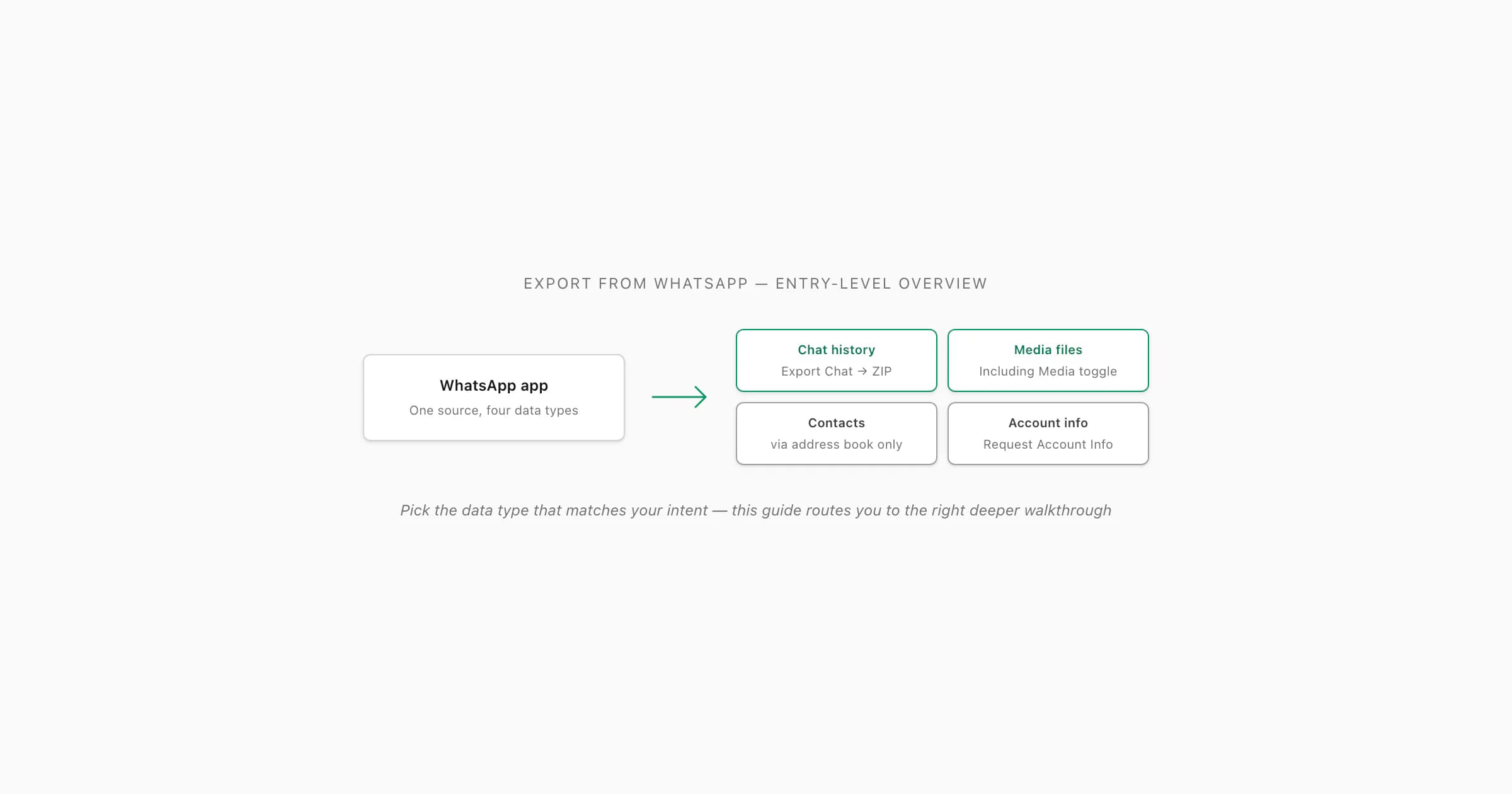
To export from WhatsApp, most people want chat history: open the chat, tap the title (iOS) or three-dot menu → More (Android), tap Export Chat, and choose Without Media or Including Media. WhatsApp also lets you export media files via the share sheet, and request your account data under Settings → Account → Request Account Info. For contacts there is no native export button. Upload an exported chat ZIP to ChatToPDF to convert it to a readable PDF.
What you can export from WhatsApp
The phrase "export from WhatsApp" sounds like one operation. It is actually four. After three years answering this question in support I have stopped guessing what the searcher means and started naming the four buckets up front, because confusing them costs people half an hour of poking through menus that don't exist.
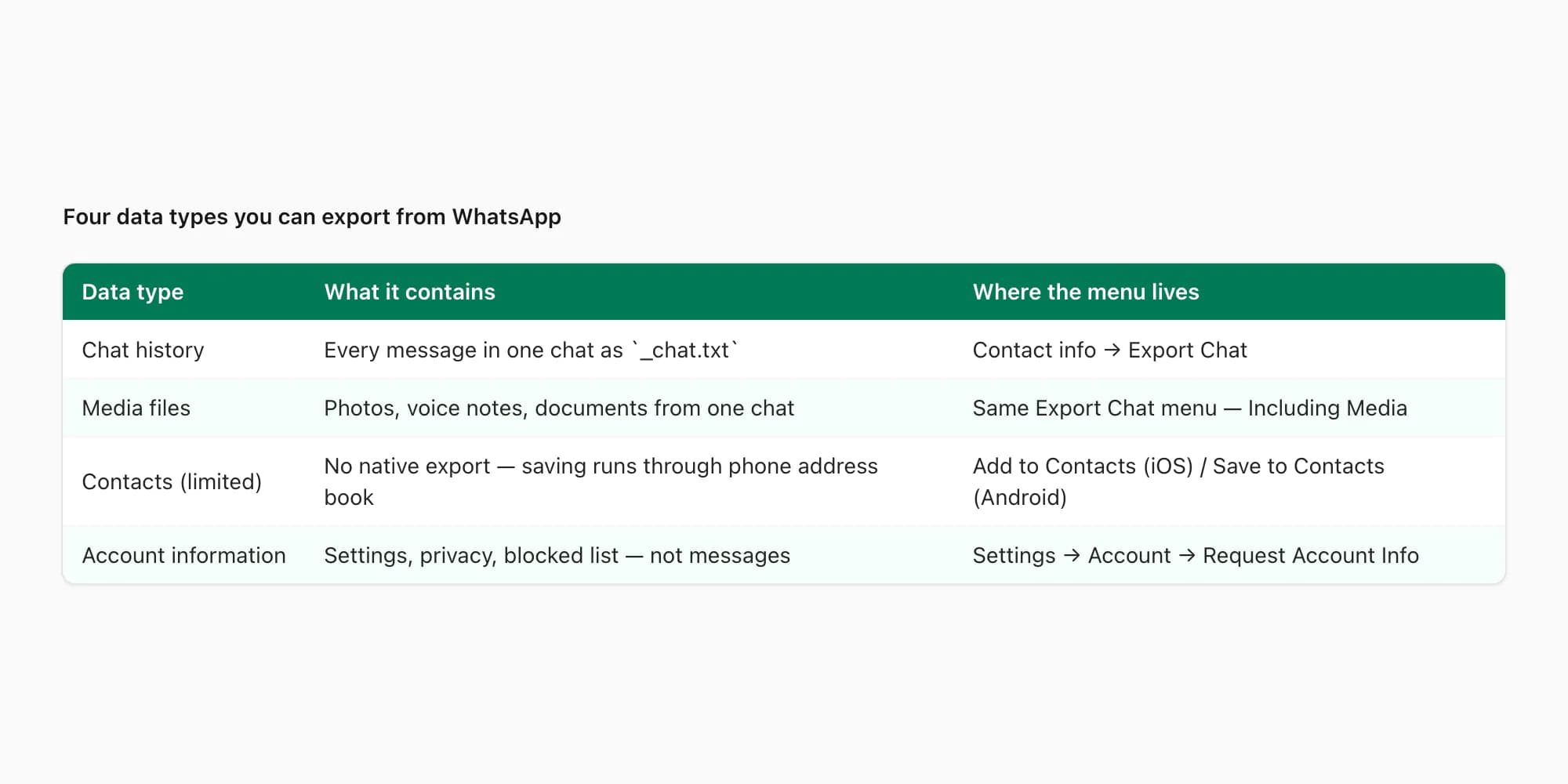
- Data type
- Chat history
- What it contains
- Every message in one conversation, with timestamps and sender names, as a `_chat.txt` file inside a ZIP
- Where the menu lives
- Contact info screen → Export Chat (per chat, not whole-account)
- Data type
- Media files
- What it contains
- Photos, voice notes, documents from one chat — packaged inside the same ZIP if you choose Including Media
- Where the menu lives
- Same Export Chat menu, with the With Media versus Without Media toggle
- Data type
- Contacts (limited)
- What it contains
- WhatsApp does not export contacts directly — saving runs through your phone's address book one tap at a time
- Where the menu lives
- Contact info screen → Add to Contacts (iOS) / Save to Contacts (Android)
- Data type
- Account information
- What it contains
- Settings, privacy preferences, blocked list, group membership list — not your messages or contacts
- Where the menu lives
- Settings → Account → Request Account Info
| Data type | What it contains | Where the menu lives |
|---|---|---|
| Chat history | Every message in one conversation, with timestamps and sender names, as a `_chat.txt` file inside a ZIP | Contact info screen → Export Chat (per chat, not whole-account) |
| Media files | Photos, voice notes, documents from one chat — packaged inside the same ZIP if you choose Including Media | Same Export Chat menu, with the With Media versus Without Media toggle |
| Contacts (limited) | WhatsApp does not export contacts directly — saving runs through your phone's address book one tap at a time | Contact info screen → Add to Contacts (iOS) / Save to Contacts (Android) |
| Account information | Settings, privacy preferences, blocked list, group membership list — not your messages or contacts | Settings → Account → Request Account Info |
The first two buckets are what most people actually want. "Export from WhatsApp" in the wild means "I have a chat I need to get out of WhatsApp" the overwhelming majority of the time — for a backup, for evidence, to read offline, or to convert to a different format. The Export Chat menu handles both: you pick one chat at a time, choose whether to include the media files, and WhatsApp packages everything as a ZIP that lands on whichever destination you pick from the share sheet.
For a voice-note-only goal, keep the original ZIP and use the focused guide to download WhatsApp voice notes; it covers where the recordings sit and why Including Media matters.
The third bucket — contacts — surprises people. WhatsApp does not have a contacts-export feature in the way "export contacts from Gmail" exists for Gmail. The contacts you see in WhatsApp are a filtered view of your phone's address book, and the right place to export them is the OS-level Contacts app. The companion guide how to export contacts from WhatsApp covers the four real workarounds for that bucket.
The fourth bucket — account information — is what WhatsApp calls a Request Account Info report. It contains metadata about your account (registration date, profile settings, privacy preferences) but does not include your messages, your media, or your contacts. The Settings menu surfaces it as a separate flow, several taps deep.
Which guide do you actually need?
The single most useful thing this page can do is route you to the right deeper guide before you read anything else. The "export from WhatsApp" search is genuinely top-of-funnel — most people typing it have not yet decided what they need to do with the data, only that they want it out of WhatsApp. The decision tree below maps the four most common downstream intents to the spoke that walks each one in detail.
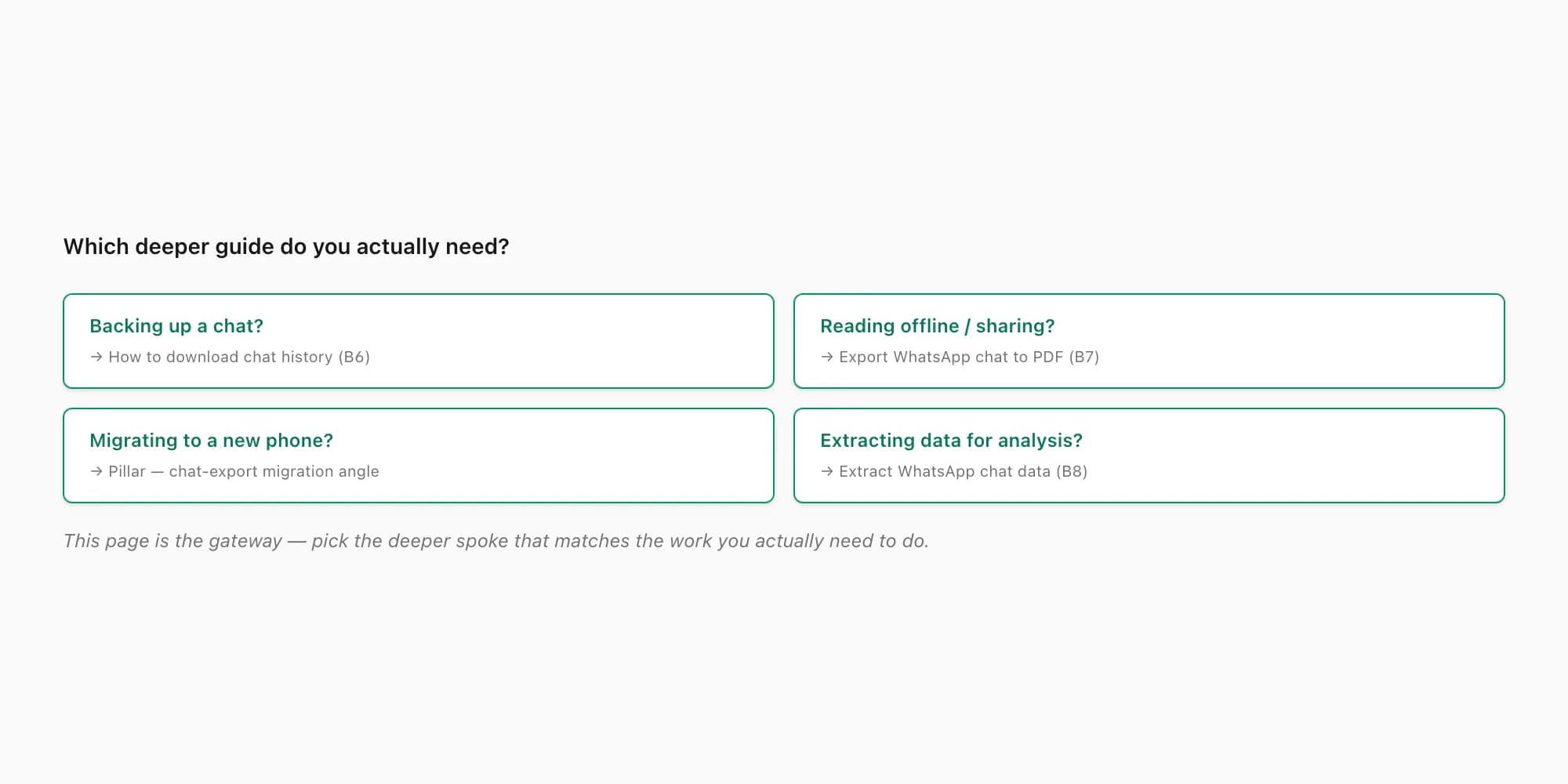
Are you trying to back up a chat so you don't lose it? The path you want is the device-aware backup walkthrough. WhatsApp's Export Chat is one option, but for backup specifically you may also want iCloud (iOS) or Google Drive (Android), which run on different mechanics. The dedicated guide how to download chat history from WhatsApp covers all three backup paths step by step, with the right tradeoffs for each platform.
Are you trying to read a chat offline, archive it for reference, or send it to someone who doesn't have WhatsApp? What you want is a PDF — a single readable document with messages, timestamps, and senders rendered as flowing pages. Run Export Chat to get the ZIP, then convert the ZIP to a sender-attributed PDF. The dedicated guide export WhatsApp chat to PDF covers the conversion paths and what each tier produces.
Are you migrating to a new phone? The export menu is not the right tool for migration. WhatsApp's own chat-migration features (Move to iOS, Move Chats, iCloud or Google Drive backup-restore) handle device-to-device transfer better than Export Chat does, because they preserve metadata that the export strips. The pillar guide on WhatsApp chat export covers the migration angle with the right tradeoffs.
Are you trying to extract data from a chat — pull out phone numbers, count messages by sender, build a dataset for analysis? The right path is Export Chat followed by parsing or conversion. The dedicated guide extract WhatsApp chat data covers the field-level mechanics, what you can pull out, and what to do with it.
Are you reading the chat in court, in an HR investigation, or as part of a research project? The artefact you want is a sender-attributed PDF or XLSX from chattopdf.app — preserves provenance, readable by reviewers, structured enough for filtering. Pricing starts at $7 Basic per chat for text-only and $14 Standard per chat for inline photos. The companion guide export chat WhatsApp covers the menu mechanics that produce the input ZIP.
The basic Export Chat flow — step by step
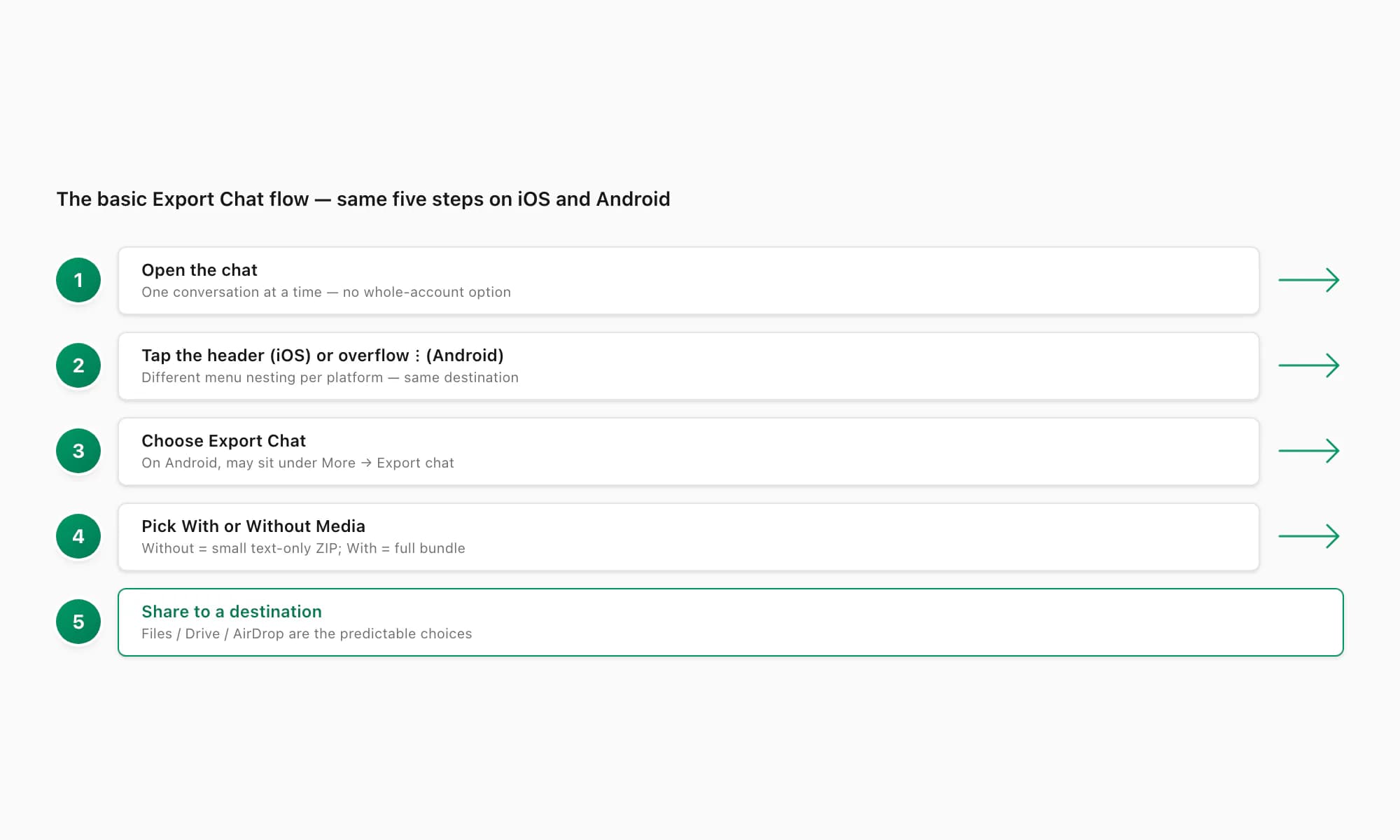
Whichever deeper path you take, all of them start with the same Export Chat tap sequence on the phone. WhatsApp does not currently let you export from WhatsApp Web at the time of writing — the export menu lives only on the iOS and Android mobile apps. (For the Web angle, the pillar guide on WhatsApp chat export covers the workarounds.) The flow takes thirty seconds once you know where to tap.
iPhone — Export Chat
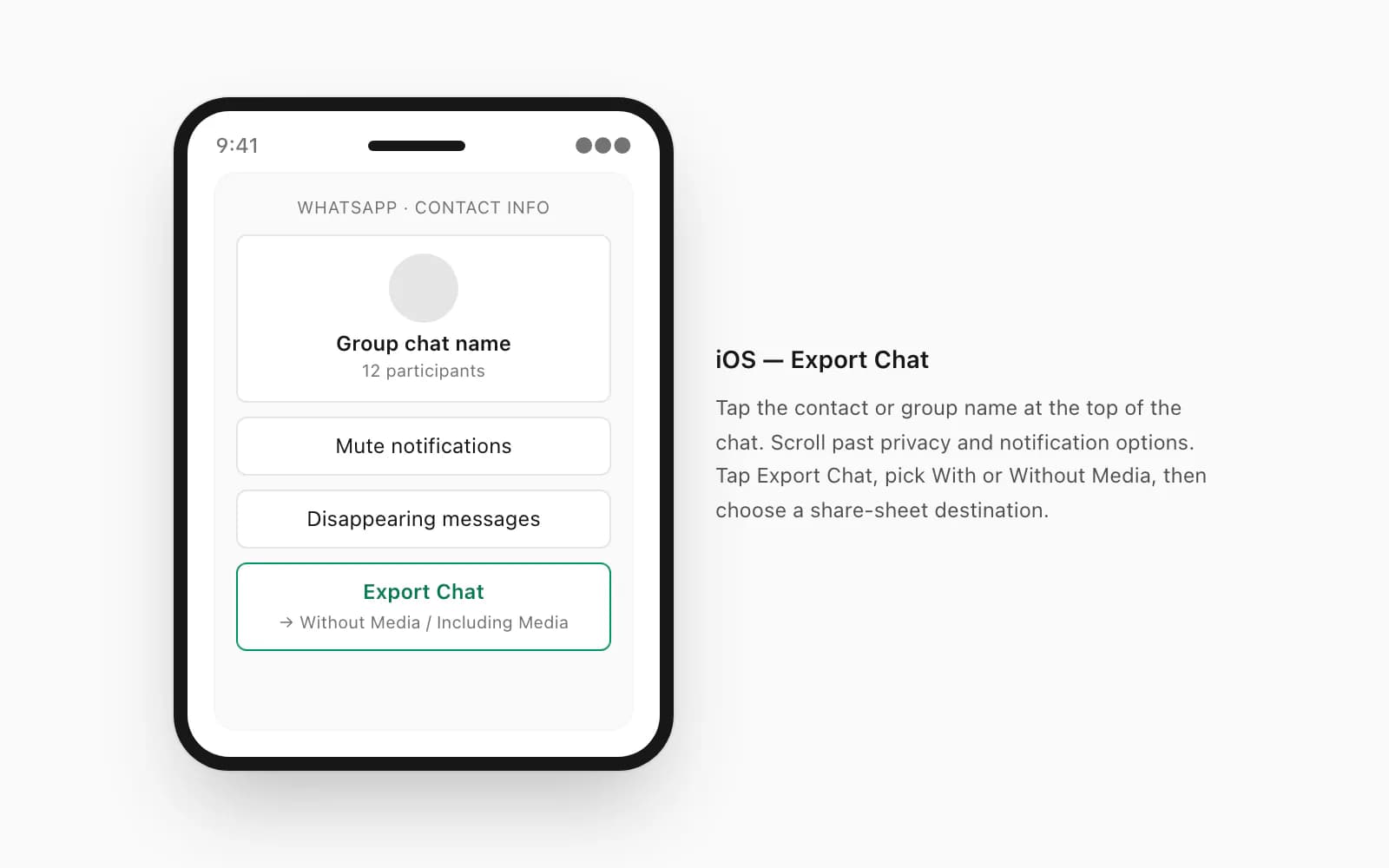
Open the chat you want to export
Tap the conversation in your chat list. The chat opens to its message thread. Make sure you have the right chat — Export Chat operates on one conversation at a time, not on all chats at once.
Tap the contact or group name at the top of the screen
The header opens the contact info (for one-on-one chats) or group info (for groups) screen. This is where the Export Chat menu lives, not under Settings.
Scroll down and tap Export Chat
The Export Chat row sits below the privacy and notification options on iOS. On chats with media, scrolling past the media gallery is the usual hesitation point — keep going.
Choose Without Media or Including Media
Without Media gives you a small ZIP containing just
_chat.txt(typically under 1 MB even for thousands of messages). Including Media bundles photos, voice notes, and documents alongside the text — file sizes can reach 100 MB or more. Pick based on what you need.Pick a destination from the share sheet
The iOS share sheet offers AirDrop, Mail, Files (the on-device file manager), Messages, third-party apps, and any installed cloud storage. The ZIP lands wherever you send it — choosing Files saves it locally for upload to a computer or to a service like chattopdf.app.
Android — Export Chat
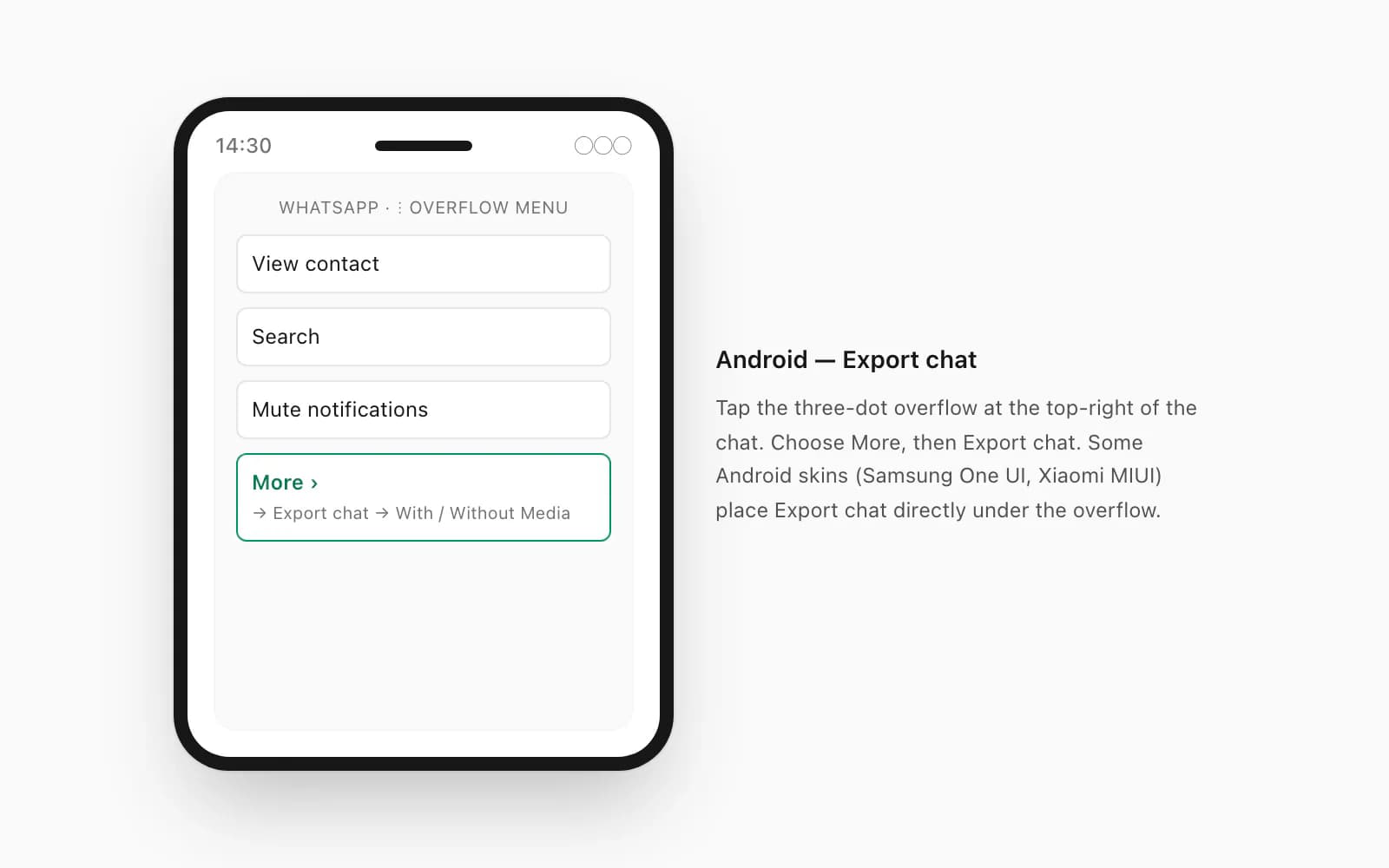
Open the chat you want to export
Tap the conversation in your chat list. The chat opens to its thread. As on iOS, Export Chat is per-chat — there is no all-chats option.
Tap the three-dot overflow menu in the top-right corner
Android places the export menu under More rather than under the contact-info screen. The three dots sit just to the right of the video-call icon at the top of the chat.
Tap More → Export chat
The overflow menu opens; choose More, then Export chat. Some Android skins (Samsung One UI, Xiaomi MIUI) place the option directly under the overflow without the More submenu — both paths reach the same dialog.
Choose Without Media or Including Media
Same toggle as iOS. Without Media for a small text-only export, Including Media for the full bundle. WhatsApp warns that the largest exports may be too big to share via email — the file size shown in the dialog tells you whether to go with that path or pick a cloud destination instead.
Pick a destination from the system share sheet
Android's share sheet offers Gmail, Drive, Files (or Files by Google), Bluetooth, Nearby Share, Messages, and any installed app that accepts shared files. Drive is the most common for follow-on conversion — saving to a Drive folder makes the ZIP easy to download to a computer for chattopdf or any other tool.
The mechanics are deliberately the same on both platforms — same With/Without Media toggle, same share-sheet handoff. The only real differences are menu nesting (info screen on iOS, overflow on Android) and the share destinations on offer. Whichever platform you're on, the artefact you end up with is identical: a ZIP containing _chat.txt plus, optionally, the media files.
Where the export file lands on your device
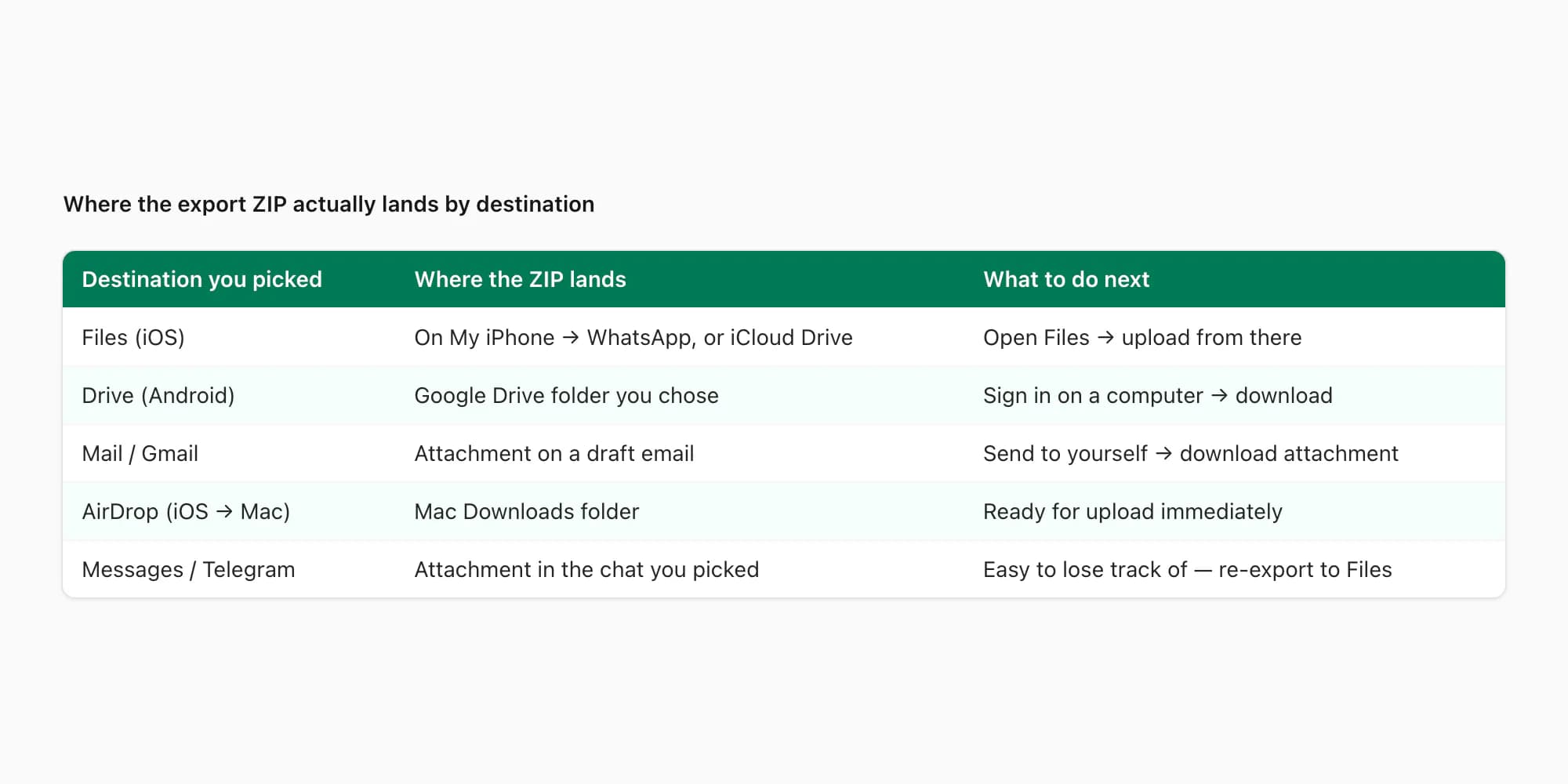
The share sheet is the part where most first-time exporters get tripped up. The destination you pick determines where the ZIP ends up, and "I exported but I can't find the file" is usually a wrong-destination story rather than a real loss. The table below covers the common destinations and where to look for the file afterwards.
- Destination you picked
- Files (iOS)
- Where the ZIP actually lands
- The location you chose inside the Files app — often On My iPhone → WhatsApp, or iCloud Drive
- What to do next
- Open Files, navigate to the saved location, AirDrop or upload from there
- Destination you picked
- Drive (Android)
- Where the ZIP actually lands
- Google Drive at the folder you chose — visible at drive.google.com under that folder
- What to do next
- Sign into Drive on a computer, download the ZIP, upload to wherever you need it
- Destination you picked
- Mail / Gmail
- Where the ZIP actually lands
- An attachment on a draft email — sent to yourself or another address
- What to do next
- Send the email, download the attachment from the inbox on a computer
- Destination you picked
- AirDrop (iOS to Mac)
- Where the ZIP actually lands
- Downloads folder on the receiving Mac, named `WhatsApp Chat - <name>.zip`
- What to do next
- Open Downloads, the ZIP is ready for upload or unarchiving
- Destination you picked
- Messages / Telegram / Signal
- Where the ZIP actually lands
- Sent as an attachment in the chosen chat — accessible only inside that conversation
- What to do next
- Forward to a personal chat, then save the attachment to file storage from there
| Destination you picked | Where the ZIP actually lands | What to do next |
|---|---|---|
| Files (iOS) | The location you chose inside the Files app — often On My iPhone → WhatsApp, or iCloud Drive | Open Files, navigate to the saved location, AirDrop or upload from there |
| Drive (Android) | Google Drive at the folder you chose — visible at drive.google.com under that folder | Sign into Drive on a computer, download the ZIP, upload to wherever you need it |
| Mail / Gmail | An attachment on a draft email — sent to yourself or another address | Send the email, download the attachment from the inbox on a computer |
| AirDrop (iOS to Mac) | Downloads folder on the receiving Mac, named `WhatsApp Chat - <name>.zip` | Open Downloads, the ZIP is ready for upload or unarchiving |
| Messages / Telegram / Signal | Sent as an attachment in the chosen chat — accessible only inside that conversation | Forward to a personal chat, then save the attachment to file storage from there |
A common mistake on iOS is picking a chat app (iMessage, Telegram) as the destination and then losing track of which conversation the file went to. If you cannot find the export and you suspect this happened, the fix is to re-run Export Chat and pick Files this time — it lands somewhere predictable and stays there. WhatsApp does not warn you if the share fails partway through, so a missing file usually means it never made it to the destination rather than that it disappeared.
If your chat is large — thousands of messages with media — the share sheet may show some destinations greyed out because the file exceeds their limits. Email attachments cap at 25 MB on Gmail and 20 MB on most Apple Mail providers. AirDrop, Files, and Drive have no practical limit for the ZIP sizes WhatsApp emits, which is why those are the right destinations for large exports.
What you can't export from WhatsApp
I want to be plain about the limits before someone reads this and goes hunting for menu items that don't exist. The Export Chat menu covers the message timeline of one chat — text and (optionally) media — and that is it. None of the following are exportable from WhatsApp by any documented mechanism:
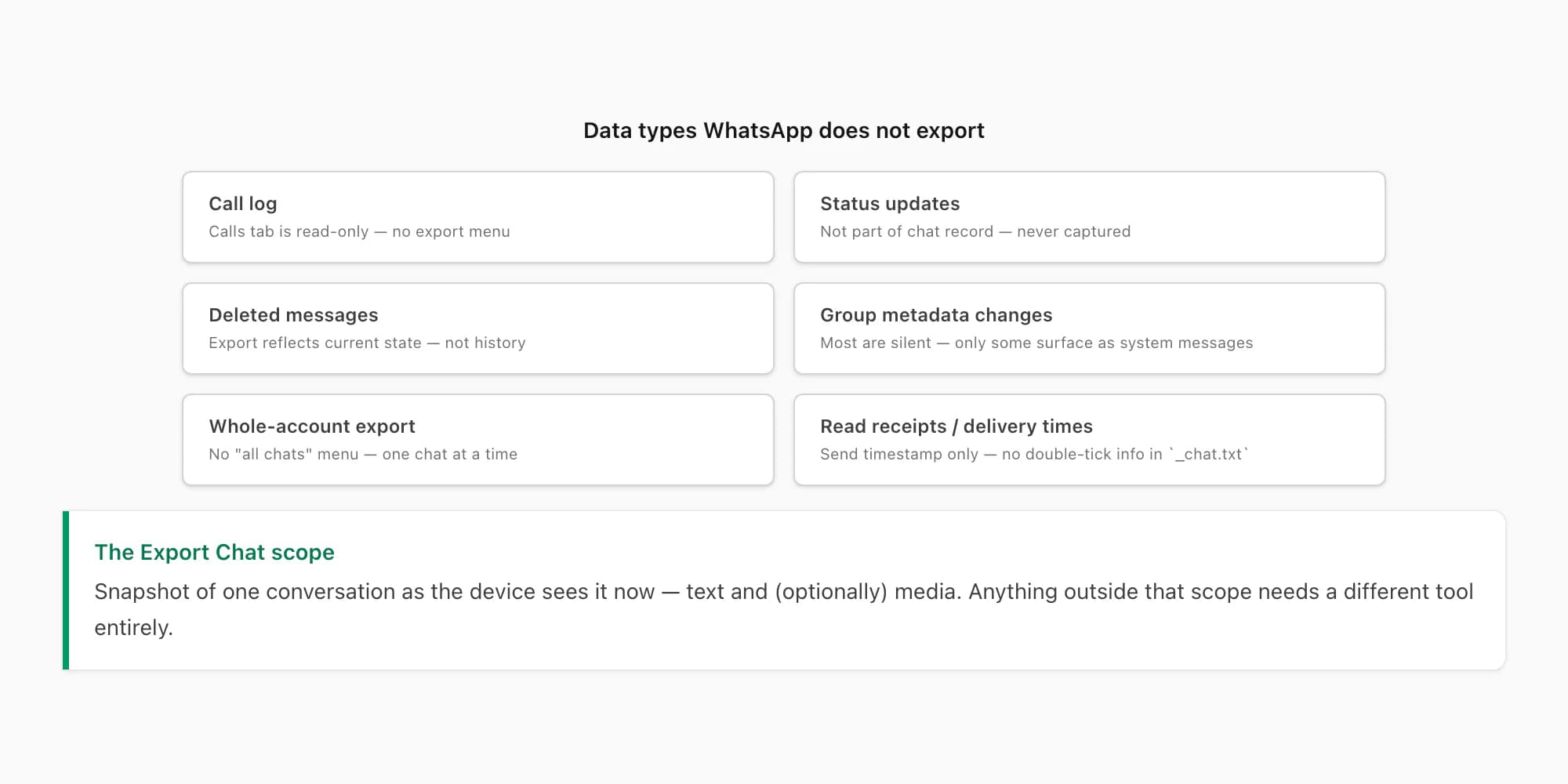
- Call log — neither the WhatsApp Calls tab list nor individual call records can be exported. The call log is read-only inside the app, and Settings → Account → Request Account Info does not include it.
- Status updates — your own or anyone else's. Status posts are not part of the chat record and Export Chat does not capture them. WhatsApp's own FAQ on data downloads confirms this scope.
- Deleted messages — messages you or someone else deleted before you ran Export Chat. The export reflects the chat's current state on the device, not its history including deletions. If a message has been deleted for everyone, the export shows "This message was deleted" in its place rather than the original content.
- Group metadata changes — admin changes, group description edits, group-photo updates. Some of these appear as inline system messages in
_chat.txt(User changed the group description) but most are silent and not captured. - Whole-account exports — there is no menu that exports every chat at once. Each conversation requires its own Export Chat tap. For multi-chat workflows, you run the export N times, once per chat, and end up with N ZIPs.
- Read receipts and delivery timestamps — the export captures the message timestamp (when sent) but not the delivery or read timestamps. Those exist inside the chat UI as the double-blue-tick indicator but never make it into
_chat.txt.
The important takeaway: Export Chat is a snapshot of the chat record as the device sees it now, scoped to one conversation. If a piece of data is not visible in that conversation when you export, it will not appear in the artefact. For data outside that scope — call logs for a phone-bill dispute, status archives for a content-record, deleted messages for a forensic case — the export is the wrong tool, and the right tool is platform-level (carrier records, device backup forensics, third-party retention tools that capture status) rather than WhatsApp itself.
Pricing for the chat-to-PDF route
The chat-to-PDF route is one of the four destinations covered by the decision tree, and it is the one that runs through chattopdf. Pricing is per chat — single payment for a single conversion, no recurring billing, no signup. Each conversion is real work against a specific snapshot of your chat data, so each conversion is priced on its own.
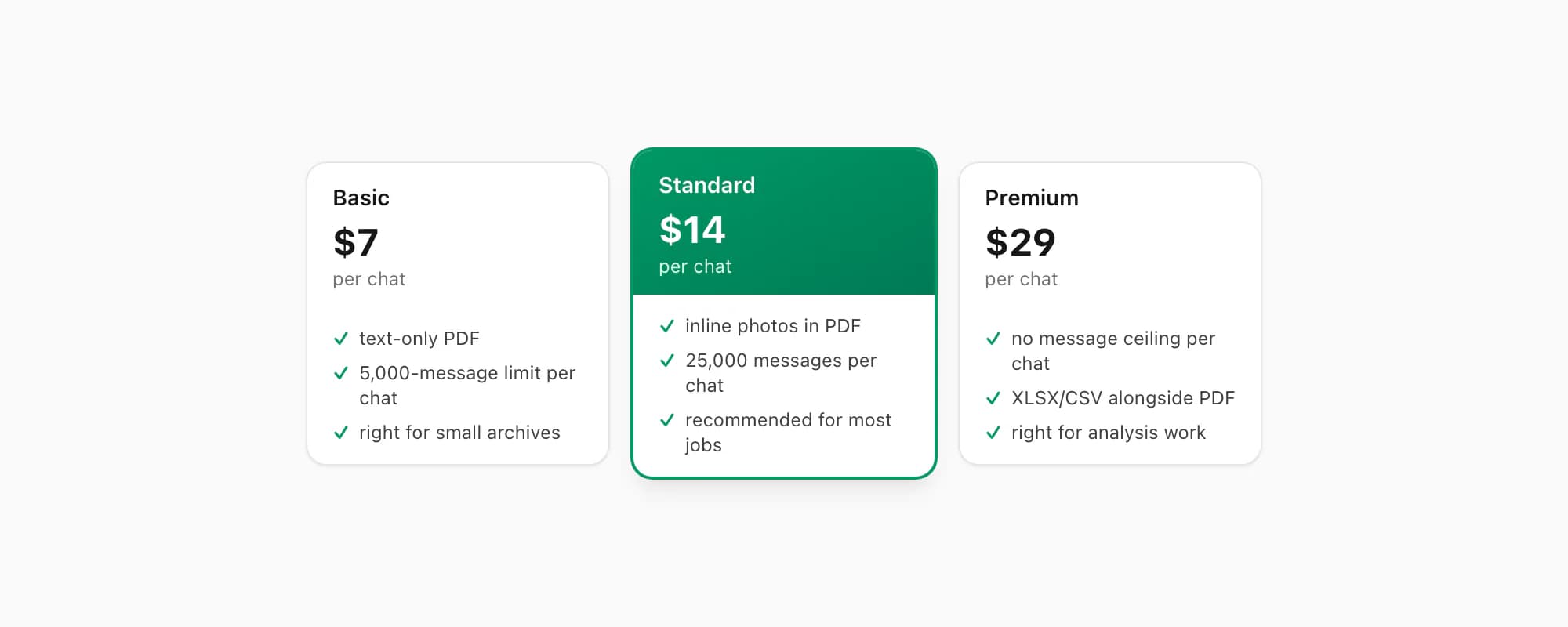
$7 Basic per chat is the entry tier. Text-only PDF, capped at 5,000 messages per chat, no embedded photos, no voice transcription. Right when you have a small-to-medium chat and only need the readable text record — for example, a personal archive or a short business-conversation reference.
$14 Standard per chat is the recommended tier for most jobs and the one I push for legal, HR, and evidence cases. Inline photos appear in the PDF (assuming you exported with Including Media), the per-chat message ceiling lifts to 25,000, and voice notes appear as placeholders. This tier handles the overwhelming majority of real-world chats.
$29 Premium per chat removes the per-chat message ceiling and adds an XLSX/CSV output alongside the PDF — useful for filtering, deduplicating, or handing a structured spreadsheet to a downstream tool.
$49 Premium+Voice per chat adds voice-note transcription through the language-aware Nova-3/Scribe v2 router — supported notes that transcribe successfully become real text blocks with sender attribution preserved.
$99 Power User per chat adds priority queue processing and bulk-conversion support across multiple chats in a single session.
Re-export and re-convert the same chat tomorrow and you pay again — each conversion is real work against a different snapshot. There is no signup, no account, and no commitment beyond the single chat you upload.
Key takeaways
- Export from WhatsApp covers four data types — chat history, media files, contacts, and account info — and the menu path differs for each. Most "export from WhatsApp" searches mean chat history specifically.
- The basic Export Chat flow is the same on iOS and Android: open the chat, tap the header (iOS) or overflow menu (Android), choose Export Chat, pick With or Without Media, share to a destination.
- The artefact is always a ZIP containing
_chat.txt(every message line by line) and, for Including Media exports, the photos, voice notes, and documents alongside. - WhatsApp's Export Chat does not export call logs, status updates, deleted messages, or group metadata changes — it is scoped to the message timeline of one conversation as the device currently sees it.
- Where the file lands depends on the share-sheet destination — Files / Drive / AirDrop are the predictable choices; chat-app destinations like iMessage and Telegram are easy to lose track of.
- For chat-to-PDF specifically, $14 Standard per chat is the recommended tier — inline photos, 25,000-message ceiling, sender attribution preserved, fits most legal-evidence and personal-archive cases.
- Use the decision tree to pick the right deeper guide: backup, read offline, migrate, or analyse — each has a dedicated walkthrough that goes deeper than this entry-level overview.
- To convert the whole chat export into a formatted PDF — from upload to download — the WhatsApp to PDF guide walks through every step.
FAQ
What does 'export from WhatsApp' actually mean?
It depends on what you want to export. WhatsApp supports four export-style operations — chat history (Export Chat menu), media files (bundled inside the same Export Chat ZIP if you choose Including Media), account info (Settings → Account → Request Account Info), and contact saves (one tap at a time via the contact info screen). The phrase "export from WhatsApp" in the wild usually means chat history, which is what the Export Chat menu produces. The output is a ZIP containing _chat.txt plus, optionally, the media files from that chat.
How do I export a chat from WhatsApp on iPhone?
Open the chat, tap the contact or group name at the top of the screen to open the info screen, scroll down and tap Export Chat, choose Without Media or Including Media, then pick a destination from the share sheet. Files or AirDrop are the most predictable destinations — they land somewhere you can find later. Mail and chat-app destinations work too, but it is easier to lose track of where the ZIP went. The whole flow takes about thirty seconds once you know the menu path.
How do I export a chat from WhatsApp on Android?
Open the chat, tap the three-dot overflow menu in the top-right corner, then More → Export chat (some Android skins place Export chat directly under the overflow with no More submenu — both paths work). Choose Without Media or Including Media, then pick a destination from the system share sheet. Drive is the most common destination for follow-on conversion — it saves the ZIP somewhere you can download to a computer easily. Gmail and Files (or Files by Google) also work as predictable destinations.
Can I export all my WhatsApp chats at once?
No. Export Chat operates on one conversation at a time — there is no whole-account export menu. To export multiple chats, you run the flow N times, once per chat, and end up with N separate ZIPs. The pillar guide WhatsApp chat export covers the limits in detail. For multi-chat conversion to PDF, the chattopdf $99 Power User per chat tier supports bulk conversion across multiple chats in a single session — but the upstream Export Chat step still has to run once per conversation on your phone.
Can I export from WhatsApp Web?
Not directly at the time of writing. The Export Chat menu does not exist on WhatsApp Web or the WhatsApp desktop apps — only the iOS and Android mobile apps surface it. If you need to produce an export from a computer, the workflow is to run Export Chat on your phone, share the ZIP to a destination accessible from the computer (AirDrop, Drive, email, Files), and pick it up there. The pillar guide WhatsApp chat export covers the computer angle in detail.
I'm Paul, the founder of ChatToPDF. I built it after needing a long WhatsApp conversation as a readable PDF for a legal matter. I test and document WhatsApp exports, PDF conversion, voice-note transcription, and the limits people should check before relying on the result.