
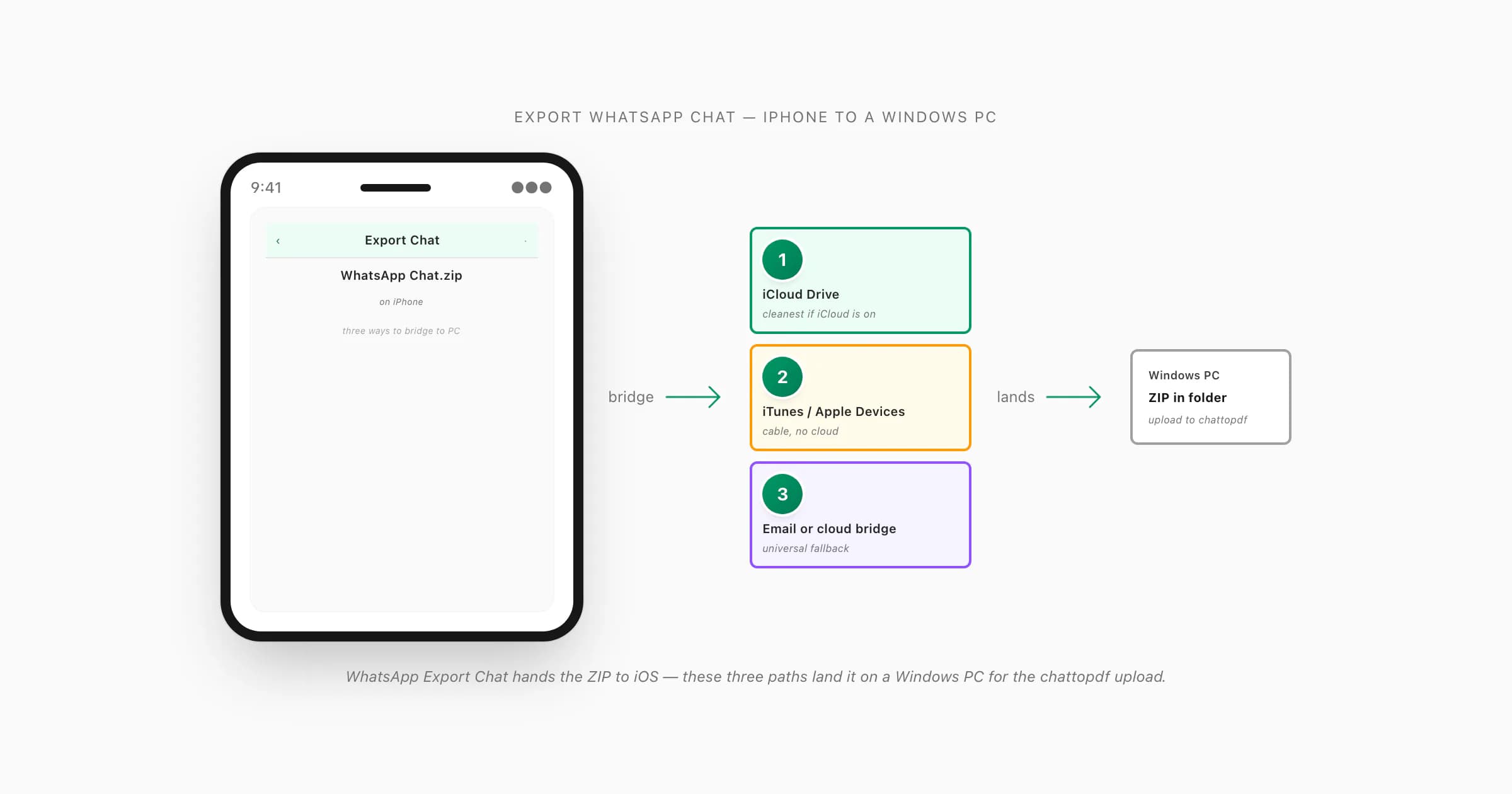
To export a WhatsApp chat from iPhone to a PC, use one of three paths: save the export ZIP to iCloud Drive on iPhone and open it in iCloud for Windows on the PC; plug the iPhone into the PC and use Apple Devices (iTunes) file-sharing to drag the ZIP off; or share the ZIP to Gmail, OneDrive, or Dropbox from the iPhone share sheet and open it in a browser. From the PC, upload the ZIP to ChatToPDF for a formatted PDF.
Three real paths from iPhone to a Windows PC
- iCloud Drive (iPhone-to-PC bridge)
- Apple's cloud storage service, accessible on Windows via the iCloud for Windows app. When you save a WhatsApp export ZIP to iCloud Drive on the iPhone, it automatically syncs to a folder in Windows File Explorer — no cable required. This is the cleanest iPhone-to-PC transfer path for users who already have iCloud set up on both devices.
If you're searching "export WhatsApp chat from iPhone to PC" you almost certainly have an iPhone in your hand, a Windows desktop or laptop on the other side, and a chat you want to land as a file on that PC. The reasons vary — a business archive that belongs on the company laptop, a legal evidence file the lawyer wants on a case computer, a personal save you'd rather manage from a desktop with a real keyboard and folder structure, or eventual conversion to PDF for documentation. The destination is the same: a ZIP file sitting in a Windows folder.
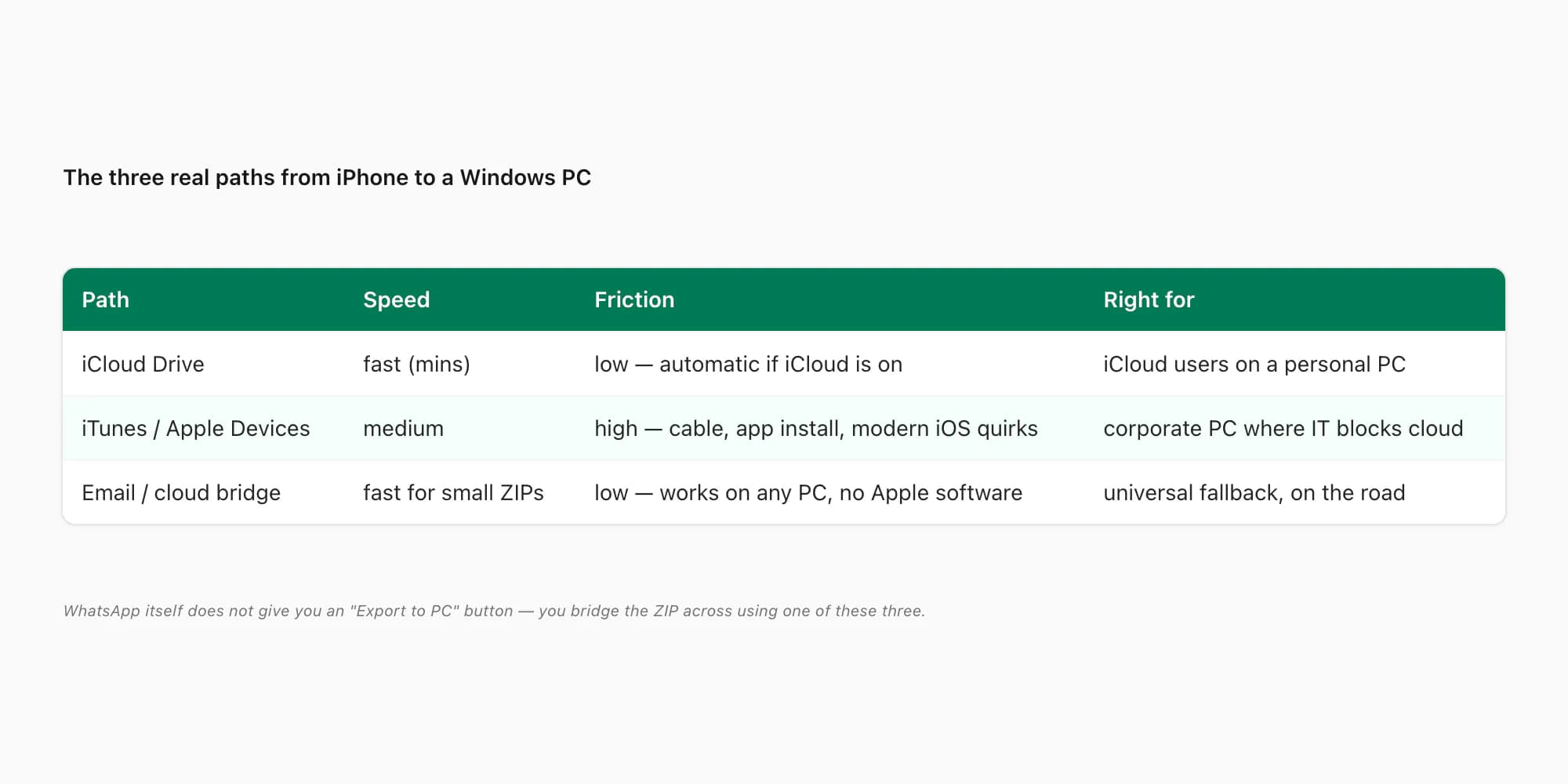
WhatsApp itself does not give you an "Export to PC" button. The Export Chat menu in iOS produces a ZIP and hands it to the iOS share sheet — from there it's up to you to bridge that ZIP across to the PC. There are three real paths, and which one fits depends on what's already set up on both ends:
- iCloud Drive — works on Windows via the iCloud for Windows app or the iCloud web interface. Cleanest if you already use iCloud Drive on the iPhone for documents.
- iTunes / Apple Devices file-sharing — Windows-only, requires the cable. Right answer when the PC is locked down with no cloud account allowed (most corporate laptops).
- Email or cloud bridge — Gmail, Outlook, OneDrive, Google Drive, Dropbox. Universal fallback that works without setup on the PC side.
This guide is the iPhone-to-Windows companion to my export WhatsApp chat FROM iPhone lateral guide, which covers the broader question of where the export can land — Files, Mac, PC, cloud, or email. The cluster-5 pillar WhatsApp Android to iPhone sits over the iPhone-side guides; the per-chat walk-through that this guide builds on lives at iPhone WhatsApp chat to PDF in 30 seconds.
Path 1 — iCloud Drive (cleanest if you already use iCloud)
If iCloud Drive is already enabled on the iPhone and you have an iCloud account you're willing to access from the PC, this is the path with the fewest steps. Apple's own infrastructure does the heavy lifting and there's no cable, no email attachment cap, no third-party cloud account to set up.
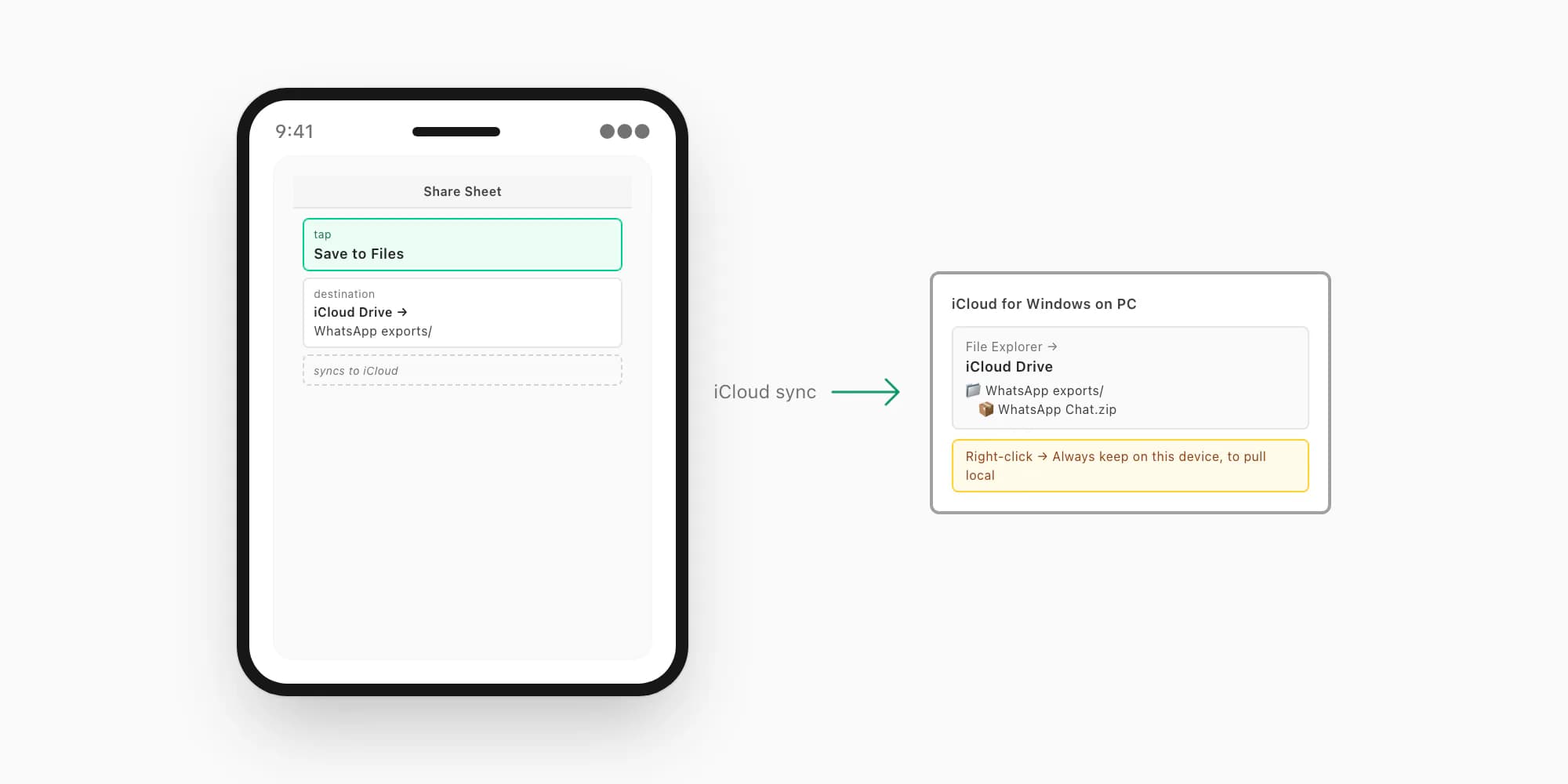
The iPhone half:
Open the chat on iPhone and tap Export Chat
Tap the Chats tab in WhatsApp, tap the conversation you want to export, tap the contact name at the top to open chat info, scroll to Export Chat. Pick Without Media for a small fast ZIP, or Including Media if you need the photos.
From the share sheet, tap Save to Files
After the compress step finishes, the iOS share sheet opens. Tap Save to Files (not Mail, not WhatsApp, not Messages). On the next screen pick iCloud Drive as the destination and an existing folder or create a new one called "WhatsApp exports".
Tap Save and let iCloud sync finish
The ZIP saves into iCloud Drive immediately on the iPhone but takes a few seconds to a minute to sync up to Apple's servers depending on connection. The Files app shows a small cloud icon next to the file while sync is in progress; once that disappears the file is up.
The PC half:
Install iCloud for Windows from the Microsoft Store
On the PC, install Apple's iCloud for Windows app from the Microsoft Store. Sign in with the same Apple ID as the iPhone. Tick the iCloud Drive checkbox and apply.
Open File Explorer and navigate to iCloud Drive
After sign-in, File Explorer gets a new "iCloud Drive" entry in the left sidebar. Open it. The "WhatsApp exports" folder you created on the iPhone appears with the ZIP inside.
Right-click the ZIP, pick Download Now to pull it local
Files in iCloud Drive on Windows are placeholder-only by default — the file shows but isn't yet downloaded to local storage. Right-click and pick "Always keep on this device" or "Download now" to actually pull the ZIP onto the PC's drive. Now you have it locally and can upload it to chattopdf.
If you don't want to install iCloud for Windows, you can also use the iCloud web interface — go to icloud.com, sign in, click iCloud Drive, navigate to the folder, click the ZIP, click the cloud-with-arrow download icon. Slightly less smooth but works on any PC including ones where you can't install Apple software.
The iCloud path is the cleanest if iCloud is already set up — most iPhone owners have it on by default. If iCloud Drive is disabled on the iPhone (Settings → [your name] → iCloud → toggle off iCloud Drive), the Save to Files step still works but only saves locally to "On My iPhone", and there's no PC-side sync — you'd need one of the other paths.
Path 2 — iTunes / Apple Devices file-sharing (cable, no cloud)
If the PC is a corporate laptop where IT blocks cloud accounts, iCloud installs, and personal Gmail, you still have one path — the cable. Apple's iTunes (legacy) or the newer Apple Devices app on Windows 11 reads files directly off the iPhone over USB through the same file-sharing mechanism that apps have used since iOS 4. WhatsApp publishes its export ZIPs into a documents folder that's visible through this interface.
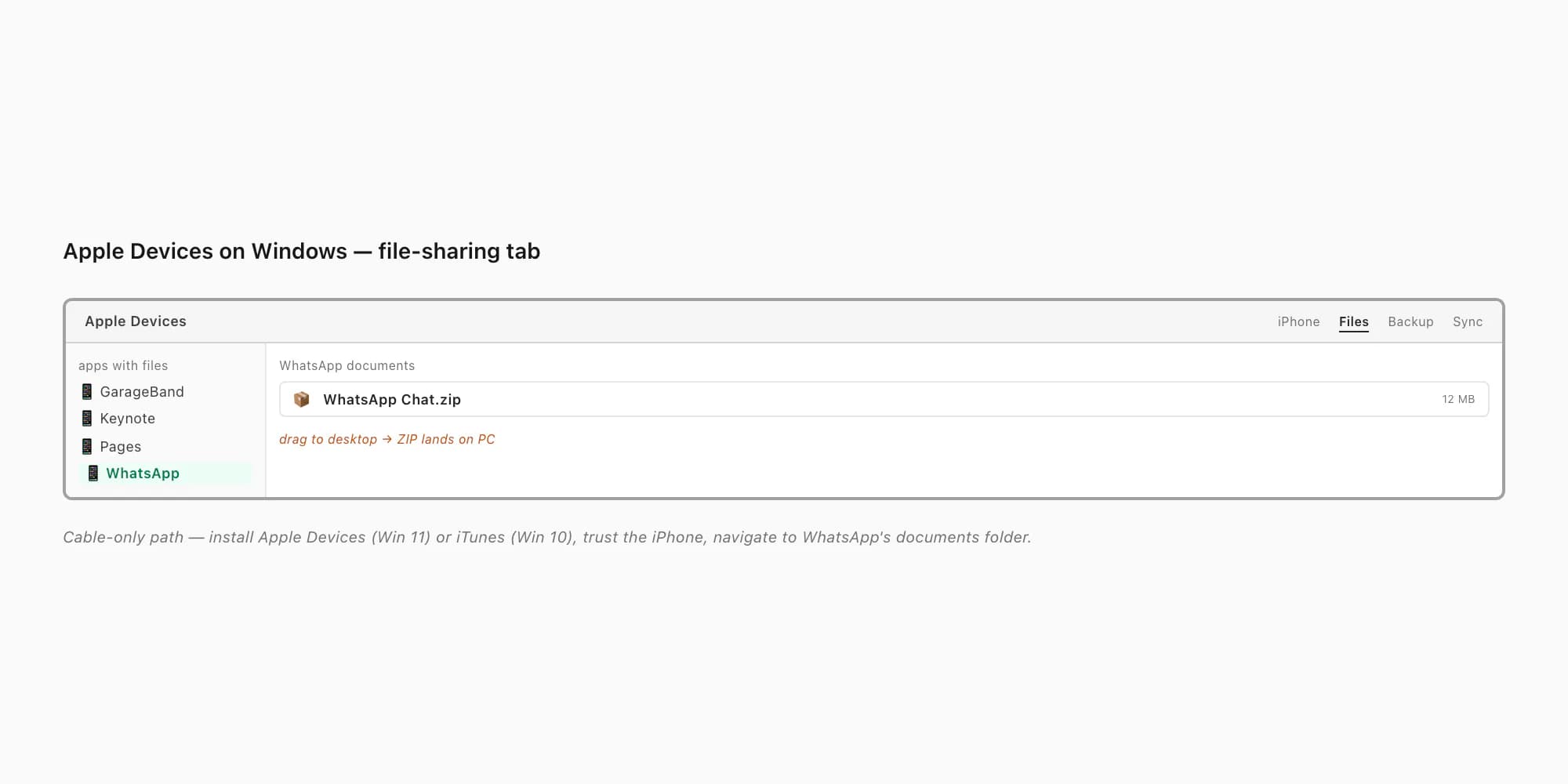
The catch — this only works for ZIPs that WhatsApp wrote to its file-sharing folder, which generally means you exported the chat first and the ZIP is sitting there. If you exported the chat with Save to Files into On My iPhone → Downloads, that ZIP is not in the WhatsApp app folder; it's in the Files app's local store, which the Apple Devices file-sharing UI doesn't reach. So the Path 2 workflow is a little different — instead of using the iPhone Files app to save the ZIP, you keep it inside WhatsApp's own export-share state until you cable across.
The simpler version most people end up using:
Install Apple Devices on Windows 11 (or iTunes on Windows 10)
Windows 11 — install the Apple Devices app from the Microsoft Store. Windows 10 — install iTunes from apple.com. Both expose the same file-sharing interface; Apple Devices is the modern replacement.
Plug the iPhone into the PC via Lightning or USB-C cable
Use the cable that came with the iPhone, or any quality data cable (some cheap chargers are charge-only and won't surface a data connection). Tap "Trust This Computer" on the iPhone if prompted.
Open Apple Devices, click the iPhone, click Files
The iPhone appears in Apple Devices' left sidebar. Click it, then click the Files tab in the top navigation. You see the list of apps on the iPhone that publish a file-sharing folder.
Save the ZIP from iPhone to Files (On My iPhone), then drag it across using the Files app on Windows
The cleanest way — on the iPhone, after Export Chat, pick Save to Files and pick On My iPhone → a folder. Then on Windows, you actually need to use either the iCloud path or the email/cloud bridge — Apple Devices file-sharing doesn't expose On My iPhone Downloads. So if cable is your only option and IT blocks cloud, the practical move is to first save to Files, then connect via cable and use Apple Devices' Files-tab app-folder browser, which exposes app-specific documents. Many users find Path 3 (email/cloud) is simpler in practice for this scenario.
In honest practice, the cable path on Windows is the bumpiest of the three. iOS has been moving away from app-published file-sharing folders for years — newer apps don't publish to it, and iOS 17 and later make it less prominent in the share sheet. For a 2026 iPhone with a current WhatsApp version, the cable path often needs a cloud assist anyway. If you're on a locked-down corporate laptop, a fairly common workaround is to use the personal phone's mobile data to upload to a personal Gmail, then ask IT to whitelist the chattopdf.app domain so you can upload directly from the corporate browser — see Path 3 below.
Path 3 — email or cloud bridge (universal fallback)
The third path is the most universal — it works on any PC including locked-down corporate ones, requires no Apple software install on Windows, and uses cloud services most people already have.
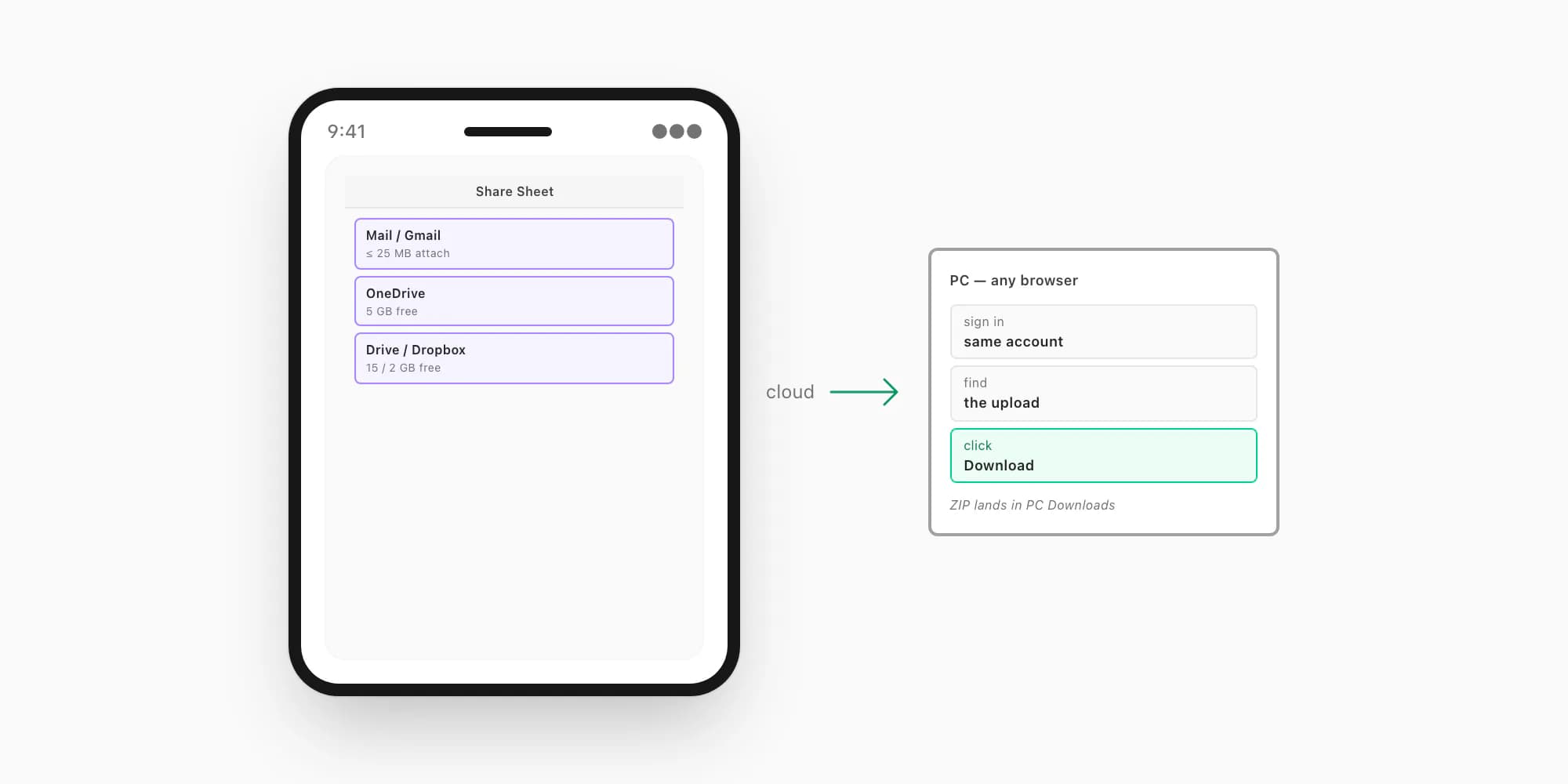
The bridge — email yourself the ZIP, or upload it to a cloud service from the iPhone share sheet, then download it from the same account on the PC.
Export Chat on iPhone, pick Without Media
Without Media is critical here because email attachment caps and free-tier cloud limits are tight — Gmail caps at 25 MB per attachment, Outlook at 20 MB, and most chat exports with media are well past those limits. Without Media stays under 50 MB even for very long chats.
From the share sheet, pick Mail, Gmail, Outlook, OneDrive, Google Drive, or Dropbox
The iOS share sheet shows whichever of these apps you have installed on the iPhone. Pick the one whose web interface you can sign into from the PC. For corporate laptops with no personal apps allowed, Outlook is often the best pick because corporate accounts are usually allowed.
Send to yourself or upload
For Mail / Gmail / Outlook — send the email to your own address. For OneDrive / Drive / Dropbox — upload to a folder on your own account. The ZIP travels through the cloud service to the destination.
On the PC, sign into the same account in any browser and download
Open a browser on the Windows PC. Sign into Gmail / Outlook / OneDrive / Drive / Dropbox. Find the email or file you just sent, click the attachment, click Download. The ZIP saves to the PC's Downloads folder. Done.
This path works without any Apple software on the PC, without cables, and without iCloud setup. The only real constraint is the file-size cap — Gmail and Outlook attachments are limited, OneDrive free tier gives 5 GB total which is plenty, Google Drive free 15 GB. For chats past the email attachment cap, switch to OneDrive or Drive instead of email.
For very large chats that even Without Media struggles with, see how to export large WhatsApp chat iPhone which covers the workarounds for past-40k-message chats.
Once the ZIP is on the PC — uploading to chattopdf
All three paths land you with the same outcome — a WhatsApp ZIP file sitting in a Windows folder. The next step is the same regardless of which path you used.
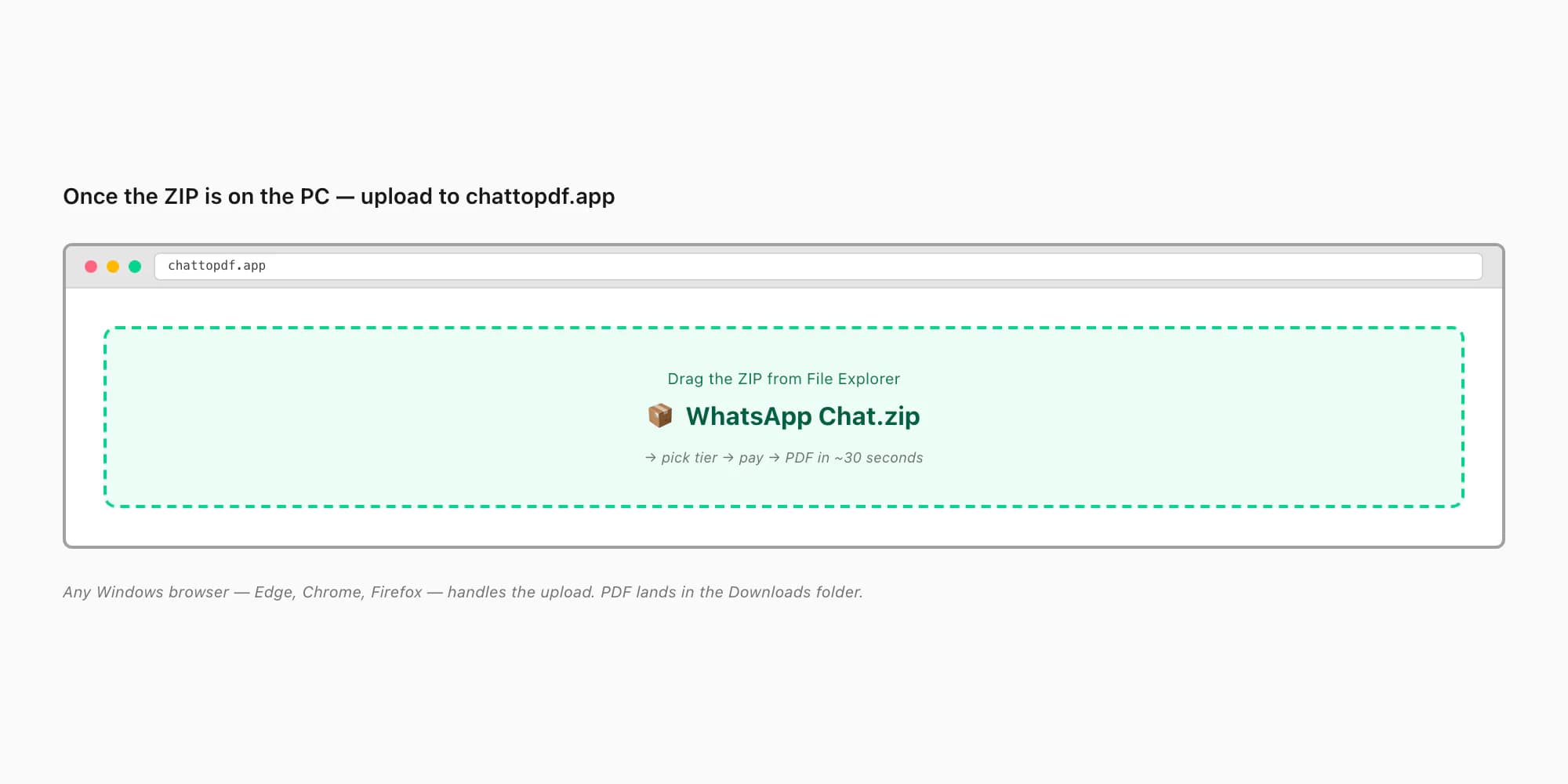
Open any browser on the PC — Edge, Chrome, Firefox, all work — go to chattopdf.app, drag the ZIP onto the upload area or click to browse and pick it. Pick the tier (more on that below), pay, and the PDF is ready in about 30 seconds for normal chats. The browser uploads the ZIP to the conversion service, the chat is parsed and rendered, and a download link appears.
The PC's role is just the upload host — it's actually a simpler client than the iPhone in many ways, with a real keyboard for typing the email address, larger screen for previewing the PDF, and a clean folder structure for filing the result alongside other documents. Many people who try the iPhone-direct upload path then come back to do the PC version because the desktop browser is just easier for paying, downloading, and filing.
The PDF download lands in the PC's Downloads folder. From there it's a normal Windows file — drop it into OneDrive, attach it to an email, print to physical paper for a court bundle, archive it into a project folder. The fact that the chat originated on iPhone is invisible by this point.
Mac users — AirDrop is simpler
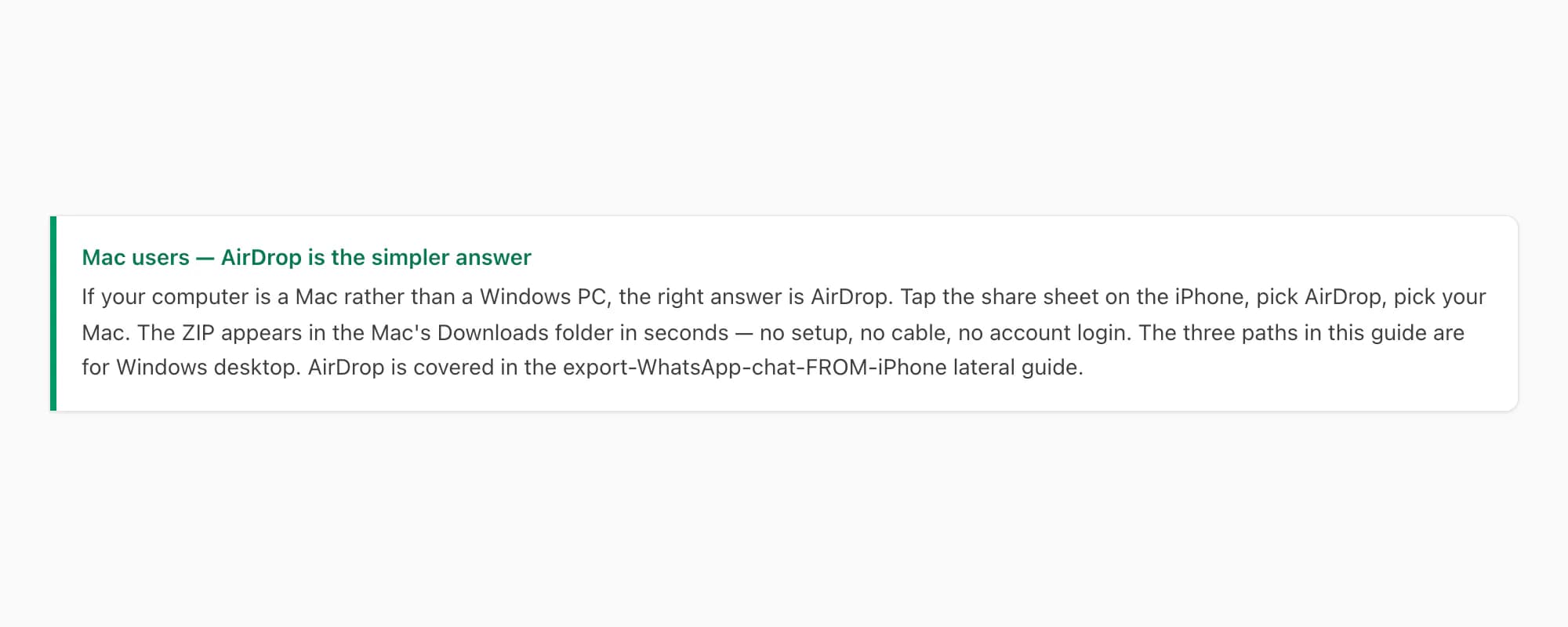
If your computer is a Mac rather than a Windows PC, the right answer is AirDrop — it's a single-tap transfer with no setup, no cable, and no account login. The iPhone-to-Mac path is much smoother than iPhone-to-PC because both devices speak the same Apple protocol natively. I cover the AirDrop path in detail in my export WhatsApp chat FROM iPhone lateral, which has a Mac-specific section.
The three paths in this guide — iCloud, cable, cloud bridge — are for Windows desktop. They also work for Mac, but on Mac the AirDrop path is faster.
Pricing — which tier matches the chat
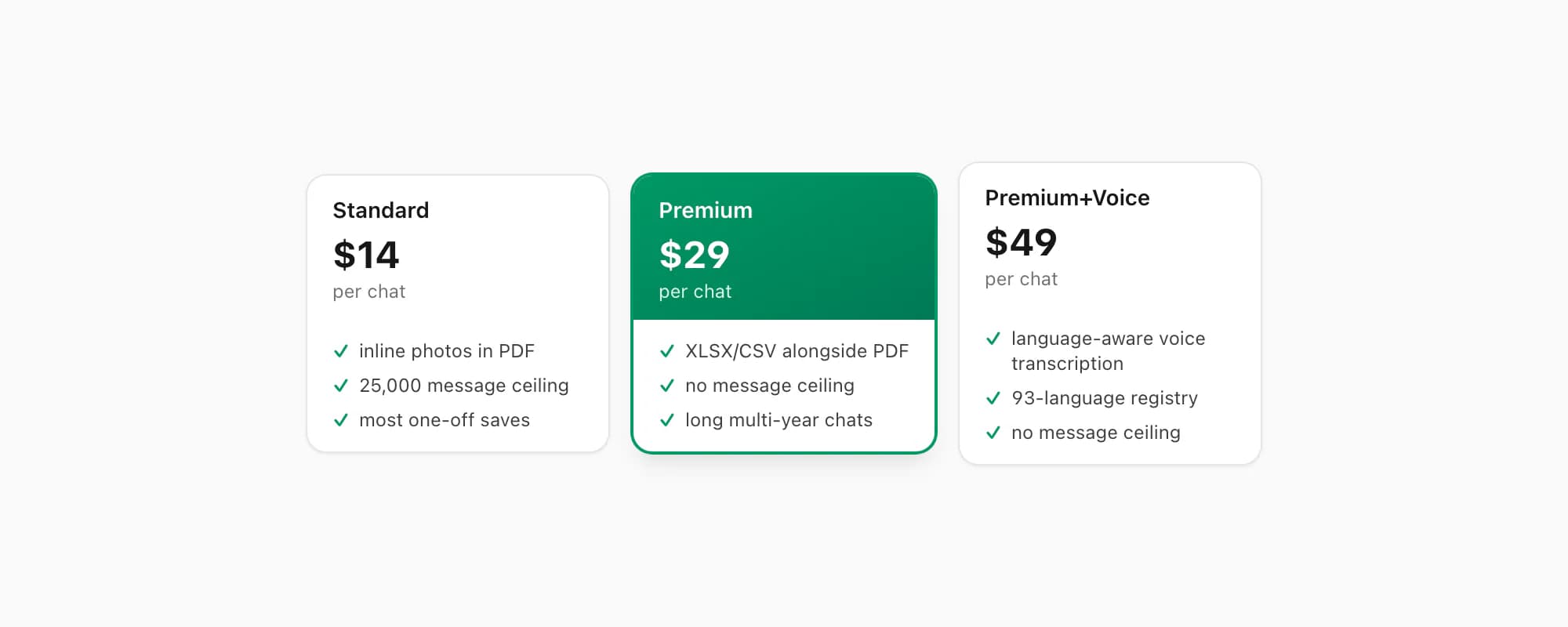
Once the ZIP is on the PC and you're uploading to chattopdf.app, you pick a tier. There are five — five different per-chat prices for five different chat profiles.
$7 Basic per chat — text-only PDF, no inline photos, 25,000-message ceiling. Cheap pick if the chat is text-only and short, especially appealing for a PC-based business archive that doesn't need photos.
$14 Standard per chat — sender-attributed PDF with inline photos, timestamps, professional formatting, 25,000-message ceiling. The default for most one-off saves. If you're doing this once for a business archive or family chat that fits the ceiling, this is the answer.
$29 Premium per chat — adds an XLSX/CSV export alongside the PDF and removes the 25,000-message ceiling entirely. Right pick for long multi-year chats that have grown past the cap, and the XLSX is genuinely useful on a PC for searching, filtering, and pivot tables across years of conversation.
$49 Premium+Voice per chat — adds voice-note transcription through the language-aware Nova-3/Scribe v2 router. Right pick if the chat contains voice notes you need transcribed. The transcribe WhatsApp audio guide covers the voice pipeline in detail.
$99 Power User per chat — priority queue, no per-session cap, batch turnaround. The bulk-of-many-chats tier rather than the single-chat tier. If you're moving an iPhone's worth of chats to a PC for a comprehensive archive, this is the one.
To be clear — every tier is per chat, same billing structure, one-time conversion charge for that specific chat. Not a subscription.
Quick decision — which path for which iPhone owner
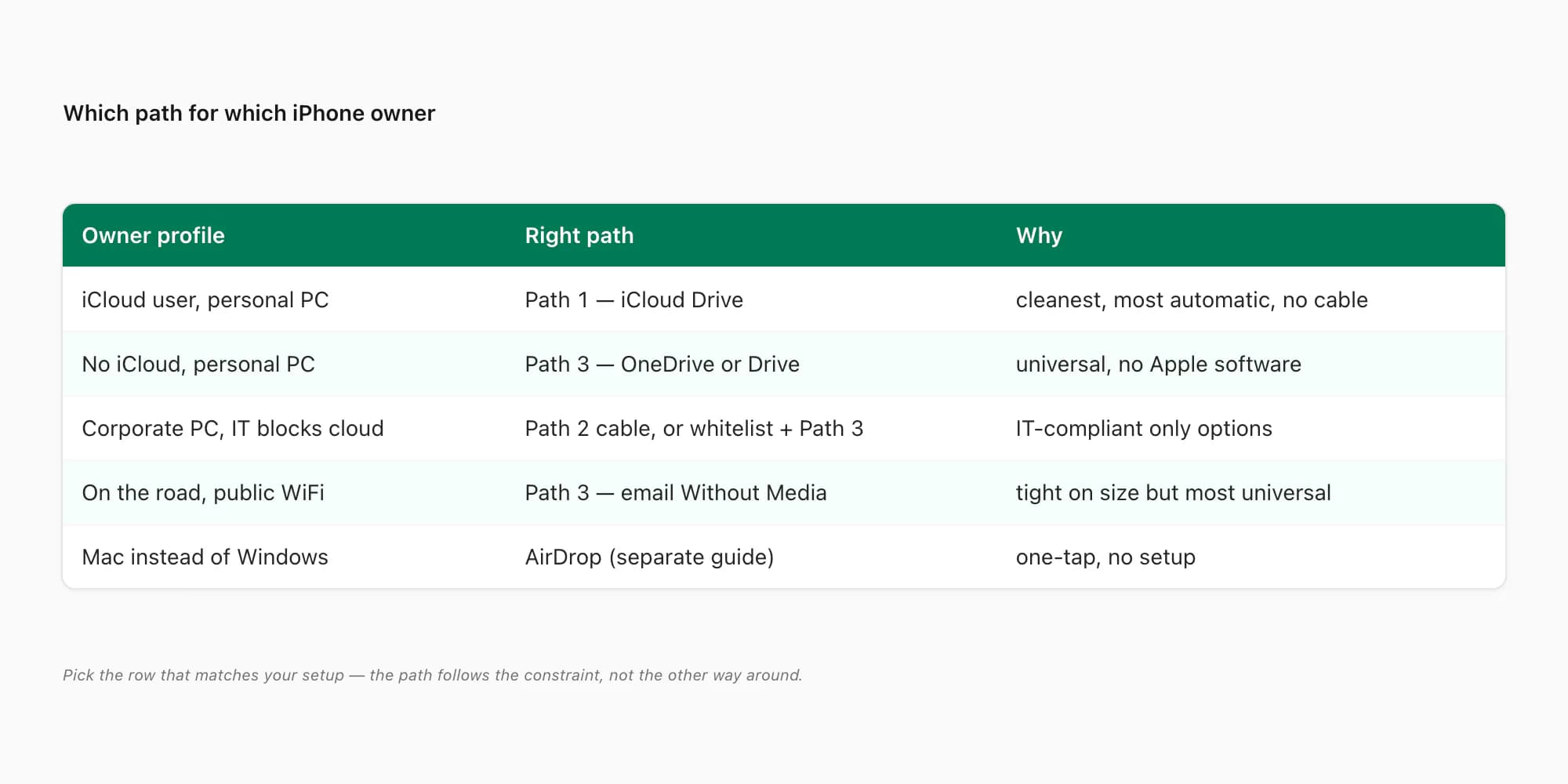
The honest matrix:
- iCloud user, normal personal PC — Path 1 (iCloud Drive). Cleanest, most automatic, no cable.
- No iCloud, personal PC — Path 3 (cloud bridge via OneDrive or Google Drive). Universal, no Apple software needed.
- Corporate PC, IT blocks cloud accounts — Path 2 (cable / Apple Devices) is the only IT-compliant option, but expect bumps. Often easier to talk to IT about whitelisting chattopdf.app and use Path 3 with a corporate cloud account.
- On the road, no cable, public WiFi — Path 3 with email (Without Media). Tight on attachment size but the most universal.
- Mac instead of Windows — AirDrop, see export WhatsApp chat FROM iPhone. Don't waste time with the three Windows paths.
- Big chat past the 40k cap — see how to export large WhatsApp chat iPhone for the trim and split workarounds before any of these transfer paths.
For legal-evidence framing — preserving the chat for a court bundle on a case computer — see my WhatsApp evidence in court PDF guide. The PDF on a PC is the right format for evidence work; the transfer path doesn't matter as long as the file integrity is preserved end-to-end. If the matter also turns on phone-call activity rather than just messages, the chat ZIP won't carry the call log — see how to export WhatsApp call history from iPhone for the four workarounds when calls are part of the record.
Key takeaways
- WhatsApp does not give you an "Export to PC" button — Export Chat produces a ZIP and the iOS share sheet hands the bridge problem to you
- Three real paths from iPhone to Windows PC — iCloud Drive, iTunes / Apple Devices file-sharing, and email or cloud bridge
- iCloud Drive is the cleanest path if iCloud is already set up — Save to Files into iCloud Drive, then iCloud for Windows on the PC mirrors it locally
- iTunes / Apple Devices over USB cable is the answer when the PC is a locked-down corporate laptop with no cloud account allowed, but expect bumps
- The email or cloud bridge (Gmail, OneDrive, Drive, Dropbox) is the universal fallback that works on any PC without Apple software installed
- Without Media is recommended for the cloud bridge path because email attachment caps stop most with-media exports at 25 MB
- Mac users have a much simpler option — AirDrop transfers the ZIP from iPhone to Mac in a single tap with no setup
- The PC's role is just the upload host for chattopdf.app — any Windows browser works, and the PDF downloads to the Downloads folder in about 30 seconds
- $14 Standard per chat is the default for normal chats; $29 Premium per chat removes the 25,000-message ceiling for long multi-year archives
- Once the ZIP is on your PC, the WhatsApp to PDF guide walks through the conversion step in detail — from upload to finished PDF.
FAQ
Can I export a WhatsApp chat from iPhone directly to a PC without using cloud?
Sort of, but it's bumpy in 2026. The cable path via iTunes or Apple Devices on Windows works for some scenarios but iOS has been moving away from app-published file-sharing folders for years, and modern WhatsApp doesn't always cooperate with the file-share UI. In honest practice, every iPhone-to-PC transfer either touches iCloud (Path 1) or another cloud service (Path 3), or goes via the cable file-share which often needs a cloud assist anyway. The closest thing to a true no-cloud transfer is to save the ZIP to Files → On My iPhone → Downloads on the iPhone, then use the cable + Apple Devices to navigate the WhatsApp app folder — but this depends on the WhatsApp version publishing to that folder, which isn't always the case. For a corporate locked-down PC, the most reliable answer is to ask IT to whitelist chattopdf.app and use a personal phone hotspot to upload Without Media via Path 3.
Why does the email path cap at 25 MB and what do I do about it?
Gmail caps email attachments at 25 MB, Outlook at 20 MB, and most other email providers in that same range. WhatsApp exports with Including Media frequently exceed those caps because photos and voice notes inflate the ZIP rapidly — a 5,000-message chat with media might be 200 MB, well past the email cap. Two fixes — first, switch to Without Media on the iPhone Export Chat menu, which drops the ZIP from hundreds of megabytes to typically 8 to 40 MB even for long chats. Second, if you do need media, use a cloud bridge (OneDrive, Google Drive, Dropbox) instead of email — these allow much larger uploads, with free tiers in the 5 to 15 GB range that easily handle most chat exports.
What's the cleanest path if I have an iPhone and a Windows PC at home?
Path 1 — iCloud Drive. Most iPhone owners have iCloud Drive enabled by default; if not, turn it on at Settings → [your name] → iCloud → iCloud Drive. Install Apple's iCloud for Windows app on the PC from the Microsoft Store, sign in with the same Apple ID, and tick the iCloud Drive checkbox. From then on, files saved on the iPhone via Save to Files → iCloud Drive automatically appear in File Explorer on the PC under iCloud Drive. Export the chat, Save to Files into iCloud Drive, switch to the PC and the ZIP is sitting there waiting. No cable, no email, no third-party cloud service. This is the cleanest setup for a home environment where you control both devices.
My corporate laptop blocks cloud accounts and personal apps — what now?
Three options, in order of how often they actually work. First — ask IT to whitelist chattopdf.app for outbound HTTPS, then use a personal phone (or personal hotspot from the iPhone) to upload Without Media to a personal Gmail / OneDrive that's accessible from the corporate browser. Many IT policies allow specific business-tool domains. Second — use a corporate-allowed cloud account (corporate OneDrive is often allowed even when personal cloud is blocked) as the bridge — Path 3 with the corporate account. Third — the cable + Apple Devices file-share path, if Apple Devices is allowed to install on the corporate machine. In honest practice the corporate-locked scenario is the bumpiest of all the iPhone-to-PC stories; talking to IT first usually saves time.
Once the ZIP is on the PC, what does the chattopdf upload look like?
Open any Windows browser — Edge, Chrome, Firefox — go to chattopdf.app. The home page has a drag-and-drop upload area; drag the ZIP onto it, or click to browse and pick it. Pick a tier (most one-off chats are $14 Standard per chat, long chats are $29 Premium per chat), pay via PayPal or card, and the conversion runs. For a normal chat the PDF is ready in about 30 seconds. Click the download link, the PDF saves to the Windows Downloads folder. From there it's a normal Windows PDF — open in Edge or Acrobat, file in a folder, attach to an email, print, or upload to OneDrive for sharing.
I'm Paul, the founder of ChatToPDF. I built it after needing a long WhatsApp conversation as a readable PDF for a legal matter. I test and document WhatsApp exports, PDF conversion, voice-note transcription, and the limits people should check before relying on the result.