
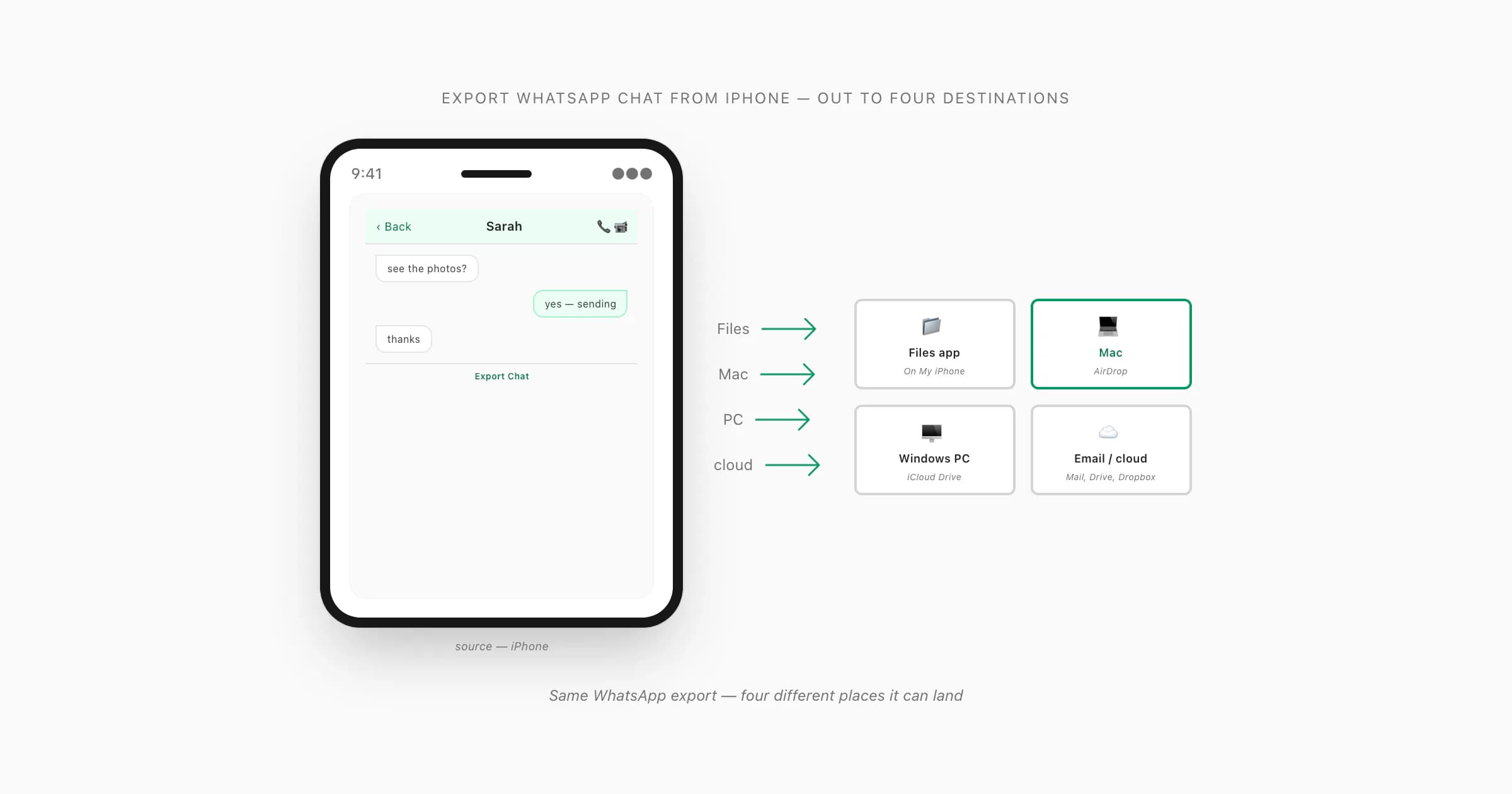
To export a WhatsApp chat from iPhone, open the chat, tap the contact or group name at the top, scroll to Export Chat, choose Including Media or Without Media, then pick where the ZIP goes — Save to Files, AirDrop to a Mac, iCloud Drive for PC access, or any cloud drive via the share sheet. Upload the resulting ZIP to ChatToPDF to get a sender-attributed PDF by email in about 30 seconds.
What "from iPhone" really means — out to where
- iOS share sheet
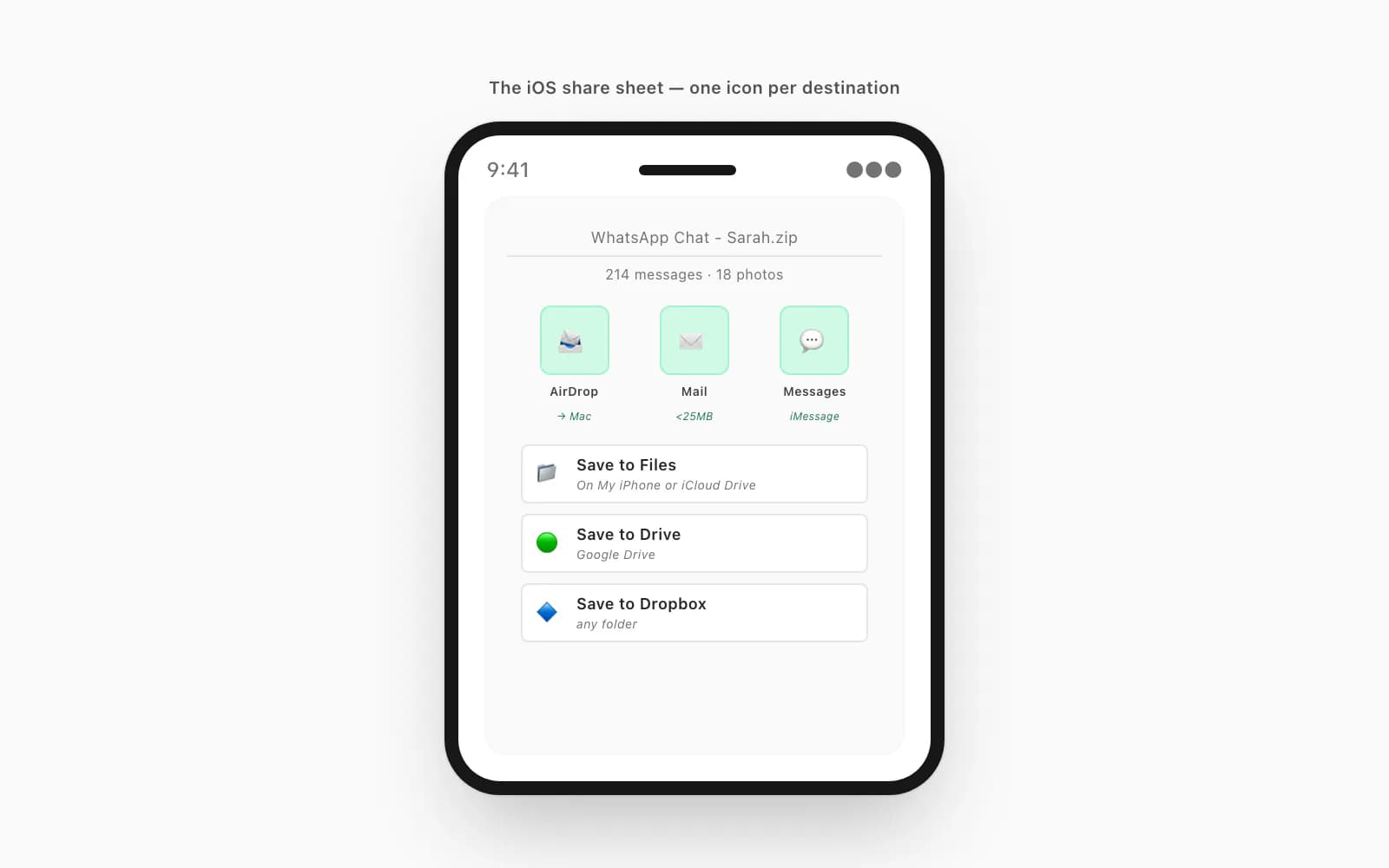
- The system menu iOS displays after you tap Export Chat in WhatsApp, listing apps and actions that can receive the ZIP file. Options include Save to Files (keeps the ZIP on the device or iCloud Drive), AirDrop (transfers wirelessly to a nearby Mac), Mail (email the ZIP — small exports only), and any cloud-drive apps you have installed such as Google Drive or Dropbox. Tapping the correct share-sheet option determines where the ZIP lands and how you'll access it next.
If you searched "export WhatsApp chat from iPhone", you have an iPhone in your hand and you want the chat to end up somewhere else. That's what "from" tells me. Not "how do I export a chat using my iPhone" — that's the how to export WhatsApp chat on iPhone framing, where the iPhone is just the device. Here, the iPhone is the source. Where it lands is the question.
So this guide is organised by destination. Four real ones cover almost every case I've seen. To the iOS Files app on the same iPhone — most common, simplest, works without a second device. To a Mac sitting near you — AirDrop is wireless and takes about three seconds. To a Windows PC at home or work — iCloud Drive bridges iOS and Windows cleanly. To email or any cloud drive — Mail, iCloud Drive, Google Drive, Dropbox, all live on the same iOS share sheet. The pillar guide WhatsApp Android to iPhone covers the cross-platform cases more broadly; this page sticks with the iPhone-as-source story. I built ChatToPDF after exporting my own chats off an iPhone before swapping phones, so the routing tree is something I now know by heart.
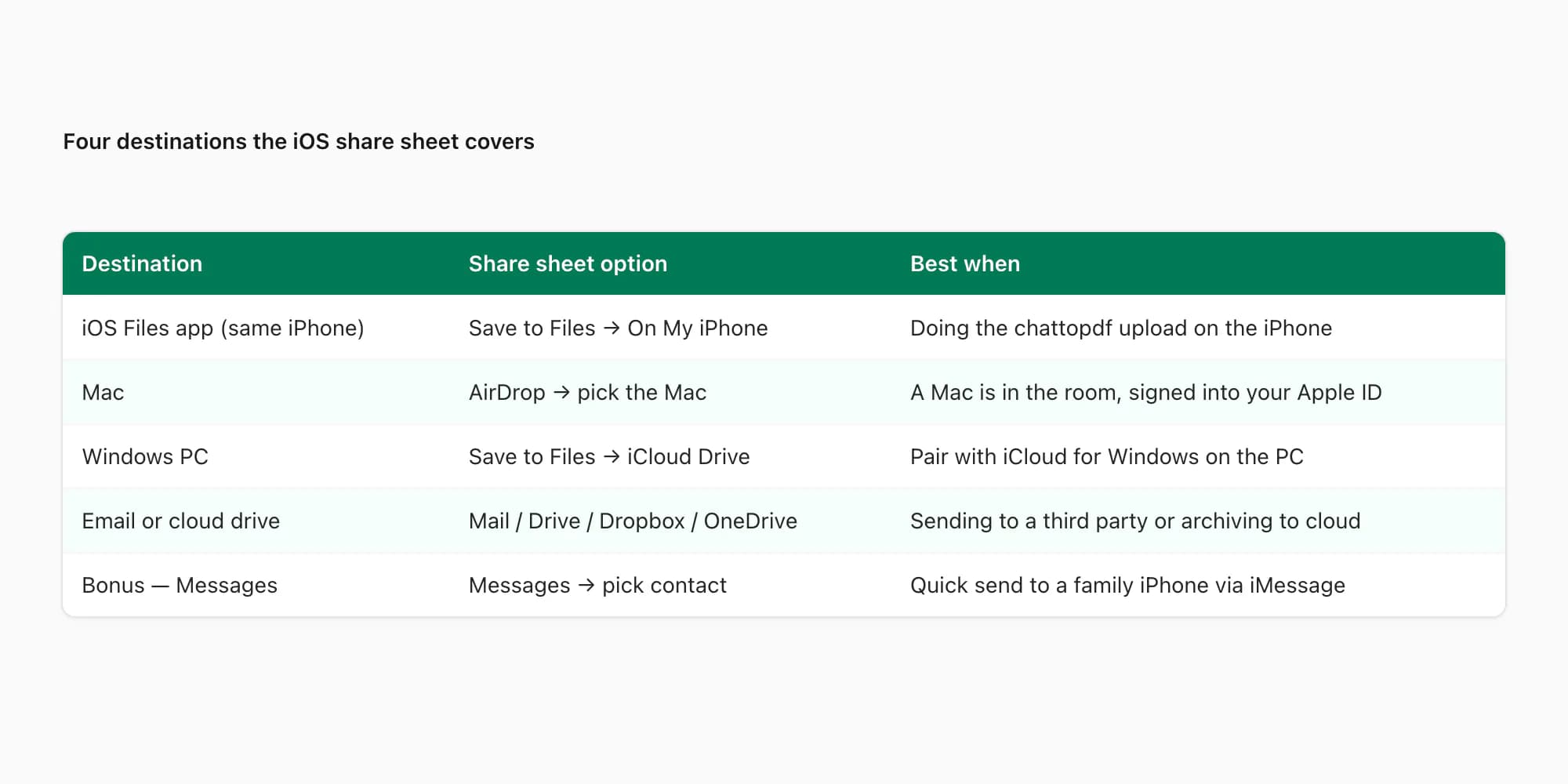
Four destinations the share sheet covers
The WhatsApp half of every iPhone export is identical, regardless of where the ZIP ends up. Open the chat, tap the title at the top, scroll past Mute, Encryption, Block, and Clear Chat, tap Export Chat, pick Including Media. WhatsApp builds the ZIP and hands you the iOS share sheet. The share sheet is where the four destinations diverge — one icon per destination.
- Destination
- iOS Files app (same iPhone)
- Share sheet option
- Save to Files → On My iPhone → Downloads
- Best when
- You'll do everything else on the iPhone — uploading to chattopdf, reading the chat, archiving. Most common.
- Destination
- Mac (AirDrop)
- Share sheet option
- AirDrop → pick the Mac
- Best when
- A Mac is sitting near you and signed into the same iCloud account. Wireless, no cable, takes seconds.
- Destination
- Windows PC (iCloud Drive)
- Share sheet option
- Save to Files → iCloud Drive
- Best when
- The destination is a Windows PC at home or work. Pair with iCloud for Windows on the PC.
- Destination
- Email or cloud drive
- Share sheet option
- Mail / Save to Drive / Dropbox / OneDrive
- Best when
- Sending the chat to someone else, or archiving to a cloud drive you already use. Tiny chats only for Mail (25 MB attachment cap).
- Destination
- Bonus — Messages
- Share sheet option
- Messages → pick a contact
- Best when
- Quick send to a family member's iPhone. Works through iMessage like any attachment.
- Destination
- Bonus — Notes
- Share sheet option
- Add to Notes
- Best when
- Archive inside Apple Notes. Useful if you live in Notes already; doesn't help with PDF conversion.
| Destination | Share sheet option | Best when |
|---|---|---|
| iOS Files app (same iPhone) | Save to Files → On My iPhone → Downloads | You'll do everything else on the iPhone — uploading to chattopdf, reading the chat, archiving. Most common. |
| Mac (AirDrop) | AirDrop → pick the Mac | A Mac is sitting near you and signed into the same iCloud account. Wireless, no cable, takes seconds. |
| Windows PC (iCloud Drive) | Save to Files → iCloud Drive | The destination is a Windows PC at home or work. Pair with iCloud for Windows on the PC. |
| Email or cloud drive | Mail / Save to Drive / Dropbox / OneDrive | Sending the chat to someone else, or archiving to a cloud drive you already use. Tiny chats only for Mail (25 MB attachment cap). |
| Bonus — Messages | Messages → pick a contact | Quick send to a family member's iPhone. Works through iMessage like any attachment. |
| Bonus — Notes | Add to Notes | Archive inside Apple Notes. Useful if you live in Notes already; doesn't help with PDF conversion. |
The bonus rows exist for completeness but the four real ones — Files, Mac, PC, cloud — are what almost everyone needs. Pick whichever destination matches your situation and the rest of this guide walks the iPhone-to-that-destination half.
From iPhone to the Files app — staying on the iPhone
This is the most common path and the one the WhatsApp menu suggests by default. The ZIP stays on the iPhone, lands in the Files app, and is ready for upload from Safari without ever leaving the device.
Open the chat in WhatsApp
Tap the Chats tab at the bottom, tap the conversation. You should see message bubbles on screen. Don't tap the camera or phone icons — those go elsewhere.
Tap the chat title at the top
The contact's name (one-on-one) or the group name (group chat) sits at the very top of the chat as a small piece of header text. Tap it. iOS slides up the contact info or group info screen — a longer scrollable list. This is the iOS entry point that trips most people up.
Scroll to the bottom and tap Export Chat
Scroll past Mute, Encryption, Chat Lock, Media-Links-and-Docs, Starred Messages, Block, Report, and Clear Chat. Export Chat sits at the bottom in red. Tap it.
Pick Including Media
WhatsApp asks one question — Without Media or Including Media. For a PDF with photos rendered inline, pick Including Media. Without Media gives you a text-only ZIP that's tiny but loses the photos and voice notes.
Pick Save to Files in the share sheet
The iOS share sheet appears. AirDrop, Mail, Messages, and Save to Files are the typical options. Tap Save to Files.
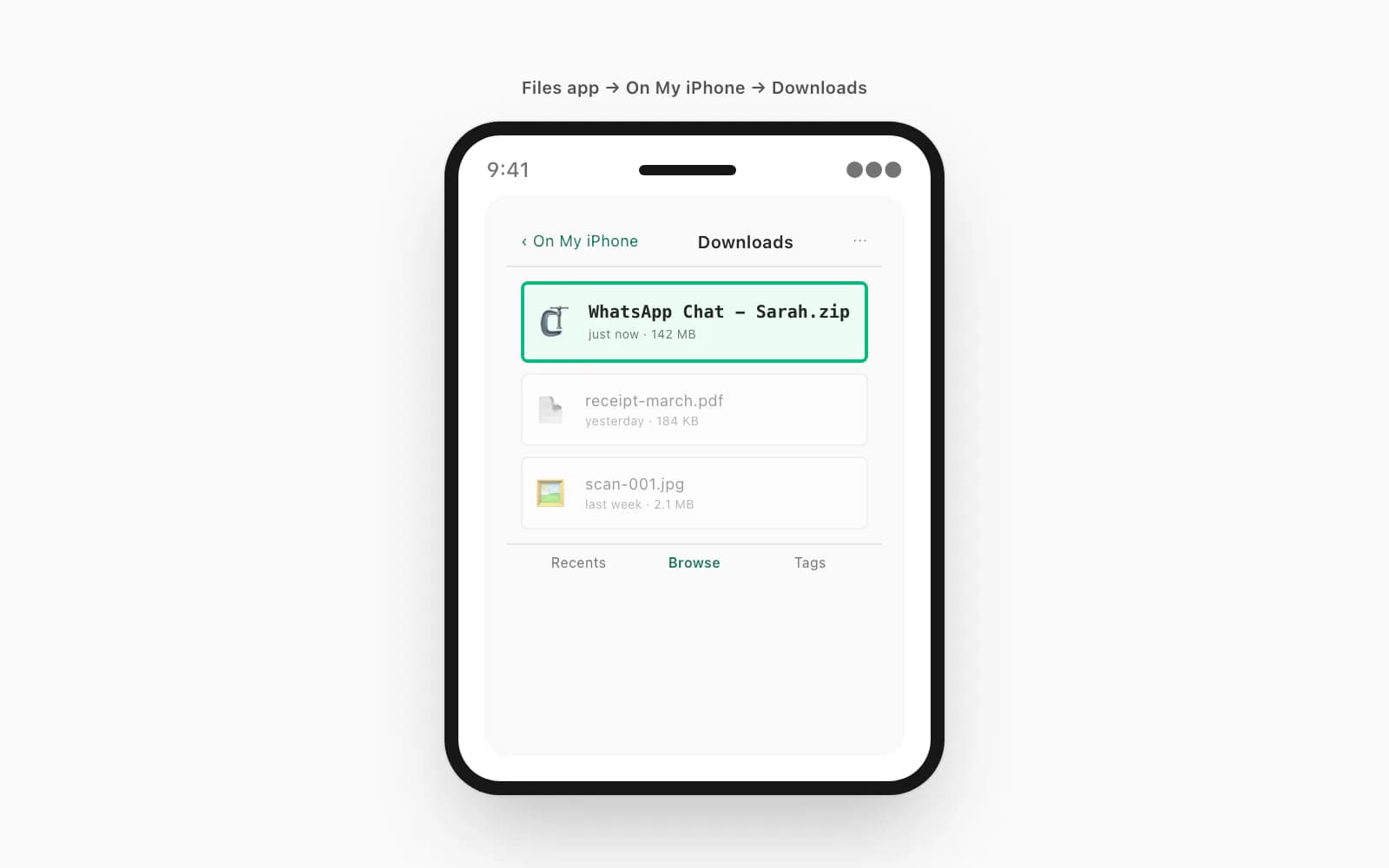
Pick On My iPhone → Downloads → Save
The save dialog asks where the ZIP goes. On My iPhone is fastest. Pick Downloads (or any folder you'll remember). Tap Save. Done — the ZIP is on your iPhone.
To find the ZIP later, open the Files app (blue folder icon), tap Browse at the bottom, tap On My iPhone, tap Downloads. The file is named something like WhatsApp Chat - Sarah.zip. If you forgot the folder, tap Recents at the bottom — fresh exports sit at the top of the recent list. The companion guide export chat WA iPhone covers the same path written for shorthand searchers, and Apple's Files app guide covers Files navigation in more depth.
From iPhone to a Mac — AirDrop is the fastest path
If a Mac is sitting near you, AirDrop is the fastest path. No cables, no cloud sync wait, no email attachment limit. The ZIP travels directly over Wi-Fi and Bluetooth and lands in the Mac's Downloads folder.
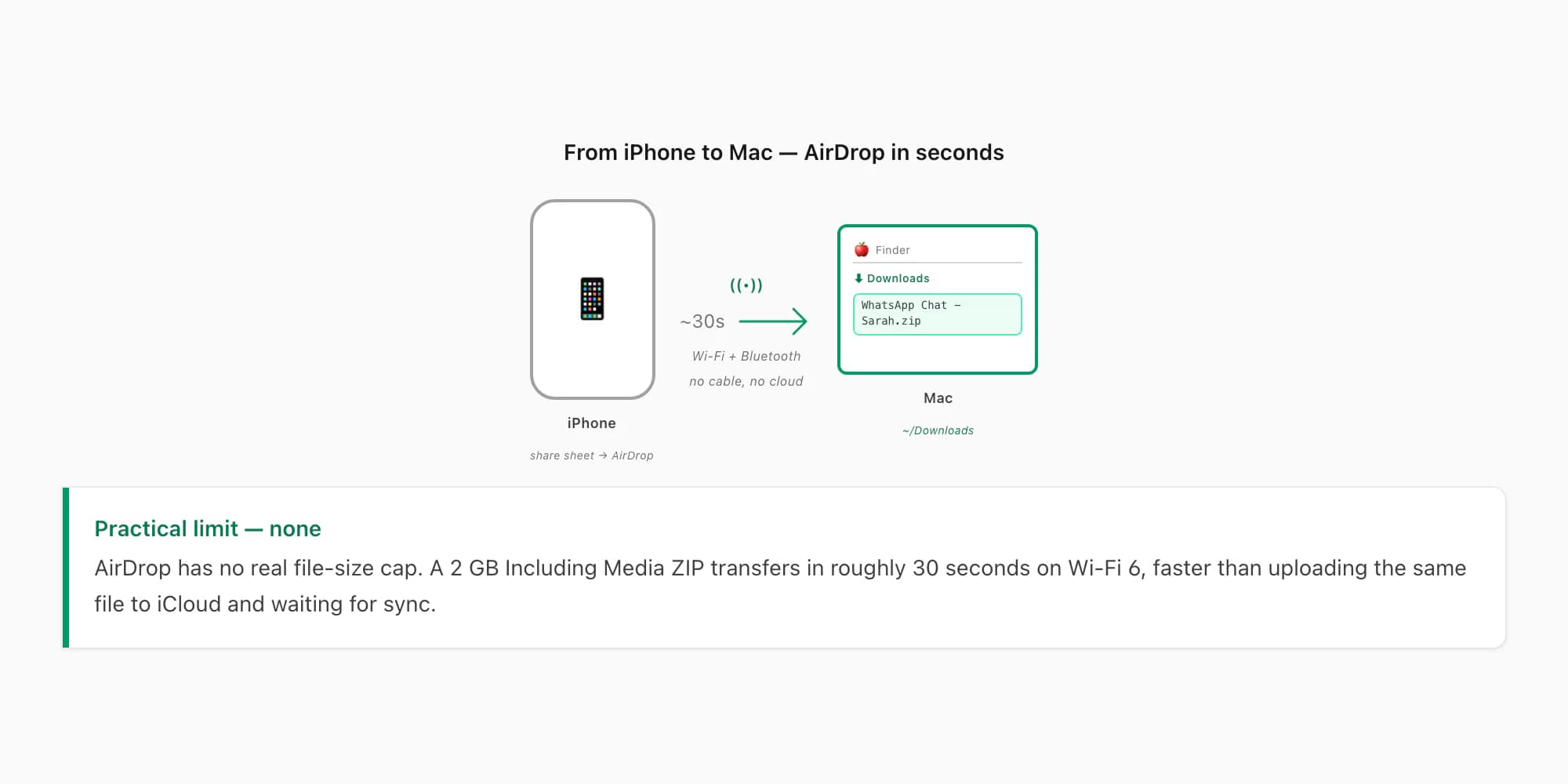
The setup: both devices need AirDrop on, both need to be unlocked, both need to allow the transfer. On the Mac, open Finder → AirDrop in the sidebar. Set "Allow me to be discovered by" to Contacts (if your iPhone Apple ID is in the Mac's contacts) or Everyone for 10 minutes. On the iPhone, swipe down from the top-right to open Control Center, long-press the network tile, tap AirDrop, pick Contacts Only or Everyone for 10 minutes.
After running the WhatsApp export to the share sheet, tap AirDrop instead of Save to Files. iOS scans for nearby Macs and shows them as round avatars at the top of the share sheet. Tap the Mac. The Mac shows a notification — Accept. The ZIP transfers in seconds (typical iPhone-to-Mac AirDrop speeds are 30–60 MB/s on modern hardware) and lands in ~/Downloads. Open Finder → Downloads, the ZIP is there.
Apple's AirDrop support article covers the discoverability and firewall settings if AirDrop doesn't see the Mac. The most common cause is one of the devices having AirDrop set to Receiving Off — happens by default on iOS to save battery. Flip both to Everyone for 10 Minutes if Contacts doesn't work, transfer the file, then flip back.
AirDrop has no file size limit in practice. A 2 GB Including Media ZIP transfers in about 30 seconds on Wi-Fi 6. That's faster than uploading the same file to iCloud Drive and waiting for it to sync to the Mac. AirDrop is the right choice anytime the Mac is in the room.
From iPhone to a Windows PC — iCloud Drive route
Windows is the harder destination because iOS doesn't talk to Windows directly the way it talks to Mac. The cleanest bridge is iCloud Drive — Apple ships an iCloud for Windows app that mounts your iCloud Drive as a folder in File Explorer. Save the ZIP to iCloud Drive on the iPhone, wait a moment for sync, open the Windows folder, drag the ZIP out.
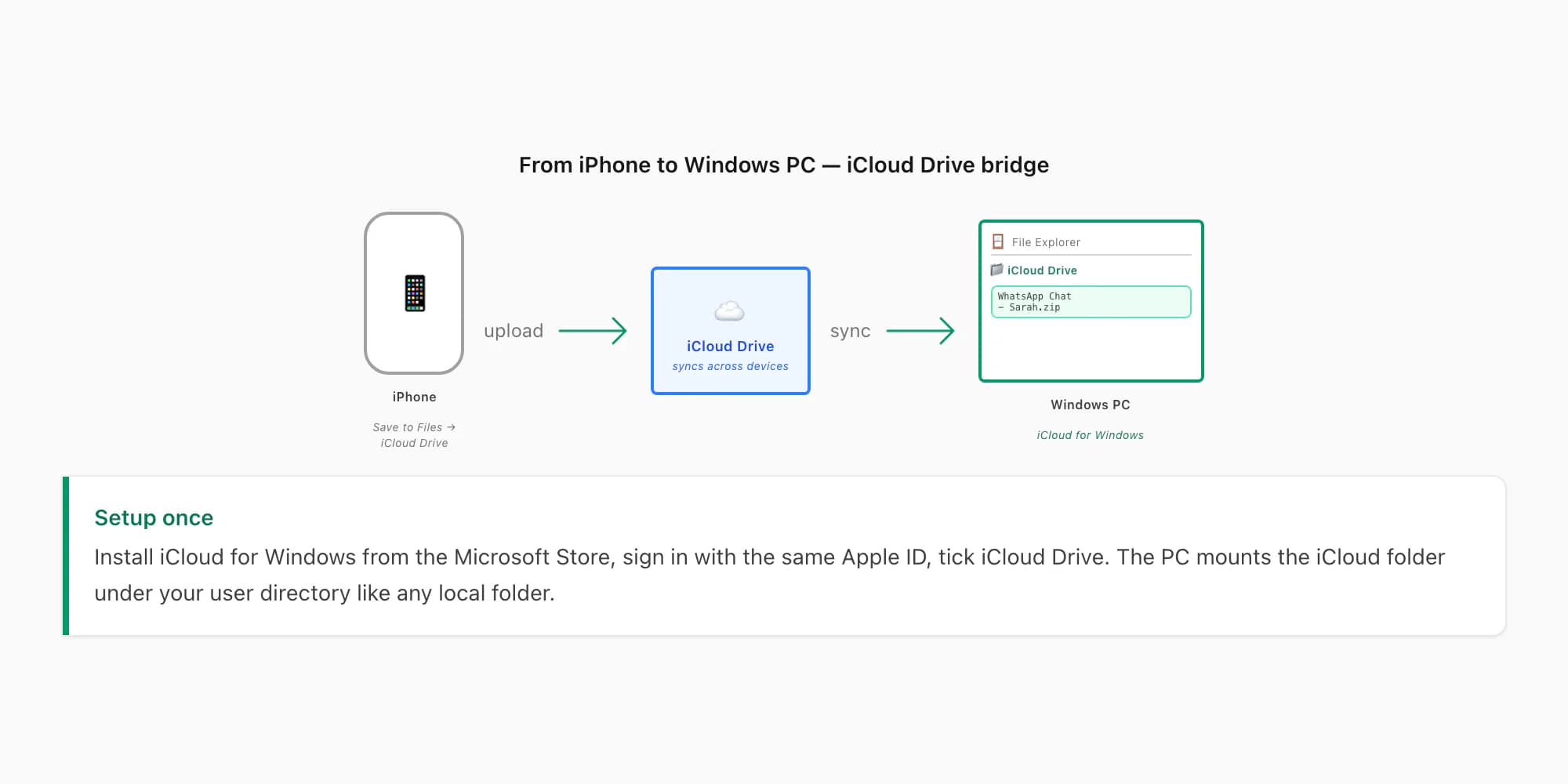
The setup: download iCloud for Windows from the Microsoft Store on the PC. Sign in with the same Apple ID as the iPhone. Tick iCloud Drive in the iCloud control panel. Windows mounts iCloud Drive as a folder under your user directory (typically C:\Users\YourName\iCloud Drive). Pin it to the File Explorer sidebar for fast access.
After running the WhatsApp export to the share sheet on the iPhone, tap Save to Files (just like the Files app path). At the location picker, pick iCloud Drive instead of On My iPhone. Tap Save. The iPhone uploads the ZIP to iCloud Drive in the background — speed depends on your upload connection, typically 30 seconds to a couple of minutes for an Including Media ZIP.
On the Windows PC, open File Explorer → iCloud Drive. The ZIP appears as a placeholder file with a cloud icon (not yet downloaded). Right-click → Always keep on this device, or just open it once — Windows downloads the actual file. Drag it out to your desktop or wherever you want. From there, open chattopdf.app in any browser on the PC and drop the ZIP onto the upload area. The PDF arrives by email.
A second Windows path exists — connect the iPhone over USB, open the Windows iTunes or Apple Devices app, navigate to File Sharing, find WhatsApp, copy out files. This works but is more fiddly because WhatsApp's iOS file sharing exposes the chat files in a less obvious structure. iCloud Drive is the cleaner route in 2026 unless you specifically can't use iCloud.
From iPhone to email or any cloud drive
Email is the path most people try first and it's almost always the wrong one. The reason: iOS Mail rejects attachments above 25 MB, and an Including Media WhatsApp export is usually 50–500 MB. So Mail works for tiny Without Media exports — text-only, no photos — and fails silently for everything else.
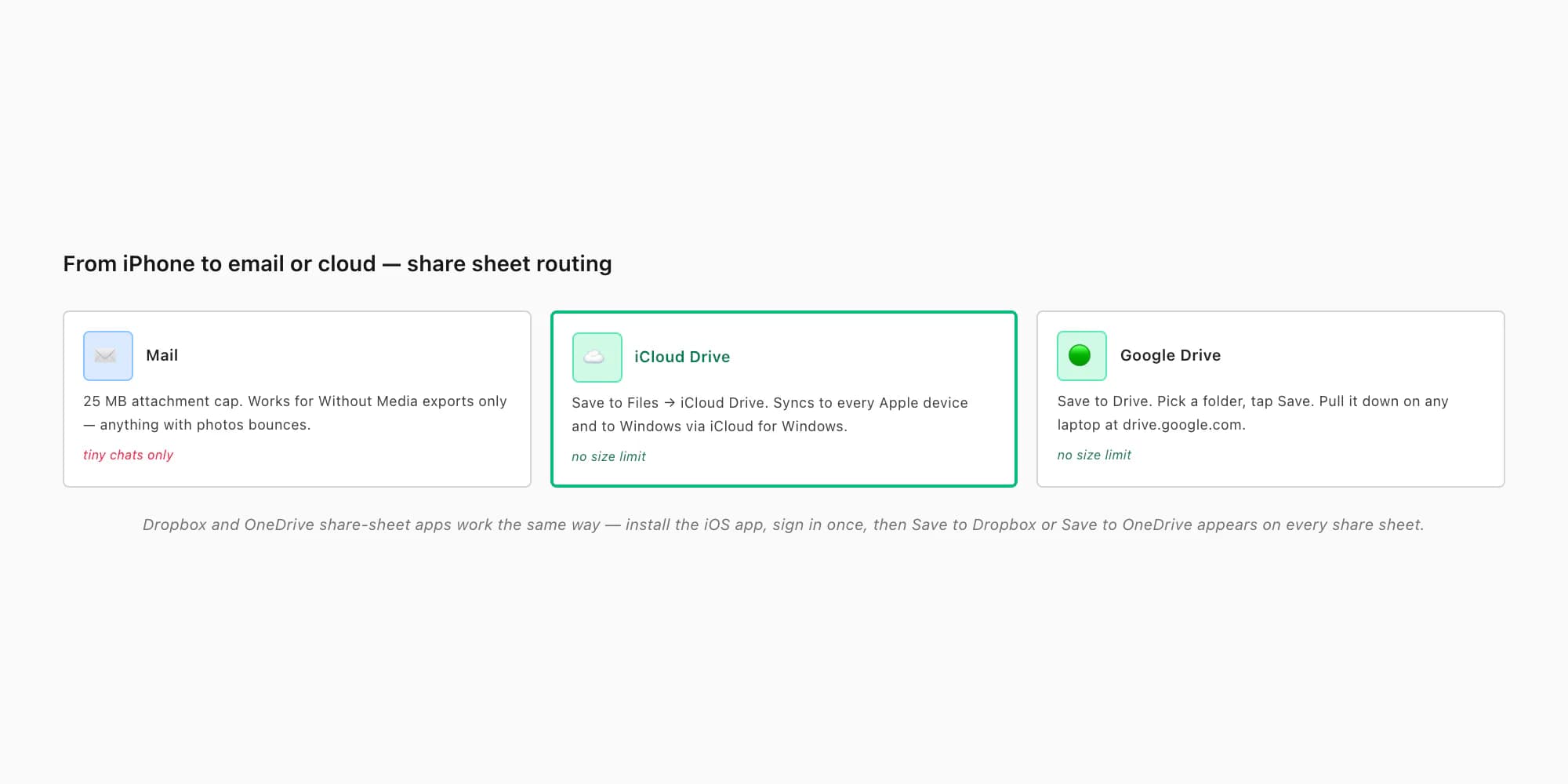
Cloud drives don't have that limit. The iOS share sheet shows the cloud apps you've installed — Save to Drive (Google Drive), Save to Dropbox, Save to OneDrive, Save to Box. Each one uploads the ZIP into your account at a folder you pick. From any laptop or other phone, log into the same cloud account, find the ZIP, download it.
Save to Drive (Google Drive) is the most common because Google Drive is everywhere. Tap Save to Drive in the share sheet, sign in if you haven't, pick a folder, tap Save. The ZIP uploads to Google Drive. From a laptop, open drive.google.com, find the ZIP, click → Download. Drop it into chattopdf.app. Done.
Save to Dropbox works the same way if Dropbox is the cloud drive you already use. OneDrive is the right pick if you're in the Microsoft 365 ecosystem.
Mail is fine for one specific case — a Without Media export of a short chat that's well under 25 MB, sent to yourself or a colleague who'll handle it from their inbox. Anything with photos: pick a cloud drive instead. WhatsApp's export chat history FAQ confirms the share-sheet behaviour and the export limits.
From iPhone to PDF — the chattopdf step
Once the ZIP is at any of those destinations, the conversion to PDF is the same. Open chattopdf.app in a browser on whichever device the ZIP is now on — iPhone Safari, Mac browser, Windows browser, doesn't matter. Drop the ZIP onto the upload area, pick a tier, pay, get the PDF by email.
The companion guide export WhatsApp chat to PDF walks through the chattopdf upload screen and what the PDF looks like for group chats versus one-on-ones. The whole iPhone-to-PDF flow runs about two minutes for a typical chat — 90 seconds in WhatsApp + transit time + 30 seconds at chattopdf. Transit time is what changes by destination. AirDrop is instant, Save to Files is instant, iCloud Drive is 30 seconds to a couple of minutes depending on upload speed, cloud drives the same.
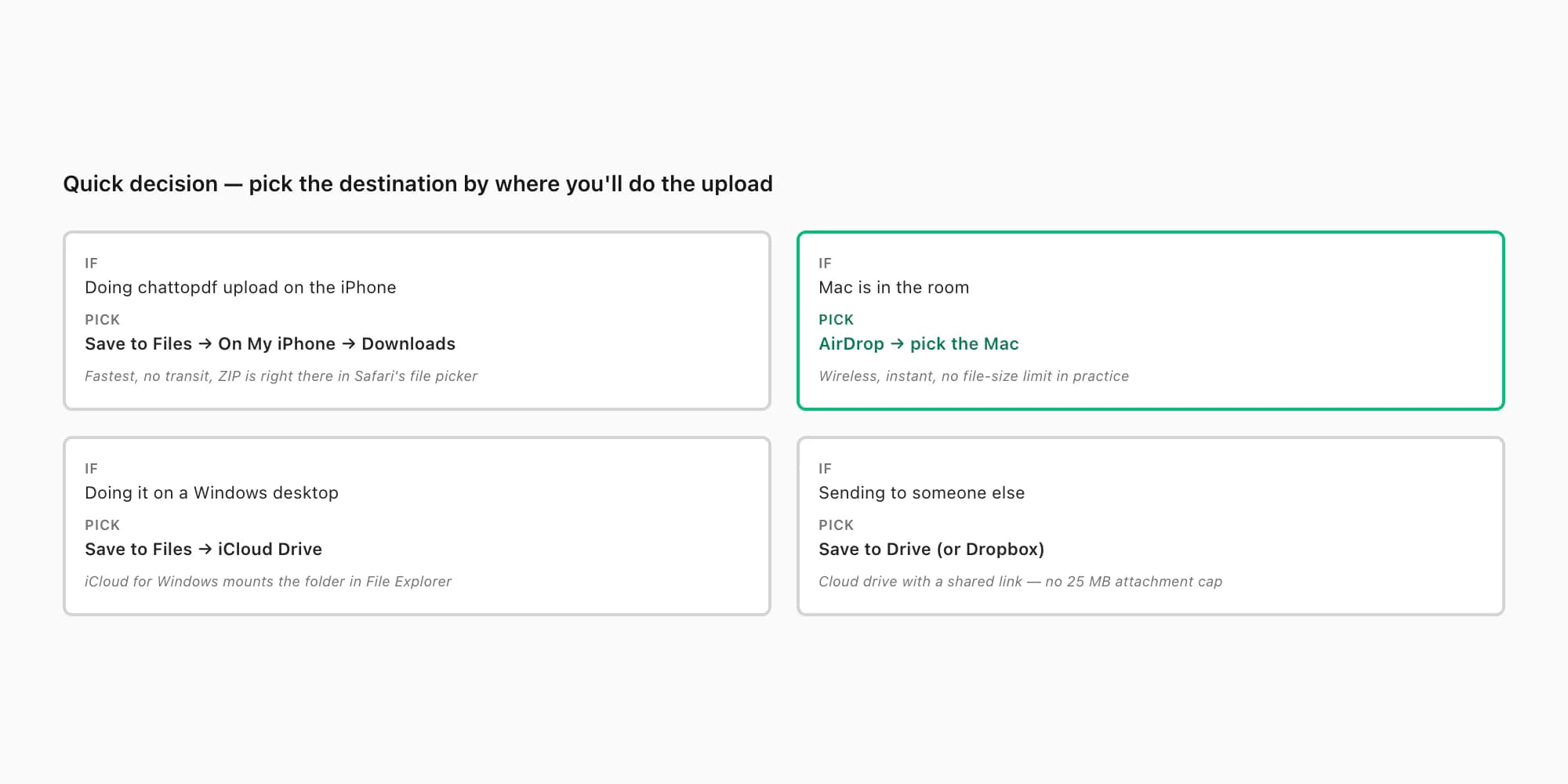
The destination decision usually picks itself once you ask "where am I doing the chattopdf upload". On the iPhone in Safari? Save to Files is enough. On a Mac that's already nearby? AirDrop. On a Windows desktop at work? iCloud Drive bridge. Sending to a third party? Cloud drive with a shared link.
Pricing — which tier fits the export
The chattopdf side charges per chat. Five tiers, all per chat per conversion. No subscription, no monthly fee.
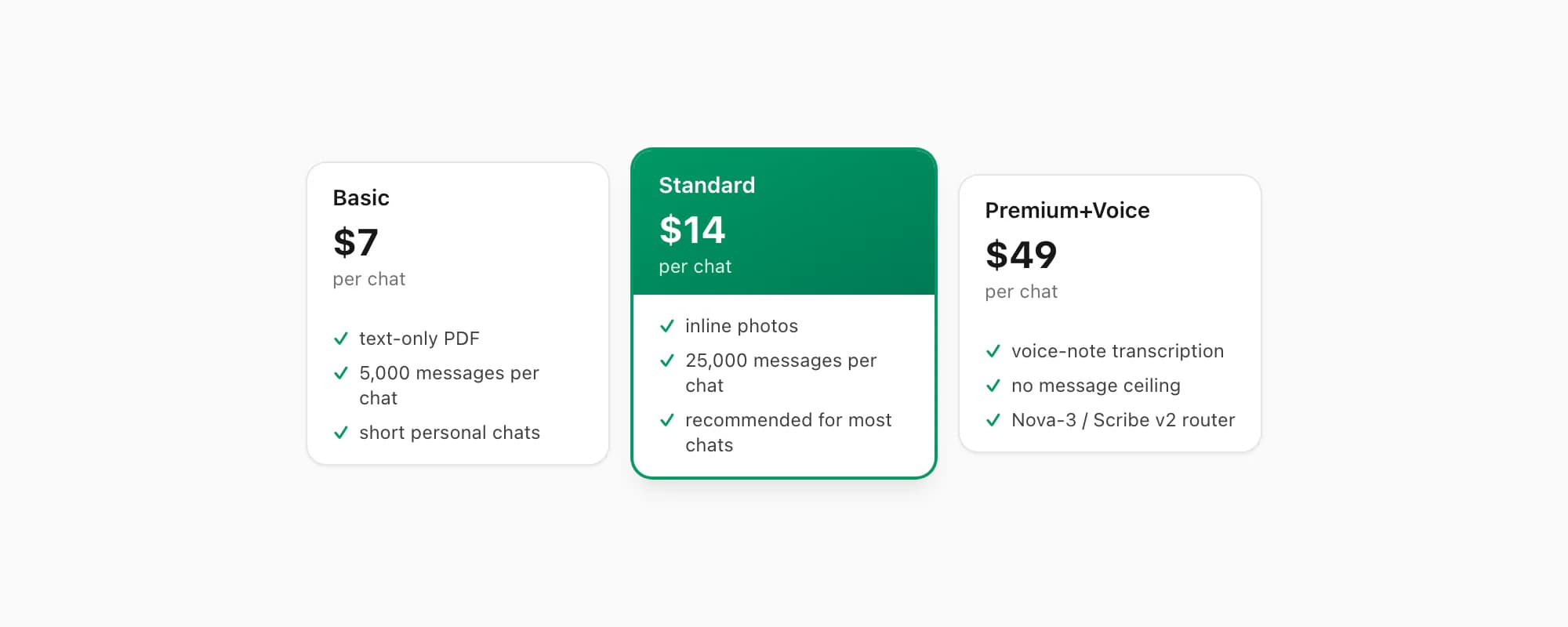
$7 Basic per chat — text-only PDF, fine for short personal chats with no photos and under 5,000 messages.
$14 Standard per chat — recommended for most iPhone exports. Inline photos render in the PDF if you exported with Including Media, the per-chat ceiling is 25,000 messages, every sender attributed by name. This is the typical iPhone-export choice.
$29 Premium per chat — removes the message ceiling, adds an XLSX/CSV export alongside the PDF. Useful for chats over 25,000 messages or when you want spreadsheet data.
$49 Premium+Voice per chat — adds voice-note transcription through the language-aware Nova-3/Scribe v2 router. iPhone WhatsApp chats often include voice notes; supported notes that transcribe successfully appear inline. The current registry covers 93 languages, including 57 in provider-published excellent or high bands. The transcribe WhatsApp audio guide goes deeper on the voice pipeline.
$99 Power User per chat — adds priority queue and bulk-conversion support. Useful when you've got several chats from the same iPhone to convert in one session.
Each conversion is real work against the chat as it existed at export time. Pay per chat, get the PDF, that's the bill.
Key takeaways
- "From iPhone" framing means out to somewhere — the iPhone is the source, not the device. Four destinations cover almost every real case: Files app, Mac, Windows PC, email or cloud.
- The WhatsApp half is identical for all four destinations — open chat, tap title, scroll down, Export Chat, Including Media. Only the share-sheet icon you tap changes.
- To the Files app on the same iPhone is the most common path — Save to Files → On My iPhone → Downloads. Use this if the chattopdf upload happens on the iPhone.
- To a Mac, AirDrop is the fastest path — instant wireless transfer with no file-size limit in practice. Both devices need AirDrop on and discoverable.
- To a Windows PC, iCloud Drive is the cleanest bridge — save to iCloud on the iPhone, install iCloud for Windows on the PC, drag the ZIP out of the synced folder.
- Email rejects attachments above 25 MB so it only works for tiny Without Media exports. Use a cloud drive (Drive, Dropbox, OneDrive) for anything bigger.
- The chattopdf upload runs in about 30 seconds from any destination — pick the $14 Standard per chat tier for most chats, $49 Premium+Voice per chat if voice notes need transcription.
- To understand what chattopdf does with the ZIP once you upload it and what the final PDF contains, see the WhatsApp to PDF guide.
FAQ
What does 'export WhatsApp chat from iPhone' actually mean?
The "from iPhone" preposition tells you the iPhone is the source — you have the chat on your iPhone, you want it somewhere else. That somewhere else is the question. Four common destinations cover most cases: the iOS Files app on the same iPhone (the chat stays local), a Mac via AirDrop (wireless transfer to a nearby computer), a Windows PC via iCloud Drive (the iCloud-for-Windows app bridges iOS to Windows), or email and any cloud drive (Mail, Google Drive, Dropbox, OneDrive — all available from the iOS share sheet). The WhatsApp export step itself is identical for all four; only the share-sheet icon you tap differs.
Can I export a WhatsApp chat from iPhone directly to my Windows PC?
Yes, two paths. The cleanest is iCloud Drive — install iCloud for Windows on the PC, sign in with the same Apple ID as the iPhone, save the ZIP to iCloud Drive on the iPhone (Save to Files → iCloud Drive at the picker), wait for sync, then drag it out of the iCloud Drive folder in File Explorer on the PC. The second path is USB cable plus the Windows Apple Devices or iTunes app via File Sharing, but the iCloud route is less fiddly in 2026. Both work fully — the ZIP is just a file once it's on the PC, and you drop it into chattopdf.app in any browser.
Is AirDrop the best way to export WhatsApp chat from iPhone to Mac?
Yes for most cases. AirDrop is wireless, has no practical file-size limit (a 2 GB Including Media ZIP transfers in roughly 30 seconds on Wi-Fi 6), and requires no cables or cloud sync wait. The setup: both devices unlocked, AirDrop set to Contacts (or Everyone for 10 minutes if Contacts doesn't see the Mac), Bluetooth and Wi-Fi on. After Export Chat → Including Media in WhatsApp, pick AirDrop on the share sheet, tap the Mac avatar, accept on the Mac. The ZIP lands in ~/Downloads. The fallback if AirDrop won't connect is to save to iCloud Drive and let the Mac sync — slower but works on any network.
Why does emailing the WhatsApp ZIP from my iPhone fail?
Because iOS Mail rejects attachments above 25 MB and an Including Media WhatsApp export is usually 50–500 MB. The fail is silent — Mail looks like it's sending and then bounces back, or the recipient's inbox refuses delivery. Email works for two cases only: Without Media exports (text-only, tens of KB), or very short Including Media chats with few photos. For everything else, use a cloud drive — Save to Drive (Google Drive), Save to Dropbox, Save to OneDrive — all from the same iOS share sheet that shows Mail. Cloud drives have no 25 MB limit; they upload the ZIP into your account and you grab it from the laptop or share a link.
How long does it take to export WhatsApp chat from iPhone and convert to PDF?
About two minutes for a typical chat to any destination. The WhatsApp half — open chat, tap title, scroll down, Export Chat, Including Media, pick destination — runs roughly 90 seconds once you know the iOS path. Transit time depends on destination: Save to Files and AirDrop are instant; iCloud Drive and cloud drives are 30 seconds to a couple of minutes depending on upload speed. The chattopdf half — open chattopdf.app, drop the ZIP, pick a tier, pay, wait for the email — is roughly 30 seconds for a chat under 25,000 messages at $14 Standard per chat. The biggest variable is the Including Media ZIP size and your upload connection speed.
I'm Paul, the founder of ChatToPDF. I built it after needing a long WhatsApp conversation as a readable PDF for a legal matter. I test and document WhatsApp exports, PDF conversion, voice-note transcription, and the limits people should check before relying on the result.