
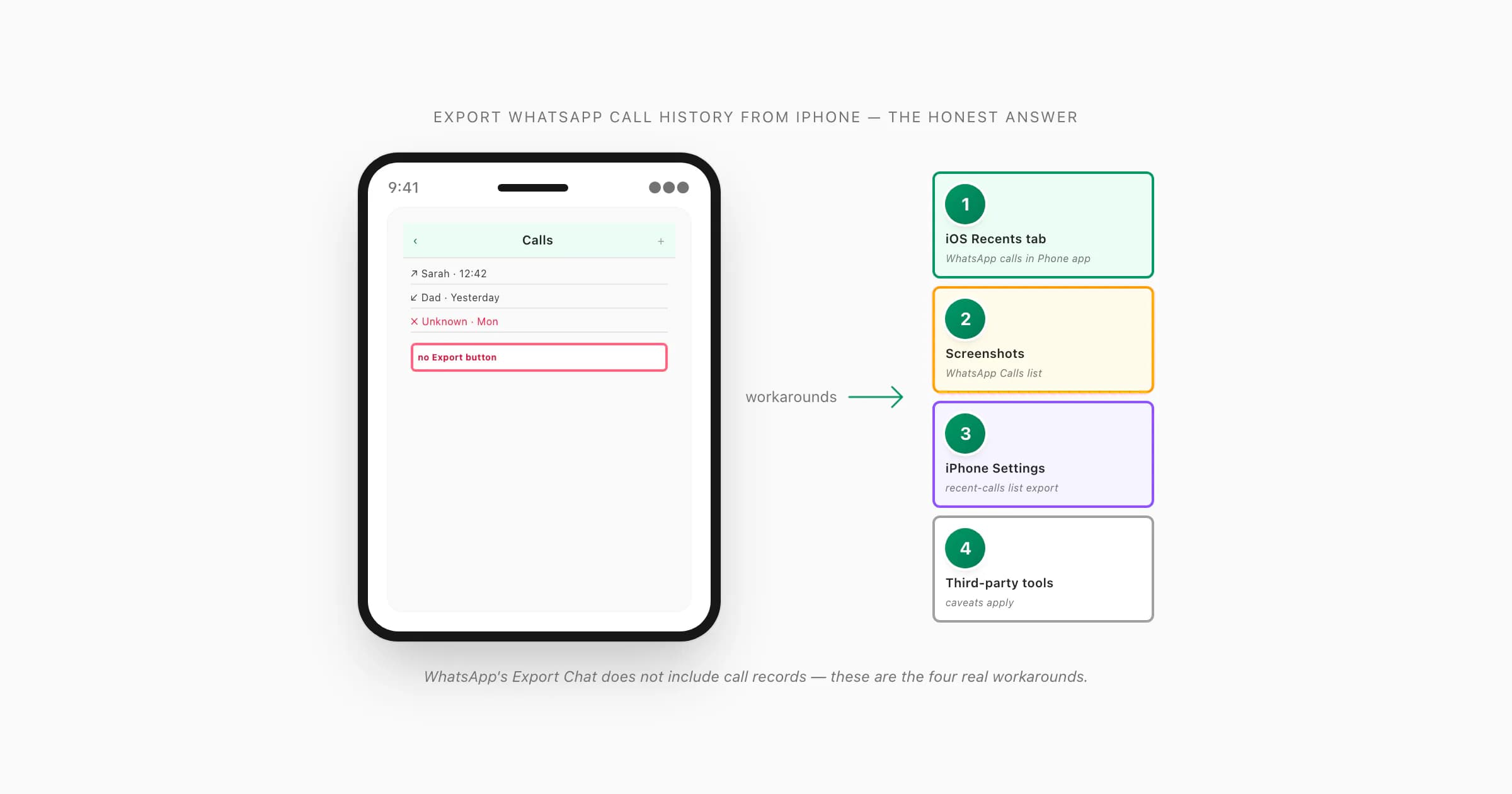
WhatsApp does not export call history on iPhone — the Export Chat feature captures messages, photos, and voice notes but never includes the call log. To get a record of WhatsApp calls, the real workarounds are: check the iOS Phone app's Recents tab (mixes all calls, capped at ~100 entries), screenshot the WhatsApp Calls tab, or use a third-party tool that reads iPhone backups. Chat transcripts with call-event markers can be converted to PDF via ChatToPDF.
Why WhatsApp does not export call history (honest)
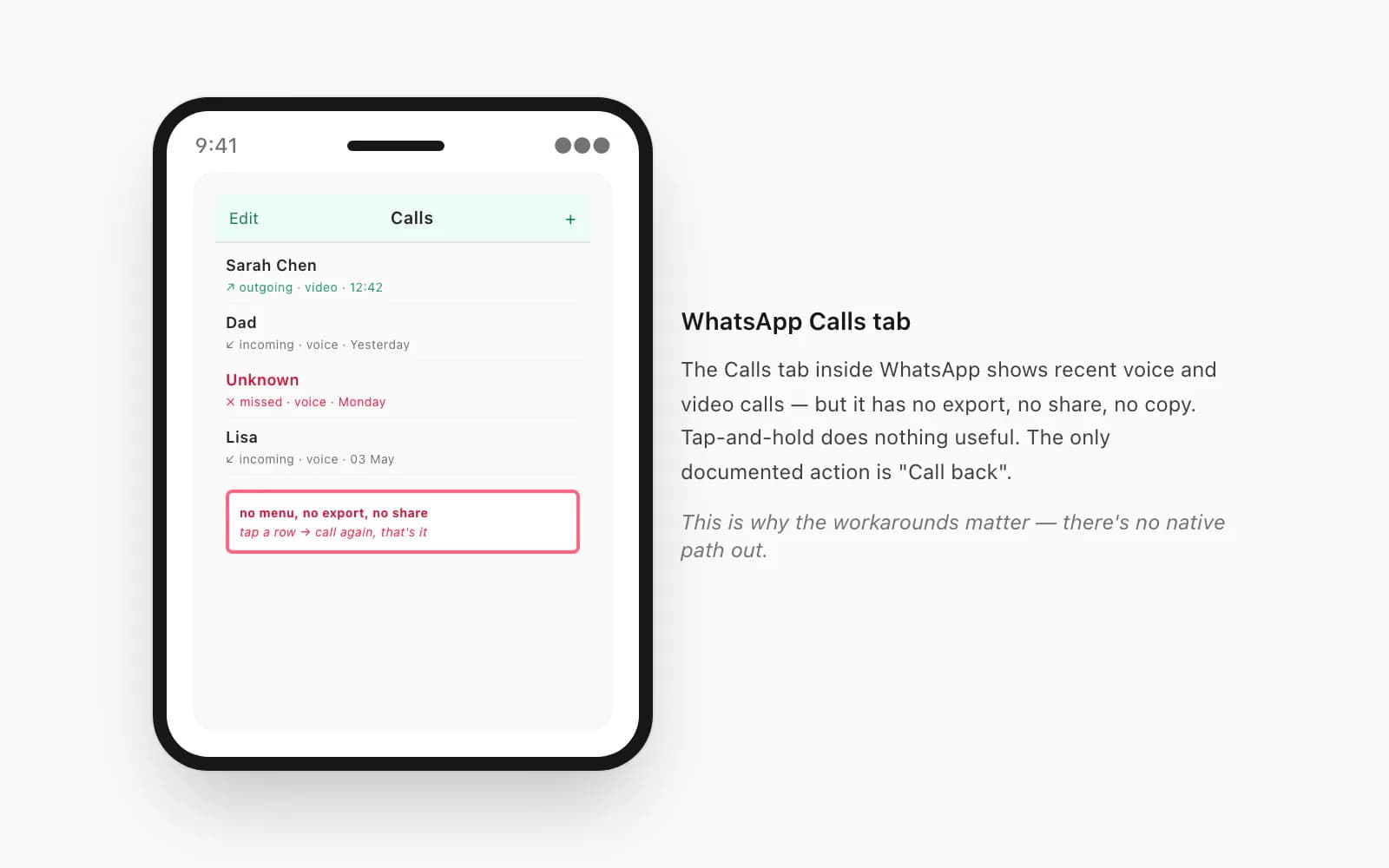
If you have searched the WhatsApp app on iPhone for an "Export Calls" button, you already know it does not exist. I get this question often from readers working on legal or HR cases — the Calls tab, the third icon at the bottom of the WhatsApp UI, shows your recent voice and video calls in a clean list, but tapping a row only offers Call Back. Tap-and-hold does nothing. There is no menu, no share sheet, no copy. The Calls tab is read-only.
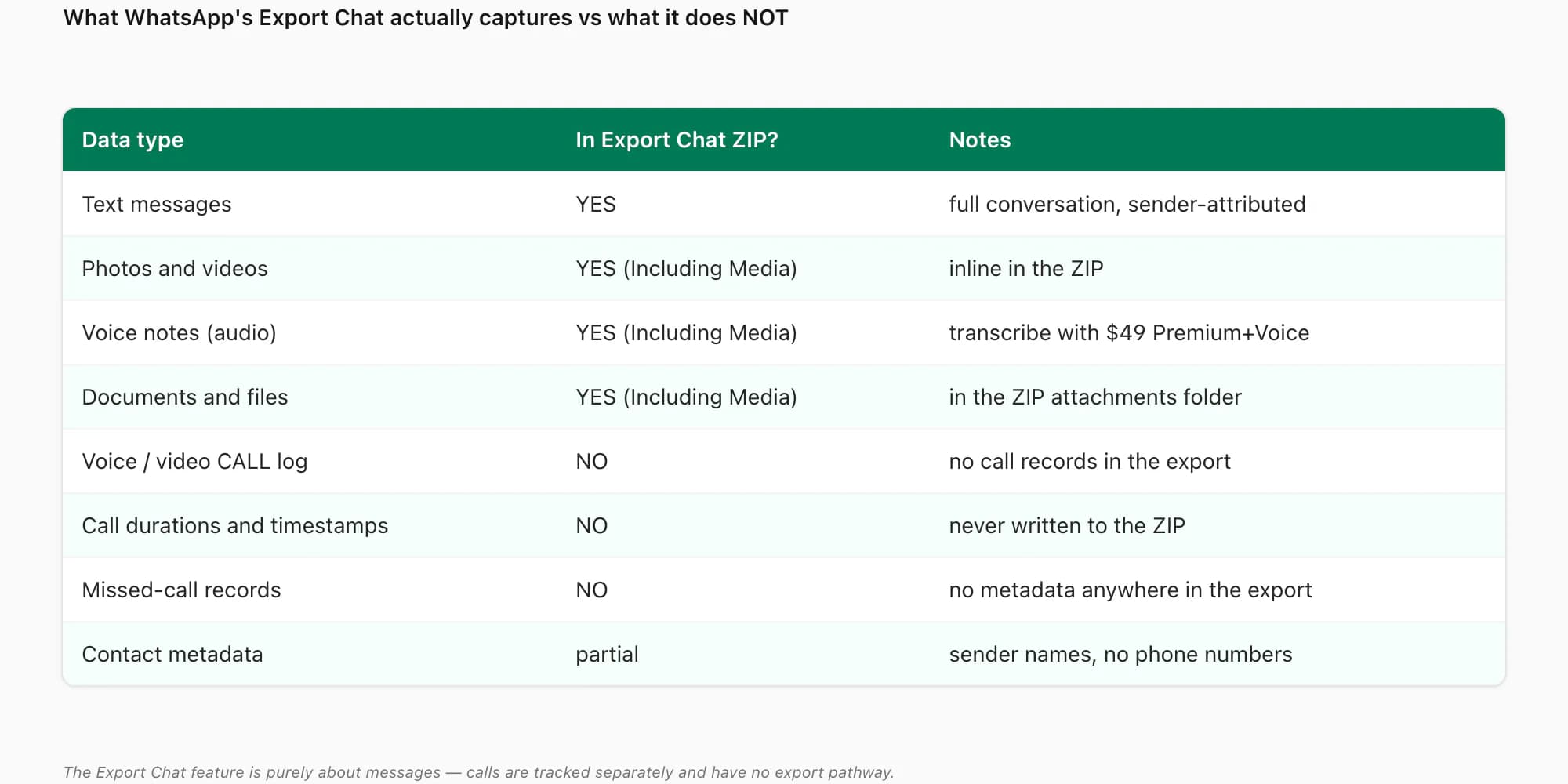
The Export Chat feature inside any individual conversation is sometimes assumed to cover calls too, because the export ZIP feels comprehensive. It is not. Export Chat captures text messages, photos and videos (with the Including Media option), voice notes (audio attachments), and documents. It does not capture the call log — there are no rows in the chat ZIP for "incoming voice call from Sarah, 12 minutes" or "missed video call from Dad". WhatsApp tracks calls in a separate database table on the device, and that table is never written to the export.
This is a deliberate product choice. WhatsApp publicly treats the chat log and the call log as distinct records — chats are messages people sent, calls are connections people made — and the export feature is scoped to messages only. There is no roadmap signal suggesting this will change, and it has been this way for the entire history of the Export Chat feature.
So the question "how to export WhatsApp call history from iPhone" has an honest first answer — you cannot, not in the clean sense of "export to CSV". What you can do is one of four workarounds, each with tradeoffs. The rest of this guide walks through them in order of how often they actually work for the use cases that drive this search.
For the chat half of the record, the per-chat workflow is well-documented — see how to export WhatsApp chat on iPhone for the standard iOS export, or jump straight to iPhone WhatsApp chat to PDF for the chattopdf conversion. The cluster-5 pillar WhatsApp Android to iPhone ties the iOS-specific guides together. The sister "honest gap" guide is how to import exported chat in WhatsApp iPhone — the call log and the import flow are the two things WhatsApp does not do cleanly on iOS, and both pages are about how to work around the gap rather than pretending it doesn't exist.
Why people need WhatsApp call records anyway
Before the workarounds, it is worth being clear about who searches "export WhatsApp call history from iPhone" and why — because the right workaround depends heavily on the use case.
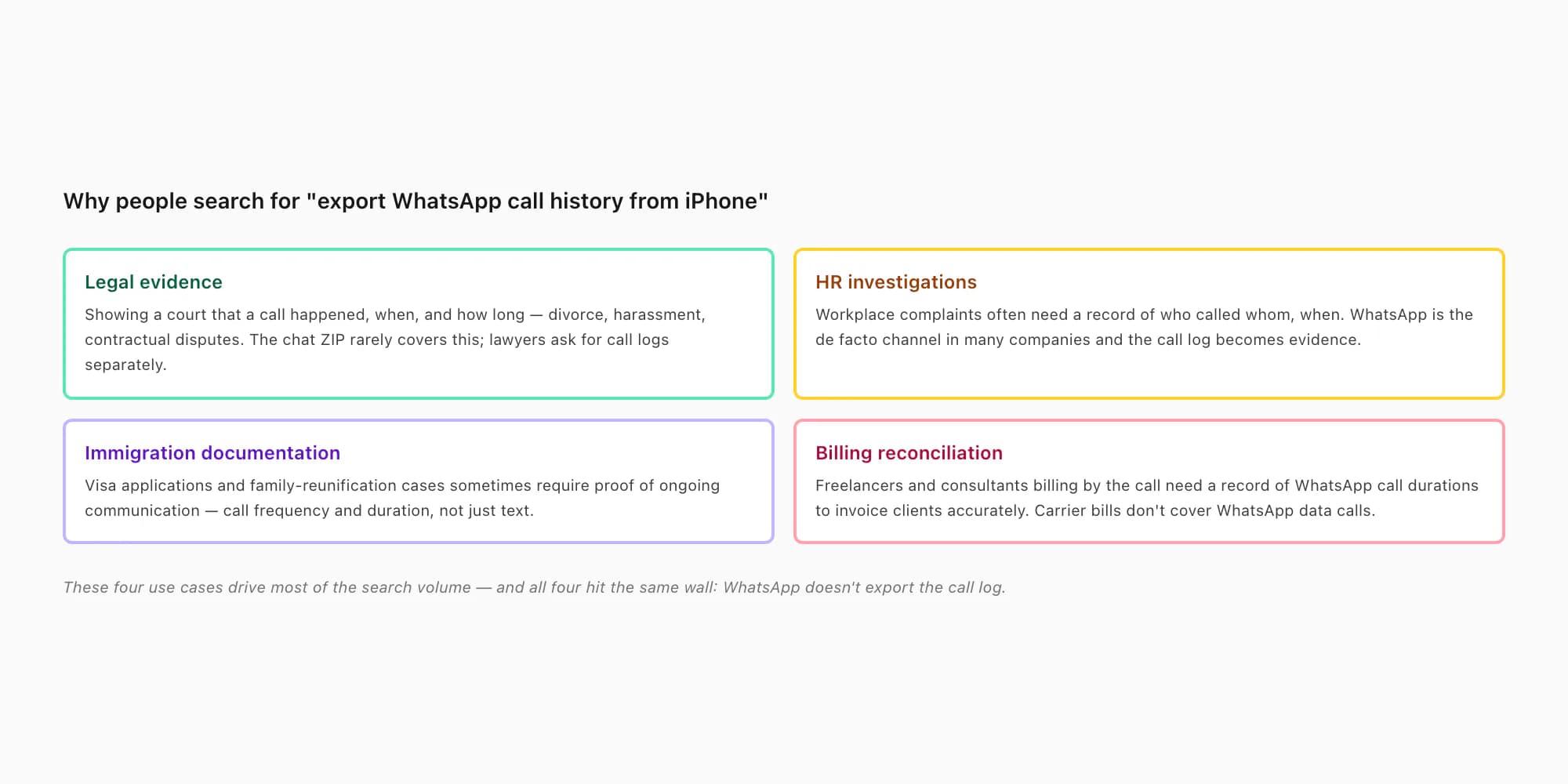
Legal evidence — divorce proceedings, harassment cases, breach-of-contract disputes. Lawyers frequently ask for WhatsApp records, and the chat ZIP rarely covers everything they need. If a key event was a phone call rather than a message, the call-log entry — date, time, duration, who called whom — becomes the evidence. A call that lasted 47 minutes at 2:14 AM tells a story that the chat does not. Court-admissibility usually requires authenticated screenshots or forensic-tool output rather than a hand-typed list, which is why Workaround 2 (screenshots) and Workaround 4 (forensic tools) tend to be the practical answers here. The WhatsApp evidence in court PDF guide covers admissibility framing in more detail.
HR investigations — workplace complaints, conduct cases, harassment claims. Many companies treat WhatsApp as a quasi-official channel and HR teams need a record of who called whom and when. The duration matters too — a 3-second call versus a 30-minute call distinguishes a misdial from an actual conversation. HR usually accepts screenshots if the chain of custody is clean.
Immigration documentation — family-reunification visa applications, partner-visa cases, ongoing-relationship evidence. Immigration officers sometimes ask for proof of regular contact between an applicant and a sponsor. Call frequency and duration over months or years is direct evidence; chat content alone can be argued as fabricated. The screenshot path is what most immigration lawyers recommend because it is straightforward to authenticate.
Billing reconciliation — freelancers and consultants who bill by the call need to invoice for WhatsApp calls just like any other professional time. Carrier bills do not show WhatsApp data calls because the calls go over the internet, not the cellular voice network. The freelancer needs a record of WhatsApp call durations to invoice the client accurately, ideally exported into a billing system.
The use case shapes the workaround. Legal and HR want pixel-perfect screenshots with timestamps. Immigration wants a long history. Billing wants a structured list that can be pasted into invoicing software. Different priorities, different paths.
Workaround 1 — iOS Phone Recents tab
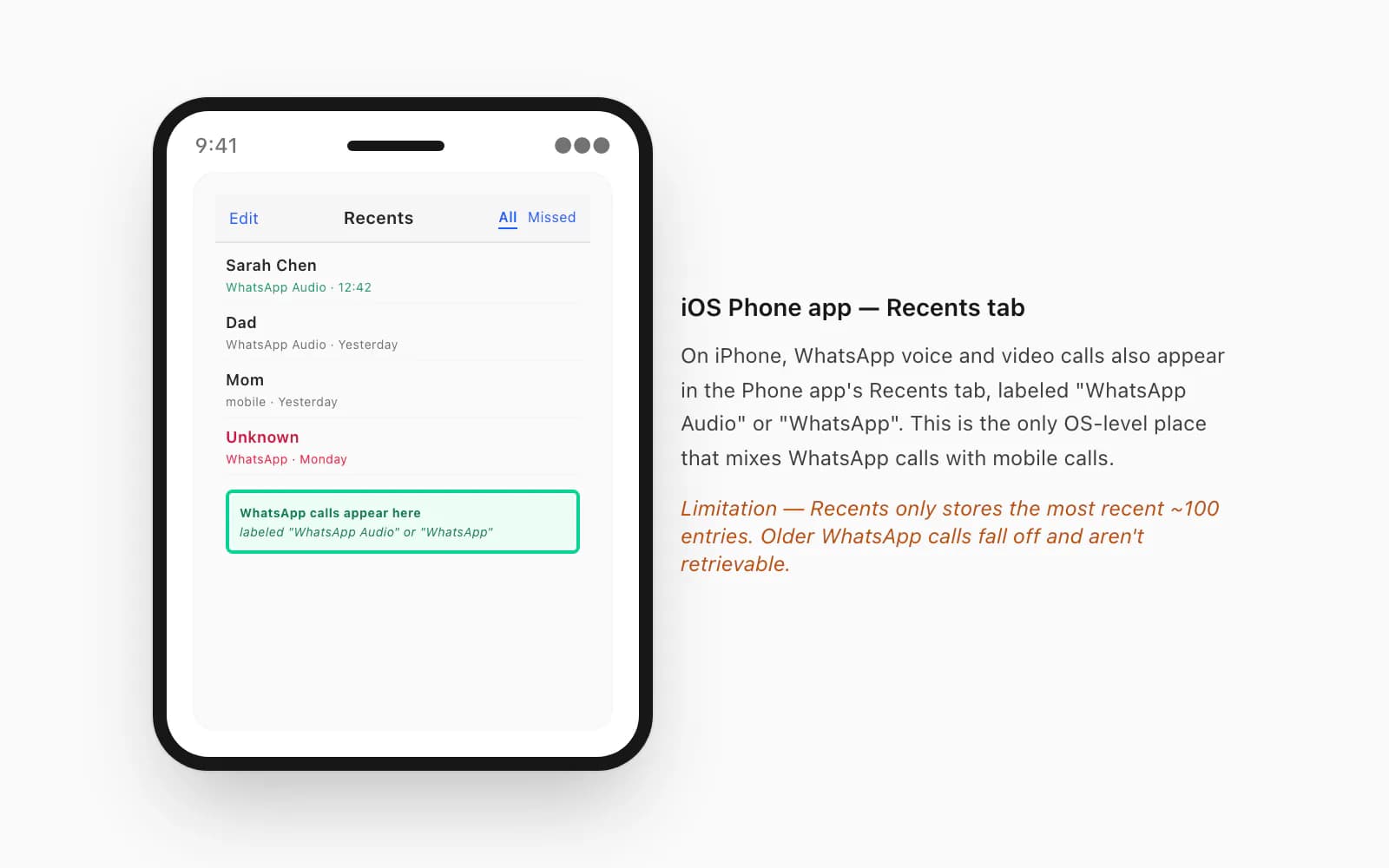
This is the easiest workaround and the one most people miss. WhatsApp voice and video calls on iPhone also appear in the iOS Phone app's Recents tab, mixed in with regular cellular calls. They are labeled "WhatsApp Audio" or "WhatsApp" — the labeling depends on iOS version and whether it was a voice or video call.
Open the iOS Phone app on iPhone (the green icon, not WhatsApp)
The Phone app comes pre-installed on every iPhone — it is the green icon labeled "Phone". Open it. The bottom tab bar shows Favorites, Recents, Contacts, Keypad, Voicemail.
Tap the Recents tab and scroll the list
Recents shows the most recent calls in reverse-chronological order. WhatsApp voice and video calls appear interleaved with regular cellular calls. Look for entries labeled "WhatsApp Audio" or "WhatsApp" under the contact name — that is the indicator.
Tap the i icon next to a WhatsApp call to see the full details
Tapping the small "i" (info) icon to the right of a call entry opens the detail screen with date, time, and duration. This is the timestamped record you need for evidence purposes — screenshot this screen for each call you care about.
Filter to Missed if you only want missed WhatsApp calls
The top of the Recents tab has an "All / Missed" toggle. Switching to Missed shows only the calls you did not answer — useful for harassment evidence where the missed-call pattern is the story.
The iOS Recents path has two real limitations to be honest about. First, Recents only stores roughly the most recent 100 entries (the exact cap depends on iOS version) — older WhatsApp calls fall off and are not retrievable from Recents. If you need calls from six months ago, this path will not have them. Second, the Recents list does not export — there is no "Share Recents" or "Export to CSV" option. You can screenshot it, but you cannot pull the data structurally.
For most users with a recent dispute (within the last few weeks), the Recents path is fast and clean. For deeper history, you need one of the other workarounds.
Workaround 2 — screenshot the WhatsApp Calls tab
When the iOS Recents path is not enough — typically because the calls are older than the Recents cap, or because you want the WhatsApp-app-context view — the next workaround is straightforward — screenshot the Calls tab inside WhatsApp itself, one screenful at a time, then bundle the screenshots into a PDF.
Open WhatsApp and tap the Calls tab at the bottom
The Calls tab is the third icon (phone-receiver shape) on the bottom navigation bar. Tap it. You see the chronological list of WhatsApp voice and video calls — incoming, outgoing, missed.
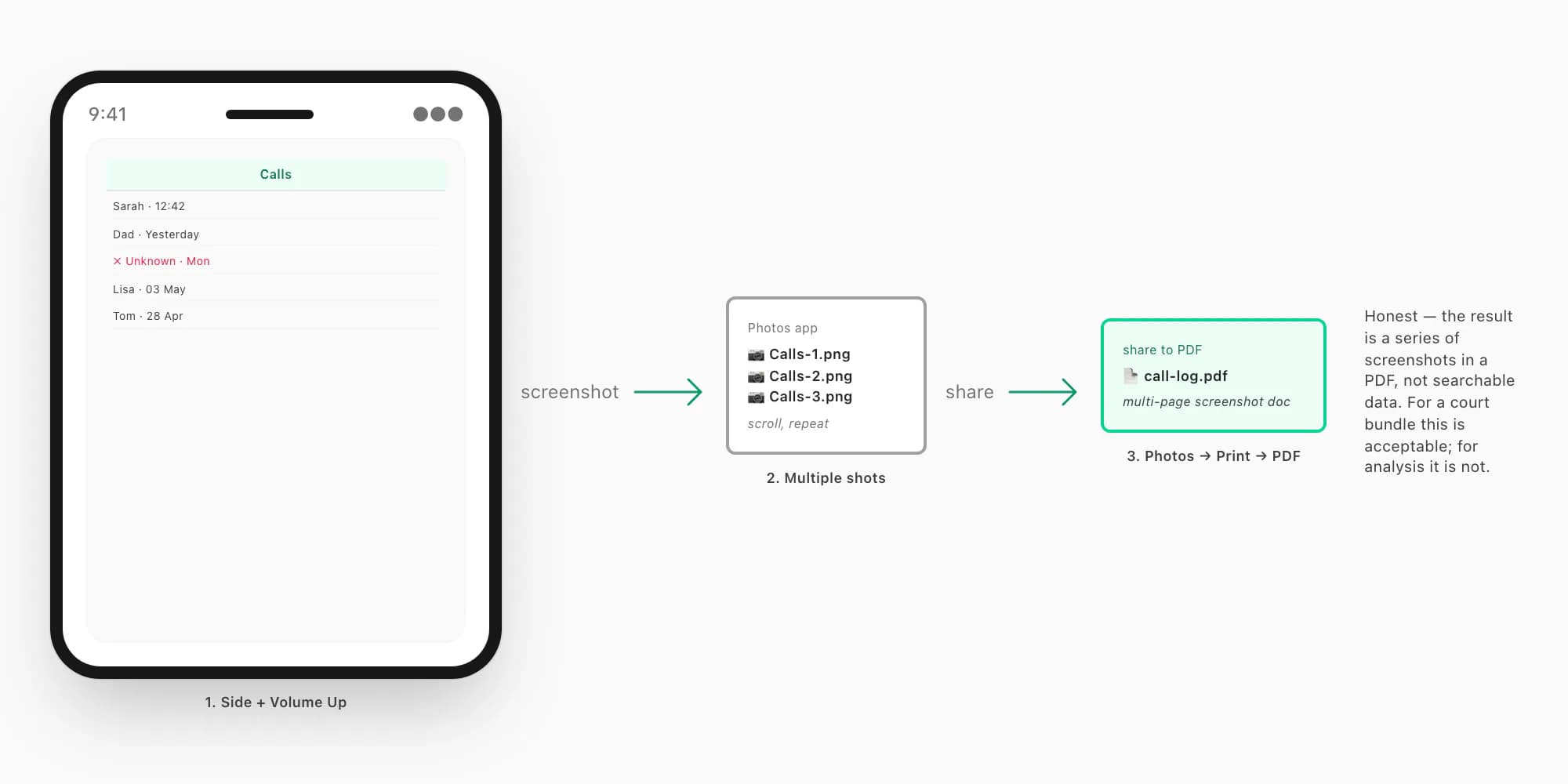
Take a screenshot — Side button + Volume Up on Face-ID iPhones
The screenshot gesture is Side button + Volume Up on iPhone X and later (Face-ID models), or Home button + Side button on older iPhones (Touch-ID models). The screenshot flashes briefly and saves into Photos.
Scroll the Calls list down by one screen and screenshot again
Scroll the Calls list so the next batch of calls is visible — typically 8 to 12 calls per screen depending on display size and zoom — then screenshot again. Repeat until you reach the end of the list or the period you care about.
Open Photos, select all the screenshots, share to PDF
Open the Photos app, tap Select, tap each Calls screenshot in order, tap the Share button, scroll the share sheet down to "Print", pinch-out on the print preview to convert to PDF, then share the PDF. This is iOS's built-in screenshot-to-PDF workflow and produces a multi-page document.
Save the PDF to Files or send it to your computer
The resulting PDF is a standard iOS file — save it to Files (iCloud Drive or On My iPhone), email it to yourself, or AirDrop to a Mac. From there it is normal evidence documentation.
The screenshot path is the most common practical answer for legal and HR evidence work. Pixel-perfect screenshots are court-acceptable in most jurisdictions because they show the WhatsApp UI exactly as the user saw it — there is no risk of "you typed this list yourself". The downside is that the result is a series of images bundled into a PDF, not searchable structured data — you cannot pivot-table durations or filter by contact. If you need analysis rather than evidence, this path is not the one.
For users on a corporate iPhone where IT has restricted screenshots (some MDM profiles do this), this path will not work either — you will need to talk to IT about temporarily lifting the restriction or use a personal device.
Workaround 3 — restore an iCloud backup to a spare iPhone
The third workaround is restore-based — useful when you need calls from before the iOS Recents cap and the user has been doing iCloud backups. The idea — restore a recent iCloud backup of the iPhone to a spare iPhone (or wipe-and-restore the same iPhone), then read the Calls tab on the restored device. WhatsApp's call list is part of the app data and is preserved across iCloud backups.
This path is slow and bumpy and most users skip it. It is the right answer in narrow scenarios — typically forensic-investigation work where the spare iPhone is dedicated to the case and the chain of custody is documented. For everyday legal or HR needs, the screenshot path is faster.
The honest workflow:
Confirm the relevant iCloud backup includes WhatsApp
Settings → [your name] → iCloud → Manage Account Storage → Backups → pick the iPhone → confirm the backup date you need is present and that WhatsApp is checked in the app list. Without WhatsApp in the backup, the call list is not there either.
Set up the spare iPhone fresh and restore from the backup
On the spare iPhone, go through the standard setup flow until you reach "Apps and Data". Pick Restore from iCloud Backup, sign in, pick the dated backup that contains the WhatsApp call list. Restoration takes 30 minutes to several hours depending on backup size.
Open WhatsApp on the spare iPhone and verify the Calls tab is populated
After restore, WhatsApp launches and goes through its own restore flow if the backup included WhatsApp data. Open the Calls tab — the historical call list should be there as it was on the date of the backup.
Apply Workaround 2 (screenshots) on the restored device
With the historical call list visible, you can now screenshot it the same way as Workaround 2. The result is a PDF of the historical calls bundled the same as you would for current calls.
This path needs a spare iPhone (you cannot restore over the working iPhone without losing the current state, which is usually not acceptable), and it needs a backup that actually included WhatsApp at the right point in time. If the backup is encrypted, you need the encryption password — without it, the restore fails. For a forensic investigator with a court order, this is sometimes the right approach; for most personal disputes, the cost-benefit is not there.
Workaround 4 — third-party iOS forensic tools
The fourth and last workaround is paid third-party tools — iMazing, iExplorer, AnyTrans, or forensic-grade tools like Cellebrite for law-enforcement contexts. These tools connect the iPhone via cable and read app databases directly, including WhatsApp's call-log table when accessible.
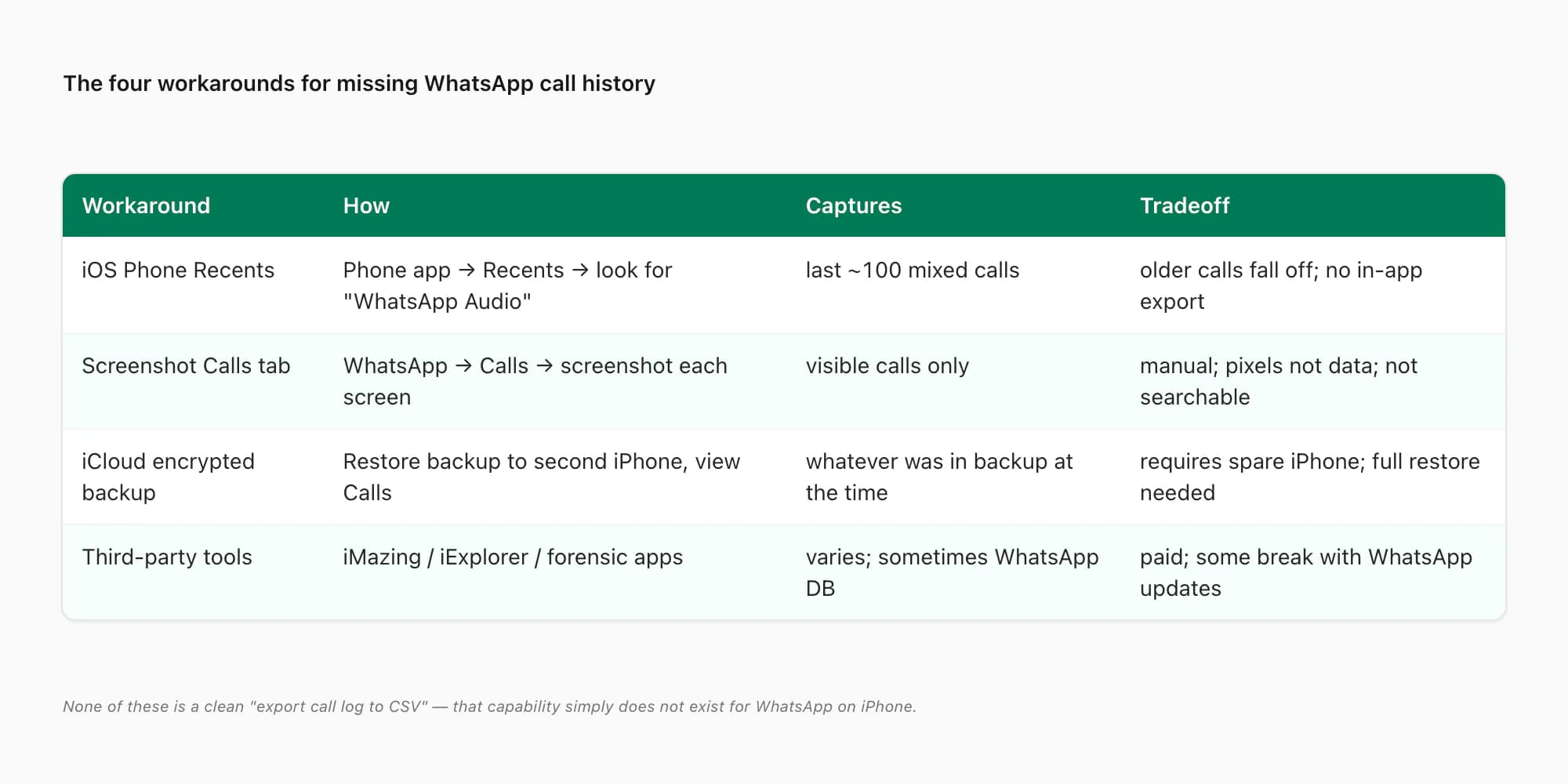
Honest tradeoffs — these tools cost money (typically $30 to $80 for consumer versions, much more for forensic-grade), and WhatsApp's database format changes periodically, which sometimes breaks third-party access until the tool is updated. The tools work best when the iPhone is unencrypted-backup mode (not the default — most users have encrypted backups). And modern iOS versions have tightened app-data access, which means some tools that worked in iOS 15 do not work in iOS 17 and later.
For law-enforcement or court-ordered forensic work, Cellebrite and similar professional tools are the standard answer — they work around iOS encryption with court-authorized access and produce forensic reports admissible as evidence. For consumer use, iMazing's WhatsApp export feature is a popular pick when it works.
The reason this guide does not walk through any specific third-party tool step-by-step is straightforward — each tool's UI changes, and recommendations age fast. If you go this route, check recent reviews specifically for "WhatsApp call log export iOS [current iOS version]" and pick a tool that has confirmed working in the last few months. Beware fly-by-night tools — there are scammy ones promising magical exports that are really just paid screenshot apps.
Pair with the chat PDF for a complete record
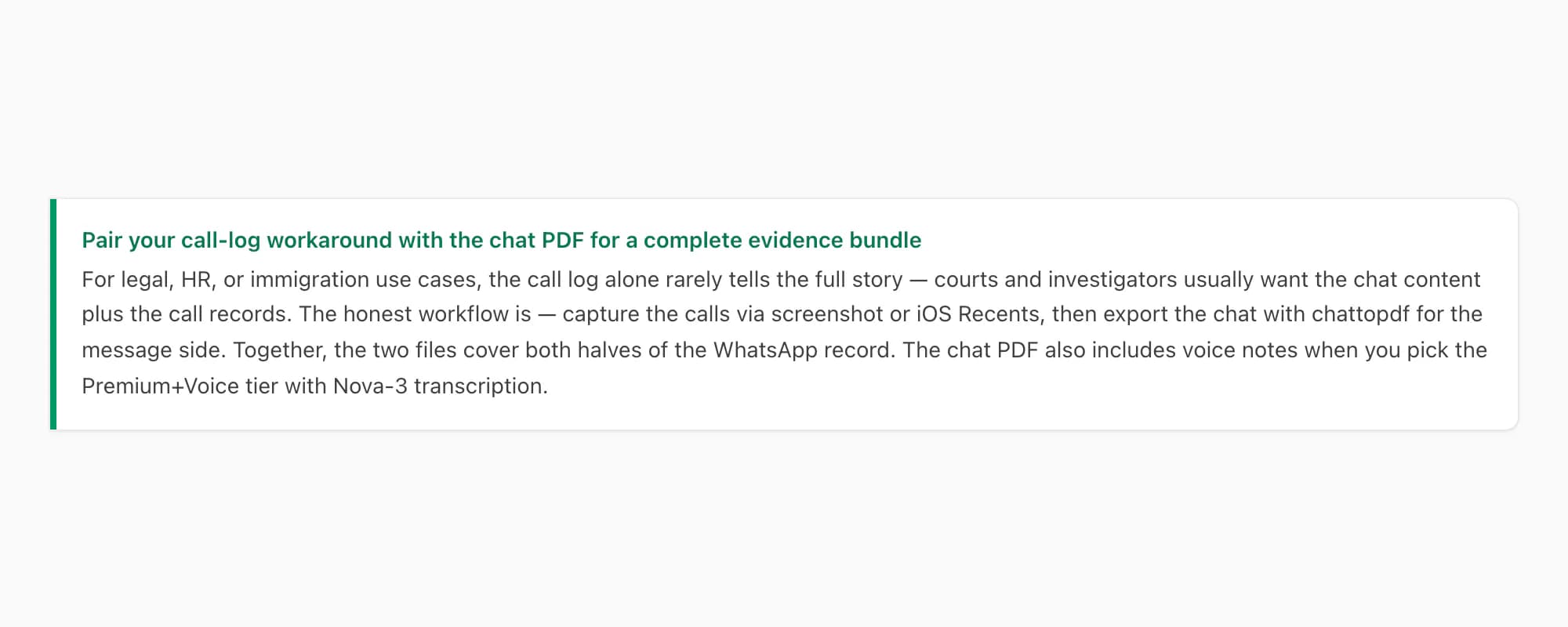
For most legal, HR, and immigration use cases, the call log alone is rarely the full story. The investigator, lawyer, or visa officer usually wants both — the chat content (text, photos, voice notes) plus the call records. WhatsApp tracks them separately, and you need to pull them separately.
The complete-record workflow is —
- Calls — pick one of the four workarounds above. For most cases, Workaround 2 (screenshots) is the practical answer.
- Chat — export the chat conversation as a PDF using chattopdf. This handles the message side cleanly, including inline photos, timestamps, sender attribution, and (with the Premium+Voice tier) language-aware Nova-3/Scribe v2 transcription of voice notes.
- Combine — bundle both PDFs into a single evidence folder, ideally with a one-page cover sheet describing what each file is.
The chat PDF picks up where the call workaround leaves off — it is the message side of the record, formatted for archiving, printing, or attaching to a court bundle. The two together give a complete picture of the WhatsApp relationship in a way neither does alone.
The cross-cluster sister guide how to export contacts from WhatsApp covers another category that WhatsApp does not export cleanly — contact phone numbers and metadata. If you need the full picture (chat + calls + contacts), you are looking at three separate workarounds rather than one clean pipeline. That is just the honest state of WhatsApp's export feature in 2026.
Pricing — chattopdf is for the chat half
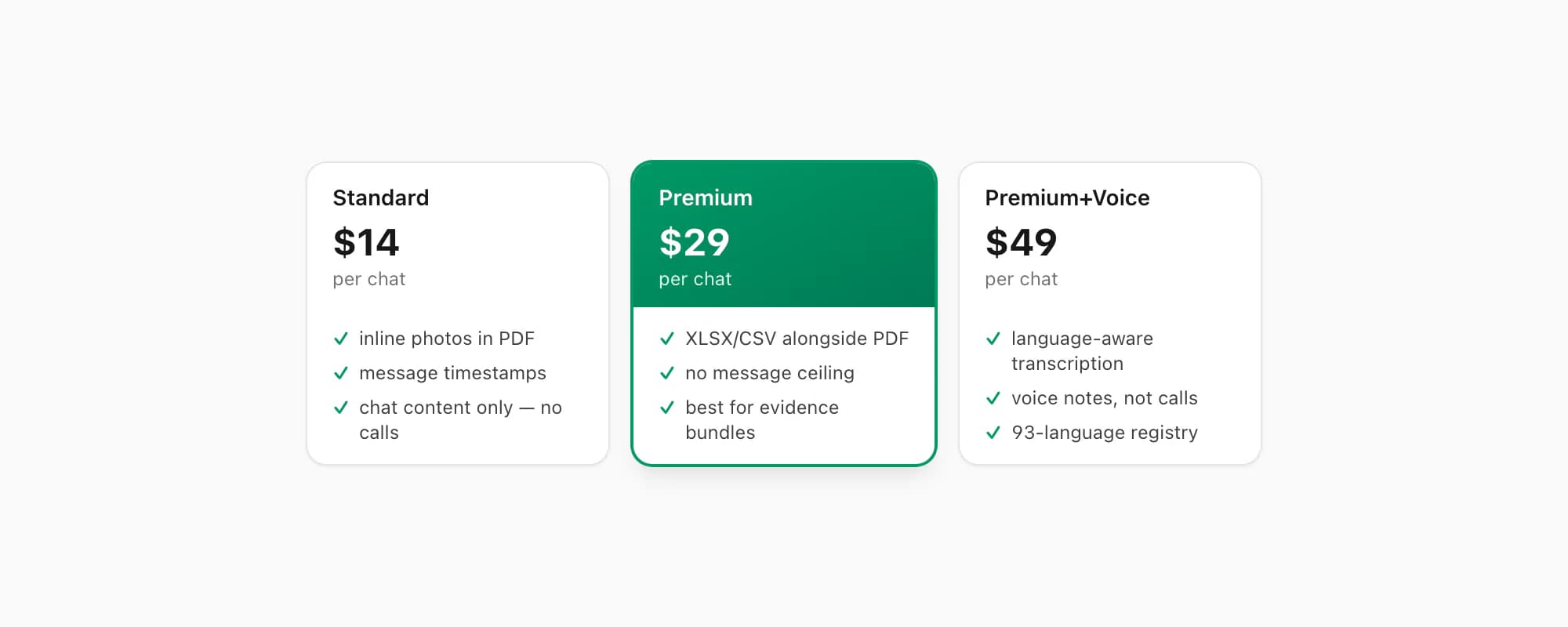
Just to be clear — chattopdf converts the chat side of the record. It does not convert call logs, because (as discussed) WhatsApp does not export call logs and there is no source data for chattopdf to work with. The pricing below is for the chat content; the call-log workarounds above are separate and free except where third-party tools are used.
$7 Basic per chat — text-only PDF, no inline photos, 25,000-message ceiling. Cheap pick for the message side when calls are the priority and the chat is just supplementary.
$14 Standard per chat — sender-attributed PDF with inline photos, timestamps, professional formatting, 25,000-message ceiling. The default for most evidence work — clean enough for a court bundle, complete enough to read alongside the call screenshots.
$29 Premium per chat — adds an XLSX/CSV export alongside the PDF and removes the 25,000-message ceiling entirely. Right pick for long evidence cases spanning years of WhatsApp messages, and the XLSX is genuinely useful for HR and legal teams who want to filter, sort, and pivot the message data.
$49 Premium+Voice per chat — adds voice-note transcription through the language-aware Nova-3/Scribe v2 router. Right pick when the chat contains voice notes that need to be transcribed for the evidence bundle. The transcribe WhatsApp audio guide covers the voice pipeline. Voice notes are different from voice calls — Nova-3 transcribes the audio attachments embedded in the chat, not the call audio (which WhatsApp does not retain anywhere).
$99 Power User per chat — priority queue, no per-session cap, batch turnaround. The bulk-evidence tier rather than the single-chat tier. If you are pulling many chats for a comprehensive case file, this is the answer.
To be clear — every tier is per chat, same billing structure, one-time conversion charge for that specific chat. Not a subscription.
Key takeaways
- WhatsApp's Export Chat feature does not include call history — text, photos, voice notes, and documents are exported, but the call log is never written to the ZIP
- There is no "Export Calls" button anywhere in WhatsApp on iPhone — tap-and-hold on the Calls tab and the share sheet both come up empty
- Workaround 1 — iOS Phone Recents tab shows WhatsApp calls labeled "WhatsApp Audio" mixed with mobile calls, but capped at roughly 100 entries and no native export
- Workaround 2 — screenshot the WhatsApp Calls tab one screen at a time and bundle into a PDF via Photos → Print → Save as PDF — the most common practical answer
- Workaround 3 — restore an iCloud backup to a spare iPhone and read the historical Calls tab from there — narrow forensic-investigation use case
- Workaround 4 — paid third-party tools like iMazing, iExplorer, or forensic-grade Cellebrite — works when the tool is current, breaks when WhatsApp's database format changes
- Most legal and HR evidence work uses Workaround 2 (screenshots) for calls combined with a chattopdf chat PDF for the message side — together they cover both halves of the record
- Voice notes (audio messages embedded in the chat) are different from voice calls — Nova-3 transcribes voice notes; voice-call audio is not retained anywhere by WhatsApp
- $14 Standard per chat for the chat-side PDF, $29 Premium per chat for evidence cases needing XLSX, $49 Premium+Voice when voice notes need transcription
- For the message side of the record — what the chat PDF contains, how tiers differ, and how to turn the export ZIP into a formatted document — see the WhatsApp to PDF guide.
FAQ
Does WhatsApp's Export Chat feature on iPhone include call history?
No. The Export Chat ZIP includes text messages, photos and videos (with the Including Media option), voice notes (audio attachments embedded in the chat), and documents — but it does not include the call log. There are no rows in the chat ZIP for incoming, outgoing, or missed voice or video calls. WhatsApp tracks calls in a separate database table on the device, and that table is never written to the export. This has been the case since the Export Chat feature was introduced and there is no roadmap signal it will change. If you need call records, you need one of the four workarounds in this guide rather than the Export Chat feature.
Where do I see WhatsApp calls on iPhone if I cannot export them?
Two places — inside WhatsApp on the Calls tab (the third icon at the bottom of the WhatsApp UI), and inside the iOS Phone app on the Recents tab where WhatsApp calls appear labeled "WhatsApp Audio" or "WhatsApp" mixed in with regular cellular calls. The WhatsApp Calls tab is read-only — you can tap a row to call back but not export, share, or copy. The iOS Recents tab is also read-only but shows useful per-call metadata when you tap the small "i" icon — date, time, duration. For evidence purposes, the iOS Recents tab is often the cleaner source because the iOS UI is more familiar to courts and HR than the in-app view.
What is the most practical way to get a WhatsApp call log for legal evidence?
For most legal evidence work, the practical workflow is screenshots. Open the WhatsApp Calls tab, screenshot the visible portion using Side button + Volume Up, scroll down by one screen, screenshot again, and repeat until you reach the date you care about. Then in Photos, select all the screenshots, tap Share, tap Print, pinch-out on the preview to convert to PDF, and save the resulting multi-page PDF. This produces a court-acceptable record of the WhatsApp Calls tab as the user saw it — pixel-perfect, hard to challenge as fabricated, and clearly attributable to the WhatsApp UI. Pair this with a chattopdf chat PDF for the message content and you have a complete WhatsApp record for the case bundle.
Can iCloud backups give me older WhatsApp calls that fell off the iOS Recents tab?
Yes, but it is bumpy. iCloud backups of the iPhone include WhatsApp app data when WhatsApp is checked in the iCloud Backup app list, and that app data includes the WhatsApp Calls tab as it was on the day of the backup. To read those historical calls, you need to restore the backup to a spare iPhone (or wipe-and-restore the same iPhone — usually not acceptable because you lose current data), open WhatsApp on the restored device, and view the Calls tab. This is a forensic-investigation workflow rather than a casual one — you need a spare iPhone, the encryption password if backups are encrypted, and the willingness to spend hours on a restore. For most personal disputes, the iOS Recents tab plus screenshots is faster and good enough.
What is the difference between voice notes and voice calls — does chattopdf transcribe both?
Voice notes are audio messages a person records and sends as part of the chat — they appear inline in the conversation as a play button and are stored as audio files inside the chat ZIP when you Export Chat with Including Media. Voice calls are real-time phone calls between two people over WhatsApp's voice network — they are not recorded and not stored anywhere; only the call metadata (date, time, duration) exists, and only on the device. ChatToPDF's $49 Premium+Voice tier routes supported voice notes through Deepgram Nova-3 or ElevenLabs Scribe v2; successful transcripts appear inline. It cannot transcribe voice calls because the call audio does not exist in the export. If you need a transcript of a voice call, that audio would have had to be recorded separately at the time of the call, which WhatsApp does not support natively.
I'm Paul, the founder of ChatToPDF. I built it after needing a long WhatsApp conversation as a readable PDF for a legal matter. I test and document WhatsApp exports, PDF conversion, voice-note transcription, and the limits people should check before relying on the result.