
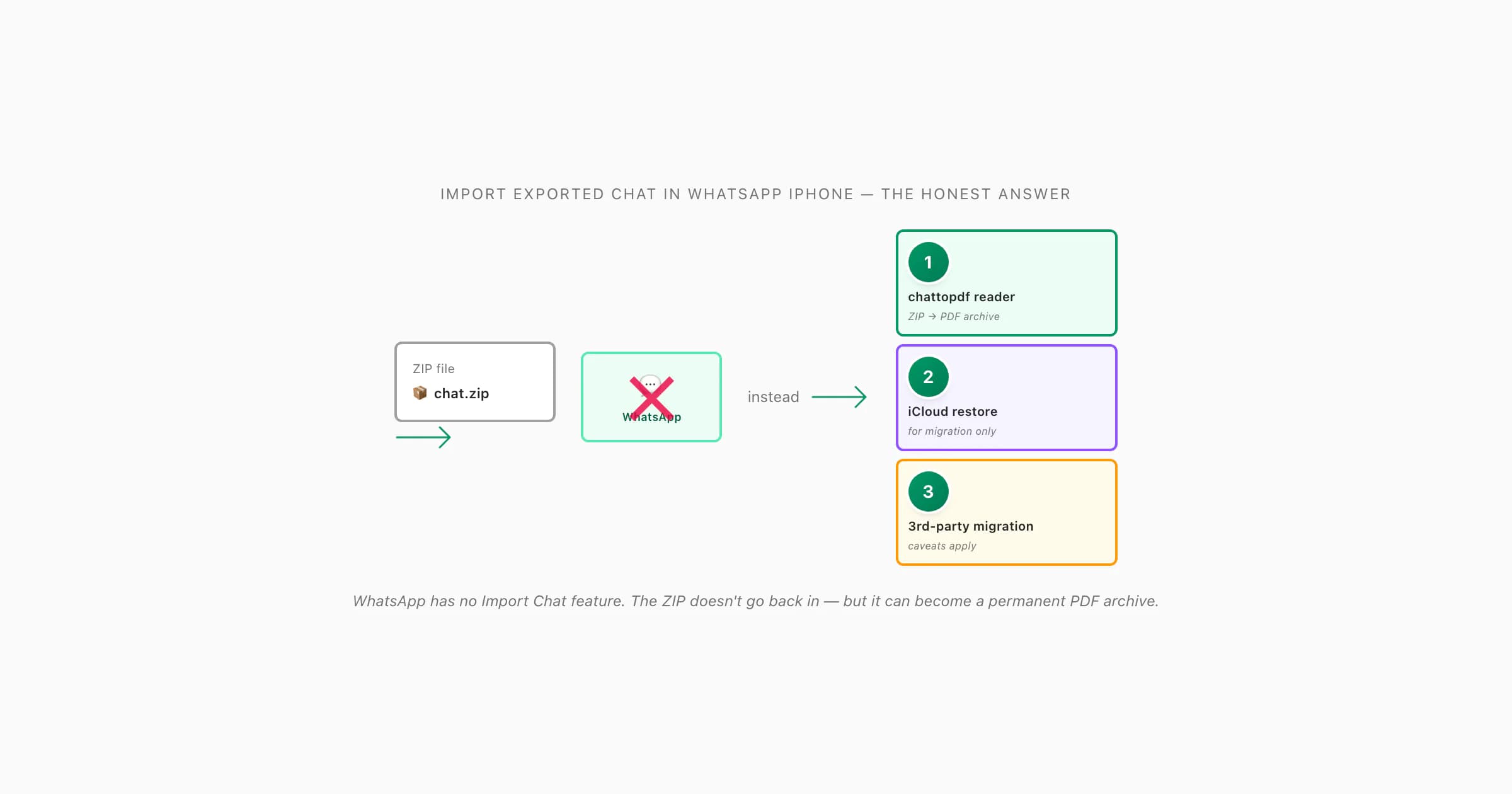
WhatsApp does not support importing an exported chat ZIP back into the app on iPhone — there is no "Import Chat" option anywhere in WhatsApp's iOS menus. Export Chat is one-way only: out of WhatsApp, never back in. If you have a ZIP export and want to read it, upload it to ChatToPDF to convert it to a readable PDF. To restore a lost chat on a new device, use iCloud backup — that is a separate mechanism from the export feature.
Why WhatsApp does not import ZIP exports
If you've searched the WhatsApp settings on iPhone for an "Import Chat" button or a "Load from ZIP" option, you've already discovered there isn't one. The Export Chat feature exists at the per-conversation level — Chat Info → Export Chat — but there is no symmetric Import Chat feature anywhere in the WhatsApp UI. There is no Settings → Chats → Import. There is no per-chat Import option. There is no Files-app integration that lets you tap a ZIP and have WhatsApp open it. The export is one-way.
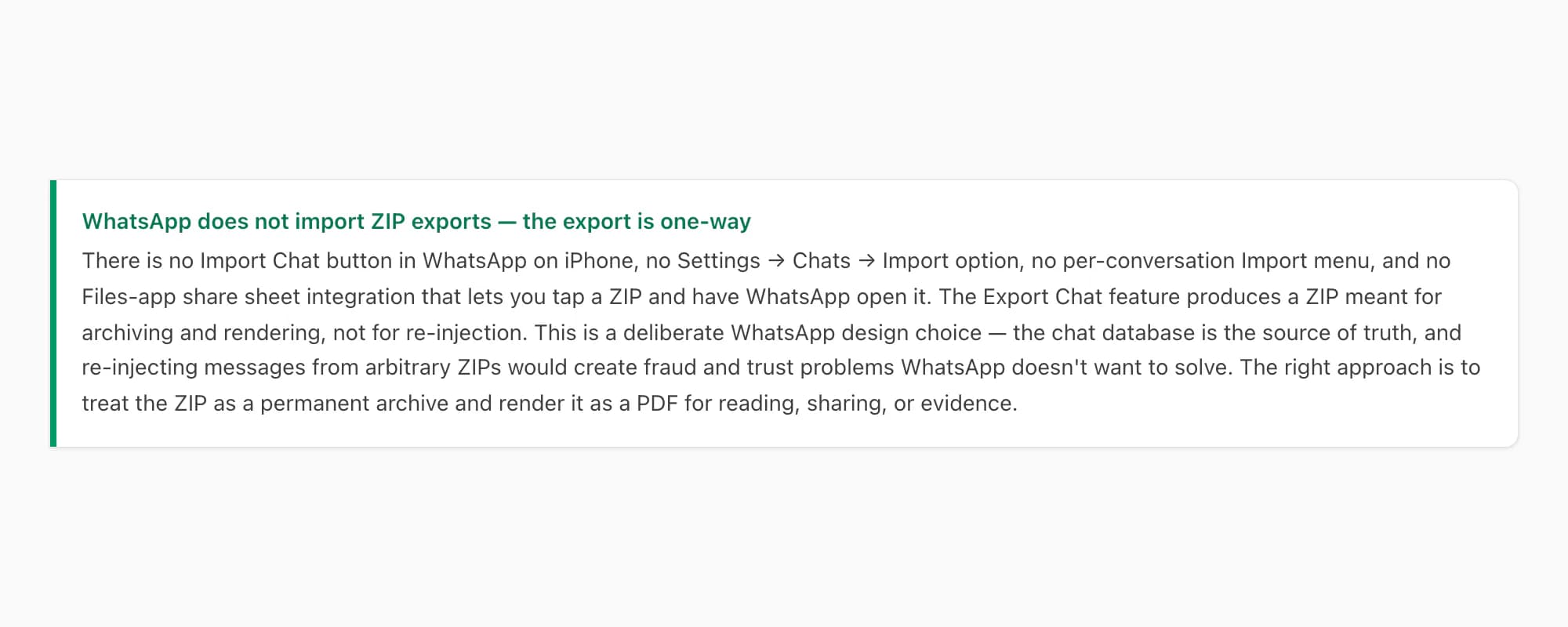
The reasons for this are partly technical and partly product-design. Technically, the WhatsApp chat database on iPhone is a SQLite store with strict schema and message-ID conventions tied to the WhatsApp account that originally received or sent each message. Re-injecting messages from a third-party ZIP would require WhatsApp to either trust the ZIP's claimed sender attribution (a fraud risk — anyone could craft a ZIP with fake messages) or to validate against original delivery records that aren't stored in the export format. Neither is something WhatsApp wants to do at scale.
Product-design-wise, WhatsApp treats the chat database as the source of truth — what's on your device for your account is the chat history, full stop. The export is a reading copy meant to leave the WhatsApp ecosystem (for archiving, evidence, sharing, printing), not a portable database meant to come back in. The "real" import path WhatsApp supports is restore-from-backup, which is a different mechanism entirely (more on that in a moment).
So the honest answer to "how to import exported chat in WhatsApp iPhone" is — you cannot, not in the literal sense. What you can do depends on what you actually want, which is what this guide covers.
The pillar WhatsApp Android to iPhone covers the iOS export side of the story; this guide covers the symmetric question of getting a ZIP back into a useful state, which it turns out is rarely "back into WhatsApp" and almost always something else. The sister "honest gap" guide on iOS is how to export WhatsApp call history from iPhone — the call log and the chat-import flow are the two things WhatsApp does not do cleanly on iPhone, so both pages share the same "here is what works around the gap" structure. If the underlying question is really about many chats rather than one, the bulk version of this honest answer lives at how to export all WhatsApp chats at once iPhone.
Import vs Restore — they are different things
Before the workarounds, it's worth being precise about a vocabulary trap that confuses most users — import and restore sound similar but they're completely different mechanisms in WhatsApp's world.
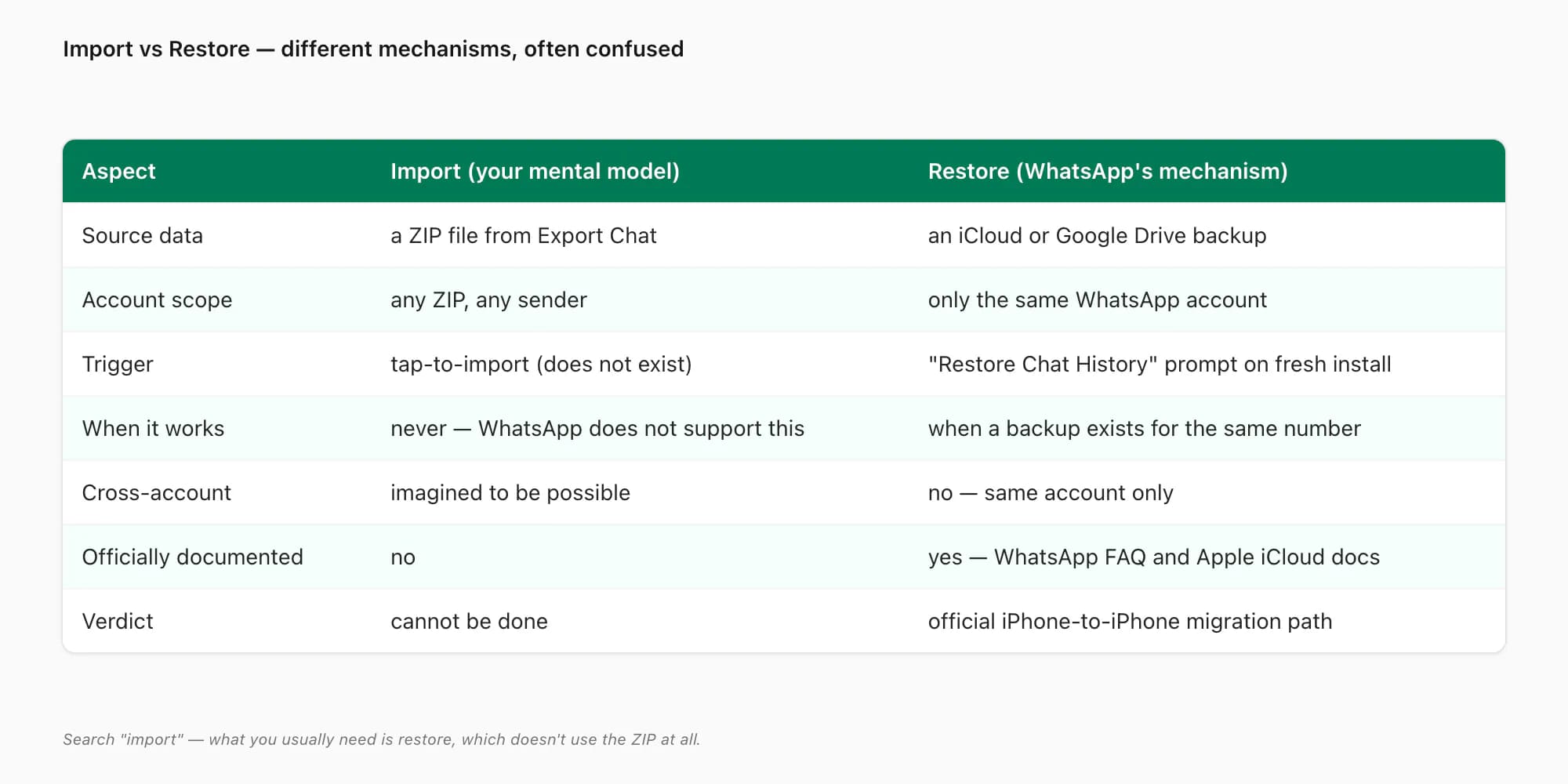
Import (your mental model) is — take a ZIP file or external chat data, drop it into WhatsApp, see those messages appear in a conversation. This is what you wanted when you searched. This does not exist. No version of WhatsApp on any platform supports this. There is no API, no settings toggle, no third-party-tested official path.
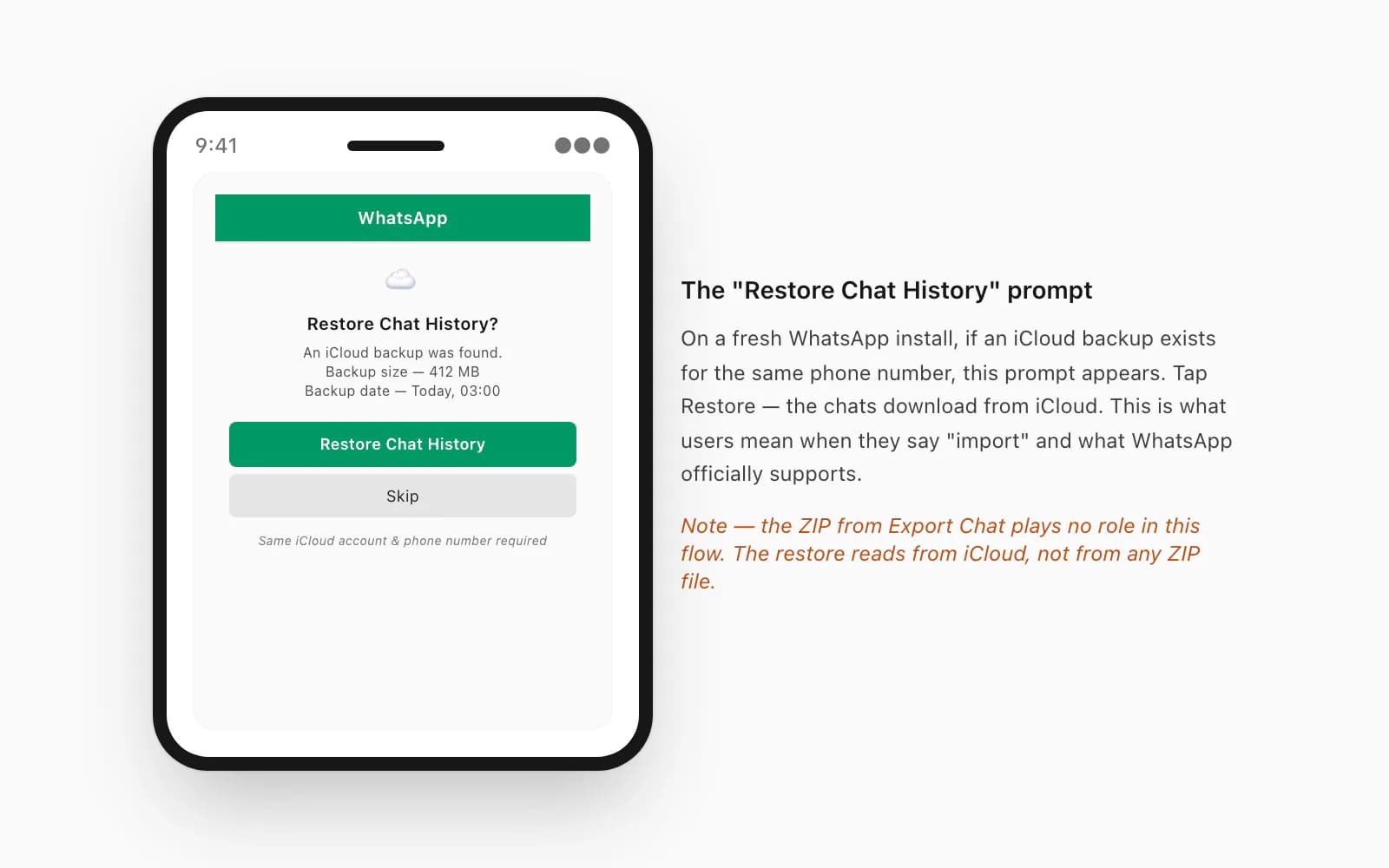
Restore (what WhatsApp actually does) is — take a WhatsApp-managed cloud backup (iCloud on iPhone, Google Drive on Android) of the same WhatsApp account, pull it down to a fresh install, and reconstruct the chat history from that backup. This is the official "get your chats back on a new phone" workflow, and it works well when you have a recent backup. But it requires the backup to exist, the WhatsApp account to be the same (same phone number), and the device to be running through a fresh-install setup or a "Restore Chat History" prompt.
The confusion happens because users who lost a chat sometimes have both — a ZIP export from before they lost it, and possibly an iCloud backup. They search "import" and what they actually need is restore, which doesn't use the ZIP at all. The ZIP becomes a separate, parallel artifact — useful as a reading copy if the restore fails or the messages are older than the backup, but never directly importable.
For the rest of this guide, when I say "import" I mean what users searched for. When I say "restore" I mean WhatsApp's actual mechanism. They are not interchangeable.
The three scenarios — and the actual answer for each
Most searches for "import exported chat in WhatsApp iPhone" come from one of three real-world scenarios. Each has a different actual answer, and getting them confused leads to wasted hours.
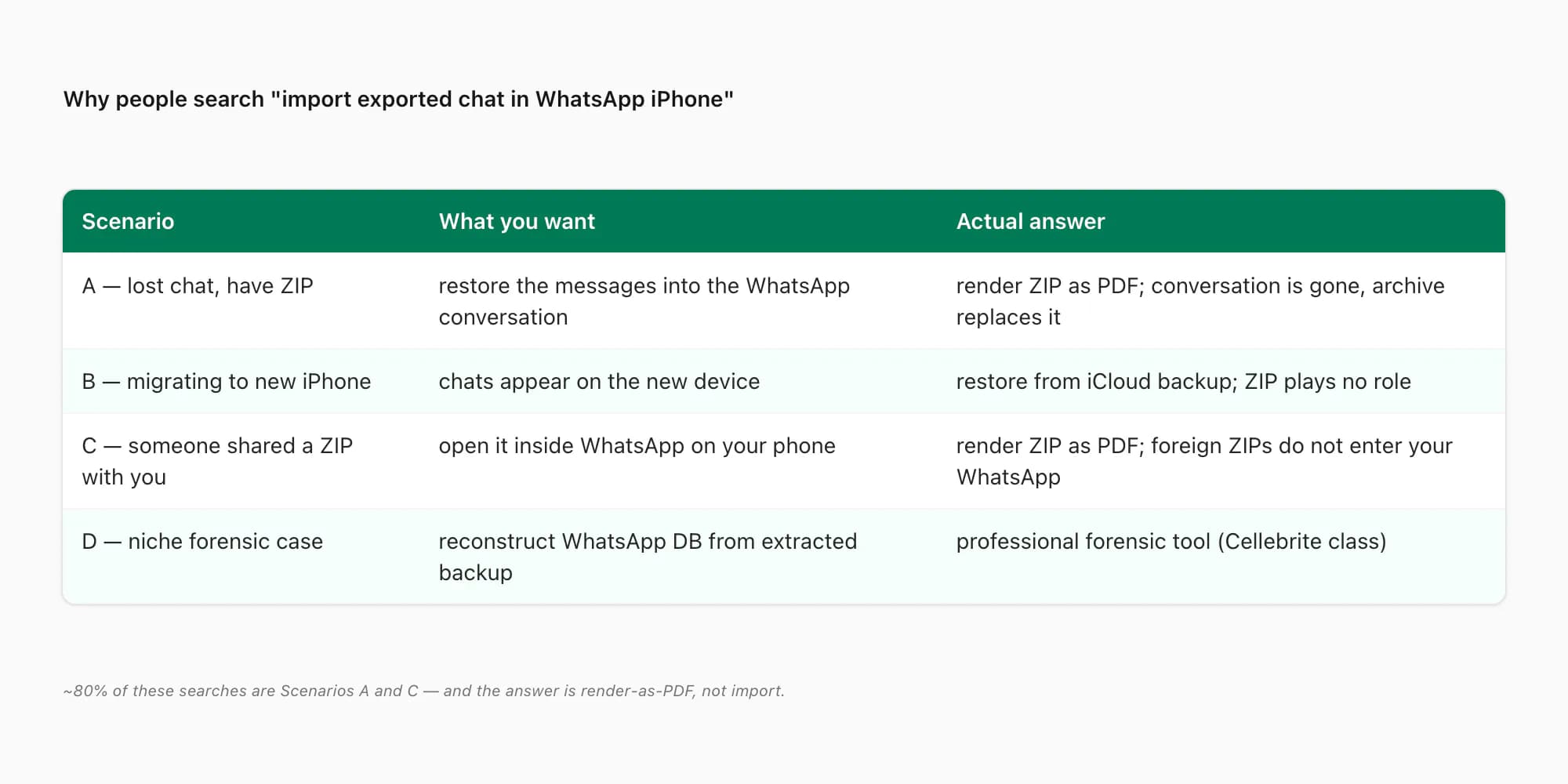
Scenario A — you lost a chat, but you have the ZIP export. Maybe you accidentally cleared the conversation, the contact deleted you, or the device was reset. You have the ZIP from before the loss and you want the messages back. The honest answer is — you cannot put the messages back into WhatsApp. What you can do is render the ZIP as a readable PDF (chattopdf does this) and treat the PDF as your archive. The conversation in WhatsApp is gone for good; the ZIP/PDF is the new permanent record. For most people, this is fine — once you have a clean PDF you can search, print, or share, the WhatsApp conversation being absent matters less than you'd think.
Scenario B — you're migrating to a new iPhone (or restoring after a wipe). You have an old iPhone with WhatsApp, you've done an Export Chat to get a ZIP for safekeeping, and now you have a new iPhone and want the chat history on it. The honest answer is — don't use the ZIP. Use WhatsApp's restore-from-iCloud-backup flow on the new iPhone. Set up the new phone, install WhatsApp with the same phone number, accept the "Restore Chat History" prompt that appears, and the chats will pull down from the iCloud backup of the old phone's WhatsApp account. The ZIP plays no role in this — it's a parallel safety net for if the restore fails. The cluster pillar WhatsApp Android to iPhone covers cross-platform migration in detail; this guide is the iPhone-to-iPhone restore answer specifically.
Scenario C — someone shared a ZIP with you and you want to "open" it in WhatsApp. A friend, a colleague, or a lawyer sent you a WhatsApp chat ZIP and you want to view those messages inside the WhatsApp app on your phone. The honest answer is — also impossible. The ZIP belongs to the other person's WhatsApp account, your iPhone's WhatsApp doesn't recognize foreign ZIP exports, and there is no "Open in WhatsApp" option in the iOS Files app share sheet. What you can do is render the ZIP as a PDF (chattopdf again) and read it that way. This is by far the most common scenario for legal and HR review work — counsel is given a ZIP from opposing party's discovery and needs a readable form, not a re-injected version.
In all three scenarios, the actual answer is some flavor of "the ZIP is not coming back into WhatsApp; here is how to make the ZIP useful in another form." For Scenarios A and C, the answer is render-as-PDF. For Scenario B, the answer is restore-from-backup, which doesn't use the ZIP. Pick which scenario matches yours and follow the corresponding workaround below.
Workaround 1 — render the ZIP as a readable PDF
The most common practical answer — render the ZIP as a PDF using chattopdf. This is the right path for Scenarios A (lost chat, have ZIP) and C (someone shared a ZIP with you), which together cover the bulk of "how to import exported chat" searches.
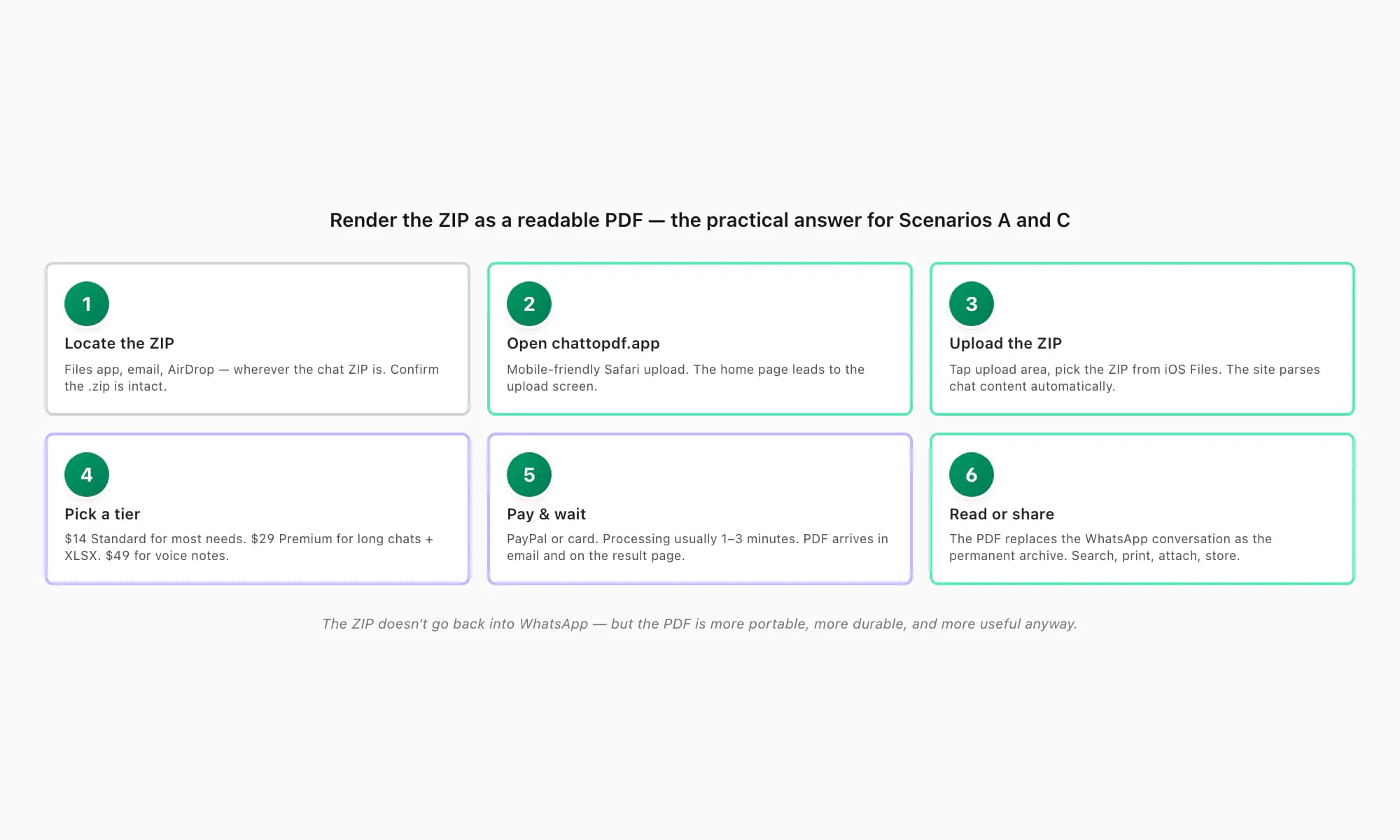
Locate the ZIP file in iOS Files (or wherever you saved it)
The exported chat ZIP is typically named something like
WhatsApp Chat - [contact name].zipand lives in iOS Files (On My iPhone or iCloud Drive), in your email if you sent it to yourself, or in any cloud-storage app you saved it to. If the ZIP came from someone else, it's wherever they sent it — Files, Mail, AirDrop. Open the file's source app and confirm the ZIP is intact.Open chattopdf.app on iPhone Safari (or any browser)
Visit chattopdf.app on Safari. The site is mobile-friendly so the upload flow works the same on iPhone as on a Mac or PC. The home page leads to the upload screen.
Upload the ZIP — the upload screen accepts the WhatsApp ZIP directly
Tap the upload area, pick Choose Files (or the iOS file picker), navigate to the ZIP location, and select it. The ZIP uploads and chattopdf parses the chat content — text messages, sender attribution, timestamps, inline photos and videos when present, voice notes, and document attachments.
Pick a tier — $14 Standard for most reading needs
The Standard tier produces a sender-attributed PDF with inline photos and timestamps. For a one-time read of a lost chat or a ZIP someone shared, this is the right pick. For longer chats over the 25,000-message ceiling, pick Premium ($29). For chats with voice notes that need transcription, pick Premium+Voice ($49): supported notes are routed through Deepgram Nova-3 or ElevenLabs Scribe v2, and successful transcripts become searchable text.
Pay, wait for processing, download the PDF
Pay via PayPal or card. Processing typically takes 1–3 minutes for a normal-sized chat. The completed PDF arrives in your email and is also downloadable from the result page. Save it to iOS Files, iCloud Drive, or wherever you keep documents.
Read or share the PDF — your "import" is now an archive
The PDF is the readable form of the chat. You can search it, print it, attach it to email, store it in Files, or share it with a lawyer or HR. It is not in WhatsApp — that part isn't possible — but for almost all real-world purposes, a clean PDF is just as useful or more useful than the original chat would have been.
This workflow is the practical answer for Scenarios A and C and covers ~80% of "import exported chat" searches in real terms. The PDF replaces the WhatsApp conversation as the permanent record and is more portable, more shareable, and more durable than an in-app chat anyway. The deeper iOS-specific workflow is documented in iPhone WhatsApp chat to PDF, and the preservation-framing version of the same workflow is at save WhatsApp chat as PDF — both cover this territory from slightly different angles.
Workaround 2 — restore from an iCloud backup (not a ZIP)
If your scenario is B (migrating to a new iPhone, or restoring after a wipe), the answer is WhatsApp's official restore-from-iCloud-backup flow — and the ZIP is irrelevant. Here is the honest workflow.
Confirm the source iPhone has WhatsApp iCloud backups enabled
On the source iPhone (the one with the chats you want), open WhatsApp → Settings → Chats → Chat Backup. Confirm that Auto Backup is on (Daily, Weekly, or Monthly) and that the most recent backup date is recent enough. If backups are off, turn them on, tap "Back Up Now", and wait for completion. Without an iCloud backup, restore will not work — the ZIP is not a substitute.
Set up the new iPhone fresh — match the iCloud account and phone number
On the new iPhone, sign in with the same iCloud account as the source iPhone. WhatsApp ties chat backups to the iCloud account, not the device. Use the same phone number for WhatsApp activation — different phone number means a different WhatsApp account, which means no access to the source backup.
Install WhatsApp and start the activation flow
Download WhatsApp from the App Store on the new iPhone. Open it and start the activation — phone number, SMS verification code, the standard sequence. After verification, WhatsApp checks the iCloud account for an existing chat backup.
Accept the "Restore Chat History" prompt
If a backup is found, WhatsApp shows a "Restore Chat History" prompt with the size of the backup and the date. Tap Restore. The chats download — this can take several minutes for a large account, especially if Including Media was on for the backups. Do not interrupt; an interrupted restore can leave the database in a bad state.
Verify the chats appear and check the most-recent messages
After restore, the chat list populates. Open a few chats and confirm the messages are present, including recent ones up to roughly the backup date. Anything after the backup date will not be there — the backup is a snapshot, not a live feed. If important messages were sent after the last backup, they are lost.
If restore fails, fall back to the ZIP-as-PDF reading copy
Restore can fail for many reasons — interrupted download, iCloud account mismatch, encrypted backup with no key, corrupt backup file. If it fails and you have a ZIP export from before the failure, render the ZIP as a PDF using chattopdf so you at least have the readable form of the chats. The chat history won't be in WhatsApp but the content is preserved.
This is the real "import" workflow for migration cases — and it doesn't use the ZIP at all. The ZIP is still useful as a parallel safety net, especially if you're uncertain whether iCloud backups were on, or if the backup turns out to be older than expected. But it is not the primary mechanism for getting chats onto a new iPhone. Apple's iCloud restore docs cover the full-device-restore flow if you want to migrate everything at once rather than just WhatsApp.
Workaround 3 — third-party migration tools (with caveats)
The third path — paid third-party tools that claim to import exported ZIPs back into WhatsApp, or to migrate chat history across accounts. This category exists, but it comes with serious caveats that I have to be honest about before any reader hands over money.
The category includes — Backuptrans (Windows/Mac, ~$30), dr.fone (Wondershare, ~$50–$80), iMyFone (~$40), and a handful of others. They typically advertise "Import WhatsApp messages from backup" or "Transfer WhatsApp from one account to another" or "Restore deleted WhatsApp messages from ZIP". The marketing leans into exactly the search terms that brought you here.
The honest tradeoffs:
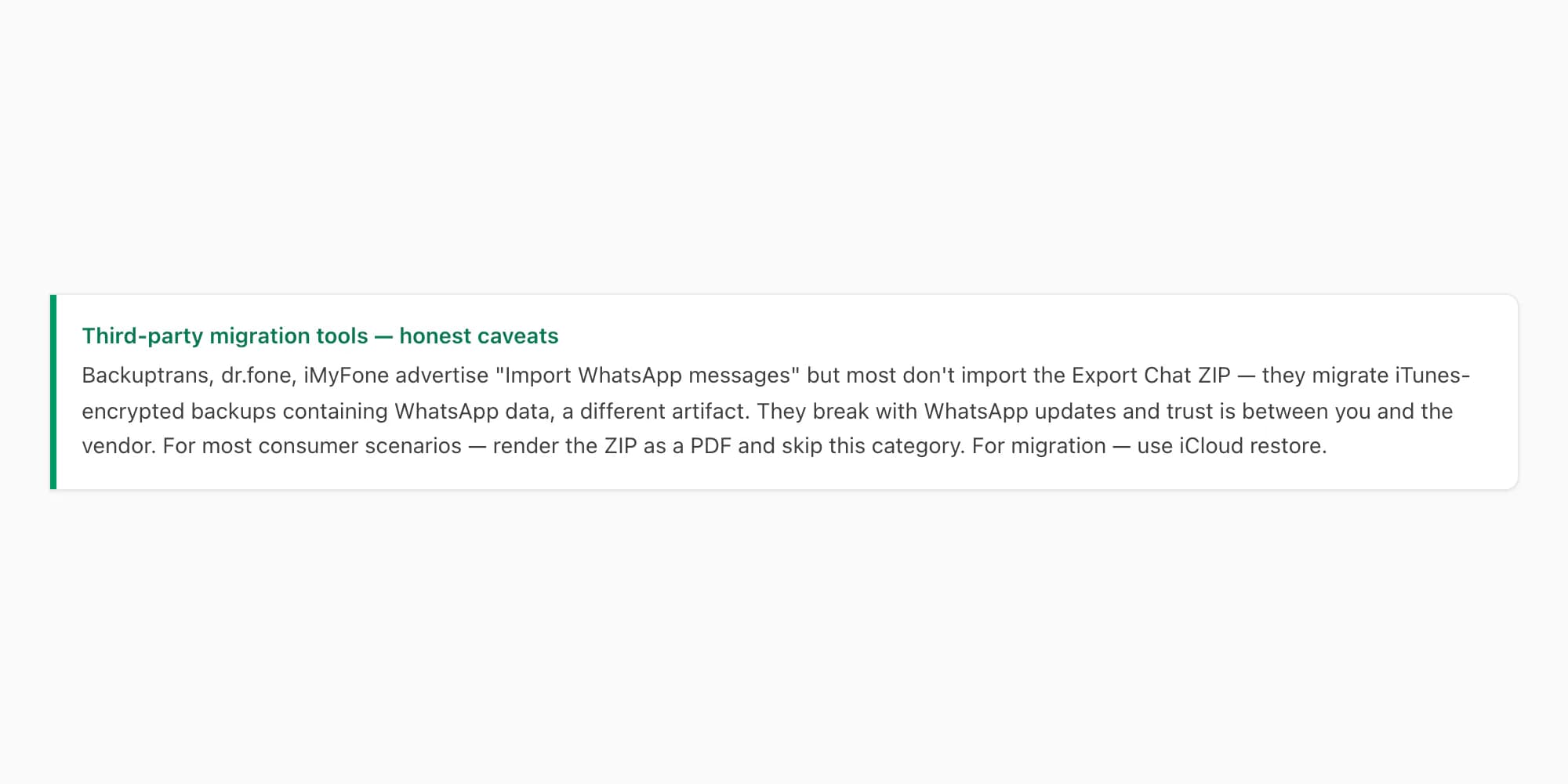
They mostly don't do what users imagine. Most of these tools are migration utilities — they help you move a backup from one device to another, often by extracting from an iTunes-encrypted backup and writing into a target device's WhatsApp database. They do not generally accept the WhatsApp chat ZIP (the one from Export Chat) and inject it into an existing WhatsApp conversation. Read the documentation carefully — what they import is usually an iTunes backup containing WhatsApp data, not the ZIP from Export Chat.
They break with WhatsApp updates. WhatsApp's database schema and encryption change periodically, and tools that worked in WhatsApp version 23.x don't work in 24.x without a vendor update. Users buy the tool, update WhatsApp the next week, and find the import flow no longer works. Refunds depend on the vendor.
Trust is non-trivial. These tools require deep access to your iPhone backup or to a tethered USB connection with paired-device authorization. They are not reviewed by WhatsApp or Apple, and the trust is between you and the vendor. For sensitive chats (legal, business, personal evidence), think hard about whether you trust the vendor with the data.
The forensic-grade tier is different. For court-ordered work, Cellebrite, Magnet AXIOM, and similar professional forensic tools have legitimate import-and-extract capabilities for WhatsApp data, but they cost thousands of dollars and are sold to law-enforcement and qualified investigators. They are not a consumer answer.
My honest recommendation. If your scenario is A (lost chat, have ZIP), don't bother with third-party tools — just render the ZIP as a PDF and accept that the conversation is gone from WhatsApp. If your scenario is B (migration), use the official iCloud restore flow rather than a third-party tool. If your scenario is C (someone shared a ZIP), render as PDF. Third-party migration tools have a real but narrow use case — moving an old iTunes backup containing WhatsApp data to a new phone when iCloud restore isn't available — and even there, the success rate is variable.
The fact that this category exists at all is itself a tell — if WhatsApp had a clean import-from-ZIP feature, these tools wouldn't have a market. They exist because the gap is real, but the workarounds they offer are imperfect.
The chat ZIP is best treated as an archive, not a do-over
Stepping back from the workarounds, the most useful reframe for "how to import exported chat in WhatsApp iPhone" is — stop thinking of the ZIP as something that goes back into WhatsApp, and start thinking of it as a permanent archive that lives separately.
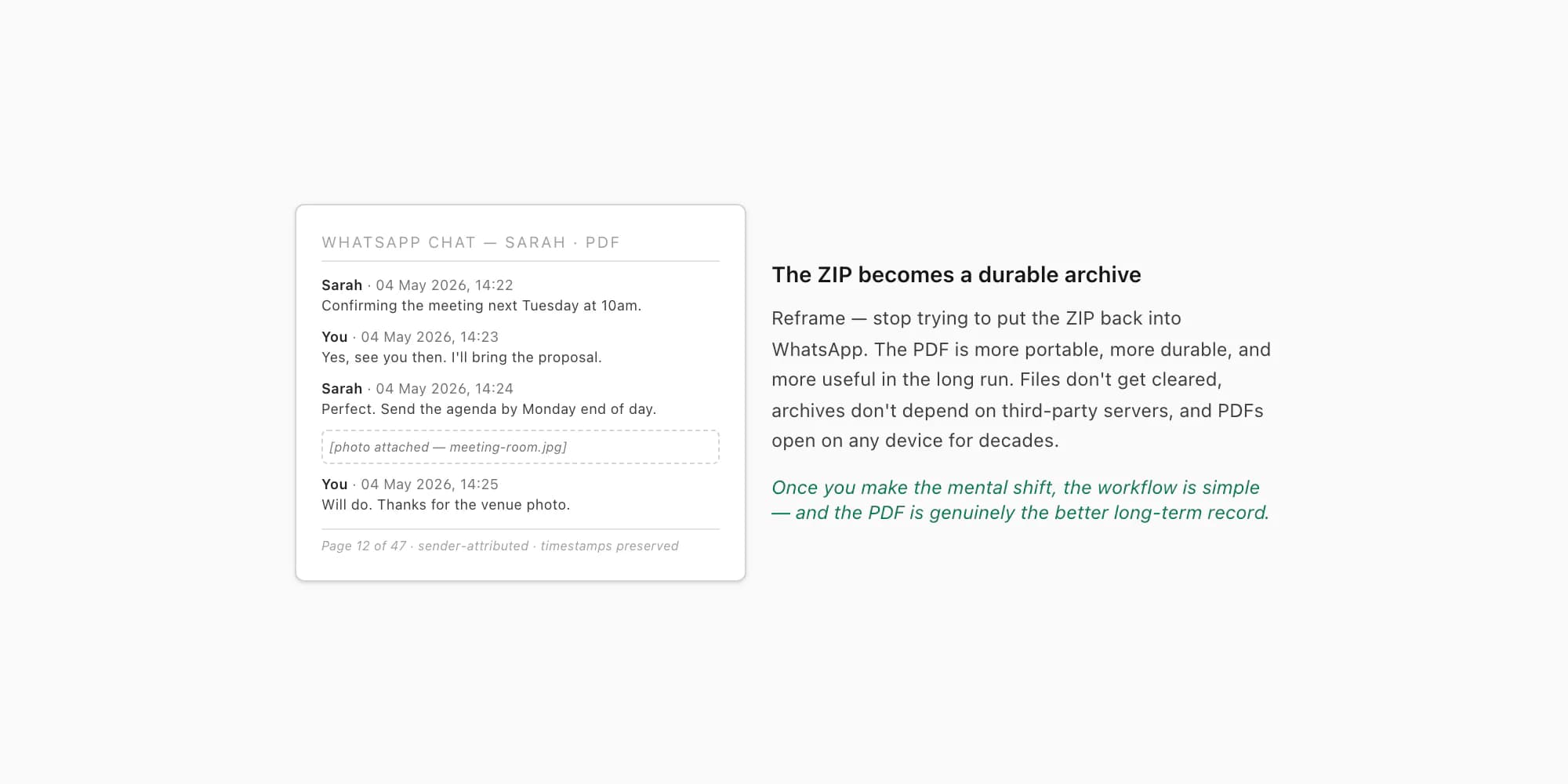
WhatsApp the app is a live, lossy medium. Chats can be cleared, contacts can delete you, devices can fail, accounts can be banned. The ZIP from Export Chat (and the PDF you render from it) is a frozen, durable, portable record that doesn't depend on WhatsApp continuing to host the conversation. In the long run, the PDF is more reliable than the in-app chat — files don't get cleared, archives don't depend on third-party servers, and PDFs open on any device for decades.
For legal evidence, this reframe is especially important — courts care about the readable, authenticated record, not whether the messages are still in someone's WhatsApp app. A PDF rendered from a ZIP and signed off by a lawyer is more useful as evidence than a phone screen showing the same conversation, because the PDF is a fixed artifact that can be filed, served on opposing counsel, and referenced in pleadings. The WhatsApp evidence in court PDF guide covers admissibility framing.
For personal sentimental keepsakes — a chat with a deceased loved one, a partner conversation you want to preserve, a long-running family group — the PDF is also the better long-term store. WhatsApp accounts get deleted, phones get replaced, in-app chats get accidentally cleared. The PDF survives all of that.
For business records — invoices, agreements, project communications conducted over WhatsApp — the PDF is the archival form your accountant and lawyer want, not the in-app chat. The WhatsApp Business PDF guide covers the business-record framing in detail.
So the final reframe — "import the exported chat" was the wrong question. The right question is "how do I make this exported chat permanently useful?" and the answer is render-as-PDF and treat it as an archive, not as something to inject back into WhatsApp. Once you make that mental shift, the export workflow is straightforward.
The cross-cluster B6 guide how to download chat history from WhatsApp covers the broader question of getting chat data out for archival across both Android and iPhone.
Pricing — the readable-PDF workflow
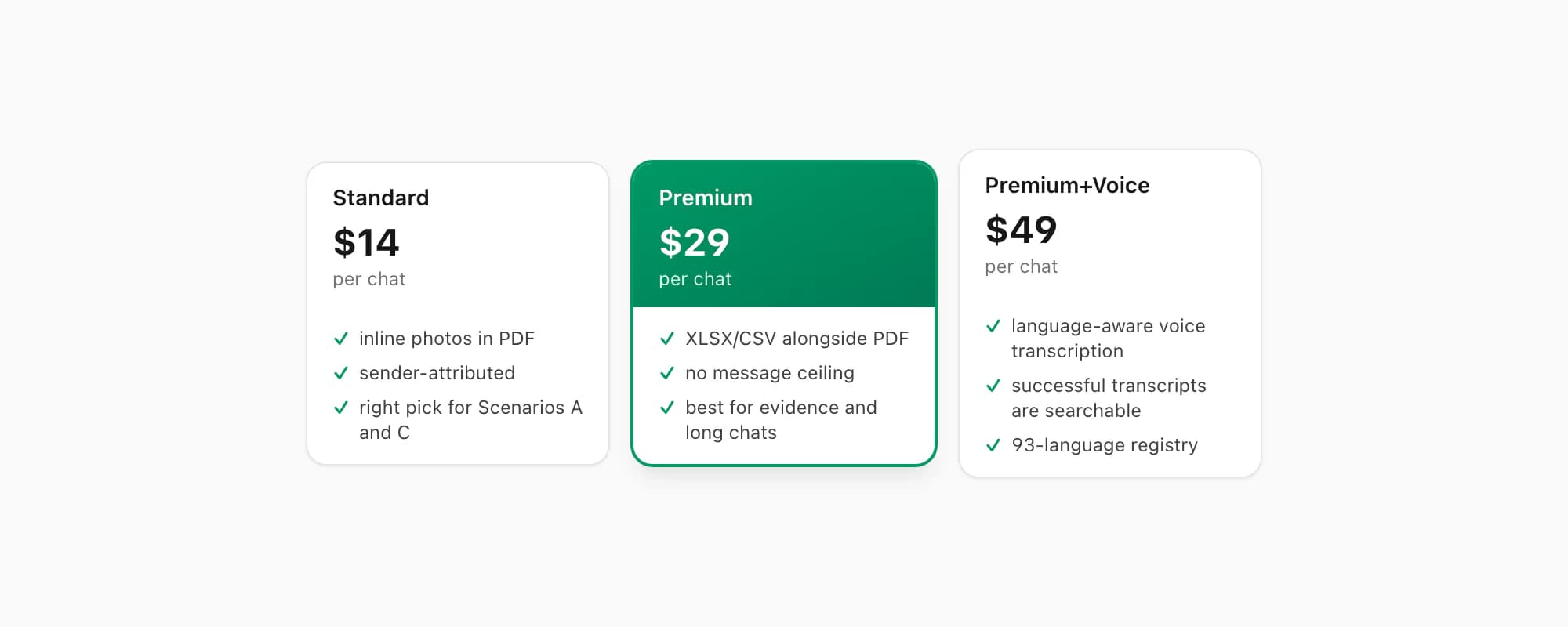
Just to be clear — chattopdf is not an "import to WhatsApp" tool, because that does not exist anywhere. chattopdf is the rendering layer that turns an exported ZIP into a readable, durable PDF you can use as an archive. Pricing is per chat, one-time, no subscription.
$7 Basic per chat — text-only PDF, no inline photos, 25,000-message ceiling. Cheap pick when you just want to read the message content quickly and don't need photos rendered inline.
$14 Standard per chat — sender-attributed PDF with inline photos, timestamps, professional formatting, 25,000-message ceiling. The default for most archive cases — clean enough for keepsakes, complete enough for legal review. Right pick for Scenarios A and C in this guide.
$29 Premium per chat — adds an XLSX/CSV export alongside the PDF and removes the 25,000-message ceiling entirely. Right pick for long chats spanning years, evidence cases requiring spreadsheet analysis, and situations where someone (a lawyer, an HR investigator) wants to filter and pivot the messages.
$49 Premium+Voice per chat — adds voice-note transcription through the language-aware Nova-3/Scribe v2 router. Right pick when the chat has voice notes that need to be searchable text. The transcribe WhatsApp audio guide covers the voice pipeline in detail. Note — this transcribes voice notes (audio messages embedded in the chat), not voice calls (which WhatsApp doesn't record anywhere).
$99 Power User per chat — priority queue, no per-session cap, batch turnaround. The bulk-archive tier rather than the single-chat tier — right when you have many chats to render at once.
To repeat — every tier is per chat, same pricing structure, one-time conversion charge. No subscription, no monthly fee.
Key takeaways
- The "import" feature you're imagining doesn't exist — WhatsApp on iPhone has no Import Chat button, no ZIP-to-WhatsApp pathway, and no Files-app integration that lets you re-inject an exported chat
- Import (your mental model — drop a ZIP back into WhatsApp) and Restore (WhatsApp's actual mechanism — pull from an iCloud backup of the same account) are different things; the official workflow is restore, and it doesn't use the ZIP at all
- Three real scenarios drive most of these searches — lost chat with surviving ZIP, migration to a new iPhone, someone shared a ZIP with you — and each has a different actual answer
- For Scenarios A (lost chat) and C (shared ZIP), render the ZIP as a readable PDF using chattopdf and treat the PDF as the permanent archive — the WhatsApp conversation is not coming back, but the content is preserved
- For Scenario B (migration), use WhatsApp's official restore-from-iCloud-backup flow on the new iPhone; the ZIP is parallel safety net, not the primary mechanism
- Third-party tools (Backuptrans, dr.fone, iMyFone) mostly migrate iTunes backups rather than importing ZIPs, break with WhatsApp updates, and require trust; for most consumer use cases, render-as-PDF is faster and cheaper
- The most useful reframe is to stop treating the ZIP as something that goes back into WhatsApp, and start treating it as a permanent archive that lives separately as a PDF — more durable than the in-app chat anyway
- $14 Standard per chat for the readable PDF, $29 Premium per chat for evidence work needing XLSX, $49 Premium+Voice when the chat has voice notes that need transcription
- Once you mentally shift from "import to WhatsApp" to "render as durable archive", the workflow is straightforward and the PDF is a better long-term store than the in-app chat
- For the step-by-step conversion process — what happens between upload and the finished PDF — see the WhatsApp to PDF guide.
FAQ
Can I import a WhatsApp chat ZIP back into WhatsApp on iPhone?
No. WhatsApp on iPhone does not have an Import Chat feature, anywhere — no Settings option, no per-chat menu, no Files-app share-sheet integration that lets you tap a ZIP and have WhatsApp open it. The Export Chat feature is one-way; the ZIP it produces is meant for archiving, sharing, or rendering to PDF, not for re-injection. This has been the case across every version of WhatsApp on iOS and there is no roadmap signal that it will change. If you searched "how to import exported chat in WhatsApp iPhone", what you actually want is one of three things — render the ZIP as a readable PDF (Scenarios A and C in this guide), restore from iCloud backup if you're migrating to a new iPhone (Scenario B), or use a third-party migration tool with caveats. Each is covered above.
What is the difference between Import and Restore in WhatsApp?
They are completely different mechanisms. Import (your mental model) means taking external chat data — like a ZIP file — and putting it into WhatsApp as if those messages had been received normally. WhatsApp does not support this. Restore means taking a WhatsApp-managed cloud backup (iCloud on iPhone, Google Drive on Android) of the same WhatsApp account and reconstructing chat history from that backup. WhatsApp does support this and it's the official "get my chats on a new phone" workflow. The vocabulary trap is real — users searching "import" often actually need restore, which doesn't use a ZIP at all. If you have an iCloud backup of your WhatsApp account and you're setting up a new iPhone, that's restore territory and you don't need the ZIP. If you don't have a backup but you do have a ZIP, that's "render as PDF and treat as archive" territory.
My friend sent me a WhatsApp chat ZIP — how do I open it in WhatsApp on my iPhone?
You can't open it in WhatsApp — there is no "Open in WhatsApp" share sheet option for ZIP files, and even if there were, the ZIP belongs to your friend's WhatsApp account, not yours. Your iPhone's WhatsApp database wouldn't recognize foreign messages. What you can do instead is render the ZIP as a readable PDF using chattopdf, then read or share the PDF the same way you would any other document. This is the typical workflow for legal review (counsel receives a discovery ZIP from opposing party), HR review (an investigator receives a ZIP from a witness), and casual cases where someone shares a chat as a file. Upload the ZIP at chattopdf.app, pay $14 for the Standard tier (or higher for longer chats / voice notes), and the PDF arrives in a few minutes. The PDF is what you read; the ZIP itself stays as the source artifact.
I'm migrating from one iPhone to another — should I use the Export Chat ZIP or restore from iCloud?
Use restore from iCloud, not the ZIP. WhatsApp's official migration workflow for iPhone-to-iPhone is — make sure the source iPhone has iCloud Chat Backup enabled and a recent backup, set up the new iPhone with the same Apple ID and phone number, install WhatsApp, accept the "Restore Chat History" prompt that appears, and the chats download from iCloud automatically. This restores everything in the backup including media, so it is the right answer for migration. The ZIP from Export Chat does not feed into this restore flow — it's a parallel artifact, useful as a safety net if the iCloud restore fails, but not the primary mechanism. If you don't have an iCloud backup and you're stuck with only the ZIP, you can't get the chats onto the new iPhone in any practical way; render the ZIP as a PDF and treat it as the archive.
Are third-party tools like Backuptrans or dr.fone safe to use for importing WhatsApp ZIP files?
Mixed answer. First, most of these tools don't actually import the WhatsApp chat ZIP (the one from Export Chat) — read their documentation carefully. They typically work with iTunes-encrypted backups containing WhatsApp data, not with the per-chat ZIP. So if your goal is "drop my Export Chat ZIP back into WhatsApp", these tools usually can't do that even when they claim something close. Second, they break with WhatsApp updates — a tool that worked last month may not work this month after WhatsApp ships a new version. Refunds depend on the vendor. Third, trust is real — these tools need deep access to your iPhone backup or USB-tethered authorization, and they are not reviewed by WhatsApp or Apple. For sensitive chats, think hard before handing the data over. My honest recommendation is — for most consumer scenarios, render the ZIP as a PDF using chattopdf and skip the third-party migration category entirely. The forensic-grade professional tools (Cellebrite, Magnet AXIOM) are legitimate but sold only to law enforcement and certified investigators at thousands of dollars; they are not a consumer answer.
I'm Paul, the founder of ChatToPDF. I built it after needing a long WhatsApp conversation as a readable PDF for a legal matter. I test and document WhatsApp exports, PDF conversion, voice-note transcription, and the limits people should check before relying on the result.