
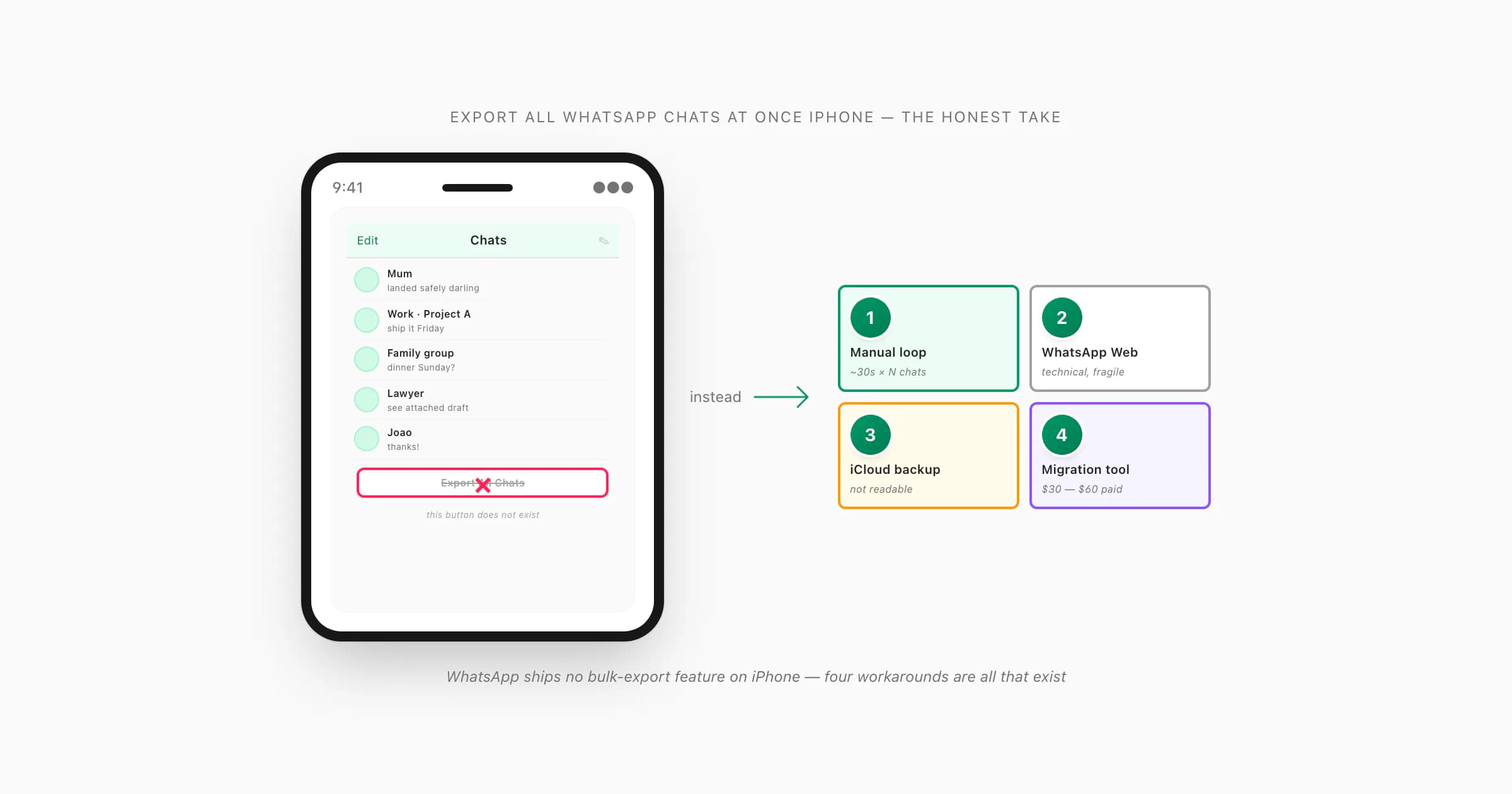
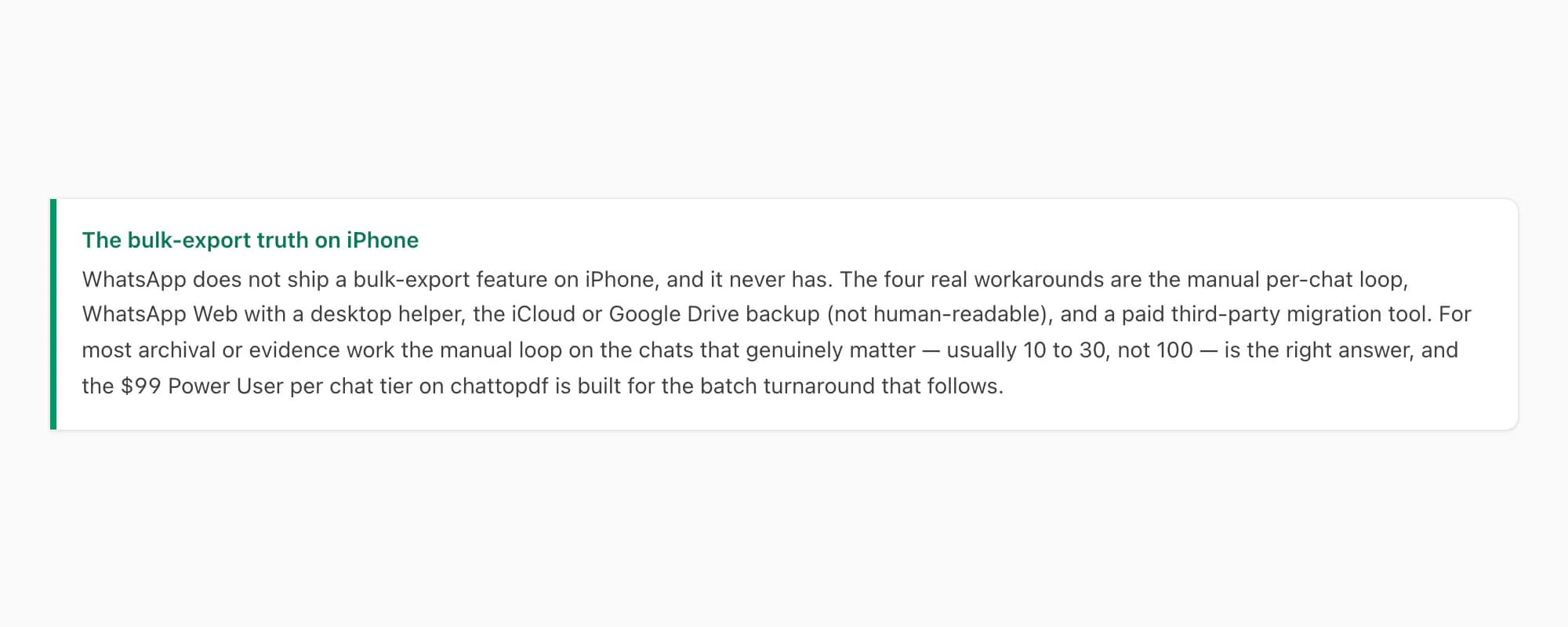
WhatsApp has no Export All button on iPhone — there is no setting or shortcut that bulk-exports every conversation at once. The practical options are: loop through Export Chat one chat at a time (about 30 seconds each), use WhatsApp Web with a desktop helper, restore from an iCloud backup (encrypted, not human-readable), or pay for a third-party migration tool. For bulk PDF conversion, ChatToPDF's Power User tier handles priority processing.
There is no "Export All" button — the honest answer
I'll get the bad news out of the way first because every other answer follows from it. WhatsApp on iPhone does not have a bulk-export feature. There is no "Export All Chats" button, no Settings panel that exposes one, no Apple Shortcut Apple ships, and no hidden developer toggle. I have looked through every iOS WhatsApp menu I can find — Settings, Chats, Storage, Account — and the only export action that exists is the per-chat Export Chat option that lives in the contact-info screen of an individual conversation.
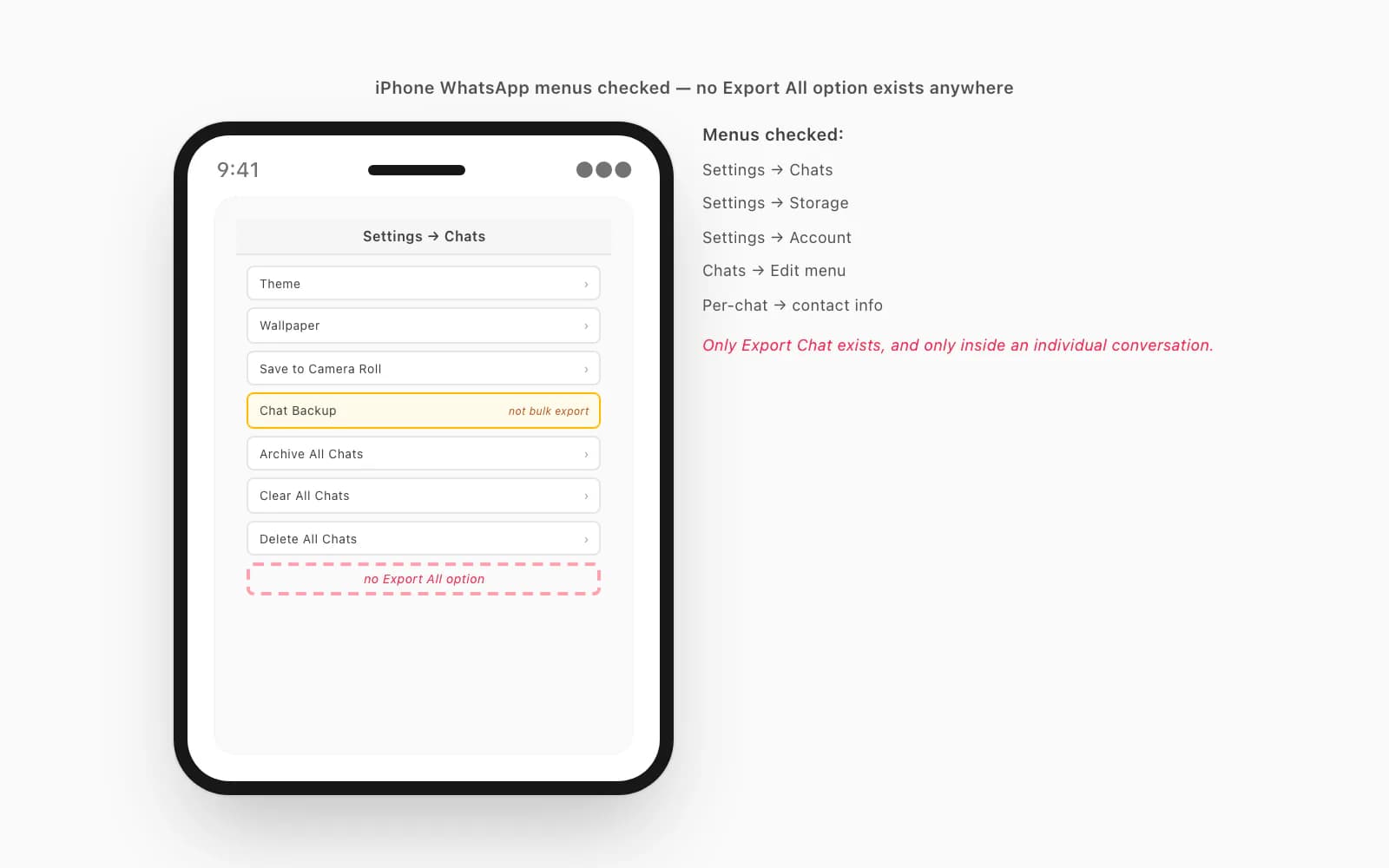
If you have searched "how to export all WhatsApp chats at once iPhone" and found articles claiming there is a built-in bulk option, those articles are wrong or out of date. WhatsApp has historically resisted adding bulk export — partly because of platform terms, partly because end-to-end encryption makes a server-side bulk dump architecturally awkward, and partly because the per-chat menu nudges people towards thinking about each conversation deliberately. Whatever the reason, the feature does not exist as of this writing.
That leaves four real workarounds, and the rest of this guide is about picking the right one. The pillar WhatsApp Android to iPhone sits over all the iPhone-side guides; the per-chat walk-through that you'll be looping over lives at how to export a WhatsApp chat on iPhone, and the PDF-output companion is export WhatsApp chat to PDF iPhone. The mirror-image question — getting an exported ZIP back into WhatsApp — has its own honest answer at how to import exported chat in WhatsApp iPhone, which matters here because most "Export All" searchers hope the bulk export round-trips back into a fresh phone, and it doesn't.
Four workarounds, ranked by realism
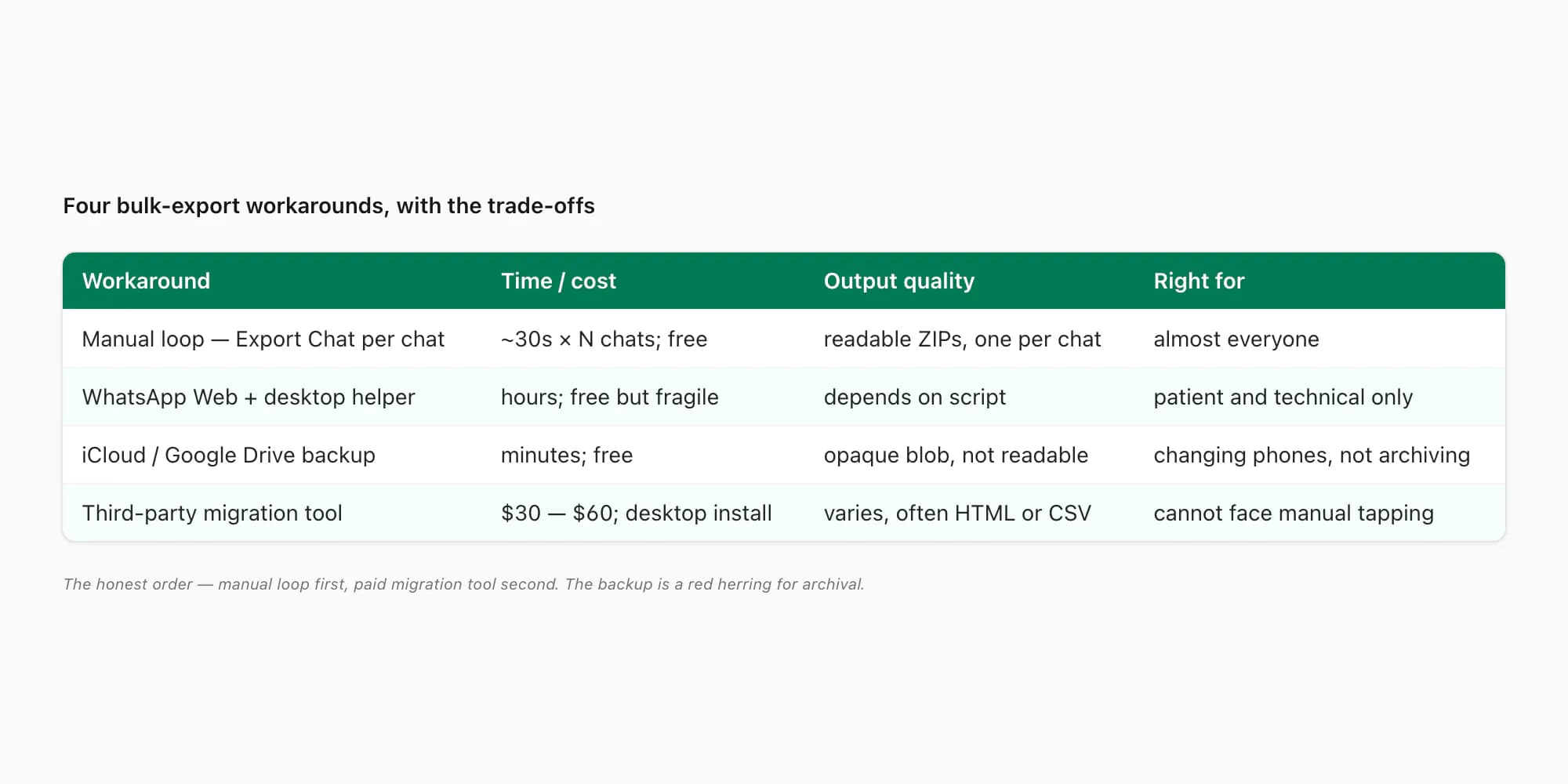
The four workarounds I think are worth knowing about, in the order I'd actually try them:
1. Manual loop — Export Chat, one conversation at a time. This is the answer for almost everyone. You tap into a chat, tap the title, scroll to Export Chat, pick Including Media, Save to Files. Then back out, tap the next chat, repeat. About 30 seconds per chat once you have the rhythm. For most people the chat list that actually matters is 10 to 30 conversations — the active threads, plus the family group, plus a few business contacts. That's 5 to 15 minutes of work and you end with one ZIP per chat that any tool can read.
2. WhatsApp Web with a desktop helper — for the patient and technical. WhatsApp Web on a desktop browser does not expose a bulk-export button either, but the chat list is keyboard-navigable and a careful person with a desktop scripting tool can iterate. This is fragile, against WhatsApp's terms in some readings, and breaks every time WhatsApp updates the web client. Mentioned for completeness; I would not recommend it unless you genuinely enjoy this kind of thing.
3. iCloud or Google Drive backup — captures everything but is not readable. WhatsApp's automatic cloud backup contains every message and every attachment from every chat. It looks like the bulk export you want. It is not — the backup is an encrypted opaque blob designed for restoring into WhatsApp on a new device, not for human reading or for printing or for archival. There is a long section on this below; the short version is that backup ≠ export.
4. Third-party migration tool — paid, varying quality. Tools like Backuptrans, iMyFone, and dr.fone advertise bulk export of iPhone WhatsApp chats. They typically work by pulling the WhatsApp data from an iTunes-style iPhone backup on your computer, then producing a viewable export. Pricing tends to be $30 to $60 for a one-time licence. Quality varies — some produce decent HTML or CSV, some are awkward. The trade-off is real money plus a desktop install in exchange for not having to tap through 50 chats by hand. Worth it for some, overkill for others.
For the manual loop, the per-tap walkthrough lives at how to export a WhatsApp chat on iPhone — what follows here is the bulk version.
The manual loop — what 50 chats actually costs you
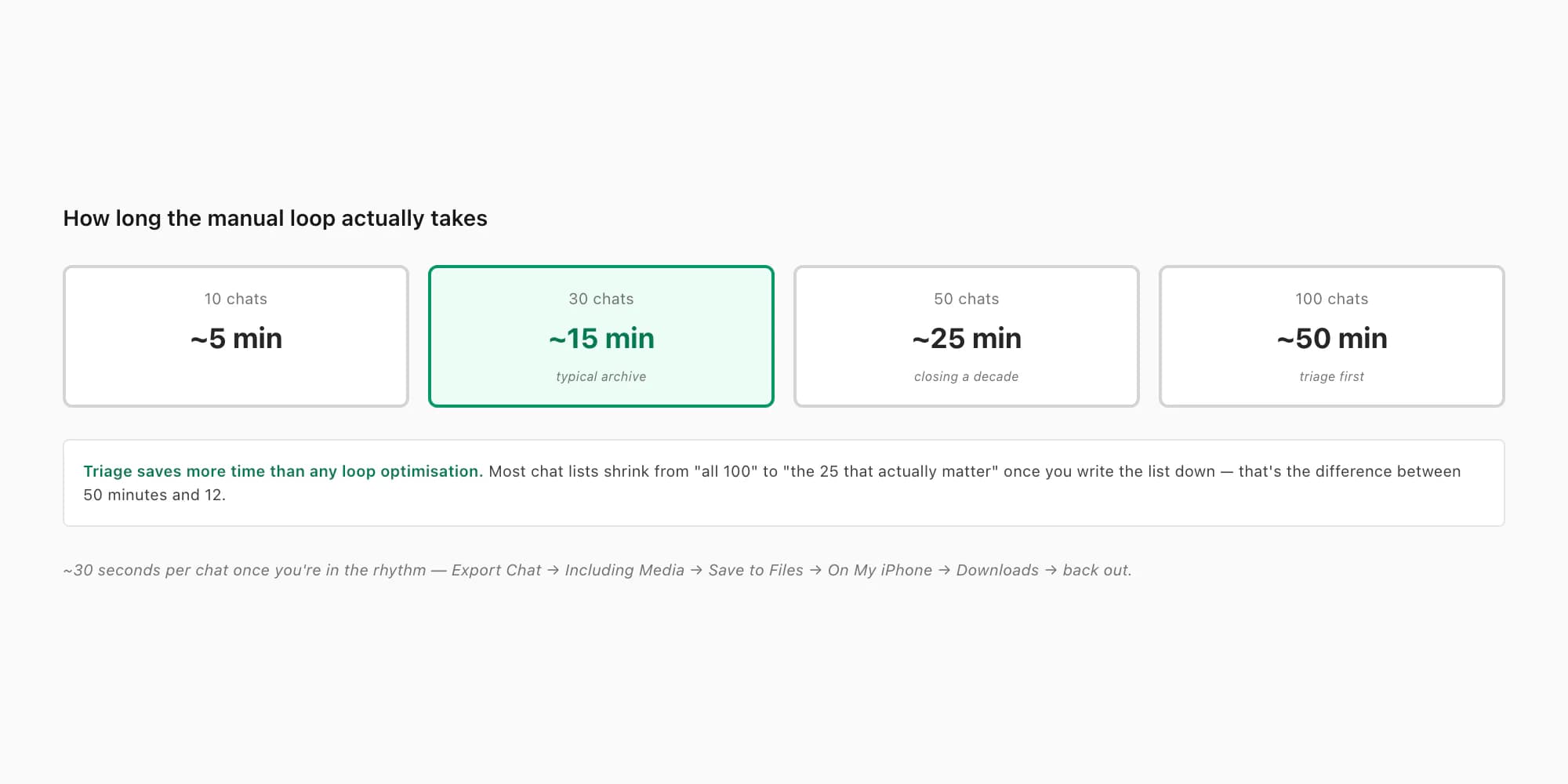
The manual loop is the most honest answer because the time cost is bounded and predictable. Once you have done one chat, the next one is faster because you know the menu path. By the third chat you are in a rhythm — tap, tap, scroll, Export, Including Media, Save to Files, On My iPhone, Downloads, Save, back out, next chat. About 30 seconds per chat once you are warmed up. The slow steps are mostly waiting for WhatsApp to compress the ZIP for chats with a lot of photos.
Concretely:
- 10 chats × 30 seconds ≈ 5 minutes
- 30 chats × 30 seconds ≈ 15 minutes
- 50 chats × 30 seconds ≈ 25 minutes
- 100 chats × 30 seconds ≈ 50 minutes (worth questioning whether you really need all 100)
That last bullet is worth dwelling on. Almost no one needs to export 100 chats. The ones that matter for archiving, evidence, or preservation are usually 10 to 30. The rest are dormant — old work groups, a delivery driver, a one-message school broadcast, the random number from three years ago. Filtering down to "chats I actually care about" is the single biggest time-saver before you start the loop. Once you have the shortlist, the next decision is where each ZIP lands — Files on the iPhone, AirDrop to a Mac, iCloud Drive to a PC, or email; export WhatsApp chat FROM iPhone covers the four destinations and which one fits which downstream workflow.
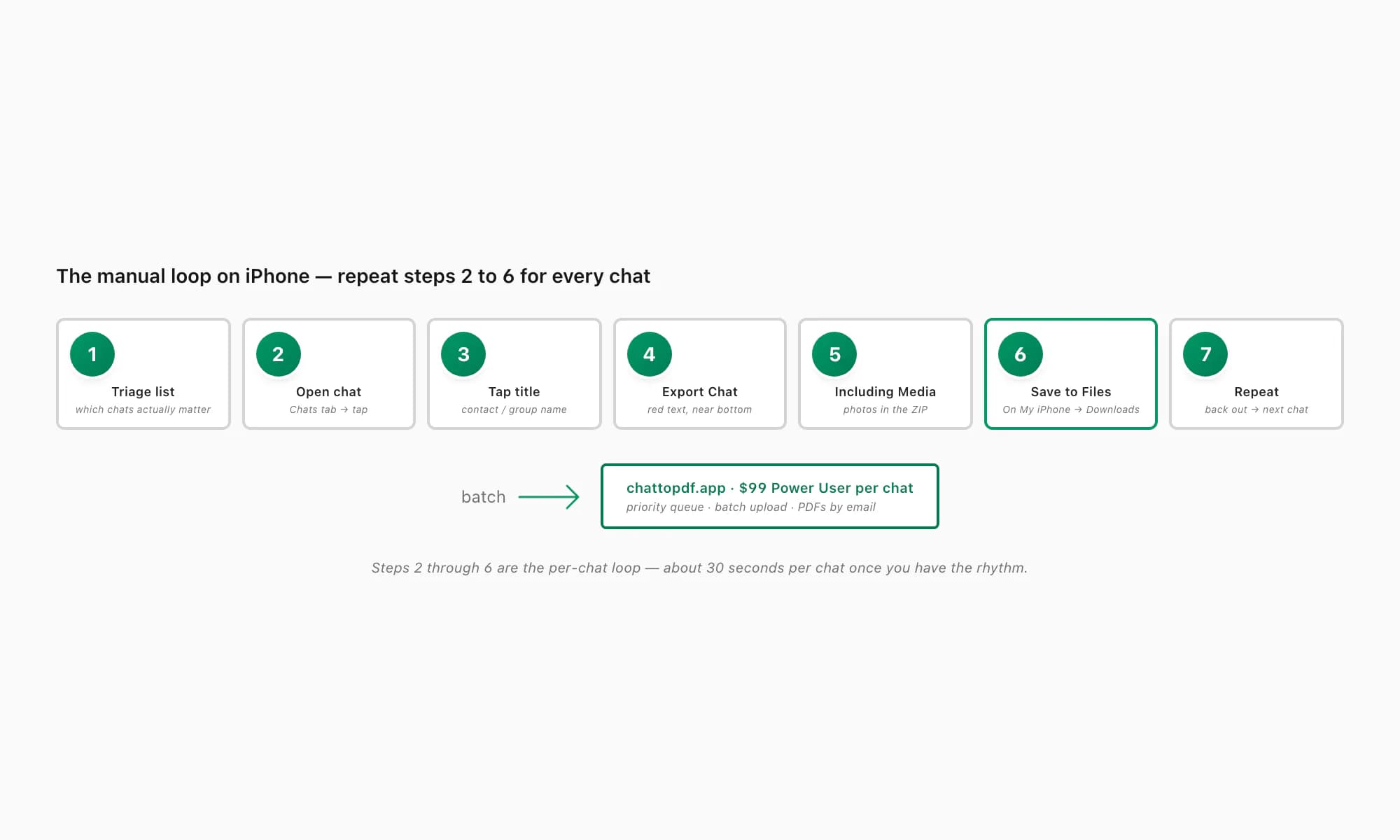
Here is the per-chat loop spelled out. You repeat steps 2 through 7 for each chat you want to export.
Make a list of the chats you want to export
Before you start, scroll your chat list and write down the contacts and groups you actually need. The triage saves more time than the loop optimises.
Open the next chat in WhatsApp on iPhone
Tap the Chats tab, tap the conversation. You should be looking at message bubbles for that chat.
Tap the contact or group name at the top of the chat
The name centred in the chat header is the iOS entry point to the contact-info screen. Android uses a three-dot menu; iOS uses the title.
Scroll down and tap Export Chat
Past Mute, Encryption, Chat Lock, Starred Messages, Block, Report, and Clear Chat. Export Chat sits near the bottom in red text.
Pick Including Media so photos make it into the PDF
For chats with photos pick Including Media. Without Media gives you a TXT-only export, which is fine for evidence text-trails but loses the visual record.
Save to Files → On My iPhone → Downloads
Tap Save to Files in the iOS share sheet, pick On My iPhone → Downloads, give the ZIP a clear name (the contact name plus a date is good), tap Save.
Back out and repeat for the next chat
Tap the chat-name back arrow until you are at the chat list. Tap the next chat on your list. Repeat steps 2 through 6.
When the loop is done you have one ZIP per chat sitting in Files → On My iPhone → Downloads. From there you can upload them to chattopdf in batches — the $99 Power User per chat tier is built for exactly this case (priority queue, no per-session cap, PDFs come back as a batch by email).
WhatsApp's export chat history FAQ confirms the per-chat menu mechanics — the FAQ also confirms there is no bulk option, which is the same conclusion this guide reaches.
Why the iCloud backup is not the bulk export you want
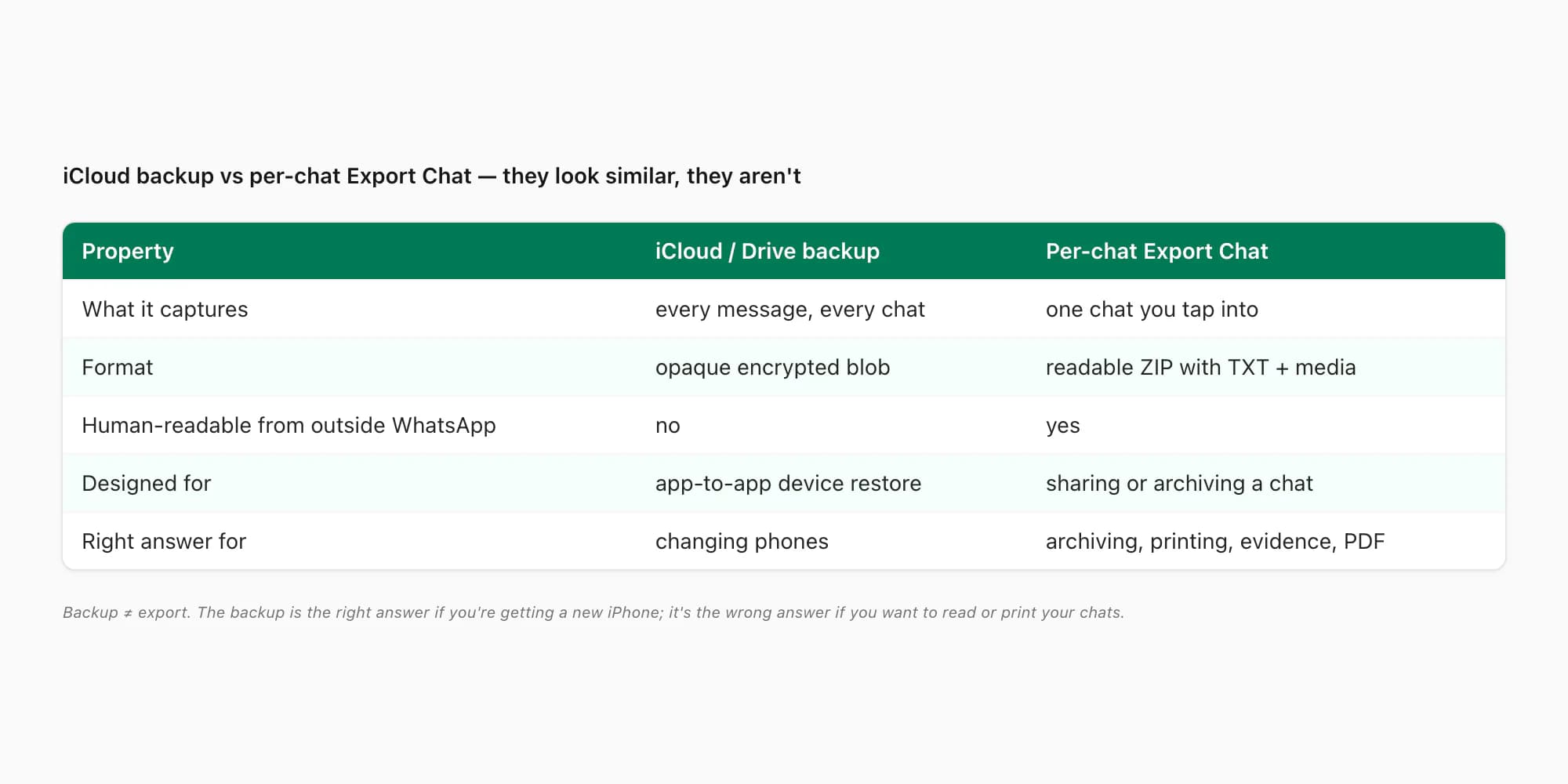
This section is the one that most often saves people a wasted afternoon. WhatsApp has an automatic iCloud backup on iPhone (Settings → Chats → Chat Backup) and a Google Drive backup on Android. These backups contain every message and every attachment from every chat. People naturally think — surely I can grab that backup, open it, and read everything?
You cannot. The backup is an opaque encrypted blob. It exists for one purpose — restoring WhatsApp to a new phone, where the WhatsApp app itself decrypts it and pours the messages back into the app's local database. There is no Apple-supported tool that opens a WhatsApp iCloud backup as readable messages. Apple's own iCloud documentation describes the backup as device-restore data, not portable archives.
Practically what this means:
- The iCloud backup is the right answer if your goal is "I'm getting a new iPhone and I want WhatsApp to come along". Restore the backup on the new phone, you are done.
- The iCloud backup is the wrong answer if your goal is "I want to read or print or save my chats to PDF". You can't read it from outside WhatsApp, you can't extract it as text, and you can't selectively export. It is everything-or-nothing, and the everything is not human-readable.
This is why the manual loop or a paid migration tool are the only real answers when the goal is producing readable artefacts. The backup is a red herring. The pillar download chat history from WhatsApp goes deeper on the backup-vs-export distinction across both platforms; if you are coming from the backup angle that's a useful read.
Pricing — $99 Power User per chat is the bulk tier
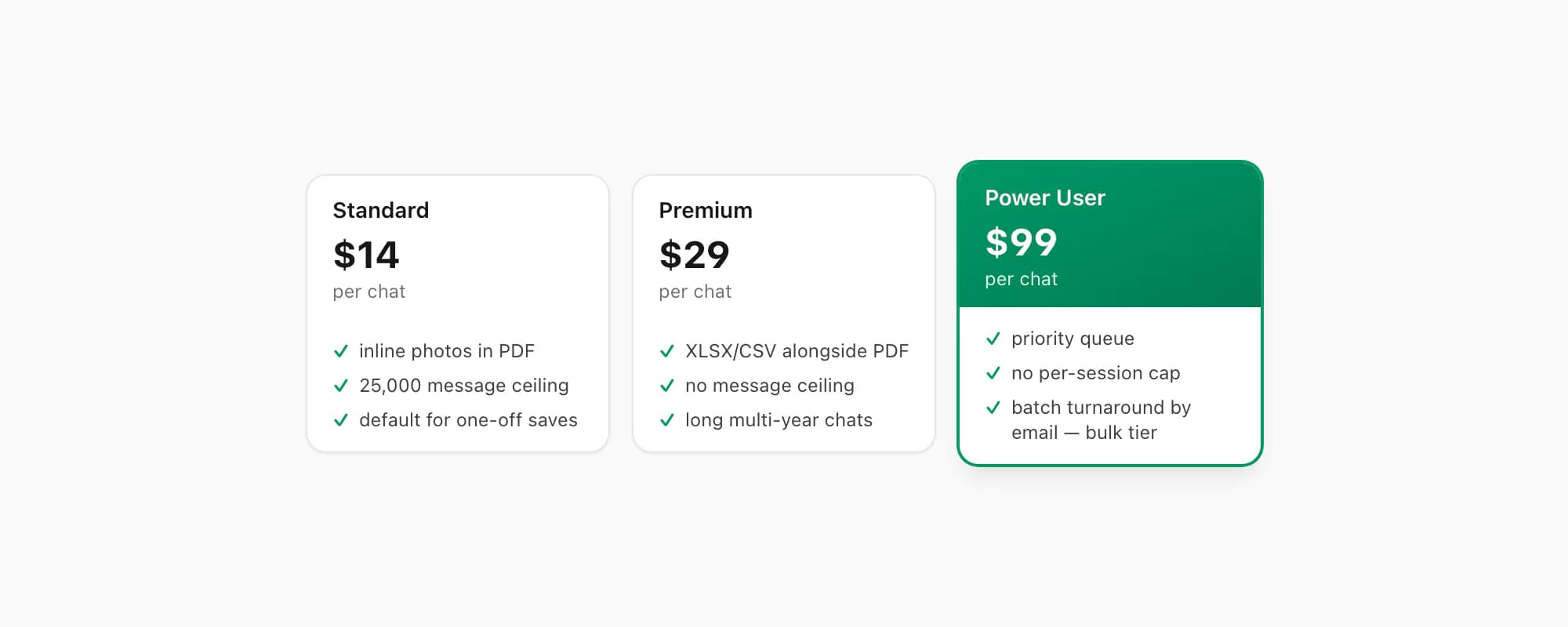
ChatToPDF charges per chat. No subscription, no monthly fee. For bulk work the relevant tier is Power User.
$7 Basic per chat — text-only PDF, no inline photos. Cheap enough that it can be the right pick for very short text-only chats, or for a sweep where you are mostly capturing the message text and don't care about photos.
$14 Standard per chat — sender-attributed PDF, inline photos, timestamps, up to 25,000 messages. The default tier for most preservation saves on iPhone. The companion guide export WhatsApp chat to PDF iPhone explains why this is the typical pick.
$29 Premium per chat — adds an XLSX/CSV export and removes the message ceiling. Useful for very long multi-year chats where the count goes past 25,000.
$49 Premium+Voice per chat — adds voice-note transcription through the language-aware Nova-3/Scribe v2 router. The current registry covers 93 languages, including 57 in provider-published excellent or high bands; supported notes that transcribe successfully appear inline. The transcribe WhatsApp audio guide covers the voice pipeline in detail.
$99 Power User per chat — the bulk tier. Priority queue (your batches jump the line in front of single-chat uploads), no per-session cap, and the typical use case is closing out a decade of WhatsApp before changing phones, archiving every business contract trail at once, or producing a comprehensive evidence bundle for a lawyer. The PDFs arrive together by email. For someone who has gone through the 25-minute manual loop on 50 chats and now wants every ZIP turned into a PDF in one go, $99 Power User per chat is the right answer.
To be clear — the $99 is per chat, same as the other tiers; it's not a subscription or a flat bulk fee. The Power User tier earns the price tag through priority queue placement and removed session caps, not through being a different billing model.
Quick decision — which workaround for which use case
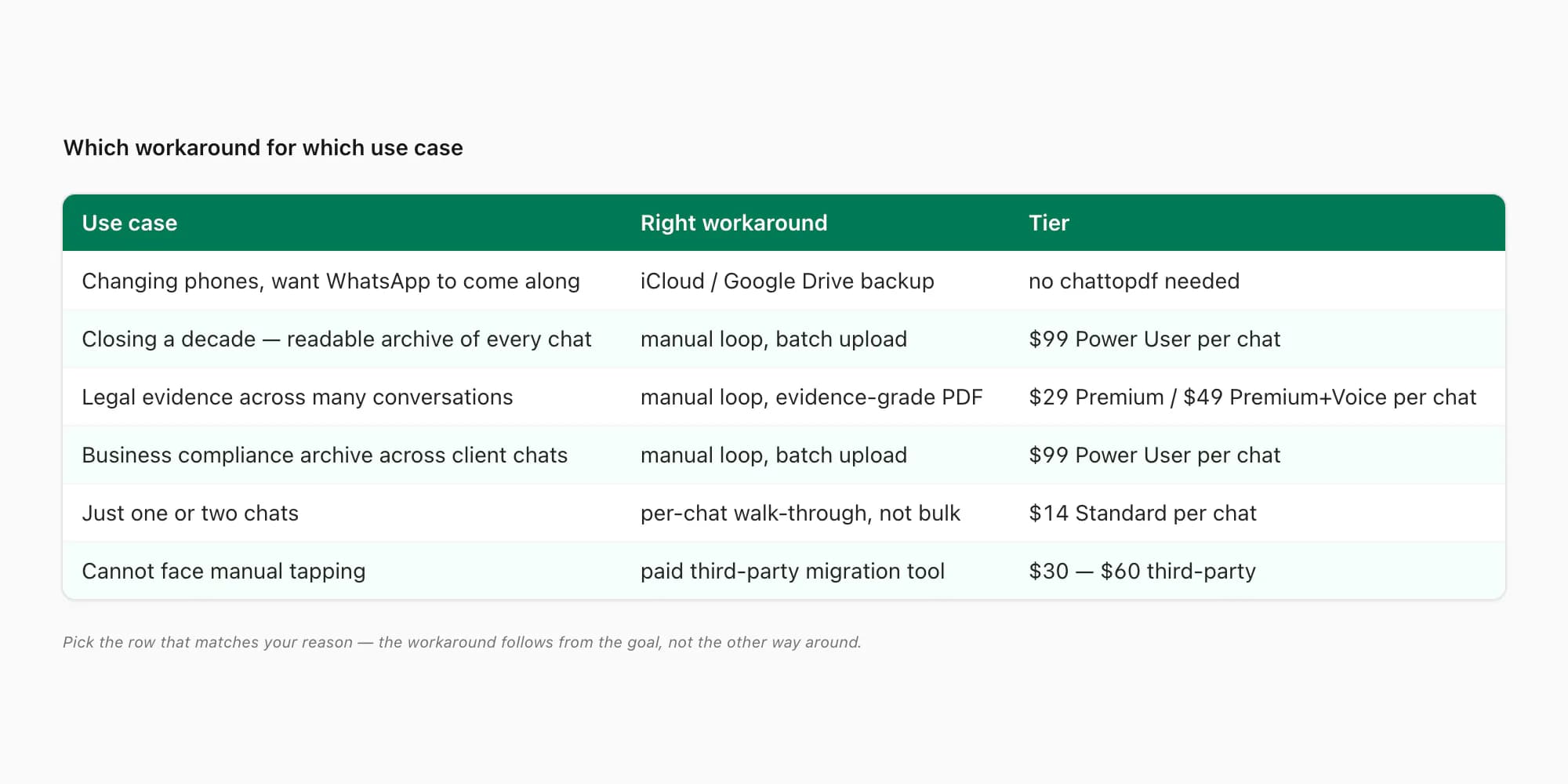
The honest matrix:
- Changing phones, want WhatsApp to come along — use the iCloud or Google Drive backup. This is the case the backup is built for. No exporting needed.
- Closing out a decade of WhatsApp, want readable archives of every chat — manual loop on the chats that matter (usually 10 to 30, not 100), upload in batch on the $99 Power User per chat tier.
- Legal evidence collection across many conversations — manual loop, then $29 Premium or $49 Premium+Voice per chat depending on whether voice notes are involved. For the evidence-specific framing see WhatsApp evidence in court.
- Business compliance archive across many client chats — manual loop, $99 Power User per chat for the batch turnaround.
- Just want one or two chats — you don't need this guide. The per-chat walk-through at how to export a WhatsApp chat on iPhone is faster.
- Genuinely cannot face manual tapping — pay for a third-party migration tool ($30 to $60), accept the desktop install, accept varying output quality.
Key takeaways
- WhatsApp on iPhone does not have an "Export All Chats" button — no settings panel, no Apple Shortcut, no developer toggle exposes one
- The four real workarounds are the manual loop (per-chat Export Chat), WhatsApp Web with a desktop helper, the iCloud or Google Drive backup, and a paid third-party migration tool
- The iCloud backup is not the bulk export you want — it captures everything but is an opaque encrypted blob designed for app-to-app device restore, not human reading or PDF production
- The manual loop is about 30 seconds per chat — 10 chats is 5 minutes, 30 chats is 15 minutes, 50 chats is 25 minutes. Triage which chats you actually need before starting
- Almost no one needs to export 100 chats — the ones that matter for archiving or evidence are usually 10 to 30. The triage step saves more time than any loop optimisation
- $99 Power User per chat on chattopdf is the bulk tier — priority queue, no per-session cap, the PDFs come back together by email
- For phone changes the right answer is the iCloud or Google Drive backup, not export — the backup exists exactly for the device-restore case
- For a complete breakdown of the conversion process and every tier option, see the WhatsApp to PDF guide.
FAQ
How do I export all WhatsApp chats at once on iPhone?
You can't — WhatsApp on iPhone does not have a bulk-export feature. The four real options are: manually loop through Export Chat one chat at a time (about 30 seconds per chat), use WhatsApp Web with a desktop scripting helper (fragile and technical), rely on the iCloud or Google Drive backup (captures everything but is not human-readable), or pay for a third-party migration tool like Backuptrans or iMyFone ($30 to $60 one-time). For most people the manual loop on the chats that actually matter (usually 10 to 30, not the whole list) is the right answer, and the $99 Power User per chat tier on chattopdf handles the batch upload.
Why doesn't WhatsApp let me export all chats at once?
WhatsApp has historically resisted adding a bulk-export feature. End-to-end encryption makes a server-side bulk dump architecturally awkward, the per-chat menu nudges users to think deliberately about each conversation, and platform terms around message exfiltration play a role. Whatever the underlying reason, the iOS WhatsApp menu set genuinely does not expose a bulk option in 2026 — Settings, Chats, Storage and Account have been checked and there is no hidden toggle.
Can I read my WhatsApp iCloud backup directly?
No. The iCloud backup is an opaque encrypted blob, designed to be decrypted only by the WhatsApp app itself when restoring to a new device. There is no Apple-supported tool that opens it as readable messages, and you cannot extract it as text or PDF from outside WhatsApp. The backup is the right answer for changing phones; it is the wrong answer for archiving or printing.
How long does the manual loop actually take?
Once you have done two or three chats and are in a rhythm, about 30 seconds per chat. So 10 chats is 5 minutes, 30 chats is 15 minutes, 50 chats is 25 minutes. The slowest step is WhatsApp compressing the ZIP for chats with a lot of photos. The single biggest time-saver is triaging the list before you start — almost no one needs every chat in their list, and dropping from "all 100" to "the 25 that matter" cuts the loop from 50 minutes to 12.
Which chattopdf tier is right for bulk?
$99 Power User per chat is the bulk tier — priority queue, no per-session cap, batch turnaround by email. It's still per chat (not a subscription or flat bulk fee), but the price tag earns its place through priority queue placement and removed session caps. For 30 to 50 chats coming out of a manual loop, Power User is the right pick. For one or two chats, $14 Standard per chat is the better default.
I'm Paul, the founder of ChatToPDF. I built it after needing a long WhatsApp conversation as a readable PDF for a legal matter. I test and document WhatsApp exports, PDF conversion, voice-note transcription, and the limits people should check before relying on the result.