
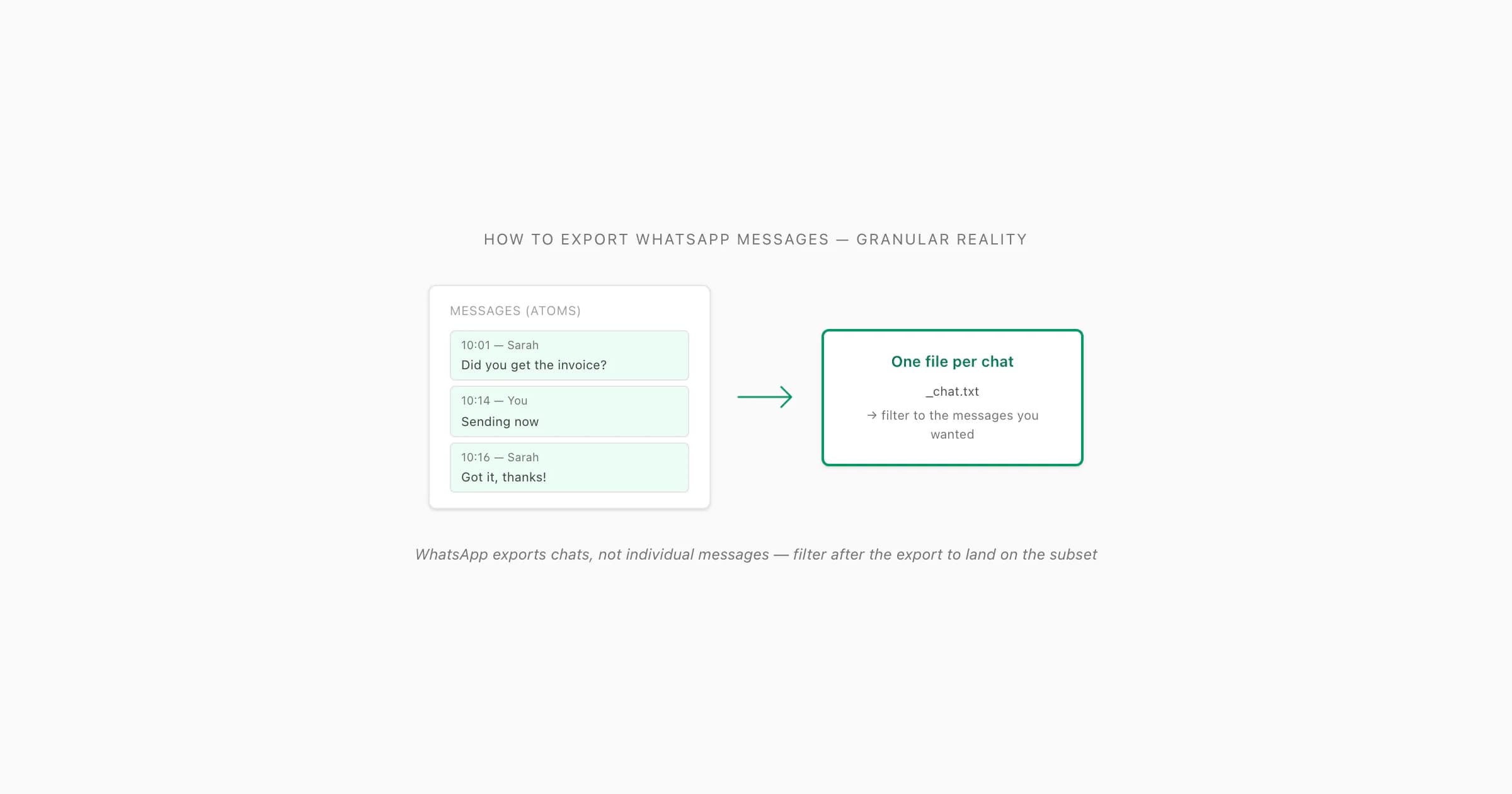
To export WhatsApp messages, use Export Chat — WhatsApp exports the entire conversation at once, not individual messages. Open the chat, tap the title (iOS) or three-dot menu → More (Android), choose Export Chat, and save the ZIP. For granular needs (a date range or specific messages), export the full chat then filter the _chat.txt or the PDF afterwards. Upload the ZIP to ChatToPDF for a formatted, sender-attributed PDF.
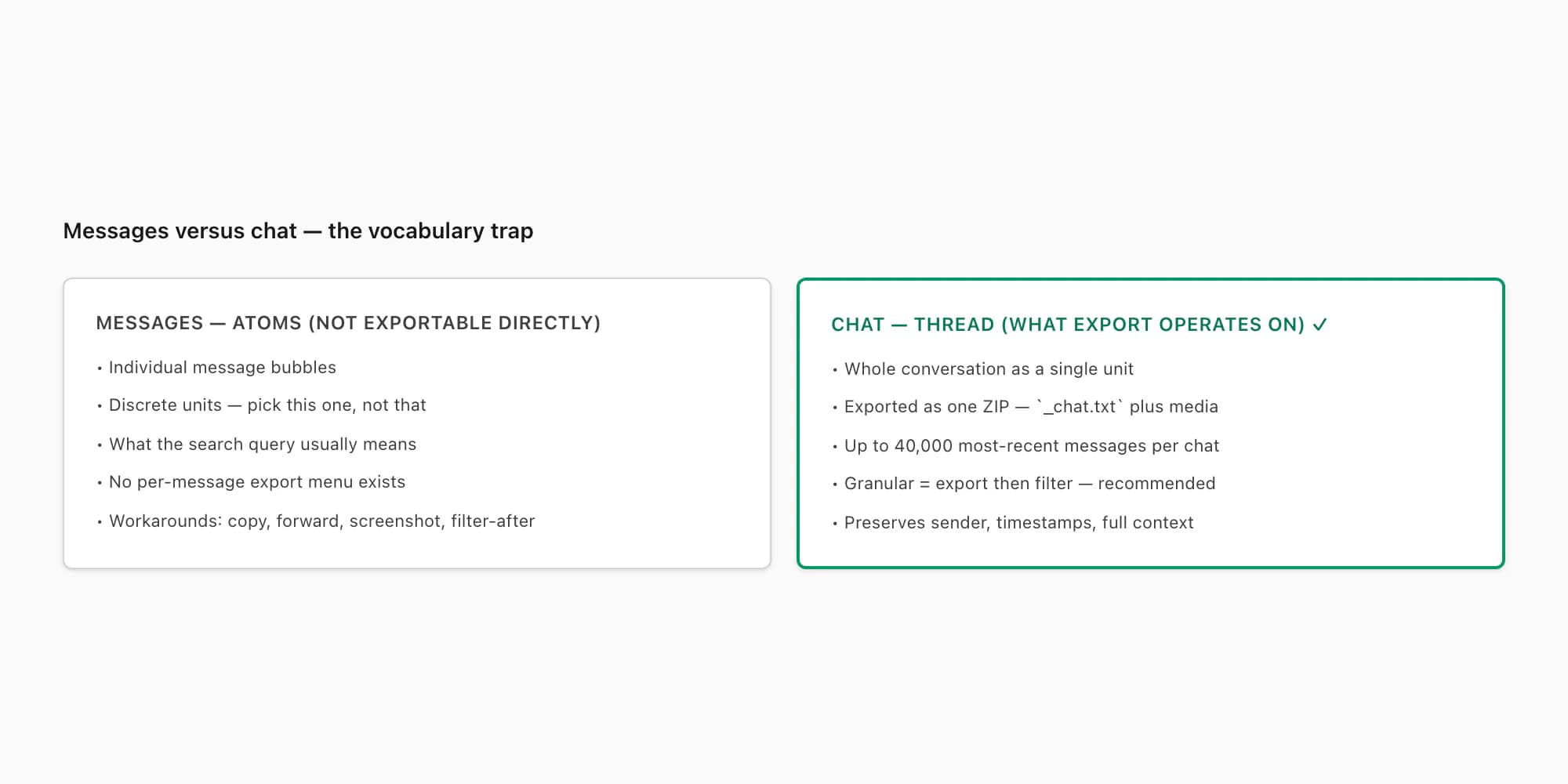
Messages versus chat — the vocabulary trap
- Export Chat (_chat.txt)
- WhatsApp's Export Chat feature produces a ZIP containing a plain-text file called
_chat.txt. Each line represents one message, formatted as[date, time] Sender Name: message content, in strict chronological order. This file is the source for any filtering or PDF conversion step — WhatsApp exports the whole chat at once, never individual messages.
The phrase you typed — "how to export WhatsApp messages" — quietly carries an assumption I want to flag up front. People who search this way tend to be thinking about WhatsApp content as a stream of individual messages. Atoms. Discrete units. The mental model is "I want to export this message and that message and these three messages from last Tuesday — not all of them." That is a reasonable expectation if you came from email (where forwarding a single email is normal) or from text-message archive tools (which often offer per-message selection).
WhatsApp does not work that way. The export tooling operates at the chat level, not the message level. Whichever conversation you run Export Chat against, you get every message in that chat (up to WhatsApp's 40,000-message cap) — never just the subset you actually wanted.
- Vocabulary
- Messages (plural, atoms)
- What you mean
- A subset — these specific messages, not the whole chat
- What WhatsApp's export gives you
- Not directly supported — must export the whole chat then filter
- Vocabulary
- Message (singular)
- What you mean
- One specific bubble — that one thing the person said
- What WhatsApp's export gives you
- Not exported — but can copy via long-press or forward to another thread
- Vocabulary
- Chat
- What you mean
- One conversation — the whole thread with that person or group
- What WhatsApp's export gives you
- Exactly what Export Chat operates on — one chat at a time
- Vocabulary
- Conversation
- What you mean
- Same as chat — full back-and-forth thread
- What WhatsApp's export gives you
- Same — one full conversation export per Export Chat run
- Vocabulary
- Chat history
- What you mean
- Sometimes means the whole account, sometimes one chat
- What WhatsApp's export gives you
- Always interpreted as 'one chat' by Export Chat
| Vocabulary | What you mean | What WhatsApp's export gives you |
|---|---|---|
| Messages (plural, atoms) | A subset — these specific messages, not the whole chat | Not directly supported — must export the whole chat then filter |
| Message (singular) | One specific bubble — that one thing the person said | Not exported — but can copy via long-press or forward to another thread |
| Chat | One conversation — the whole thread with that person or group | Exactly what Export Chat operates on — one chat at a time |
| Conversation | Same as chat — full back-and-forth thread | Same — one full conversation export per Export Chat run |
| Chat history | Sometimes means the whole account, sometimes one chat | Always interpreted as 'one chat' by Export Chat |
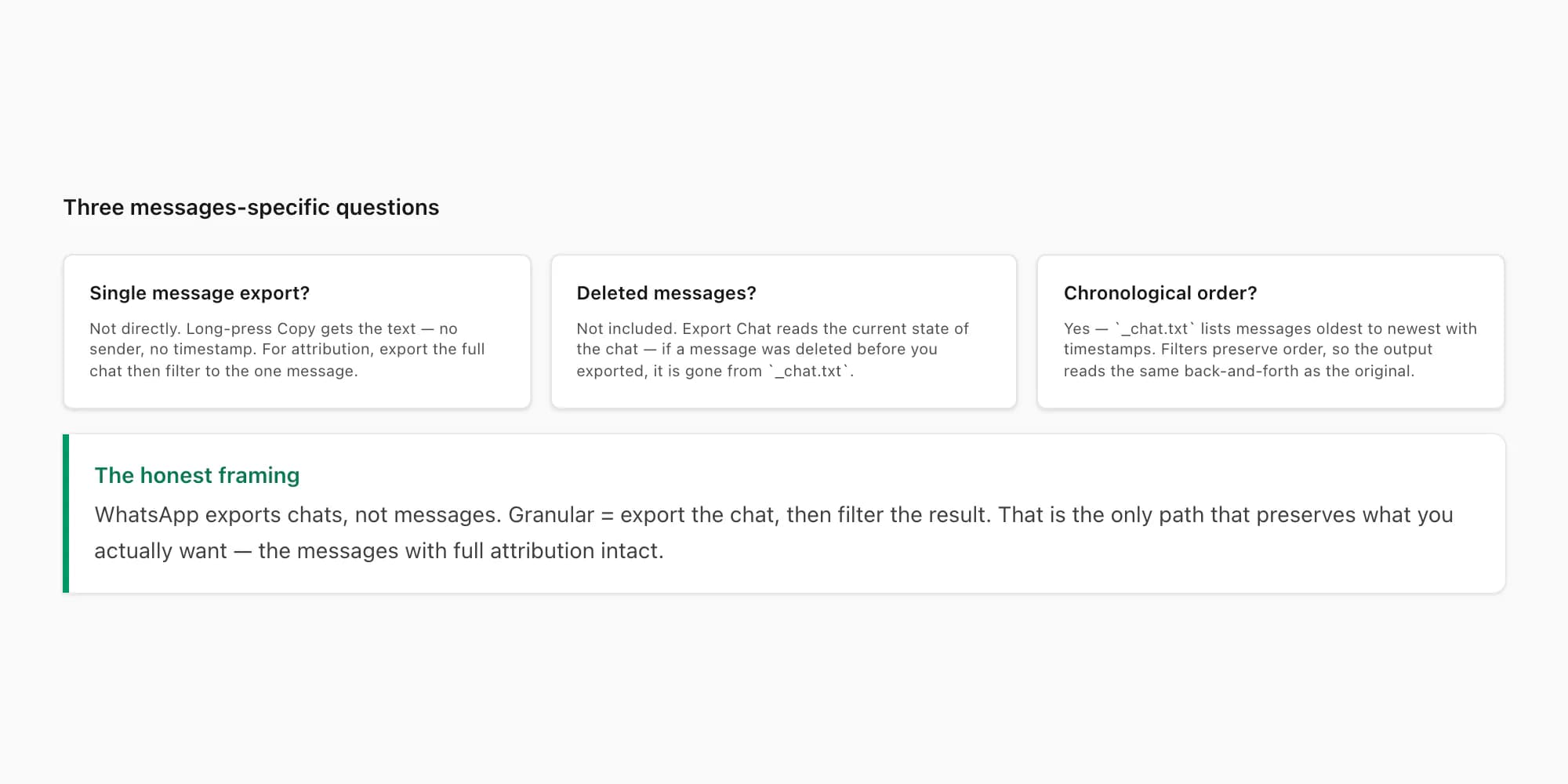
So when the search query says "messages", the WhatsApp tooling answer is "we only export chats, not messages — but here is how to get to the messages you want". The honest framing matters because pretending WhatsApp supports per-message export wastes everyone's time. You'd dig through the menus, fail, and end up frustrated. Better to set the expectation correctly upfront and then walk the four real workarounds for the granular case.
The pillar guide on WhatsApp chat export covers the chat-level export end to end. This guide is specifically for the case where chat-level granularity is bigger than what you need — you want to land on a subset of messages and you need a path that gets you there. If you actually want the whole single chat (not a sub-slice of messages within it), the single-chat export guide is the better starting point. And if your framing is "I want the conversation, not just the messages" — formal contexts tend to use that vocabulary — the export conversation WhatsApp guide covers the same workflow with that lens.
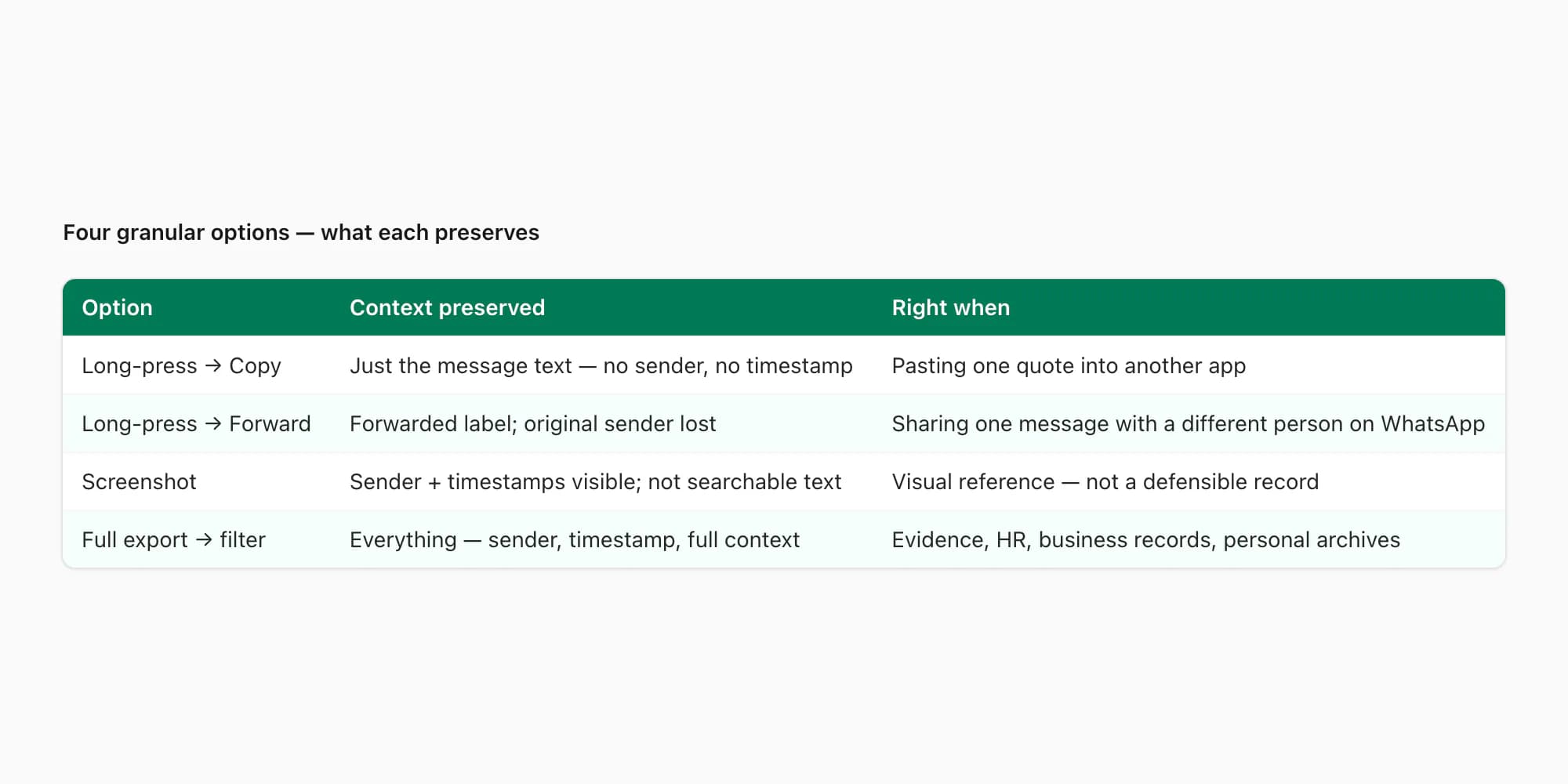
Four granular options — what actually works
Here are the four real options for getting at messages-as-atoms, ranked by how much of the conversation context they preserve. Each works for a different use case, and the one I recommend most often (export then filter) is the last one because it preserves the most context.
- Option
- Long-press → Copy
- What it does
- Copies one message's text to your clipboard
- Context preserved
- Just that message — no sender label, no timestamp
- Right when
- You need to paste one specific quote into another app
- Option
- Long-press → Forward
- What it does
- Forwards the selected message(s) into another chat
- Context preserved
- Forwarded label appears, original sender attribution lost
- Right when
- Sharing a message with a different person on WhatsApp
- Option
- Screenshot
- What it does
- Captures the visible portion of the chat as an image
- Context preserved
- Sender names + timestamps visible; not searchable text
- Right when
- Visual evidence of what a message looked like in-app
- Option
- Full export → filter
- What it does
- Export Chat the whole conversation, then filter the result
- Context preserved
- Everything — sender, timestamp, formatting, full context
- Right when
- You need a clean record of a subset with full attribution
| Option | What it does | Context preserved | Right when |
|---|---|---|---|
| Long-press → Copy | Copies one message's text to your clipboard | Just that message — no sender label, no timestamp | You need to paste one specific quote into another app |
| Long-press → Forward | Forwards the selected message(s) into another chat | Forwarded label appears, original sender attribution lost | Sharing a message with a different person on WhatsApp |
| Screenshot | Captures the visible portion of the chat as an image | Sender names + timestamps visible; not searchable text | Visual evidence of what a message looked like in-app |
| Full export → filter | Export Chat the whole conversation, then filter the result | Everything — sender, timestamp, formatting, full context | You need a clean record of a subset with full attribution |
The first three options are useful for casual cases — a quote you want to paste, a message you want to forward, a screenshot for a chat with a friend. They are not useful for cases where you need a defensible record. Copy loses the sender attribution. Forward loses the original sender. Screenshots are images, not searchable text, and they can be edited.
The fourth option — full export then filter — is the path I recommend whenever the granular subset matters. You take WhatsApp's chat-level export as the input (which preserves every message verbatim with sender names and timestamps), and you do the filtering yourself afterwards using whatever tool fits — text editor with Find, spreadsheet with date sorting, or chattopdf's date-range and per-sender filters in the PDF output.
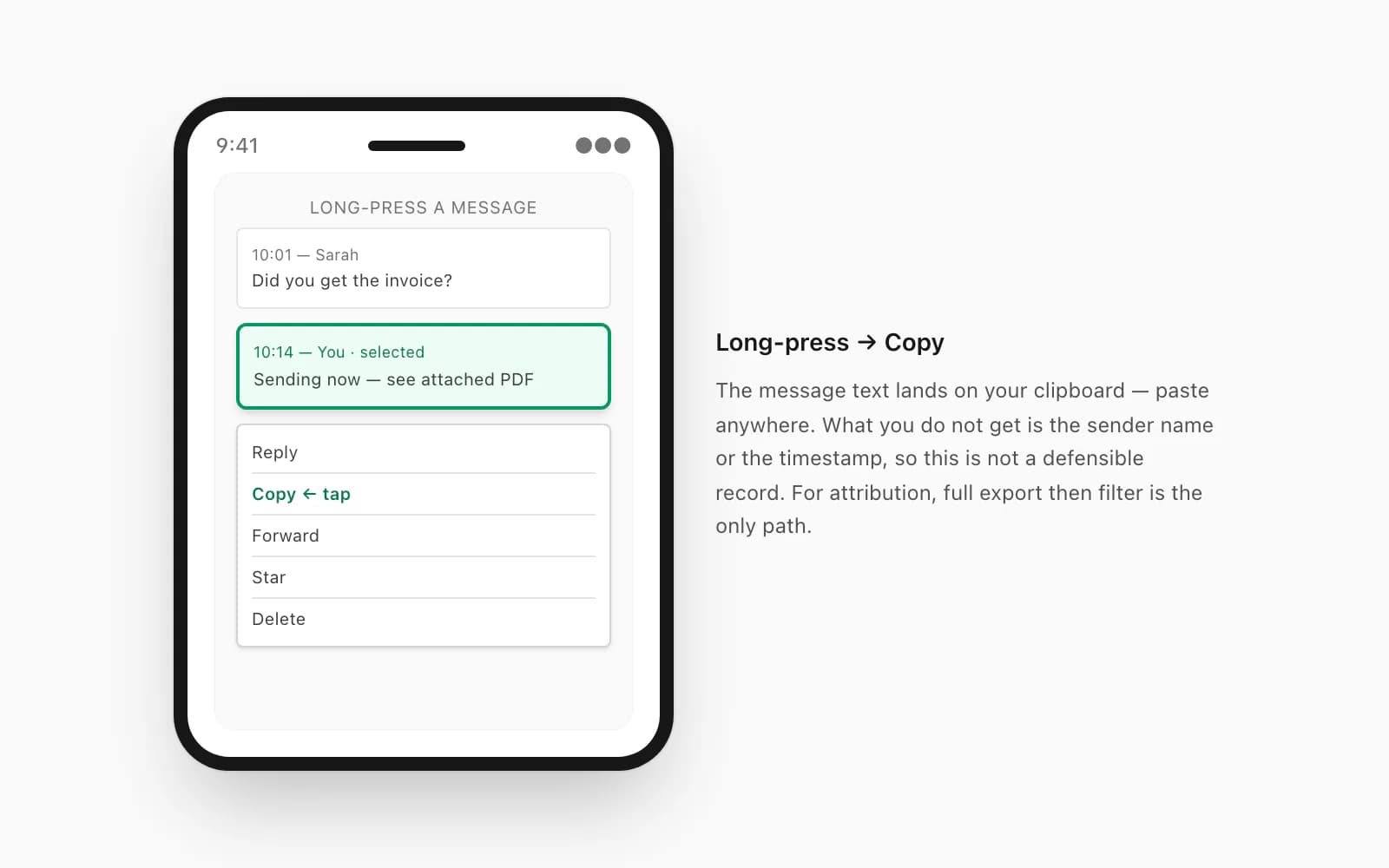
For the single-message-copy case specifically: long-press a message bubble, tap Copy from the contextual menu, and the message text lands on your clipboard. Paste anywhere — into Notes, into an email, into a document. What you do not get is the sender name or the timestamp — those are not part of the copy. If you need sender attribution alongside the message, your only path is the full export.
The export from WhatsApp step-by-step guide covers the full Export Chat tap path if you need the platform-specific menu nesting on iOS and Android.
The export-then-filter workflow
This is the recommended path. The mental shift is to stop thinking about WhatsApp as the place where you filter, and start thinking about it as the source you pull from. WhatsApp's job is to give you the chat. Your job (or chattopdf's) is to filter the chat down to the messages you actually wanted.
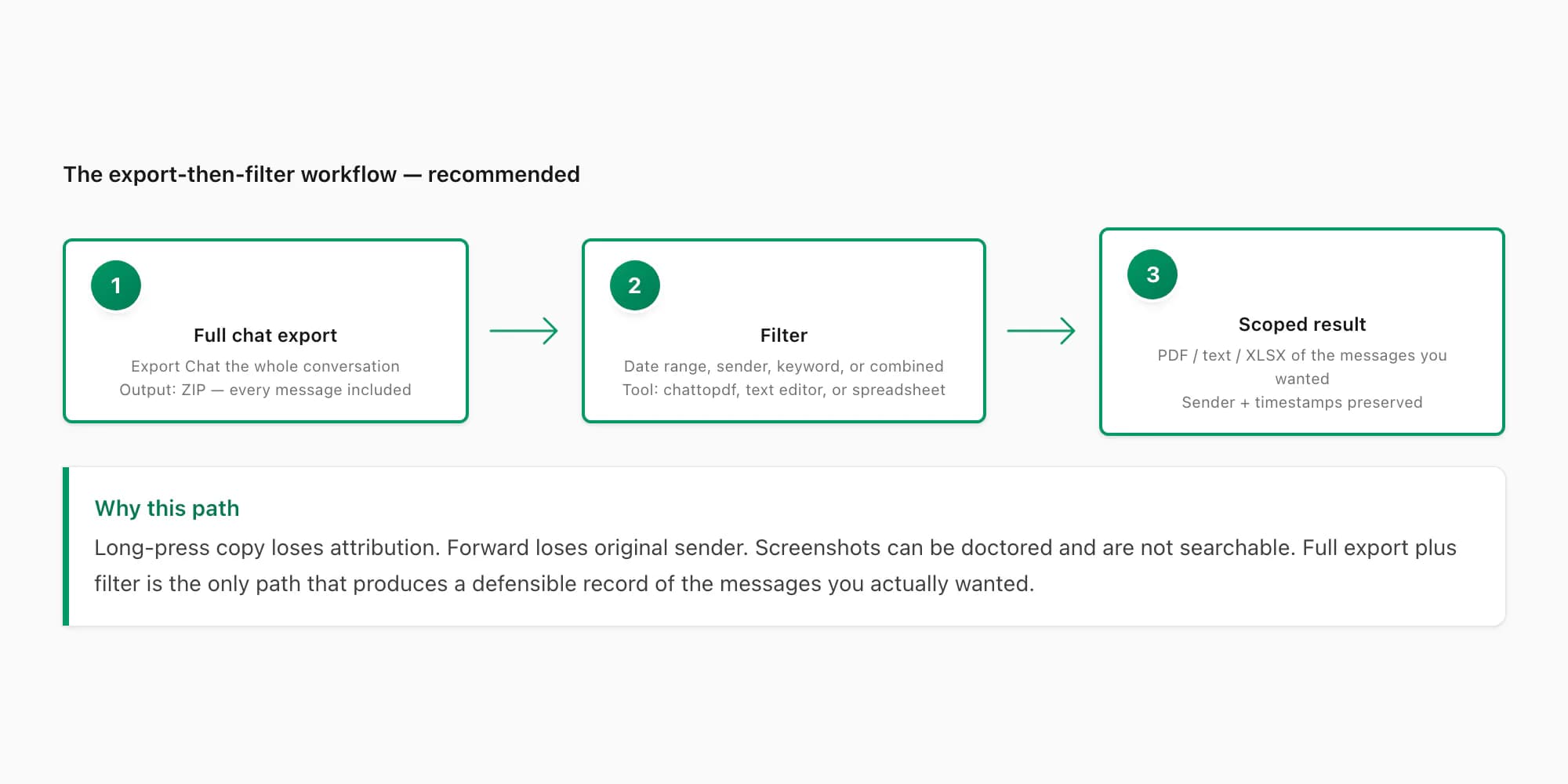
Here is the workflow, end to end:
Run Export Chat on the conversation containing the messages you want
Open WhatsApp, find the chat, tap the contact or group name at the top, scroll to Export Chat, choose Including Media (safer — you can ignore media later, but cannot add it in after), save the ZIP to Files or Drive. The single-chat export guide walks this step in finer detail. The output is a ZIP containing every message in that chat as
_chat.txt.Decide your filter criteria — date range, sender, keyword, or a combination
Be specific about what subset you want. "Messages from Sarah between March 1 and March 15." "Every message containing the word invoice." "Everything I sent in April." "All the system messages about people joining the group." The clearer your criteria, the cleaner the filtering step is — and chattopdf's filters are built for exactly these shapes.
Pick a filtering tool that matches your criteria
For text-only filtering, any text editor with Find (Notepad, TextEdit, VS Code) handles the basic keyword case — Cmd+F or Ctrl+F through
_chat.txt. For date-range or per-sender filtering with a clean PDF output, upload the ZIP to chattopdf and use the date-range and sender filters during conversion. For analytical filtering across a large chat, the $29 Premium per chat tier produces an XLSX/CSV alongside the PDF — sort, filter, pivot the rows in any spreadsheet tool.Produce the filtered output and verify the message count
After filtering, do a sanity check on the count. If you expected roughly 200 messages from Sarah in that date range and the output shows three, you've got the filter wrong somewhere — usually a date format mismatch (US
M/D/YYversus ISOYYYY-MM-DDversus EuropeanDD/MM/YYYY) or a sender-name typo. Re-run with corrected criteria. The full chat is still in_chat.txt— the filter is applied to the read, not destructively.Save the filtered output with a descriptive name
Once you have the subset you wanted, rename it descriptively. Not
chat.pdf— something like2026-05-09 - Sarah - March 1-15 invoice messages.pdf. This pays off later when you have several filtered exports across different cases. The full chat ZIP is the source — keep it alongside the filtered output for chain-of-custody if it ever matters.
The reason I push this workflow over the long-press alternatives is reliability. Long-press copy loses attribution. Forward loses original sender. Screenshots can be doctored and are not searchable. Full export plus filter preserves everything that was in the original chat for the messages you kept, and discards everything else cleanly. For evidence work, HR cases, business records, and personal archives, that is the only option that produces a defensible record.
Filtering by date range and by sender
These are the two filters that matter most for the granular-messages case, and they are the ones chattopdf was built around.
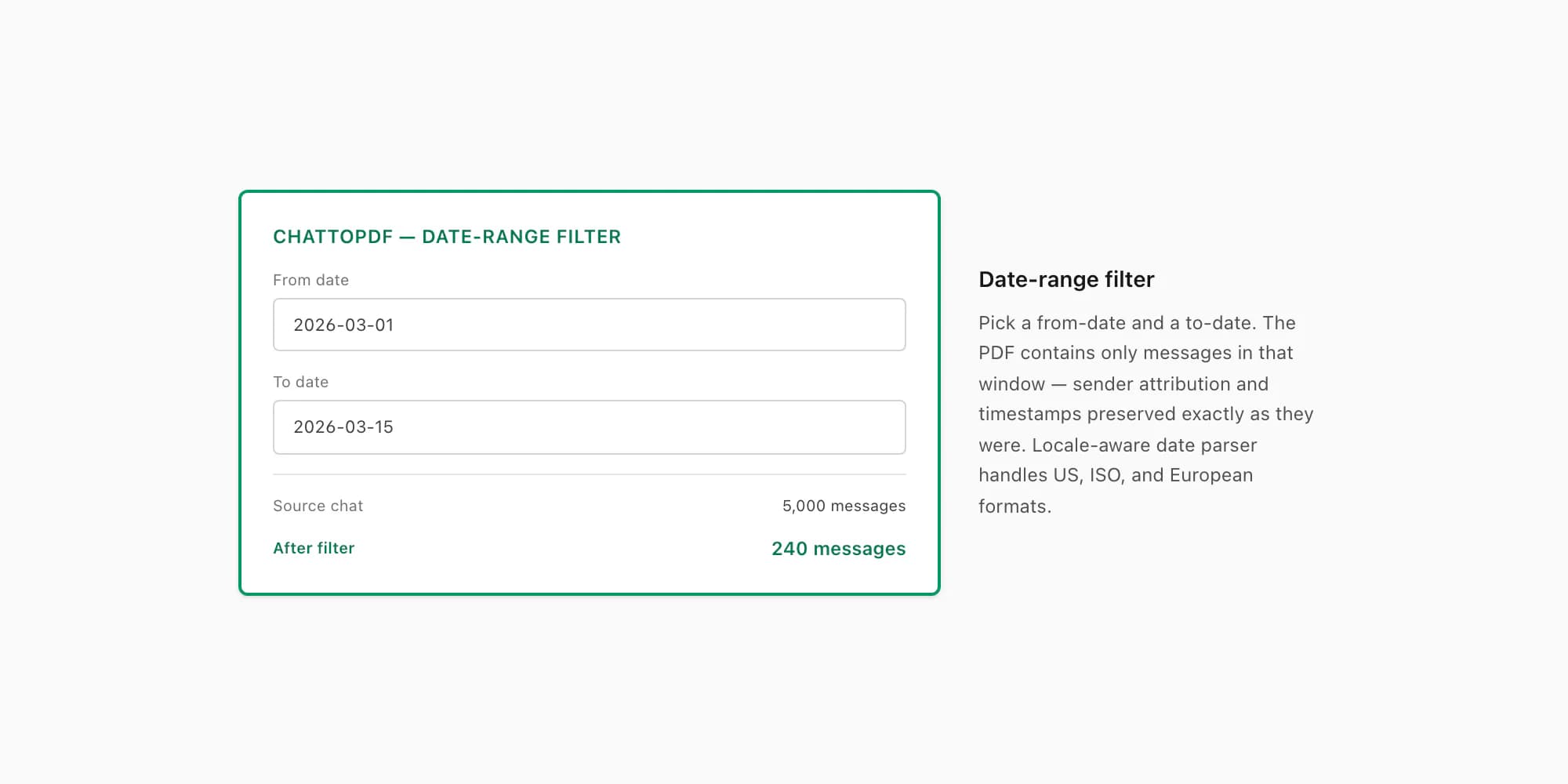
Date-range filtering narrows the export to messages between two dates. You upload the ZIP, pick a from-date and a to-date, and the PDF output contains only messages in that window. The use case is "I need every message from this conversation in March" or "what was said between the contract signing and the dispute". Clean, scoped, with full sender attribution and timestamps preserved exactly as they were in the original chat.
The date format in _chat.txt varies by phone locale — US exports use M/D/YY, ISO exports use YYYY-MM-DD, European exports use DD/MM/YYYY, and some locales use non-Western digits or different day-period markers. The developer guide Why WhatsApp export parsers break documents the tested patterns and ambiguity limits. The chattopdf parser detects the published format families automatically; a manual text-editor or spreadsheet workflow may need to normalize dates first.
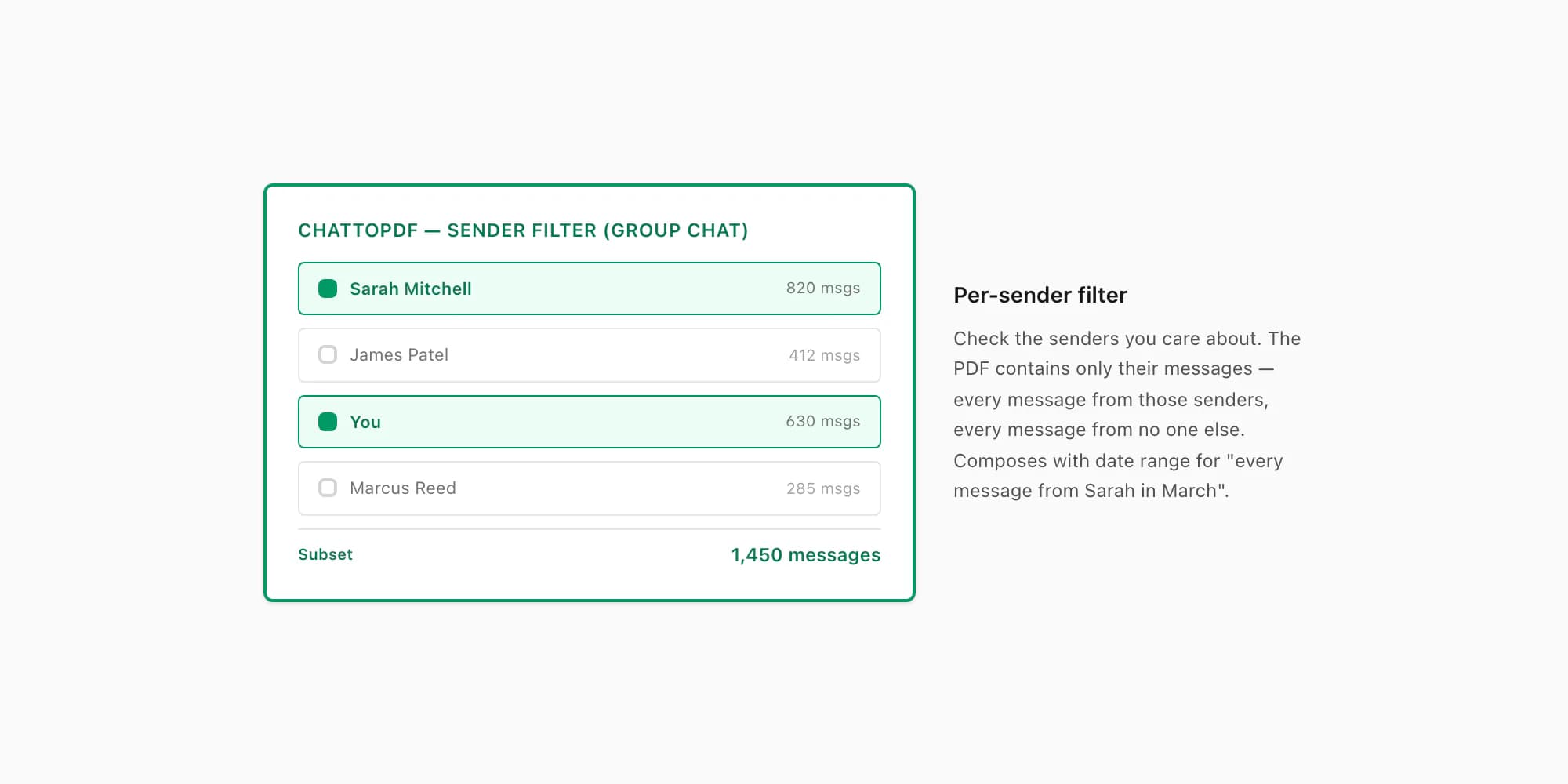
Per-sender filtering narrows the export to messages from a specific participant. Useful in group chats where you only care what one person said. Upload the ZIP, check the boxes for the senders you want, and the PDF contains only their messages — every message from those senders, every message from no one else. The full thread context is dropped, but the messages themselves come through verbatim with timestamps preserved.
The two filters compose. "Every message from Sarah between March 1 and March 15" is date-range plus per-sender. The output is the precise subset that the search query "how to export messages" usually means — even though WhatsApp itself does not support that query directly. The extract WhatsApp chat data guide covers the broader analytical framing, including pulling structured fields out for filtering elsewhere.
For the case where filtering needs to happen across multiple chats — say, every message containing the word "invoice" across five different conversations — the path is to export each chat individually, run the filter against each one, and merge the outputs. There is no cross-chat filter built into WhatsApp itself; the pillar guide covers what to do for multi-chat workflows.
Pricing for the filtered-PDF conversion
If you are landing on this page because you want a clean PDF of a filtered subset of messages — the most common reason — chattopdf prices per conversion. Each tier is a single payment for a single chat, with the filtering applied during the conversion at no additional cost.
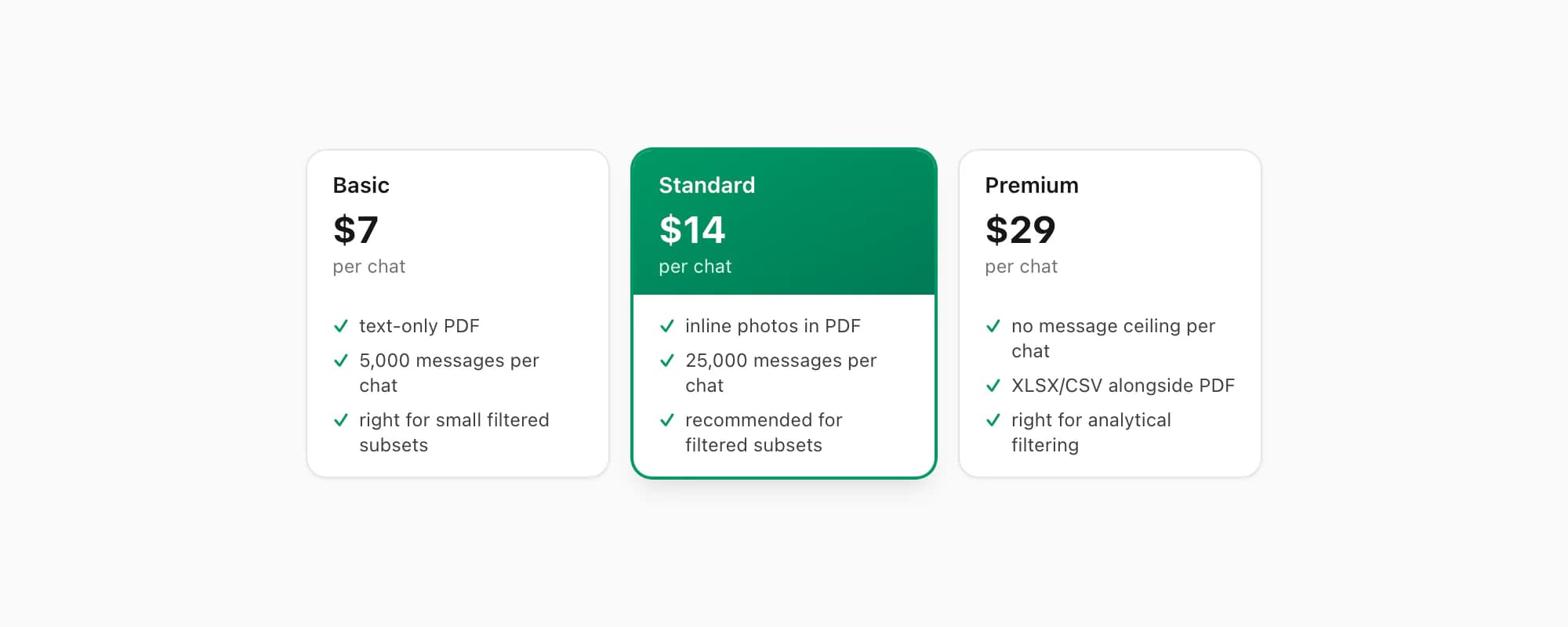
$7 Basic per chat is the entry tier. Text-only PDF, capped at 5,000 messages per chat, no inline photos. The filtering is applied before the cap, so a date-range filter on a large chat that lands at 4,000 messages still produces a complete output. Right when the filtered subset is small and you only need readable text — for example, a personal archive of a specific date range or a short business reference.
$14 Standard per chat is the recommended tier for filtered exports. Inline photos appear in the PDF, the per-chat message ceiling lifts to 25,000, and date-range plus per-sender filters work cleanly. This is the tier for legal, HR, evidence, and personal-archive cases where the granular subset matters.
$29 Premium per chat removes the per-chat message ceiling and adds an XLSX/CSV export alongside the PDF. Useful when the source chat is large and you want to do further analytical filtering yourself in a spreadsheet — sort by sender, group by date, pivot by message count, then re-run the conversion against a different subset.
$49 Premium+Voice per chat adds voice-note transcription through the language-aware Nova-3/Scribe v2 router. Supported notes in the filtered subset that transcribe successfully become real text blocks with sender attribution preserved — meaningful for evidence cases where what someone said in a voice note matters as much as what they typed. The transcribe WhatsApp audio guide covers the transcription side end to end.
$99 Power User per chat adds priority queue processing and bulk-conversion support — useful if your granular workflow involves filtering across multiple chats in one session.
Re-export the same chat tomorrow and you pay again — each conversion is real work against a different snapshot of the chat data. No signup, no commitment beyond the single chat you upload.
Key takeaways
- WhatsApp does not support per-message export — Export Chat operates at the chat level, never on individual messages, and there is no menu to pick a subset before exporting.
- Four real granular workarounds exist — long-press Copy (loses attribution), long-press Forward (loses original sender), screenshot (images, not searchable text), or full export then filter (preserves everything for the messages you keep).
- Full export then filter is the recommended path for any case where attribution and timestamps matter — evidence, HR, business records, personal archives. It preserves the full context for the kept messages and discards the rest cleanly.
- Date-range plus per-sender filters compose — "every message from Sarah between March 1 and March 15" is exactly the granular subset most people mean when they search for "how to export WhatsApp messages".
- WhatsApp's
_chat.txtdate format varies by phone locale — USM/D/YY, ISOYYYY-MM-DD, EuropeanDD/MM/YYYY. The chattopdf parser auto-detects; manual filters in text editors or spreadsheets may need to normalize first. - For chat-to-PDF with filters, $14 Standard per chat is the right tier — inline photos, 25,000-message ceiling, sender attribution preserved. The filtering is applied during conversion at no additional cost.
- The full chat ZIP from WhatsApp is the source — keep it alongside the filtered output for chain-of-custody if the messages may need to be re-filtered or audited later.
- For a step-by-step look at turning the exported chat into a formatted, readable PDF, see the WhatsApp to PDF guide.
FAQ
How do I export individual messages from WhatsApp?
You cannot export individual messages directly — WhatsApp's Export Chat feature only operates on whole chats. The four workarounds for the per-message case are long-press Copy (one message text to clipboard, no sender or timestamp), long-press Forward (sends a message into another chat, original sender attribution is lost), screenshot (visual record, not searchable text), and full chat export with filtering applied afterward. For any case where sender attribution and timestamps matter, the export-then-filter path is the only one that produces a defensible record — chattopdf's date-range and per-sender filters narrow the chat-level export down to the message subset you actually wanted.
Can I export WhatsApp messages by date range?
Not directly inside WhatsApp — there is no date-range option in the Export Chat menu. The workflow is to export the whole chat (Export Chat produces a ZIP containing every message in the conversation, up to WhatsApp's 40,000-message cap), then filter the resulting _chat.txt or PDF to the date range you want. ChatToPDF's date-range filter handles this directly during conversion — you upload the ZIP, pick a from-date and a to-date, and the PDF output contains only messages in that window with full sender attribution and timestamps preserved.
Can I export WhatsApp messages from a specific sender?
Same answer — not directly in WhatsApp, but yes via the full-export-then-filter path. The Export Chat output contains every message from every participant in the chat. ChatToPDF's per-sender filter lets you check boxes for the participants you care about during the conversion, and the PDF output contains only their messages. The two filters (date range and sender) compose, so "every message from one specific person between two specific dates" is a valid combined filter — that is what most people actually mean when they search for "how to export WhatsApp messages".
Are deleted messages included in a WhatsApp export?
No — deleted messages are not included in WhatsApp's Export Chat output. If a message was deleted before you ran the export, it is gone from the source _chat.txt and therefore gone from any filter or PDF derived from it. Messages deleted only on your phone (rather than for everyone) are also gone. The Export Chat feature reads the current state of the chat as it lives on your device — there is no "include deleted" toggle and no archived state to recover. If you need a record of a message that was later deleted, the export had to happen before the deletion.
Are messages exported in chronological order?
Yes — _chat.txt lists messages in strict chronological order from oldest to newest, with each line carrying a timestamp in the phone's locale format. This means filters that depend on order (like date-range filters or "first message in the chat") work reliably. Voice notes, photos, and documents appear in the same chronological position they occupy in the chat, with <attached: filename> lines indicating where the media reference sits inline. The chattopdf parser preserves this ordering in the PDF output, so the filtered subset reads exactly as it was sent — the same back-and-forth flow as the original conversation.
What happens to voice notes when I filter messages?
Voice notes are exported as .opus audio files inside the ZIP if you chose Including Media — they appear as <attached: 00012-AUDIO-2026-05-09-14-22-31.opus> lines in _chat.txt. When you filter by date range or sender, voice notes from matching messages are kept and voice notes from filtered-out messages are dropped. By default voice notes appear as placeholders in the PDF (mention of attachment, no transcription). The $49 Premium+Voice per chat tier routes supported notes through Deepgram Nova-3 or ElevenLabs Scribe v2; notes that transcribe successfully appear as readable text blocks — meaningful for evidence cases where what someone said in audio matters as much as what they typed. WhatsApp's own FAQ on saving chat history confirms the per-chat scope of the export.
I'm Paul, the founder of ChatToPDF. I built it after needing a long WhatsApp conversation as a readable PDF for a legal matter. I test and document WhatsApp exports, PDF conversion, voice-note transcription, and the limits people should check before relying on the result.