
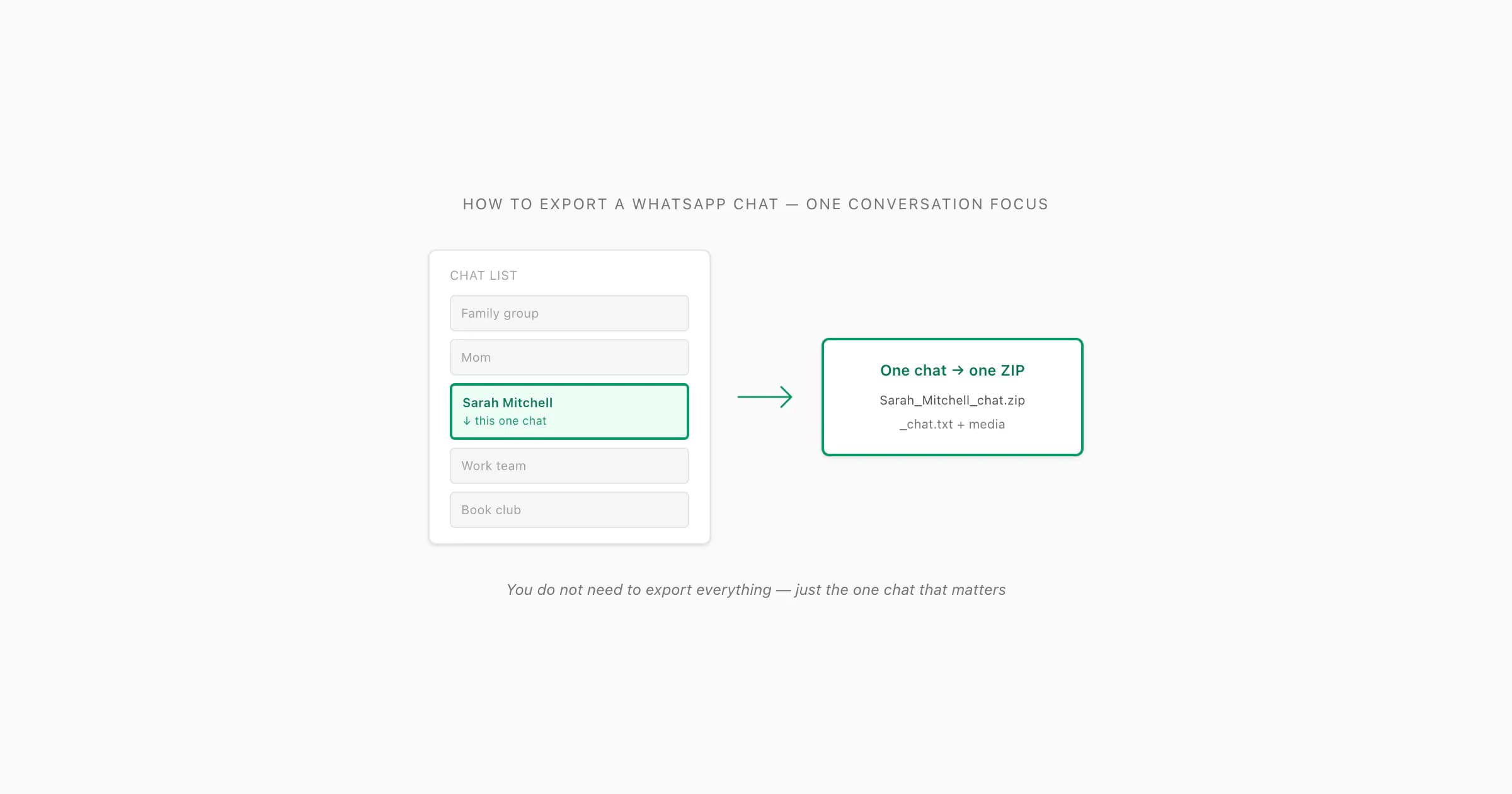
To export a WhatsApp chat, open the conversation, tap the contact or group name at the top (iOS) or the three-dot menu → More (Android), tap Export Chat, choose Without Media or Including Media, and save the resulting ZIP to your device. WhatsApp exports one chat at a time. To convert the exported ZIP into a readable, sender-attributed PDF, upload it to ChatToPDF — the PDF arrives by email in about 30 seconds.
Single chat versus bulk export — what is actually possible
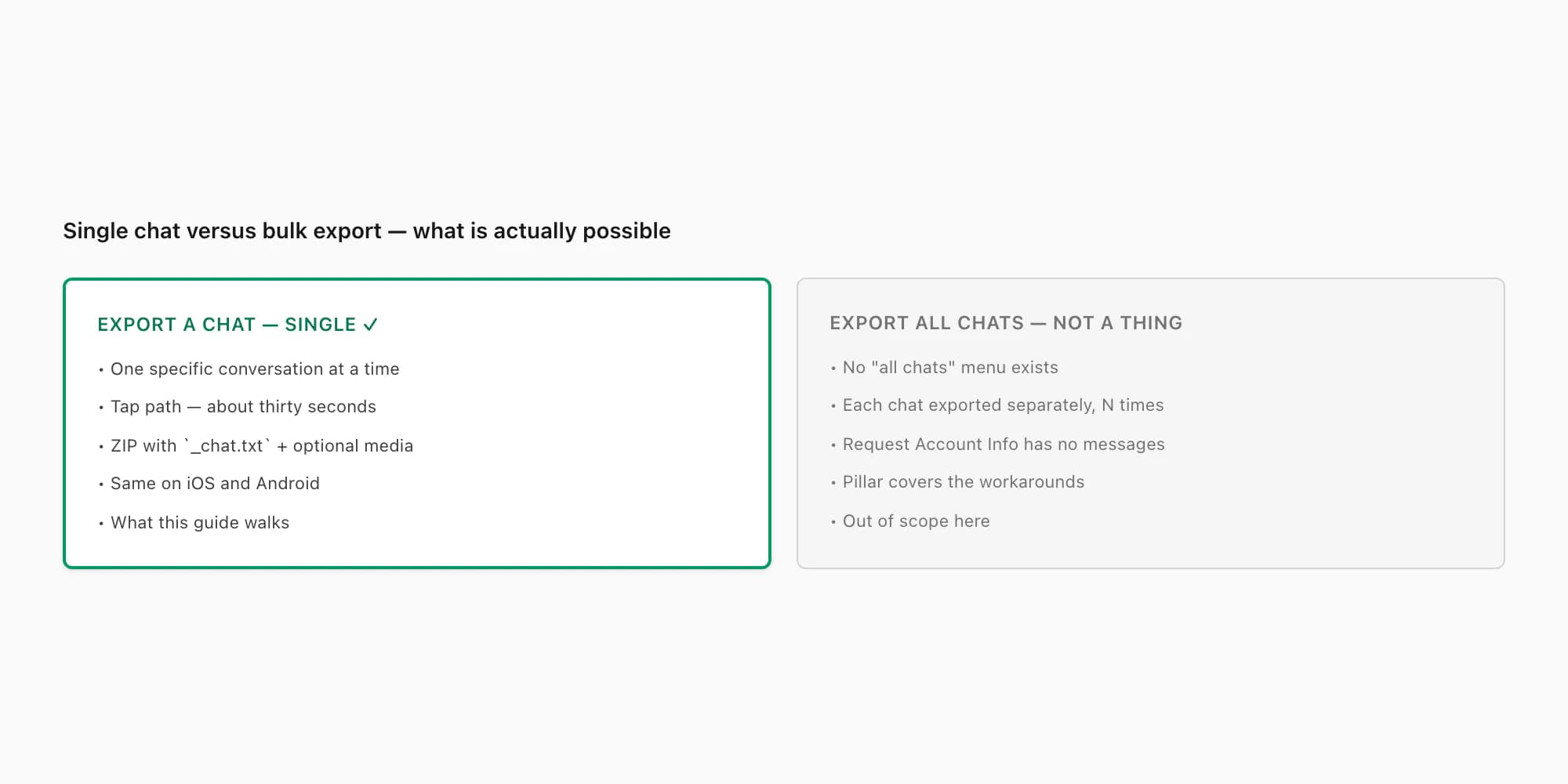
I want to start by drawing the line cleanly, because a lot of the searches that land here are people trying to do something WhatsApp does not actually let them do. The article in your search query is doing real work — "how to export a WhatsApp chat" is a different question from "how to export WhatsApp chats" or "how to export all my WhatsApp chats". The article means one. One conversation. One chat. And that is exactly what WhatsApp supports — and pretty much only what WhatsApp supports.
- Dimension
- Scope
- Export A chat (single — supported)
- One specific conversation at a time
- Export all chats (bulk — not a thing)
- Not a documented feature — no menu exists
- Dimension
- Mechanics
- Export A chat (single — supported)
- Tap-by-tap, about thirty seconds end to end
- Export all chats (bulk — not a thing)
- Each chat exported one at a time, N times
- Dimension
- Where the menu lives
- Export A chat (single — supported)
- Inside the chat → info screen → Export Chat
- Export all chats (bulk — not a thing)
- Settings → Account → Request Account Info does NOT include messages
- Dimension
- Output
- Export A chat (single — supported)
- ZIP with `_chat.txt` and (optionally) media
- Export all chats (bulk — not a thing)
- N separate ZIPs — one per chat — never bundled
- Dimension
- This guide
- Export A chat (single — supported)
- Walks the single-chat tap path step by step
- Export all chats (bulk — not a thing)
- Out of scope — covered in the pillar
| Dimension | Export A chat (single — supported) | Export all chats (bulk — not a thing) |
|---|---|---|
| Scope | One specific conversation at a time | Not a documented feature — no menu exists |
| Mechanics | Tap-by-tap, about thirty seconds end to end | Each chat exported one at a time, N times |
| Where the menu lives | Inside the chat → info screen → Export Chat | Settings → Account → Request Account Info does NOT include messages |
| Output | ZIP with `_chat.txt` and (optionally) media | N separate ZIPs — one per chat — never bundled |
| This guide | Walks the single-chat tap path step by step | Out of scope — covered in the pillar |
After three years answering this question in support, the single most common confusion I see is people scrolling through Settings looking for a master export button. There isn't one. The export menu lives inside each individual chat — you open the chat, tap into its info screen, and the Export Chat option is there. To export multiple chats, you run the same flow once per chat, and you end up with one ZIP per conversation.
That is good news for the single-chat case, which is the case this article covers. If you only want one specific chat — one client thread, one conversation that turned into a dispute, one exchange that contains a piece of information you need to keep — WhatsApp's tooling fits exactly. You will not have to wade through settings or wait for a download to compile across your whole account. You go to that one chat, run the menu, and you have the ZIP for it specifically.
For the broader question of what to do when you have many chats to export — for example, migrating a phone, building a comprehensive backup, or running a multi-chat investigation — the pillar guide on WhatsApp chat export covers the limits and the workarounds. But that is not what this guide is for.
How to export a WhatsApp chat — step by step
Here is the focused single-chat tap path. The mechanics are nearly identical on iOS and Android — only the menu nesting differs (info screen on iOS, three-dot overflow on Android). I will walk the iOS path first because that is what most of the screenshots in this guide show; the Android equivalent is right after, and the guides on export chat WhatsApp and export from WhatsApp step by step cover both platforms in more depth if you want a wider tour.
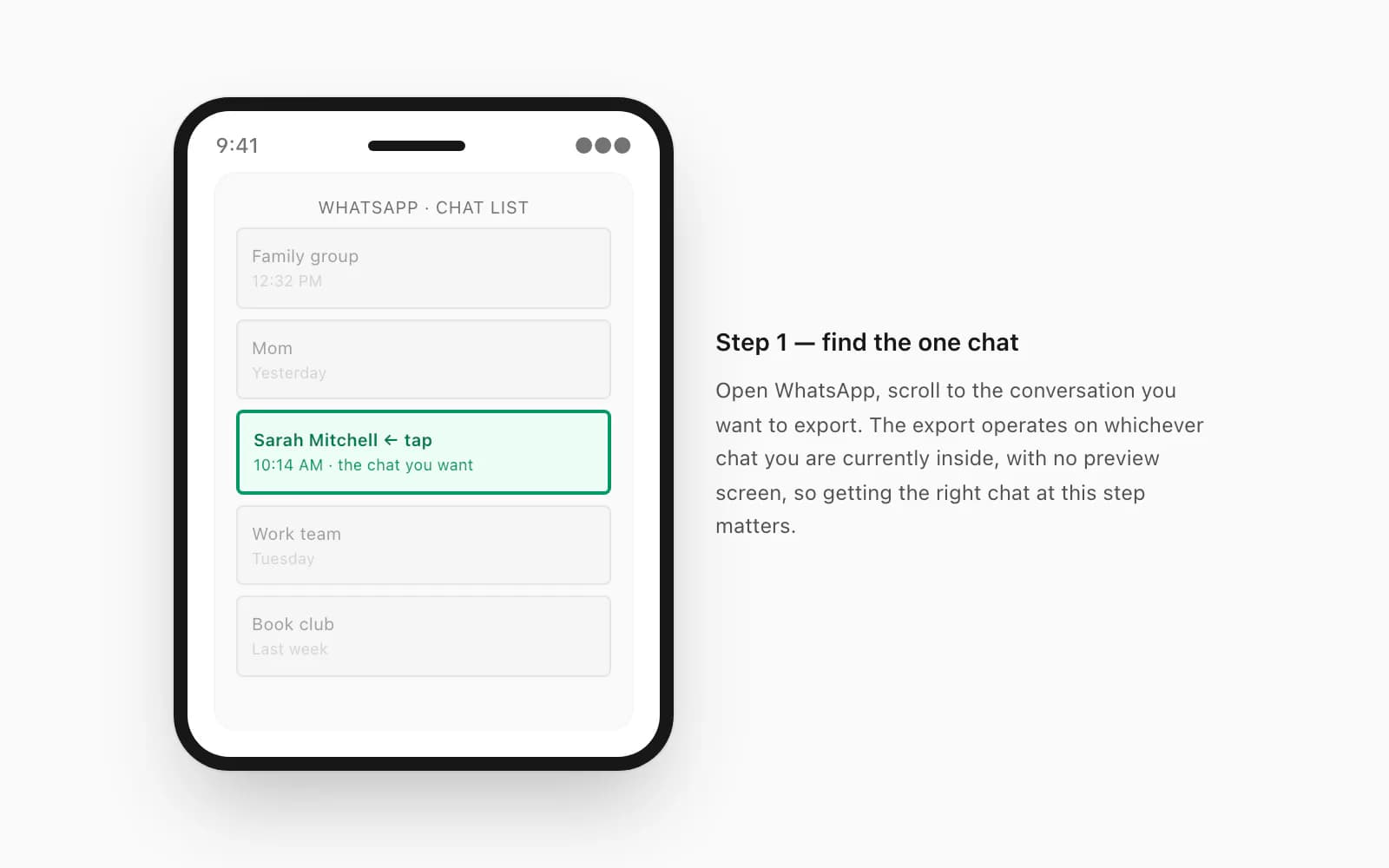
Open WhatsApp and find the one chat you want to export
Open the WhatsApp app on your phone. Scroll your chat list to the conversation you want — could be a specific person, a specific group, or a specific business chat. Make sure it is the right one before you go further. The export operates on whichever chat you are currently inside, and there is no preview or confirmation screen, so getting the chat right at this step matters.
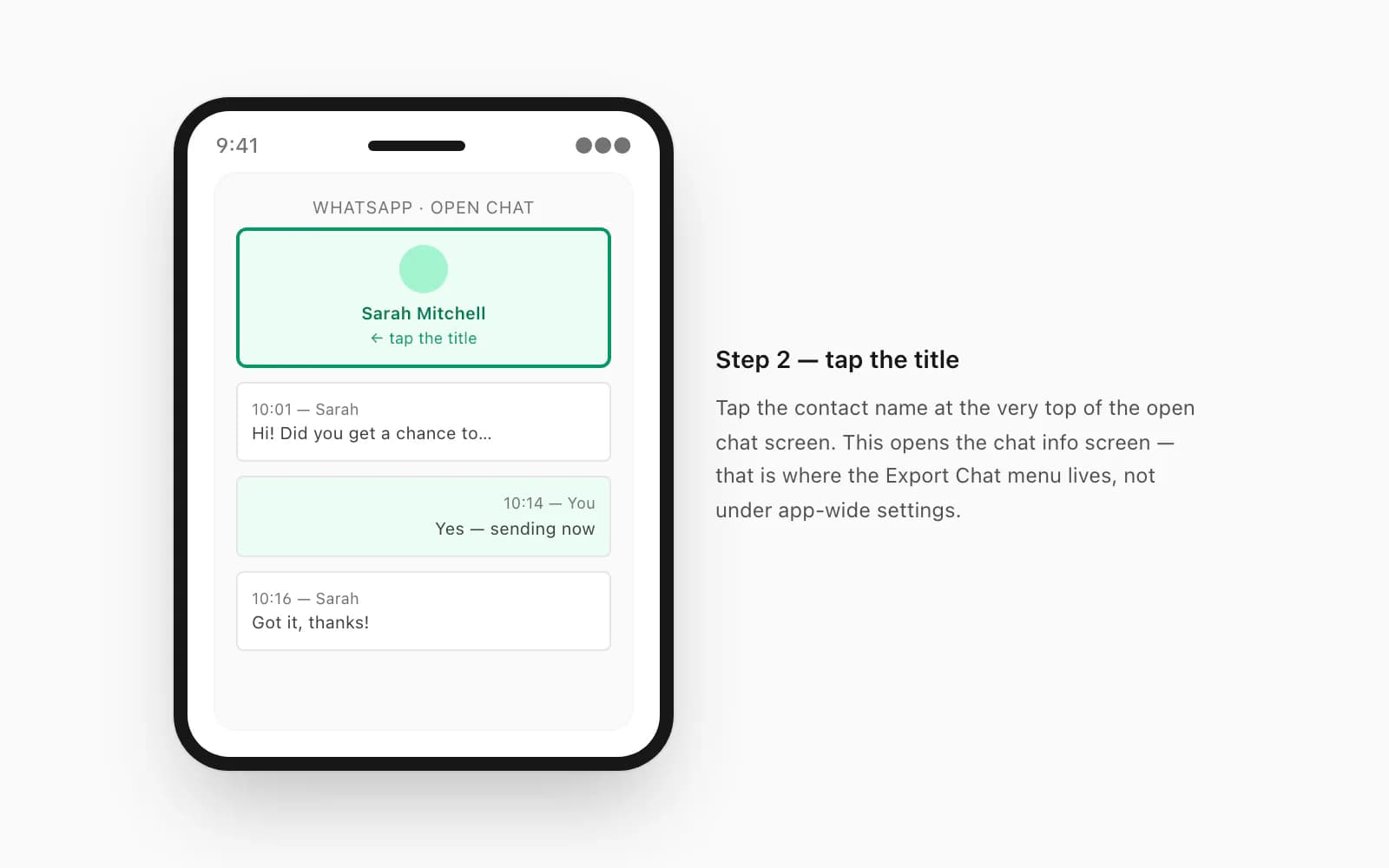
Tap the chat to open it, then tap the title at the top of the screen
Tap the chat row to open the message thread. Then tap the contact name (for one-on-one chats) or the group name (for group chats) at the very top of the open chat screen. This opens the chat info screen — that is where the Export Chat menu lives, not under app-wide settings.
Scroll to the bottom of the info screen and tap Export Chat
The info screen is long — it lists media, links, encryption status, mute options, disappearing-messages settings, then way down at the bottom, Export Chat. Scroll past the media gallery and the privacy options. Export Chat sits below them. Tap it.
Choose Without Media or Including Media
A dialog appears with two options. Without Media gives you a small ZIP — usually under 1 MB even for a chat with thousands of messages — containing only
_chat.txt. Including Media bundles photos, voice notes, and documents from the chat alongside the text — that ZIP can be 50 MB or more depending on how much media is in the conversation. Pick based on what you need the export for. If you are unsure, Including Media is the safer choice because you can ignore the media files later, but you cannot add them in after the export has been taken.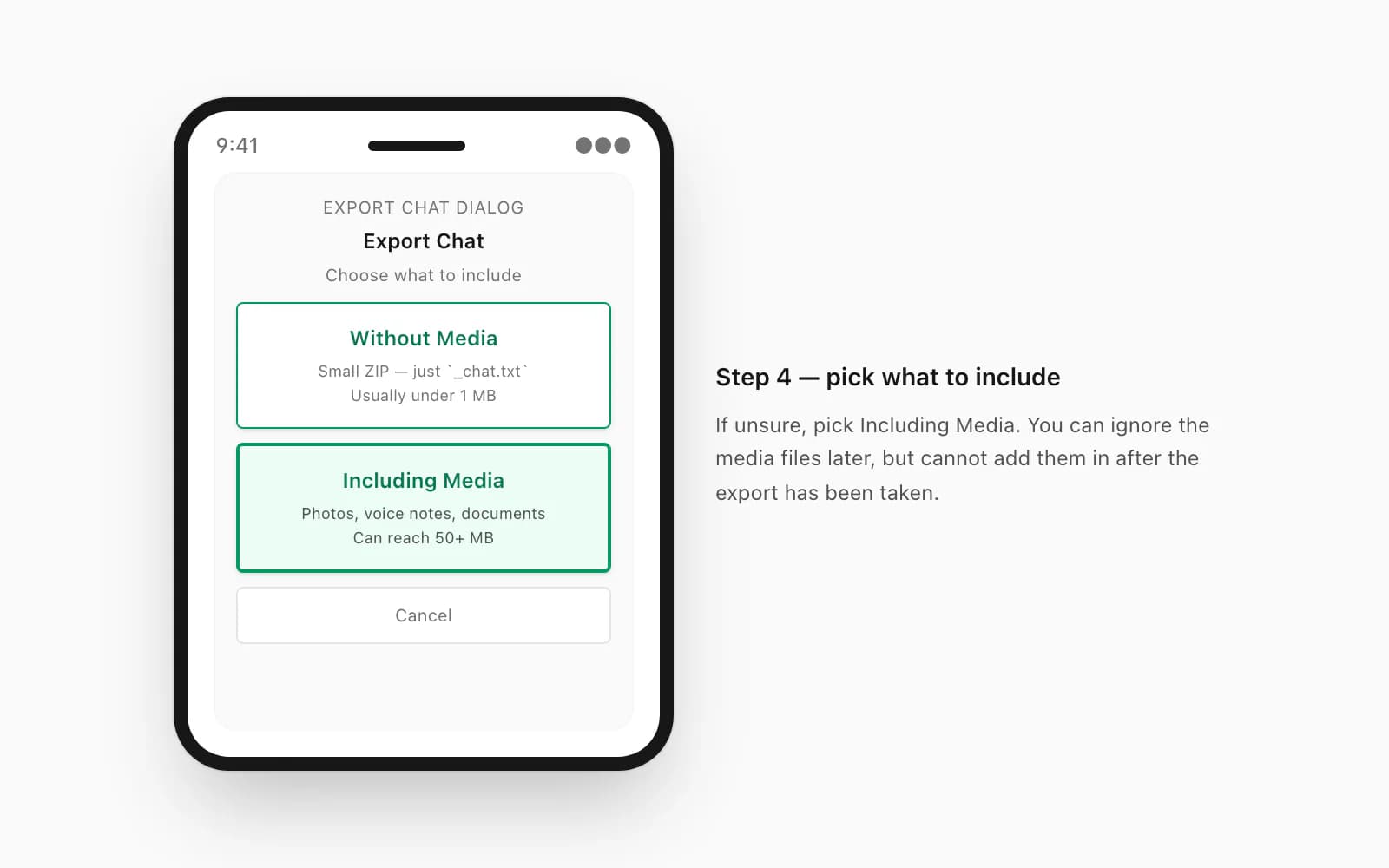
Tap Save to Files (iOS) or save to your storage (Android)
The share sheet opens. On iOS the predictable destination is Save to Files — pick a folder you will remember (On My iPhone → WhatsApp, or iCloud Drive, or a project-specific folder). On Android the equivalent is Drive or Files by Google. The ZIP lands in that folder, named something like
WhatsApp Chat - <name>.zip, ready for whatever you do with it next.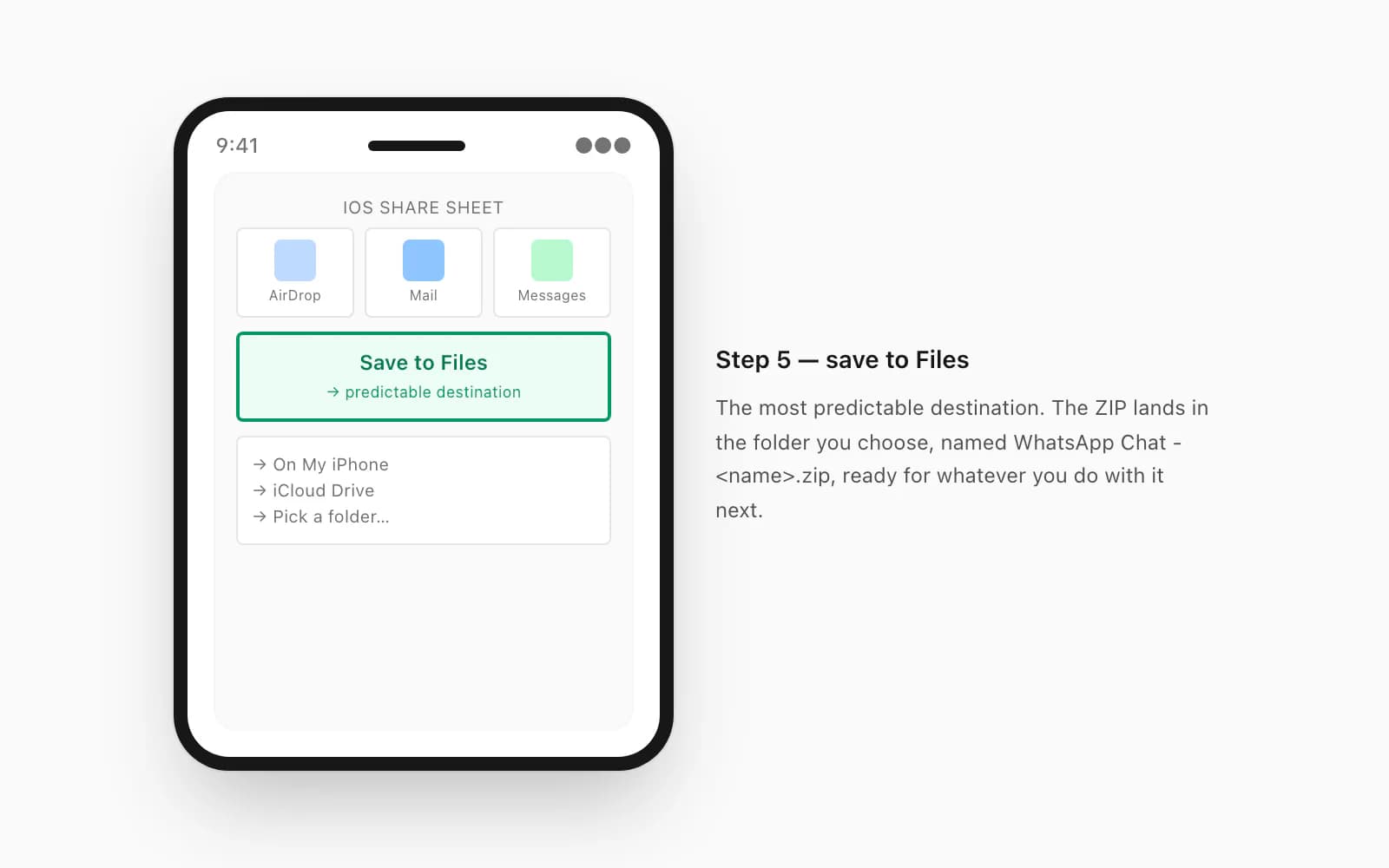
Verify the file is where you think it is
Open Files (iOS) or your file manager (Android) and confirm the ZIP is in the folder you saved to. If you cannot find it, the share-sheet step usually went somewhere unexpected — re-run Export Chat and pick a more deliberate destination. The file is small enough that re-running is a thirty-second cost, not a problem.
The Android version of this flow is functionally identical, with two differences. First, the menu lives under the three-dot overflow at the top-right of the open chat rather than under the contact-info screen — tap that first, then choose More, then Export chat. Second, the share sheet offers Drive and Files by Google as the predictable destinations. Everything else (the With/Without Media toggle, the ZIP format, the file structure) is the same.
The whole tap path takes about thirty seconds once you know where to tap. The first time you do it the menu nesting is the slow part — knowing the export option lives inside the chat info screen rather than under Settings is the single most useful thing this guide can give you.
What to do with the exported file after
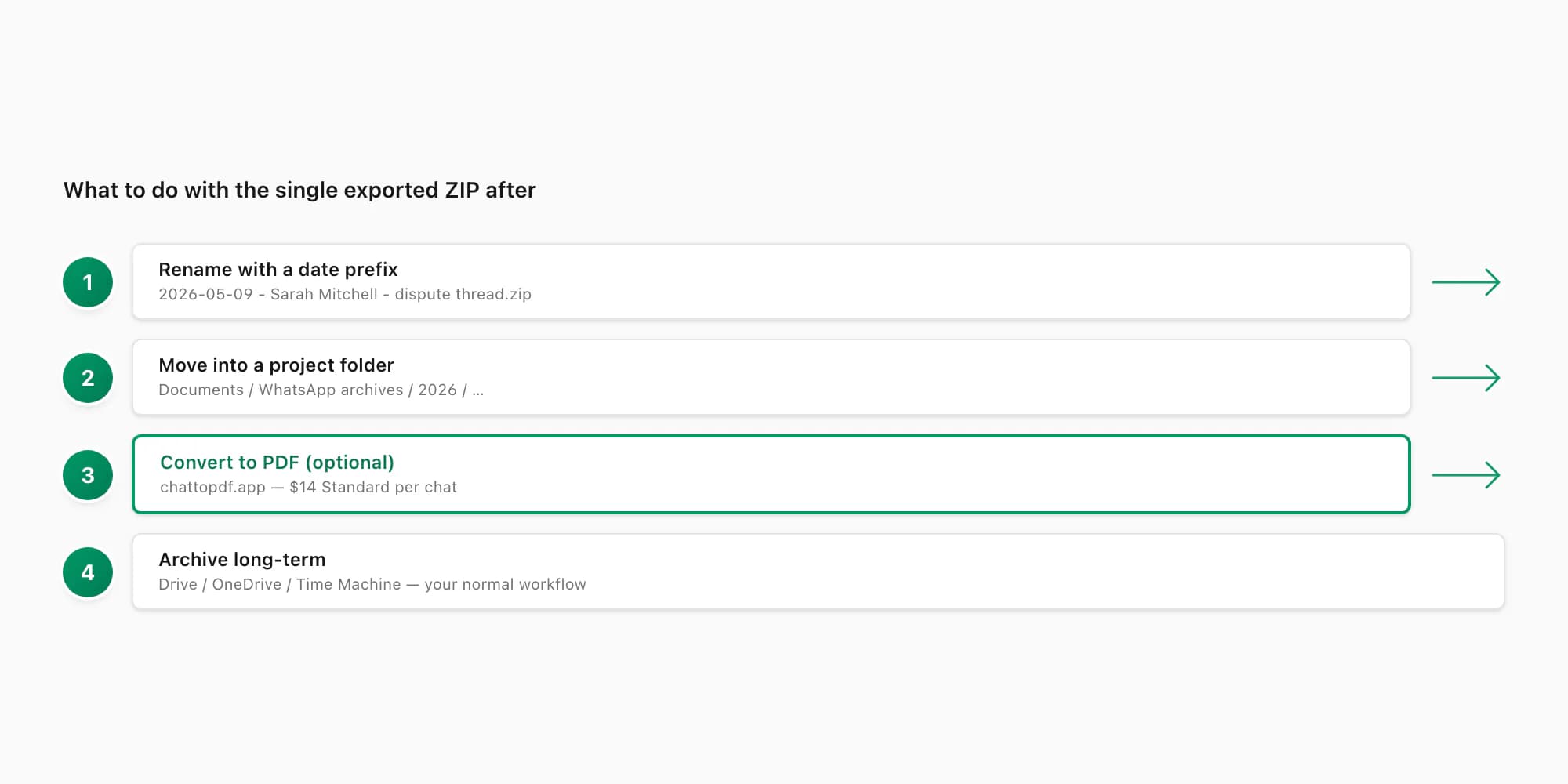
Now you have a ZIP. One specific chat. The next decisions are about what you do with it — and they are surprisingly different from the broader "what is in a WhatsApp export" discussion, because for a single chat the file is small, manageable, and easy to work with.
- What you want
- Read it offline on a computer
- What to do with the ZIP
- Unzip and open `_chat.txt` in any text editor — Notepad, TextEdit, VS Code
- Tooling involved
- Built into your OS — no extra tools
- What you want
- Convert to a readable PDF with sender attribution
- What to do with the ZIP
- Upload the ZIP to chattopdf.app and pick a tier
- Tooling involved
- Standard $14 per chat handles most single-chat needs
- What you want
- Search the conversation
- What to do with the ZIP
- Unzip, open `_chat.txt` in a text editor, use Find (Cmd+F or Ctrl+F)
- Tooling involved
- Any text editor with full-text search
- What you want
- Archive long-term
- What to do with the ZIP
- Rename the ZIP with a date prefix, move it into a documents folder, optionally encrypt
- Tooling involved
- Whatever your archive workflow is — Finder, Drive, OneDrive
- What you want
- Email or share the chat with someone
- What to do with the ZIP
- Forward the ZIP as an attachment, or convert to PDF first for a more polished result
- Tooling involved
- Mail / Drive / chattopdf depending on format
| What you want | What to do with the ZIP | Tooling involved |
|---|---|---|
| Read it offline on a computer | Unzip and open `_chat.txt` in any text editor — Notepad, TextEdit, VS Code | Built into your OS — no extra tools |
| Convert to a readable PDF with sender attribution | Upload the ZIP to chattopdf.app and pick a tier | Standard $14 per chat handles most single-chat needs |
| Search the conversation | Unzip, open `_chat.txt` in a text editor, use Find (Cmd+F or Ctrl+F) | Any text editor with full-text search |
| Archive long-term | Rename the ZIP with a date prefix, move it into a documents folder, optionally encrypt | Whatever your archive workflow is — Finder, Drive, OneDrive |
| Email or share the chat with someone | Forward the ZIP as an attachment, or convert to PDF first for a more polished result | Mail / Drive / chattopdf depending on format |
The single most common path I see is "I want a clean PDF of this one chat, with sender names and timestamps clearly readable". That is what chattopdf was built for — you upload the ZIP, pick a tier, and get back a PDF where every message reads like a structured chat thread with proper sender attribution. The export WhatsApp chat to PDF guide walks the conversion side end to end. For a single chat, $14 Standard per chat is almost always the right tier — text plus inline photos, no message ceiling concerns for a typical single-chat export.
A small thing that pays off later: rename the ZIP before you do anything else. WhatsApp generates names like WhatsApp Chat - Sarah Mitchell.zip, which is fine until you have several. A naming convention like 2026-05-09 - Sarah Mitchell - dispute thread.zip makes the file findable months later if it ever becomes relevant again. Two seconds of work; saves hours of "where did I put that file" searching down the line.
Common single-chat questions
Three questions come up over and over for single-chat exporters. I want to address them inline rather than burying them in the FAQ, because they shape what you do at the export step itself.
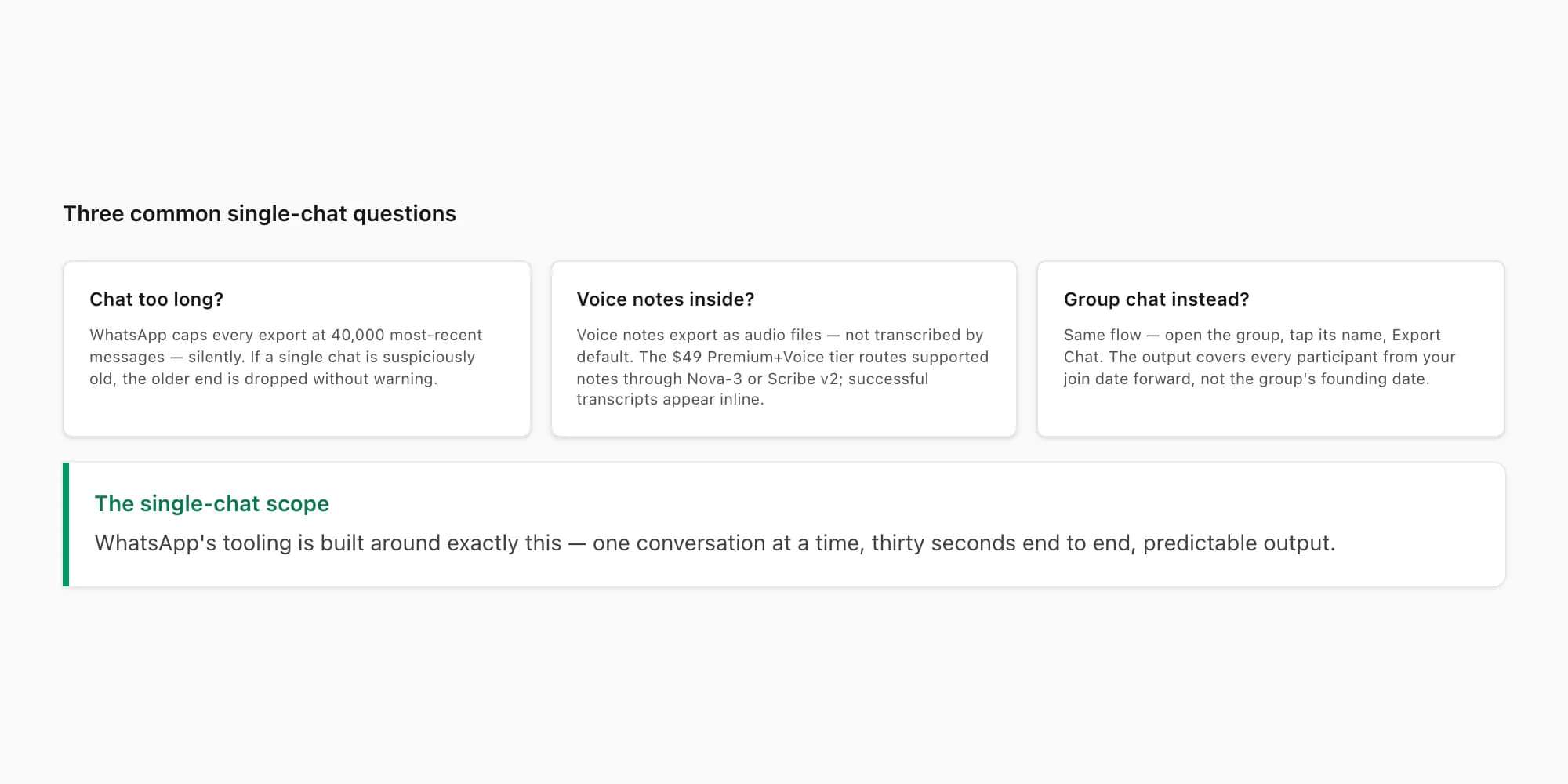
"What if the chat is too long?" WhatsApp caps every export at the most recent 40,000 messages — WhatsApp's own FAQ on saving chat history confirms the per-chat scope. For a single chat that has crossed that threshold — usually a multi-year group chat or a heavy business thread — the export silently keeps the most recent 40,000 and drops everything older without warning. There is no truncation notice in the dialog or in _chat.txt. If your chat is suspiciously old, do the math: estimate roughly how many messages it contains, and if you suspect 40,000+, the export will lose the older end. The pillar guide covers the workarounds for this case in detail — including, for forensic or legal-evidence cases, that the truncation can matter materially.
"What if the chat has voice notes?" Voice notes export as .opus audio files inside the ZIP if you choose Including Media — they appear as separate files alongside the text. In _chat.txt, voice notes appear as a line like <attached: 00012-AUDIO-2026-05-09-14-22-31.opus>. They are not transcribed — the audio is just bundled. If you want to extract and keep the original recordings first, follow the dedicated guide to download WhatsApp voice notes from the export. If you need them as readable text, the Premium+Voice tier transcribes supported notes and places successful transcripts back into the PDF. Otherwise the audio stays inside the ZIP for manual playback.
"What if it is a group chat, not a one-on-one?" Group chats export the same way — open the group, tap the group name at the top, scroll to Export Chat. The output includes every message from every participant from your join date onward (not from the group's founding date if you joined later). Phone numbers appear in _chat.txt for any participant not in your phonebook. Group exports do tend to have one specific quirk that matters for evidence: system messages (someone joining, someone leaving, group name changes) appear as no-sender lines that some parsers handle poorly — chattopdf handles them correctly. For deeper coverage, how to export WhatsApp group contacts is the dedicated group-chat reference.
You do not need to export everything from your account to handle these single-chat cases. You only need the one chat that matters — and the export tooling is built around that exact pattern. If your need is narrower still — only a subset of messages within the chat, not the whole thread — the export WhatsApp messages guide covers the per-message and date-range filtering pattern. And if your vocabulary leans toward "conversation" rather than "chat" — the framing matters more in formal contexts than people expect — the export conversation WhatsApp guide walks the same workflow with that vocabulary in mind.
Pricing for the chat-to-PDF conversion
If your endgame is a clean PDF of the one chat — the most common reason to land on this page — chattopdf prices per conversion. Each tier is a single payment for a single chat. There is no signup, no recurring billing, and no "upload all your chats and pick later" workflow because each chat is a real conversion against a real ZIP.
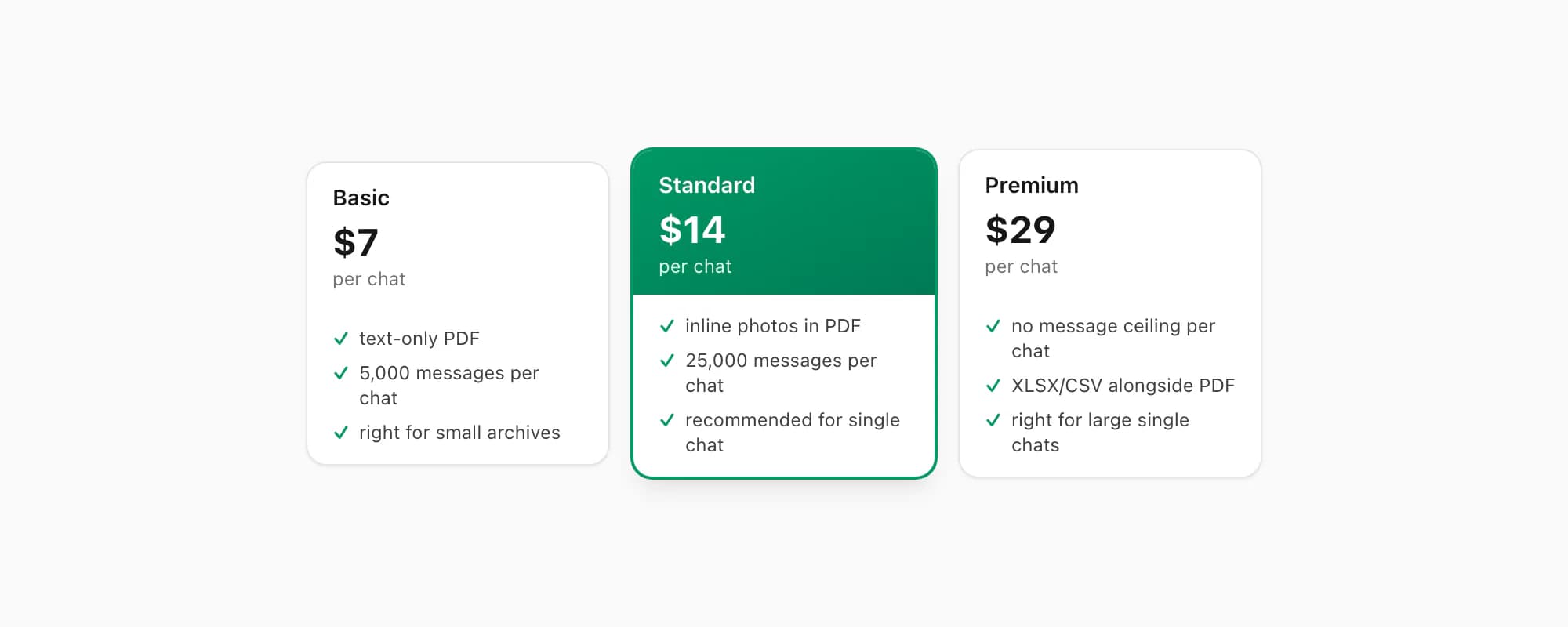
$7 Basic per chat is the entry tier for a single-chat conversion. Text-only PDF, capped at 5,000 messages per chat, no inline photos. Right when you have a small-to-medium chat and only need the readable text record — for example, a personal archive of one specific conversation, or a short business reference.
$14 Standard per chat is the recommended tier for the single-chat case. Inline photos appear in the PDF (assuming you exported with Including Media), the per-chat message ceiling lifts to 25,000, and voice notes appear as placeholders. This is the tier I recommend for legal, HR, evidence, and personal-archive cases on a single chat.
$29 Premium per chat removes the per-chat message ceiling and adds an XLSX/CSV export alongside the PDF. Useful when the single chat is genuinely large or when you also want a structured spreadsheet for filtering and sorting messages.
$49 Premium+Voice per chat adds voice-note transcription through the language-aware Nova-3/Scribe v2 router. Supported notes that transcribe successfully become real text blocks with sender attribution preserved.
$99 Power User per chat adds priority queue processing and bulk-conversion support — meaningful only if you eventually have multiple chats to convert in one session, which is rare for the single-chat case but available if needed.
Re-export the same chat tomorrow and you pay again — each conversion is real work against a different snapshot of the chat data. There is no signup and no commitment beyond the single chat you upload.
Key takeaways
- Exporting a single WhatsApp chat takes about thirty seconds — open the chat, tap the title at the top, scroll to Export Chat, choose With or Without Media, save to Files. WhatsApp's tooling is built around this exact one-conversation-at-a-time pattern.
- There is no master "export all chats" menu. The export option lives inside each individual chat's info screen — Settings does not have a chat-export button, and Request Account Info does not include messages.
- Including Media bundles photos and voice notes alongside
_chat.txtin the ZIP; Without Media gives a small text-only ZIP. If unsure, pick Including Media — you can ignore the media later, but cannot add it in after. - Rename the ZIP after export with a date prefix — a naming convention saves hours of "where did I put that file" searching down the line, especially if a chat ever becomes relevant again months later.
- Single chat hitting WhatsApp's 40,000-message cap is silent — there is no truncation warning. If your chat is suspiciously old or large, do the math before you export.
- For chat-to-PDF specifically, $14 Standard per chat is the right tier for a single-chat conversion — inline photos, 25,000-message ceiling, sender attribution preserved.
- Voice notes export as
.opusaudio files inside the ZIP — not transcribed by default. The $49 Premium+Voice per chat tier routes supported notes through Deepgram Nova-3 or ElevenLabs Scribe v2; notes that transcribe successfully appear inline in the PDF. - To see the complete conversion process — upload to download, all tier differences, and what the finished PDF looks like — the WhatsApp to PDF guide covers every detail.
FAQ
Can you export a WhatsApp chat?
Yes — single-chat export is a documented, supported WhatsApp feature on both iOS and Android. Open the chat, tap the contact or group name at the top, scroll to Export Chat, choose Without Media or Including Media, save to Files. The output is a ZIP containing _chat.txt (the message timeline) and, optionally, the photos and voice notes from that chat. What you cannot do is export every chat at once — there is no master "all chats" menu, and exporting multiple conversations means running the same flow once per chat.
How do I export only one specific WhatsApp chat without exporting others?
That is exactly what WhatsApp's Export Chat is built for — every export operation runs against one specific conversation, never against all chats. Open the chat you want, tap its title at the top of the chat screen, scroll to Export Chat, pick With or Without Media, save to Files. No other chats are touched. The ZIP that lands in your file storage contains only the one conversation you exported. Re-running the flow on a different chat the next day produces a separate ZIP for that one — they never merge.
What does the exported chat file look like?
The export is a ZIP file. Inside, you find a single text file called _chat.txt containing every message in the chat, line by line, with timestamps and sender names. If you chose Including Media, the ZIP also contains the photos (.jpg), voice notes (.opus), and any documents shared in the chat — each as a separate file alongside _chat.txt. The text file itself is plain ASCII text and opens in any text editor on any platform. For a more readable presentation with proper formatting, the conversion path is to upload the ZIP to chattopdf and produce a sender-attributed PDF.
Where does WhatsApp save the exported chat?
The exported chat lands wherever you pick from the share sheet at the end of the export flow. WhatsApp itself does not save it to a fixed default location — the share sheet is where the file goes. The most predictable destinations are Save to Files (iOS — saves to On My iPhone or iCloud Drive in the folder you choose), Drive (Android — saves to Google Drive in the folder you choose), and AirDrop or email if you want the file on a different device immediately. Picking a chat-app destination (iMessage, Telegram) tends to lose track of the file because it lives inside that other chat thread, so I recommend Files or Drive for predictability.
Can I export a WhatsApp chat from WhatsApp Web or desktop?
Not at the time of writing. Export Chat is a mobile-only feature — it lives in the iOS and Android WhatsApp apps but does not exist in WhatsApp Web or the WhatsApp desktop apps. If you need to produce an export on a computer, the workflow is to run Export Chat on your phone, share the ZIP to a destination accessible from the computer (AirDrop, Drive, email, Files), and pick it up there. The pillar guide WhatsApp chat export covers the desktop-side angle in more detail.
I'm Paul, the founder of ChatToPDF. I built it after needing a long WhatsApp conversation as a readable PDF for a legal matter. I test and document WhatsApp exports, PDF conversion, voice-note transcription, and the limits people should check before relying on the result.