
ChatToPDF vs print to pdf — the honest split
I'll lead with the fair version. The built-in print to pdf workaround is free, lives on every modern iPhone and Android, and works fine for a handful of messages. There's no install. There's no licence. You don't even have to leave WhatsApp's screen for very long. For a one-screen chat — a short back-and-forth that fits inside the visible thread without scrolling — the iOS print-to-PDF workaround is genuinely the right tool, and so is Android's. I'm not going to pretend otherwise.
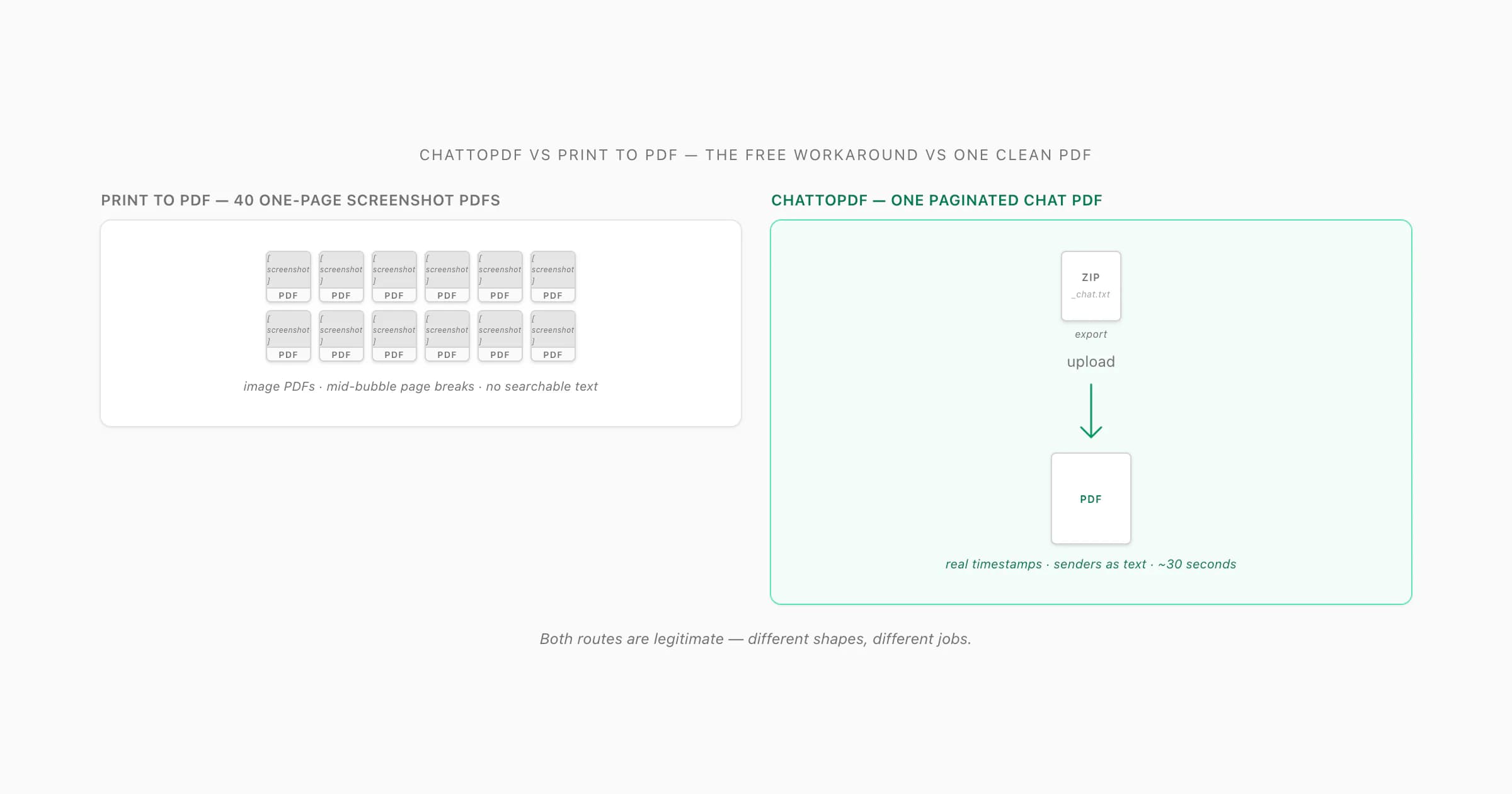
This page exists because the same workaround falls apart the moment the chat is more than a screen long. You can't "print" a WhatsApp conversation directly — WhatsApp's UI doesn't expose a Print button on the thread. What people actually mean by "print to pdf for a WhatsApp chat" is one of two paths: (a) take screenshots of the chat by scrolling and tapping the side button + volume up combo (or its Android equivalent), then use the system print sheet on those screenshots to save them as PDFs; or (b) try to print the chat directly and find that the option isn't there at all on most setups. I've used the iOS print-to-PDF workaround that splits a 5,000-message chat across forty-something one-page PDFs. The forty PDFs are the problem.
So the ChatToPDF vs print to pdf trade is brutally simple. The free route gives you what you can see on the screen, as images, in as many separate one-page PDFs as it takes to cover the scroll. ChatToPDF reads WhatsApp's actual export file — _chat.txt plus every photo in the conversation — and renders one paginated PDF with real timestamps, real sender names as text, photos inlined where they belong, and (on $49 Premium+Voice per chat) voice notes transcribed inline. Different shapes, different jobs.
What "print to pdf" actually means for a WhatsApp chat
There's no Print button inside a WhatsApp thread on either iOS or Android. The chat UI is built for messaging, not for document export. So when someone says "I'll just print to pdf", what they're actually about to do is one of three things:
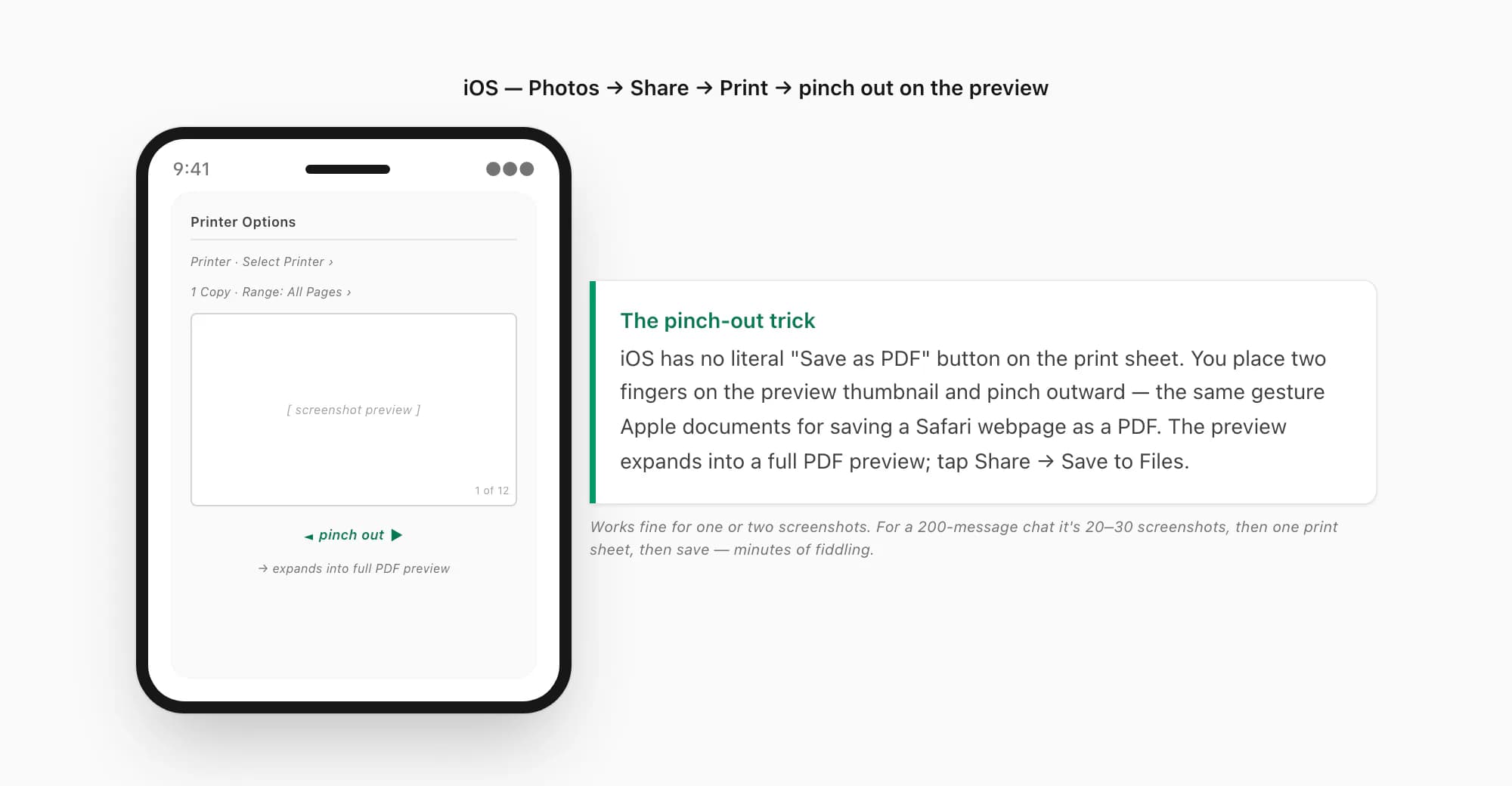
- Screenshot the chat, screen by screen, then print the screenshots to PDF. This is the path the workaround actually means. You scroll to the top of the chat (or wherever you want to start), tap Side button + Volume up on iPhone (or Power + Volume down on most Androids), scroll one screen-height, screenshot again, and repeat. Then you open Photos, select the screenshots, tap Share → Print, pinch out on the iOS print preview to expand into a PDF preview, and save. On Android you tap Share → Print → "Save as PDF". Either way the output is one PDF per screenshot, or one multi-page PDF of stitched screenshot images — not a paginated, text-searchable, sender-attributed chat document.
- Use a "screenshot stitcher" app to make one tall screenshot, then print that. Apps like LongShot, Tailor, or the Samsung scroll-capture feature glue consecutive screenshots into one tall image. You then print that tall image to PDF. The output is one PDF, but it's still an image of the chat — the page-break logic is wherever the system print dialog decides, and you still lose everything that isn't visible on the rendered screen.
- Print to PDF from WhatsApp Web in a desktop browser. This works in a narrow sense — you can open WhatsApp Web in Chrome, scroll the chat thread, and use the browser's File → Print → Save as PDF. The catch is that WhatsApp Web only renders the messages it's loaded into the DOM. A long chat scroll triggers virtualisation — old messages get unmounted as you scroll, new ones get mounted at the bottom — so the printed PDF only contains whatever was on-screen when you triggered Print, not the full chat history. People hit this and assume their browser is broken. It isn't; the chat is just longer than the rendered window.
The shared problem across all three paths is that the print dialog operates on rendered pixels, not on the underlying chat data. WhatsApp's export ZIP, by contrast, contains the actual message log — every line, every timestamp, every sender, every media filename — in a structured form that a parser can read end-to-end. That's the difference this page is really about.
The iOS Share → Print → pinch-out flow
Here is the iOS print-to-PDF flow in detail, written so anyone who's used Apple Support's Annotate and save a webpage as a PDF in Safari on iPhone page will recognise it. The "pinch out on the print preview" trick is the same one that page documents for webpages — it's the same gesture, repurposed for printing screenshots.
Screenshot the WhatsApp chat, screen by screen
Open the chat in WhatsApp. Scroll to the top of the section you want to capture. Press Side button + Volume up to take a screenshot (iPhone with Face ID) or Side button + Home button (iPhone with Touch ID). The screenshot saves to Photos. Scroll one screen-height down, screenshot again, and repeat all the way to the bottom of the conversation. A 200-message chat is roughly 20–30 screenshots, depending on font size and how many media items break up the flow.
Open the screenshots in Photos and tap Share → Print
In the Photos app, select all the screenshots that make up the chat (long-press the first, drag through the rest, or use Select). Tap the Share icon at the bottom left, scroll the share sheet down until you see Print, and tap it. iOS opens the Printer Options sheet with a thumbnail preview of each screenshot.
Pinch out on the preview to expand into a PDF preview
With the Printer Options sheet open, place two fingers on the first preview thumbnail and pinch outward — the same gesture you'd use to zoom into a photo. The preview expands into a full-screen PDF preview. This is the bit that confuses people: there is no "Save as PDF" button on iOS the way there is on Android. The pinch-out gesture is the save-as-PDF affordance. Apple Support documents this gesture in the Safari webpage-to-PDF guide; the same gesture works on the Photos print sheet.
Tap Share → Save to Files (or send by email)
On the expanded PDF preview, tap the Share icon top right. The share sheet offers Save to Files (saves the PDF to iCloud Drive or On My iPhone), Mail (attaches the PDF to a new email), or any third-party app that accepts PDFs. Save the file and repeat for each conversation you want as a PDF.
The gesture works. The output works. It just doesn't work for a long WhatsApp chat. You end up with a multi-page PDF of screenshot images, where each page is roughly one screen-worth of conversation, the page breaks fall in the middle of message bubbles, the timestamps are whatever the screenshot captured visually (so the relative "two minutes ago" wording instead of the export's full date-time), and there is no way to search the text because the whole thing is rasterised images. For a 5,000-message chat you're going to be screenshotting for half an hour and you'll end up with a 60–100 page image PDF.
The Android system print dialog "Save as PDF"
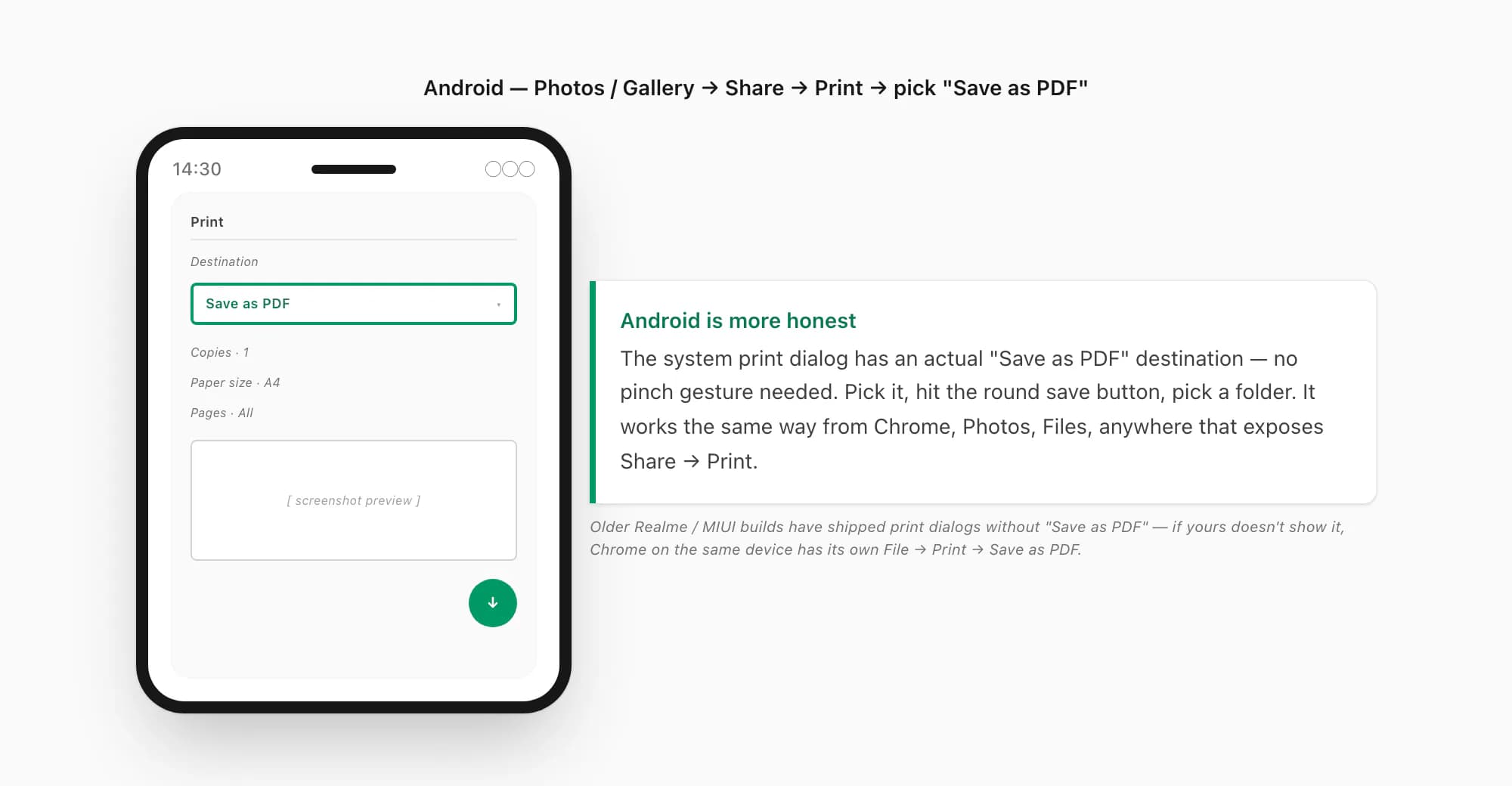
On Android the flow is a little more honest because the system print dialog has an explicit Save as PDF option — you don't need to know about a pinch-out gesture. Google documents the basic shape in Print from Chrome on Android, and the system dialog itself works the same way from the Photos / Gallery app, the Files app, or anywhere else that exposes the standard Share → Print action.
Screenshot the WhatsApp chat, screen by screen
On most Androids the screenshot combo is Power + Volume down. Samsung devices also have a built-in scroll capture that takes a tall stitched screenshot of a scrollable view — handy if you trust it on the WhatsApp thread (Samsung scroll capture is implementation-defined; results on WhatsApp specifically vary by One UI version). Either way, your screenshots land in the gallery (Google Photos or Samsung Gallery).
Select the screenshots and tap Share → Print
In Google Photos or your gallery app, long-press the first screenshot, tap the rest to select them, then tap the Share icon. In the share sheet, scroll to find Print. Tap it.
Pick "Save as PDF" as the destination
Android's system print dialog opens. The top dropdown is the destination — by default it shows the last-used printer (or "All printers"). Tap it and pick Save as PDF. The page range defaults to All. You can change paper size if you like, but for screenshot dumps it doesn't matter much.
Tap the round Save button and pick a location
The bottom of the print dialog has a round download / save button. Tap it. Android opens the system file picker — pick a folder on the device or in Google Drive, give the file a name, tap Save. The PDF is saved as the location you chose. Repeat per chat.
Android's path is less mysterious than iOS's — there is a literal Save as PDF button, no pinch gesture needed. But the underlying problem is identical: you're printing pixels from screenshots, not exporting structured chat data. The PDF is a multi-page image dump.
What the print route loses (the part that matters for a long chat)
This is the section that matters. The print-to-PDF workaround is functional; what makes it the wrong shape for a substantial WhatsApp chat is what it silently drops on the floor. Here's the list, in roughly decreasing order of "thing a solicitor or HR investigator will absolutely ask you about":
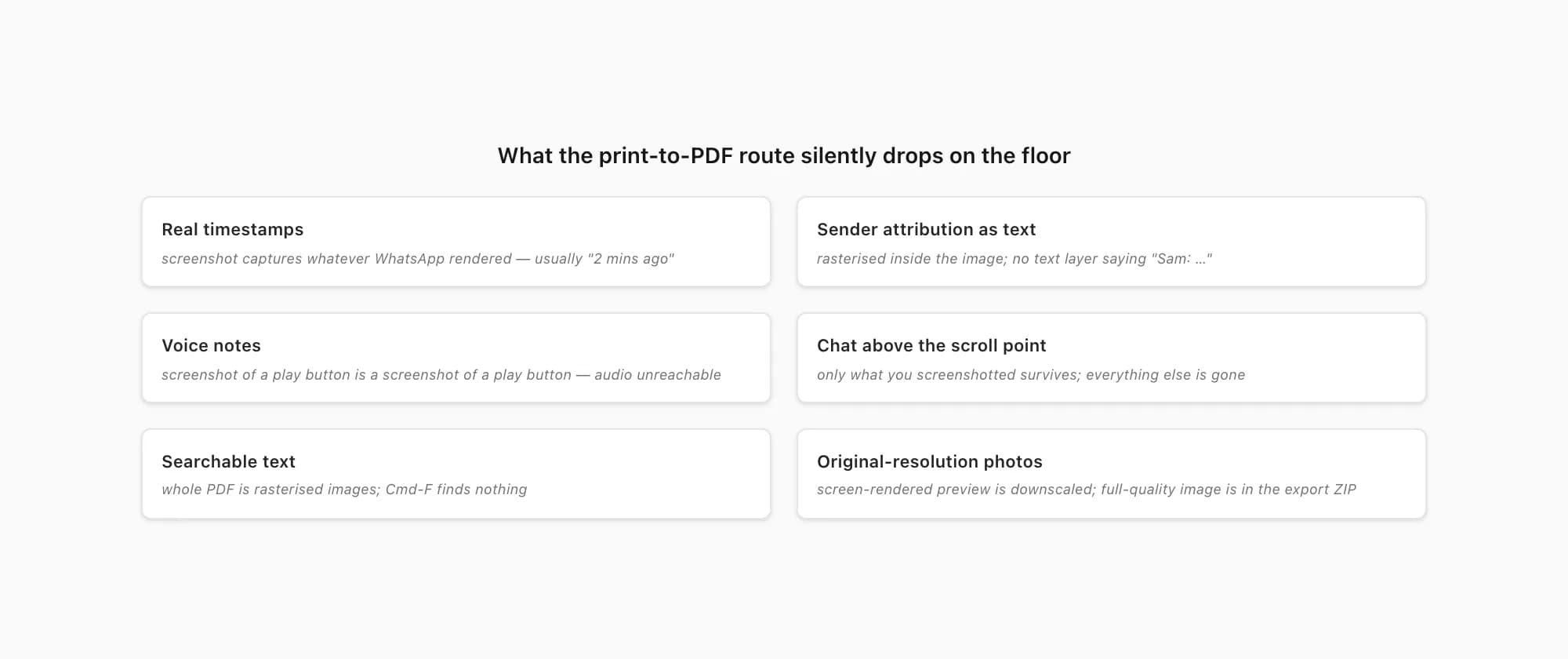
- Real timestamps are gone, replaced with relative "two minutes ago" wording or whatever was rendered on screen. WhatsApp's UI sometimes shows full date-times, sometimes relative ones, and the line breaks between days are visual headers. The export ZIP, by contrast, gives every single message a real timestamp in the form WhatsApp stored. For an evidence PDF, the difference between "Tuesday 09:14" and "2 mins ago" is the difference between admissible and "what year was this?"
- Sender attribution is a visual cue, not searchable text. In the chat UI, "you" is implied (right-aligned bubbles), and the other party's name shows once per cluster of messages. In a screenshot PDF, that visual cue is rasterised — there is no text layer that says "Sam: …" against every message. ChatToPDF's export attributes every single message to a named sender as actual text.
- Voice notes are completely absent. A voice-note bubble in WhatsApp is a play button. A screenshot of a play button is a screenshot of a play button. The content of the voice note is unreachable through any print-to-PDF path. The whole-chat WhatsApp voice-to-text workflow, by contrast, processes supported notes from an exported ZIP and returns successful transcripts to the same sender and timestamp in the PDF.
- Anything above the scroll point is gone unless you screenshotted it. This is the silent killer. People screenshot what they remember as important, hit print, and only realise weeks later that the part of the chat from October — the bit they actually need — is missing because they never scrolled up that far. The export ZIP contains the whole conversation history WhatsApp has on the device, end to end.
- Photos are rendered at whatever resolution they appeared on screen, not their original size. Inline photos in the chat UI are heavily downscaled previews. Screenshot them and you've baked the downscale in. The export ZIP carries every photo at the resolution WhatsApp stored it at — usually the size that was actually shared, not the in-thread preview.
- The PDF isn't a single document, it's a stack. Even if you stitch screenshots into one PDF, the page breaks fall wherever the print dialog puts them, usually mid-bubble. ChatToPDF paginates on message boundaries so a bubble is never sliced across pages, with a running header on every page so a 600-page export still feels navigable.
- There's no search. The whole PDF is images. Cmd-F finds nothing. With ChatToPDF's PDF output, every message body is real text — search works, copy-paste works, screen readers work.
For a 20-message chat none of this matters. For a 5,000-message chat — the typical legal-evidence, breakup-record or family-history case people pay for a tool over — every one of these gaps is the entire reason they wanted a PDF in the first place.
Side by side — the feature matrix
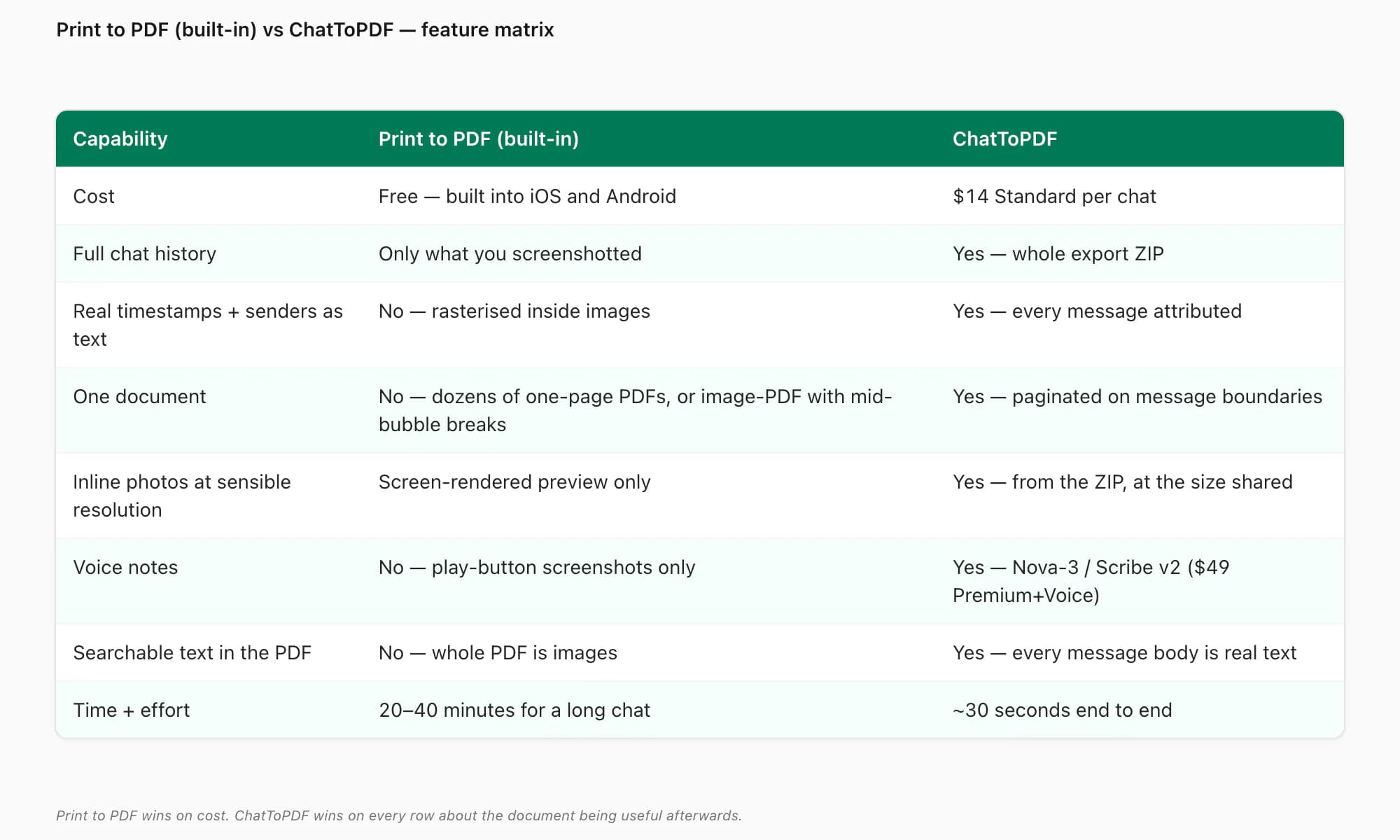
| Capability | Print to PDF (built-in) | ChatToPDF |
|---|---|---|
| Cost | Free — built into iOS and Android | $14 Standard per chat (one payment, one PDF) |
| Gets the full chat history | Only what you screenshotted — anything above the scroll point is missing | Yes — the whole conversation WhatsApp's export ZIP contains |
| Real timestamps + sender names as text | No — rasterised inside screenshot images; relative time wording only | Yes — every message attributed to a named sender with a full date-time |
| Output is one document | No — typically dozens of one-page PDFs, or one image-PDF with mid-bubble page breaks | Yes — one paginated PDF, page breaks on message boundaries |
| Inline photos at sensible resolution | Only what was visible on the rendered screen, at screen resolution | Yes — photos inlined from the export ZIP at the size shared |
| Voice notes | No — screenshots of play buttons; audio is unreachable | Yes — Nova-3/Scribe v2 routing; successful transcripts inline ($49 Premium+Voice) |
| Searchable text in the PDF | No — the whole PDF is images, Cmd-F finds nothing | Yes — every message body is real text |
| Time and effort | 20–40 minutes of screenshotting + printing for a long chat | About 30 seconds end to end once the ZIP is uploaded |
The pattern is clean: the print-to-PDF workaround wins on price (it's free) and on "I want to do this right now without touching any other tool". ChatToPDF wins on every row that's about the document being useful afterwards.
How ChatToPDF does the chat-to-PDF job
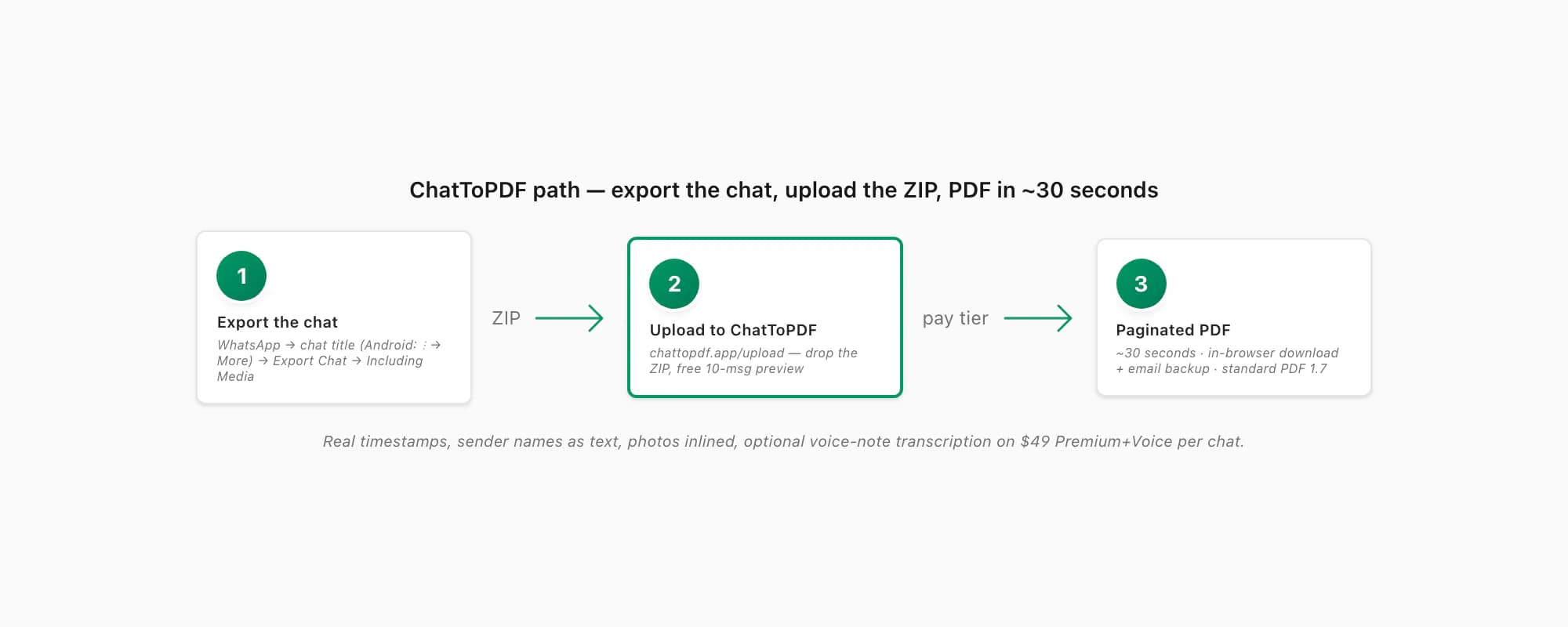
The ChatToPDF path is three real steps plus the export from WhatsApp.
Export the chat from WhatsApp
Open the chat. On iPhone, tap the contact or group name at the top, scroll down, tap Export Chat. On Android, tap the three-dot menu top right, then More → Export Chat. Pick Including Media so photos are inlined in the PDF (the ZIP is bigger; that's fine). WhatsApp produces a
.zipcontaining_chat.txtand every media file. This is the part that the print-to-PDF route can't replicate — it's WhatsApp's own structured export, not a screenshot of the rendered UI.Upload the ZIP to ChatToPDF
Open chattopdf.app/upload in any browser — mobile Safari, Chrome, Firefox, Samsung Internet all work. Drop the ZIP onto the upload zone. You get a free preview of the first ten messages so you can confirm the parser read the export correctly before paying anything.
Pick a tier and pay per chat
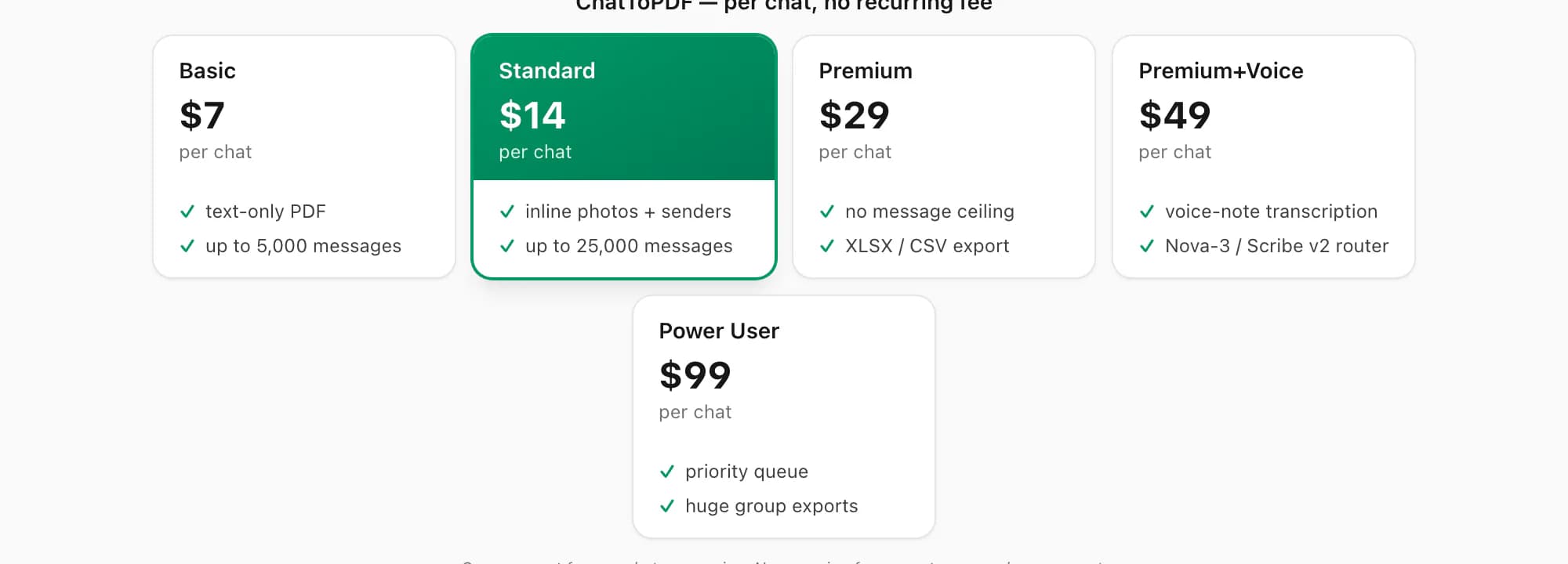
$14 Standard per chat for the typical case — sender-attributed bubbles, inline photos, timestamps, up to 25,000 messages. $7 Basic per chat is text-only for short photo-less chats. $29 Premium per chat removes the message ceiling and adds an XLSX/CSV export. $49 Premium+Voice per chat adds voice-note transcription through the language-aware Nova-3/Scribe v2 router. $99 Power User per chat adds a priority queue for very large group exports.
Download the PDF (and get the email backup)
The conversion runs in about thirty seconds. You get the in-browser download link and an email backup in case your tab closes. The output is standard PDF 1.7 — it opens in iOS Quick Look, Android file managers, Adobe Acrobat, Chrome, Safari, Firefox, Edge and macOS Preview without any extra reader.
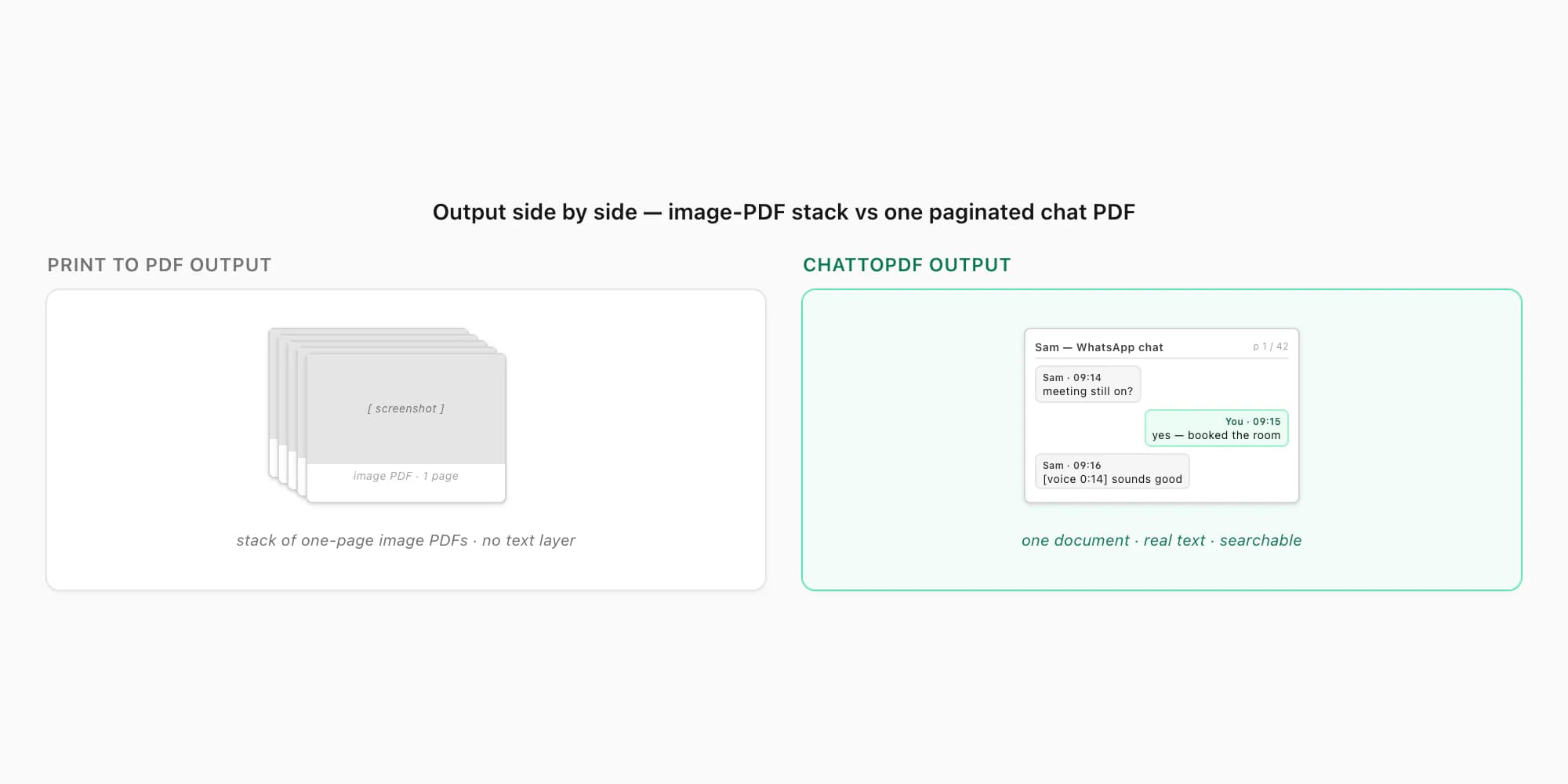
The output is what a chat ought to look like on paper — message bubbles, names, times, photos inlined at the right place, page numbers, a header on each page. Real text, not rasterised images of text. The pillar WhatsApp to PDF guide walks the same flow end to end with more screenshots. For a direct breakdown of which online converter options are genuinely free versus where you pay, see WhatsApp to PDF converter online free.
When the free print route is genuinely the right call
If your end goal is paper rather than a PDF file, the device-by-device printing guide covers the full path from chat to printer on iPhone, Android, and desktop.
I want to be honest here, the way the ChatToPDF vs iMyFone page tries to be honest about iMyFone's actual strengths. The print-to-PDF workaround is the right tool when:
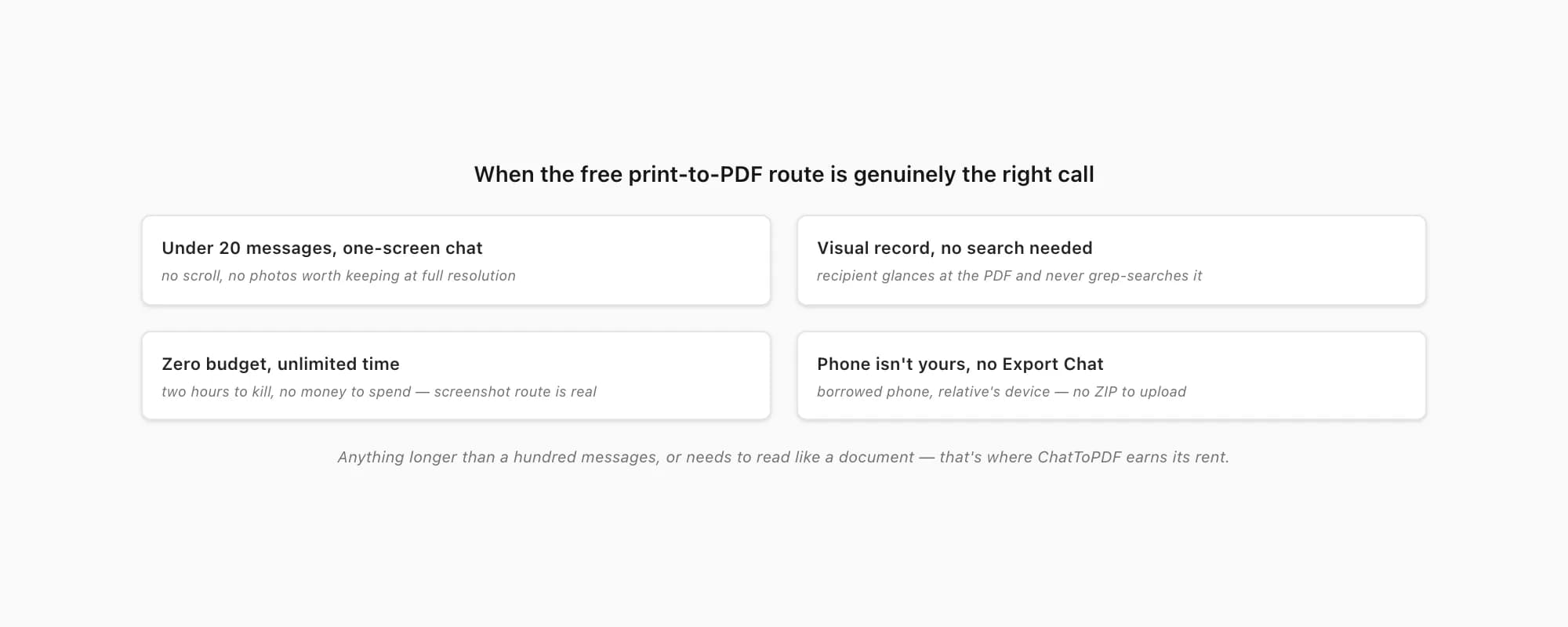
- The chat fits on one or two screens. Twenty messages, no scroll, no photos worth keeping at full resolution. Screenshot, print to PDF, done. Don't pay anyone for that — including me.
- You only need a visual record, not a searchable document. If the recipient is going to glance at the PDF and never grep it, an image-PDF is fine. Send a thank-you to your phone for doing the job for free.
- You have zero budget and unlimited time. This isn't sarcasm. For someone with two hours to kill and no money to spend, the screenshot route is a real option. It's tedious but it costs nothing.
- You only have the recipient's phone, not your own. If you're trying to preserve a chat from a phone that isn't yours and that you can't run Export Chat on, screenshots are the only path — there's no ZIP to upload. (This is rare but it does happen — a borrowed phone, a relative's device.)
- The conversation is genuinely about images. A photo-sharing chat where the messages are mostly "see attached" and the value is in the photos themselves. Screenshot them out at screen resolution and you have what you came for. (Though even then, the export ZIP carries the photos at the resolution that was actually shared, not the downscaled in-thread preview — so ChatToPDF still wins on quality.)
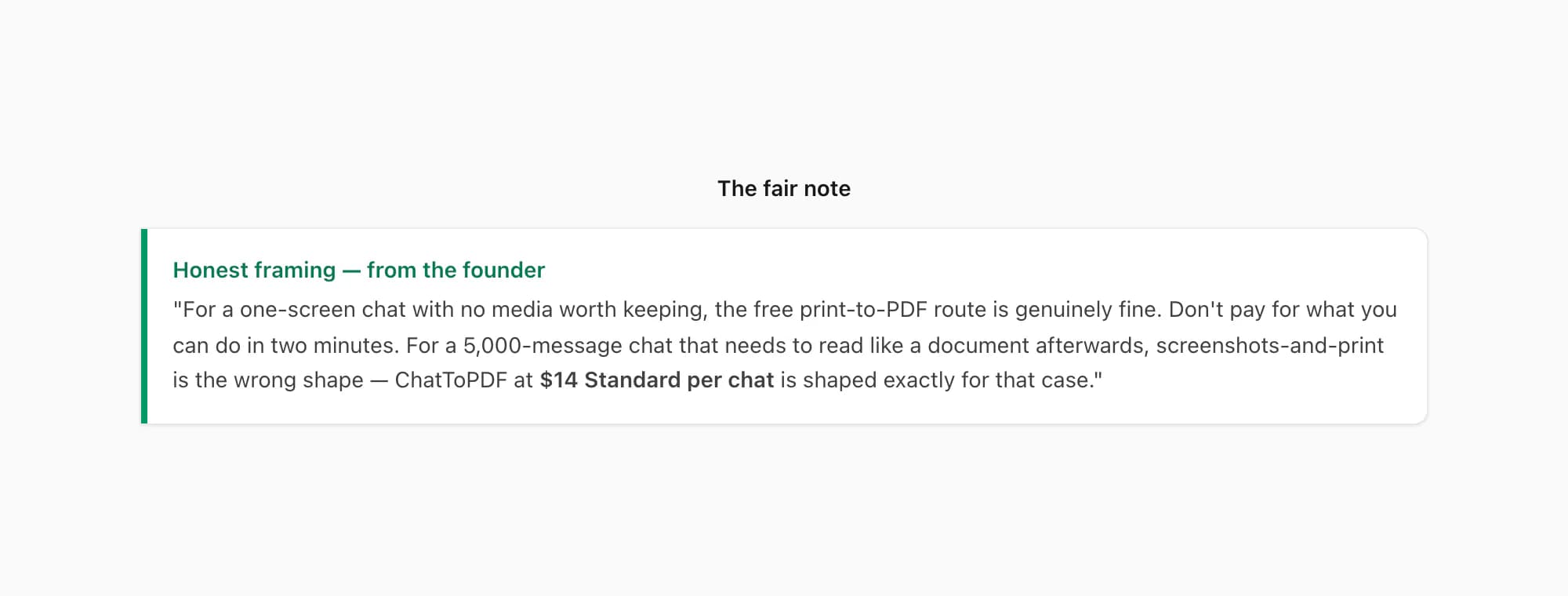
What the print route is not the right call for — and this is where this comparison page earns its rent — is a chat of more than a hundred messages that needs to read like a document afterwards. A breakup record. A workplace dispute timeline. A family-history archive. A solicitor brief. Anything where the PDF is going to be opened, searched, quoted, paginated, or filed. For those, the print-to-PDF route turns into 40 one-page image dumps that nobody can actually use, and the WhatsApp to PDF pillar plus ChatToPDF's $14 Standard per chat is shaped exactly for that case. Lateral comparisons live on the ChatToPDF vs screenshot page — which is the closest neighbour, since the print route is a screenshot route in a print-dialog hat — and the ChatToPDF vs Backuptrans page for the desktop recovery alternative.
Key takeaways
- The built-in "print to pdf" route for a WhatsApp chat is really a screenshot-and-print route — WhatsApp's UI has no Print button on the thread itself
- iOS path: Photos → Share → Print → pinch out on the preview to expand into a PDF preview → Share → Save to Files (Apple documents the pinch-out gesture in its Safari webpage-to-PDF guide)
- Android path: Photos / Gallery → Share → Print → pick "Save as PDF" as the destination → tap the save button → pick a folder
- For a long chat the print route produces dozens of one-page image PDFs (or one image-PDF with mid-bubble page breaks): no real timestamps, no sender attribution as text, no voice notes, no searchable text, no chat history above the scroll point
- ChatToPDF reads WhatsApp's own export ZIP — full chat history, real timestamps, sender names as text, photos inlined at sensible resolution, one paginated PDF in about thirty seconds, $14 Standard per chat
- On $49 Premium+Voice, supported notes are routed through Nova-3 or Scribe v2 and successful transcripts appear inline — something no print-to-PDF route can do
- For a one-screen chat with no media worth keeping, the free print route is genuinely fine — don't pay for what you can do in two minutes
- For anything longer than a hundred messages or anything that needs to read like a document afterwards, the print route is the wrong shape and ChatToPDF is what it costs
FAQ
Can I print a WhatsApp chat to PDF directly from inside WhatsApp?
No — there is no Print button inside a WhatsApp thread on either iOS or Android. The chat UI is built for messaging, not for document export. What people actually mean by "print to pdf a WhatsApp chat" is one of three workarounds: screenshot the chat and print the screenshots to PDF via the system print sheet; use a scroll-capture or stitch app to make one tall screenshot and print that; or open WhatsApp Web in a desktop browser and File → Print → Save as PDF. All three operate on rendered pixels, not on the underlying chat data, which is why none of them give you sender attribution as text, real timestamps, or voice-note transcripts. WhatsApp's own Export Chat menu produces a structured ZIP that ChatToPDF reads end to end and renders as a paginated PDF in about thirty seconds.
How do I actually save as PDF on iOS — there's no Save as PDF button on the print sheet?
The iOS print sheet doesn't have a literal "Save as PDF" button — Apple's design uses a pinch-out gesture instead. From the Photos app, select your screenshots, tap Share → Print to open Printer Options, then place two fingers on the first preview thumbnail and pinch outward (the same gesture you'd use to zoom into a photo). The preview expands into a full-screen PDF preview, and from there you tap the Share icon top right and choose Save to Files or Mail. Apple documents the same gesture in its Annotate and save a webpage as a PDF in Safari on iPhone guide — it's the same gesture, repurposed for printing photos.
Does ChatToPDF need an install or a desktop, the way other WhatsApp-to-PDF tools do?
No. ChatToPDF runs entirely in the browser — mobile Safari, Chrome, Firefox, Samsung Internet, desktop browsers, all of them. You don't install anything, you don't connect a phone over USB, you don't sign in, you don't make an account. WhatsApp's Export Chat menu hands you a ZIP, you drop the ZIP on chattopdf.app/upload, you pay $14 Standard per chat (or whichever tier matches your job), and the paginated PDF lands by email. For the desktop-install comparison points, the ChatToPDF vs Backuptrans page covers the desktop-tool route in detail.
Will the print-to-PDF route work for a 5,000-message chat?
Technically yes, practically no. You'd need to screenshot the chat one screen at a time — for 5,000 messages that's roughly 500–800 screenshots depending on font size — then select all of them in Photos / Gallery, tap Share → Print, and either pinch out (iOS) or pick Save as PDF (Android). The output is a multi-page image PDF, page breaks fall mid-bubble, there's no searchable text, voice notes are silent play-button screenshots, and the relative timestamps that WhatsApp's UI renders ("2 mins ago") get baked into the images. ChatToPDF handles the same 5,000-message chat by reading the export ZIP directly — about thirty seconds end to end, real timestamps on every message, real sender names as text. $14 Standard per chat covers up to 25,000 messages; $29 Premium per chat removes the ceiling.
Are there OS-version caveats for the print-to-PDF flow?
Mostly no, but a couple worth flagging. On iOS the Share → Print → pinch-out path has been stable for years — it's the same flow Apple documents for saving webpages as PDFs from Safari. On Android, the system print dialog with "Save as PDF" as a destination has been part of stock Android for a long time, but specific OEMs (older Realme, some MIUI builds, some heavily-customised Android skins) have occasionally shipped print dialogs where "Save as PDF" was hidden or missing — there are Android community threads where people on older phones couldn't find it. If your print dialog doesn't show Save as PDF, Google Chrome on the same Android device has its own File → Print → Save as PDF and will produce the same shape of output. Either way, for a WhatsApp chat of any real length, the right move is to skip the screenshot route entirely and use WhatsApp's own export ZIP with ChatToPDF — $14 Standard per chat, no OS-version dependency at all.
I'm Paul, the founder of ChatToPDF. I built it after needing a long WhatsApp conversation as a readable PDF for a legal matter. I test and document WhatsApp exports, PDF conversion, voice-note transcription, and the limits people should check before relying on the result.