
8-minute breakdown — what's actually inside a WhatsApp PDF export versus a screenshot.
whatsapp to pdf vs screenshot — the honest split
I'll lead with the fair version, because this is the comparison where the free route deserves the most credit. A screenshot is the lowest-friction tool in the world. It's a button combo. It's free. It's already on every phone you'll ever own. For a couple of messages — one exchange you want to quote in an email, a single line you want to forward to a friend without forwarding the chat itself — screenshotting the chat and dropping the image into wherever it needs to go is the right answer. I'm not going to pretend otherwise, and I'm not going to be the founder who tells you to pay me for what you can do with the side button.
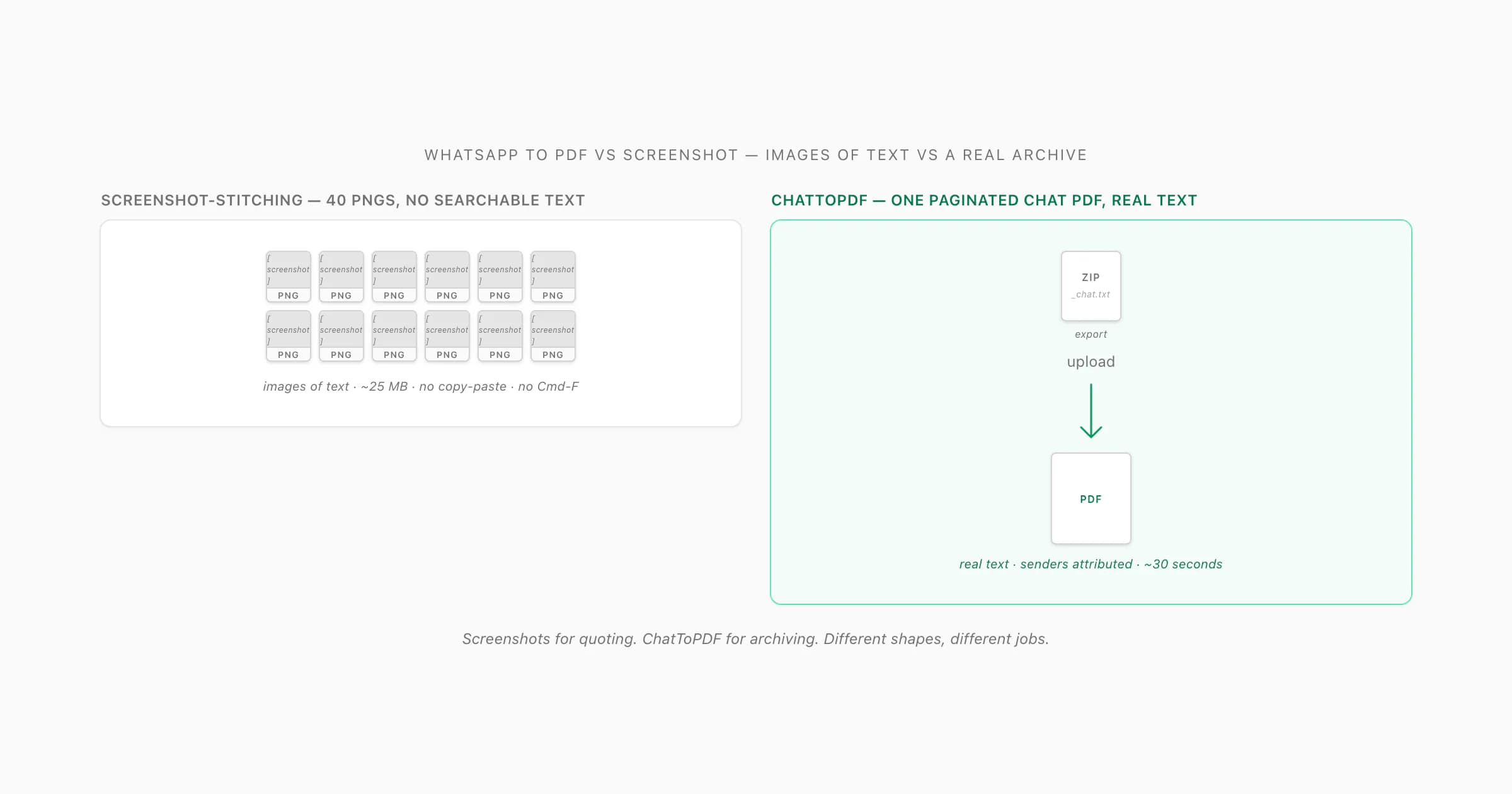
This page exists because whatsapp to pdf vs screenshot is two completely different jobs once the chat is longer than what fits on one screen. The screenshot route, scaled up to a hundred or five thousand messages, turns into manual screenshot-stitching: scroll, capture, scroll, capture, then combine the images in an image-to-PDF app or the system Print flow. The output is a multi-page PDF of rasterised pixels — what designers call images of text. WebAIM's guidance on alternative text covers the accessibility side: text rendered as pixels can't be read by screen readers, can't be searched, can't be copied, doesn't reflow on small screens, and is heavier on disk by an order of magnitude — and the same applies when the images are screenshots of a WhatsApp conversation.
ChatToPDF, by contrast, doesn't go anywhere near the rendered chat UI. It reads WhatsApp's own Export Chat ZIP — the structured file containing _chat.txt plus every photo in the conversation — and renders a paginated PDF where every message body is real text. Sender names are text. Timestamps are text. Photos are inlined at the resolution WhatsApp stored them at, not the in-thread preview's downscale. The output is one document, around 1–3 MB for a 100-message chat, and you can Cmd-F your way through it. $14 Standard per chat, one payment, no recurring fee. The trade is straightforward — the screenshot route wins on price; ChatToPDF wins on every property of the document being useful afterwards.
What a screenshot of a chat actually is
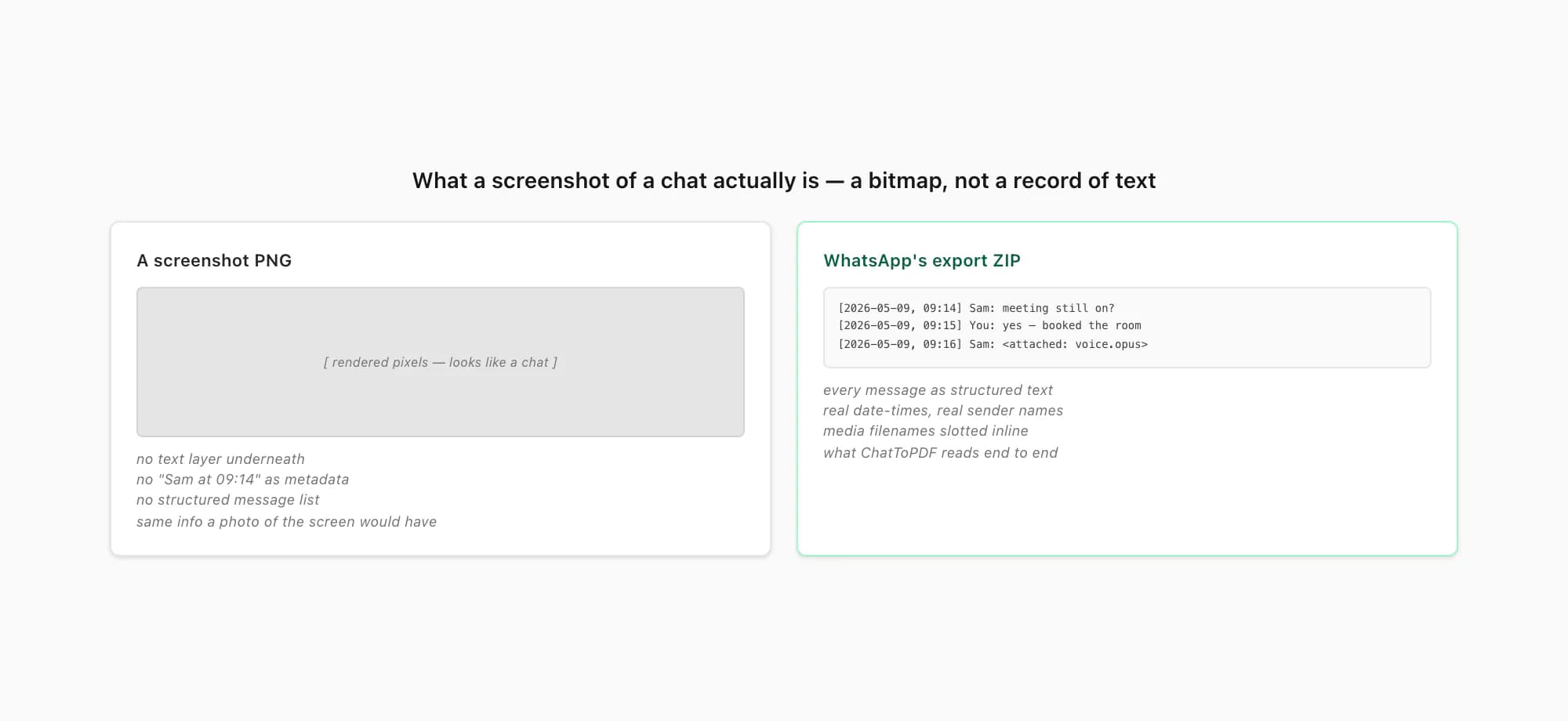
A screenshot is a bitmap. That's it. When your phone takes a screenshot it copies the rendered pixels of the screen — the same pixels a camera would capture if you photographed the phone — and writes them to a PNG (or JPEG, or HEIC) image. There is no text layer. There is no metadata saying "this rectangle is a message from Sam at 09:14". There is no structured representation of the conversation underneath. The screenshot has exactly the information a photograph of the screen would have: a grid of coloured pixels that, to a human eye, look like a chat. To anything that isn't a human eye — a search box, a screen reader, a parser, an accessibility tool, a copy-paste cursor — it's just an image.
This is the subtle bit that catches people out, because the screenshot feels like a record of the chat. It feels like quoting. It feels like archiving. And in a narrow sense, it is — the image will still show the conversation in a year's time when you reopen it. But it's the same kind of record as a photograph of a printed letter: visible to the eye, invisible to every tool that processes text. WhatsApp's own export ZIP, by contrast, gives you the conversation as actual structured data: each line of _chat.txt is [date, time] sender: message body, with media filenames slotted inline. That's what ChatToPDF reads.
The practical upshot is that "save this chat as a PDF of screenshots" is technically a save, but it's a save of pictures, not of conversation. If the job is "show one exchange to one person who will glance at it and never look again", pictures are fine. If the job is "have something I can search, quote, file, send to a solicitor, or read aloud with a screen reader", pictures aren't.
The manual screenshot-stitching flow (and where it cracks)
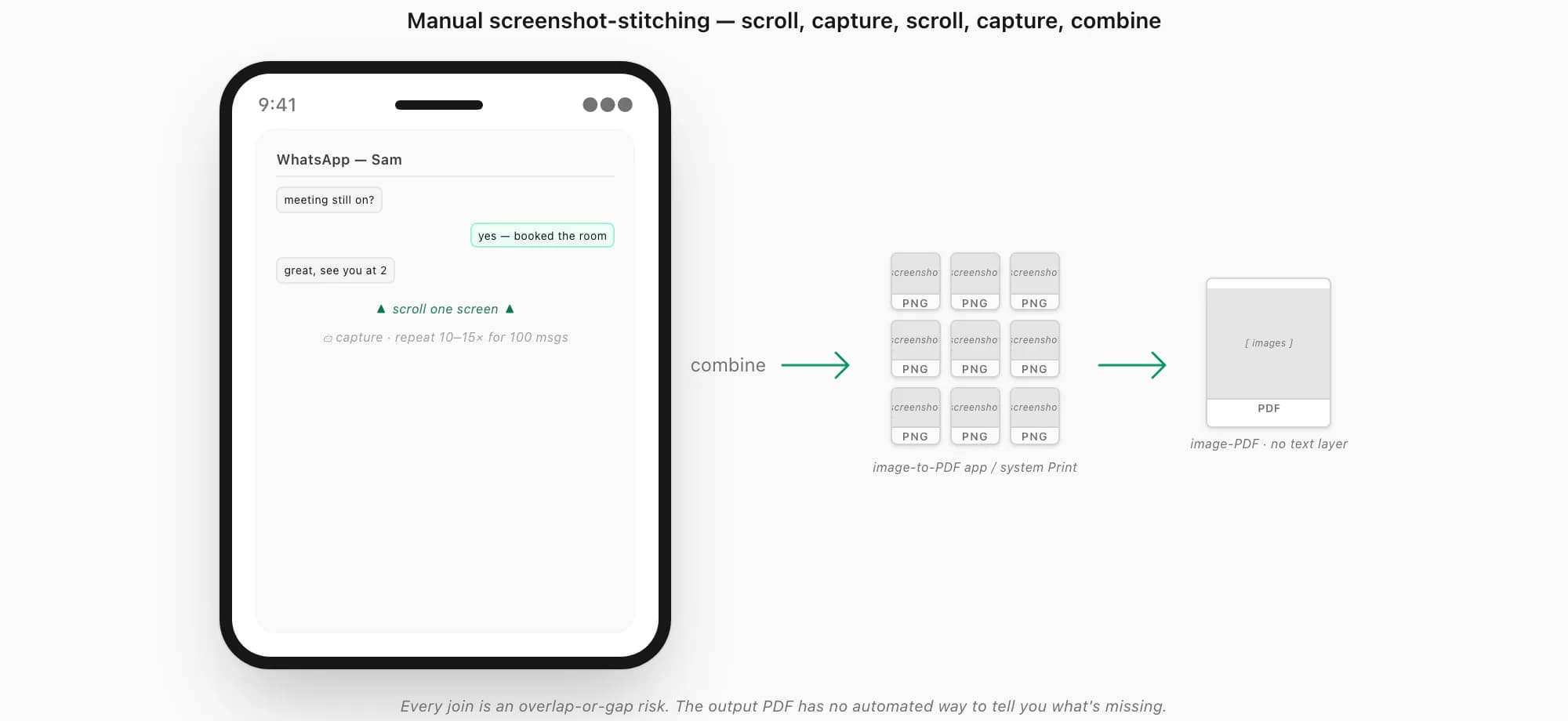
For completeness, here's how the screenshot-stitching route actually works for a long chat. There are three common paths and they all share the same underlying problem.
Scroll to the top of the chat range you want to preserve
Open the conversation in WhatsApp. Decide where the preserved range starts — the beginning of the chat, a specific date, the start of a particular thread — and scroll up to that point. On a 5,000-message chat this can itself take a minute or two; WhatsApp loads older messages in chunks as you scroll, and on Android in particular older builds occasionally stutter. Make a mental note of the first message visible at the top of the screen — you'll want to compare it against the next screenshot to check your overlap.
Screenshot, scroll exactly one screen-height, screenshot again, repeat
Take the screenshot (Side button + Volume up on iPhone with Face ID; Side + Home on Touch ID models; Power + Volume down on most Androids). Now scroll almost one screen-height down, leaving a small overlap with the previous screenshot so you can tell which bubble is the join. Screenshot again. Repeat all the way to the bottom of the range you want to preserve. A 100-message chat is roughly 10–15 screenshots, depending on font size and how many photos break up the flow. A 5,000-message chat is closer to 500–800.
Combine the screenshots into a PDF
Three options. (a) The system Print flow: select the screenshots in Photos / Gallery, tap Share → Print, then save as PDF (Android has an explicit "Save as PDF" destination; on iOS you pinch out on the print preview to expand it into a PDF preview — Apple documents the same pinch-out gesture in its Annotate and save a webpage as a PDF in Safari on iPhone guide). The ChatToPDF vs print to pdf page covers that route in detail since it's effectively the same thing in a print-dialog hat. (b) An image-to-PDF app: any number of free apps (Adobe Scan, Microsoft Lens, Apple's built-in Files actions on iOS 16+) will turn a folder of images into a single PDF. (c) A scroll-capture app: LongShot, Tailor, or Samsung's built-in scroll-capture stitch consecutive screenshots into one tall image, which you then save as a PDF.
Open the PDF and discover what's still missing
Whatever route you took, the output PDF is a stack of rasterised pages. Try Cmd-F. Nothing. Try copying a quote out. Nothing. Try sending it to someone who uses a screen reader. Nothing reaches them. Notice that a couple of messages near the join between screenshot 12 and screenshot 13 either got doubled (you overlapped too much) or vanished (you scrolled too far between captures). Notice that the voice-note bubbles are screenshots of play buttons. This is the moment people usually realise screenshots aren't the right shape for an archive.
The crack at every step is human: scrolling is approximate, overlap is approximate, screenshot counts get miscounted, and the final PDF has no automated way to tell you what's missing. For one exchange across two captures, none of this matters. For a hundred messages, every gap and double becomes a quiet defect baked into the archive.
Why "images of text" is the whole problem
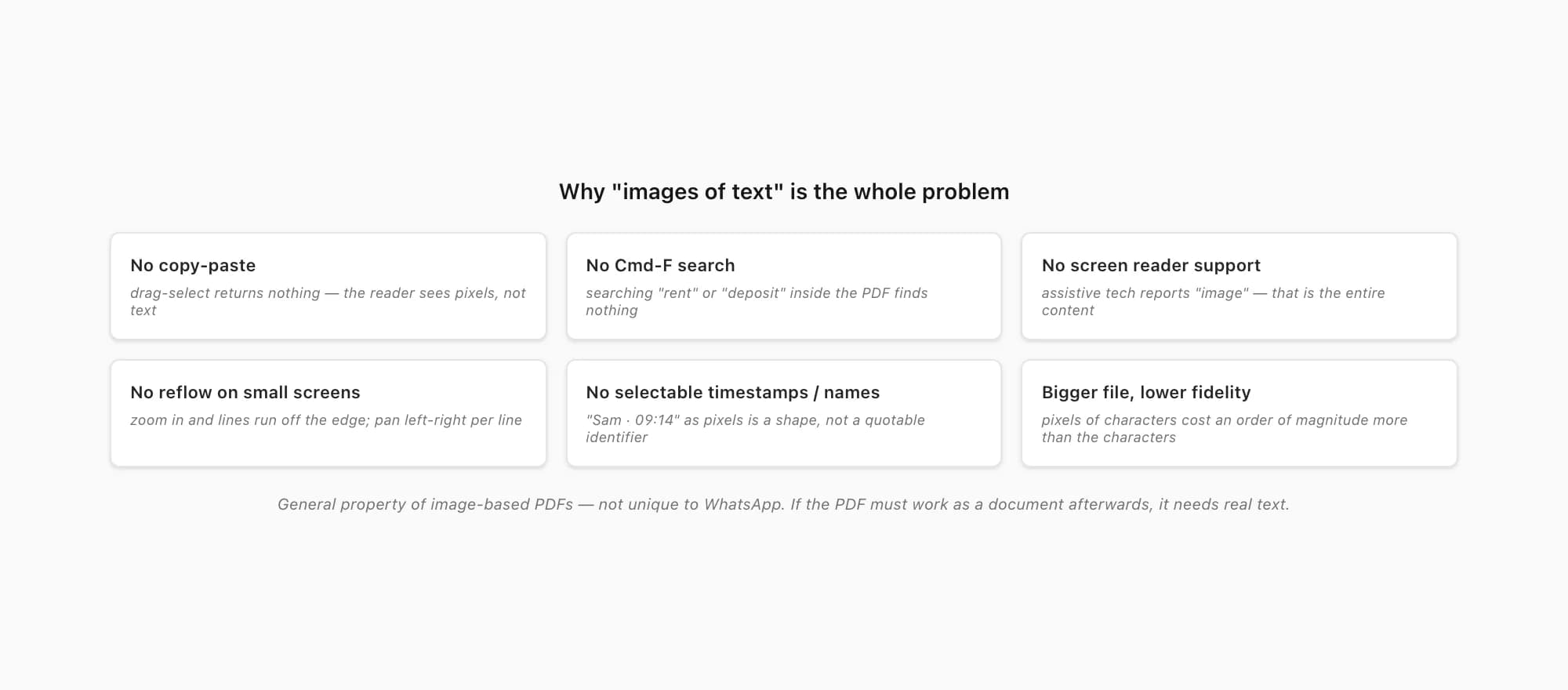
The accessibility-and-search community has a term for what a screenshot PDF actually is: images of text. The WebAIM guidance I linked above frames it well — when textual content is rendered as pixels rather than as characters, you lose almost everything a document is useful for outside of "looking at it". Here's what disappears, specifically, when a WhatsApp chat becomes a screenshot PDF:
- No copy-paste. You can't drag-select a quote and paste it into an email. The PDF reader sees pixels where you expect text, and the clipboard ends up empty.
- No Cmd-F search. Searching for "rent" or "deposit" or "Tuesday" inside the PDF returns no matches. The text isn't there — it's a picture of text.
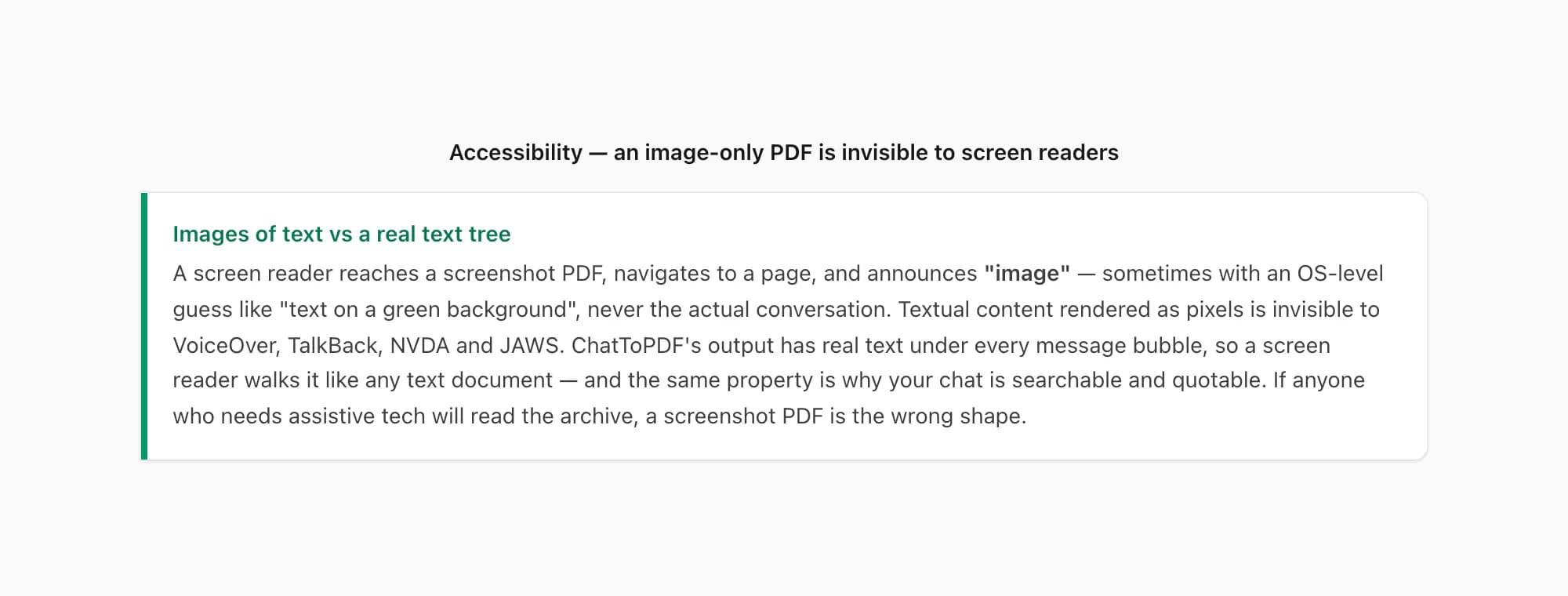
- No screen reader support. A screen reader (VoiceOver on iOS / macOS, TalkBack on Android, NVDA / JAWS on Windows) walks the document's text tree. There is no text tree in an image-PDF. The screen reader reaches the page, encounters an image, and reports "image" — which is the entire content. Anyone who needs assistive tech to read a document cannot read this archive.
- No reflow on small screens. A PDF with real text reflows when you zoom in on a phone — the lines wrap to the new column width. An image-PDF doesn't. You zoom in and the picture gets bigger, but the lines still extend off the right edge of the screen, so you end up panning left-and-right per line.
- No selectable timestamps or sender names. "Sam · 09:14" as text is a quotable identifier. The same string rendered as pixels inside a screenshot is just a shape. You can read it; you can't act on it.
- Bigger file size, lower fidelity. A screenshot is a lossless or near-lossless capture of the rendered screen at the pixel density of the device. That's a lot of bytes for "Sam said meeting still on". A text-bearing PDF stores the characters, not the pixels of the characters — and ends up an order of magnitude smaller for the same conversation.
None of this is unique to WhatsApp; it's a general property of image-based PDFs. But it's where the whatsapp to pdf vs screenshot comparison really lives. If the PDF needs to function as a document afterwards — searchable, quotable, accessible, archivable, sendable to someone who'll actually read it — it needs real text. Screenshots can't give you that. The export ZIP can.
Side by side — the feature matrix
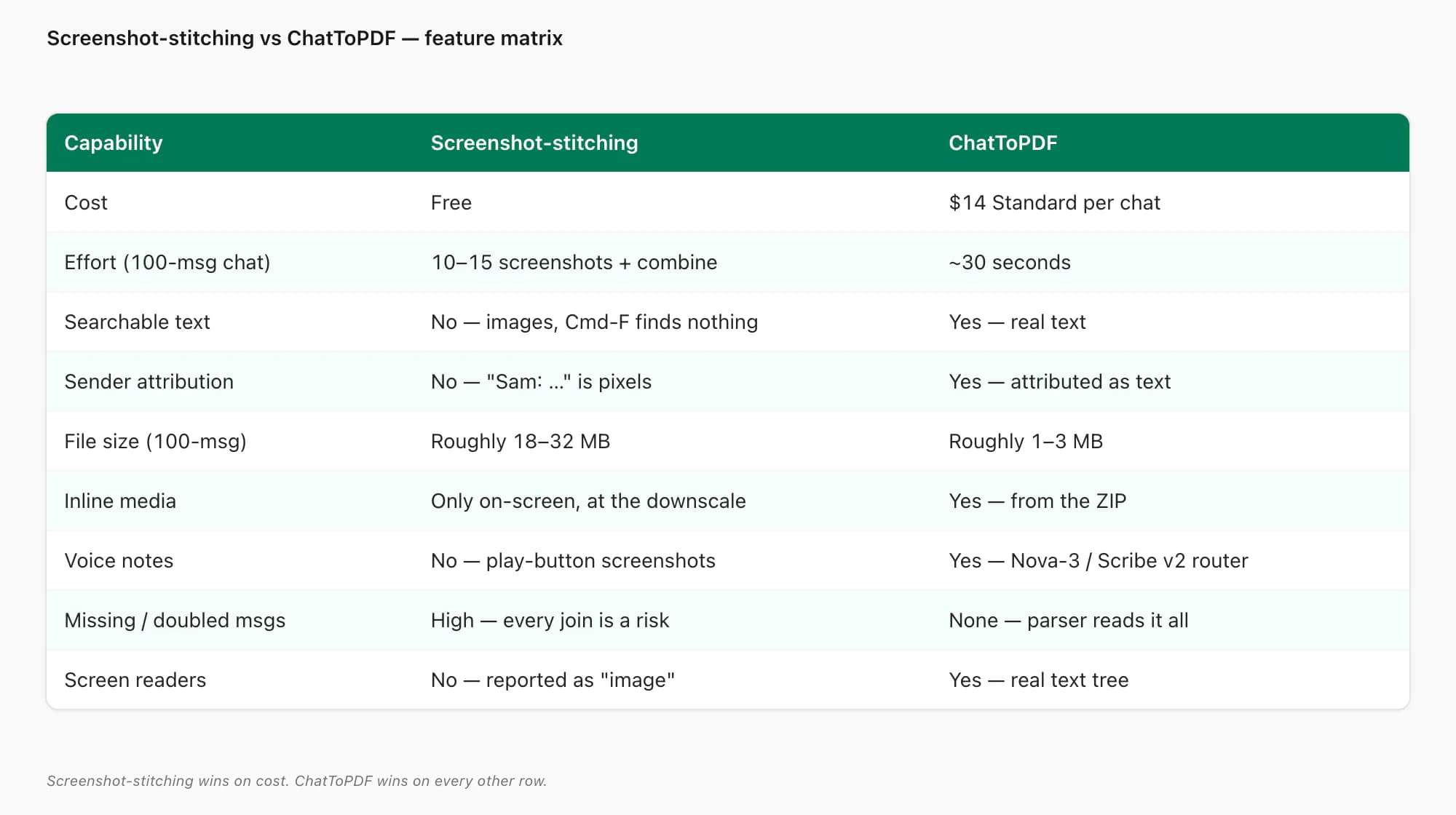
| Capability | Screenshot-stitching | ChatToPDF |
|---|---|---|
| Cost | Free — uses what's already on your phone | $14 Standard per chat (one payment, one PDF) |
| Effort for a 100-message chat | 10–15 screenshots + combine step — roughly 8–15 minutes of fiddling | ~30 seconds end to end once the ZIP is uploaded |
| Searchable text in the PDF | No — output is rasterised images, Cmd-F finds nothing | Yes — every message body is real text |
| Sender attribution as text | No — "Sam: …" is rendered pixels, not characters | Yes — every message attributed to a named sender as text |
| File size (100-message chat) | Roughly 18–32 MB of rasterised pixels | Roughly 1–3 MB with inline photos at sensible resolution |
| Inline media (photos) | Only what was visible on screen — at the in-thread downscale | Yes — photos inlined from the export ZIP at the size shared |
| Voice notes | No — screenshots of play buttons, audio unreachable | Yes — Nova-3/Scribe v2 routing; successful transcripts inline ($49 Premium+Voice) |
| Risk of missing / doubling messages | High — scrolling is approximate, every join is a risk | None — the parser reads the export end to end |
| Accessibility (screen readers) | No — images of text, screen readers report only "image" | Yes — real text tree, fully readable by VoiceOver / TalkBack / NVDA |
The screenshot-stitching route wins on cost. ChatToPDF wins on every other row.
File size — a 100-message chat as rasterised pixels
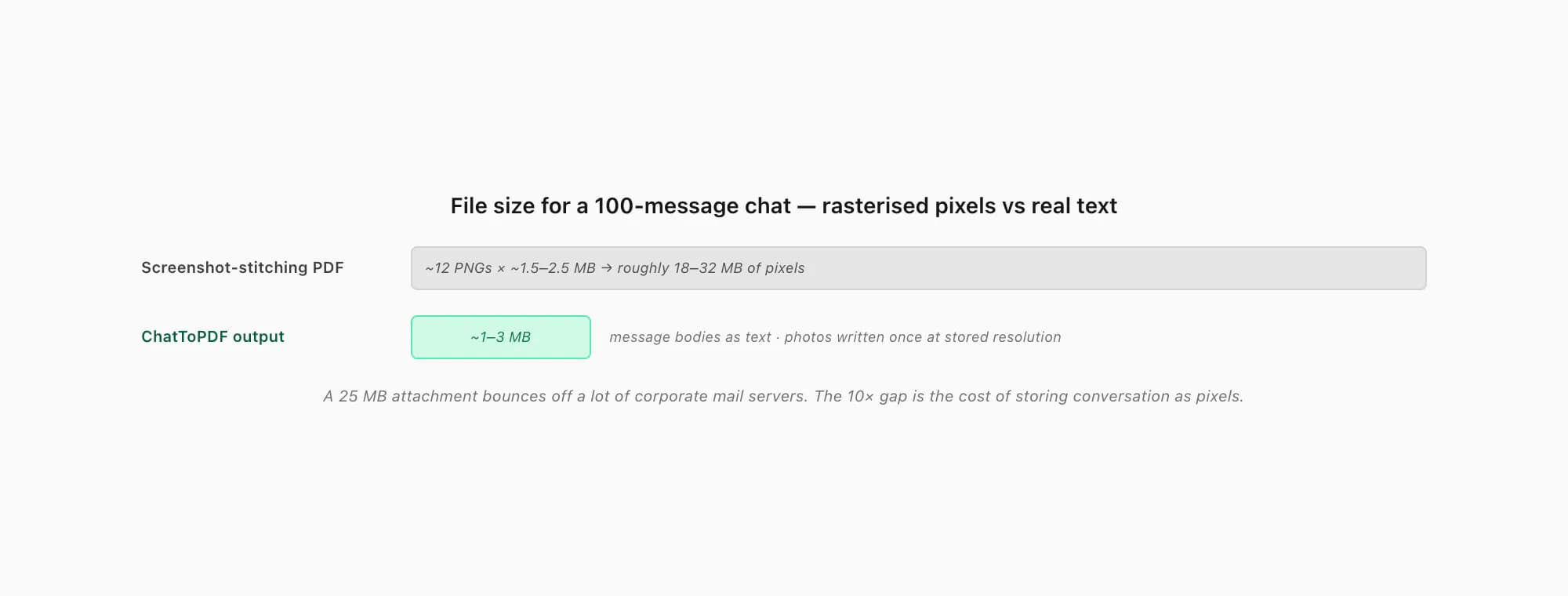
This is the row that surprises people most often, so it deserves its own paragraph. A typical phone screenshot on a recent iPhone or flagship Android is around 1.2–2.0 megabytes per image (PNG, retina-density display, a full chat-screen worth of content). A 100-message chat needs roughly 10–15 such screenshots to capture — call it 12 on average. Even if the combine step compresses to JPEG, you're looking at an 18–32 MB PDF for one chat. ChatToPDF's output for the same chat, with inline photos, comes in around 1–3 MB because the message bodies are stored as actual text (a few bytes per message) and the photos are written once at their stored resolution rather than re-rasterised inside a screen capture.
That 10× difference matters in practice. Emailing a 25 MB attachment fails on a lot of corporate mail servers. Uploading it to a case-management system or a cloud archive eats more of the storage quota than it should. Opening it on an older phone is sluggish. None of this is the screenshot route's fault — it's the unavoidable consequence of storing conversation as pixels rather than characters.
The silent failure: missed or doubled messages on the scroll
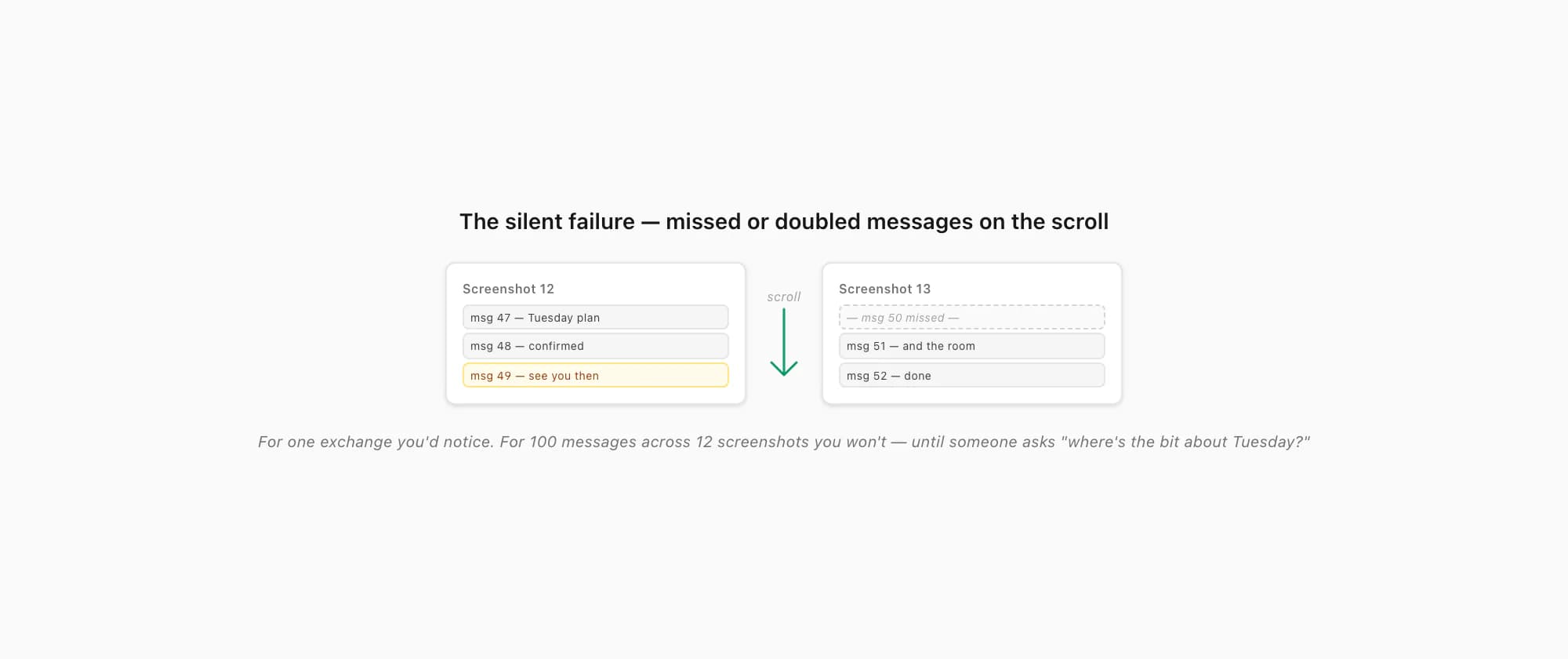
The other failure mode worth being honest about is the one nobody warns you about: when you screenshot a long chat by scrolling, your scroll is approximate. Phones scroll by gesture distance, not by message count. You'll scroll roughly one screen-height between captures and trust that the overlap is enough to stitch by eye. Most of the time it is. Some of the time the overlap is wider than you thought and you double a message; some of the time the scroll was slightly too long and a message vanishes between captures.
For one exchange across two screenshots, you'll notice immediately. For a hundred messages across twelve screenshots, you almost certainly won't — and the missed or doubled message will sit there inside the archive, undetected, until the moment someone actually reads the PDF and asks "where's the bit about Tuesday?" The export-ZIP route doesn't have this failure mode at all: the parser reads _chat.txt line by line, gets every message in order exactly once, and never has to guess.
This isn't a screenshot-stitching pet peeve I've invented for the comparison; it's the most common reason people who tried the free route in the first place end up paying for ChatToPDF the second time. The first PDF looked fine. Then someone pointed at a gap.
How ChatToPDF does the chat-to-PDF job
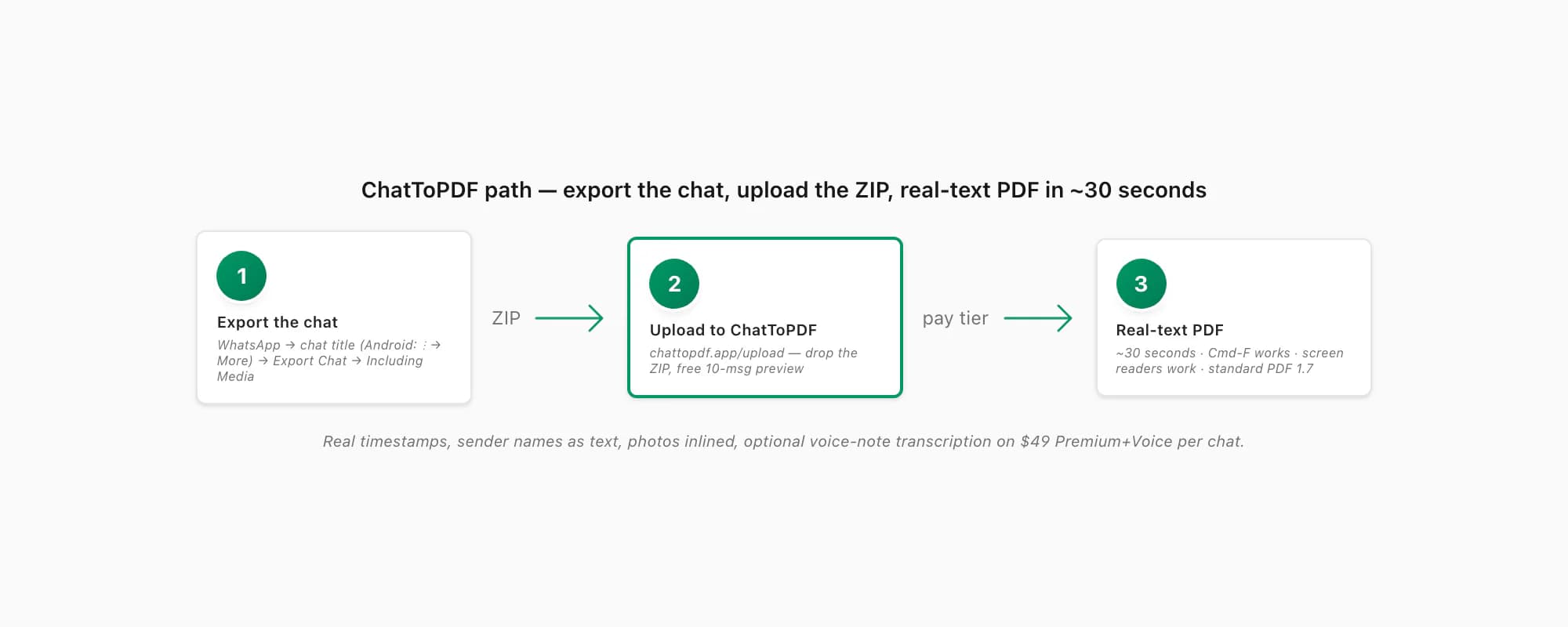
The ChatToPDF path is three real steps plus WhatsApp's own export.
Export the chat from WhatsApp
Open the chat. On iPhone, tap the contact or group name at the top, scroll down, tap Export Chat. On Android, tap the three-dot menu top right, then More → Export Chat. Pick Including Media so photos are inlined in the PDF (the ZIP is bigger; that's fine). WhatsApp produces a
.zipcontaining_chat.txtand every media file. This is the part the screenshot route can't replicate — it's WhatsApp's own structured export, not a picture of the rendered UI.Upload the ZIP to ChatToPDF
Open chattopdf.app/upload in any browser — mobile Safari, Chrome, Firefox, Samsung Internet, desktop browsers all work. Drop the ZIP onto the upload zone. You get a free preview of the first ten messages so you can confirm the parser read the export correctly before paying anything.
Pick a tier and pay per chat
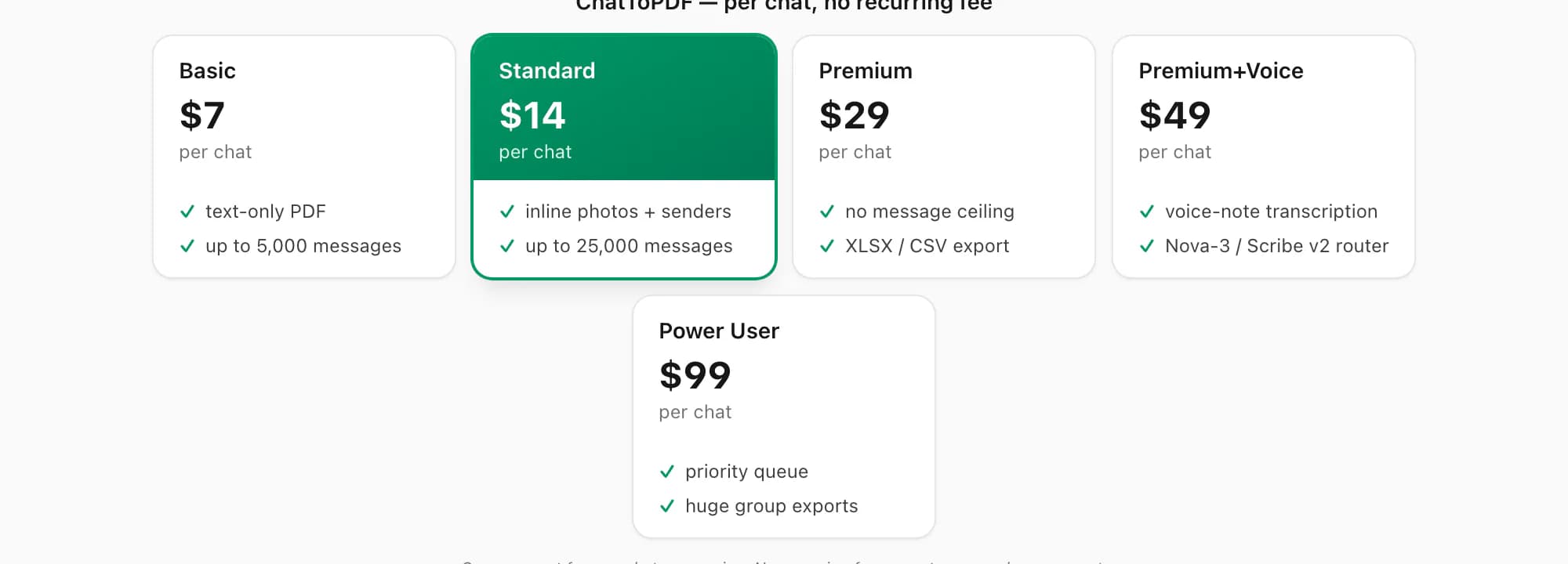
$14 Standard per chat for the typical case — sender-attributed bubbles, inline photos, real timestamps, up to 25,000 messages. $7 Basic per chat is text-only for short photo-less chats. $29 Premium per chat removes the message ceiling and adds an XLSX/CSV export. $49 Premium+Voice per chat adds voice-note transcription through the language-aware Nova-3/Scribe v2 router. $99 Power User per chat adds a priority queue for very large group exports.
Download the PDF (and get the email backup)
The conversion runs in about thirty seconds. You get the in-browser download link and an email backup in case your tab closes. The output is standard PDF 1.7 — every message body is real text, every sender is attributed as text, photos are inlined at sensible resolution, and Cmd-F works. It opens in iOS Quick Look, Android file managers, Adobe Acrobat, Chrome, Safari, Firefox, Edge and macOS Preview without any extra reader.
The pillar WhatsApp to PDF guide walks the same flow end to end with more screenshots. For lateral context, the ChatToPDF vs print to pdf page covers the iOS / Android print-dialog variant of the screenshot route (effectively the same thing in a different hat), and the ChatToPDF vs iLovePDF (for WhatsApp) page covers what happens when you try to feed a general PDF toolkit a chat instead. There's also a relevant troubleshooting page: an image-only PDF doesn't render emoji at all (it renders pictures of emoji as they appeared on the rendering device), so if you've ever wondered why WhatsApp PDF emojis come out broken, the screenshot route is one of the ways you end up there.
When a couple of screenshots are genuinely fine
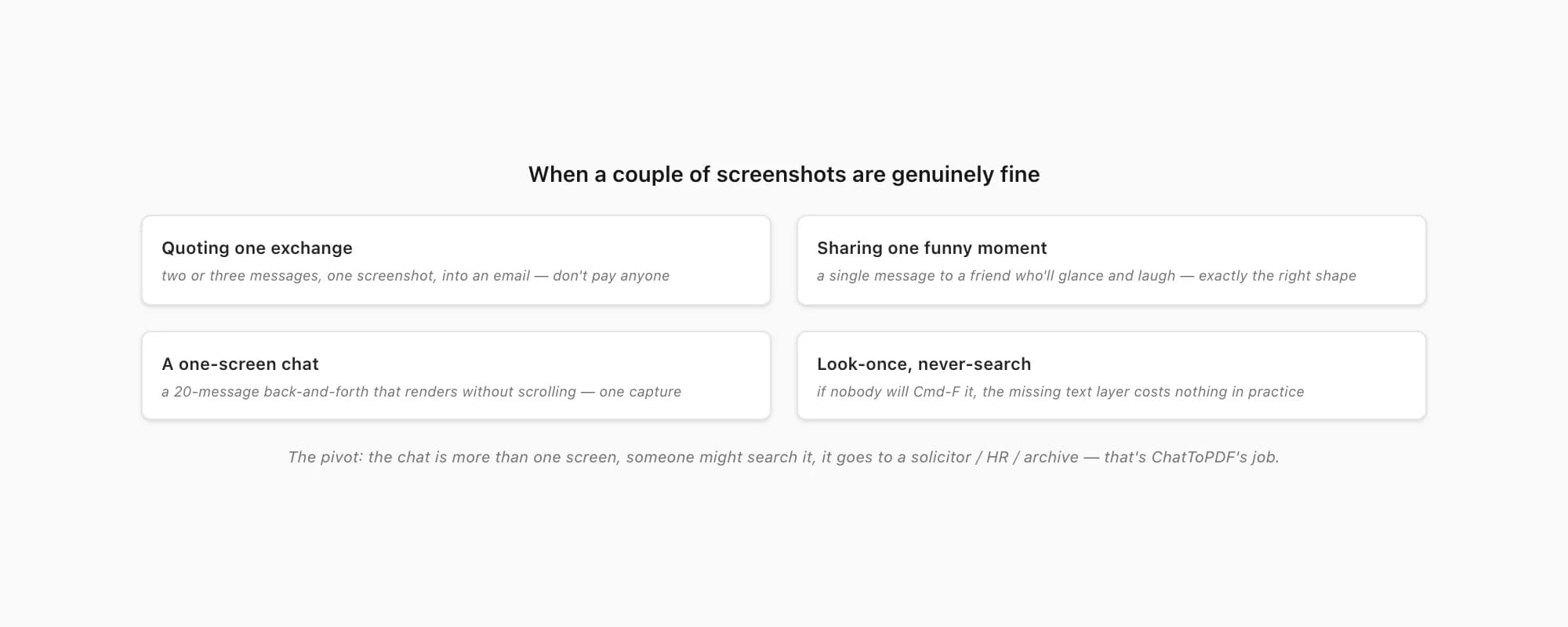
I want to be honest about when the screenshot route is the right call — and the answer is "more often than you'd think for tiny jobs". The free route earns its keep when:
- You want to quote one exchange. Two or three messages, one screenshot, drop it into an email or a message. Don't pay anyone — including me — for that.
- You want to share one funny moment. A single message, captured and sent to a friend who'll glance at it and laugh. Screenshots are exactly the right shape for this.
- The conversation fits on one screen. A twenty-message back-and-forth that all renders without scrolling. One screenshot covers the whole thing; the failure modes I've been describing don't apply.
- The recipient is going to look once and never search. If nobody is ever going to Cmd-F the PDF, the absence of a text layer doesn't cost anything in practice.
- You have zero budget and a small chat. For someone with no money to spend and a conversation that fits in a handful of screenshots, the free route is a real option. It's tedious at scale; it isn't tedious at small.
The pivot is the moment any of those preconditions stops holding. The chat is more than one screen. Someone might want to search it. It's going to a solicitor, an HR investigator, a case manager, or anyone who reads PDFs with a screen reader. It's going into an archive you'll open again in five years. At that point the screenshot route stops being "free and fine" and becomes "free and broken", and ChatToPDF at $14 Standard per chat is shaped exactly for the gap.
Key takeaways
- A screenshot is a bitmap — there is no text layer, no sender metadata, no timestamps a parser or screen reader can act on
- For a couple of messages, screenshots are genuinely the right tool — one exchange, one funny moment, a one-screen chat
- Past ~15–20 messages, the manual screenshot-stitching flow gets tedious and the output is "images of text" — not searchable, not selectable, not accessible
- A 100-message chat as stitched screenshots is roughly 18–32 MB; the same chat through ChatToPDF is around 1–3 MB with real text
- Scrolling between screenshots is approximate — missed or doubled messages near every join are the silent failure of the screenshot archive
- ChatToPDF reads WhatsApp's own export ZIP (
_chat.txt+ photos) and renders one paginated PDF with real text — Cmd-F works, screen readers work, copy-paste works - $14 Standard per chat, ~30 seconds end to end; $49 Premium+Voice per chat adds the whole-chat audio-to-text workflow for supported voice notes
- The honest split: screenshots for quoting, ChatToPDF for archiving
FAQ
Is screenshotting a WhatsApp chat to PDF ever the right choice?
Yes — for small jobs. If you want to quote one exchange in an email, share a single funny message with a friend, or capture a one-screen back-and-forth that doesn't need to be searched later, a screenshot (or two) is the right tool. It's free, it's instant, and the failure modes — no searchable text, no sender attribution as text, no screen-reader support — don't matter when the recipient is going to glance at the image once. The shape stops fitting around 15–20 messages, when you start scrolling and stitching: at that point you're trading "free" for an image-PDF that has none of the properties a document is useful for afterwards. ChatToPDF is shaped for the larger job; the screenshot is shaped for the small one.
Why can't I just OCR the screenshot PDF and get a searchable archive?
You can run OCR (optical character recognition) on a screenshot PDF — Adobe Acrobat, ABBYY FineReader, and Apple Preview's "Live Text" feature will all attempt it — and you'll get back approximate text. The accuracy depends on the screenshot resolution, the WhatsApp UI's font rendering, the contrast against bubble backgrounds, and the OCR engine itself. For clean, high-resolution screenshots of plain English you can get into the high-90% range; for screenshots that include emoji, code snippets, links, or non-Latin scripts, accuracy drops. More importantly, OCR can't recover the structure that was never there: sender attribution is still ambiguous (the OCR sees "Sam" once and the right-aligned bubble has no name), timestamps come out as the rendered "2 mins ago" wording rather than real date-times, and voice notes remain unreachable. WhatsApp's export ZIP gives you the structure for free, because the structure was there from the start.
What about scroll-capture apps that stitch screenshots into one tall image?
Apps like LongShot, Tailor, or Samsung's built-in scroll-capture feature take consecutive screenshots and glue them into one tall image, which you can then save as a PDF. They solve the "twelve files vs one file" annoyance, but they don't solve the underlying problem — the output is still a rasterised image of text. There's still no searchable text, no sender attribution as text, no voice-note content, no real timestamps. The page-break logic in the final PDF is wherever the print or PDF-export step decides, usually mid-bubble. For a chat where the image is what matters (a long visual record, no search needed) scroll-capture is fine. For a chat where the content needs to read like a document afterwards, the export-ZIP route is the right shape.
Does ChatToPDF need me to install anything or sign up?
No. ChatToPDF runs entirely in the browser — mobile Safari, Chrome, Firefox, Samsung Internet, desktop browsers, all of them. There's no install, no USB cable, no desktop tool, no account creation, no sign-in. WhatsApp's Export Chat menu hands you a ZIP, you drop the ZIP onto chattopdf.app/upload, you see a free 10-message preview to confirm the parser read your export correctly, you pay $14 Standard per chat (or whichever tier matches the job), and the paginated PDF lands by email about thirty seconds later. For comparison points against the desktop-install alternatives, the ChatToPDF vs Backuptrans page and the ChatToPDF vs iMyFone page cover that route in detail.
Can a screen reader actually read my screenshot PDF at all?
A screen reader will reach the screenshot PDF, navigate to a page, and announce "image" — sometimes with an auto-generated alt-text guess ("text on a green background") from the OS-level image-recognition layer, but never the actual conversation content. That's the alternative-text problem in practice: textual content rendered as pixels is invisible to assistive tech. If anyone who needs VoiceOver, TalkBack, NVDA or JAWS is ever going to read your chat archive, a screenshot PDF is the wrong shape — they will be told "image" for every page and nothing else. ChatToPDF's output has real text underneath every message bubble, so a screen reader walks the document like any other text document and reads the conversation out as text. For the same reason, your chat is also searchable and quotable.
I'm Paul, the founder of ChatToPDF. I built it after needing a long WhatsApp conversation as a readable PDF for a legal matter. I test and document WhatsApp exports, PDF conversion, voice-note transcription, and the limits people should check before relying on the result.