
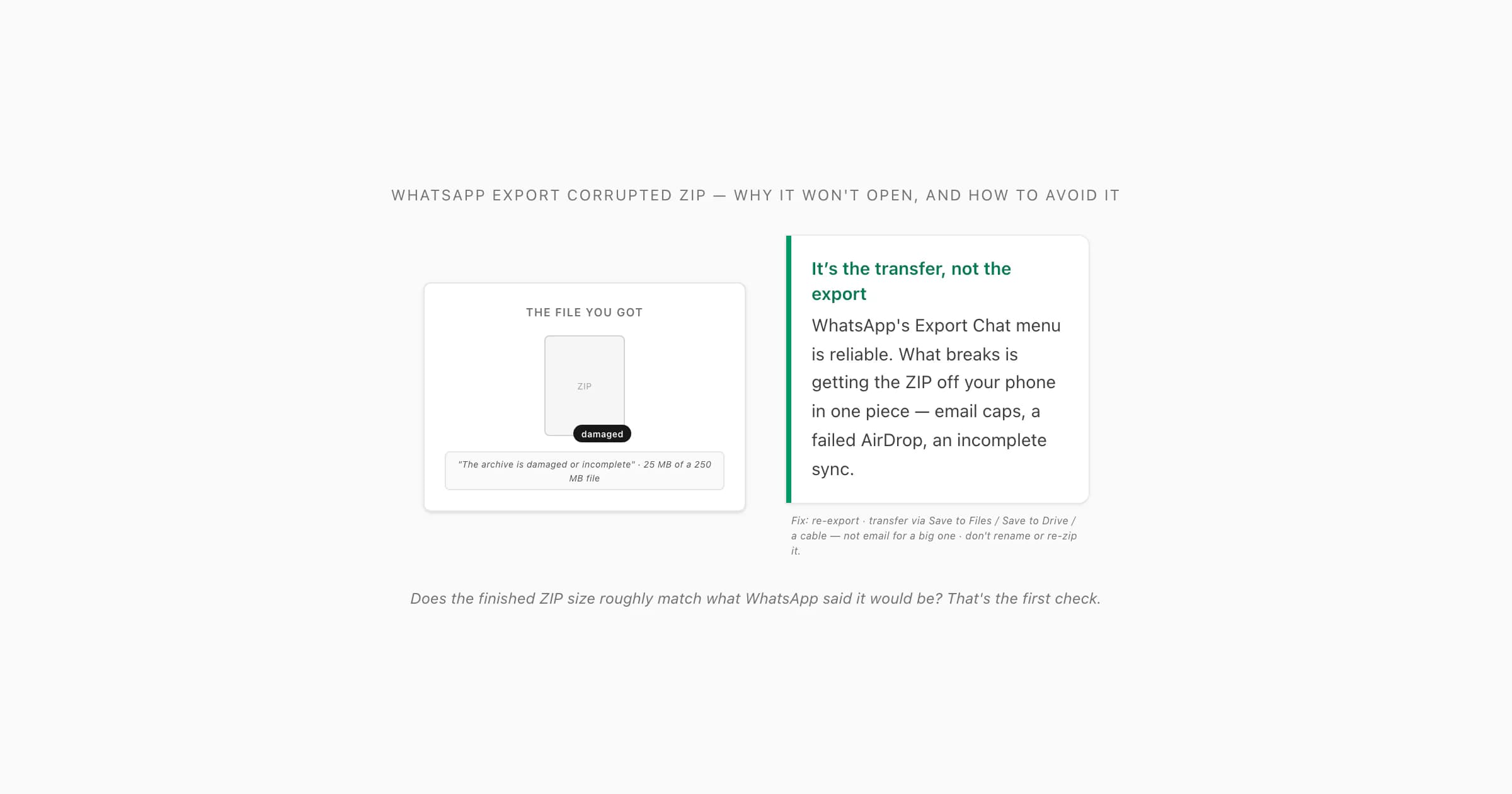
8-minute walkthrough — why the exported ZIP won't open, and the 8-second fix.
What a "corrupted" WhatsApp export ZIP actually is
When someone tells me they've got a whatsapp export corrupted zip, the file itself is rarely the problem — the bytes that arrived are. A ZIP is a sequence of compressed entries with a directory at the very end that says where each entry starts. Lose the end of the file, or scramble a few bytes in the middle, and the unzipper can't read that directory — so it throws "the archive is damaged", "invalid or incomplete", "unexpected end of archive", or on a Mac the cheerfully unhelpful "Error 2 — No such file or directory". On Android the file manager just refuses to open it. Same underlying thing every time: the ZIP that landed on your device isn't the ZIP WhatsApp produced.
Here's the part that surprises people: WhatsApp's Export Chat menu is reliable. It reads your local chat history, writes _chat.txt, and — if you picked Including Media — packs every photo, video and voice note alongside it into a valid ZIP. That part almost never fails. What fails is getting that ZIP off your phone in one piece. Email, AirDrop, cloud sync, a flaky cable — each of those is a place the file can arrive truncated, mangled, or replaced with something that isn't even the original. So before you assume the export broke, assume the handoff did. That's where the fix lives.
Why the ZIP won't open — the causes, in order
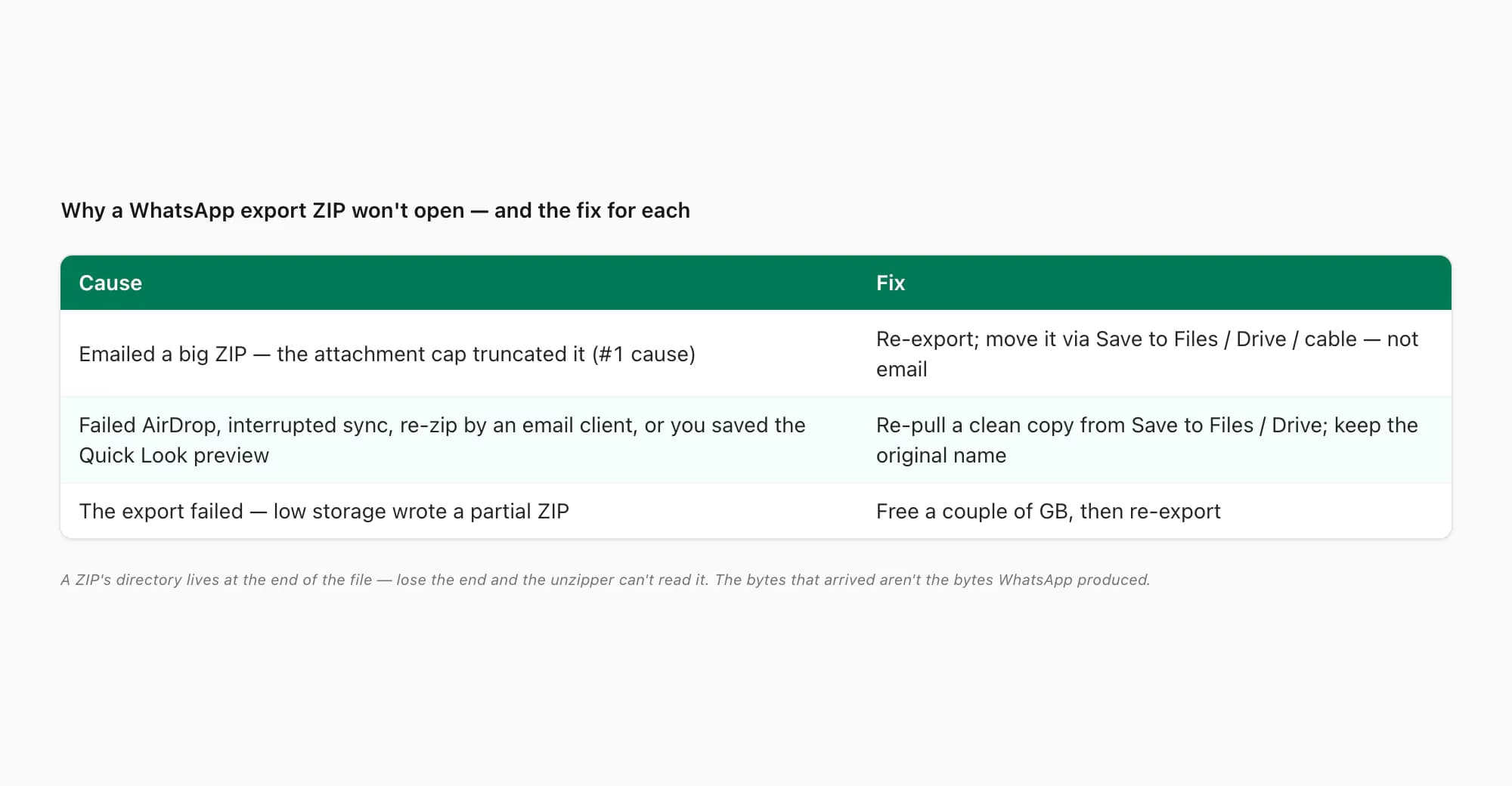
These are the causes I see, roughly by how often they're the real one.
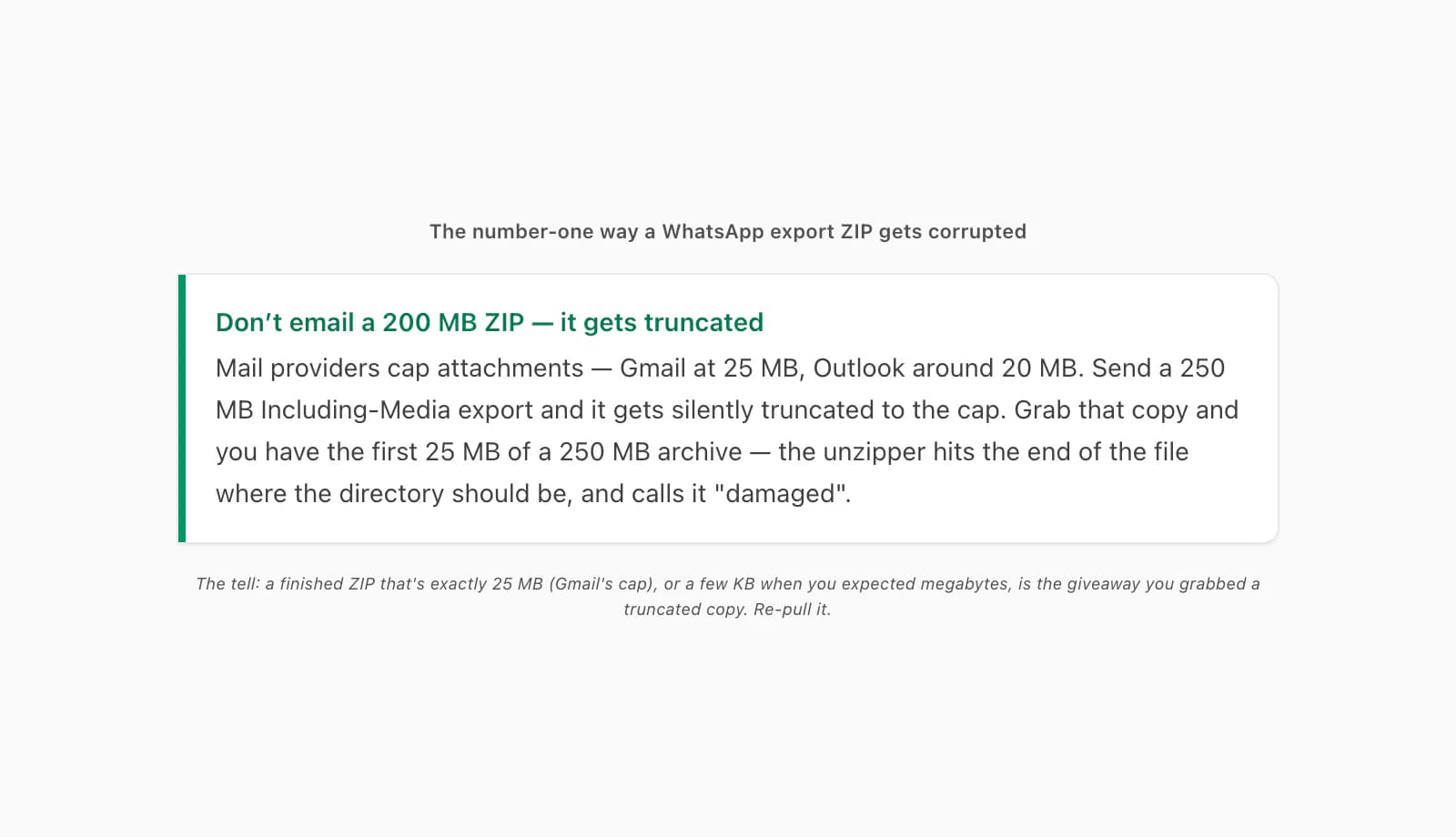
1 — An interrupted transfer (this is almost always it). You ran Export Chat with Including Media, got a 150 MB or 250 MB ZIP, and emailed it to yourself. Your mail provider caps attachments — Gmail at 25 MB, Outlook around 20 MB — so it either silently truncated the file to the cap, quietly converted it to a Drive link you didn't notice, or bounced it. If you grabbed the truncated version, you have the first 25 MB of a 250 MB archive: the unzipper reads the header, gets partway through, and hits the end of the file where the directory should be. Same failure from an AirDrop that dropped connection mid-send (iOS sometimes leaves a partial file with no error), a Google Drive or iCloud sync that you interrupted by closing the app, or a USB copy you yanked early. The file looks like a ZIP — right name, right icon — it's just incomplete.
2 — An email client re-zipped or renamed it. Some mail apps and webmail interfaces helpfully "compress" attachments, or rename them, or strip the extension. You end up with a .zip that's actually a double-zipped wrapper, or a file your unzipper can't recognise because the bytes don't match the extension. Forwarding a WhatsApp export ZIP through two or three mail hops is a good way to get this.
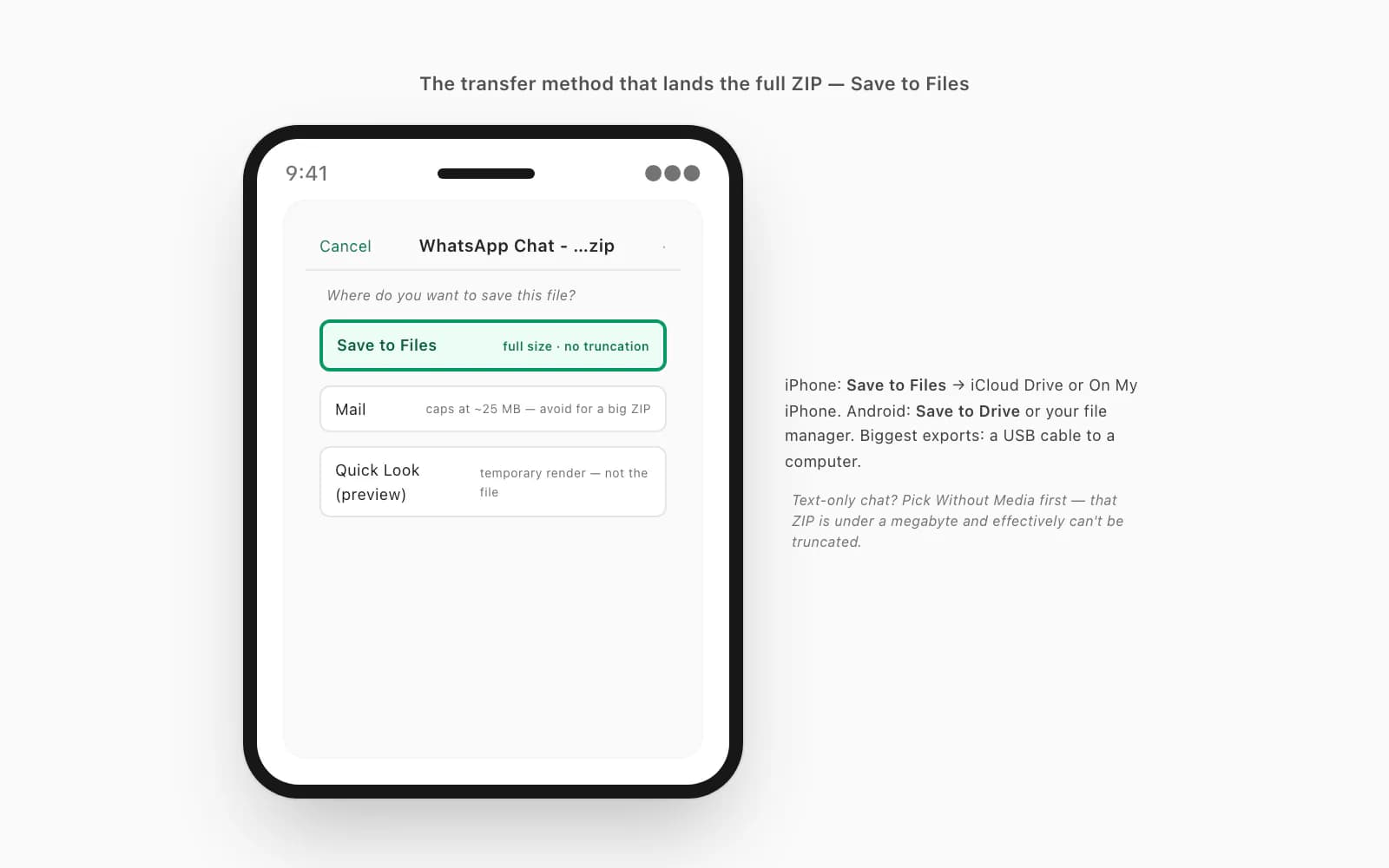
3 — You saved the share-sheet preview, not the file. On iPhone especially, if you tap the ZIP attachment in Mail or Files and it shows you a Quick Look preview of the contents, that preview is a temporary, read-only render — not the file. If you "save" from there you can end up with a tiny placeholder or nothing usable. The actual file only lands somewhere durable when you choose Save to Files (or Save to Drive on Android) from the share sheet before previewing.
4 — The export itself failed (rare, but it happens). If your phone was nearly out of storage when you ran Export Chat, WhatsApp may have written a partial ZIP before giving up — that's the same family of problem as a WhatsApp chat export stuck on "Preparing file…", and it's worth checking your free space if a fresh re-export also won't open. A single corrupted media item inside the chat can also occasionally produce a malformed archive. Both are uncommon; the transfer is the usual culprit.
5 — You renamed the ZIP. Changing the file name is harmless. Changing the extension, or opening-and-resaving it through some app that "fixes" it, is not — that can leave you with a file the unzipper won't touch. Leave WhatsApp Chat - Name.zip exactly as WhatsApp named it.
The fix — re-export and transfer it the right way
The repair for a whatsapp export corrupted zip is almost always the same: don't try to salvage the broken file — get a clean one off your phone properly.
Re-export the chat from WhatsApp
Open the chat, run Export Chat (Android: the three-dot menu → More → Export Chat; iPhone: tap the contact or group name at the top, scroll to the bottom, tap Export Chat), and pick Without Media if you only need the text — that gives you a tiny ZIP, usually well under a megabyte, which no transfer method will truncate. The full picture of what that text-only option actually contains (and where the
<Media omitted>placeholders sit in_chat.txt) is in the WhatsApp export without media write-up. Pick Including Media only if you genuinely need the photos in the result, knowing it'll be big.Transfer it with a method that doesn't truncate
On iPhone, choose Save to Files from the share sheet and pick iCloud Drive or On My iPhone — the full ZIP lands there at its real size. On Android, choose Save to Drive or your file manager directly; Google Drive eats a 500 MB ZIP without blinking and you download it later on a computer. For the very largest exports, a USB cable to a computer is the most reliable path of all. What you don't do for a big ZIP is email it to yourself — the attachment cap is exactly the trap that corrupted the first one.
Don't rename or re-zip it
Leave the file name WhatsApp gave it. Don't change the
.zipextension, don't run it through a "repair" tool, don't forward it through three mail accounts. The clean ZIP that came off your phone is the one you want — touch it as little as possible.Sanity-check the size
If WhatsApp's "Preparing file…" stage gave you a sense of how big the export would be — or if you know it's a media-heavy chat — a finished ZIP that's suspiciously small (25 MB exactly is a classic email-truncation tell, or a few kilobytes when you expected megabytes) is the giveaway you grabbed the wrong copy. Re-pull it from wherever you saved it in step 2.
If even a fresh export won't open, the things to check are storage (free a couple of gigabytes and try once more) and whether the chat is so large the export is genuinely struggling — that overlaps with the WhatsApp ZIP export that's too big, where the answer is often a Without Media re-export. WhatsApp's own help on exporting chat history covers the Export Chat menu itself but says nothing about transfer-corruption — you find that out the hard way. For the email side of it, the practical rule is just to assume any provider caps attachments somewhere between 20 and 25 MB and route anything bigger around email entirely.
When the ZIP opens but _chat.txt is missing or empty
A slightly different flavour of the same problem: the ZIP does open — your file manager shows its contents — but there's no _chat.txt inside, or there is one and it's zero bytes, or it's there but only a fraction of the conversation.
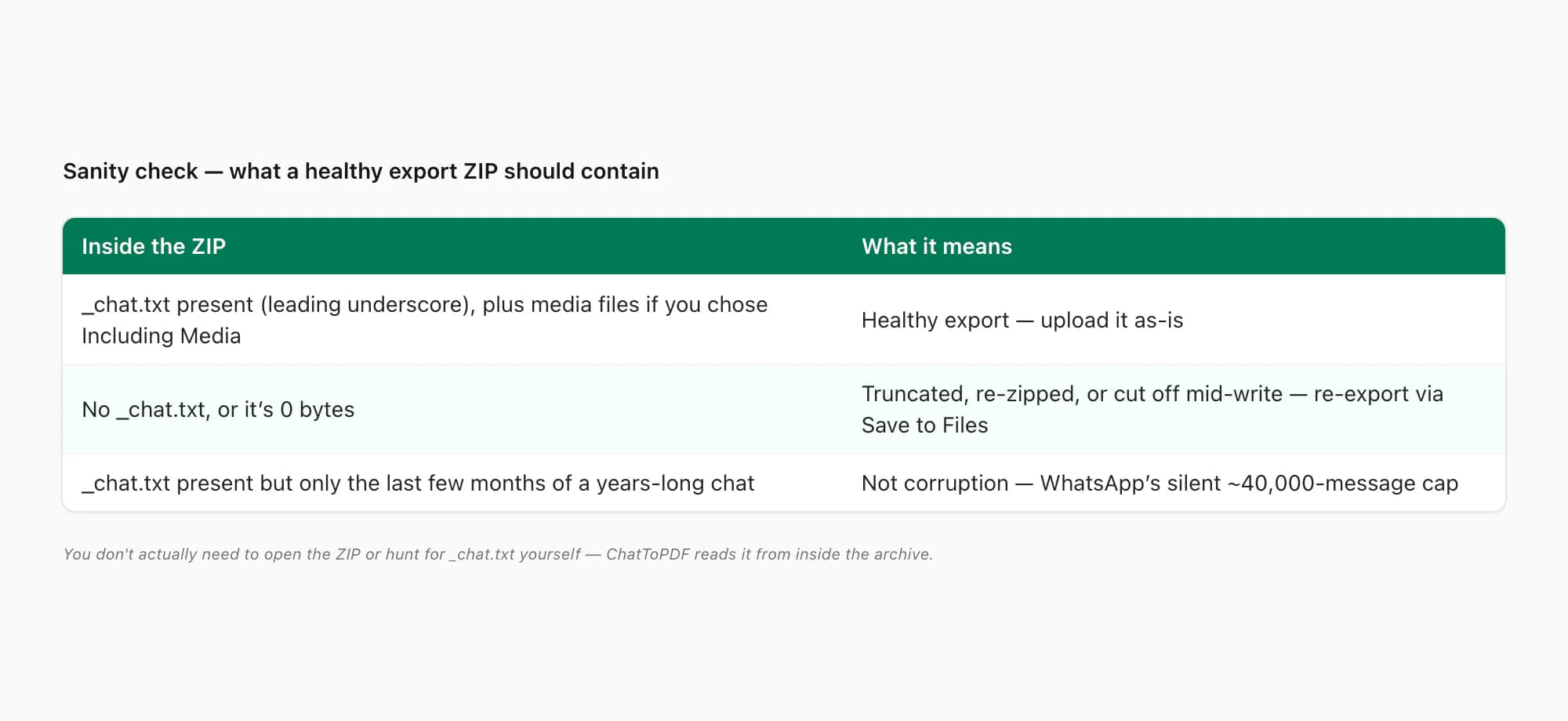
A healthy WhatsApp export ZIP contains, at minimum, one file named _chat.txt (note the leading underscore) — plain UTF-8 text, every message on its own line as [date, time] Sender Name: message text, plus encryption and system notices as lines with no sender. If you picked Including Media, there's also a pile of IMG-…jpg, VID-…mp4, PTT-…opus and DOC-… files alongside it. If _chat.txt is missing entirely, you almost certainly opened a truncated or re-zipped archive — the directory's wrong and the unzipper extracted whatever fragments it could; re-pull a clean copy as above. If _chat.txt is there but empty, the export was cut off mid-write (storage, or a background kill) — re-export. If it's there but short — only the last few months of a years-long chat — that's not corruption at all, that's WhatsApp's silent ~40,000-message export cap, and there's no fix for it on the export side; the export-mechanics pillar covers that ceiling in depth.
One thing worth knowing: you don't actually need to open the ZIP or hunt for _chat.txt yourself. The reason that matters is the whole next section.
The clean path — ChatToPDF takes the ZIP directly
Here's the bit that sidesteps most of this. ChatToPDF accepts the WhatsApp export ZIP exactly as it comes off your phone — you don't unzip anything. There's no "extract the archive, find _chat.txt, drag it somewhere" step, which means there's no manual extraction step for you to corrupt. You drop the ZIP straight onto the upload zone, from a computer or from your phone's Files app, and the tool reads _chat.txt, parses every line into its sender, timestamp and message, handles the locale date format, renders system messages as notices, and paginates the conversation into a clean, sender-attributed PDF.
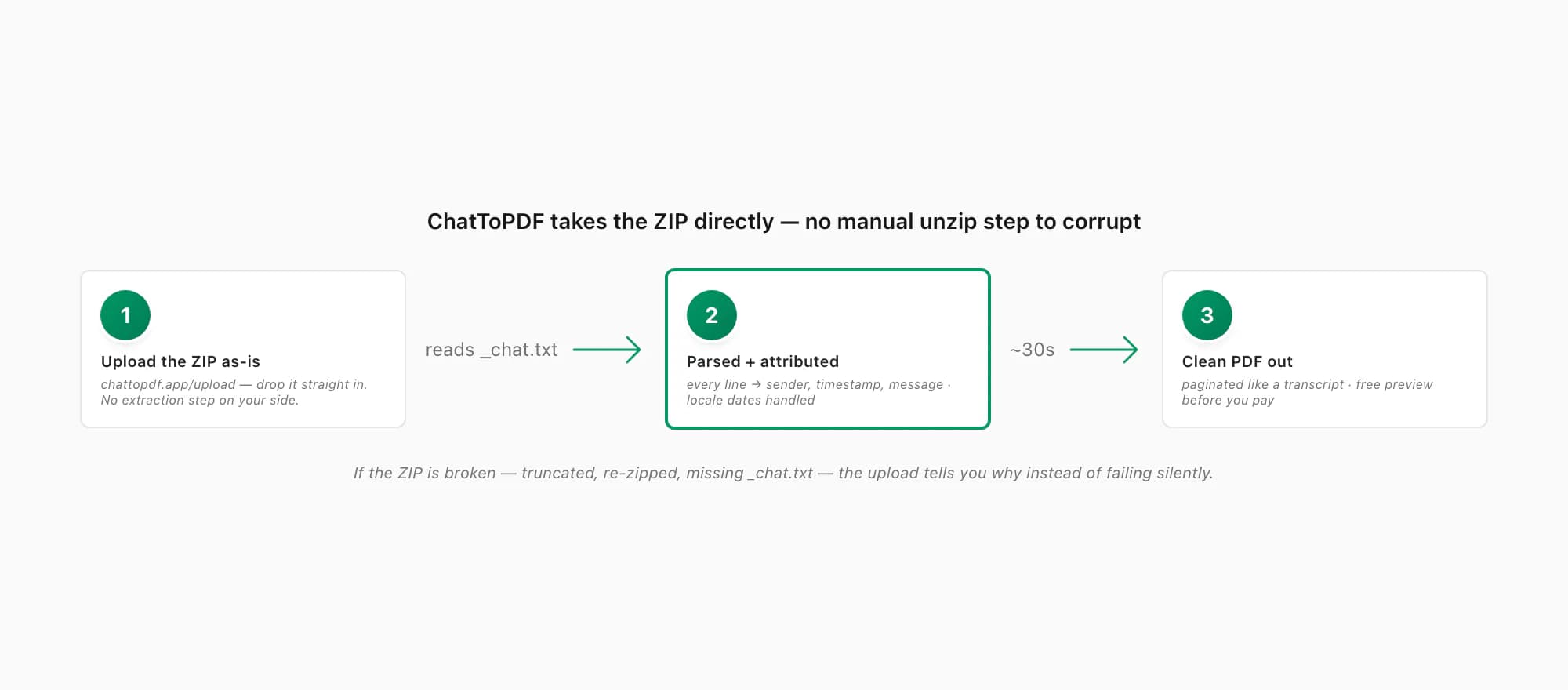
And if the ZIP is broken — truncated, re-zipped, missing _chat.txt — the upload doesn't fail silently. It tells you: "this doesn't look like a WhatsApp export", or "the ZIP is incomplete", or "no _chat.txt found inside". That's your signal to go re-pull a clean copy via Save to Files, rather than staring at a "damaged archive" error in a file manager with no idea why. The same applies on the other end of the workflow — if the PDF you eventually get won't open on the device you sent it to, that's a separate, downstream issue covered in why a WhatsApp PDF says "cannot open file"; a clean ZIP in produces a clean PDF out, every time.
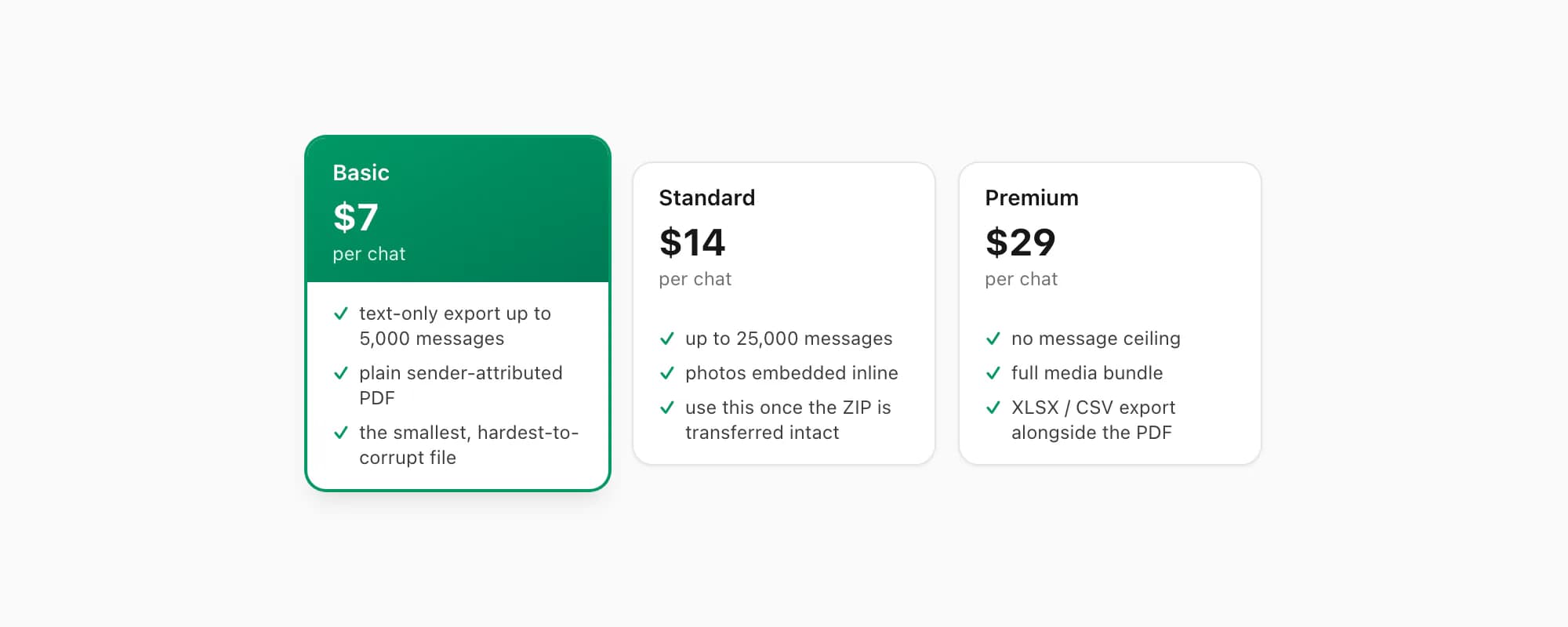
On pricing: the $7 Basic per chat conversion handles a text-only export up to 5,000 messages — the shape a Without Media ZIP usually has, and the smallest, hardest-to-corrupt file you can hand it. The $14 Standard per chat conversion handles up to 25,000 messages and embeds photos inline, so an Including Media ZIP — once you've transferred it intact — comes out as a PDF with the pictures in place rather than <Media omitted>. The $29 Premium per chat conversion removes the message-count ceiling for the very longest chats and adds an XLSX/CSV export alongside the PDF. None of these care how big the ZIP is — the size that breaks an email attachment doesn't break the upload; you get a free preview of the first ten messages before paying, so you can confirm the senders and dates look right on your specific export.
Key takeaways
- A WhatsApp export corrupted zip — won't unzip, says "damaged", or
_chat.txtis missing or empty — is almost always a broken transfer, not a broken export; the bytes that arrived aren't the bytes WhatsApp produced - The number-one cause is emailing a big ZIP: mail providers cap attachments around 20–25 MB and truncate or refuse anything larger, leaving you with a fragment of the archive
- Other causes: a silently-failed AirDrop, an interrupted cloud sync, an email client re-zipping or renaming the file, or saving the share-sheet preview instead of the actual file
- The fix: re-export, then transfer with Save to Files (iPhone), Save to Drive or a USB cable (Android) — not email for anything over ~25 MB — and don't rename or re-zip the file; check the finished ZIP size roughly matches what WhatsApp said
- A missing
_chat.txtmeans a truncated/re-zipped archive; an empty one means the export was cut off mid-write; a short one is WhatsApp's silent ~40,000-message cap, not corruption - ChatToPDF takes the WhatsApp export ZIP directly — no manual unzip step to corrupt — and a failed upload tells you why; the $7 Basic per chat conversion handles a text-only export, the $14 Standard per chat conversion handles up to 25,000 messages with photos inline
FAQ
My WhatsApp export ZIP won't open and says it's damaged — what happened?
The ZIP that arrived on your device isn't the one WhatsApp produced — something broke it in transit. The most common cause by far is emailing a big ZIP: most mail providers cap attachments around 20–25 MB, so a 200 MB Including Media export gets truncated to the cap (or bounced, or quietly turned into a Drive link), and the half-file can't be unzipped because the archive's directory lives at the very end. Other causes are a silently-failed AirDrop, an interrupted iCloud or Google Drive sync, a mail client that re-zipped or renamed the file, or saving the share-sheet preview instead of the file. The fix is to re-export the chat and transfer it a way that doesn't truncate — Save to Files on iPhone, Save to Drive or a USB cable on Android — and not rename or re-zip it afterward.
The ZIP opens but there's no _chat.txt inside — is the chat lost?
Almost certainly not — you're looking at a damaged copy, not a damaged chat. A healthy WhatsApp export ZIP always contains a file called _chat.txt (with the leading underscore), plus the media files if you picked Including Media. If _chat.txt is missing entirely, the archive was truncated or re-zipped in transit and the unzipper only recovered fragments — go back to your phone, re-export, and transfer it intact via Save to Files. If _chat.txt is present but empty, the export was cut off mid-write (often low storage) — re-export, freeing a couple of gigabytes first. The original chat on your phone is untouched either way; you just need a clean export of it.
How do I transfer a WhatsApp export ZIP without corrupting it?
Pick a transfer method with no size cap and no re-processing. On iPhone, from the share sheet after Export Chat, choose Save to Files and put it in iCloud Drive or On My iPhone — the full ZIP lands there at its real size. On Android, choose Save to Drive or save to your file manager directly; Google Drive handles a 500 MB ZIP fine and you download it later on a computer. For the very largest exports, a USB cable straight to a computer is the most reliable option of all. What corrupts ZIPs is emailing them (attachment caps truncate big ones), forwarding them through multiple mail accounts (re-zipping), or saving the Quick Look preview instead of the file. If the chat is text-only, choose Without Media first — that ZIP is tiny and effectively can't be truncated.
Does ChatToPDF need me to unzip the WhatsApp export first?
No — and that's exactly why it sidesteps this problem. ChatToPDF accepts the WhatsApp export ZIP exactly as WhatsApp produced it; you drop the ZIP straight onto the upload zone (from a computer or your phone's Files app) and it reads _chat.txt from inside, parses every line, handles the locale date format, and paginates the conversation into a clean, sender-attributed PDF. Because there's no manual extraction step on your side, there's nothing for you to corrupt. If the ZIP itself is broken — truncated, re-zipped, missing _chat.txt — the upload tells you so rather than failing silently, which is your cue to re-pull a clean copy. You get a free preview of the first ten messages before paying; the $7 Basic per chat conversion covers a text-only export, the $14 Standard per chat conversion covers up to 25,000 messages with photos embedded inline.
I'm Paul, the founder of ChatToPDF. I built it after needing a long WhatsApp conversation as a readable PDF for a legal matter. I test and document WhatsApp exports, PDF conversion, voice-note transcription, and the limits people should check before relying on the result.