
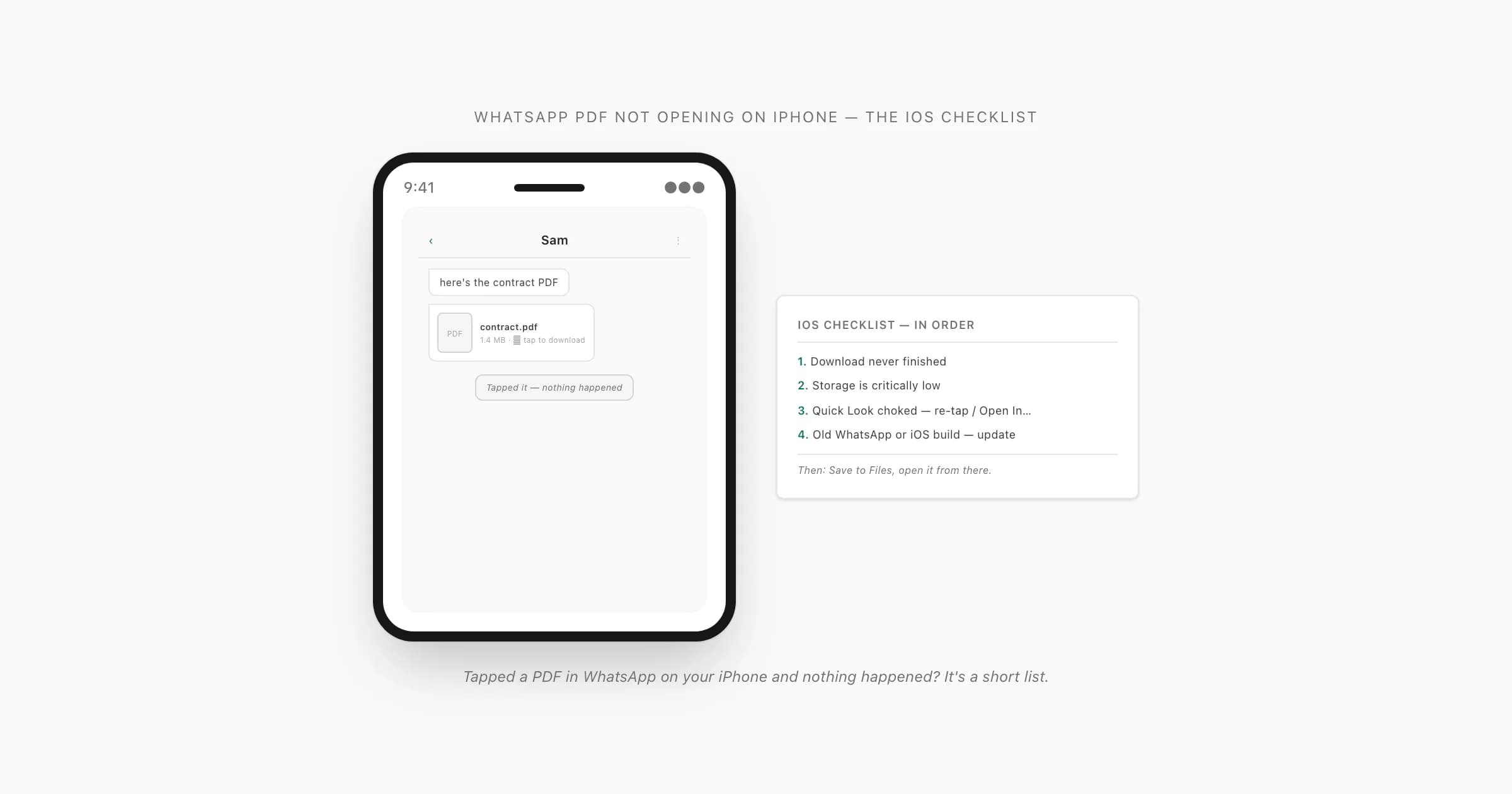
Why a WhatsApp PDF won't open on iPhone specifically
You tap a document tile in a WhatsApp chat on your iPhone and… nothing. No preview, maybe a brief spinner, then you're back in the chat. I've debugged this enough times to say it's almost never iOS being broken — it's one of a short list of causes, and iPhone has its own flavour of each.
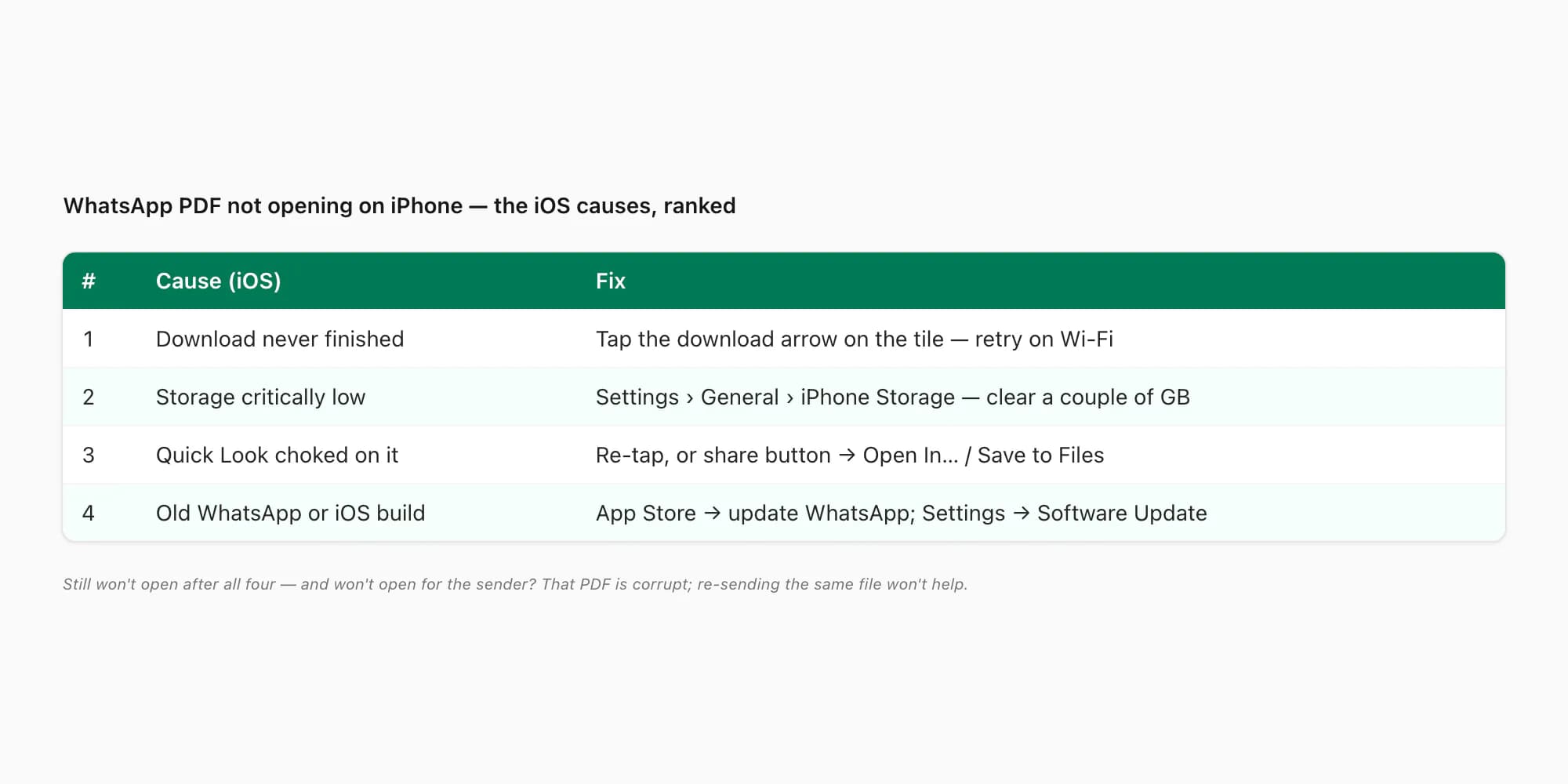
Here's the order I'd check, most common first:
- The download never finished. The tile shows a download arrow with a file size, not a red PDF page icon. WhatsApp pulled part of the file and stopped — weak signal, or you swiped away mid-download. Tap the arrow to retry on Wi-Fi, with WhatsApp in the foreground.
- Storage is critically low. iOS won't allocate the scratch memory Quick Look needs to render a multi-page PDF when the phone is sitting at near-full. This one is sneakier on iPhone than people expect.
- Quick Look choked on it. Tapping a PDF in WhatsApp opens it in iOS Quick Look. Quick Look is always available, but it can fail on a large or slightly unusual file — re-tap, or use the share button to "Open In…" another app.
- You're on an old WhatsApp or iOS build. A few document-handling bugs have shipped and been fixed in point releases of both. App Store → update WhatsApp; Settings → General → Software Update for iOS.
That covers nearly all of it. If the file genuinely won't open after all four — and won't open for the sender either when you ask them — then that specific PDF is corrupt, and re-sending the same broken file won't change anything. That's the same root issue behind a WhatsApp PDF that won't open at all, where I walk the cross-platform version of this list.
Low storage and a choked Quick Look
These two are the iPhone-specific ones, so they're worth a closer look.
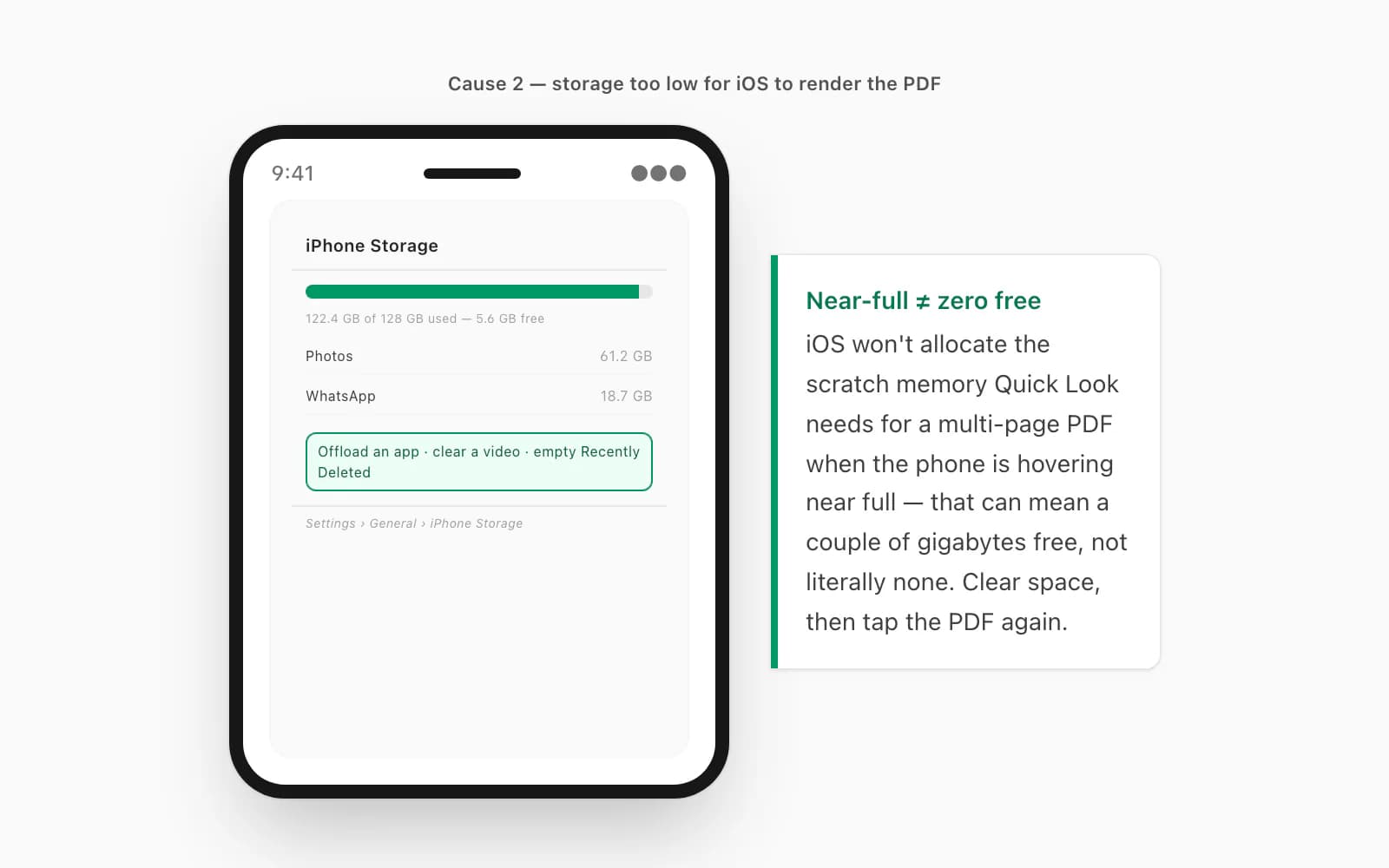
Low storage. Open Settings → General → iPhone Storage. If you're hovering near full — and "near full" can mean a couple of gigabytes free, not literally zero — clear some space: offload an app or two, delete a chunky video, empty Recently Deleted in Photos. Then go back to the chat and tap the PDF again. On a phone with breathing room, Quick Look renders it without complaint.
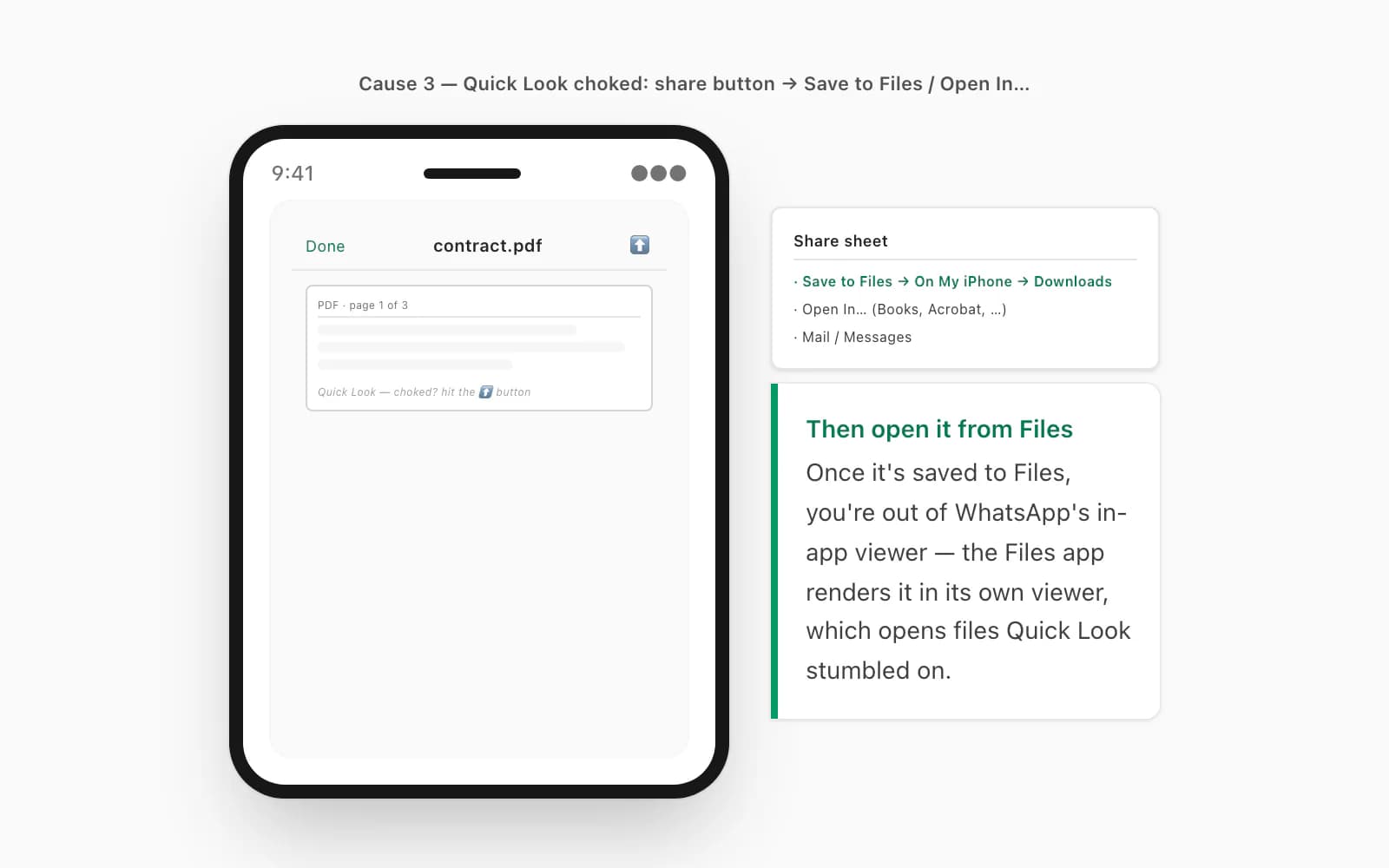
A choked Quick Look. If storage is fine and tapping still does nothing useful, hit the share button (the square-with-an-arrow) in the Quick Look top bar — or long-press the document tile in the chat. You'll get a share sheet with Save to Files, Open In…, and apps like Books or Mail. Pick "Save to Files" and choose On My iPhone → Downloads. Now the file is on disk, decoupled from WhatsApp's in-app viewer, and you can open it from the Files app — which is the move that fixes most stubborn cases. Apple's own guidance on the Files app on iPhone covers where things land and how Quick Look behaves once a file is saved there.
The Files-app fix: save it, then open it from there
This is the single most reliable move on an iPhone when a WhatsApp PDF won't cooperate: get it out of WhatsApp's sandbox and into Files.
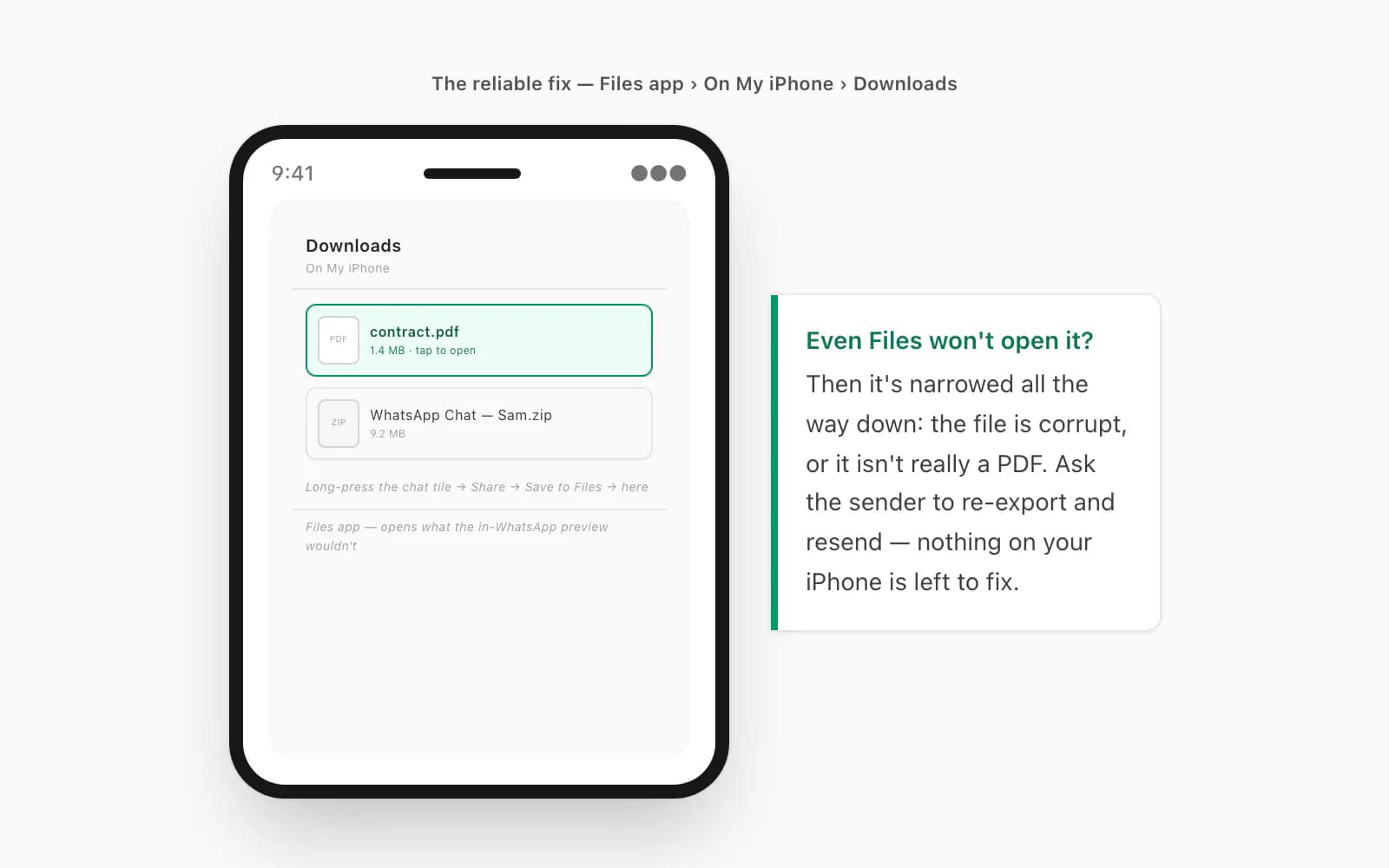
In the WhatsApp chat, long-press the document tile (or tap it, then hit the share button in Quick Look) → Share → Save to Files → On My iPhone → Downloads → Save. Now open the Files app, go to On My iPhone → Downloads, and tap the PDF there. Files renders it in its own viewer, which behaves a little differently from the in-WhatsApp Quick Look and tends to open files the in-app preview stumbled on.
If even the Files app won't open it, you've narrowed it right down: the file is corrupt, or it isn't actually a PDF (a mislabeled extension does happen). At that point ask the sender to re-export and resend — there's nothing on your iPhone left to fix.
When you want the chat itself as a PDF — and it lands in Mail
Here's the thing nobody mentions about all of the above: a lot of the time the PDF you're chasing isn't even the thing you want. You want the conversation — the WhatsApp chat — as a clean document you can keep, search, or send on. And that's a file you can produce yourself, in a way that skips every iOS failure mode above.
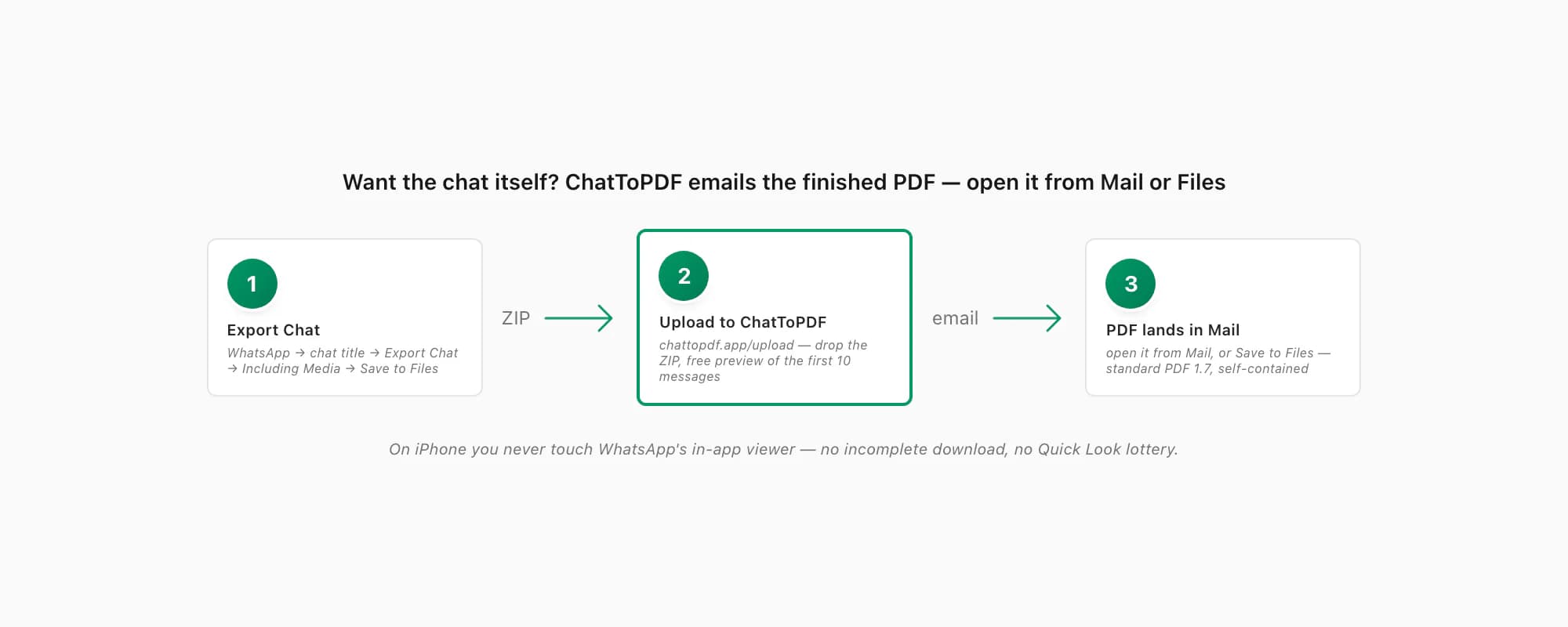
ChatToPDF emails you the finished PDF. So on your iPhone you don't fight WhatsApp's in-app viewer at all — you open the file from the Mail app, or tap "Save to Files" from the email and open it from Files. There's no incomplete-download state, no Quick Look lottery, no "is this even a PDF" guessing. The output is standard PDF 1.7 — the version every mainstream reader has supported for over a decade — and it's self-contained: messages, sender names, timestamps and inline photos all live inside the one file.
The path: in WhatsApp open the chat, tap the contact or group name at the top, scroll to Export Chat, pick Including Media so photos make it in, and save the ZIP (Save to Files is fine). Then open chattopdf.app/upload, drop the ZIP on the upload zone, and the conversion runs — the WhatsApp to PDF guide walks it end to end, and if you want the iOS-specific export steps there's export WhatsApp chat to PDF on iPhone and save WhatsApp chat as PDF on iPhone. You get a free preview of the first ten messages before paying.
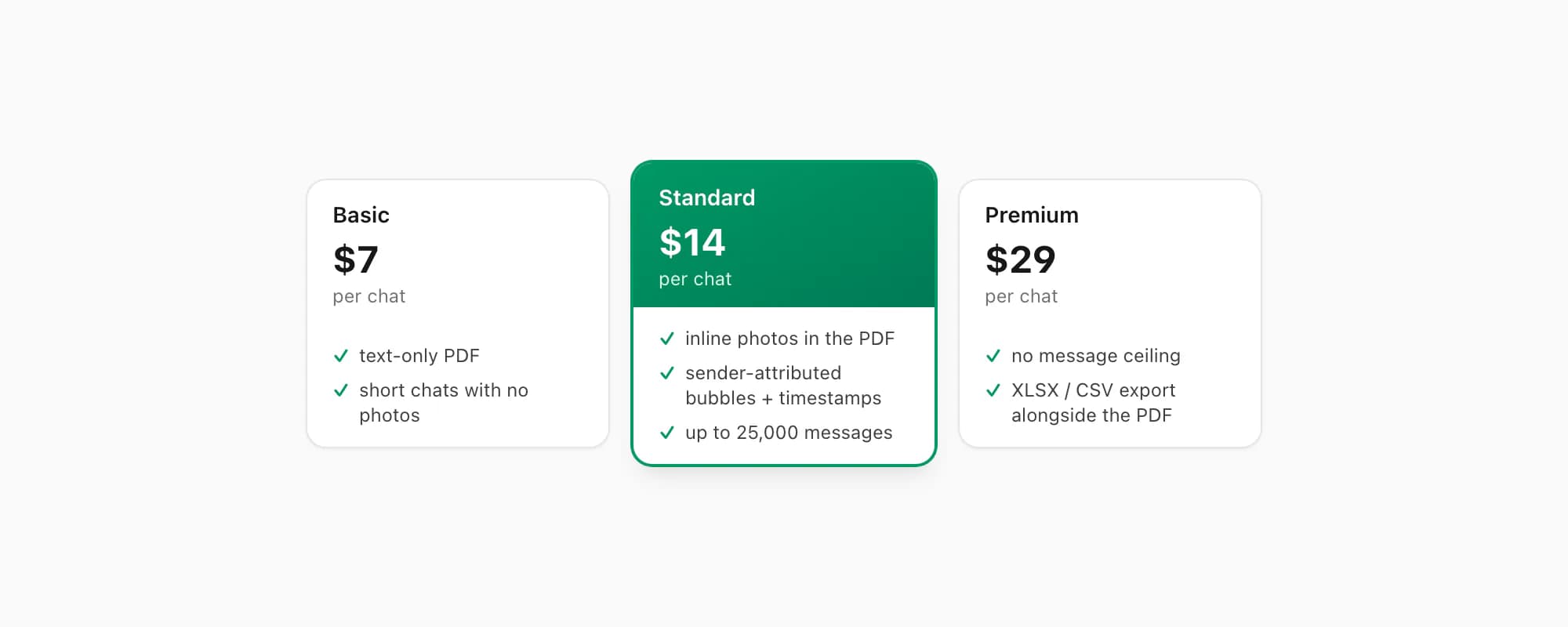
ChatToPDF charges per chat conversion — you pay for the one chat you're converting, nothing recurring. $7 Basic per chat is a text-only PDF, fine for a short chat with no photos. $14 Standard per chat renders inline photos, sender-attributed bubbles and timestamps, up to 25,000 messages — the right pick for almost every chat. $29 Premium per chat removes the message ceiling and adds an XLSX/CSV export; the pillar covers the $49 Premium+Voice per chat tier (language-aware Nova-3/Scribe v2 voice-note transcription) and the $99 Power User per chat tier (priority queue, bulk handling) if you need them. However you receive it, the PDF opens cleanly in Mail, Files, Books, Adobe Acrobat and every browser — which is the whole point of a standard format.
Key takeaways
- WhatsApp PDF not opening iphone is almost always one of four iOS things: the download never finished, storage is critically low, Quick Look choked, or you're on an old WhatsApp or iOS build — check them in that order
- The download fix: tap the download arrow on the document tile to retry on Wi-Fi, with WhatsApp in the foreground
- The iPhone-specific killer is low storage — Settings → General → iPhone Storage, clear a couple of gigabytes, then tap the PDF again so Quick Look can render it
- The single most reliable move: long-press the tile → Save to Files → On My iPhone → Downloads, then open the PDF from the Files app
- If the Files app still won't open it, the file is corrupt or isn't really a PDF — the sender needs to re-export and resend; nothing on your iPhone can fix that
- For the chat itself as a durable PDF, ChatToPDF emails you the finished file — open it from Mail or Files, never from inside WhatsApp — and the output is standard PDF 1.7, self-contained
- ChatToPDF is priced per chat — $14 Standard per chat covers almost every conversion, with $7 Basic per chat for text-only and $29 Premium per chat for no message ceiling
FAQ
Why is a WhatsApp PDF not opening on my iPhone?
In order of likelihood: the download never finished (the tile shows a download arrow, not a PDF icon — tap it to retry on Wi-Fi with WhatsApp in the foreground); your storage is so low that iOS can't allocate memory for Quick Look to render the document; Quick Look choked on a large or unusual file (re-tap, or use the share sheet's "Open In…"); or you're on an old WhatsApp or iOS build with a known document-handling bug — update both. The most reliable fix is to "Save to Files" first and open it from the Files app.
How do I open a WhatsApp PDF from the Files app on iPhone?
In the chat, long-press the document tile (or tap it, then hit the share button in Quick Look) → Share → Save to Files → On My iPhone → Downloads → Save. Then open the Files app, go to On My iPhone → Downloads, and tap the PDF there. The Files viewer behaves differently from WhatsApp's in-app Quick Look and tends to open files the in-app preview stumbled on. If even Files won't open it, the file is corrupt — the sender has to re-export and resend.
The PDF won't open for me or the sender — is it the file?
Yes. If the same PDF won't open on the sender's device either, it's corrupt or malformed — a truncated transfer or a bad export — and no reader on any iPhone can fix that. Re-sending the same file won't help; the sender needs to regenerate it. If it's a WhatsApp chat they want to share, the reliable path is to export the chat and run the ZIP through ChatToPDF, which produces a standard, self-contained PDF that arrives in your email.
Will a PDF made by ChatToPDF open on my iPhone?
Yes — it's standard PDF 1.7, supported by every mainstream reader for over a decade: the iOS Files app, Quick Look, Books, Mail, Adobe Acrobat, Chrome, Firefox, Edge, Safari and macOS Preview. ChatToPDF emails it to you, so on iPhone you open it from Mail or Files rather than from inside WhatsApp — no incomplete-download state, no Quick Look lottery. The file is self-contained: messages, sender names, timestamps and inline photos all inside it.
I'm Paul, the founder of ChatToPDF. I built it after needing a long WhatsApp conversation as a readable PDF for a legal matter. I test and document WhatsApp exports, PDF conversion, voice-note transcription, and the limits people should check before relying on the result.