
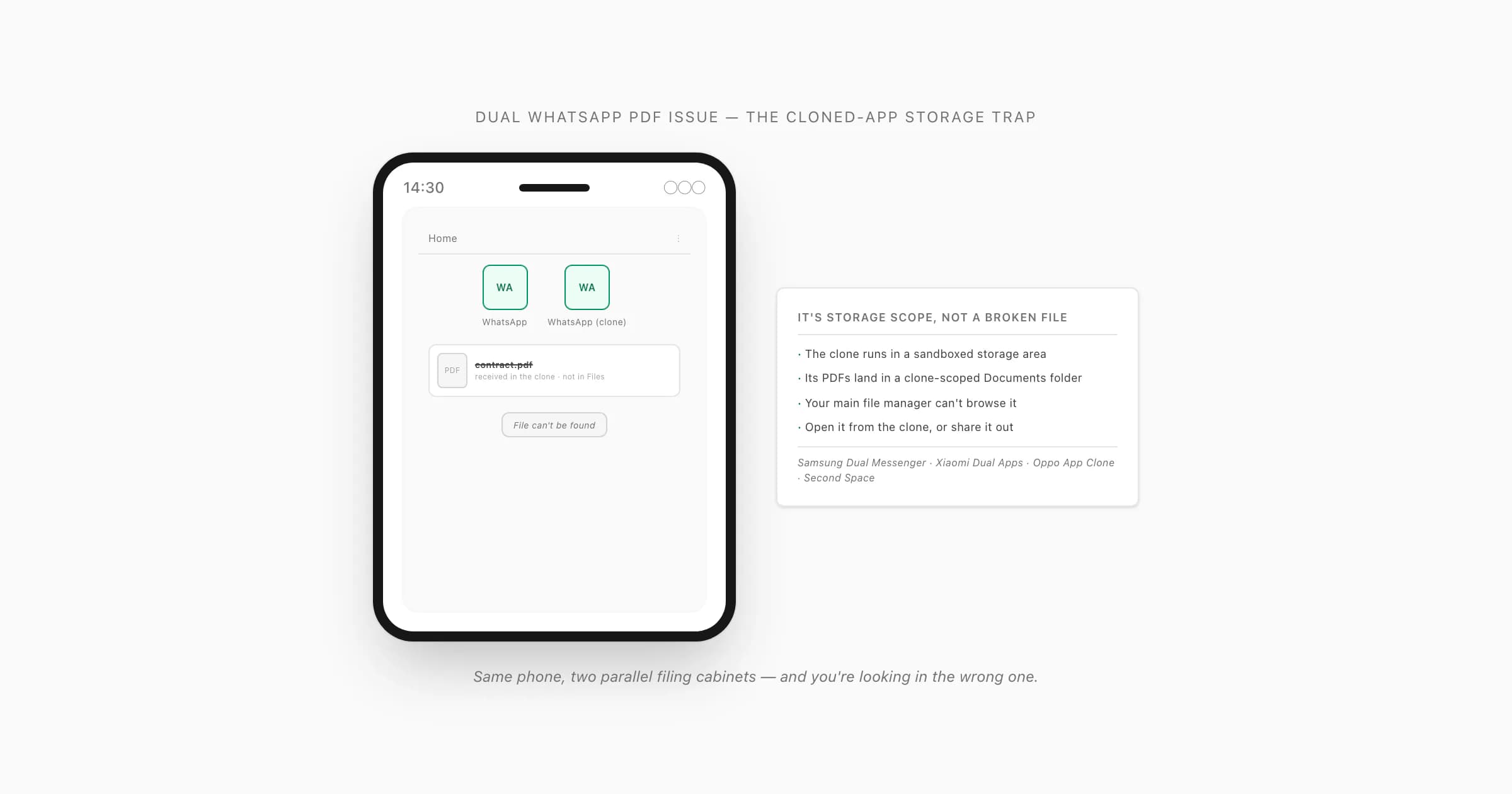
Why the PDF "disappears" — clone storage is sandboxed
I've watched this one confuse people for far longer than it should. Someone runs two WhatsApps on one phone — a personal one and a work one, cloned through the phone's built-in app-cloning feature. A PDF arrives in the second WhatsApp. They tap it and nothing opens, or they go hunting for it in their file manager later and it's just… not there. First thought: the file is corrupt, or WhatsApp lost it. It's neither. It's where the file is.
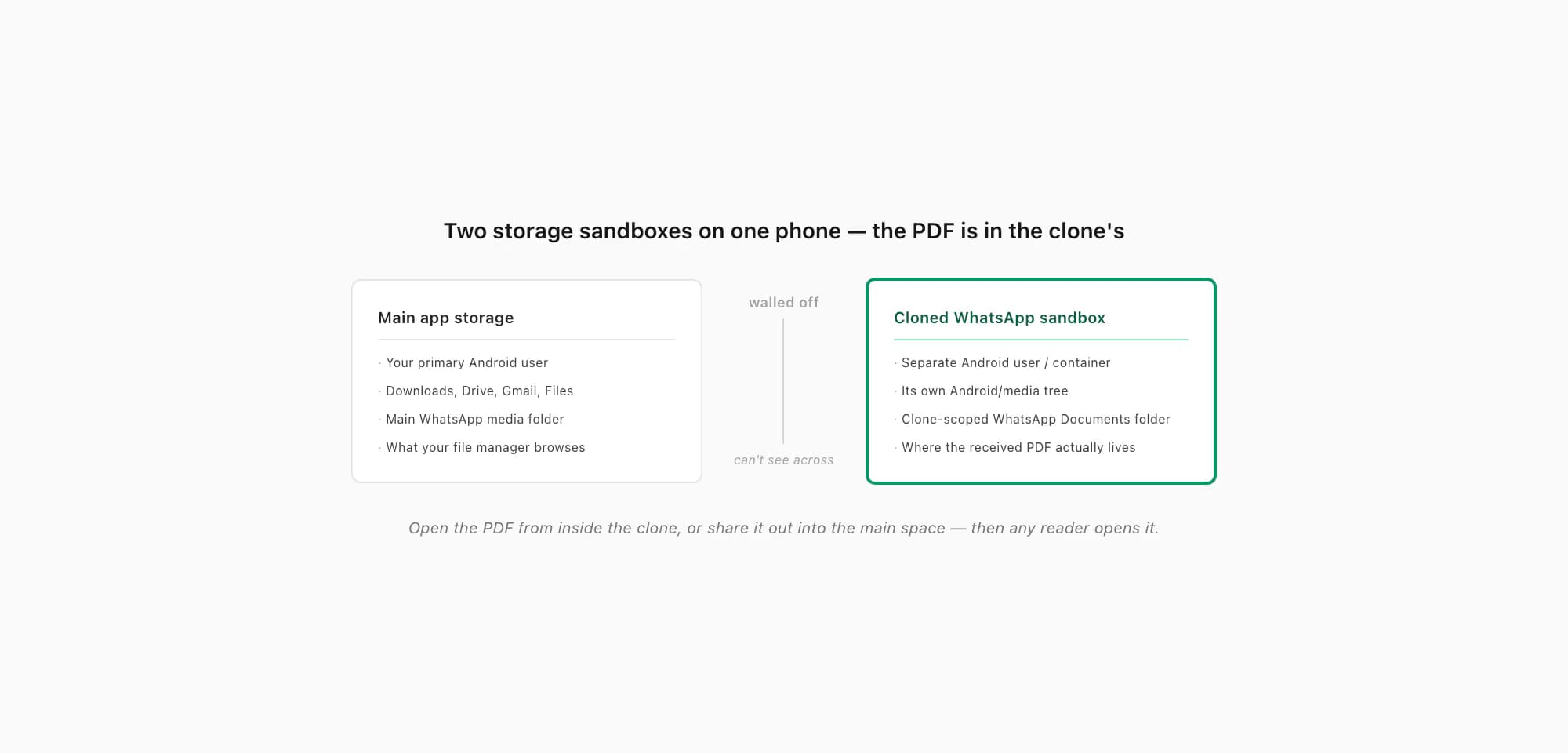
The whole dual whatsapp pdf issue comes down to one fact about app cloning: a cloned app doesn't share your phone's normal storage. Samsung's Dual Messenger, Xiaomi's Dual Apps, Oppo/Realme/Vivo's App Clone, and "Second Space" or a work profile all do the same thing under the hood — they run a second copy of the app inside an isolated storage container, often as a separate Android "user". The clone gets its own Android/media/ tree, its own Documents folder. A PDF the cloned WhatsApp downloads lands in that clone-scoped folder; your main file manager browses your primary user's storage, so it never sees it. Same phone, two parallel filing cabinets, and you're looking in the wrong one.
That's also why dual app whatsapp pdf not opening is usually a tap that does nothing rather than an error toast: the cloned WhatsApp handed the file to a PDF reader, but on many setups the reader running in your main space can't reach into the clone's sandbox to read it. Knowing that, the clone whatsapp pdf problem stops being mysterious — open the file from somewhere that can see the clone's storage, or move it out of the clone first. WhatsApp's own help on linked and additional accounts and Samsung's Dual Messenger support page both note that the second instance keeps its data separate — which is the cause and, once you know it, the cure.
Three ways to actually reach the file
There are three reliable ways to get at a PDF that's stuck inside a cloned WhatsApp. Try them in this order.
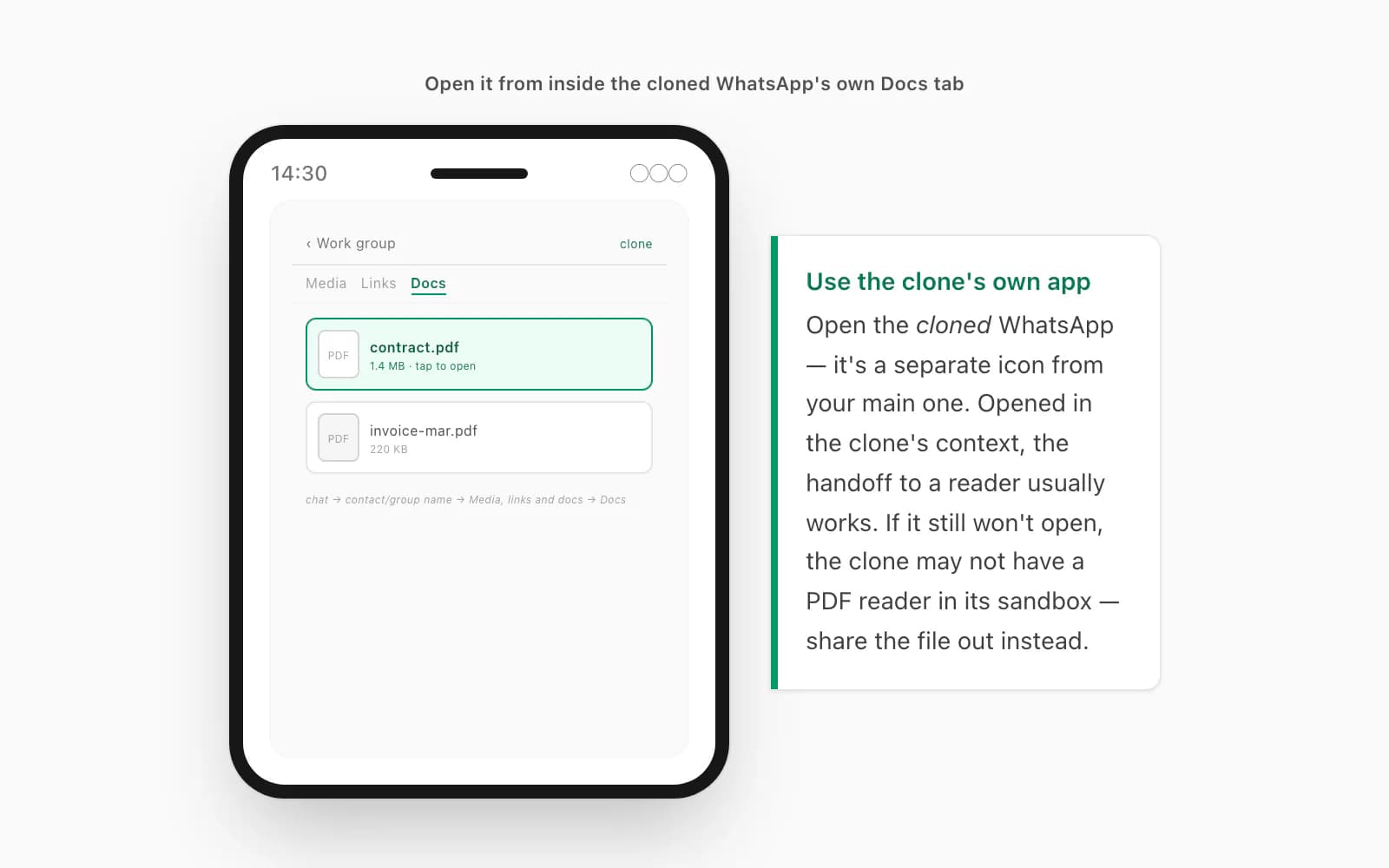
1. Open it from inside the cloned WhatsApp's own media gallery. This is the simplest one and the one people skip. Open the cloned WhatsApp (not your main one — they're separate apps with separate icons), go into the chat, tap the contact or group name → Media, links and docs → the Docs tab, and tap the PDF there. Opened from inside the clone, the file is in the clone's own context, so the handoff to a reader usually works. If it still won't open, the clone may not have a PDF reader available in its sandbox — which is what step 3 fixes.
2. Use the OEM's "dual apps" file-manager view. Most phones that offer cloning also expose a way to browse the clone's storage. On Xiaomi, the Mi File Manager has a "Dual apps" entry; on Samsung, files inside Dual Messenger / Secure Folder are reachable through that feature's own file picker; Oppo/Realme/Vivo file managers have an "App Clone" or "Clone" storage section. From there you can find the cloned WhatsApp's Documents folder (it'll be under something like Android/media/com.whatsapp/WhatsApp/Media/WhatsApp Documents inside the clone's space) and open the PDF, or copy it out.
3. Share the file out of the clone into your main space. This is the bulletproof one. In the cloned WhatsApp, long-press the PDF document tile (or open it from the Docs tab) and use Share → Save to Files / Save to Drive / send it to your main WhatsApp or your own email. Once the file lands in your primary storage — Downloads, Drive, Gmail — any reader on the phone opens it normally. On Samsung, the Secure Folder / Dual Messenger move-out option does the same thing: it copies the file from the secure container into your standard storage. If a particular PDF still won't open after it's in your main space, then it's a file problem, not a clone problem — the broader "WhatsApp won't open a PDF" checklist covers that, and if it's opening in the wrong reader it's a default-app question.
Where cloned-app files live, per OEM
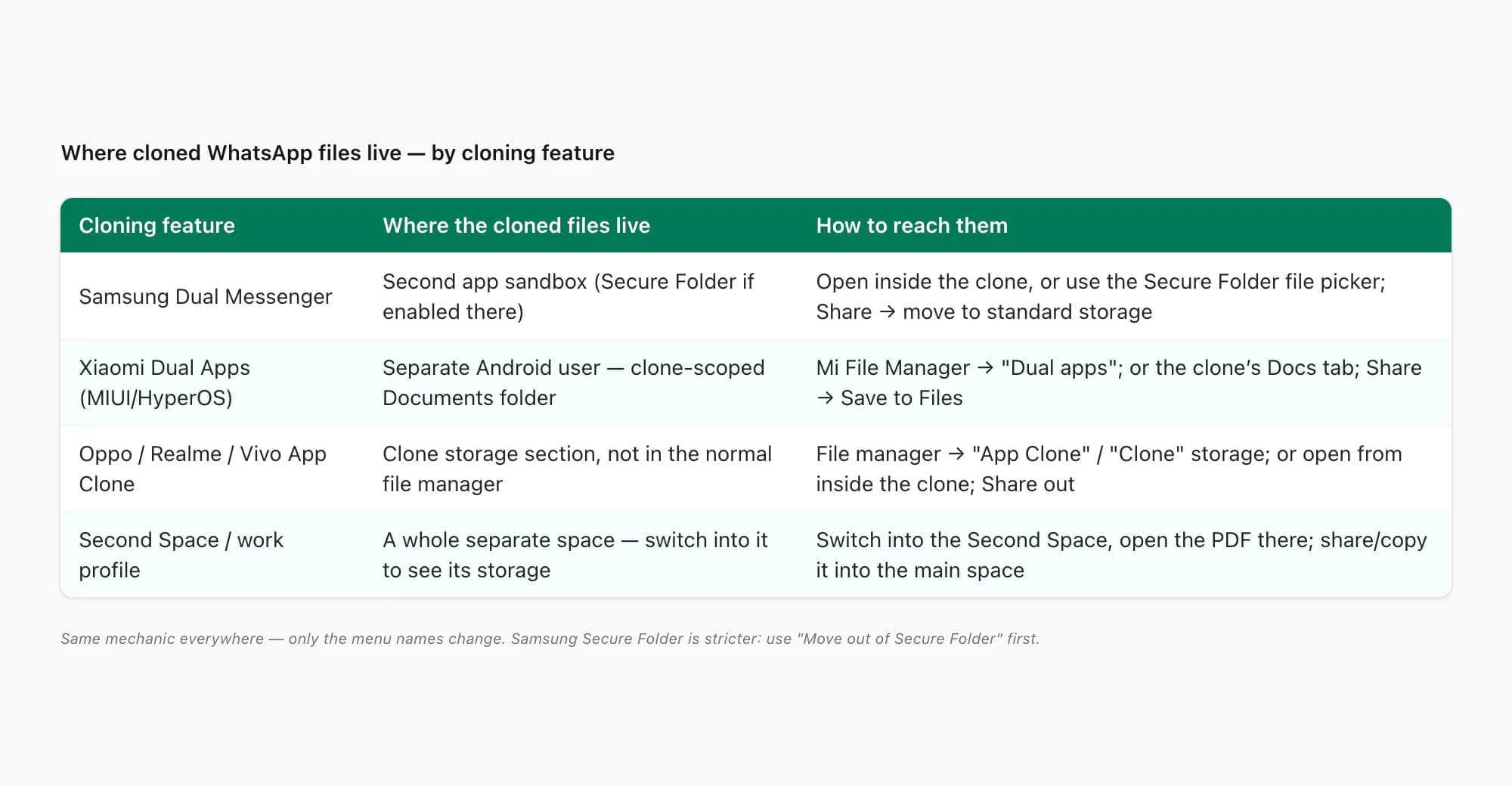
The mechanic is the same everywhere; the menu names aren't. Here's the map.
- Cloning feature
- Samsung Dual Messenger
- Where cloned WhatsApp files live
- Second app's own sandbox (Secure Folder when enabled there)
- How to reach them
- Open it inside the cloned WhatsApp, or use the Secure Folder / Dual Messenger file picker; Share → move to standard storage
- Cloning feature
- Xiaomi Dual Apps (MIUI/HyperOS)
- Where cloned WhatsApp files live
- Separate Android user — clone-scoped Documents folder
- How to reach them
- Mi File Manager → "Dual apps" section; or open from the cloned WhatsApp's Docs tab; Share → Save to Files
- Cloning feature
- Oppo / Realme / Vivo App Clone
- Where cloned WhatsApp files live
- Clone storage section, not browsable from the normal file manager
- How to reach them
- File manager → "App Clone" / "Clone" storage; or open from inside the cloned WhatsApp; Share out to main space
- Cloning feature
- Second Space / work profile
- Where cloned WhatsApp files live
- A whole separate space — switch into it to see its storage
- How to reach them
- Switch into the Second Space (or work profile), open the PDF there; share/copy it into the main space to use it elsewhere
| Cloning feature | Where cloned WhatsApp files live | How to reach them |
|---|---|---|
| Samsung Dual Messenger | Second app's own sandbox (Secure Folder when enabled there) | Open it inside the cloned WhatsApp, or use the Secure Folder / Dual Messenger file picker; Share → move to standard storage |
| Xiaomi Dual Apps (MIUI/HyperOS) | Separate Android user — clone-scoped Documents folder | Mi File Manager → "Dual apps" section; or open from the cloned WhatsApp's Docs tab; Share → Save to Files |
| Oppo / Realme / Vivo App Clone | Clone storage section, not browsable from the normal file manager | File manager → "App Clone" / "Clone" storage; or open from inside the cloned WhatsApp; Share out to main space |
| Second Space / work profile | A whole separate space — switch into it to see its storage | Switch into the Second Space (or work profile), open the PDF there; share/copy it into the main space to use it elsewhere |
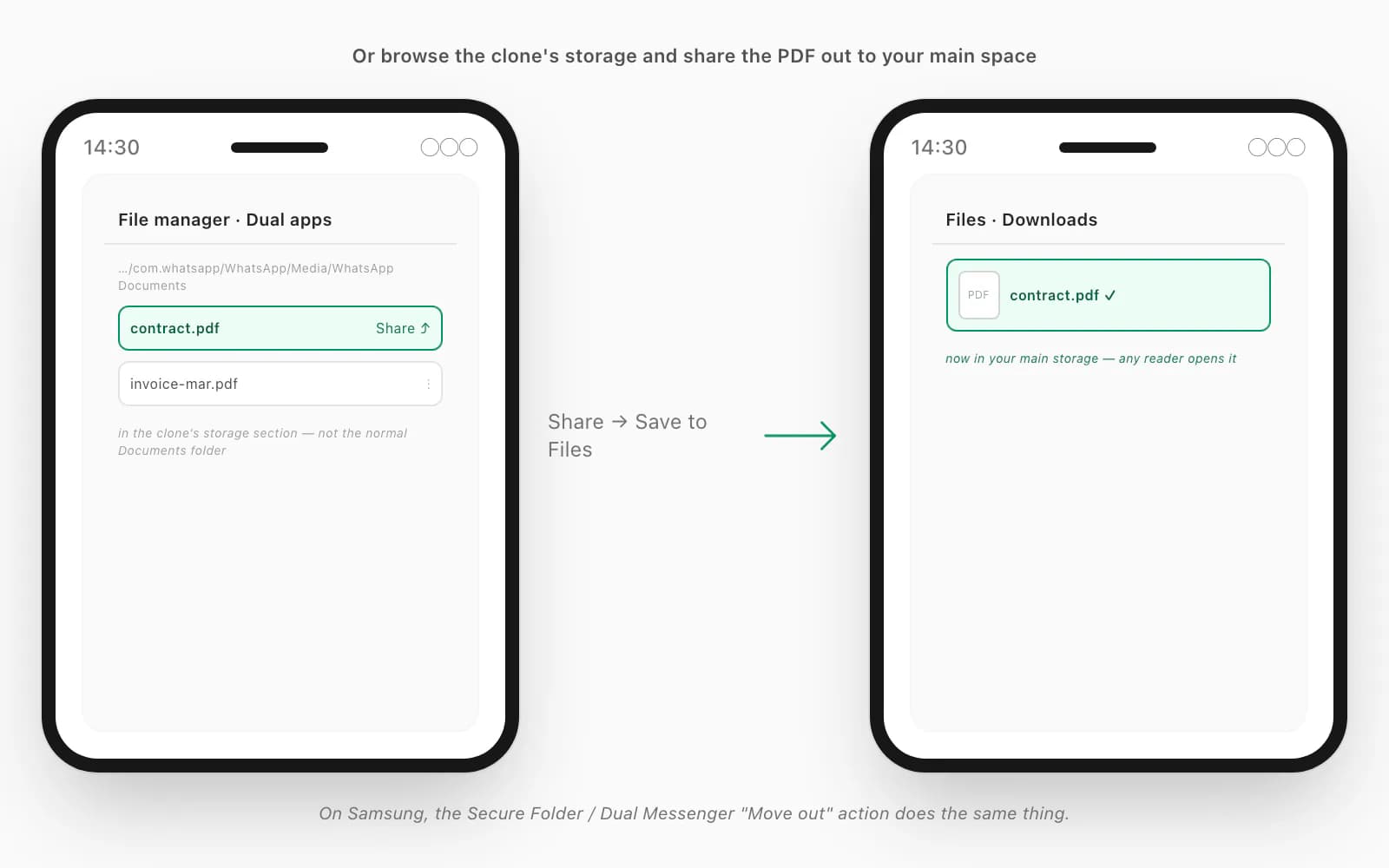
One caveat worth saying out loud: if you've put your second WhatsApp inside Samsung's Secure Folder, the isolation is stricter still — files in Secure Folder are encrypted and apps outside it genuinely can't read them. You have to use Secure Folder's own "Move out of Secure Folder" action on the file before anything else on the phone can touch it. That's by design; it's the same wall that keeps Secure Folder useful, and the same one covered alongside the MIUI traps in the Xiaomi / MIUI PDF page. Xiaomi's own Dual Apps help walks the MIUI side if you want the official wording.
When you want the chat itself — ChatToPDF emails the PDF
Here's the part nobody tells you about all of the above: a lot of the time, the PDF you're chasing isn't even the thing you want. You want the conversation in that cloned WhatsApp — the chat — as a clean document you can keep, search, or send to a solicitor. And that's a file you can produce yourself, from inside the clone, in a way that walks straight past the sandbox.
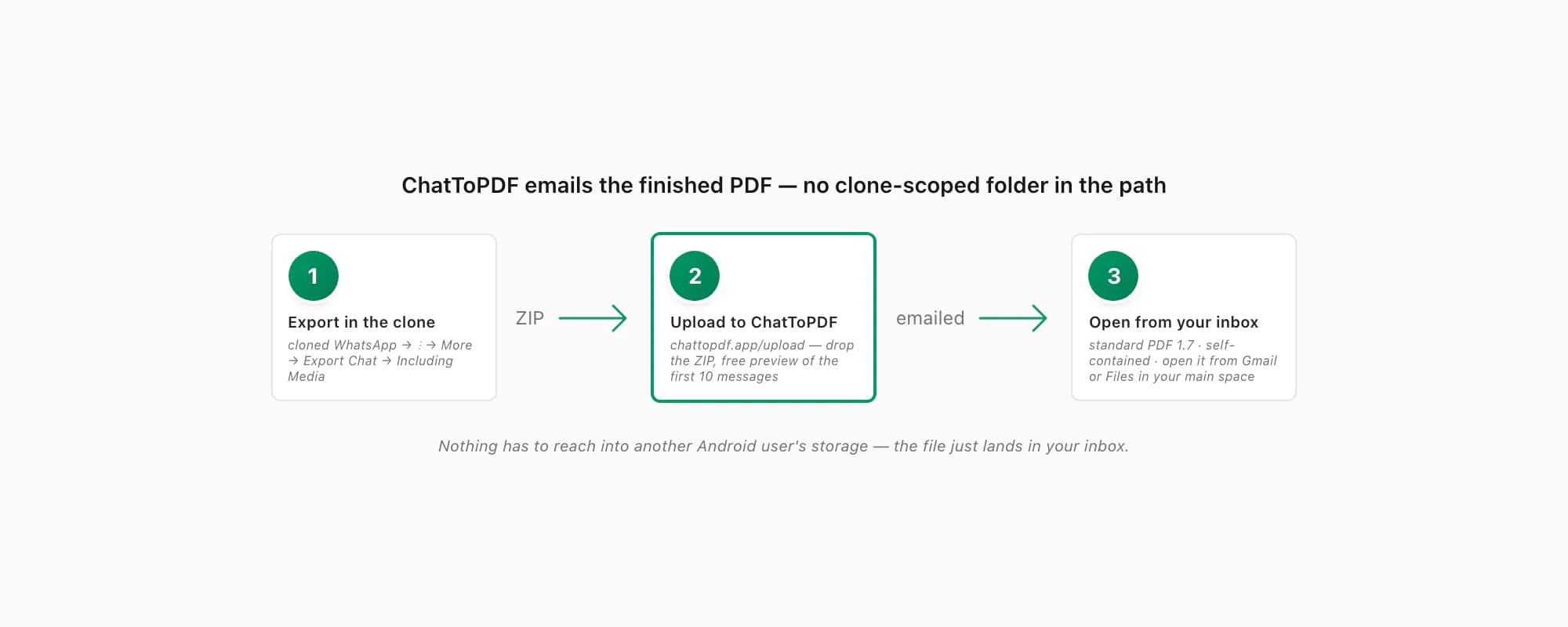
The reason it walks past it is simple: ChatToPDF emails you the finished PDF. The conversion runs on a server; the file arrives as a link in your inbox — the inbox you read from your main space, your normal Gmail or Mail app. There's no clone-scoped Documents folder anywhere in the path; nothing has to reach into another Android user's storage. You open the PDF from Gmail or Files, the same as any other attachment. And the output is standard PDF 1.7 — the ISO-standardised version every mainstream reader has handled for over a decade — self-contained, with messages, sender names, timestamps and inline photos all inside the one file.
The path is short, and it all happens on the phone. In the cloned WhatsApp, open the chat, tap the three-dot menu (⋮) → More → Export Chat, pick Including Media so photos make it in, and save the ZIP — saving it to Files or Drive from the share sheet is fine, and that step also drops the ZIP into your main storage. Then open chattopdf.app/upload, drop the ZIP on the upload zone, enter your email, and the conversion runs — the WhatsApp to PDF guide walks the whole thing end to end, and there's a free preview of the first ten messages before you pay anything.
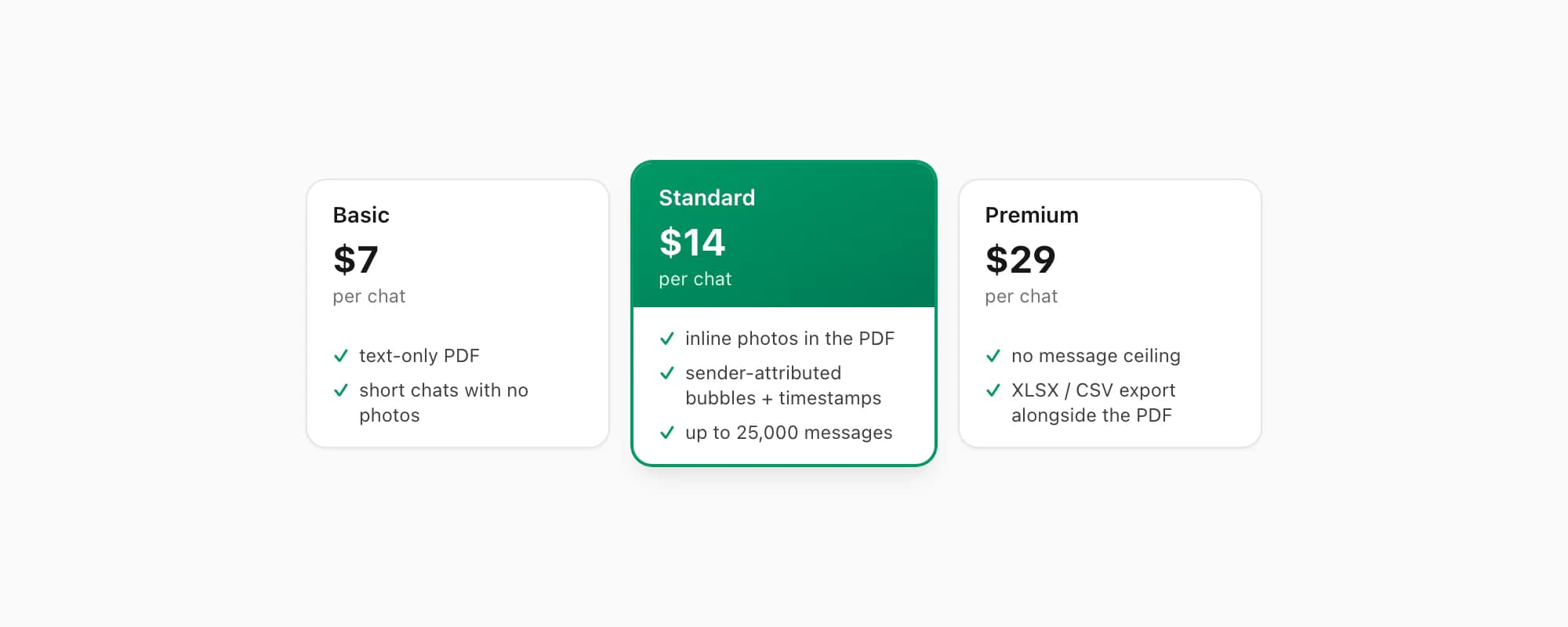
ChatToPDF charges per chat conversion — you pay for the one chat you're converting, nothing recurring. $7 Basic per chat is a text-only PDF, fine for a short chat with no photos. $14 Standard per chat renders inline photos, sender-attributed bubbles and timestamps, up to 25,000 messages — the right tier for almost every chat. $29 Premium per chat removes the message ceiling and adds an XLSX/CSV export alongside the PDF; the pillar covers the $49 Premium+Voice per chat tier (language-aware Nova-3/Scribe v2 voice-note transcription) and the $99 Power User per chat tier (priority queue, bulk handling) if you need them. The output lands in your inbox and opens everywhere — which is rather the point on a phone where half your storage is walled off from the other half.
Key takeaways
- The dual WhatsApp PDF issue is a storage-scope problem, not a corrupt file — a cloned WhatsApp (Samsung Dual Messenger, Xiaomi Dual Apps, Oppo/Realme/Vivo App Clone, Second Space, work profile) keeps its files in an isolated sandbox your main file manager can't browse
- A PDF received in the cloned WhatsApp saves to a clone-scoped Documents folder, so from the primary side it looks "missing" — and tapping it can fail because a reader in your main space can't reach into the clone's storage
- Three fixes, in order: open the PDF from inside the cloned WhatsApp's own Docs tab; use the OEM's "dual apps" file-manager view to browse the clone's storage; or share the file out of the clone into your main space (Downloads / Files / Drive / email)
- Samsung Secure Folder is stricter — files there are encrypted; use "Move out of Secure Folder" on the file before anything outside can read it
- If a PDF still won't open after it's in your main storage, it's a file problem, not a clone one — the general "WhatsApp won't open a PDF" checklist applies
- If you want the chat itself as a PDF, ChatToPDF emails the finished file to whatever address you give it — no clone-scoped folder in the path; you open it from Gmail or Files in your main space; output is standard PDF 1.7, self-contained
- ChatToPDF is priced per chat — $14 Standard per chat covers almost every conversion, with $7 Basic per chat for text-only and $29 Premium per chat for no message ceiling
FAQ
Why does a PDF received in my cloned WhatsApp look missing on my phone?
Because the clone has its own sandboxed storage. Samsung Dual Messenger, Xiaomi Dual Apps, Oppo/Realme/Vivo App Clone, Second Space and work profiles all run the second WhatsApp inside an isolated storage container — often a separate Android user — with its own Documents folder. A PDF that clone downloads saves there, and your normal file manager only browses your primary storage, so it never sees it. The file isn't lost; it's in the clone's filing cabinet, not the main one. Open it from inside the cloned WhatsApp, or move it into your main space.
Dual app WhatsApp PDF not opening when I tap it — how do I fix it?
First open the PDF from inside the cloned WhatsApp itself: the chat → contact/group name → Media, links and docs → Docs tab → tap the file. Opened in the clone's own context the handoff usually works. If it still won't open, the clone may not have a PDF reader available in its sandbox — so share the file out instead: long-press the document tile → Share → Save to Files / Save to Drive / send to your main email. Once it's in your primary storage, any reader on the phone opens it normally.
Where is the cloned WhatsApp's Documents folder on Samsung, Xiaomi and Oppo?
It lives inside the clone's storage area, not your main one. On Xiaomi, the Mi File Manager has a "Dual apps" section that browses it; the clone's path looks like Android/media/com.whatsapp/WhatsApp/Media/WhatsApp Documents inside that space. On Samsung, files in Dual Messenger / Secure Folder are reachable through that feature's own file picker. On Oppo/Realme/Vivo, the file manager has an "App Clone" or "Clone" storage section. If you don't need to browse it, the easiest route is just to Share the PDF out of the cloned WhatsApp into your main storage.
Does ChatToPDF work around the cloned-app storage problem?
Yes — because ChatToPDF emails you the finished PDF rather than relying on a file sitting in the clone's sandbox. From inside the cloned WhatsApp you export the chat (three-dot menu → More → Export Chat → Including Media), save the ZIP, upload it at chattopdf.app/upload and enter your email; the conversion runs on a server and the PDF arrives as a link in your inbox, which you open from Gmail or Files in your main space. There's no clone-scoped Documents folder anywhere in that path. The output is standard PDF 1.7, self-contained with messages, sender names, timestamps and inline photos inside the one file.
I'm Paul, the founder of ChatToPDF. I built it after needing a long WhatsApp conversation as a readable PDF for a legal matter. I test and document WhatsApp exports, PDF conversion, voice-note transcription, and the limits people should check before relying on the result.