
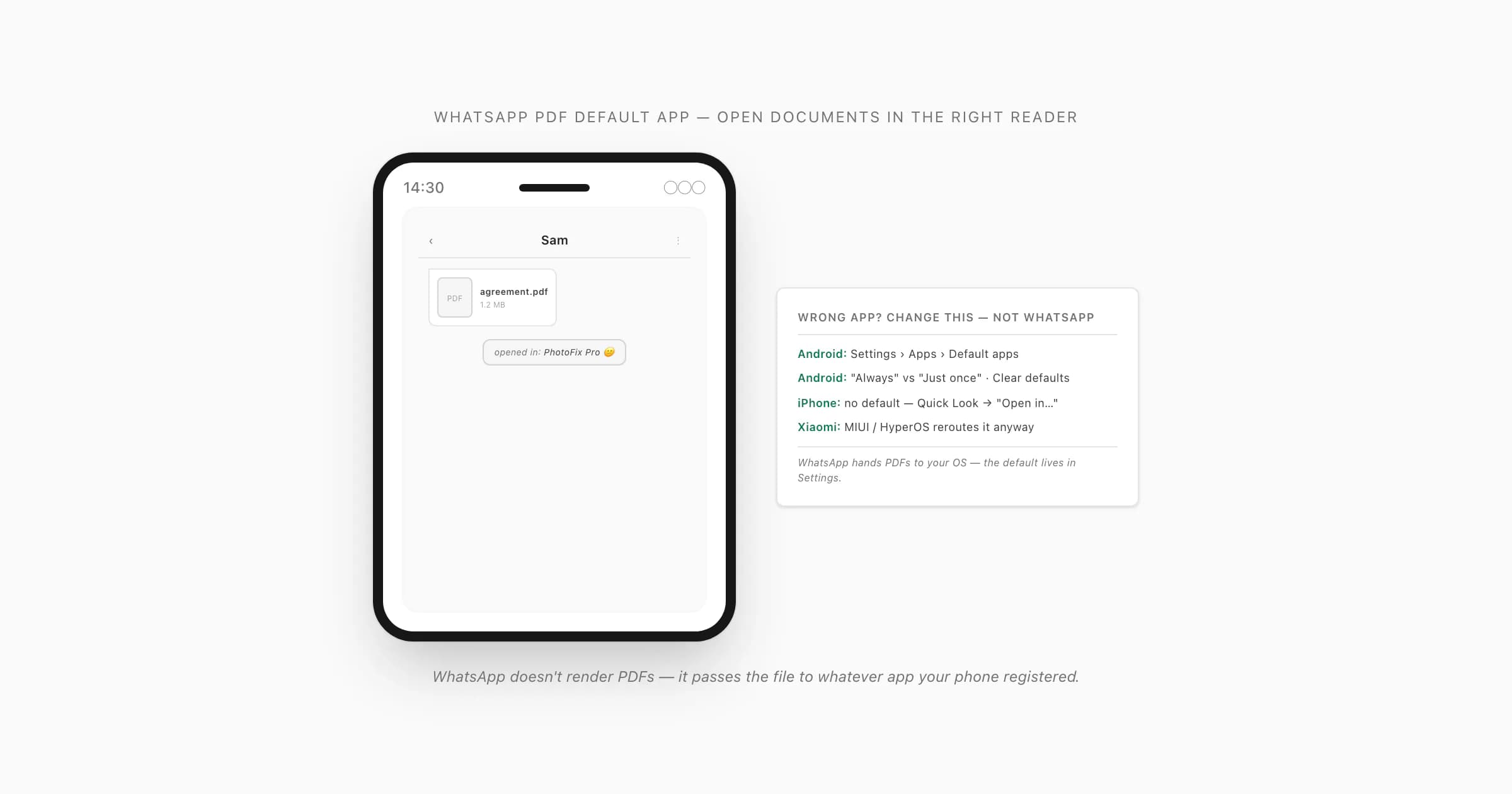
Why WhatsApp opens PDFs in the wrong app
On Android, tapping a downloaded document tile hands the file to an app registered for application/pdf. So when a PDF opens in an unwanted viewer, a photo editor, or an “Open with” prompt every time, the phone's app association is usually responsible. The whole WhatsApp PDF default app problem is mostly a “which app did Android pick?” problem.
That distinction matters because it tells you where to go. There is no mobile WhatsApp toggle that chooses an Android PDF reader. On iPhone, there is no system-wide PDF default to point anywhere, so the move is different.
Desktop is now a separate case. Adobe documents an integrated Acrobat PDF workflow for WhatsApp Web in Chrome/Edge and the Windows app, but not for mobile or the macOS desktop app. If your problem is on Web or Windows, use the platform matrix in WhatsApp not opening PDF instead of resetting an Android default.
Android — set the WhatsApp PDF default app
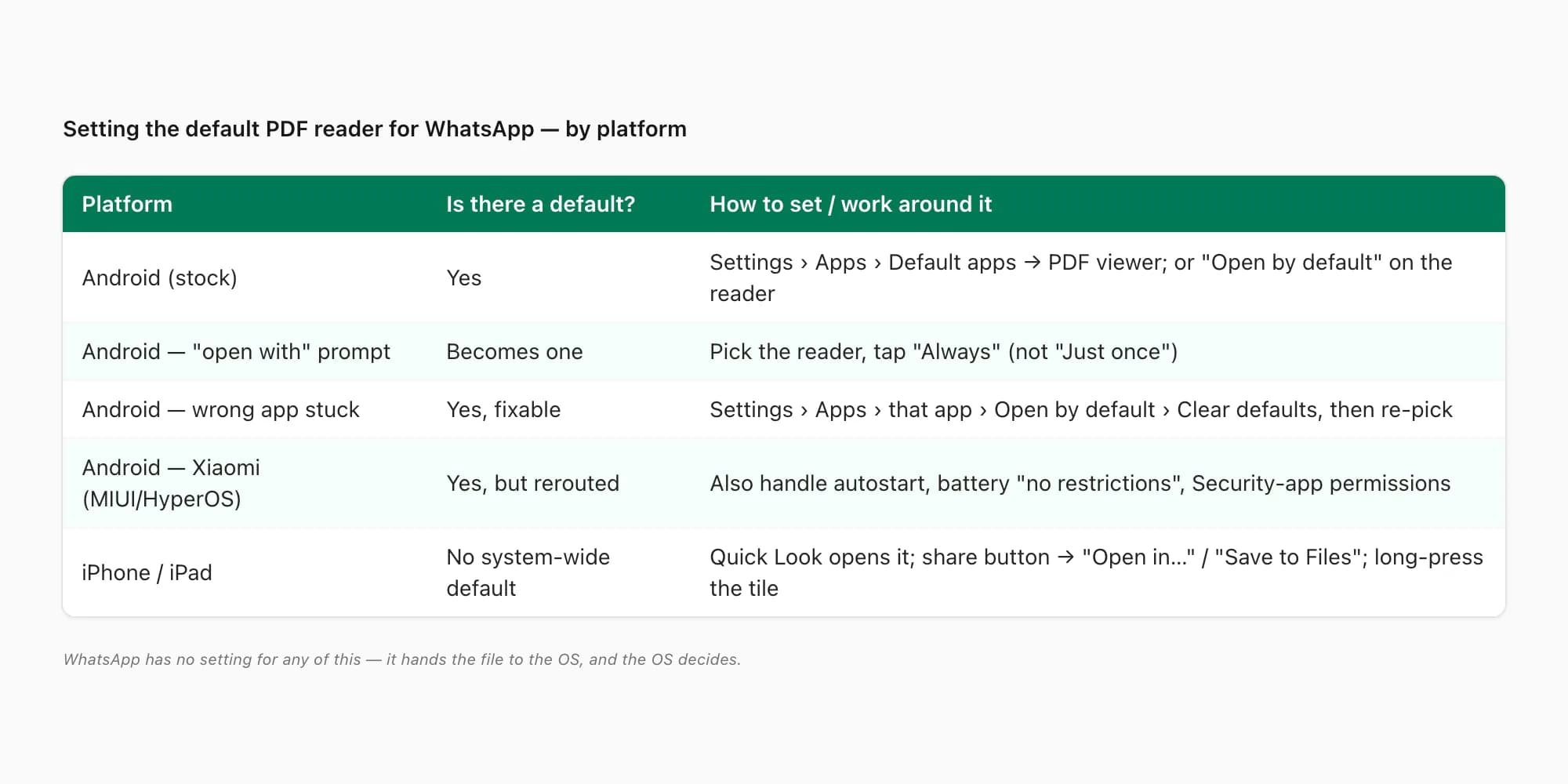
On Android, every file type can have a default app, and PDFs are no exception. To change the default pdf app whatsapp uses, you go to Settings → Apps → Default apps. The exact label drifts between manufacturers — "Default apps", "Choosing default apps", "Apps by default" — but it's always under Apps. Some skins surface a "PDF" or "PDF viewer" entry directly; on stock-ish Android you may instead need to open the app you want (Google Drive's PDF viewer, Adobe Acrobat, your file manager, Files by Google) and find its "Open by default" / "Set as default" screen, then tell it to handle PDF links.
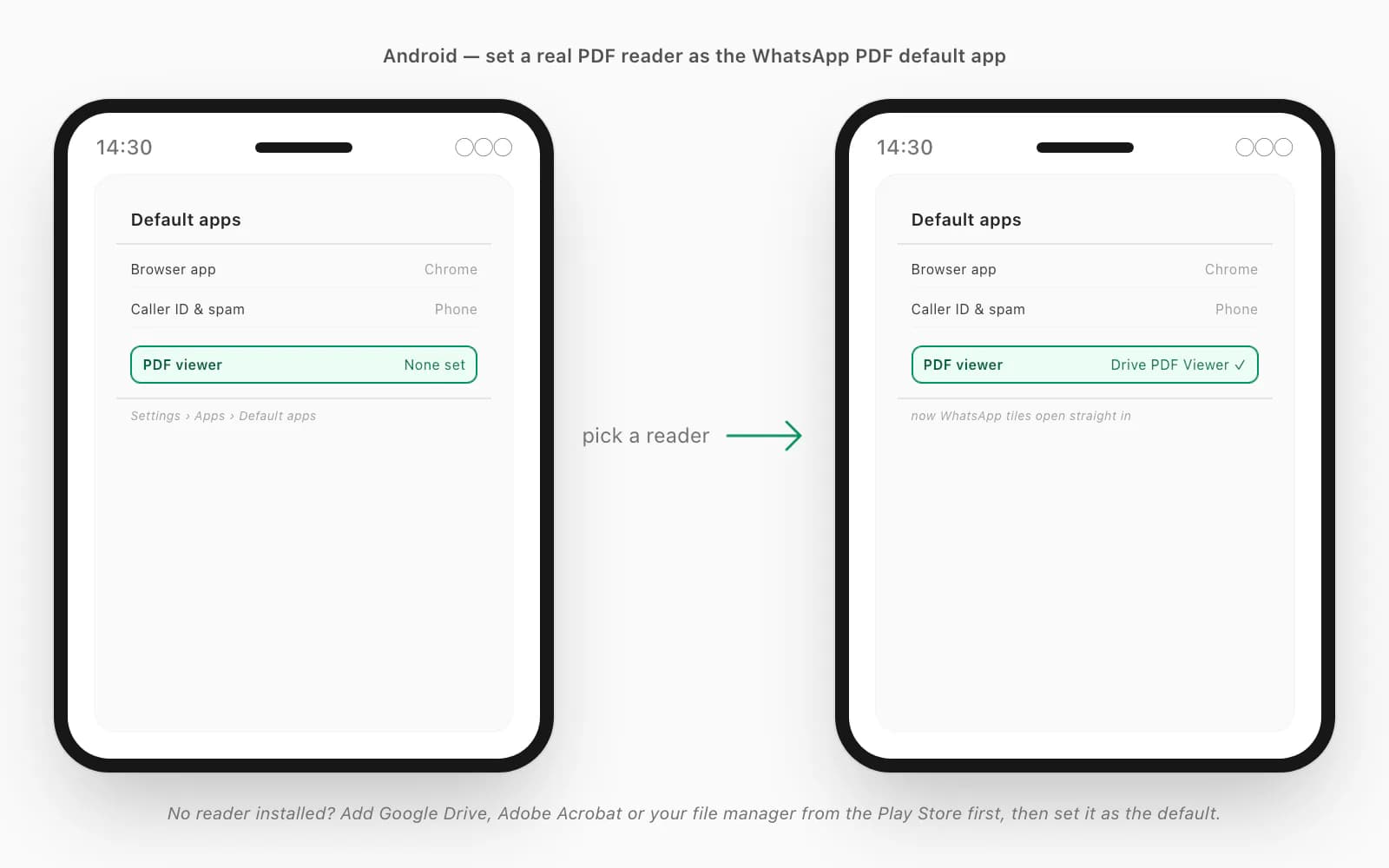
A few notes from doing this enough times. First, if no app is registered at all, install a real reader from the Play Store before you go looking — there's nothing to pick from an empty list. Second, the safe choices are the boring ones: Google Drive's built-in viewer, Adobe Acrobat Reader, or your phone's own file manager. A flashy free "PDF reader" you grabbed in a hurry is exactly the kind of app that grabs the association and then nags you with ads — clearing it and picking a known-good reader is the cure. Google's own default apps help page walks the generic path; the per-OEM wording on top of it is the only thing that changes. Once a real reader is the default, tapping a PDF tile in WhatsApp opens it straight in that reader, no prompt.
The "Always" vs "Just once" prompt, and clearing a default
This is the bit people get tripped up by. When more than one app can open a PDF and none is set as the default, Android shows an "open with" sheet with two buttons at the bottom: Just once and Always. Tap "Just once" and you'll get the same sheet next time. Tap "Always" and Android quietly writes that app in as the permanent default — which is great if you picked the right reader, and a nuisance if you fat-fingered the wrong one.
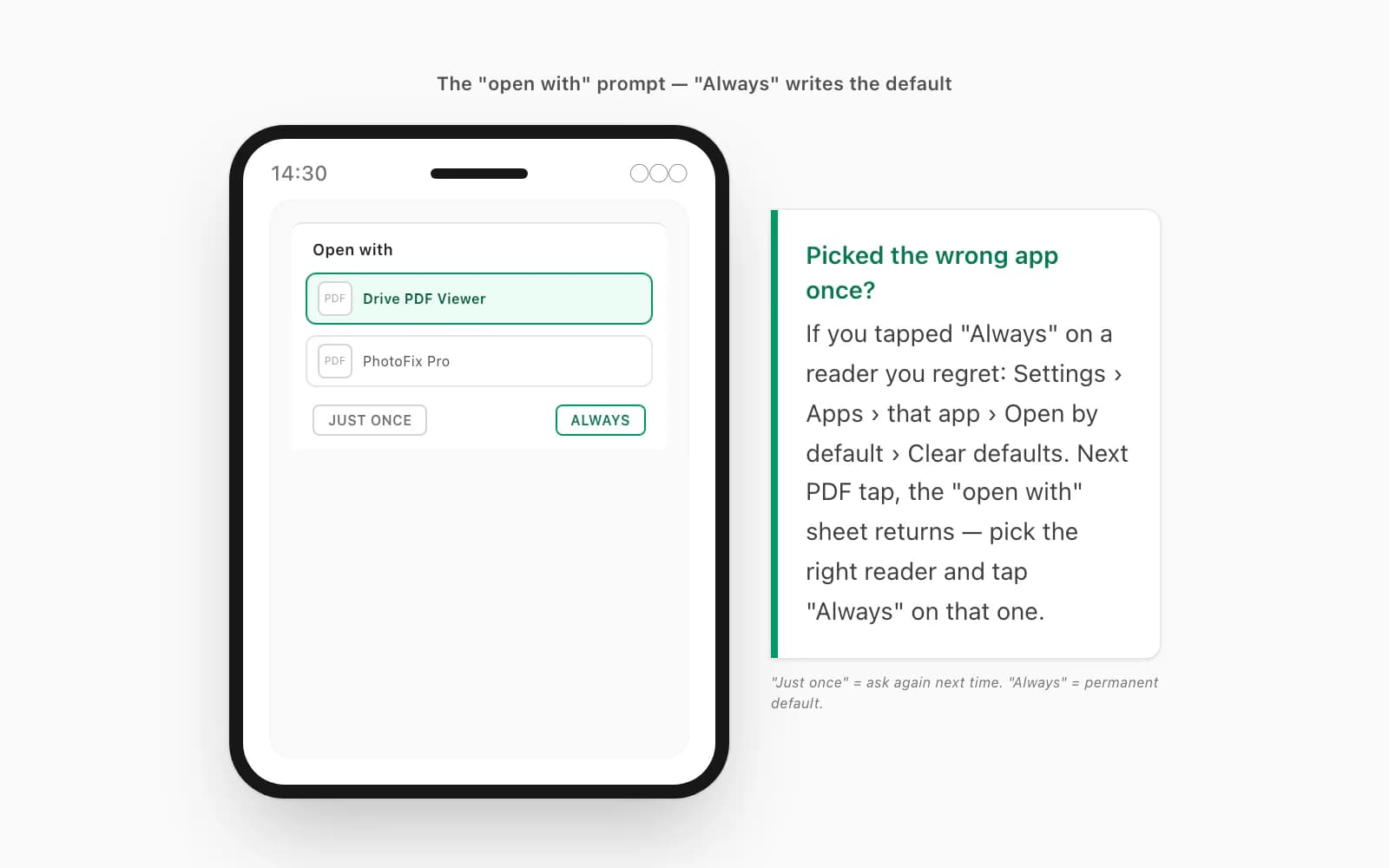
So: if WhatsApp opens pdf with wrong app because you once tapped "Always" on something you regret, you don't have to live with it. Go to Settings → Apps, find that app, open its "Open by default" screen, and tap "Clear defaults" (sometimes "Clear default preferences"). That wipes the association. The next time you tap a PDF in WhatsApp, the "open with" sheet returns — and now you can pick the reader you actually want and tap "Always" on that one. It's a thirty-second fix that I wish more people knew about, because the alternative is a lot of muttering at the wrong app every time a document lands.
iPhone — there is no default, so route the share sheet
iOS works completely differently, and this is where the confusion is worst. Unlike Android, iOS has no system-wide "default PDF app" you can set. So you can't make WhatsApp open PDFs in a particular reader, because there's no setting that means that. What actually happens on iPhone: tap a PDF in a WhatsApp chat and it opens in Quick Look — Apple's built-in document previewer, always present, no install. Quick Look shows you the pages. That's it; it's a preview, not a full reader.
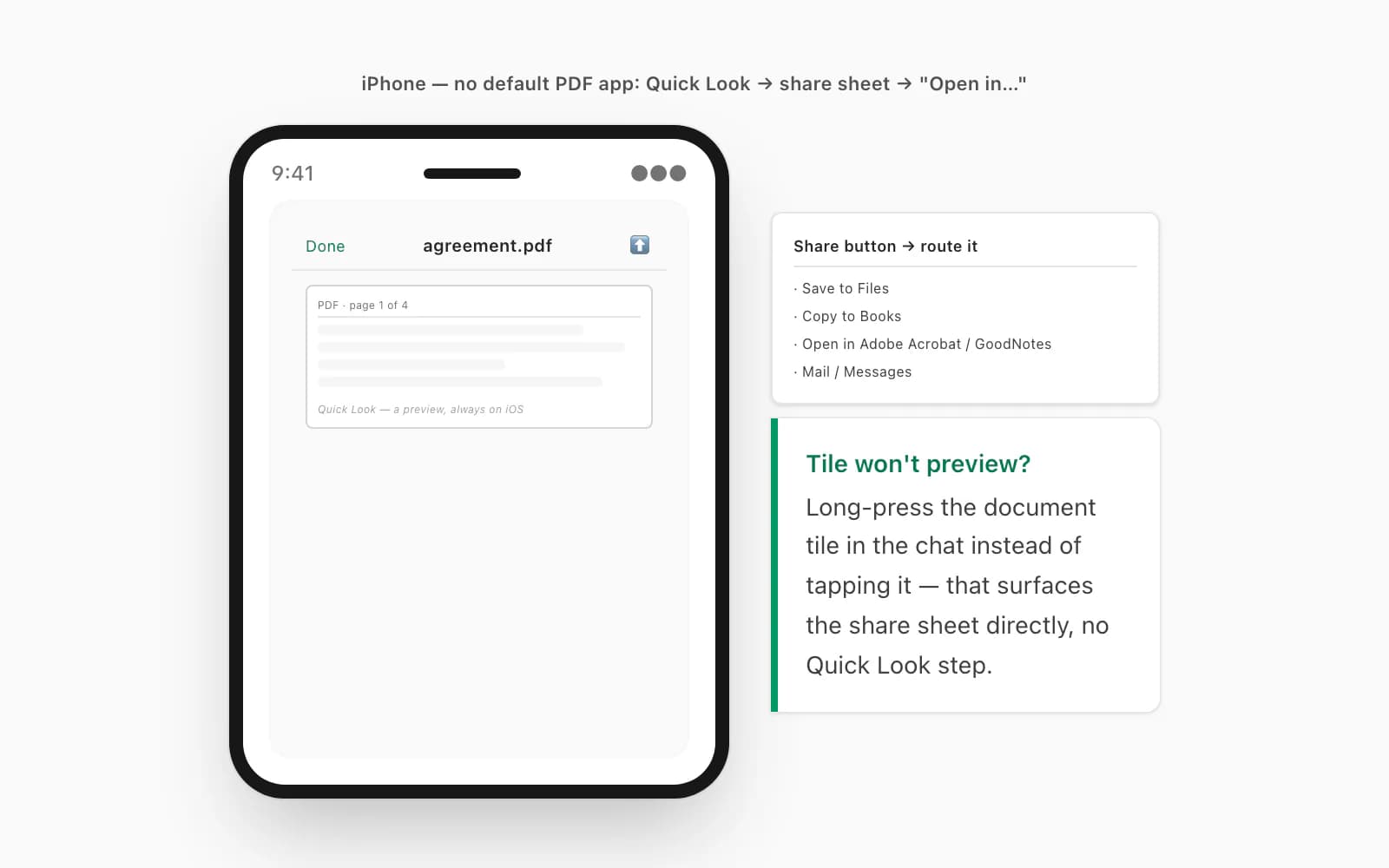
To get the file into a reader of your choice — Files, Books, Adobe Acrobat, GoodNotes, whatever — you use the share button (the square with the upward arrow) in the Quick Look top bar. That opens the share sheet, and from there you tap "Open in…" or pick the app you want, like Save to Files or Copy to Books. So the iPhone version of "set pdf viewer whatsapp" is really: preview in Quick Look, then push it onward through the share sheet. One more iOS trick — if the document tile in the chat won't preview cleanly, long-press the tile instead of tapping it; that surfaces the share sheet directly so you can route it without the Quick Look step. Apple's support note on marking up and using attachments / Quick Look covers the previewer if you want the official version.
The MIUI / HyperOS quirk
One Android caveat worth its own paragraph: Xiaomi devices — Xiaomi, Redmi and Poco phones on MIUI or HyperOS — sometimes ignore the Android default you carefully set, because the Mi File Manager and the built-in viewer wedge themselves in front of it, and the Security app's permission manager can block the reader you wanted from getting at the file at all. So you set "Drive PDF Viewer" as the default, tap a WhatsApp PDF, and it opens in Mi's own thing anyway — or just refuses.
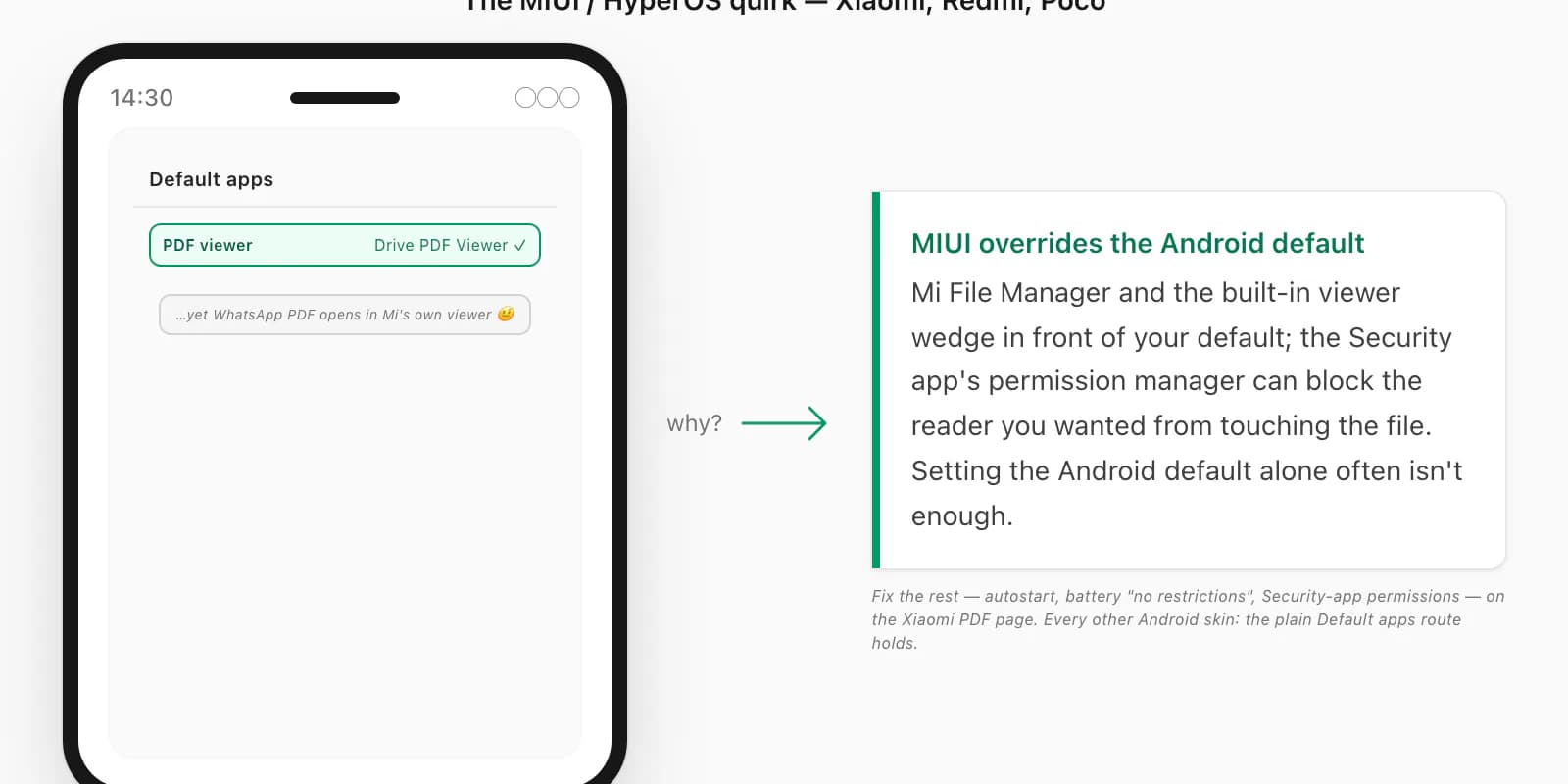
If you're on a Xiaomi, the default-app setting alone often isn't enough; you also have to deal with MIUI's autostart, battery-saver "no restrictions", and Security-app permissions for the reader you actually want. I've written that up separately — see Xiaomi can't open PDF in WhatsApp for the MIUI-specific steps. A related Android trap: if you run a dual or cloned WhatsApp (Xiaomi's Dual Apps, Samsung's Secure Folder, OPPO's App Cloner), the cloned copy keeps its PDFs in a separate sandboxed Documents folder that the wrong app — or no app — can reach, which looks identical to a default-app problem but isn't. On every other Android skin the plain Settings → Apps → Default apps route holds.
When the file you actually want is the chat itself
Step back for a second. A lot of the time, the PDF you're fighting with isn't even the document you care about — you want the conversation as a clean file you can keep, search, or send to a lawyer. That's a file you can produce yourself, and when you do, the wrong-default-app dance basically stops mattering.
A PDF that ChatToPDF produces is standard PDF 1.7 — the ISO-standardised version every mainstream reader has handled for over a decade. It opens in iOS Quick Look and Books, Android file managers and Google Drive, Adobe Acrobat, Chrome, Firefox, Edge, Safari, and macOS Preview. So even if your phone's default PDF app is something weird, the file still opens — there's nothing exotic in it for a viewer to choke on. And the path is short: in WhatsApp, open the chat, tap the contact or group name at the top (Android: three-dot menu → More), pick Export Chat, choose Including Media so photos make it in, and save the ZIP. Then open chattopdf.app/upload, drop the ZIP on the upload zone, and the conversion runs — the WhatsApp to PDF guide covers the whole thing, and there's a free preview of the first ten messages before you pay. (If a PDF someone sent you still won't open after all the above, the broader checklist is in WhatsApp won't open a PDF you were sent.)
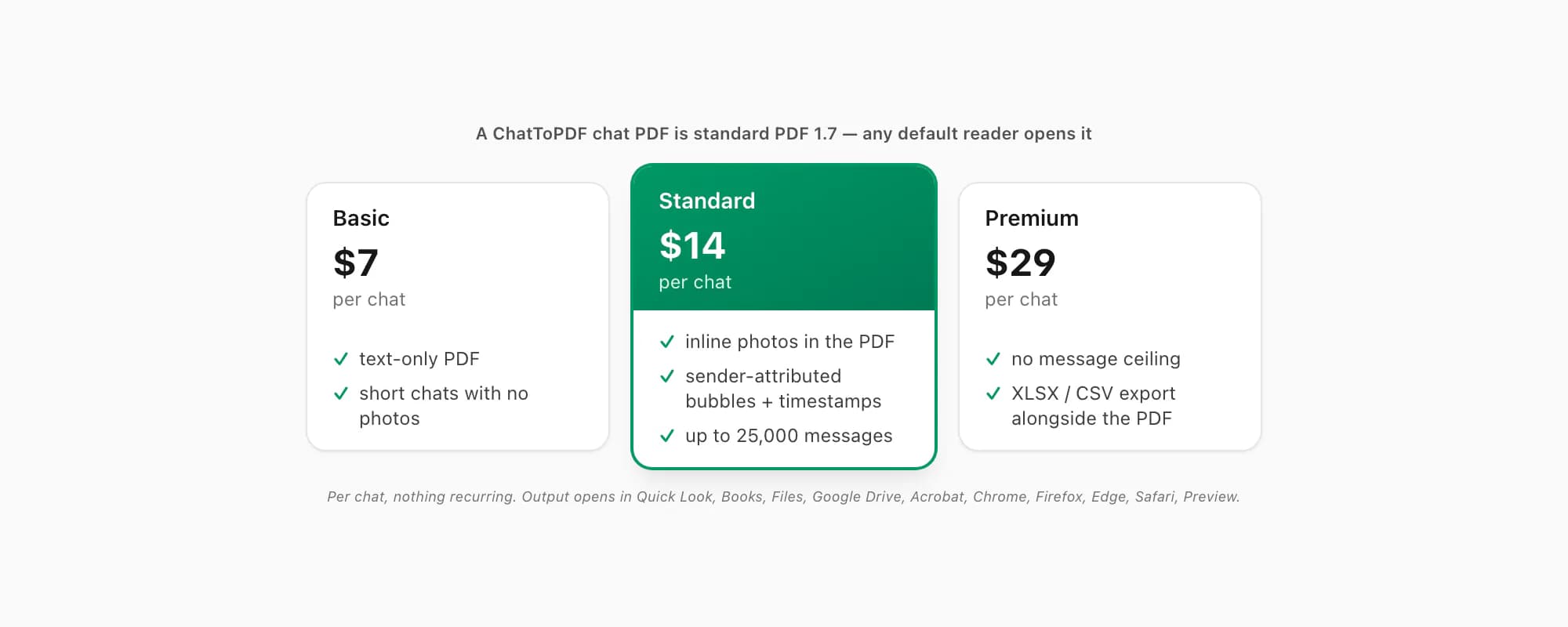
ChatToPDF charges per chat conversion — you pay for the one chat you're converting, nothing recurring. $7 Basic per chat is a text-only PDF, fine for a short chat with no photos. $14 Standard per chat renders inline photos, sender-attributed bubbles and timestamps, up to 25,000 messages — the right tier for almost every chat. $29 Premium per chat removes the message ceiling and adds an XLSX/CSV export; the pillar covers the $49 Premium+Voice per chat tier (language-aware Nova-3/Scribe v2 voice-note transcription) and the $99 Power User per chat tier (priority queue, bulk handling) if you need them. Whatever your phone's PDF default happens to be, a standard PDF 1.7 opens in it — which is rather the point of a standard.
Key takeaways
- On Android, WhatsApp hands a downloaded PDF to an app registered for
application/pdf, so the wrong-reader problem is usually an OS association - WhatsApp Web in Chrome/Edge and the Windows app now have an Acrobat-powered PDF workflow; those desktop routes do not use the Android default-app setting
- Android: Settings → Apps → Default apps (or "Open by default" on the reader you want) sets the WhatsApp PDF default app — pick Google Drive, Adobe Acrobat or your file manager, not a random free reader
- The "open with" sheet's "Always" button writes a permanent default; tap the wrong one and fix it via Settings → Apps → that app → Open by default → Clear defaults, then re-pick
- iPhone has no system-wide default PDF app — tapping a PDF opens Quick Look (a preview); use the share button → "Open in…" to route it to Files, Books or another reader, or long-press the doc tile
- Xiaomi (MIUI/HyperOS) reroutes PDF defaults despite an Android default being set — that needs the MIUI-specific autostart, battery and permission steps as well
- If you want the chat itself as a durable file, export it and run it through ChatToPDF — the output is standard PDF 1.7 and opens in every mainstream reader regardless of your phone's default
- ChatToPDF is priced per chat — $14 Standard per chat covers almost every conversion, with $7 Basic per chat for text-only and $29 Premium per chat for no message ceiling
FAQ
How do I change the default PDF app WhatsApp uses on Android?
WhatsApp itself has no setting for this — it hands PDFs to your OS. On Android, go to Settings → Apps → Default apps (the label varies by manufacturer) and set the PDF entry to a real reader: Google Drive's viewer, Adobe Acrobat Reader, or your file manager. If there's no PDF entry, open the reader you want and use its "Open by default" / "Set as default" screen. If no reader is installed at all, add one from the Play Store first.
WhatsApp asks 'open with' every time I tap a PDF — how do I stop it?
That prompt appears when more than one app can open PDFs and none is set as the default. When the "open with" sheet appears, tap the reader you want and then tap "Always" (not "Just once"). Android writes that app in as the permanent default and stops asking. If you previously tapped "Always" on the wrong app, clear it: Settings → Apps → that app → Open by default → Clear defaults, then re-pick.
Can I set a default PDF app for WhatsApp on iPhone?
No — iOS has no system-wide default PDF app, so there's nothing to point at a particular reader. On iPhone, tapping a PDF in WhatsApp opens Apple's Quick Look previewer. To open it in Files, Books, Adobe Acrobat or another app, tap the share button in Quick Look and choose "Open in…" or "Save to Files". You can also long-press the document tile in the chat to bring up the share sheet directly.
Will a PDF made by ChatToPDF open whatever my phone's default reader is?
Yes — it's standard PDF 1.7, the version every mainstream reader has supported for over a decade: iOS Quick Look and Books, Android file managers and Google Drive, Adobe Acrobat, Chrome, Firefox, Edge, Safari, macOS Preview. There's nothing non-standard in it for a viewer to choke on, so whatever app your phone hands it to will render it — and the file is self-contained, with messages, sender names, timestamps and inline photos all inside the one document.
I'm Paul, the founder of ChatToPDF. I built it after needing a long WhatsApp conversation as a readable PDF for a legal matter. I test and document WhatsApp exports, PDF conversion, voice-note transcription, and the limits people should check before relying on the result.