Why this matters
WhatsApp's «Move chats to iOS» and «Move to Android» tools both rely on the source phone, the destination phone, and the same WhatsApp account being live at the same moment. If anything goes wrong mid-transfer — battery dies, WiFi drops, accounts conflict — you can lose chats permanently. A PDF archive is your fallback.
1. Why export WhatsApp chat to PDF before switching phones?
The most popular cross-platform migration tools — «Move to iOS» and Samsung Smart Switch — moved WhatsApp chats only after recent updates, and even then they require very specific conditions (Android must be Android 6+, iPhone must be empty, both must use the same phone number). Exporting to PDF is independent of all that. It works on any Android, any iPhone, any iOS or WhatsApp version, and you don't need both phones present.
Reference: WhatsApp's own help on exporting chat history — the export-chat flow is identical on Android and iOS.
2. Export WhatsApp chat from your CURRENT phone first
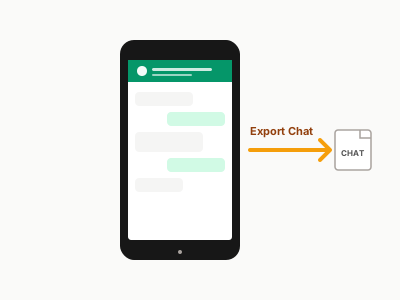
Do this on the OLD phone before you start the migration. The flow is identical regardless of direction (Android → iPhone or iPhone → Android):
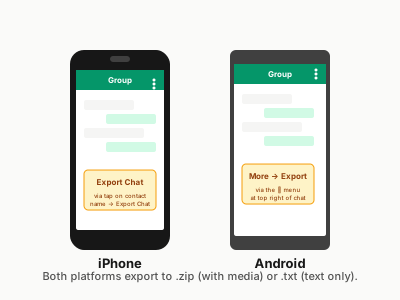
- iPhone: Open the chat → tap the contact / group name → scroll to «Export Chat» → choose «Attach Media» (.zip) or «Without Media» (.txt). AirDrop or email it to yourself.
- Android: Open the chat → ⋮ menu top right → More → Export chat → same two options. Email it to yourself or save to Google Drive.
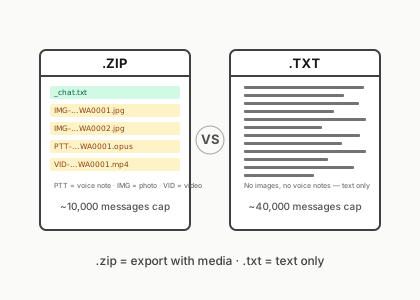
- Both platforms cap exports: 10,000 messages with media (.zip), 40,000 messages without (.txt). For long chats, export each one individually.
- Group chats: Same flow. The export preserves sender names and per-participant attribution.
3. Convert each export to PDF on chattopdf
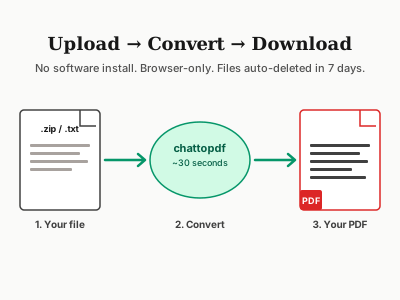
Upload the .zip or .txt to chattopdf, choose a style (clean works best for archive purposes), and download the PDF. The whole flow takes about 30 seconds. Your archive is now phone-independent and won't be affected by anything that happens during migration. For the full export-and-convert walkthrough, see the WhatsApp Chat to PDF: How to Convert in 30 Seconds (2026) guide.
4. Then run the cross-platform migration as normal
With archives in hand, you can use WhatsApp's built-in «Move chats to iOS» (Android → iPhone) or Samsung Smart Switch / WhatsApp's reverse-direction tool (iPhone → Android) without anxiety. If something goes wrong, your PDFs are still on whatever cloud drive you saved them to — fully readable, fully searchable, fully shareable.
Switching phones? Archive your chats first.
Free preview before payment. From $7 per chat archive.