
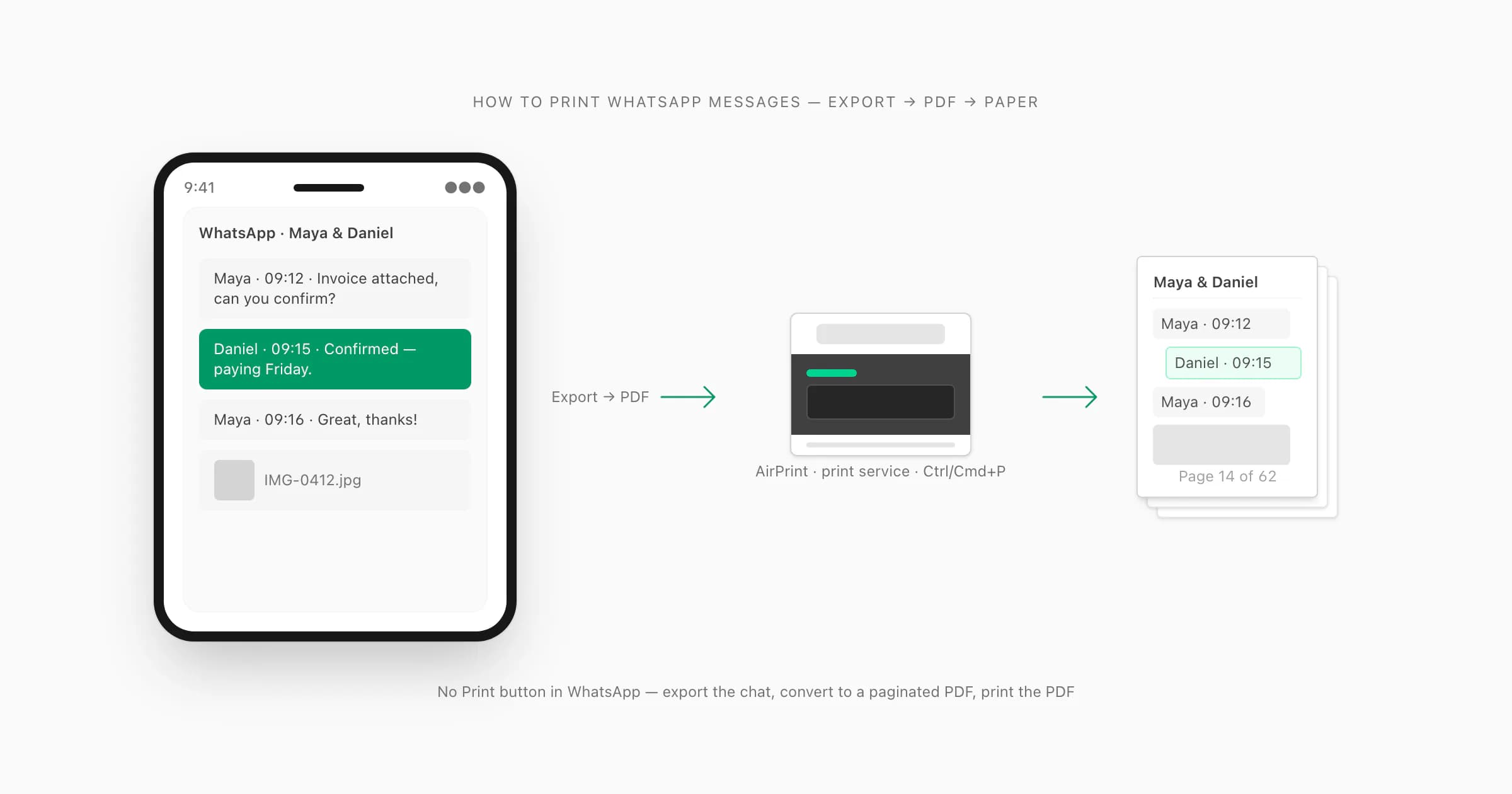
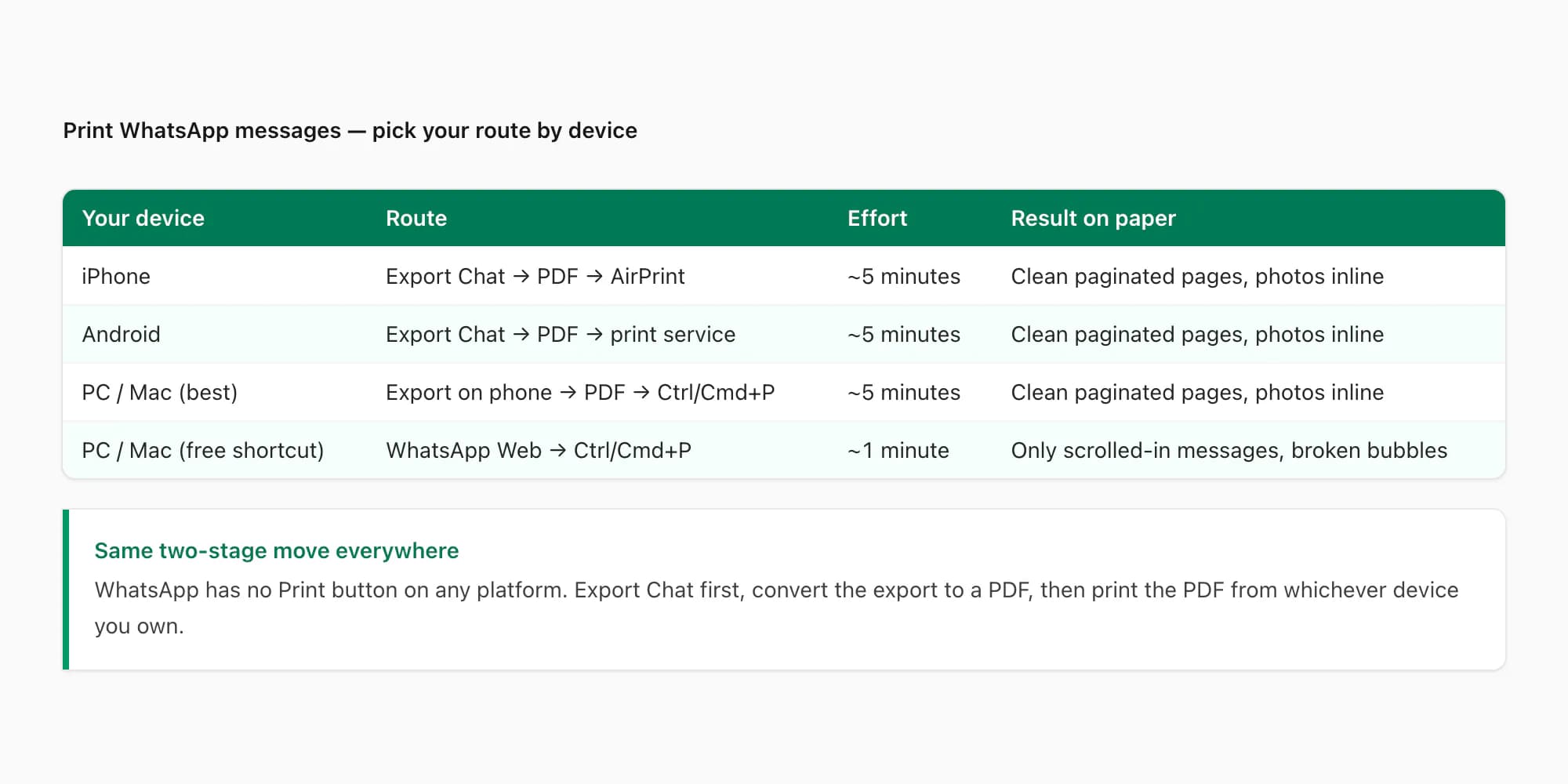
WhatsApp has no Print button — not on iPhone, not on Android, not in WhatsApp Web. The reliable way to print WhatsApp messages on every device is the same two-stage move: export the chat first, turn the export into a PDF, then print the PDF. Printing straight from the browser with WhatsApp Web technically works, but it only captures the messages you have scrolled into view and it breaks message bubbles across page boundaries, so the paper comes out looking like a glitch.
Below is the full device-by-device walkthrough — iPhone, Android, and PC/Mac — plus how to print with photos included, and the print settings that make a 60-page chat readable on paper instead of a mess. Printing SMS instead? My guide on how to print text messages from Android covers that route.
The short answer: export first, then print
People search for a print option inside WhatsApp and come up empty, because there isn't one. The app was never designed to put conversations on paper. What it does have is Export Chat — a built-in feature on both iPhone and Android that packages the entire conversation into a file. That file is the bridge to your printer.
The export itself is not printable in any pleasant way: it is a raw text log (plus a folder of media files if you export "with media"). The middle step that makes the difference is converting that export into a properly paginated PDF — chat-bubble layout, sender names, timestamps, photos placed inline, page numbers. That conversion step is exactly what ChatToPDF does, while the broader WhatsApp-to-PDF guide compares the available conversion routes. This page is about the last metre: getting the conversation onto actual paper, from whichever device you own.
If you already have the export and just want the printable file, the print WhatsApp chat tool takes the TXT or ZIP, shows a free preview and gives you an A4 PDF ready for any printer.
Here is the quick picker:
- Your device
- iPhone
- Route
- Export Chat → PDF → AirPrint
- What to check
- Preview the layout and choose an available compatible printer
- Your device
- Android
- Route
- Export Chat → PDF → print service
- What to check
- Confirm the print service and paper size
- Your device
- PC or Mac
- Route
- Export on phone → open PDF on computer → print
- What to check
- Inspect page breaks and print one test page
- Your device
- Browser shortcut
- Route
- WhatsApp Web → browser print
- What to check
- Check which messages are actually included; do not assume it is a full export
| Your device | Route | What to check |
|---|---|---|
| iPhone | Export Chat → PDF → AirPrint | Preview the layout and choose an available compatible printer |
| Android | Export Chat → PDF → print service | Confirm the print service and paper size |
| PC or Mac | Export on phone → open PDF on computer → print | Inspect page breaks and print one test page |
| Browser shortcut | WhatsApp Web → browser print | Check which messages are actually included; do not assume it is a full export |
One WhatsApp limit to know before you start: a single export caps out at roughly 40,000 messages without media, or about 10,000 messages with media. Those are WhatsApp's limits, not the converter's. For most conversations that is more than enough; for a years-long group chat you may need more than one export.
How to print WhatsApp messages from iPhone
The iPhone route runs through the Export Chat feature, a PDF, and AirPrint. Start to finish it takes about five minutes.
Export the chat from WhatsApp
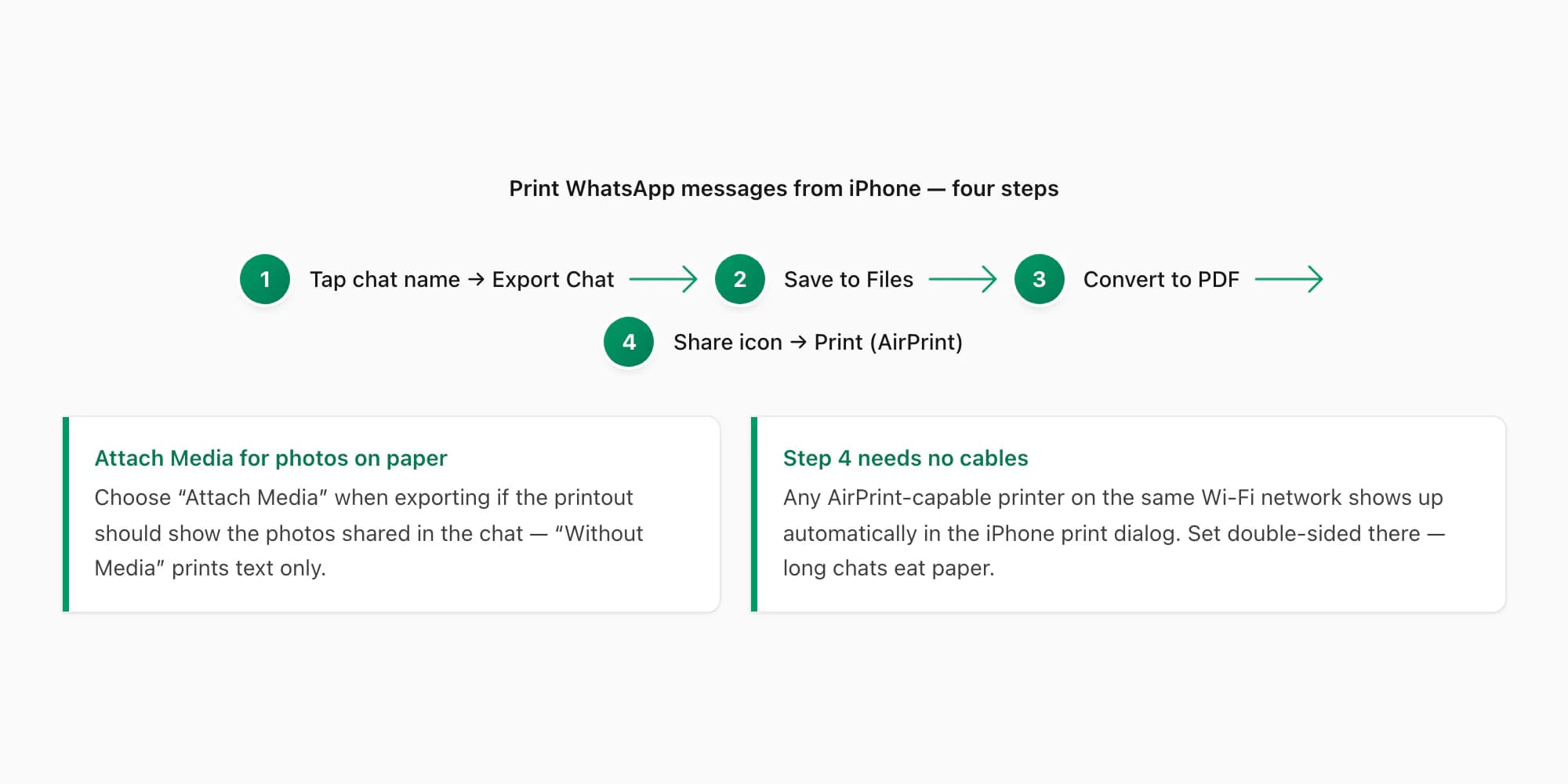
Open the conversation you want to print, tap the contact or group name at the top of the chat, scroll to the bottom of the info screen, and tap Export Chat. WhatsApp asks whether to include media — choose Attach Media if you want photos on paper, Without Media for a text-only printout. WhatsApp's own export chat FAQ documents the feature if your screen looks different. The full iPhone walkthrough with screenshots lives in my export WhatsApp chat to PDF on iPhone guide.
Save the export to Files
The share sheet opens with the export (a ZIP if you attached media, a .txt otherwise). Tap Save to Files and pick a folder — On My iPhone → Downloads works fine. You now have the chat as a real file on the phone.
Convert the export to a paginated PDF
A raw export prints as dense log lines — readable, but rough. To get printable pages, upload the file to chattopdf.app in Safari. You get a free preview before paying anything; tiers start at $7 per chat, one-time. The output is a chronological PDF in chat-bubble layout with sender names, timestamps, and photos inline — the format that actually looks right on paper. (The guide to exporting a WhatsApp chat to PDF covers the conversion in depth.) The PDF arrives on the page and by email, and your uploaded file auto-deletes within 7 days.
Print the PDF with AirPrint
Open the PDF in Files (or from the email), tap the share icon → Print, pick your printer, set pages and copies, and tap Print. Any AirPrint-capable printer on the same Wi-Fi network shows up automatically — Apple keeps a note on how AirPrint works if yours doesn't appear. Set double-sided here if your printer supports it; long chats eat paper.
The share-sheet fallback, honestly. If you export Without Media, the export is a single .txt file, and iOS can print that directly: open it in Files, share icon → Print. It works, and it is the fastest possible route to paper. The limits: it prints as raw, unformatted log lines ([14/03/2025, 09:12:44] Maya: ...), photos appear only as <attached: IMG-2025...> placeholders, there are no page headers or page numbers, and a long chat becomes a wall of text. For a quick two-page job for your own reference, fine. For anything you hand to another person, convert to a formatted PDF first.
How to print WhatsApp messages from Android
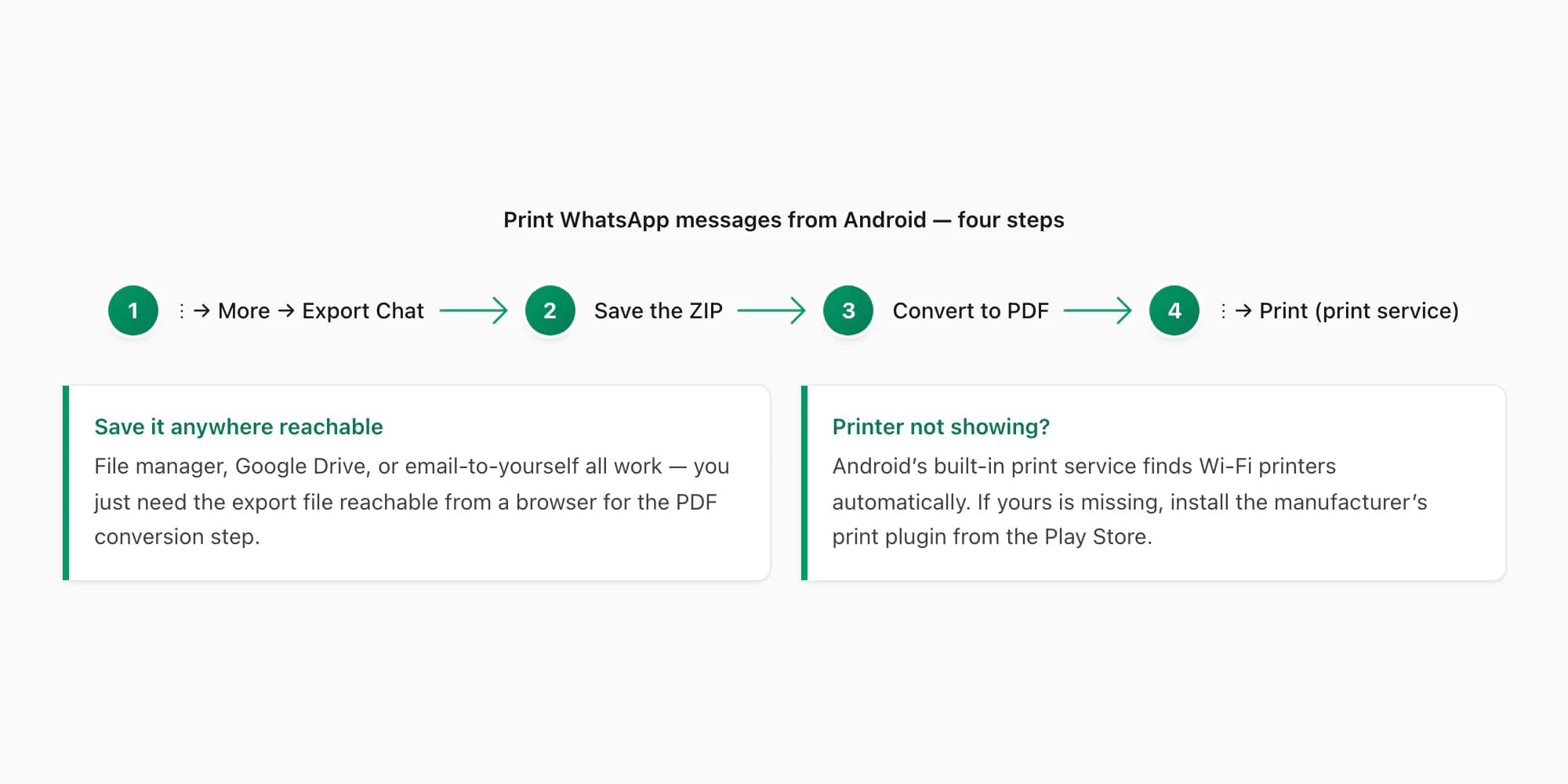
Same idea on Android — the menu locations differ, and printing goes through Android's built-in print service instead of AirPrint.
Export the chat from WhatsApp
Open the conversation, tap the three-dot menu (⋮) in the top-right corner, then More → Export Chat. Choose whether to include media — include it if you want photos in the printout. WhatsApp generates the export and opens Android's share sheet.
Save the export somewhere you can find it
From the share sheet, save the ZIP to your file manager or Google Drive, or email it to yourself. Any of these works — you just need the file reachable from a browser in the next step.
Convert the export to a PDF
Open chattopdf.app in Chrome (on the phone or on a computer — either is fine) and upload the export. The free preview shows the message count before you pay. The conversion handles iPhone and Android exports identically, so it doesn't matter which platform the chat came from.
Print via Android's print service
Open the PDF — Google Drive's viewer or any PDF app works — tap the ⋮ menu → Print, and pick your printer. Android has shipped a built-in print service since Android 8 that finds Wi-Fi printers automatically; if your printer doesn't appear, install the manufacturer's print plugin (HP, Epson, Brother and Canon all have one on the Play Store) and it will. Choose paper size and duplex in the same dialog.
Printing from a PC or Mac via WhatsApp Web
A computer is honestly the nicest place to do the printing itself — full print dialog, easy preview, proper printer drivers. The question is what you feed it.
The free shortcut: print WhatsApp Web directly. Open web.whatsapp.com, open the chat, press Ctrl+P (Cmd+P on a Mac), and print. It costs nothing and takes a minute, so I want to be straight about what you get:
- Only the messages currently loaded print. WhatsApp Web loads a conversation lazily as you scroll. Whatever you haven't scrolled up through simply does not exist on the page, so it can't print. For a long chat you would have to scroll up for a very long time — and even then the browser tends to unload earlier messages as you go.
- Page breaks land mid-bubble. The browser slices the page wherever the paper ends, so message bubbles get cut in half across sheets, with the top of a message on page 3 and the rest on page 4.
- No document structure. No page numbers, no chat title header, no date headers — just the app's interface chrome (sidebar, search box, input field) printed along with the messages unless you fight the print dialog.
For printing the last screen or two of a conversation quickly, it's genuinely fine. For a whole conversation, it isn't.
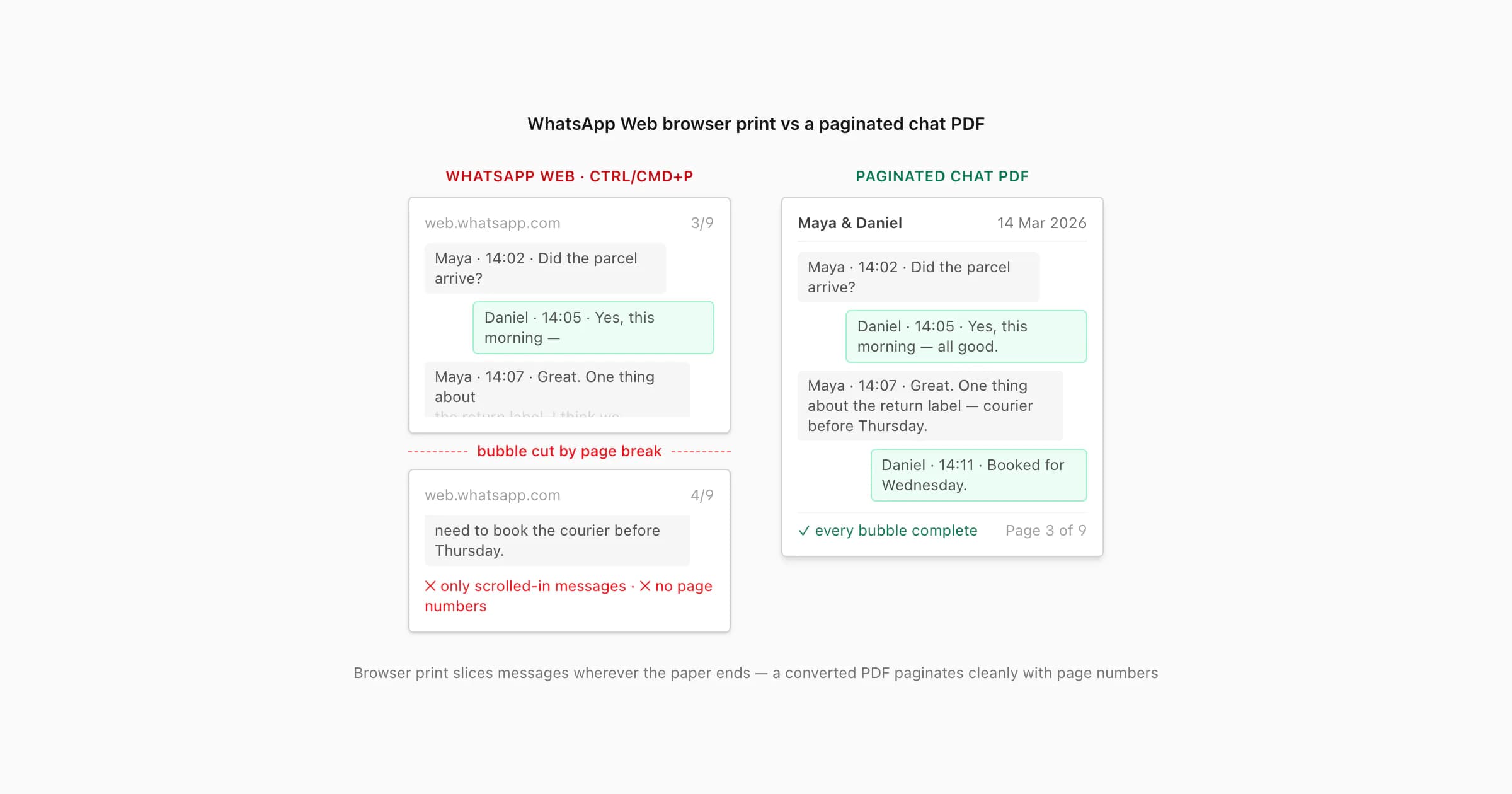
The reliable route: export, convert, print. Export the chat on your phone (steps above), get the file onto the computer (email it to yourself, AirDrop, Google Drive), upload it at chattopdf.app/upload, and print the resulting PDF with Ctrl/Cmd+P from any PDF viewer. The PDF is paginated properly — every message complete on its page, page numbers, the full conversation regardless of how long it is — so the print dialog has nothing left to break.
Printing WhatsApp messages with photos
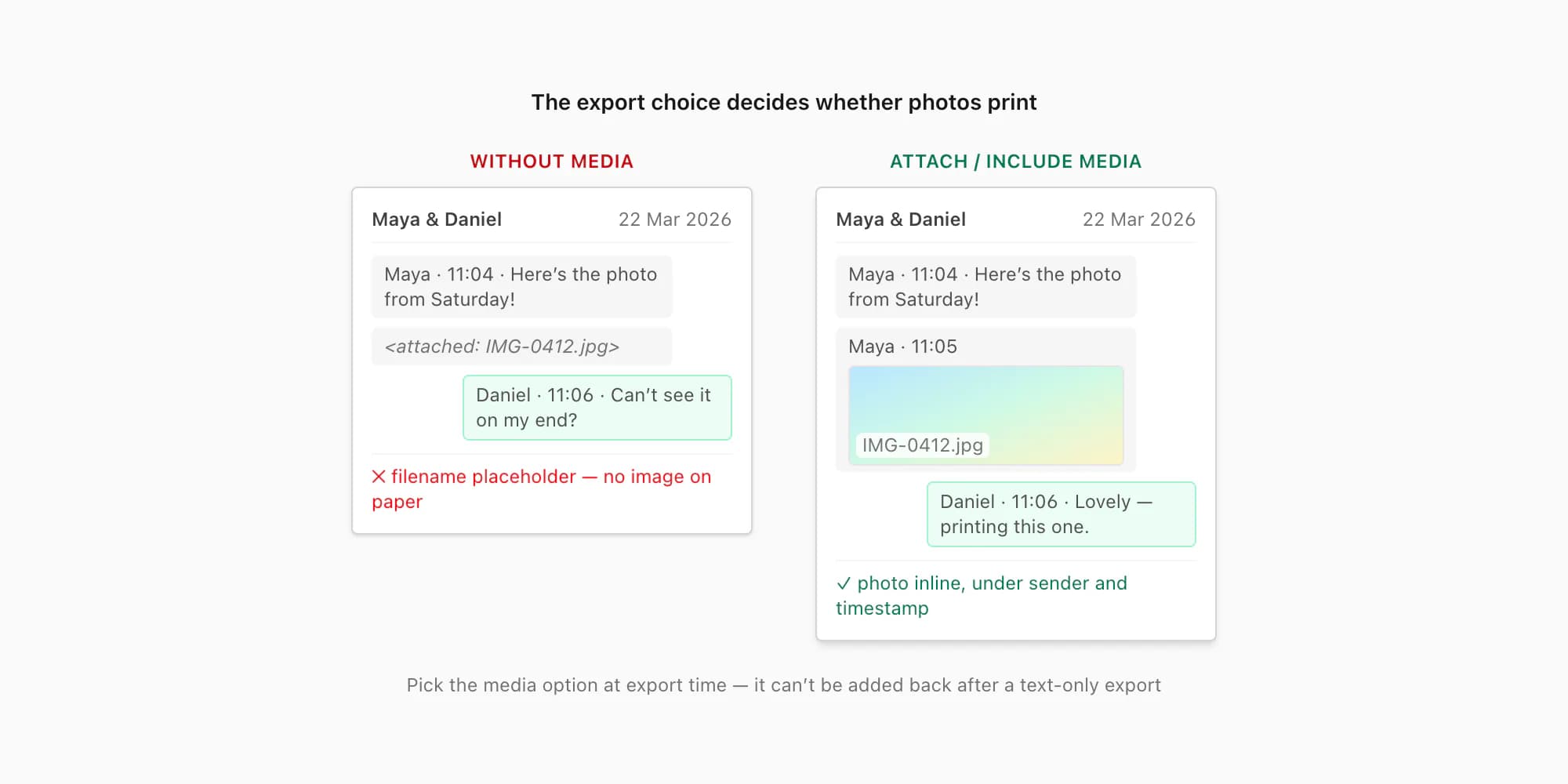
If the printout needs to show the photos that were shared in the chat, the export choice in step 1 is the whole game: pick Attach Media (iPhone) / Include Media (Android). That puts the actual image files inside the export ZIP, and the conversion places each photo inline in the PDF at the point in the conversation where it was sent — under the sender's name, with the timestamp.
Voice notes need one extra step because a paper printout cannot play audio. The WhatsApp audio-to-text converter can process supported notes included in the exported chat and put successful transcripts into the printable document beside their sender and timestamp.
The tempting shortcut is to screenshot the chat and print the screenshots. Two problems. First, screenshots routinely crop away the sender name or timestamp at the screen edges — exactly the context that makes a printed photo mean something later. Second, screenshots don't scale: a 30-message chat is six screenshots; a 3,000-message one is not a project anyone finishes. The export-with-media route keeps every photo attached to its sender and timestamp automatically, however long the chat is.
One caveat worth repeating: WhatsApp's with-media export caps at roughly 10,000 messages, and on very media-heavy chats WhatsApp may include only the more recent attachments to keep the file manageable. If a specific older photo absolutely must be on paper, check it's in the export preview before printing day.
Print-quality tips for long chats
A chat PDF is a long, narrow document, and a few printer settings make the difference between "readable archive" and "ream of confetti":
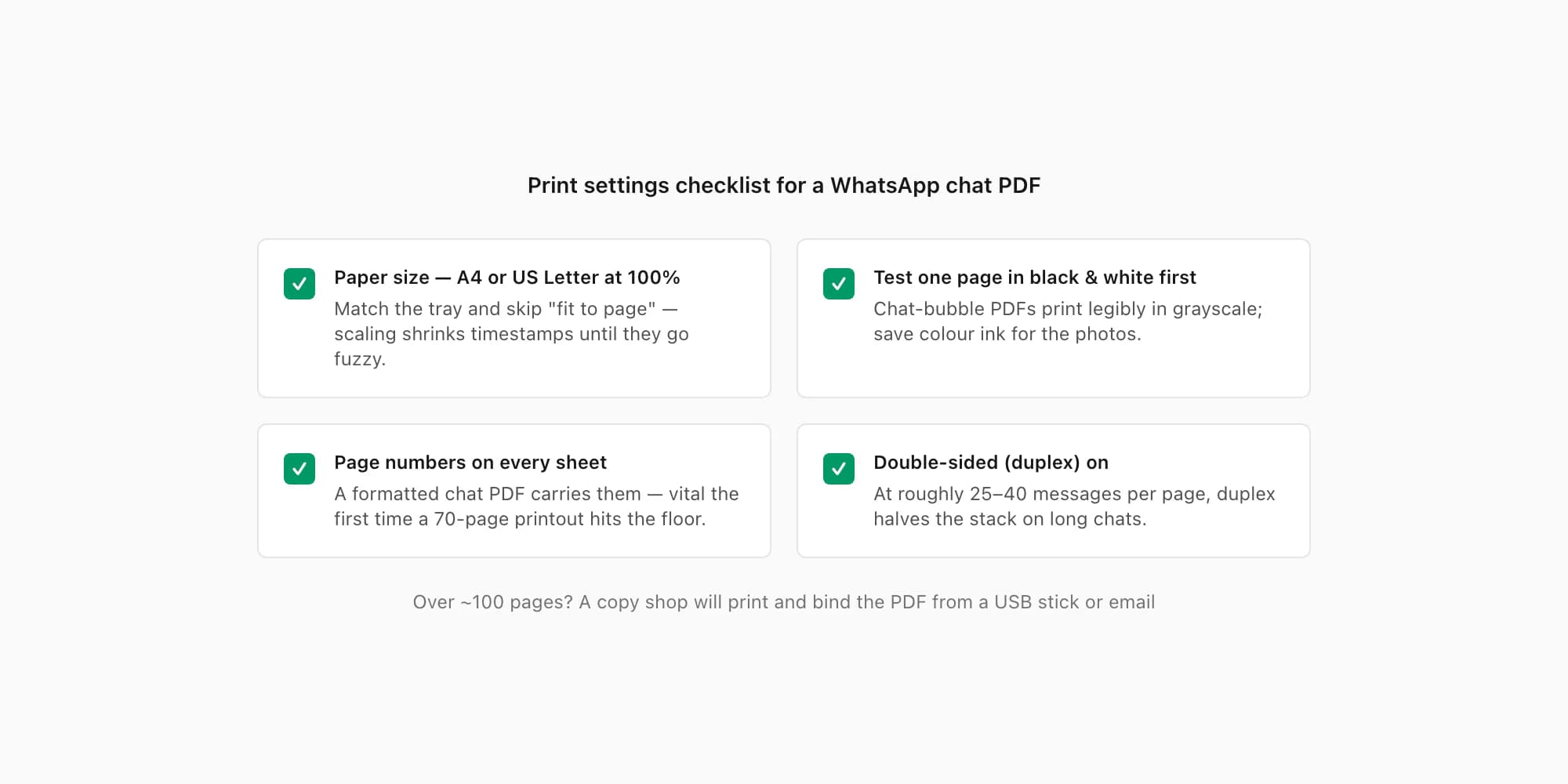
- Paper size: pick A4 or US Letter to match what's in the tray, and print at 100% scale rather than "fit to page" — fit-to-page shrinks text on some viewers until timestamps go fuzzy.
- Black and white is fine. Chat-bubble PDFs print legibly in grayscale: the bubbles render as outlined boxes, sender names stay bold, text stays crisp. Print one test page in B/W before committing a long chat to colour ink — colour matters for photos, rarely for the messages.
- Page numbers matter more than you'd think. A formatted chat PDF carries page numbers; the first time you drop an unbound 70-page printout, you'll be glad. (Raw browser prints and .txt prints don't have them.)
- Go double-sided. Check the generated PDF page count first; long messages and photos change the number of pages. Duplex printing can reduce the paper needed when your printer supports it.
- For 100+ pages, involve a print shop. Any copy shop will print a PDF from a USB stick or email and bind it — comb, wire, or thermal binding all work, and the result sits on a shelf like a book. If the goal is genuinely keepsake-grade — a relationship chat, a family group — the WhatsApp chat book guide covers turning a chat into something closer to a printed book, and the WhatsApp chat book maker produces the book-style PDF directly.
Check one sample page before printing the whole chat
Open the fictional Clean Document sample to see a generated layout before uploading. For a personal keepsake, compare the Book sample. Both are demonstration conversations, not customer documents.
Before committing a long file to paper:
- Choose the paper size loaded in your printer and inspect the print preview for clipped edges.
- Print one text-heavy page. Check sender names, timestamps and page numbers at normal reading distance.
- If your document contains photos, test a photo page separately; grayscale can hide a detail that matters in colour.
- Check double-sided orientation before printing the remaining pages. Keep the final PDF as well as the paper copy.
ChatToPDF supplies a downloadable PDF. It does not post a bound book or run a print-shop service. The final page count depends on message length, media and the chosen layout, so use the generated file's page count when estimating paper or printing costs.
Printing a chat as a gift rather than a record? The WhatsApp chat book layout gives you a book-style PDF to print and bind yourself.
Printing for official purposes
If you are printing WhatsApp messages for a court matter, a lawyer, an insurer, or an official body, the formatting standard goes up: complete conversations rather than excerpts, visible sender names and full timestamps on every message, page numbers, and a presentation that someone can cite ("page 14, the 9:12 message"). Courts commonly accept printed chat records when they can be authenticated — and your lawyer or the court clerk can tell you exactly what your court requires, so ask before you print. I've written a separate guide on printing WhatsApp messages for court that covers the formatting expectations, what authentication means in practice, and the mistakes that get printouts challenged.
Key takeaways
- WhatsApp has no Print button on any platform. The dependable path on every device is Export Chat → convert to PDF → print the PDF.
- iPhone: tap the contact name → Export Chat → save the file → convert → share icon → Print (AirPrint). Android: ⋮ → More → Export Chat → convert → print via the built-in print service.
- WhatsApp Web's Ctrl/Cmd+P is free but only prints messages you've scrolled into view, slices bubbles across page breaks, and adds no page numbers — fine for a screen or two, not for a whole conversation.
- For photos on paper, export with media — screenshots lose timestamps and sender context and don't scale past a few dozen messages.
- Use the actual PDF page count to estimate paper. Test one page and the duplex orientation before printing a long document.
- WhatsApp's own export caps apply: ~40,000 messages without media, ~10,000 with media, per export.
FAQ
Can I print WhatsApp messages directly from my phone?
Not from inside WhatsApp — the app has no print function on iPhone or Android. But you can print from your phone without touching a computer: export the chat, convert the export to a PDF in your phone's browser, then print that PDF over Wi-Fi — share icon → Print on iPhone (AirPrint), or ⋮ → Print in any PDF viewer on Android. The whole loop happens on the phone. The one genuinely direct shortcut is printing a text-only export (.txt) straight from the iPhone Files app — it works, but produces unformatted log lines rather than a readable chat layout.
How do I print a whole WhatsApp conversation?
Use Export Chat, not the screen. Exporting packages the entire conversation — up to WhatsApp's per-export limits of roughly 40,000 messages without media or 10,000 with media — into one file. Convert that file to a paginated PDF and print it, and the complete conversation is on paper. The approaches that don't get you a whole conversation: WhatsApp Web printing (only what you've scrolled through) and screenshots (impractical past a few dozen messages). If your chat exceeds the export cap, make two exports and print two PDFs.
How do I print WhatsApp messages with pictures?
Choose the media option when exporting: Attach Media on iPhone, Include Media on Android. That puts the actual photo files in the export ZIP, and a converter that handles media — ChatToPDF places photos inline in the PDF at their position in the conversation, under the sender name and timestamp — gives you a printout where each picture sits exactly where it was sent. If you export without media, photos appear only as filename placeholders like <attached: IMG-0412.jpg>. Note WhatsApp's with-media export caps at around 10,000 messages, and on very photo-heavy chats older attachments may be left out of the export.
Why does WhatsApp Web print look broken?
Two reasons, both built into how browsers work. First, WhatsApp Web loads messages lazily — only what you've scrolled through is actually on the page, so the print job silently omits everything earlier. Second, the browser breaks the page wherever the paper ends, with no awareness of message bubbles, so bubbles get sliced in half across sheets and the app's interface chrome prints along with the chat. It isn't a setting you can fix; it's the difference between printing a live web app and printing a document. The fix is to print a document instead: export the chat, convert it to a PDF that's paginated on purpose, and print that.
How many pages will my WhatsApp chat be when printed?
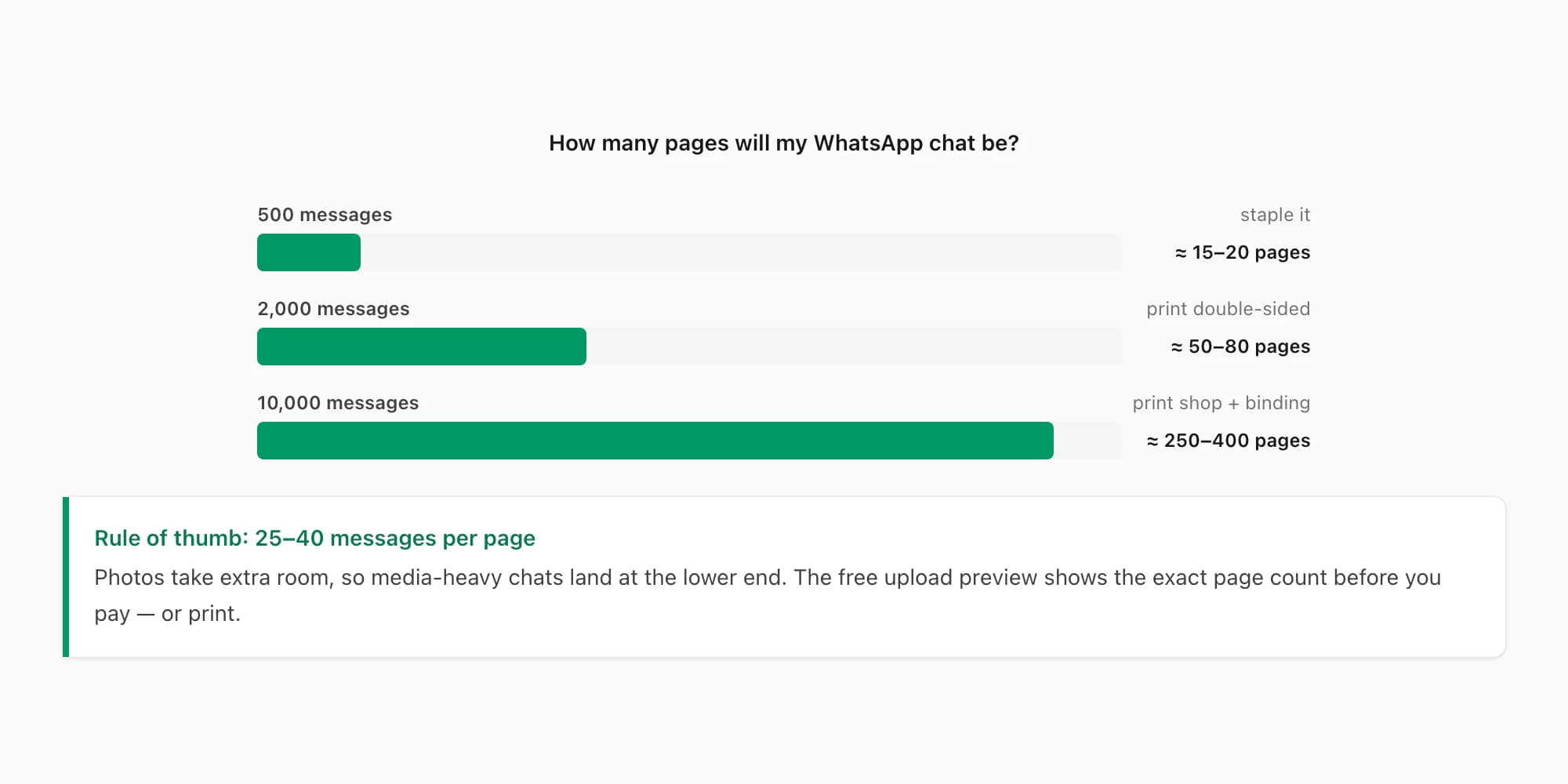
A useful rule of thumb for a formatted chat-bubble PDF: 25–40 messages per page, depending on message length and how many photos are included (photos take more room). So a 500-message chat lands around 15–20 pages; a 2,000-message chat around 50–80 pages; a 10,000-message group chat can run 250–400 pages. You don't have to guess — ChatToPDF shows a free preview after upload, before payment, so you can see the page count and decide whether to print the whole thing, print a date range, or take a long chat to a print shop for double-sided printing and binding.
Read this printing guide in your language
- Português: como imprimir conversas do WhatsApp
- Italiano: come stampare da WhatsApp
- Français : imprimer une conversation WhatsApp
- Nederlands: WhatsApp-berichten printen
- Español: imprimir conversaciones de WhatsApp
I'm Paul, the founder of ChatToPDF. I built it after needing a long WhatsApp conversation as a readable PDF for a legal matter. I test and document WhatsApp exports, PDF conversion, voice-note transcription, and the limits people should check before relying on the result.