
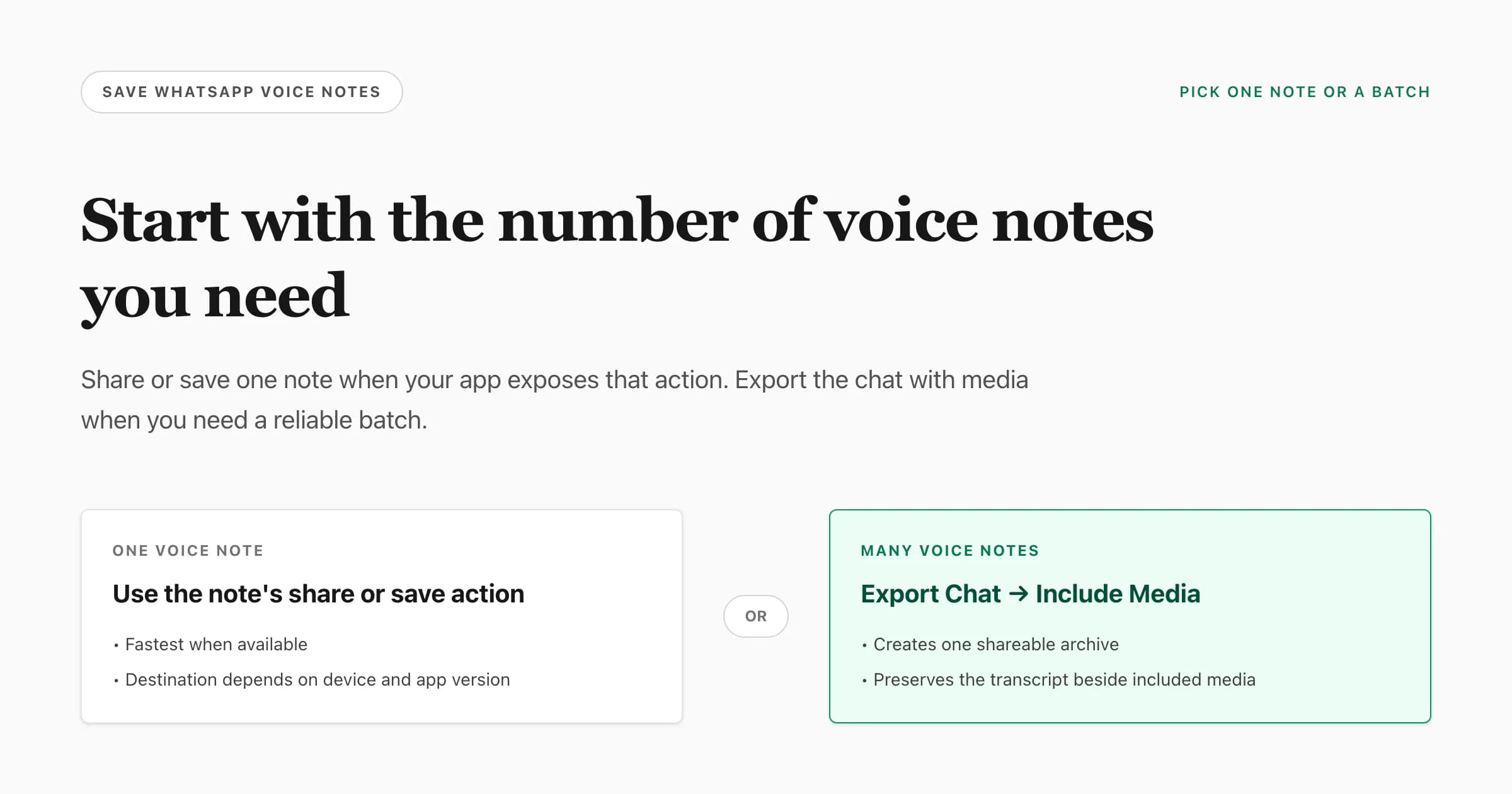
To learn how to download WhatsApp voice notes, either long-press one message and use the share, forward or save action available on your phone, or export one chat with Include Media when you need many recordings. Choose Files, Drive, email or another installed destination for the resulting file. I recommend preserving a media-inclusive archive first, then extracting a working copy and verifying the audio before deleting anything. Menu labels vary by phone, operating system and WhatsApp version.
Choose one voice note or a batch
The fastest answer depends on the number of recordings:
- What you need
- One note from a chat
- Best first route
- Use an available share or save action
- Expected result
- One saved audio file
- What you need
- Several notes from one chat
- Best first route
- Export Chat → Include Media
- Expected result
- Transcript plus available media in the export
- What you need
- Playback elsewhere
- Best first route
- Test the original, then convert a copy if needed
- Expected result
- Original audio plus an optional MP3 copy
- What you need
- Searchable spoken words
- Best first route
- Save one note or export a chat with media
- Expected result
- A standalone transcript or a transcript in conversation context
| What you need | Best first route | Expected result |
|---|---|---|
| One note from a chat | Use an available share or save action | One saved audio file |
| Several notes from one chat | Export Chat → Include Media | Transcript plus available media in the export |
| Playback elsewhere | Test the original, then convert a copy if needed | Original audio plus an optional MP3 copy |
| Searchable spoken words | Save one note or export a chat with media | A standalone transcript or a transcript in conversation context |
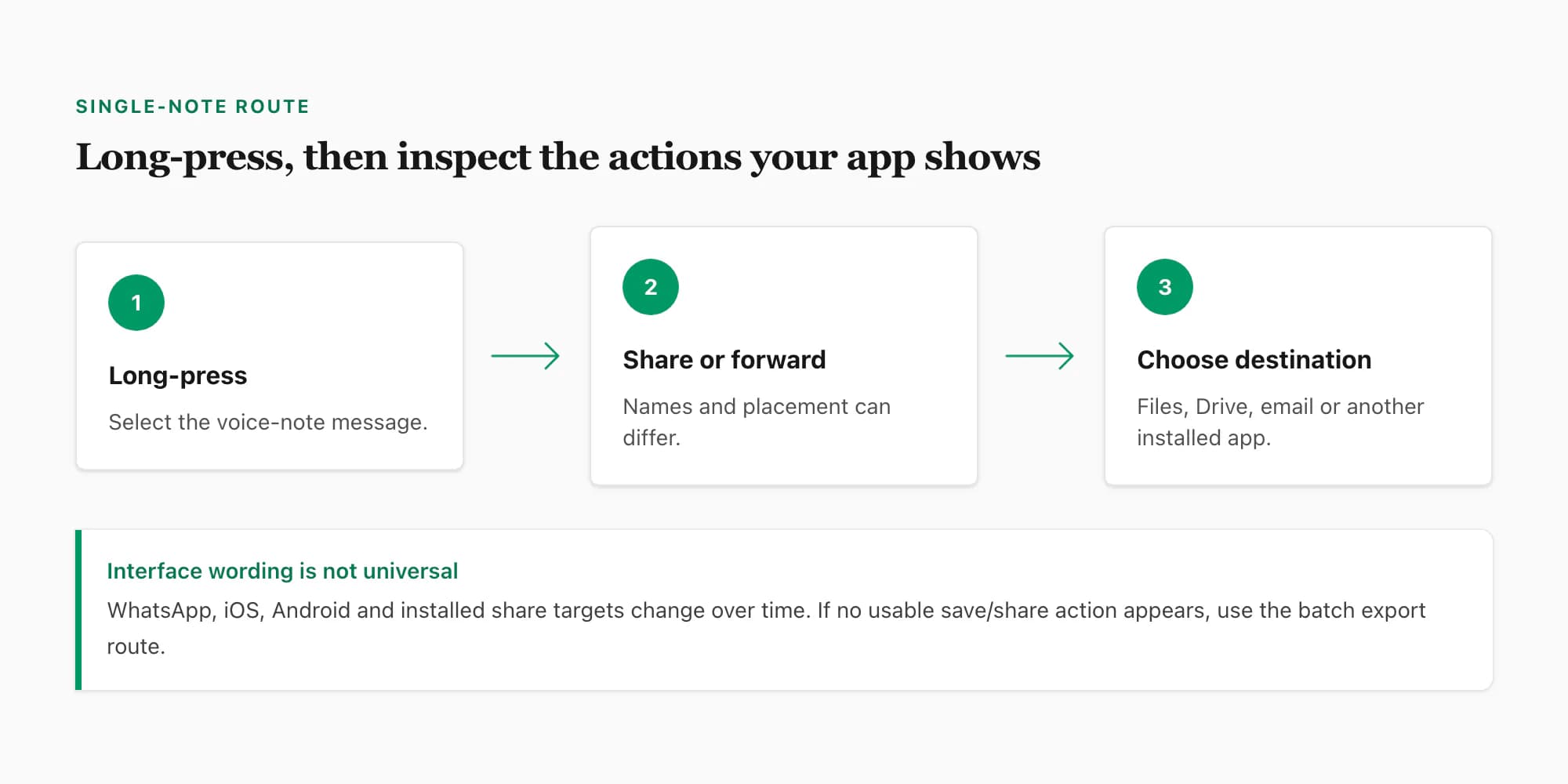
WhatsApp’s official export-chat help page documents the first-party batch route. Single-message actions are more dependent on the current interface, operating system and installed share targets, so this guide describes what to look for without pretending every device shows the same button in the same place.
If a long-press menu does not expose a useful destination, do not start searching random hidden folders. Use the media-inclusive chat export instead. It is visible, supported by WhatsApp and easier to explain to someone else later.
How to download one WhatsApp voice note
For one recording, start at the message rather than exporting the entire conversation:
Open the WhatsApp conversation
Find the voice-note bubble you need. Play a few seconds to confirm it is the correct recording, especially when several notes were sent close together.
Long-press the voice-note message
Press and hold the message until WhatsApp selects it and shows message actions. On some versions, a Share action is visible immediately; on others, it may sit behind a menu or require Forward before the operating-system share sheet appears.
Use the available share, forward or save route
Choose the action your installed version provides. Look for a system share sheet or a destination such as Files, Save to Files, Drive, email or another storage application. These names depend on iOS or Android, app version, organization policy and installed apps.
Choose a durable destination
Prefer a folder or storage account you can find again. If you send the file to yourself through email or another messenger, that service receives another copy and may apply its own size, retention and privacy rules.
Open and verify the saved file
Use a compatible player such as VLC if the default player rejects the export. Listen to the beginning and ending, compare the duration with the message and keep the source inside WhatsApp until the saved copy is confirmed.
The exported file may not be MP3. Push-to-talk notes commonly use Opus audio in an Ogg container, while shared audio attachments can use M4A/AAC, MP3 or another format. That does not mean the download failed. It means the player needs to support the file or you need a separate compatibility copy.
If you need an MP3, continue with the WhatsApp audio to MP3 guide. It covers VLC, FFmpeg, online-converter privacy and why changing the extension is not conversion. For the technical explanation of .opus and .ogg, use the WhatsApp audio format guide.
When the single-note action is missing
A missing Share or Save action is not proof that the recording lives at a universal path you can browse. Interface behavior may change with WhatsApp version, iOS or Android release, managed-device policy and which apps are installed. Try these non-destructive options:
- Update WhatsApp through the official app store if an update is available.
- Check whether selecting the note and choosing Forward exposes the system share sheet.
- Try WhatsApp on the phone rather than assuming the web or desktop client has identical controls.
- Use Export Chat with media for a supported batch route.
- Avoid screen recording unless you accept the quality loss and missing original file metadata.
Do not install an unknown “WhatsApp extractor” merely to save one private recording. Such software may request broad device, backup or account access that is disproportionate to the task.
How to download multiple voice notes from one chat
For a batch, export the conversation and include its media. This route also gives you the text transcript, which helps match generated audio filenames to the surrounding messages.
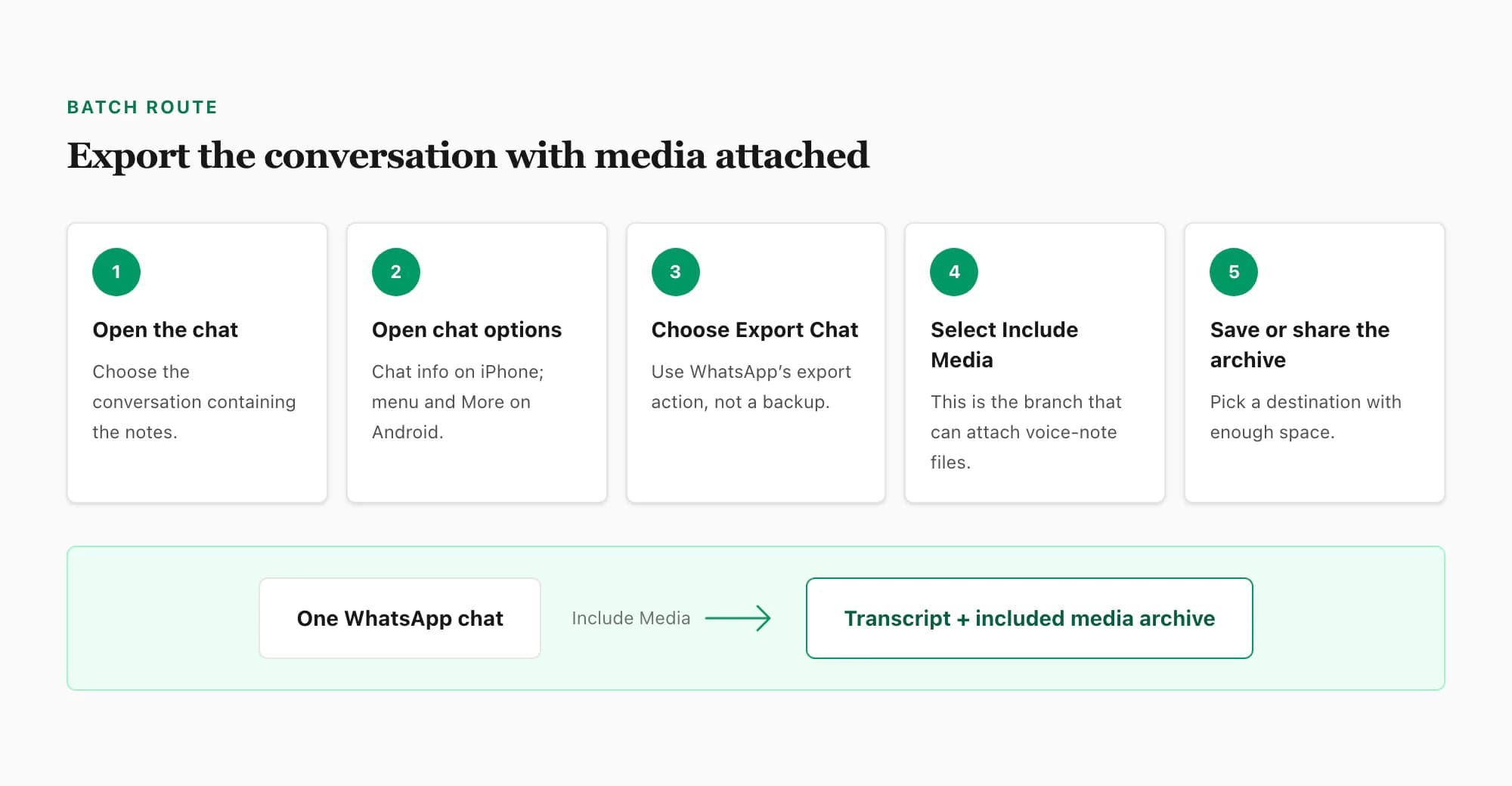
The general sequence is:
- Open the conversation containing the voice notes.
- Open the chat’s information or options.
- Choose Export Chat.
- Choose Include Media or Including Media.
- Select a destination with enough space and wait for the handoff or save to complete.
This is an export, not a WhatsApp backup restore. It creates a portable snapshot intended for sharing outside the app. The exact archive contents and maximum history can depend on WhatsApp’s current export behavior, available storage, media volume and the destination app. Do not promise that every historical attachment in an enormous chat will always appear.
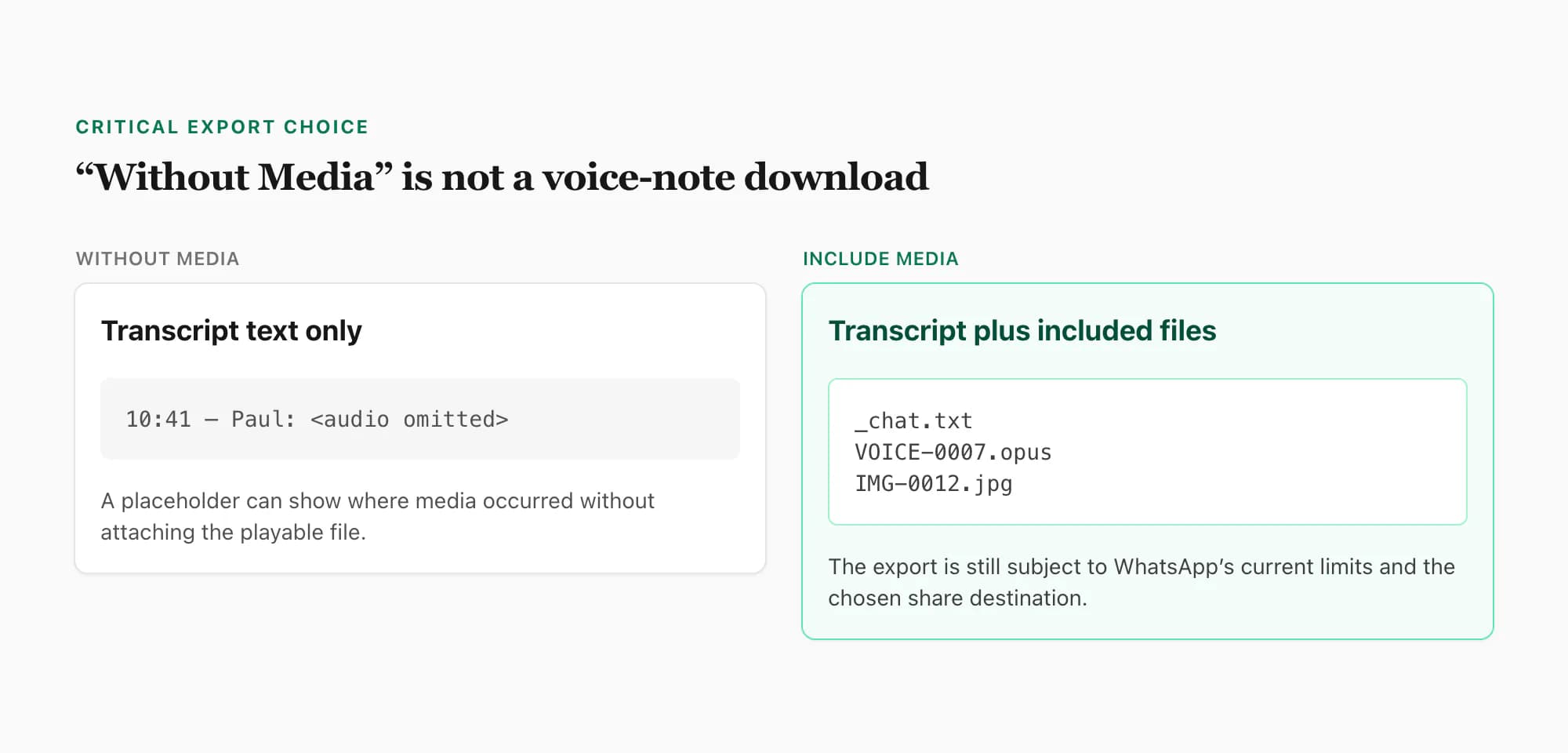
The media choice is essential:
- Without Media: smaller and faster, but the transcript normally contains placeholders where media appeared. It does not give you playable voice-note files.
- Include Media: asks WhatsApp to attach media in the export, which is the route needed for voice-note files. The resulting package is larger and may exceed a destination’s sharing limit.
If a media-inclusive export is too large for email, choose Files, a cloud-storage destination or another target that accepts the archive size. Do not repeatedly create exports and assume the newest copy is complete; name the saved archive with the chat and export date, then inspect it.
iPhone: export WhatsApp voice notes with the chat
On current iPhone versions, the batch route is commonly accessed from the chat’s contact or group information:
- Open WhatsApp and the target conversation.
- Tap the contact or group name to open chat information.
- Find Export Chat.
- Choose Include Media or Attach Media, depending on the wording shown.
- Use the iOS share sheet to save the export to Files, iCloud Drive or another chosen destination.
This description is intentionally version-tolerant. Apple and WhatsApp can change menu placement or labels. The official WhatsApp help page should take precedence over a screenshot from an older release.
When saving to Files, wait for the share sheet to finish and then open Files separately to confirm the archive exists. A share sheet closing is not sufficient verification. If the destination uses cloud sync, allow time for upload and check whether the file is available offline before deleting any local source.
For one note, select the message and see whether the current message actions expose Share or Forward into the iOS share sheet. If they do not, use the full chat export rather than claiming a direct-save control exists on every iPhone release.
Android: export WhatsApp voice notes with the chat
On current Android versions, the batch route is commonly behind the conversation’s overflow menu:
- Open the target chat.
- Open the three-dot menu.
- Choose More, if that intermediate item appears.
- Choose Export chat.
- Select Include media.
- Choose Files, Drive, email or another destination that can accept the export.
Android device makers, WhatsApp builds and organizational management tools can change the share targets and storage access you see. Scoped storage also means an old tutorial’s raw filesystem path may be hidden or unavailable on a newer phone.
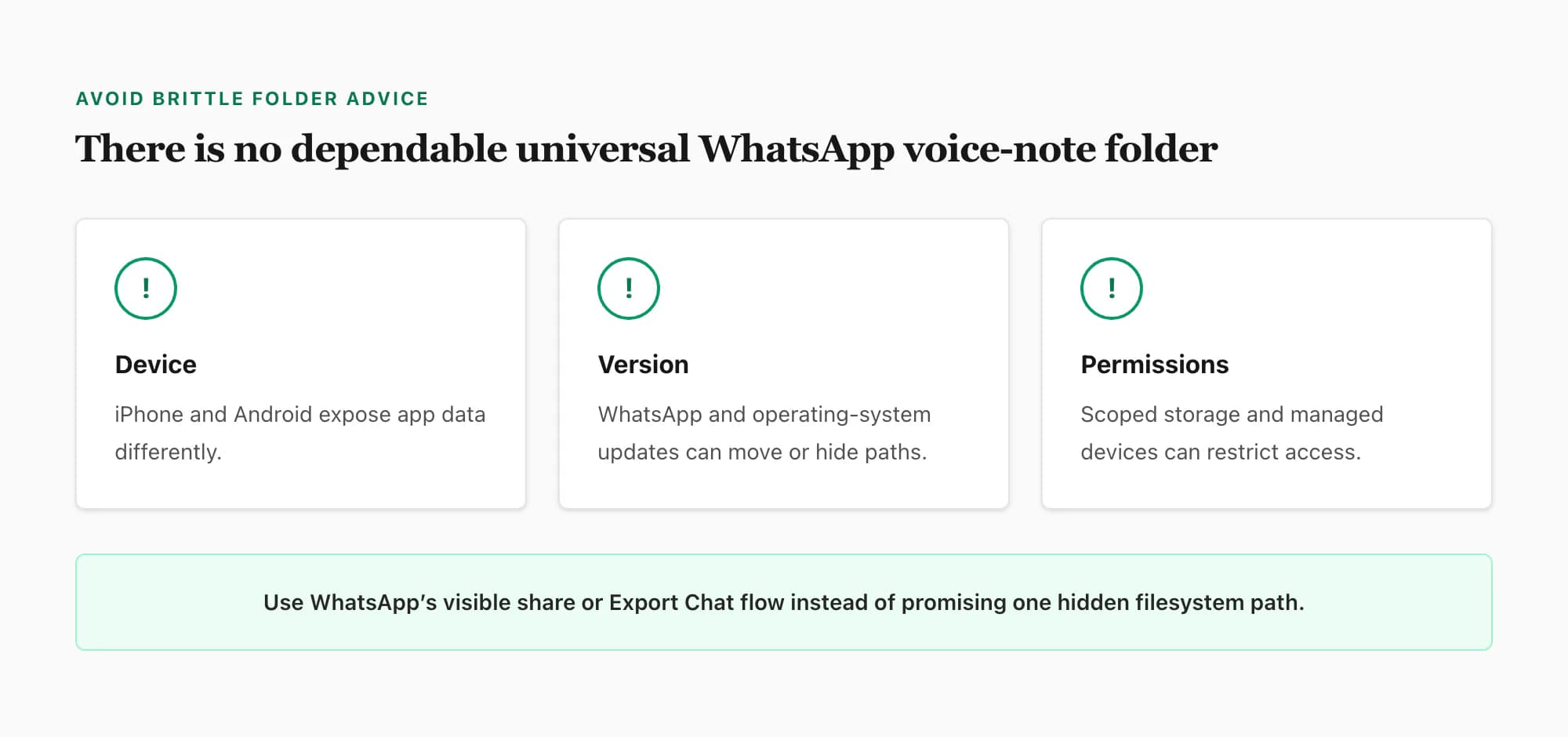
You may find articles promising one folder such as a specific WhatsApp/Media/WhatsApp Voice Notes path. That path has existed in some Android configurations, but it is not a dependable universal instruction. Internal versus removable storage, Android media-directory changes, app cloning, manufacturer customizations and permissions all affect access. A visible Export Chat route is more portable than a brittle hidden-directory claim.
If you do browse a media directory on a device where it is available, copy files rather than moving them, preserve folder names and confirm the recordings in context. Generated voice-note filenames may encode dates or sequence numbers, but naming is not a stable public contract and does not identify the sender by itself.
What the exported archive contains
Open a copy of the saved archive, not the only original. A media-inclusive export commonly contains:
- A plain-text transcript such as
_chat.txt. - Voice-note candidates with
.opusor.oggextensions. - Shared audio attachments in other formats.
- Images, videos, documents or contact files included from the same conversation.
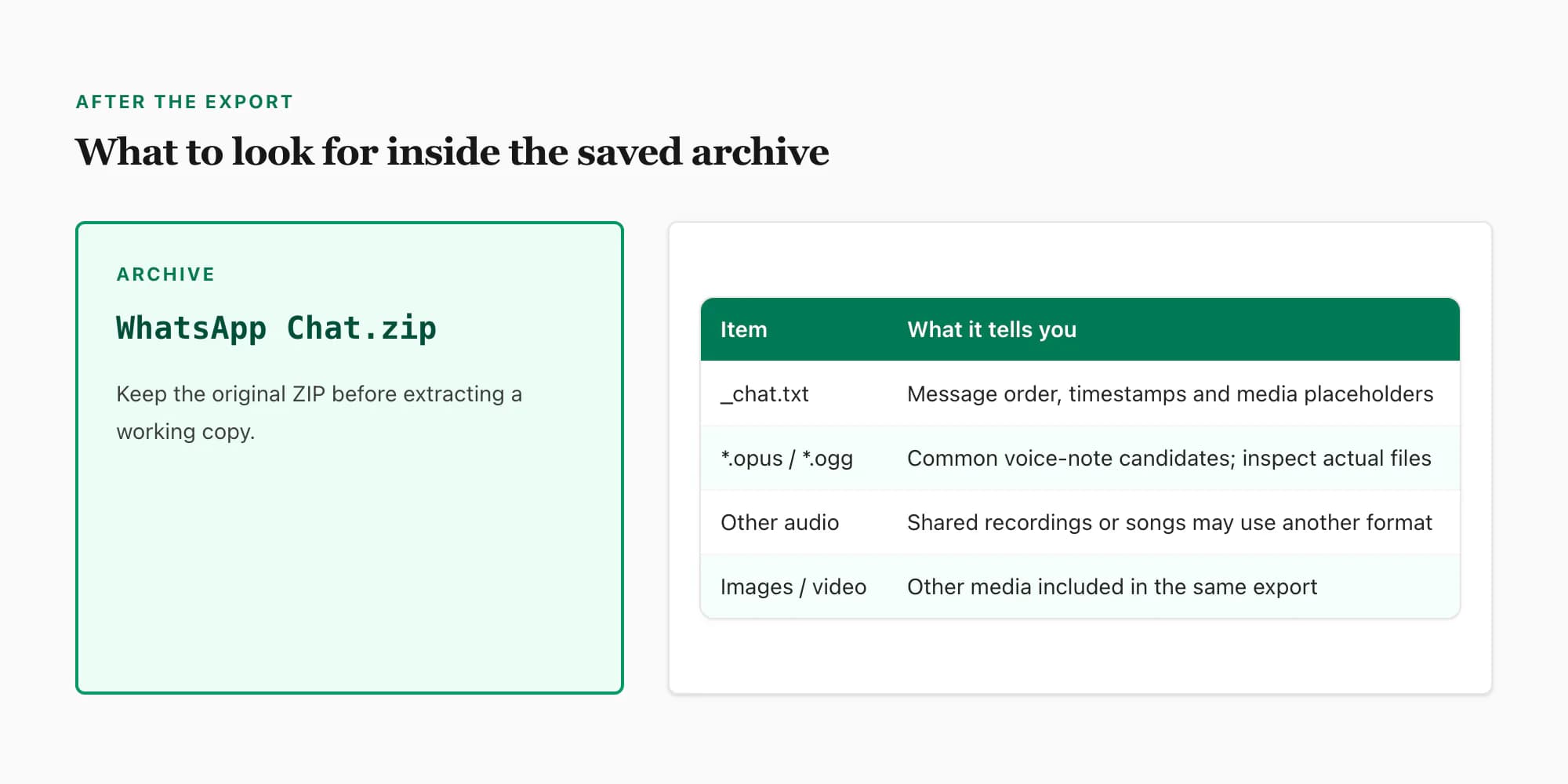
The transcript can include timestamp, sender and placeholder text around media messages. The audio file itself may have a generated name without the contact or message text. Use the transcript’s order and nearby timestamps as context, then play the candidate file to confirm it.
Do not assume every .ogg file is Opus solely from its extension; Ogg is a container. Do not assume every voice file uses a fixed bitrate or sample rate. The WhatsApp audio format article explains how to inspect codec, container, channels and duration with VLC or FFprobe.
Why a voice note can be absent
Possible causes include:
- The export was created Without Media.
- The destination rejected or truncated a large attachment.
- The note was no longer locally available when the export was prepared.
- The chat was too large for all desired media under the current export limits.
- The saved package is incomplete or was not fully downloaded from cloud storage.
- The item was an ephemeral or otherwise restricted message.
These are troubleshooting possibilities, not a claim that any one cause applies automatically. Re-run the export once with Include Media, choose a more suitable destination and inspect the new archive. If the same note is still missing, save that message individually where the interface permits.
Verify and preserve downloaded voice notes
A successful-looking archive is only the start. Verify the actual recording before treating the task as complete.
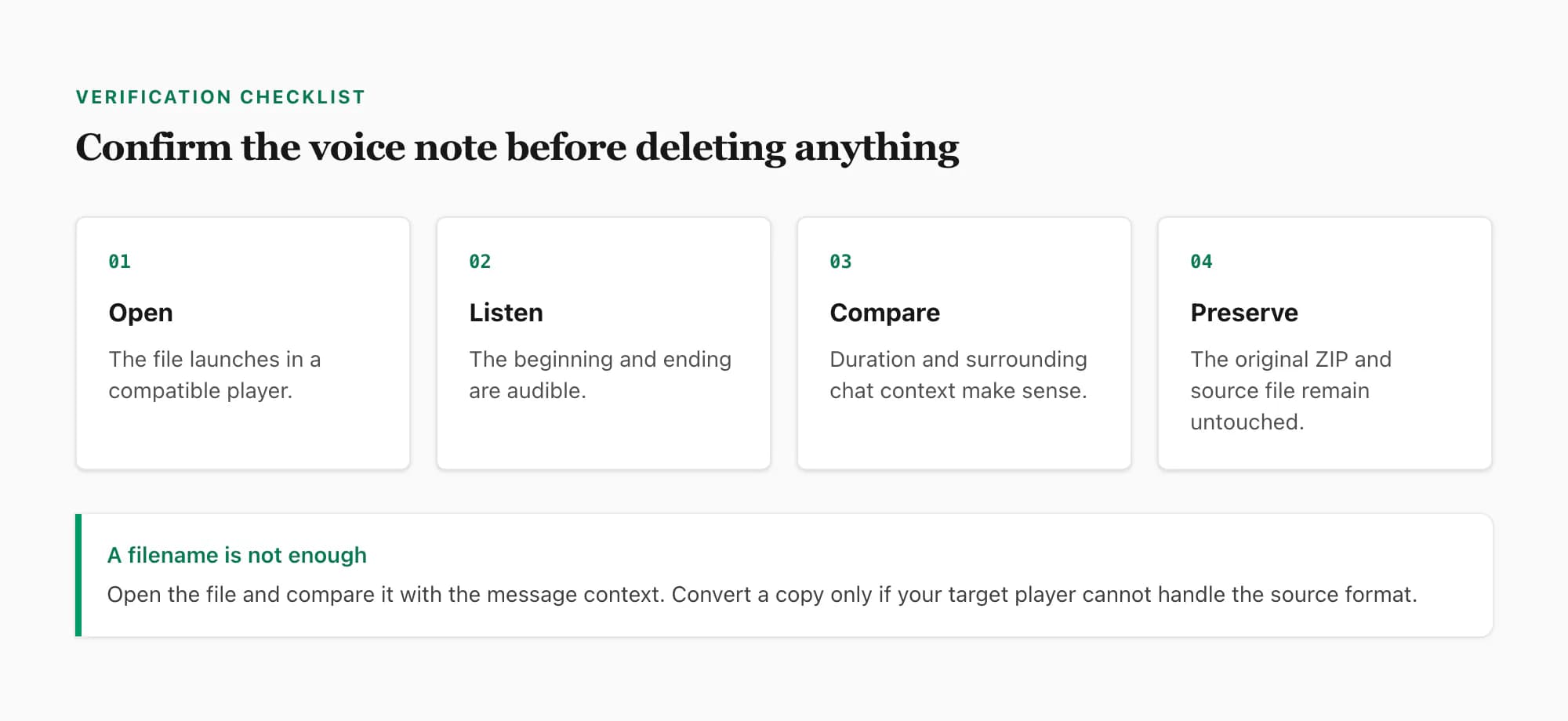
Use this checklist:
- Existence: the file is present and has a non-zero size.
- Recognition: VLC, FFprobe or another trusted tool identifies an audio stream.
- Playback: the beginning and end play without obvious truncation.
- Duration: the saved file’s duration is plausible for the in-chat note.
- Context: the transcript or surrounding messages support the identification.
- Preservation: the original archive and source audio remain unchanged.
If the note is important for a dispute, investigation or formal record, a downloaded audio file alone does not prove authenticity, sender identity or legal admissibility. Preserve the original device and export, document when and how you created the copy and obtain appropriate professional advice for the relevant jurisdiction. ChatToPDF does not certify evidence or guarantee court acceptance.
Create derivatives in a separate folder. Converting to MP3, trimming silence, normalizing volume or editing metadata changes the file. Those actions can be useful, but label the result clearly and keep the source. A name such as VOICE-0007-converted.mp3 is more transparent than overwriting VOICE-0007.opus.
Play, convert or transcribe next
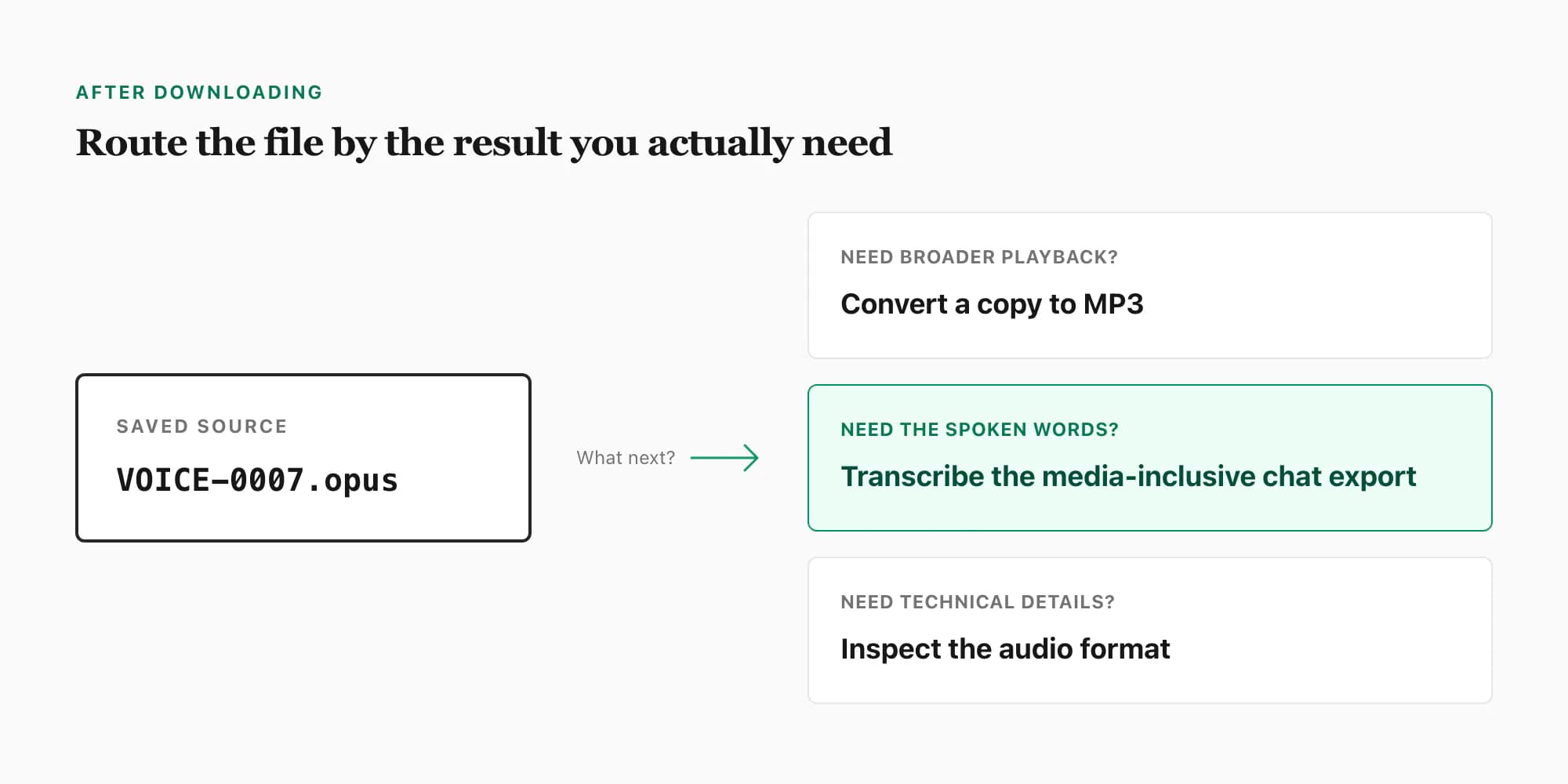
Once the voice notes are saved, choose the next action by desired output:
Play the original
Try VLC first. It supports common Opus/Ogg files and avoids an unnecessary lossy conversion. If the recording plays in the destination you need, keep it in the original format.
Convert a compatibility copy
Use the WhatsApp audio to MP3 tutorial when a car stereo, editor, website or recipient requires MP3. VLC is the visual route; FFmpeg is the repeatable route. Converting does not improve the source recording, so keep the Opus file.
For notes across one conversation, the whole-chat MP3 bundle can keep playable files alongside PDF references. Upload the original media-inclusive ZIP within 150 MB and review the detected notes. The bundle costs $49 for that chat; transcription is a separate option.
Transcribe the spoken words
Use the transcribe WhatsApp audio guide when listening is the problem and text is the useful output. ChatToPDF’s WhatsApp audio-to-text workflow accepts one supported saved voice message up to 60 seconds for a free transcript. For a backlog, upload the media-inclusive conversation export so supported notes can be placed back into sender, timestamp and message order.
The free single-message result contains only the speech available in that isolated audio file; it cannot recover WhatsApp sender or timestamp data that is not embedded in the clip. Use the whole-chat ZIP workflow when chronology and conversation context matter. The separate MP3-bundle workflow still requires the original media-inclusive ZIP rather than a lone file.
Keep the written conversation too
If you only need to read the TXT that accompanies your recordings, use the chat viewer. For a document you can print, follow the PDF guide and layout samples. For filtering dates and participants, inspect the Excel sample; for importing records into another tool, inspect the CSV sample. Written-chat outputs do not require transcription just because the original conversation included voice notes.
Frequently asked questions
How do I download a WhatsApp voice note to my phone?
Long-press the voice-note message and inspect the share, forward or save actions shown by your current WhatsApp version. Choose Files, Drive or another installed destination when available. Because iPhone, Android and app versions differ, there is no single guaranteed label. If no usable single-note action appears, export the chat with media.
How do I download all WhatsApp voice notes at once?
For notes from one conversation, open its chat options, choose Export Chat and select Include Media. Save or share the resulting archive, then extract a working copy and inspect the audio files alongside the transcript. WhatsApp’s export limits and the destination’s attachment limits can affect very large chats, so verify the output rather than assuming completeness.
Why did my WhatsApp export contain no voice-note files?
The most common first check is whether you selected Without Media. That option can leave transcript placeholders without attaching the recordings. Re-run the export with Include Media, choose a destination able to accept the archive and wait for the save or upload to complete. A huge chat or unavailable media can still require additional troubleshooting.
Where are WhatsApp voice notes stored on Android?
The accessible location varies with Android version, WhatsApp build, device manufacturer, storage configuration and permissions. Some older or specific setups expose a WhatsApp Voice Notes media directory, but it is not a reliable universal path. Use the visible message share action or Export Chat with media when possible, and copy rather than move any files you browse.
Why is my downloaded WhatsApp voice note not an MP3?
Push-to-talk notes commonly use the Opus codec in an Ogg container and may end in .opus or .ogg. That is a normal source format, not necessarily a failed download. Play it with VLC or create a separate MP3 derivative using the WhatsApp audio to MP3 guide. Renaming the extension alone does not convert it.
Can ChatToPDF download or convert one voice note for me?
No. ChatToPDF is not a single-message downloader or lone-file MP3 converter. You acquire the voice notes through WhatsApp’s share or media-inclusive export flow. ChatToPDF can then process supported notes inside one exported chat when you need a searchable conversation PDF with spoken content in context.
Primary references
- WhatsApp Help Center — export chat history: current first-party export route and media choice.
- IETF RFC 6716 — Definition of the Opus Audio Codec: authoritative specification for common exported voice-note audio.
- VideoLAN VLC documentation: local playback and conversion workflow after downloading.
- FFmpeg documentation: inspection and conversion command reference.
Key takeaways
- For one voice note, long-press the message and use the share, forward or save route exposed by your current device and WhatsApp version.
- For many notes from one chat, choose Export Chat and Include Media; Without Media does not provide the playable recordings.
- Save the archive to a destination with enough capacity, extract a working copy and verify file size, playback, duration and context.
- Do not rely on one universal Android storage path. Versions, manufacturers, permissions and managed-device policies differ.
- Keep the original archive and source audio. Convert, trim or rename only clearly labelled copies.
- Use the WhatsApp audio format guide to understand Opus, Ogg and file-specific properties.
- Use the WhatsApp audio to MP3 guide for VLC, FFmpeg and browser conversion choices.
- Use the transcribe WhatsApp audio guide or audio-to-text workflow when the desired output is searchable speech in conversation order.
I'm Paul, the founder of ChatToPDF. I built it after needing a long WhatsApp conversation as a readable PDF for a legal matter. I test and document WhatsApp exports, PDF conversion, voice-note transcription, and the limits people should check before relying on the result.