Definition and scope
Why can’t you print a WhatsApp chat directly?
The WhatsApp phone apps have no print option. On a computer, pressing Ctrl+P (Cmd+P) in WhatsApp Web prints only the messages currently loaded on screen, and page breaks often slice a message bubble in half. Screenshots work for a few messages but become unreadable and out of order for anything longer.
The reliable path is WhatsApp’s own Export Chat feature, which saves the whole conversation as a TXT file (and a ZIP with photos if you include media). That file has everything, but it is a raw log: dates, names and messages run together on one line, and photos are just filenames.
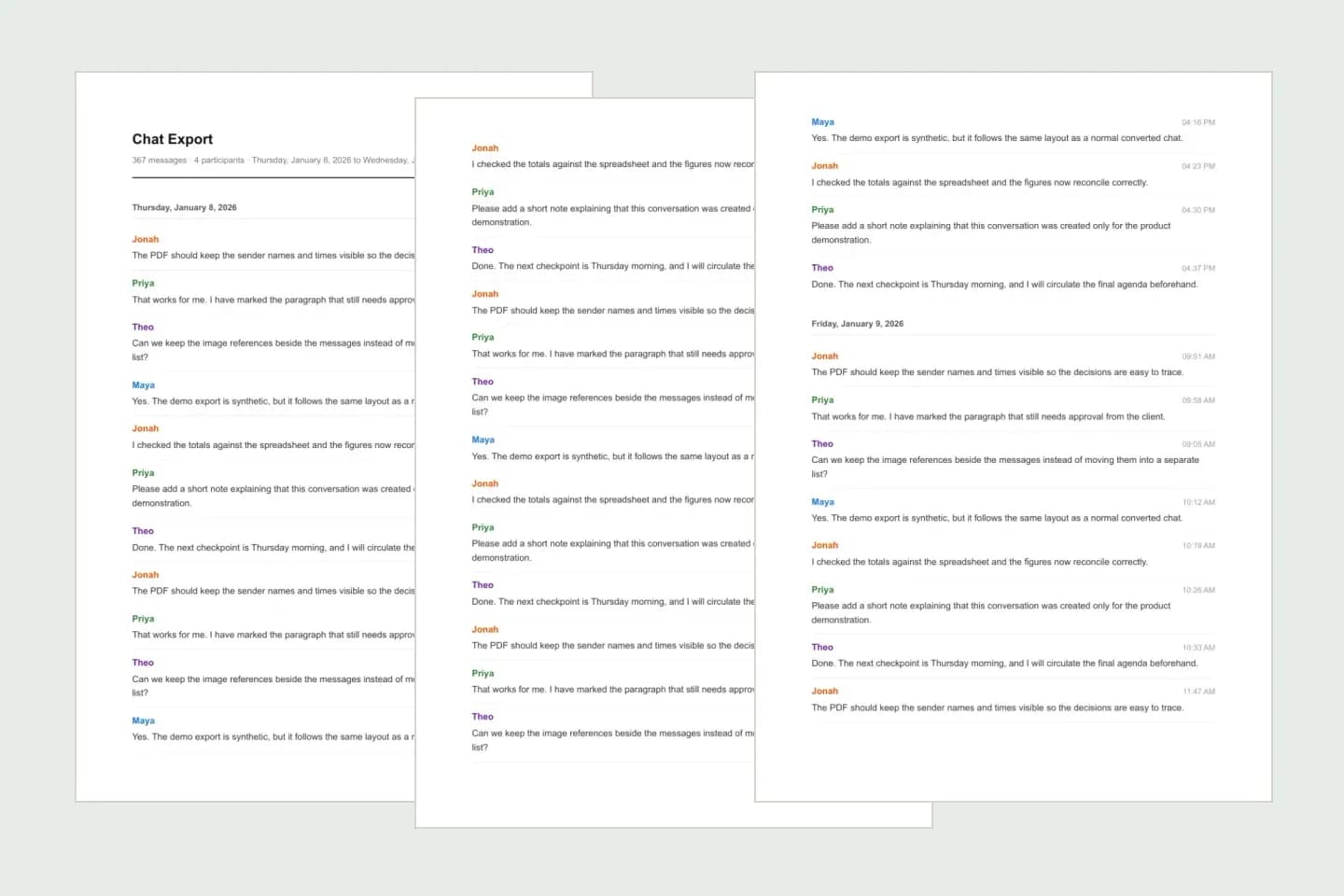
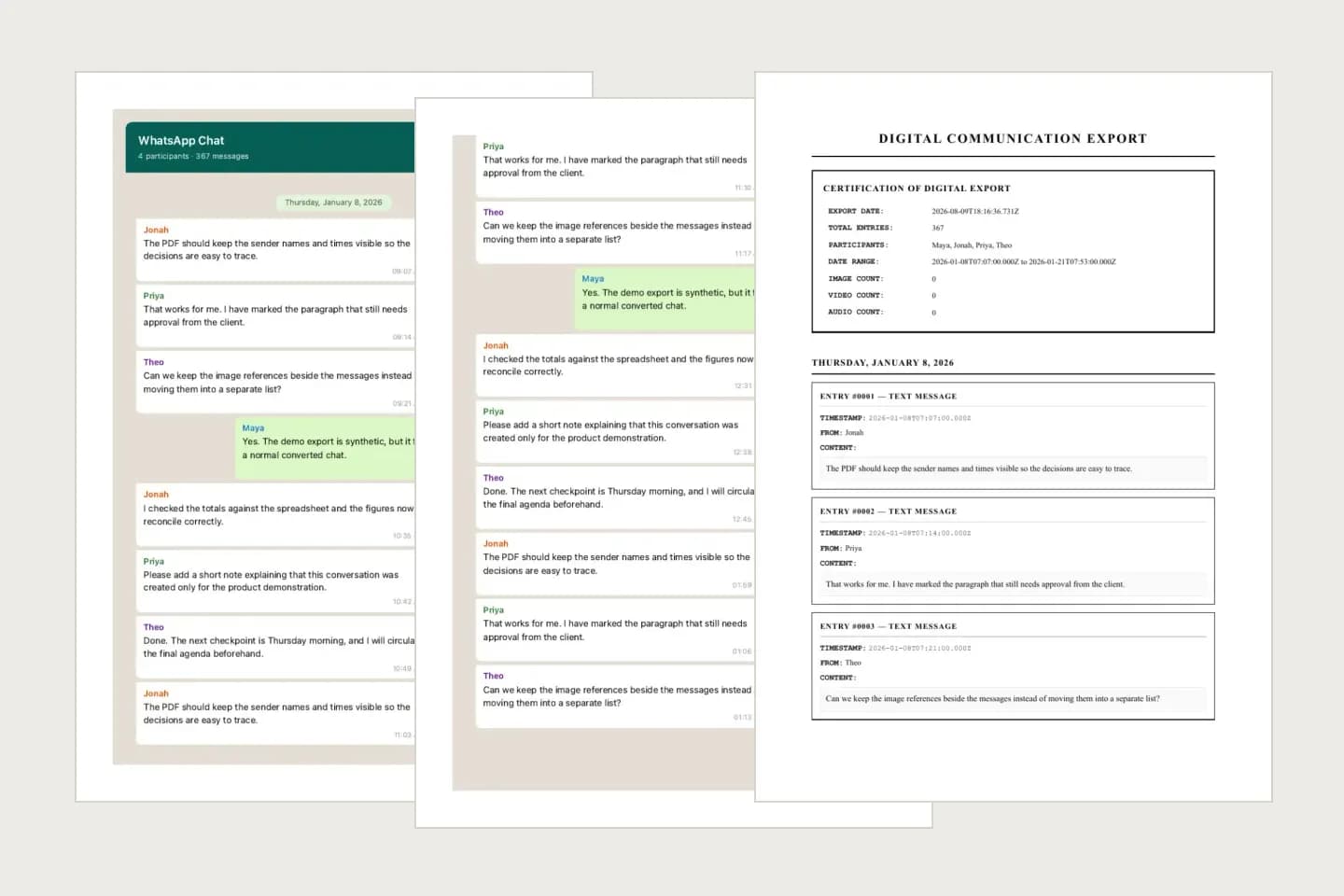
ChatToPDF fills the gap between export and printer. It reads the export, lays the messages out on A4 pages and gives you a PDF that prints the same on every printer. You choose the look — a clean document, WhatsApp-style bubbles, a formal record or a book.
Three-step workflow
How to use the WhatsApp Chat Print Tool
Export the chat from your phone
iPhone: open the chat → tap the name at the top → Export Chat. Android: open the chat → ⋮ → More → Export Chat. Choose Include Media if you want photos printed; Without Media for text only.
Exports come from the phone app. WhatsApp Web and the desktop app do not offer Export Chat, so start on the phone and send the file to your computer if you print from there.
Upload and check the print layout
Upload the TXT or ZIP. The Clean layout is preselected for printing; switch to WhatsApp-style bubbles, Formal or Book if you prefer. The free preview shows the first messages before you pay.
Check names, dates and a couple of multi-line messages. If anything looks wrong, the export is the place to fix it, not the printer.
Download the PDF and print
Download the PDF ($7 for text-only chats up to 5,000 messages; $14 with photos inline; $29 for unlimited messages and a date range). Open it and print like any document — at home, at work or at a copy shop.
Print at 100% (“actual size”), not “fit to page”. Use double-sided printing for long chats, and print one test page first.
Ready to check your export?
Upload the source file and inspect the parsed preview first. No account, no email, nothing to pay until you download.
Field-level detail
What appears on the printed pages?
The PDF is generated from the export, so it prints exactly what WhatsApp exported — nothing more, nothing less.
- Field
- Header
- What it contains
- Message count, number of participants and the date range of the conversation
- Useful for
- Knowing what the printout covers at a glance
- Field
- Sender
- What it contains
- The name or number on every message
- Useful for
- Following who said what, including in group chats
- Field
- Date and time
- What it contains
- The timestamp WhatsApp exported for each message
- Useful for
- Chronology, records and finding a message later
- Field
- Message text
- What it contains
- Complete messages, including line breaks and emoji
- Useful for
- Reading without bubbles being cut by page breaks
- Field
- Photos
- What it contains
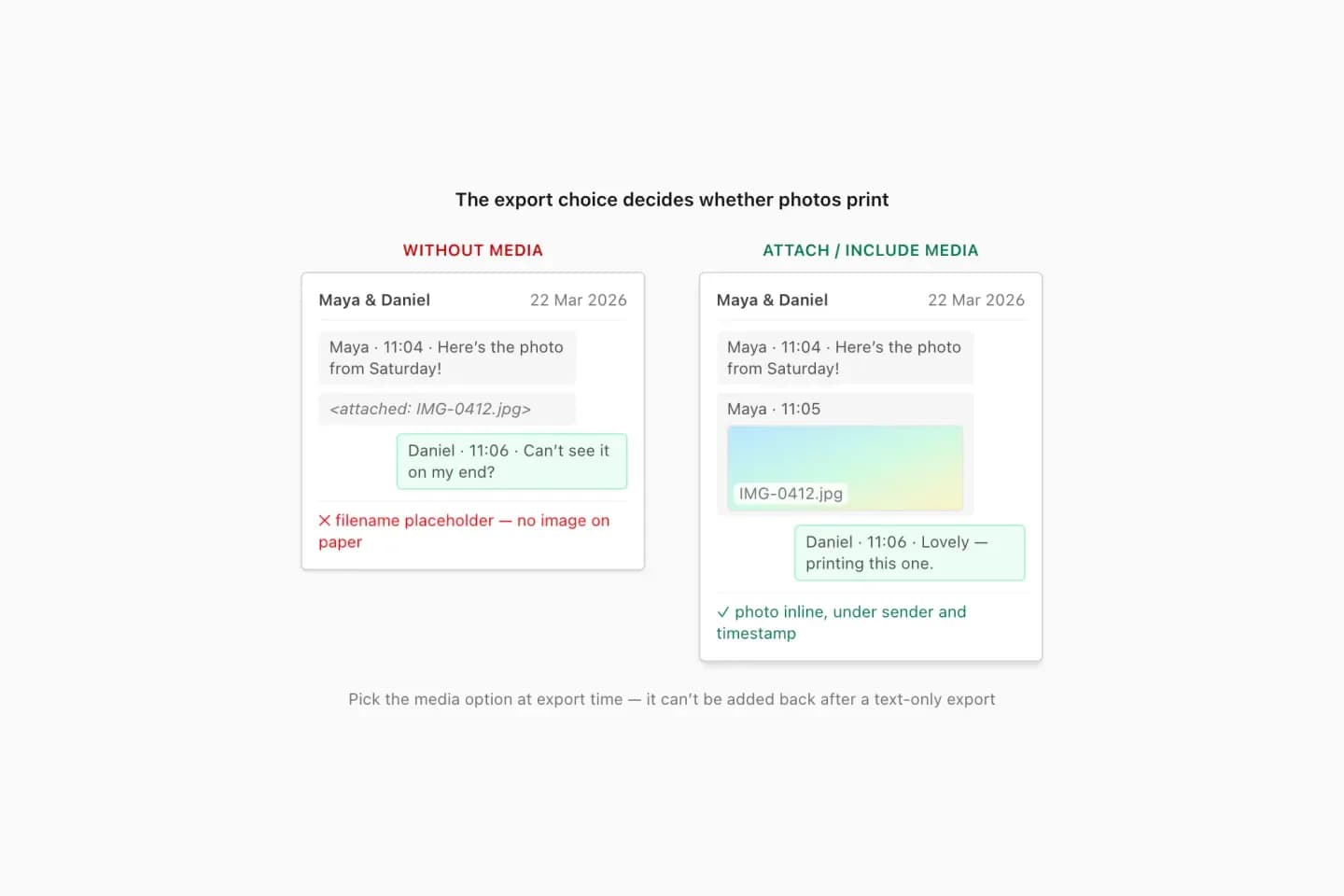
- Images from a media-inclusive ZIP, inline (Standard and above)
- Useful for
- Printing pictures in context
- Field
- System lines
- What it contains
- Group changes and other service events, which can be omitted (Standard and above)
- Useful for
- A tidier printout or a complete record — your choice
Practical applications
When this format is useful
Records for a lawyer, HR or insurer
A complete, chronological printout with names and timestamps on every message. Ask the recipient what format they require, and keep the original export.
Landlord, tenant and contractor disputes
Print the agreed dates, prices and instructions instead of scrolling through a phone in a meeting.
A printout for an older relative
Family news and photos on paper for someone who does not use WhatsApp.
School or club records
Print a parents’ or committee group’s decisions for the file.
Keepsake printing
Print a meaningful conversation; for a bound book layout use the chat book tool.
Reviewing a long chat on paper
Some conversations are easier to annotate with a pen than on a screen.
Format decision guide
Screenshots, WhatsApp Web print or a chat PDF?
Every method gets something onto paper. Only some keep the whole conversation readable and in order.
- Method
- Screenshots
- Works for
- A handful of messages
- Problem
- Slow, small text, easy to miss messages, nothing searchable
- Method
- WhatsApp Web + Ctrl/Cmd+P
- Works for
- A short recent exchange on a computer
- Problem
- Prints only what is loaded on screen; bubbles can split across pages
- Method
- Print the raw exported TXT
- Works for
- Free text-only printing
- Problem
- Dense log lines, no layout, photos shown only as filenames
- Method
- Export → ChatToPDF → print
- Works for
- Whole chats, with photos, on any printer
- Problem
- Paid download from $7 after a free preview
Printing from iPhone, Android or a computer
On iPhone, open the downloaded PDF in Files or Books, tap Share → Print and choose an AirPrint printer. On Android, open the PDF and use ⋮ → Print, or Share → Print. On a computer, open the PDF in any PDF reader and print normally.
Because the conversion happens in the browser, you can upload on your phone, download the PDF and send it to the computer you print from. My step-by-step guide on how to print WhatsApp messages covers each device with screenshots.
Long chats: page counts and print settings
A long chat can run to hundreds of pages. Before printing everything, consider whether you need all of it: Premium ($29) adds a date-range filter and a participant filter so you print only the relevant period or people.
Print a single test page first to check scale and margins. Use actual size (100%), A4 or Letter as your printer requires, and double-sided printing to halve the stack. For more than about 100 pages, a copy shop is quicker than a home printer and can bind the pages.
- Print at 100% scale
- Test one page first
- Double-sided for long chats
- Use a date range for a shorter printout
Printing a chat for official use
If the printout is for a court, a lawyer, an employer or an insurer, completeness matters more than looks. Print the full conversation rather than excerpts, keep names and timestamps visible, and keep the original export file unchanged so it can be checked later. The Formal layout is designed for this kind of record.
Whether a printout is accepted depends on the court or organization. Ask them what they need; ChatToPDF produces a readable copy of the export, not a certified record.
What you get for free
The preview of your own chat is free and shows the first 10 messages in the layout you choose, so you can confirm the export was read correctly before paying. The full printable PDF is a one-time purchase per chat, with no subscription. Excel and CSV copies of the same chat are included in every paid download.
Troubleshooting
Common problems and fixes
I can’t find Export Chat
It is in the phone app only. iPhone: tap the contact or group name at the top of the chat. Android: ⋮ → More → Export Chat. Some work-managed phones disable it.
Photos print as filenames
The chat was exported Without Media. Export again with Include Media / Attach Media and upload the ZIP (photos need Standard, $14).
The printout is tiny or cropped
Turn off “fit to page” or “multiple pages per sheet” and print at 100%. If your printer uses Letter paper, choose “scale to fit paper” only if margins are cut off.
Older messages are missing
WhatsApp only exports what is still on the phone. Messages deleted from the device, or never restored from a backup, cannot be exported or printed.
The chat is too long to print
Use Premium’s date-range or participant filters, or print at a copy shop. Basic covers up to 5,000 messages.
Frequently asked questions
WhatsApp Chat Print Tool FAQ
How do I print a WhatsApp chat?
WhatsApp has no print button, so export the chat (Export Chat in the chat’s menu), upload the TXT or ZIP to ChatToPDF, download the formatted PDF and print it from any device.
How do I print WhatsApp messages from my iPhone?
Open the chat, tap the contact or group name, choose Export Chat, then upload the file here in Safari. Open the downloaded PDF and tap Share → Print to send it to an AirPrint printer.
Can I print a WhatsApp chat with photos?
Yes. Export with Include Media, upload the ZIP and choose Standard ($14) or above. Photos are printed where they appeared in the conversation.
Can I print WhatsApp messages for free?
You can print the raw exported TXT file for free, but it is a dense text log without photos. ChatToPDF’s preview is free; the formatted printable PDF is a one-time download from $7.
Can I print a WhatsApp conversation from WhatsApp Web?
Ctrl+P or Cmd+P in WhatsApp Web prints only the messages currently loaded, and page breaks can cut messages. Exporting the chat from your phone and printing the PDF is more complete.
Will timestamps and names show on the printout?
Yes. Every message keeps the sender name and the date and time WhatsApp exported.
Can I print just part of a chat?
Yes. Premium ($29) includes a date-range filter and a participant filter, so you can print a specific period or specific people.
Is printed WhatsApp chat accepted in court?
That depends on the court and jurisdiction. A complete printout with names and timestamps is easier to rely on, but ask your lawyer or the court what they require and keep the original export.
Do you keep my chat?
No. Uploads and generated files are deleted automatically within 7 days, and ChatToPDF never logs in to your WhatsApp account.
Primary references
Technical statements on this page are tied to the source instructions or format documentation below. Product behavior is based on the current ChatToPDF implementation.
- WhatsApp Help Center — How to export your chat history
Primary instructions for the TXT or media-inclusive ZIP export every page on this site starts from.
Last reviewed: 9 October 2026. ChatToPDF is independent and is not affiliated with or endorsed by WhatsApp or Meta.