
Definition and scope
What is WhatsApp Wrapped?
“WhatsApp Wrapped” is the name people use for a year-in-review of a WhatsApp chat, in the style of the annual summaries music and video apps send out. It is not a feature inside WhatsApp. The summary is made by a separate tool from the file WhatsApp creates when you choose Export Chat.
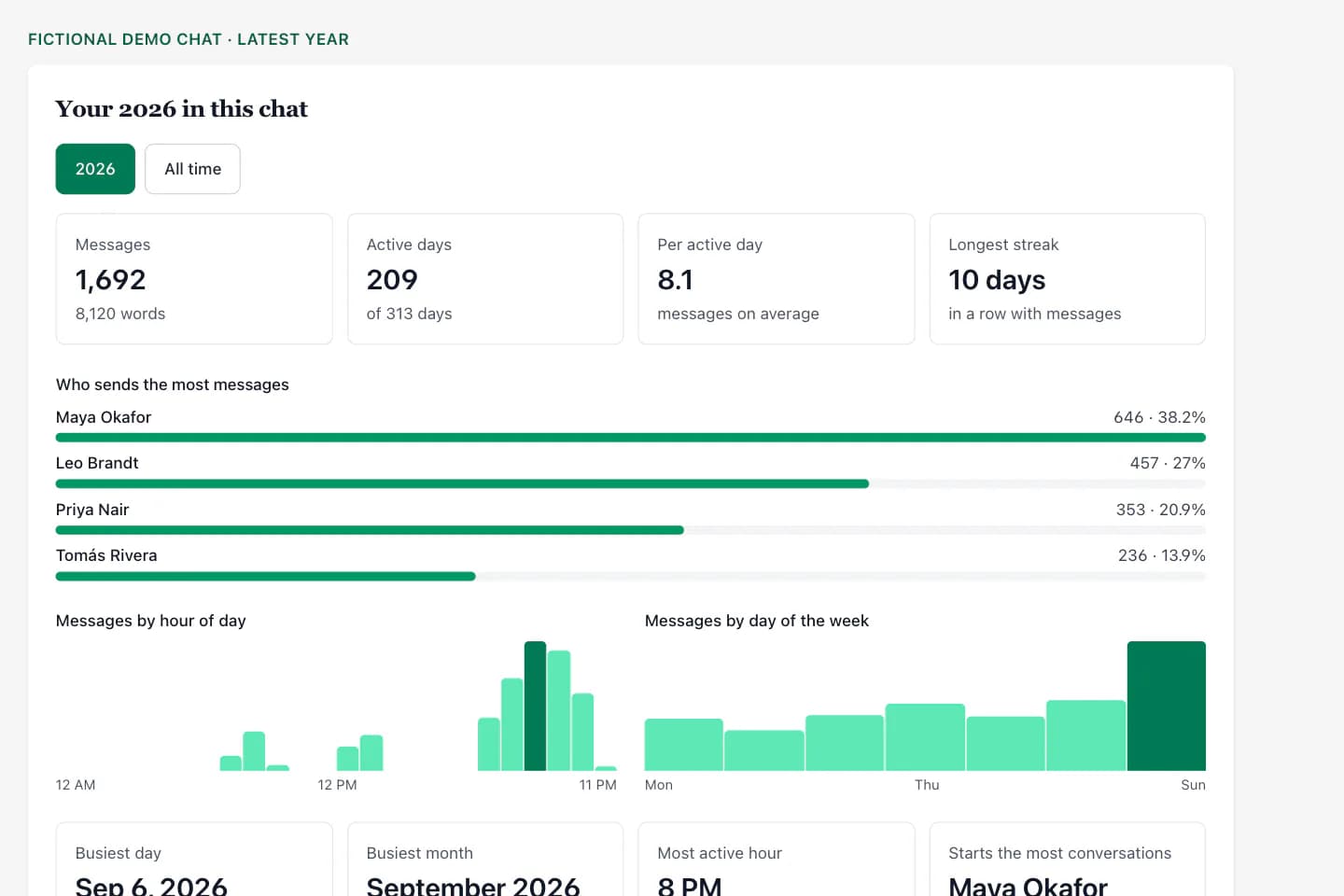
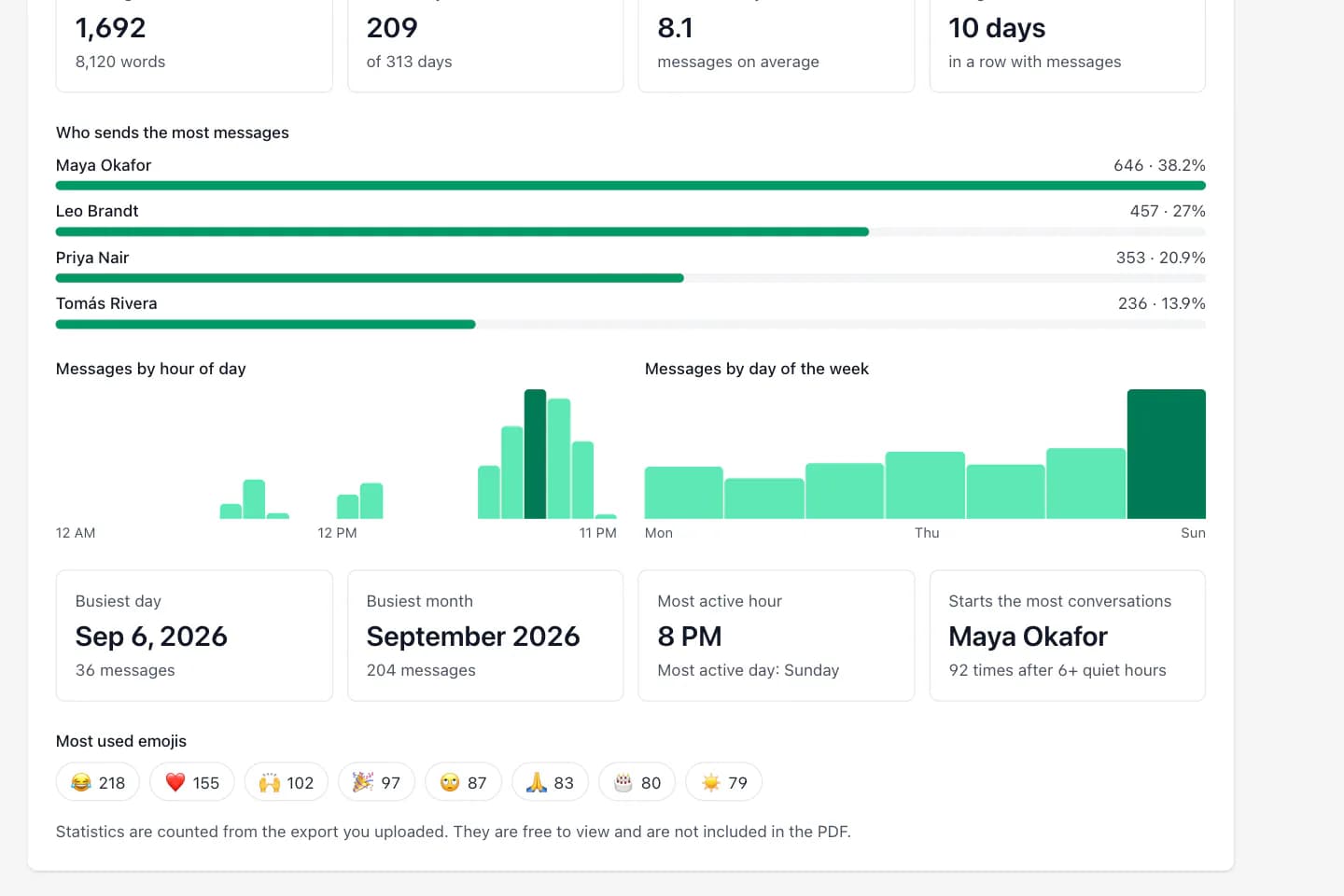
This page makes that summary for one chat at a time. It reads the exported transcript, takes the most recent calendar year that contains messages and counts what happened in it: total messages and words, who sent the most, the busiest day and month, the hours and weekdays the chat was most active, the longest run of consecutive days with messages, who started the most conversations and the eight most used emojis.
ChatToPDF is independent of WhatsApp and Meta. It does not log in to your account, and it sees only the chat you export and upload.
Three-step workflow
How to use the WhatsApp Wrapped
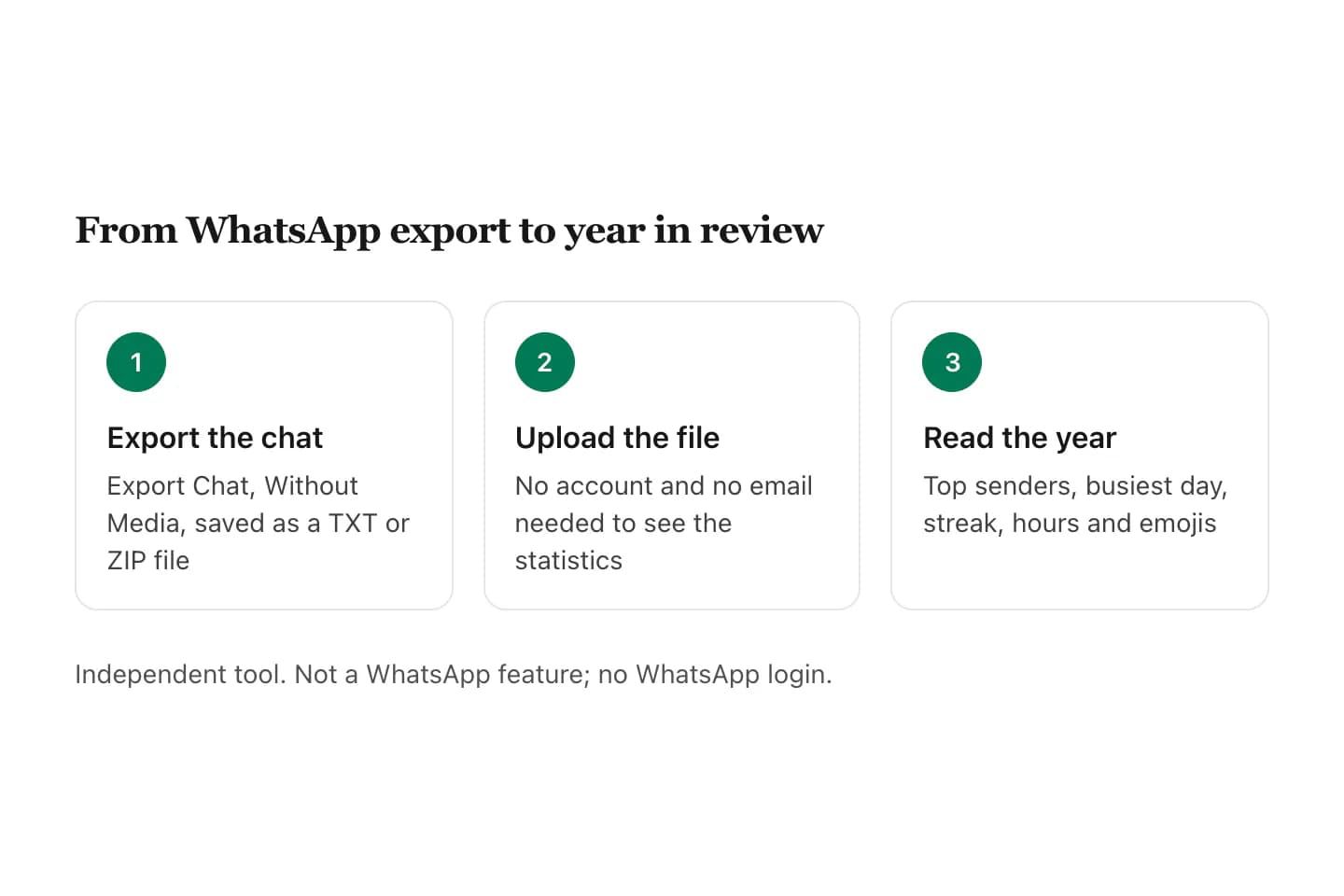
Export the chat you want to wrap
Open the chat. iPhone: tap the contact or group name, scroll down and tap Export Chat. Android: tap ⋮ → More → Export Chat. Choose Without Media.
Without Media keeps the file small and carries the longest history, roughly up to 40,000 messages. That usually covers a full year even in a busy group.
Upload the export
Upload the TXT or ZIP from your phone or computer. The year in review appears as soon as the file has been read, usually within a few seconds.
No account, no email and no WhatsApp login. Uploads are deleted automatically within 7 days.
Read the year and compare it with all time
The page opens on the latest calendar year in the chat. Tap All time to see the same statistics across the whole export.
To share it, take a screenshot. To keep the conversation itself, a one-time download from $7 gives you a formatted PDF with Excel and CSV copies.
Ready to check your export?
Upload the source file and inspect the parsed preview first. No account, no email, nothing to pay until you download.
Field-level detail
What your WhatsApp Wrapped shows
Each line is counted from the dates, times and names in your export for the selected year. Nothing is guessed.
- Field
- Messages this year
- What it contains
- Total messages and words sent in the calendar year
- Useful for
- The headline number
- Field
- Top senders
- What it contains
- Message count and share for up to eight people
- Useful for
- Crowning the group’s most active member
- Field
- Busiest day
- What it contains
- The single date with the most messages
- Useful for
- Remembering what happened that day
- Field
- Busiest month
- What it contains
- The calendar month with the most messages
- Useful for
- Seeing the season the chat peaked
- Field
- Hours and weekdays
- What it contains
- Messages by hour of day and by day of the week
- Useful for
- Night-owl and weekend patterns
- Field
- Longest streak
- What it contains
- Most days in a row with at least one message
- Useful for
- Friendship and couple streaks
- Field
- Conversation starters
- What it contains
- Who wrote first after six or more quiet hours
- Useful for
- Seeing who reaches out first
- Field
- Top emojis
- What it contains
- The eight emojis used most in text messages
- Useful for
- The chat’s signature reactions
Practical applications
When this format is useful
A year-end post for the group chat
Screenshot the top senders and the busiest day and drop them back into the group.
A couple’s year in messages
Total messages, the longest streak and the busiest day make a simple anniversary or New Year note.
A family chat recap
See which month the family talked most and who keeps the conversation going.
A friendship look-back
Compare this year with all time to see whether you are talking more or less than before.
A team or club summary
Activity by weekday and hour shows when a working group is really in use.
A keepsake with the numbers
Pair a screenshot of the year with a PDF of the conversation in the Book style.
Format decision guide
Ways to make a WhatsApp Wrapped, compared
Year-in-review tools for WhatsApp all start from the same export. The differences are in where the file is processed and what you get back.
- Approach
- This page (upload the export)
- What you get
- The year’s statistics in the browser, free, with an All time switch
- Catch
- Processed on our server and deleted within 7 days; shared by screenshot
- Approach
- Card-style “Wrapped” sites
- What you get
- Animated or shareable story cards
- Catch
- Check each site’s privacy policy and pricing before uploading a personal chat
- Approach
- On-device apps
- What you get
- Statistics calculated on the phone
- Catch
- An app to install; features vary
- Approach
- Counting by hand
- What you get
- Any number you want
- Catch
- A year of messages is thousands of lines of text
Which year does it show?
The page opens on the most recent calendar year that has messages in your export. For a chat exported in November or December that is the current year to date; for an older export it is the year the chat ended.
The All time button shows the same statistics for the entire export. If the chat only contains one year, the two views are identical.
How to get a full year into the export
WhatsApp limits how much one export holds: roughly 40,000 messages without media and far fewer with media. Choose Without Media so the export reaches back as far as possible.
If a very active group sends more than that in a year, the export will start partway through the year, and the year view will say so through its first-message date and active-day count.
- Export Without Media
- One chat per export
- Export close to year-end for the fullest year
- Keep the TXT or ZIP as your source copy
Privacy, plainly
Your export is uploaded to ChatToPDF’s server to be read. Files are deleted automatically within 7 days and no person reads your chat. The statistics are counts only; message text is not scored or summarised.
Remember that a chat belongs to everyone in it. Before posting a screenshot of the numbers, consider whether the other people would be comfortable with it.
What is free and what is paid
The year in review, the all-time view and a preview of the first messages are free with no account. The paid part is optional: the conversation as a formatted PDF, with Excel and CSV copies, for a one-time $7 (text only, up to 5,000 messages), $14 with photos up to 25,000 messages, or $29 with no message limit.
The statistics are shown on screen and are not printed in the PDF.
Troubleshooting
Common problems and fixes
It shows last year, not this year
The view uses the latest year that has messages in the file. Export the chat again today so recent messages are included.
The year starts in the middle
The export reached WhatsApp’s message limit. Export Without Media; a media export holds far fewer messages.
It found zero messages
Upload the TXT or ZIP from Export Chat. A backup file or a screenshot is not an export.
A person is listed under two names
Names come from your contacts at export time. A renamed contact or new number appears as a separate sender.
I want all my chats in one Wrapped
WhatsApp exports one chat at a time, so each Wrapped covers one conversation. Repeat the steps for each chat.
Frequently asked questions
WhatsApp Wrapped FAQ
Does WhatsApp have a Wrapped?
Not as a feature in the app. “WhatsApp Wrapped” refers to year-in-review summaries made by separate tools from a chat you export. This page is one of those tools and is independent of WhatsApp.
How do I get my WhatsApp Wrapped?
Export one chat with Export Chat → Without Media, then upload the TXT or ZIP here. The year in review opens automatically on the latest calendar year in the chat.
Is WhatsApp Wrapped free here?
Yes. The year in review and the all-time statistics are free and need no account. Keeping the conversation as a PDF with Excel and CSV is optional, from $7.
Is it safe to upload my chat?
The export is processed on ChatToPDF’s server and deleted automatically within 7 days. No person reads it and no WhatsApp login is requested. For a very sensitive chat, use an on-device tool.
Does it work for group chats?
Yes. Groups get a ranked list of the eight most active members for the year and a note of how many other participants there were.
Can I share my WhatsApp Wrapped?
Take a screenshot of the statistics and share that. There is no public link, so nothing is visible to anyone unless you post it.
Will the people in the chat be notified?
No. Exporting a chat sends no notification, and this tool never contacts WhatsApp or anyone in the conversation.
Can I see previous years?
The switch offers the latest year and all time. For another year, the paid Excel file lists every message with its date so you can filter to any period.
Why is my message count lower than I expected?
WhatsApp limits how many messages one export contains. Export Without Media to include as much of the year as possible.
Primary references
Technical statements on this page are tied to the source instructions or format documentation below. Product behavior is based on the current ChatToPDF implementation.
- WhatsApp Help Center — How to export your chat history
Primary instructions for the TXT or media-inclusive ZIP export every page on this site starts from.
Last reviewed: 11 November 2026. ChatToPDF is an independent tool. It is not affiliated with, endorsed by or connected to WhatsApp, Meta or any “Wrapped” year-in-review product.