
Definition and scope
What is a Telegram chat export?
Telegram Desktop has an Export chat history tool that saves one conversation (or your whole account) to a folder on your computer. You can choose machine-readable JSON (a single result.json file) or human-readable HTML (messages.html, messages2.html and so on, about a thousand messages per page), and which media to include.
The HTML export opens in a browser, but it is split across many pages and is awkward to print, search or hand to someone. The JSON export is complete and compact but not readable at all. ChatToPDF reads either and turns it into one paginated document with the sender and time on every message.
ChatToPDF never asks for your Telegram login. You export the chat yourself and upload only the file you choose.
Three-step workflow
How to use the Telegram Chat to PDF Converter
Export the chat from Telegram Desktop
Install Telegram Desktop from desktop.telegram.org on Windows, macOS or Linux and sign in. Open the conversation, click ⋮ (top right) → Export chat history, set the format to JSON and tick photos, videos, files or voice messages if you want them. Click Export.
The Telegram apps for Android and iPhone have no export option, and on a Mac the separate “Telegram for macOS” app is a different program; these steps are for Telegram Desktop.
Upload result.json or the zipped folder
Telegram saves a folder named like ChatExport_2026-10-09. Upload result.json for the text alone, or zip the entire folder and upload the ZIP to include photos, files and voice messages.
If you exported HTML, upload the zipped folder rather than a single messages.html: one HTML page holds only about a thousand messages.
Preview and download the PDF
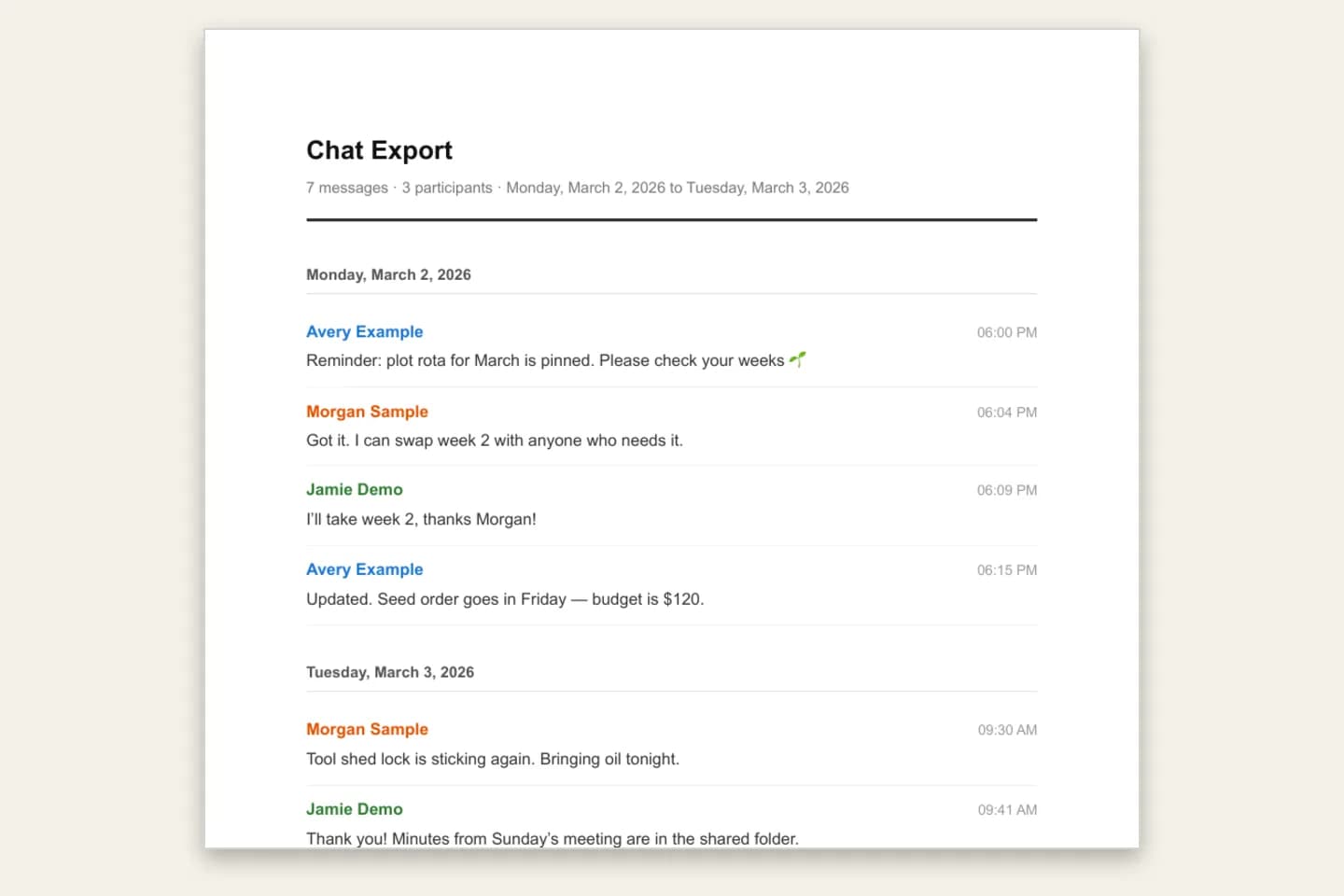
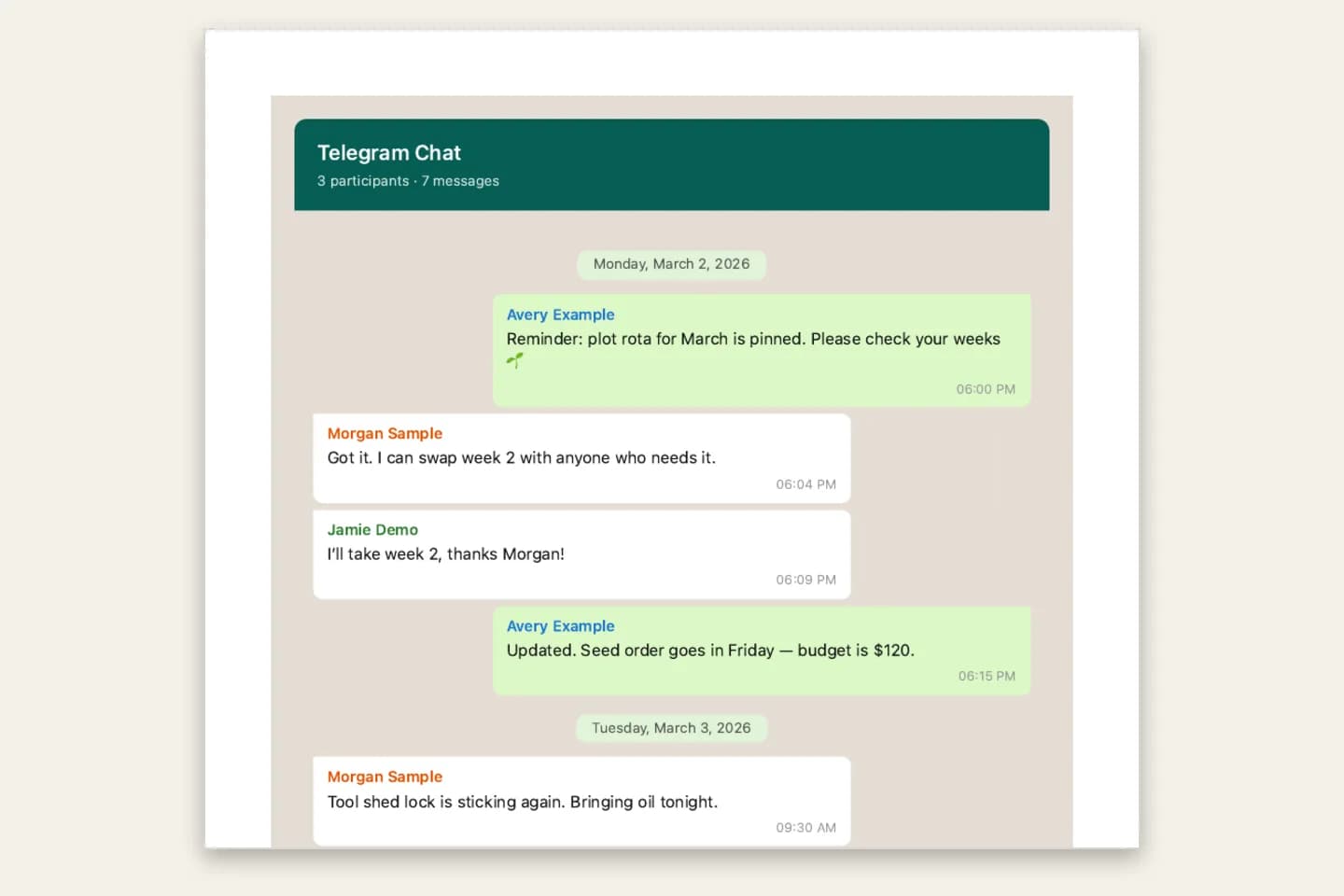
The free preview shows the first messages with senders and dates. Choose WhatsApp Classic bubbles, Clean Document, Formal / Legal or Book Format, then pay once and download the PDF, Excel and CSV files.
$7 covers up to 5,000 text-only messages, $14 up to 25,000 with photos, $29 is unlimited, and $49 adds transcription of voice messages included in a ZIP. Upload limit: 150 MB.
Ready to check your export?
Upload the source file and inspect the parsed preview first. No account, no email, nothing to pay until you download.
Field-level detail
What the Telegram PDF includes
Every line comes from your export. Telegram-specific details such as forwards and replies are written out as text so they survive printing.
- Field
- Sender
- What it contains
- The display name on every message, including in groups
- Useful for
- Following who said what
- Field
- Date and time
- What it contains
- Each message’s time under day headings
- Useful for
- Timelines and records
- Field
- Replies and forwards
- What it contains
- “Replying to …” with a snippet, and “Forwarded from …”; edited messages marked “(edited)”
- Useful for
- Reading messages in context
- Field
- Links, polls, contacts, locations
- What it contains
- Written out as text lines; text links keep their URL
- Useful for
- Nothing lost when printed
- Field
- Service events
- What it contains
- Group created, members added, pinned messages; can be omitted on $14 and above
- Useful for
- A complete record or a tidier read
- Field
- Photos and files
- What it contains
- Media from a zipped export, photos inline on $14 and above
- Useful for
- Pictures next to the conversation
- Field
- Voice messages
- What it contains
- Voice messages from a zipped export, transcribed on the $49 plan
- Useful for
- Putting spoken messages on paper
Practical applications
When this format is useful
Group and community records
Committee, club, building or project group decisions in one dated document you can file or circulate.
Evidence for a lawyer or platform report
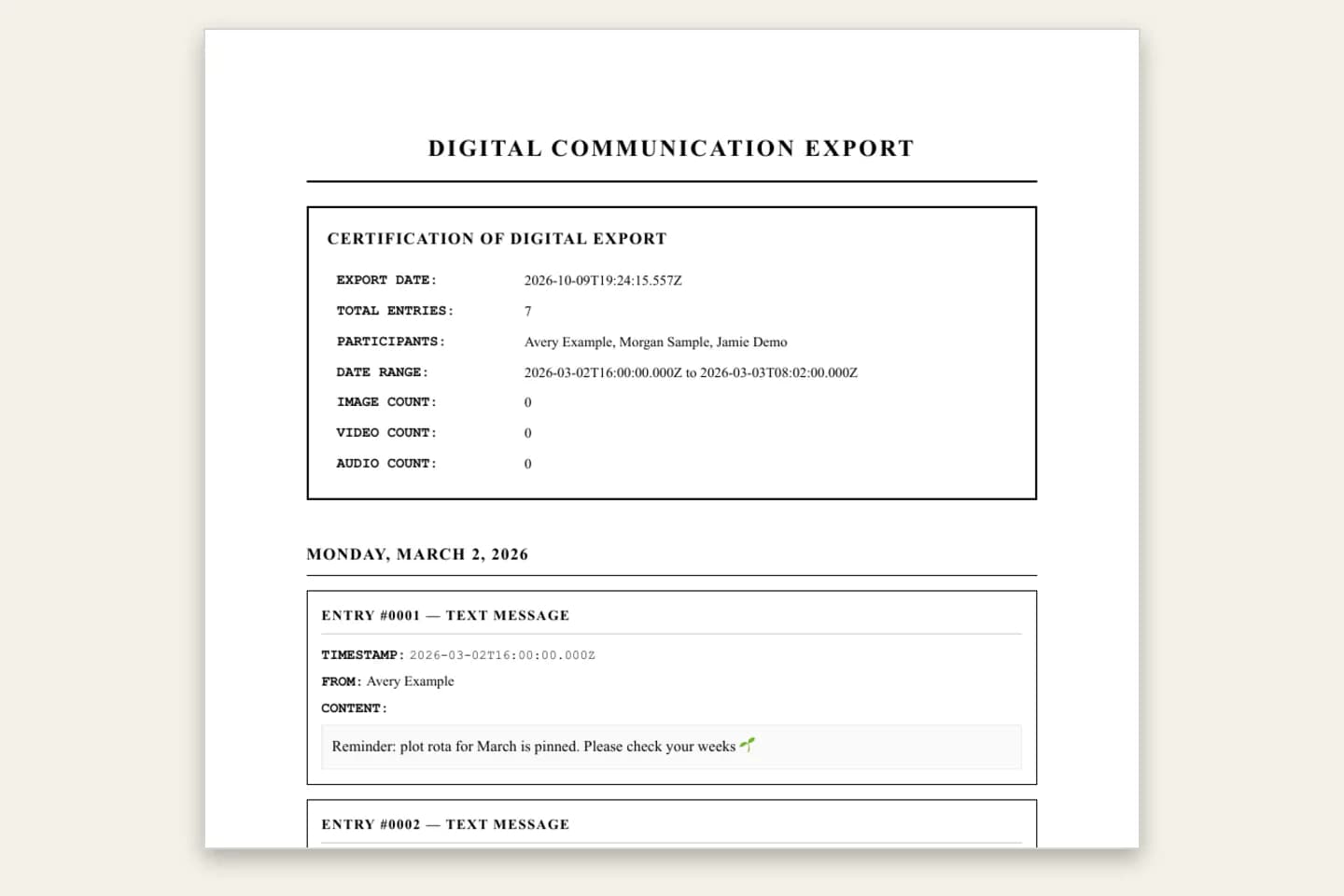
The Formal / Legal style numbers each message with sender and timestamp. What is accepted is your lawyer’s call; keep the original export.
An offline copy you own
Telegram history lives in the cloud and can disappear with deleted chats or accounts. A PDF, Excel and CSV copy stays with you.
Business and client chats
Orders, quotes and instructions agreed over Telegram, archived with dates.
A keepsake book
Book Format turns a long personal chat into a printable book with chapters by month ($14+).
Voice messages as text
Zip the export with voice messages and the $49 plan prints transcripts beside each sender and time.
Format decision guide
JSON or HTML: which Telegram export should you pick?
Both work with ChatToPDF. JSON is the safer choice because the whole chat is in one file.
- Export format
- JSON (recommended)
- What Telegram writes
- One result.json with every message, plus media folders if ticked
- Best for
- Uploading here: one file, nothing split
- Export format
- HTML
- What Telegram writes
- messages.html, messages2.html … (about 1,000 messages per page) plus media folders
- Best for
- Browsing in a web browser; zip the folder before uploading
- Export format
- Whole-account export
- What Telegram writes
- Every chat in one export
- Best for
- Backups; ChatToPDF converts only the largest chat in it
How do I export an entire chat from Telegram?
Use Telegram Desktop on a computer. Open the chat, click ⋮ → Export chat history, choose JSON, select the media you want and leave the date range at its default to include the whole history. Telegram saves a result.json file and media folders. Upload result.json, or a ZIP of the folder, to turn it into a PDF.
Why can’t I see Export chat history on my phone?
Because Telegram’s Android and iPhone apps do not have it. Chat export exists only in Telegram Desktop for Windows, macOS and Linux. Install it on any computer, sign in with your phone number, and the chat history syncs from Telegram’s cloud, so you can export a conversation you have only ever used on your phone.
Secret chats are end-to-end encrypted and stay on the devices that took part, so they do not appear in Telegram Desktop and cannot be exported this way.
How do I make a PDF of a Telegram chat?
Export the chat from Telegram Desktop as JSON, upload result.json (or the zipped export folder for media) to ChatToPDF and check the free preview. Choose one of four styles and download a paginated PDF with sender names and timestamps on every message, plus Excel and CSV copies, from $7.
Honest limits: what this converter does not do
These are the cases where a Telegram upload does not do what you might expect. The free preview shows what was read before you pay.
- Needs a Telegram Desktop export; phone apps cannot export and we never log in to Telegram
- One chat per upload; a whole-account export converts the largest chat only
- A single messages.html holds about 1,000 messages; upload JSON or the zipped folder
- Animated stickers and round video messages appear as placeholders, not images
- Media and voice messages need the zipped folder; result.json alone is text only
- Upload limit 150 MB; a ZIP can hold up to 10,000 files
Troubleshooting
Common problems and fixes
There is no Export chat history option
You are on a phone, or on a Telegram app other than Telegram Desktop. Install Telegram Desktop from desktop.telegram.org on a computer.
Only part of the chat appears
A single messages.html holds about a thousand messages. Upload result.json, or zip the whole HTML export folder.
Photos or voice messages are missing
They were not ticked during export, or you uploaded result.json alone. Export again with media ticked and upload the zipped folder; photos need the $14 plan or above.
The wrong chat was converted
A whole-account export was uploaded and the largest chat was used. Export just the one chat from inside that conversation.
The export folder is too big
The limit is 150 MB. Untick videos and files in Telegram’s export options, or set a size limit for media.
Frequently asked questions
Telegram Chat to PDF Converter FAQ
How do I export a Telegram chat to PDF?
Export the chat from Telegram Desktop (⋮ → Export chat history → JSON), upload result.json or the zipped folder to ChatToPDF, check the free preview and download the PDF from $7.
How do I export a Telegram chat on Android or iPhone?
You cannot from the phone apps. Install Telegram Desktop on a computer, sign in, and export the chat from there; your cloud chat history syncs to the desktop app.
Should I choose JSON or HTML when exporting?
JSON. It puts the whole chat in one result.json file. HTML works too, but upload the zipped folder because Telegram splits HTML into pages of about a thousand messages.
Can I include photos and voice messages?
Yes. Tick them in Telegram’s export options, zip the export folder and upload the ZIP. Photos appear inline on the $14 plan and above, and voice messages can be transcribed on the $49 plan.
Do you need my Telegram login?
No. ChatToPDF never connects to Telegram. You upload an export file you made yourself, and the upload and every generated file are deleted within 7 days.
Does it work with group chats and channels?
Group chats work, with every sender named. The converter reads one chat per upload, so export each group or chat separately.
How much does it cost?
One-time per conversation: $7 for up to 5,000 messages (text only), $14 for up to 25,000 messages with photos, $29 for unlimited messages, and $49 to add voice transcription. No subscription. Every paid plan includes the PDF plus Excel and CSV files, and there is a 7-day money-back guarantee.
Primary references
Technical statements on this page are tied to the source instructions or format documentation below. Product behavior is based on the current ChatToPDF implementation.
- Telegram blog — Chat export tool
Telegram’s announcement of Export chat history in Telegram Desktop.
- Telegram Desktop download
The desktop app (Windows, macOS, Linux) that has the export tool.
Last reviewed: 9 October 2026. ChatToPDF is independent and is not affiliated with or endorsed by Telegram.