
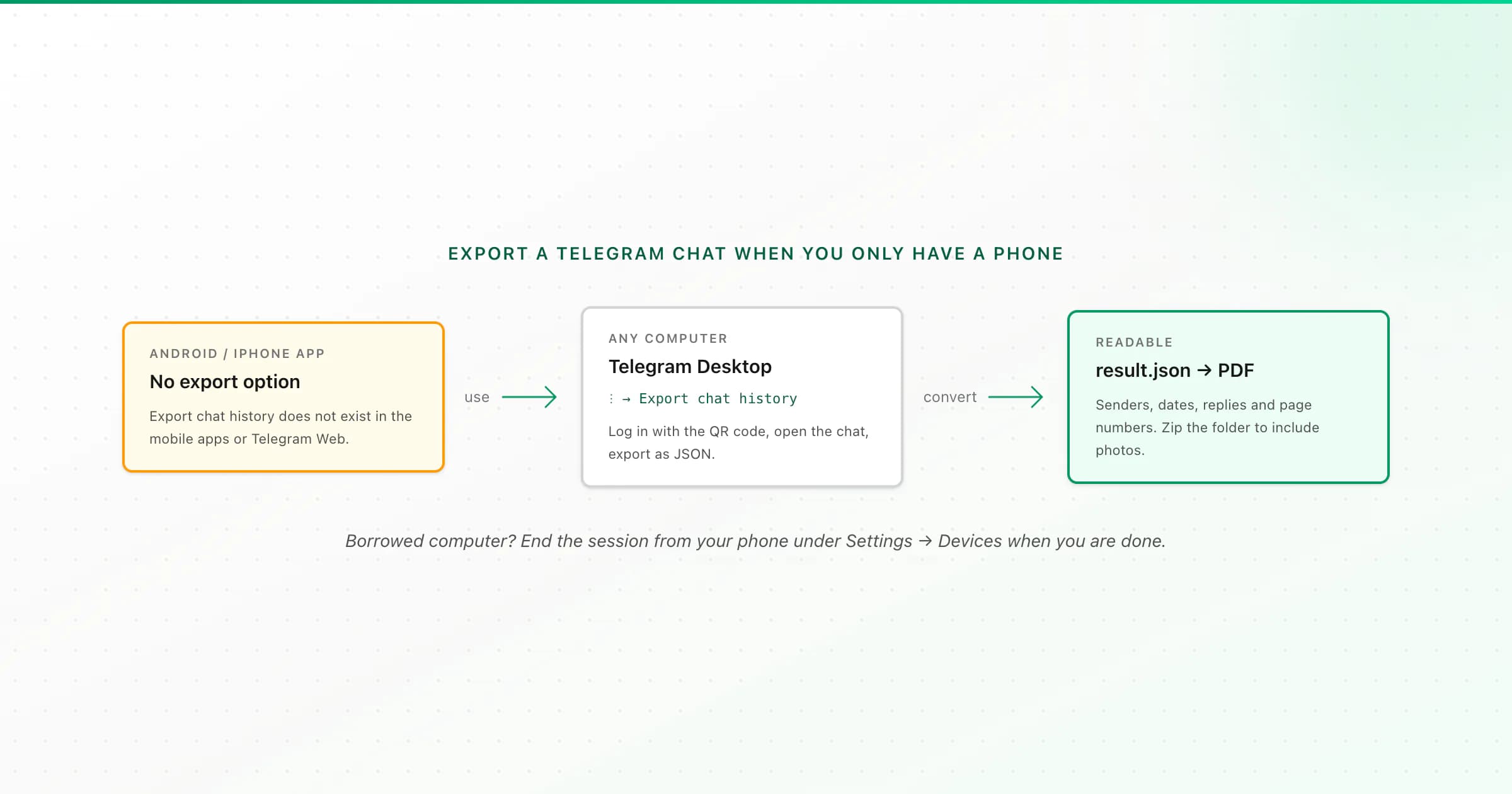
You can't export a Telegram chat from the Android or iPhone app. The "Export chat history" option only exists in Telegram Desktop for Windows, macOS and Linux. Install it on any computer, log in by scanning a QR code with your phone, open the chat, choose ⋮ → Export chat history, pick JSON, and convert result.json into a readable PDF.
This is the most common Telegram question I see, usually phrased as "why can't I see Export chat history?" The menu really isn't there on mobile: not in the Android app, not on iPhone. So below are the options that actually work when you start from a phone, including a borrowed computer, with an honest note on what each one gives you.
Your options when you only have a phone
- Option
- Telegram Desktop on any computer
- Full chat?
- Yes
- Photos and voice notes?
- Yes, if you tick them
- What you need
- A Windows, Mac or Linux computer for 10 minutes
- Option
- Telegram Web (browser)
- Full chat?
- No export button
- Photos and voice notes?
- No
- What you need
- Only a browser; extensions are third-party
- Option
- Select and copy messages on the phone
- Full chat?
- Only what you select
- Photos and voice notes?
- No, text only
- What you need
- Nothing extra; fine for a few messages
- Option
- Forward to Saved Messages
- Full chat?
- Not an export
- Photos and voice notes?
- Stays inside Telegram
- What you need
- Useful as a bookmark, not a copy
- Option
- Screenshots
- Full chat?
- Only what's on screen
- Photos and voice notes?
- As images
- What you need
- Fine for a handful of messages
| Option | Full chat? | Photos and voice notes? | What you need |
|---|---|---|---|
| Telegram Desktop on any computer | Yes | Yes, if you tick them | A Windows, Mac or Linux computer for 10 minutes |
| Telegram Web (browser) | No export button | No | Only a browser; extensions are third-party |
| Select and copy messages on the phone | Only what you select | No, text only | Nothing extra; fine for a few messages |
| Forward to Saved Messages | Not an export | Stays inside Telegram | Useful as a bookmark, not a copy |
| Screenshots | Only what's on screen | As images | Fine for a handful of messages |
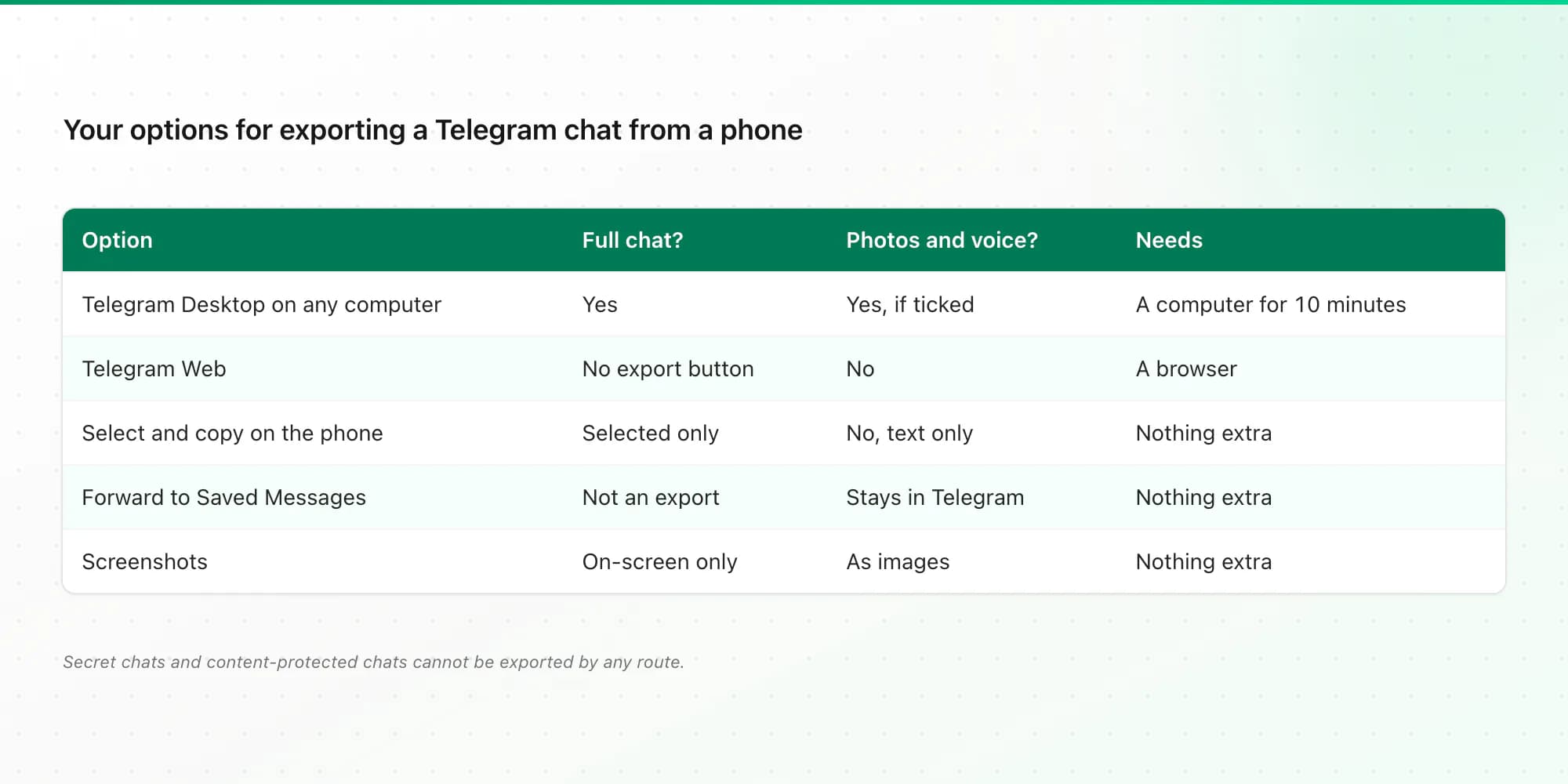
The only route that gives you the whole conversation as a file is Telegram Desktop. Everything else is a workaround for a few messages.
Option 1: use Telegram Desktop on any computer
You don't need your own computer for long. A family member's laptop, a work PC or a library machine will do, as long as you can install an app or use a portable copy.
Install Telegram Desktop
Download it from desktop.telegram.org. On a Mac, make sure you have the app called Telegram Desktop. The separate native macOS app named just "Telegram" may not show the export option. If you can't find it there, install Telegram Desktop instead.
Log in with your phone
Telegram Desktop shows a QR code. On your phone, open Settings → Devices → Link Desktop Device and scan it. You don't need to type a password unless you've set up two-step verification.
Open the chat and choose Export chat history
Open the conversation, click the ⋮ menu at the top right and choose Export chat history. The same option exists for private chats and groups.
Pick what to include and the format
Tick the media you want (photos, videos, voice messages, files and so on) and set a size limit if the chat is media-heavy. For Format, choose Machine-readable JSON. HTML also works, but JSON converts more reliably. You can also set a date range.
Export and find the folder
Click Export. Telegram saves a folder named like
ChatExport_2026-10-09, by default under Downloads → Telegram Desktop. It containsresult.jsonplus folders such asphotosandvoice_messagesif you included them.Log the computer out if it isn't yours
When you're done, go to Settings → Devices on your phone and terminate that session. Delete the export folder from the borrowed computer after you've copied it somewhere safe.
Option 2: Telegram Web and browser extensions
Telegram Web (web.telegram.org) runs on a computer or a phone browser, but it has no Export chat history option. You'll find browser extensions that claim to export from Telegram Web. They're third-party tools that work inside your logged-in Telegram session, which means they can see your chats. I'd only use one after checking who makes it, what it collects, and its recent reviews. Telegram Desktop is free, official and does the job better, so I'd always try that first.
Option 3: stay on the phone (short chats only)
If you only need a few messages and have no computer at all:
- Copy text: long-press a message, tap Select (or select several), then Copy, and paste into a notes app or email. You get the text, without names or dates in a reliable format.
- Screenshots: quick and faithful to what you saw, but impractical past a screen or two, and easy to crop out the date.
- Forward to Saved Messages: keeps the messages in your Telegram cloud, which helps if the other person deletes the chat, but it's still inside Telegram rather than a file you own. I explain the difference in my Telegram chat backup guide.
Turn the export into a readable PDF
result.json is complete but not something you'd want to read: it's raw data. To get a document:
- For text only, upload
result.jsonon its own. - For photos and voice notes, zip the whole
ChatExportfolder and upload the ZIP. The media is placed with the messages it belongs to. - Check the free preview, pick a style (chat bubbles, Clean Document, Formal / Legal with numbered entries, or Book), and download.
If you exported HTML instead, upload the zipped folder. Telegram splits HTML exports into pages of 1,000 messages (messages.html, messages2.html…), and a single messages.html only covers its own page.
The Telegram chat to PDF converter explains what ends up in the PDF: senders, dates, replies, forwards, edits, and every page numbered "Page X of Y". Pricing is the same as for WhatsApp: $7 for text-only chats up to 5,000 messages, $14 up to 25,000 with photos, $29 with no message cap, and $49 if you want voice messages transcribed. Each paid plan includes Excel and CSV, uploads are deleted within 7 days, and there's a 7-day money-back guarantee.
What can't be exported
- Secret chats. They exist only on the devices where they were started and aren't available in Telegram Desktop, so there's nothing to export.
- Chats with saving restricted. Some groups and channels turn on content protection, and Telegram may refuse to export them.
- Deleted messages. If a message was deleted for everyone, it's gone from the export too.
- One conversation per upload. If you export your whole account, ChatToPDF converts the largest chat and tells you how to get a different one. Export the single chat you need instead.
Related guides
- Telegram chat backup: what Telegram's cloud keeps and why an offline copy still matters.
- Moving on from Instagram too? Here's how to download Instagram messages.
- Exporting text messages instead? See how to print text messages from Android.
Key takeaways
- The Telegram apps for Android and iPhone have no chat export. Only Telegram Desktop does.
- Any computer works: log in with the QR code, export, then end the session from your phone.
- Choose JSON. Zip the whole export folder if you want photos and voice notes in the PDF.
- Telegram Web has no export; browser extensions are third-party and can see your chats.
- Secret chats and content-protected chats can't be exported.
FAQ
Why can't I see Export chat history on Telegram?
Because you're on the phone app or Telegram Web. Export chat history only exists in Telegram Desktop for Windows, macOS and Linux. Open the chat there and use the ⋮ menu. On a Mac, use the app called Telegram Desktop if the native macOS app doesn't show the option.
How do I export a Telegram chat on Android?
You can't from the Android app. Install Telegram Desktop on a computer, link it by scanning the QR code from Settings → Devices on your phone, then open the chat and choose ⋮ → Export chat history. For a few messages only, you can select and copy them on the phone.
Can I export a Telegram chat on iPhone?
No. The iPhone app has no export option either. Use Telegram Desktop on a computer, logged in with your iPhone via the QR code, and export from there.
Does Telegram notify the other person when I export a chat?
Telegram doesn't document any notification to the other people in the chat. The export runs in Telegram Desktop on your computer from your own copy of the conversation. You will see the new desktop session listed under Settings → Devices on your phone.
How do I make a PDF of a Telegram chat?
Export the chat from Telegram Desktop as JSON, then upload result.json (text only) or the zipped export folder (with photos and voice notes) to ChatToPDF. You get a free preview, then a paginated PDF with senders, dates, replies and page numbers, plus Excel and CSV, from $7.
Can I export a Telegram secret chat?
No. Secret chats are stored only on the devices where they were created and don't appear in Telegram Desktop, so Telegram's export can't include them. Screenshots may also be blocked in secret chats.
I'm Paul, the founder of ChatToPDF. I built it after needing a long WhatsApp conversation as a readable PDF for a legal matter. I test and document WhatsApp exports, PDF conversion, voice-note transcription, and the limits people should check before relying on the result.