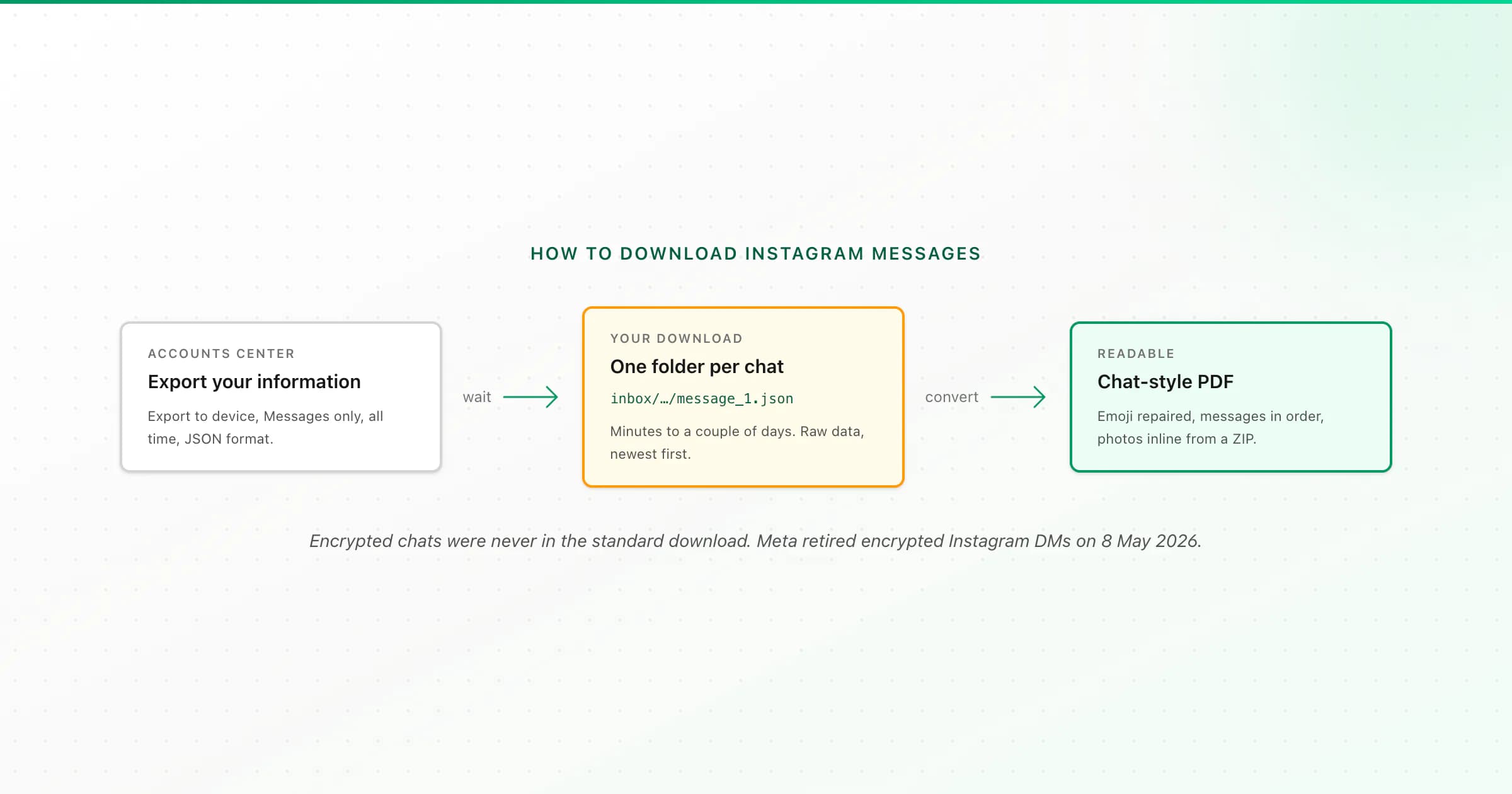
To download Instagram messages, use Accounts Center → Your information and permissions → Export your information. Create an export to your device, choose only Messages, pick JSON, and start it. Instagram notifies you when the file is ready, usually within minutes to a couple of days. Your DMs arrive as message_1.json files, one folder per conversation.
Instagram has no "save this chat" button, so the official data export is the only complete way to get your DMs out. It works well, but it surprises people in three ways: the menu has moved more than once, it takes a while, and the file you get isn't something you can comfortably read. I'll walk through all three. The menu names below are as of October 2026; Meta renames things often, so if a label differs slightly, look for the closest match.
Step by step: download your Instagram DMs
Open Accounts Center
In the Instagram app, go to your profile, tap the ☰ menu, then Accounts Center. On a computer, open Instagram, click More → Settings → Accounts Center.
Find Export your information
Tap Your information and permissions → Export your information (older versions call it Download your information). Then tap Create export and choose your Instagram profile.
Export to device and pick only Messages
Choose Export to device. Under Customize information, deselect everything except Messages. Asking only for Messages keeps the export small and fast. Full exports can be enormous.
Set the date range, format and media quality
Set Date range to All time if you want the whole history. Set Format to JSON, which converts more reliably than HTML. Choose a media quality; higher means a bigger download.
Start the export and wait
Tap Start export. Instagram may ask for your password. You'll get a notification (and usually an email) when it's ready. It can take minutes for a small account or a couple of days for a large one.
Download the ZIP
Go back to Export your information, find the finished export and tap Download. You'll need your password again. The download is only available for a few days, so grab it promptly.
Inside the ZIP, your DMs are under your_instagram_activity/messages/inbox/, with one folder per conversation (named after the other person plus a number). Each folder has message_1.json, plus message_2.json and so on for long chats, and folders like photos, videos and audio for media. Message requests sit in a separate message_requests folder.
JSON or HTML: which should you pick?
- Open by double-clicking
- JSON
- Opens as raw data in a text editor
- HTML
- Opens in a web browser
- Emoji and accents
- JSON
- Look garbled (ð\u009f\u0098\u0082) in a text editor
- HTML
- Display normally
- Converting to PDF or Excel
- JSON
- Most reliable
- HTML
- Works, minute-level timestamps
- Best for
- JSON
- Converting and keeping
- HTML
- A quick look in the browser
| JSON | HTML | |
|---|---|---|
| Open by double-clicking | Opens as raw data in a text editor | Opens in a web browser |
| Emoji and accents | Look garbled (ð\u009f\u0098\u0082) in a text editor | Display normally |
| Converting to PDF or Excel | Most reliable | Works, minute-level timestamps |
| Best for | Converting and keeping | A quick look in the browser |
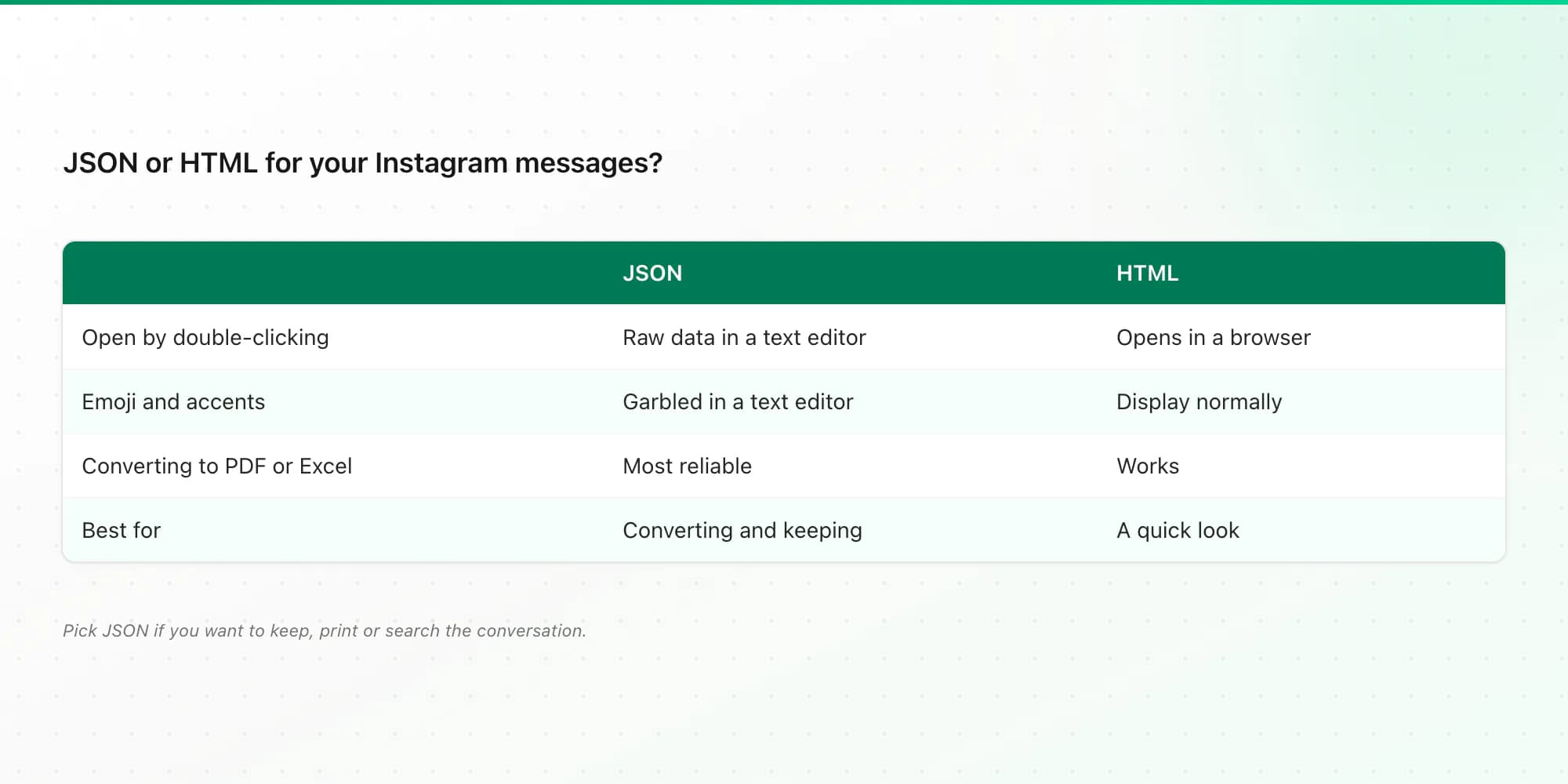
If you only want to glance at a conversation, HTML is easier to open. If you want to keep it, print it or search it, choose JSON and convert it. The garbled emoji in JSON isn't damage. It's how Meta encodes the text, and I explain it (and how to read the files) in how to read Instagram data download messages.
What the Instagram download doesn't include
Be careful before you rely on the export as "all my DMs":
- End-to-end encrypted chats. Instagram's encrypted DMs were never part of the standard download. They had a separate download that required secure storage and a computer. Meta retired encrypted Instagram DMs on 8 May 2026, so older encrypted threads may now be missing or impossible to retrieve.
- Vanish mode messages. These disappear by design and aren't saved.
- Unsent messages. They show up as unsent rather than with their original text.
- Chats you deleted. Deleting a conversation removes it from your side, and it may not appear in your export.
If someone else still has the conversation, their export may have it.
If the export is slow, missing or too big
- Nothing has arrived after a day or two. Open Export your information again and check the export's status there. The email can land in spam, but the download button lives in Accounts Center either way.
- The export failed or expired. Start a new one with only Messages selected. A shorter date range also helps.
- The ZIP is huge. Choose a lower media quality, or skip media and upload just
message_1.jsonfor a text-only copy. ChatToPDF takes uploads up to 150 MB and ZIPs of up to 10,000 files, so for a big account, zip only the conversation folder you need.
Turn message_1.json into a readable chat
The download is complete but hard to read: raw data, newest messages first, timestamps in milliseconds, emoji scrambled. ChatToPDF fixes those:
- Text only: upload
message_1.jsonfrom the conversation folder. - With photos, videos and voice notes: zip that conversation's folder (or upload the whole export ZIP) so the media comes along. Long chats split into
message_1…Nare merged in order. - Check the free preview, pick a style (chat bubbles, Clean Document, Formal / Legal, or Book), and download.
Emoji and accented letters are repaired, group chats work, shared posts appear as a link with the caption, and reactions, unsent messages and calls are shown. The Instagram chat to PDF page shows what the output looks like.
One thing to know: ChatToPDF converts one conversation per upload. If your ZIP holds many conversations, it converts the largest and tells you how to pick a different one. To get a specific chat, zip just that conversation's folder.
Pricing is one-time: $7 for text-only chats up to 5,000 messages, $14 up to 25,000 with photos, $29 with no cap, and $49 to transcribe voice notes from a ZIP. Each paid plan includes PDF, Excel and CSV. Files are deleted within 7 days, and there's a 7-day money-back guarantee.
Related guides
- Read Instagram data download messages: what to do once you've unzipped the download.
- Leaving Telegram too? Here's how to export a Telegram chat on your phone.
- Keeping iPhone texts as well? See saving text messages from iPhone to a computer.
Key takeaways
- Instagram DMs come out through Accounts Center → Your information and permissions → Export your information.
- Request only Messages, all time, in JSON. It's faster and converts best.
- Expect minutes to a couple of days, and download the file before the link expires.
- Encrypted chats were never in the standard download, and Meta retired encrypted Instagram DMs on 8 May 2026.
- Upload message_1.json (text) or the zipped conversation folder (with media) to read it as a PDF.
FAQ
Can you export an Instagram conversation?
Yes, through Instagram's Export your information tool in Accounts Center. You can't export a single chat from inside the conversation, so you request Messages, and the download contains every conversation in its own folder. Pick the folder for the chat you want.
How long does it take to download Instagram messages?
Usually from a few minutes to a couple of days, depending on how much data you request. Choosing only Messages speeds it up. Instagram notifies you when it's ready, and the download link is only available for a few days.
Does the Instagram data download show deleted chats?
Generally not. Conversations you deleted are removed from your side, unsent messages appear as unsent, and vanish mode messages aren't saved. End-to-end encrypted chats were never part of the standard download.
Are Instagram DMs saved forever?
Not guaranteed. Messages stay until they're deleted or unsent, the account is removed, or they disappear by design. Meta retired encrypted Instagram DMs on 8 May 2026, so older encrypted threads may be gone. If a conversation matters, download it and keep your own copy.
How do I export an Instagram chat to PDF?
Download your Messages in JSON from Export your information, then upload that conversation's JSON message file (text only) or its zipped folder (with photos and voice notes) to ChatToPDF. You get a free preview, then a paginated PDF plus Excel and CSV from $7.
Should I choose JSON or HTML for Instagram messages?
Choose JSON if you want to convert, print or keep the messages, because it converts most reliably. HTML opens in a browser and is fine for a quick look. In a text editor, JSON emoji look garbled, which a converter repairs.
I'm Paul, the founder of ChatToPDF. I built it after needing a long WhatsApp conversation as a readable PDF for a legal matter. I test and document WhatsApp exports, PDF conversion, voice-note transcription, and the limits people should check before relying on the result.