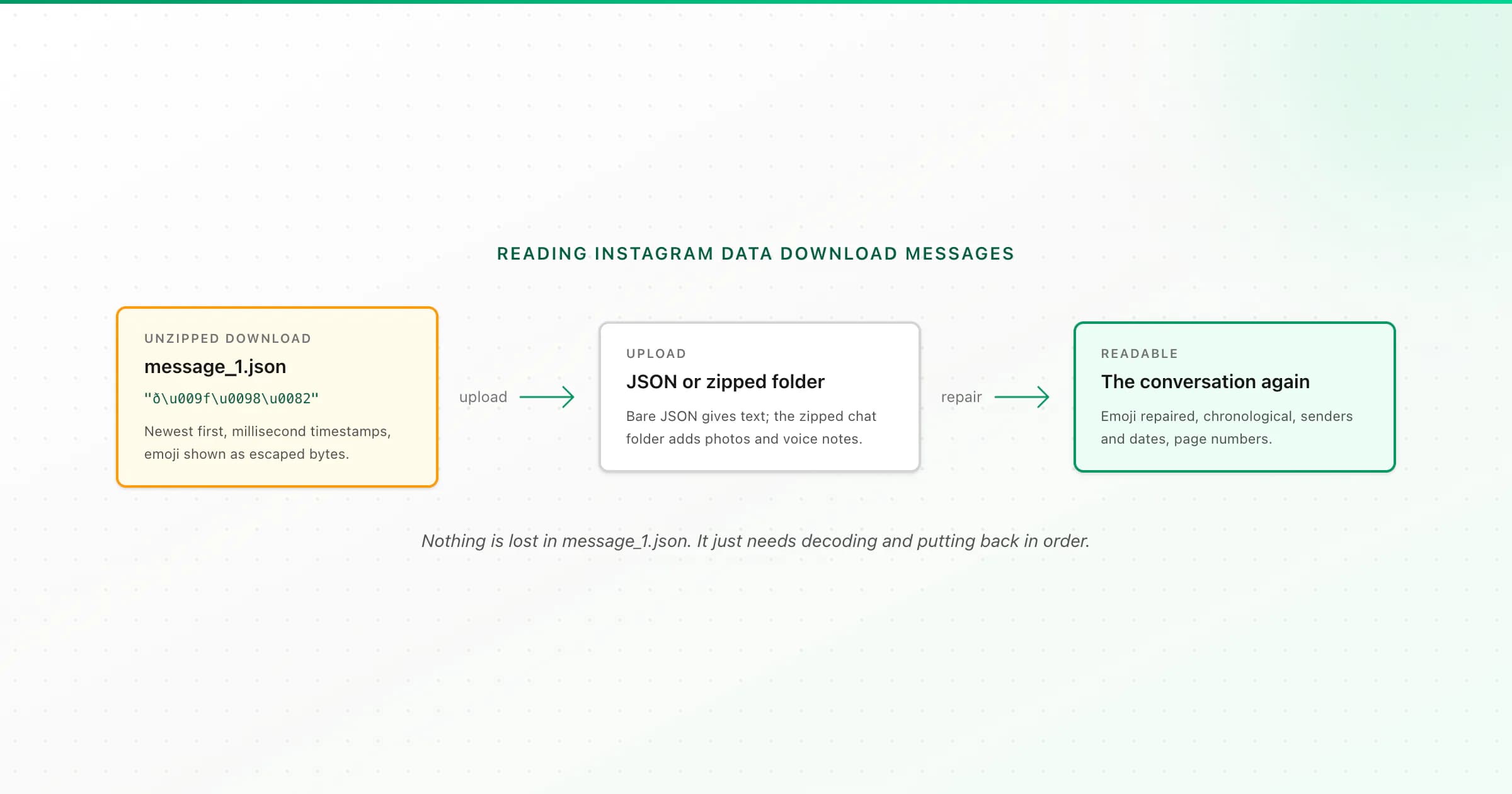
Your Instagram DMs are in the download at your_instagram_activity/messages/inbox/, one folder per conversation, in message_1.json. That file is raw data, not a chat: newest messages first, millisecond timestamps, and emoji that look like ð\u009f\u0098\u0082 because of how Meta encodes text. To read it, open the HTML version in a browser or upload the JSON to a converter that repairs it.
If you've just unzipped your Instagram download and found a maze of folders and a file full of brackets, you're in the right place. This is the "now what?" guide: where your messages are, what the file contains, why it looks broken (it isn't), and the easiest ways to read a conversation properly. If you haven't requested the download yet, start with how to download Instagram messages.
Where your messages are in the Instagram download
Unzip the download and follow this path:
your_instagram_activity/messages/inbox/holds your normal conversations, one folder per chat. Folder names are the other person's username (or the group's name) followed by a number, likealex_1234567890.- Inside each chat folder:
message_1.json(andmessage_2.json,message_3.json… for long chats), plusphotos,videosandaudiofolders if you included media. messages/message_requests/holds conversations you never accepted.- Depending on your account, you may also see folders for archived or filtered threads.
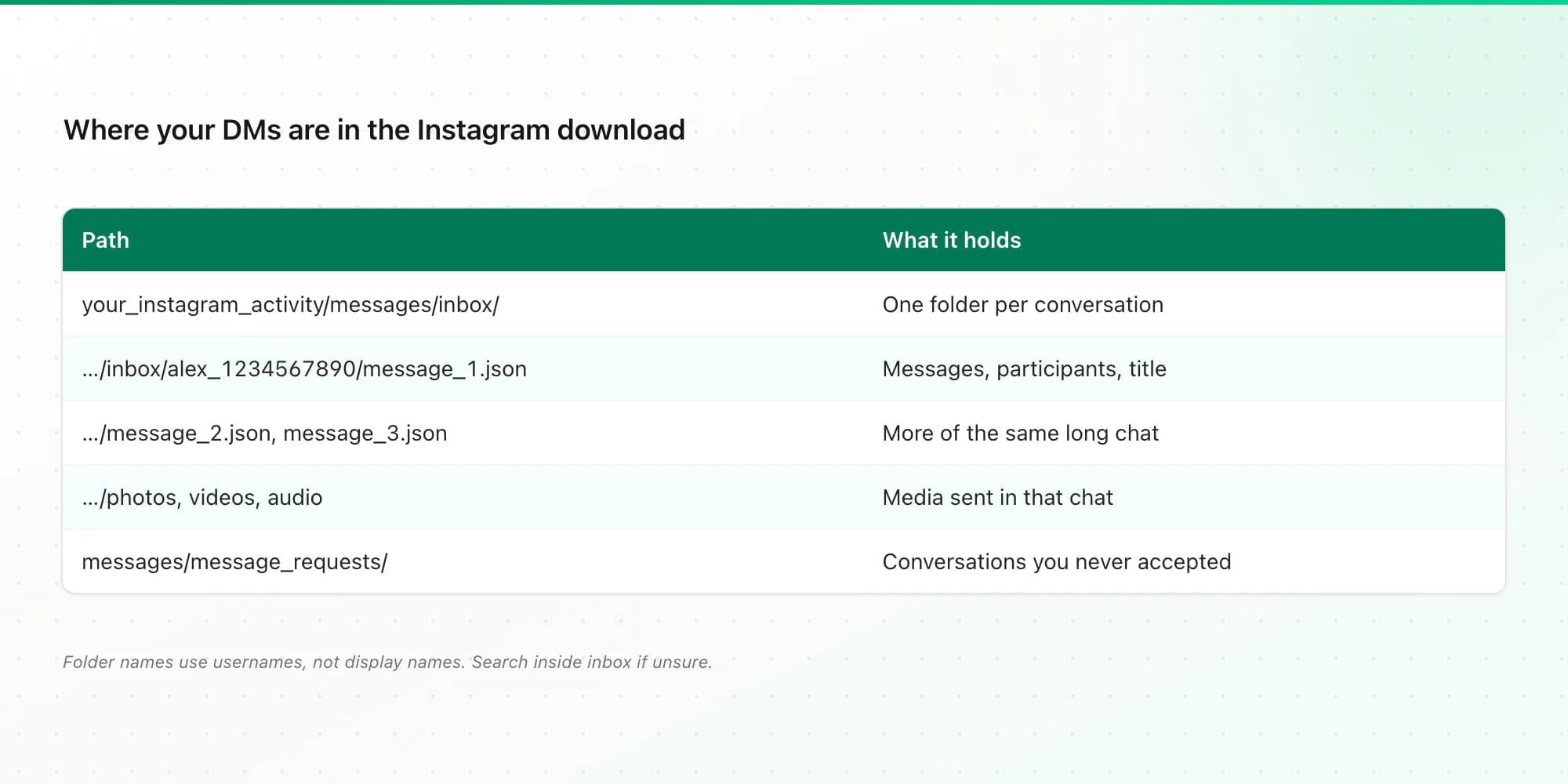
Finding a particular person: the folder names are usernames, not display names. If you're unsure, use your computer's file search to look for their name inside the inbox folder. Every message_1.json lists its participants near the top.
What's inside message_1.json
Open the file in a text editor and you'll see roughly this structure:
- participants: the names of everyone in the chat.
- messages: a list of every message, each with
sender_name,timestamp_ms, andcontent(the text), plus extras likephotos,share(a post someone sent),reactions, or a flag for unsent messages. - title: the chat name.
Three things make it hard to read as a conversation:
- It runs newest first. The most recent message is at the top.
- Timestamps are numbers.
timestamp_msis milliseconds since 1 January 1970 (UTC), so1728468000000is a date you'd have to convert. - Emoji and accents are garbled. More on that next.
Long chats are split across several message_N.json files, so a single file may only hold part of the conversation.
Why the emoji look garbled (ð\u009f\u0098\u0082)
This confuses almost everyone, and it's not corruption. Meta writes text as UTF-8 bytes but escapes each byte as if it were a separate character. So:
- You sent
- 😂
- What the JSON file shows
- ð\u009f\u0098\u0082
- You sent
- é (as in café)
- What the JSON file shows
- é
- You sent
- ’ (curly apostrophe)
- What the JSON file shows
- â\u0080\u0099
| You sent | What the JSON file shows |
|---|---|
| 😂 | ð\u009f\u0098\u0082 |
| é (as in café) | é |
| ’ (curly apostrophe) | â\u0080\u0099 |
The original text is all there. It just needs to be decoded properly. If you're comfortable with a little Python, this repairs a single string:
fixed = garbled.encode("latin-1").decode("utf-8")
You'd need to run that across every message, then still sort the messages and format the dates, which is fine for a programmer and tedious for everyone else. ChatToPDF does the repair automatically on upload, including names in other alphabets.
Four ways to read your Instagram messages
- Method
- Text editor or browser on the JSON
- Effort
- None
- Result
- Readable-ish data; emoji garbled, newest first
- Method
- Request the HTML format instead
- Effort
- A new export
- Result
- Opens in a browser; fine for a quick look
- Method
- Fix it yourself with a script
- Effort
- Some coding
- Result
- Whatever you build
- Method
- Upload to ChatToPDF
- Effort
- A minute
- Result
- Chat-style PDF plus Excel and CSV
| Method | Effort | Result |
|---|---|---|
| Text editor or browser on the JSON | None | Readable-ish data; emoji garbled, newest first |
| Request the HTML format instead | A new export | Opens in a browser; fine for a quick look |
| Fix it yourself with a script | Some coding | Whatever you build |
| Upload to ChatToPDF | A minute | Chat-style PDF plus Excel and CSV |
For a quick look, the HTML version is easiest. Make a new export with Format set to HTML and open the conversation's message_1.html in any browser.
To keep, print or search the conversation, convert it:
- Text only: upload the conversation's
message_1.json. - With photos, videos and voice notes: zip the conversation's folder and upload the ZIP. If the chat has
message_1…Nfiles, they're merged into one conversation in order. - Check the free preview, pick a style (chat bubbles, Clean Document, Formal / Legal, or Book), and download.
Group chats work. Shared posts appear as a link with the caption, and reactions, unsent messages and calls are shown. The Instagram chat to PDF page has the details. A bare message_1.json gives you text only, because the photos live in separate files; upload the ZIP if you want them.
ChatToPDF converts one conversation per upload. Upload the whole export and it picks the largest conversation and tells you how to get another one, so zipping the single chat folder is the quickest route to the chat you want.
Pricing is one-time: $7 for text-only chats up to 5,000 messages, $14 up to 25,000 with photos, $29 with no cap, and $49 to transcribe voice notes. Every paid plan includes PDF, Excel and CSV. Uploads are deleted within 7 days.
What you won't find in the download
If a conversation you expected isn't there, it's probably one of these: an end-to-end encrypted chat (never part of the standard download; Meta retired encrypted Instagram DMs on 8 May 2026), vanish mode messages, or a chat you deleted. Unsent messages appear as unsent, not with their original text. My Instagram download guide covers those limits in more detail.
Related guides
- How to download Instagram messages: requesting the export in the first place.
- Got a Telegram export to read too? See the Telegram chat backup guide.
- Reading old WhatsApp chats instead? Here's how to save WhatsApp chats in a form you can open.
Key takeaways
- DMs live in
your_instagram_activity/messages/inbox/, one folder per conversation, inmessage_1.json(plusmessage_2.json… for long chats). - The JSON is newest-first, uses millisecond timestamps, and shows emoji as escaped bytes. Nothing is lost.
- For a quick look, request HTML. To keep or print a chat, convert the JSON.
- Upload the zipped conversation folder to include photos and voice notes; a bare JSON is text only.
FAQ
How do I open downloaded information from Instagram?
Unzip the download first. Messages are in the messages folder, then inbox, inside your Instagram activity folder, with one folder per chat. A JSON export opens in a text editor as raw data; an HTML export opens in a web browser. To read a chat as a conversation, upload the chat's first message file or its zipped folder to a converter like ChatToPDF.
Why do emojis look weird in my Instagram data download?
Meta's export writes each byte of the UTF-8 text as a separate escaped character, so 😂 appears as ð\u009f\u0098\u0082 and é as é. The text isn't damaged. It needs decoding, which ChatToPDF does automatically, or you can decode it with a short script.
Where are DMs in the Instagram data download?
In the messages folder, inside inbox, under your Instagram activity folder. Each conversation has its own folder named after the other person's username or the group name, containing the message files (JSON or HTML) and any media folders. Message requests sit in a separate message requests folder.
Why are my Instagram messages in reverse order?
Instagram's export lists messages newest first, and long chats are split across several numbered message files. A converter merges the files and puts the messages back in chronological order.
Can I open the Instagram message JSON file on my phone?
You can view it in a phone's file viewer or browser, but it's hard to read: raw data, garbled emoji and number timestamps. Uploading the file to ChatToPDF from your phone's browser works too and gives you a readable preview.
Does the Instagram download include photos sent in DMs?
Yes, if you included media when you requested it. They're stored in the conversation folder's photos and videos subfolders, not inside the JSON message file. Zip the conversation folder before uploading so the photos appear inline in the PDF.
I'm Paul, the founder of ChatToPDF. I built it after needing a long WhatsApp conversation as a readable PDF for a legal matter. I test and document WhatsApp exports, PDF conversion, voice-note transcription, and the limits people should check before relying on the result.