
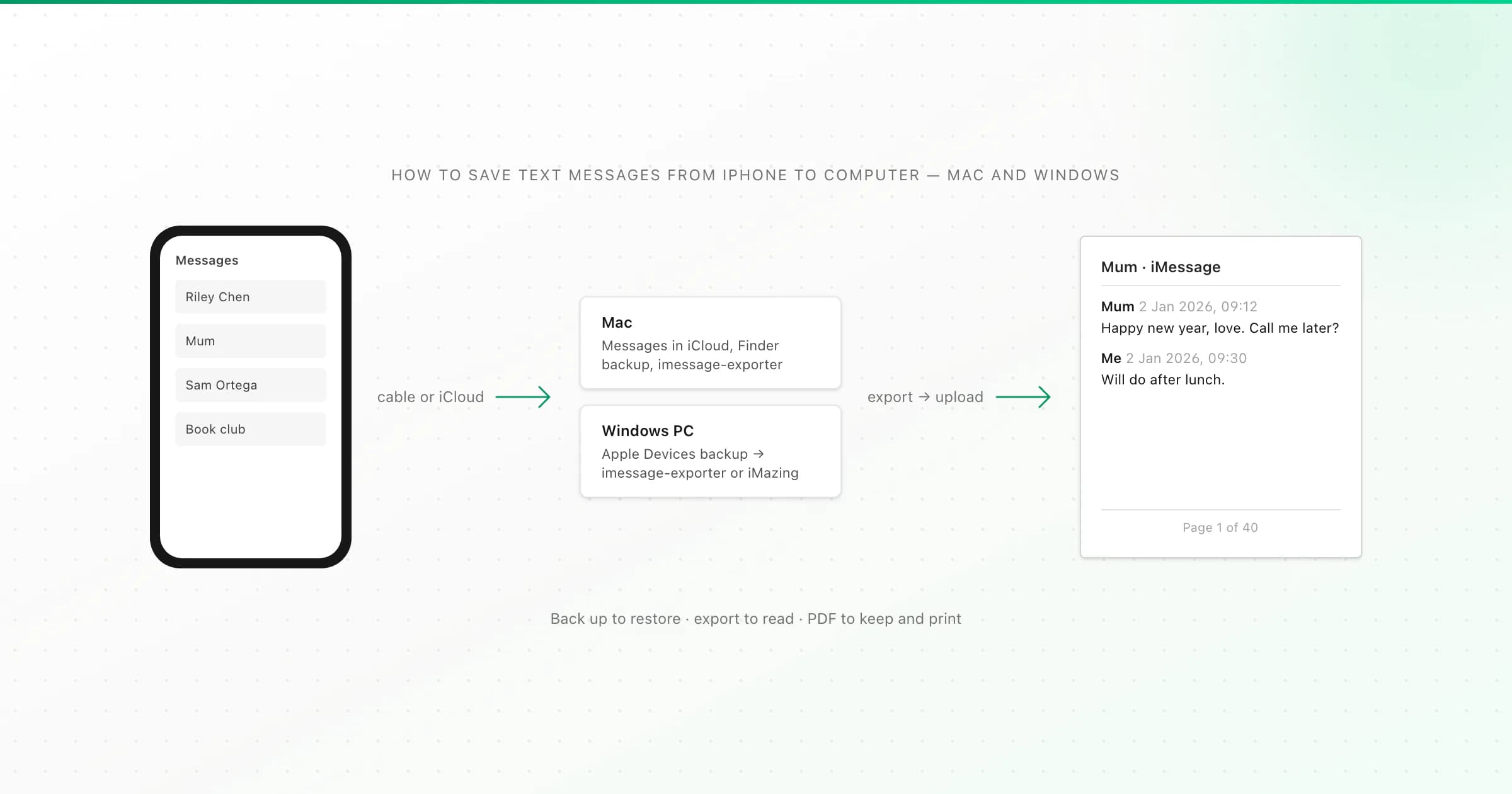
To save text messages from an iPhone to a computer, either back up the whole iPhone with Finder (Mac) or Apple Devices or iTunes (Windows), which keeps messages but only for restoring, or export the conversations to readable files. The free export tool is imessage-exporter, which runs on a Mac or reads a Windows backup. iMazing is the paid option.
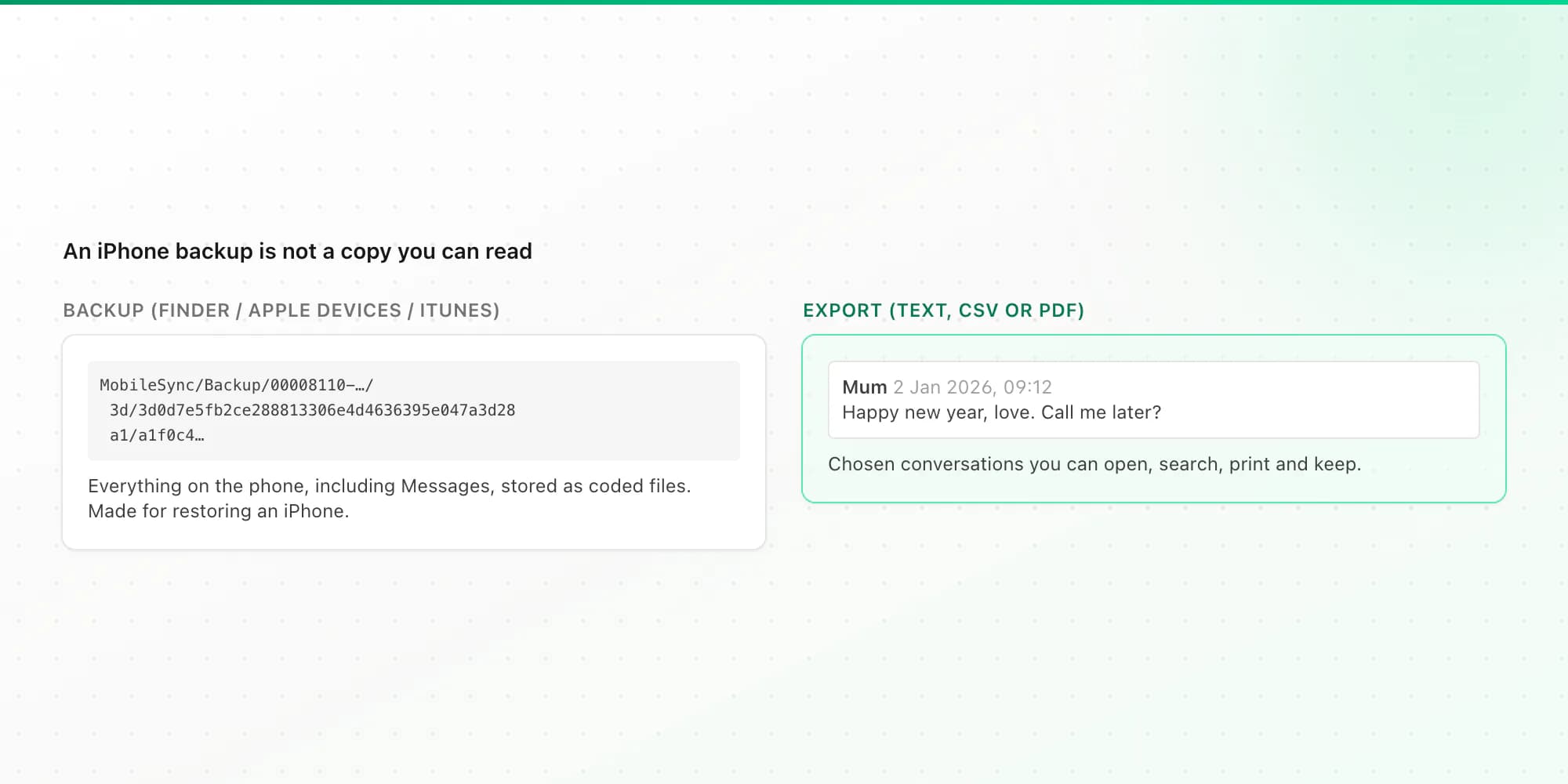
The difference between those two matters more than any brand name. A backup is a sealed copy you can put back on a phone. An export is a file you can open, read and print. Most guides blur the two, and people end up with a 60 GB backup and still can't show anyone a conversation. I run ChatToPDF, which turns an export into a readable PDF, so I'll explain where that last step fits. I'll also be clear that it can't read your phone or a backup directly.
Backup or export: decide what you need
- Backup. Saves everything on the phone, including Messages, onto your computer. It's for restoring an iPhone. You can't open it and read your texts without extra software.
- Export. Writes chosen conversations out as text, CSV, HTML or PDF. It's for reading, searching, printing or sharing.
If you're replacing or repairing the phone, back up. If you want to keep a particular conversation readable for years, export it. Ideally do both.
On a Mac
Option 1: Messages in iCloud (free, already there)
If Messages in iCloud is switched on for both your iPhone and your Mac, signed in to the same Apple Account, your conversations already appear in the Mac's Messages app. You can read and search them there, and save a conversation as a PDF with File → Print, then the PDF menu. For long threads, scroll up first so the older messages load.
This keeps your texts viewable on the Mac, but they're still synced: delete a conversation on the iPhone and it disappears from the Mac too. It's a view of your messages, not an independent copy.
Option 2: a Finder backup (free, restore-only)
Connect the iPhone, select it in the Finder sidebar, and choose Back Up Now. Ticking Encrypt local backup is worth it, because encrypted backups include more data, and you'll need that password later. According to Apple's backup guide, backups are stored in ~/Library/Application Support/MobileSync/Backup/.
You can't browse this backup in the Finder; it's a folder of coded file names. But it's the input that imessage-exporter and iMazing can read.
Option 3: imessage-exporter (free, readable files)
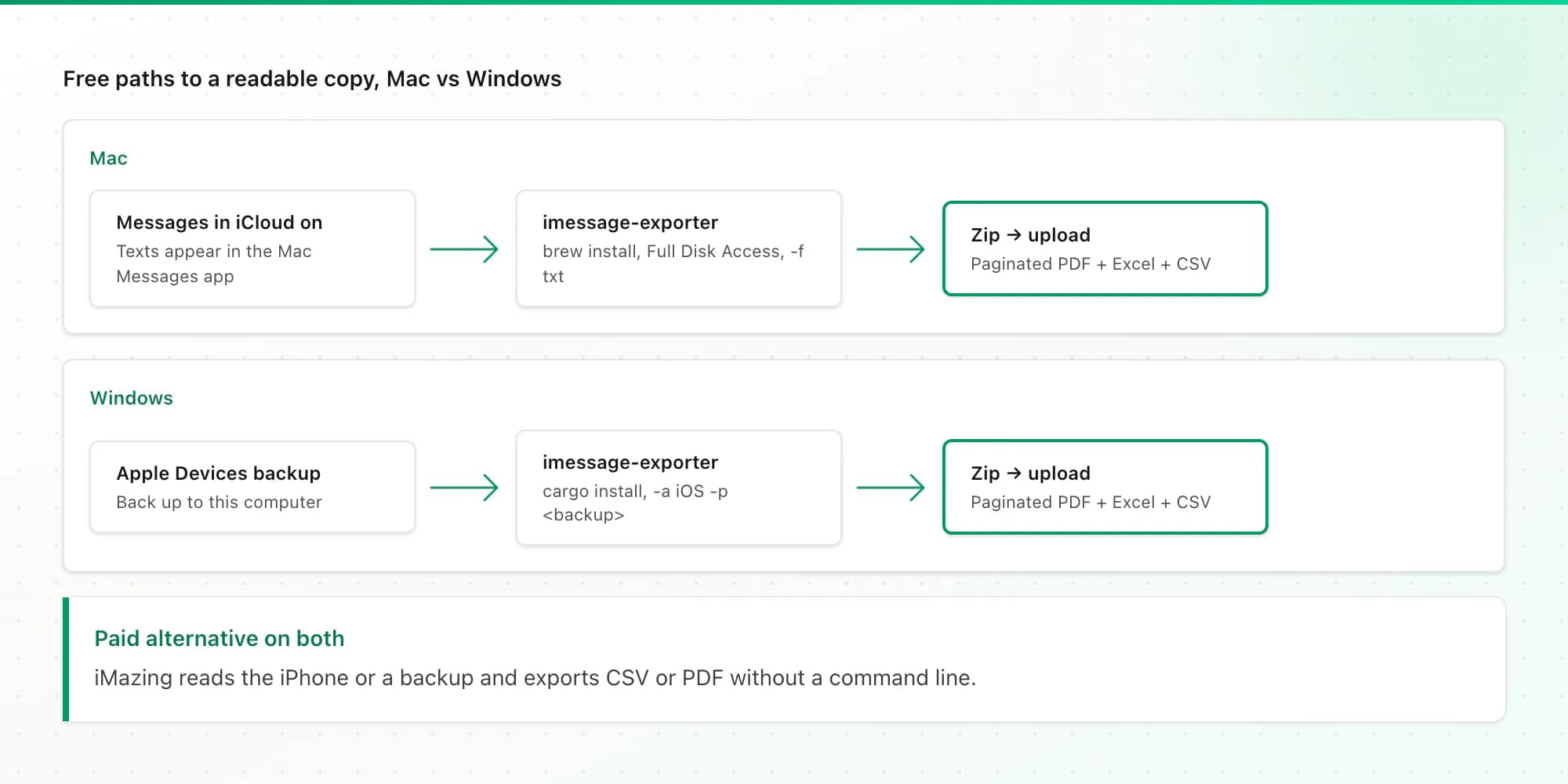
imessage-exporter is a free, open-source command-line tool that reads the Mac's own Messages database (what Messages in iCloud has synced) and writes each conversation out as a text or HTML file, with attachments if you ask for them. Install it with Homebrew (brew install imessage-exporter) or Rust's cargo, give Terminal Full Disk Access, and run one command. All the steps are in my imessage-exporter guide.
On Windows
Windows has no Messages app and no Messages in iCloud, so every Windows route starts with a backup.
Option 1: an Apple Devices or iTunes backup (free, restore-only)
Install Apple's Apple Devices app from the Microsoft Store (or iTunes on older setups), connect the iPhone, and back it up to "this computer". Apple's guide explains where it lands: the backup folder sits under %USERPROFILE% for the Apple Devices app or the Microsoft Store version of iTunes, and under %AppData% for the older iTunes download, inside Apple\MobileSync\Backup (or Apple Computer\MobileSync\Backup).
Option 2: imessage-exporter on that backup (free, readable files)
This is the route most guides miss, and it's the free answer for PC users. imessage-exporter's documentation says it runs on Windows and Linux as well as macOS, and that it can read an iPhone backup folder instead of a Mac database. Encrypted backups work too; it asks for the backup password. On Windows you install it through Rust's cargo, since the ready-made downloads are built for Macs, then point it at the backup:
cargo install imessage-exporter
imessage-exporter -f txt -c clone -a iOS -p "C:\path\to\MobileSync\Backup\<your-backup-folder>" -o C:\texts-export
Swap in the real backup folder name, a long string of letters and numbers. Converting HEIC photos to JPEG on Windows needs ImageMagick installed, so this command copies attachments as they are (-c clone). The imessage-exporter guide covers single-conversation exports and the other options.
Option 3: iMazing (paid, point and click)
If you'd rather not touch a command line, iMazing is a paid desktop app for Windows and Mac. It reads the iPhone or a backup and exports conversations in formats including CSV and PDF.
Every option compared
| Method | Mac | Windows | Cost | Readable on the computer | Keeps photos |
|---|---|---|---|---|---|
| Messages in iCloud (Messages app) | Yes | No | Free (uses iCloud storage) | Yes, in the app, still synced | Yes |
| Finder / Apple Devices / iTunes backup | Yes | Yes | Free | No, restore-only | Yes |
| imessage-exporter | Yes | Yes, from a backup | Free, open source | Yes, TXT or HTML files | Yes, with a copy option |
| iMazing | Yes | Yes | Paid licence | Yes, CSV, PDF and more | Yes |
| Any export above + ChatToPDF | Yes | Yes | From $7 per conversation, one-time | Yes, paginated PDF + Excel + CSV | Yes, from the $14 plan |
The last step: a PDF you can keep
An imessage-exporter text file or an iMazing CSV is readable, but it isn't pleasant to read through or print. That's where ChatToPDF comes in. Upload one of these on the iMessage to PDF page:
- imessage-exporter: a ZIP of the TXT export folder, including its attachments folder. The HTML output isn't supported, and a bare .txt file won't be read as iMessage.
- iMazing (or a similar tool): the Messages CSV on its own for text, or zipped with its attachments folder to include photos and voice messages.
You get a PDF with the sender, date and time on every message and "Page X of Y" on every page, in your choice of four layouts, plus Excel and CSV files. The document is labelled iMessage or SMS based on the export. One conversation is converted per upload; if the export contains several, I convert the largest and tell you which one, so export or upload just the one you want. Voice messages in .m4a or .mp4 can be transcribed on the $49 plan; Apple's original .caf files can't.
Prices are $7 for text up to 5,000 messages, $14 with photos, $29 with no cap. They're one-time, with no subscription, and listed on the pricing page. Uploaded files are deleted within 7 days.
iPhone import is the newest part of ChatToPDF, and I built it from the export tools' documented formats. Check the free preview before paying, and if something looks wrong the 7-day money-back guarantee applies.
Related guides
For printing rather than saving, see how to print text messages from an iPhone. If the messages are needed for a legal matter, read how to print text messages for court first. Android users have it easier: saving text messages on Android uses a free app. For Telegram, you need a computer too; see exporting a Telegram chat when you only have a phone.
Key takeaways
- A backup (Finder, Apple Devices, iTunes) saves texts for restoring an iPhone. You can't read it directly.
- Mac: Messages in iCloud shows your texts on the Mac. imessage-exporter (free) writes them out as files.
- Windows: make a local backup, then run imessage-exporter on it (free), or use iMazing (paid).
- For a readable, printable copy, upload the export to get a paginated PDF with Excel and CSV.
FAQ
How do I get my iPhone text messages on my PC?
Back up the iPhone to the PC with Apple's Apple Devices app or iTunes. Then either run the free imessage-exporter on that backup to write the conversations out as text files, or use the paid iMazing app. Windows has no Messages app, so you can't read the backup directly.
Can I use the iMessage exporter on Windows?
Yes. imessage-exporter's documentation says it runs on Windows and Linux as well as macOS. On Windows it can't read Messages directly, so you point it at a local iPhone backup with the iOS platform option. It's installed through Rust's cargo, and converting HEIC photos needs ImageMagick.
How do I download an entire iMessage conversation to PDF?
On a Mac, open the conversation in Messages and use File, then Print, then save as PDF; this works best for shorter threads. For long ones, export the conversation with imessage-exporter or iMazing, then convert the export into a paginated PDF with ChatToPDF. There's a free preview, and the PDF starts at $7.
Does an iTunes or Finder backup include my text messages?
Yes. A local iPhone backup includes Messages. But it's stored as an encoded backup folder meant for restoring a phone, so you need a tool such as imessage-exporter or iMazing to read the messages out of it.
How can I export text messages from my iPhone to PDF for free?
On a Mac, print the conversation to PDF from the Messages app. On any computer, imessage-exporter exports conversations to text files for free. Turning that export into a formatted, paginated PDF with ChatToPDF has a free preview, and the full PDF costs from $7 per conversation.
I'm Paul, the founder of ChatToPDF. I built it after needing a long WhatsApp conversation as a readable PDF for a legal matter. I test and document WhatsApp exports, PDF conversion, voice-note transcription, and the limits people should check before relying on the result.