
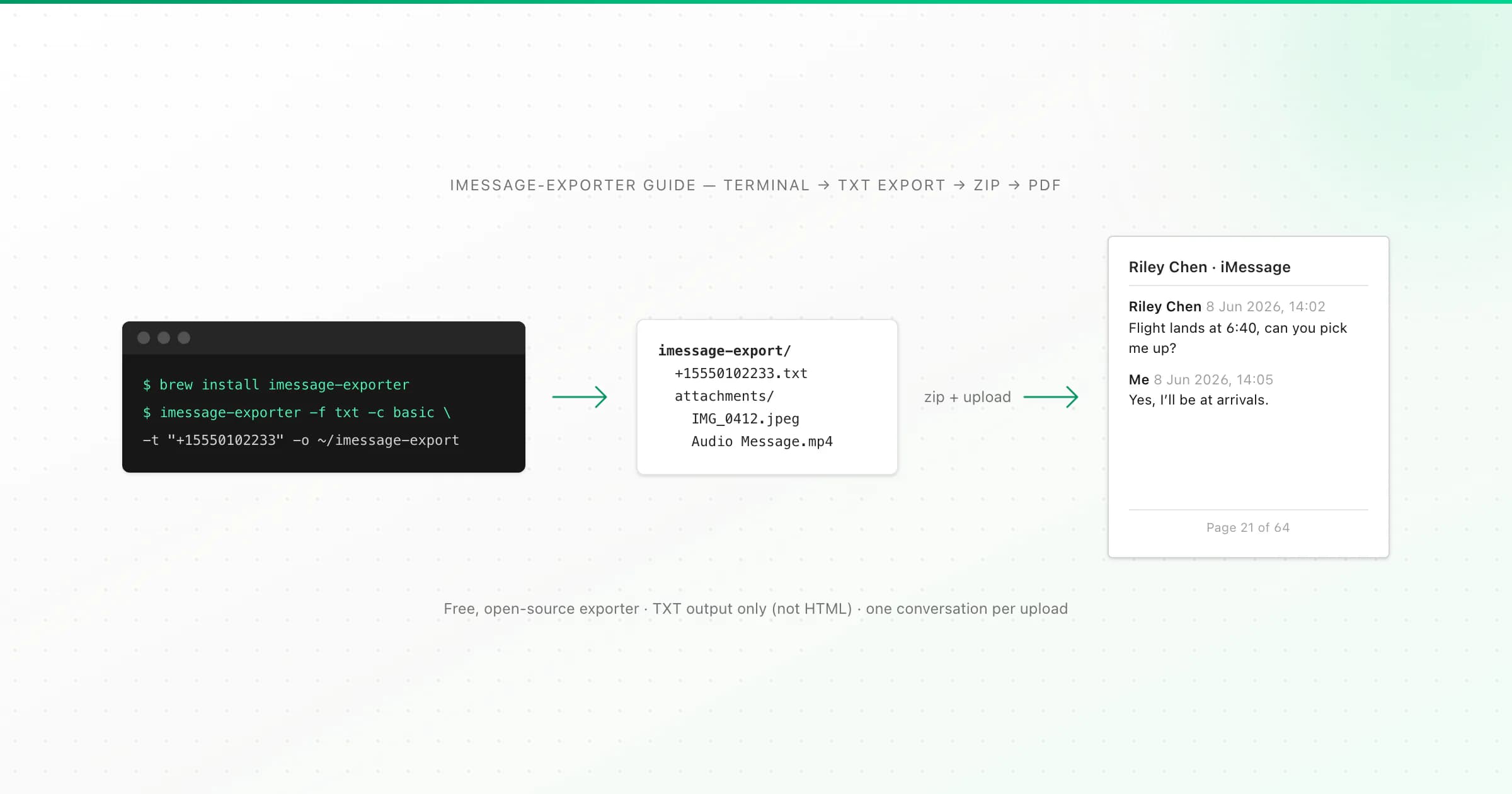
imessage-exporter is a free, open-source command-line tool that reads your Messages history, from a Mac's Messages database or from an iPhone backup, and writes each conversation out as a TXT or HTML file with its attachments. To get a PDF, export as TXT with attachments, zip the export folder and upload the ZIP to a converter such as ChatToPDF.
I added imessage-exporter support to ChatToPDF because it's the only free way to get a long iPhone conversation out as a file, and it works without a Mac. The tool itself is excellent, but its output is plain text files, not a document you'd hand to someone or print. Here's how to run it, which options matter, and how to turn the result into a paginated PDF. I took the commands from the project's own documentation in October 2026, but versions change, so imessage-exporter --help is the final word.
Before you start
- Where your messages are. On a Mac, imessage-exporter reads the Messages database at
~/Library/Messages/chat.db. That only holds what the Mac has, so switch on Messages in iCloud first if you want your iPhone's history there. Without a Mac, make a local iPhone backup with Finder, the Apple Devices app or iTunes, and point the tool at that. - Read-only. The project describes the binary as performing read-only operations on your data, so it doesn't change your messages.
- It runs locally. Nothing is uploaded until you choose to upload the finished export.
Step 1: install imessage-exporter
The imessage-exporter README lists three ways to install it:
- Homebrew (Mac):
brew install imessage-exporter. The easiest route, although the Homebrew version can lag behind the newest release. - Cargo (Mac, Windows, Linux): install Rust, then
cargo install imessage-exporter. This is the project's recommended method and the one to use on Windows. - Prebuilt binaries: downloads for Apple Silicon and Intel Macs on the project's GitHub releases page.
Check it works with imessage-exporter --version.
Step 2 (Mac only): give Terminal Full Disk Access
macOS protects the Messages folder. Open System Settings → Privacy & Security → Full Disk Access and switch it on for Terminal (or whichever terminal app you use), then restart Terminal. According to the project's FAQ, if you skip this you'll see errors such as "Unable to build contacts index". You don't need this step when reading an iPhone backup on Windows or Linux.
Step 3: export one conversation as TXT with attachments
ChatToPDF converts one conversation per upload, and if the export contains several it picks the largest. So filter to the conversation you want:
imessage-exporter -f txt -c basic -t "+15555550123" -o ~/imessage-export
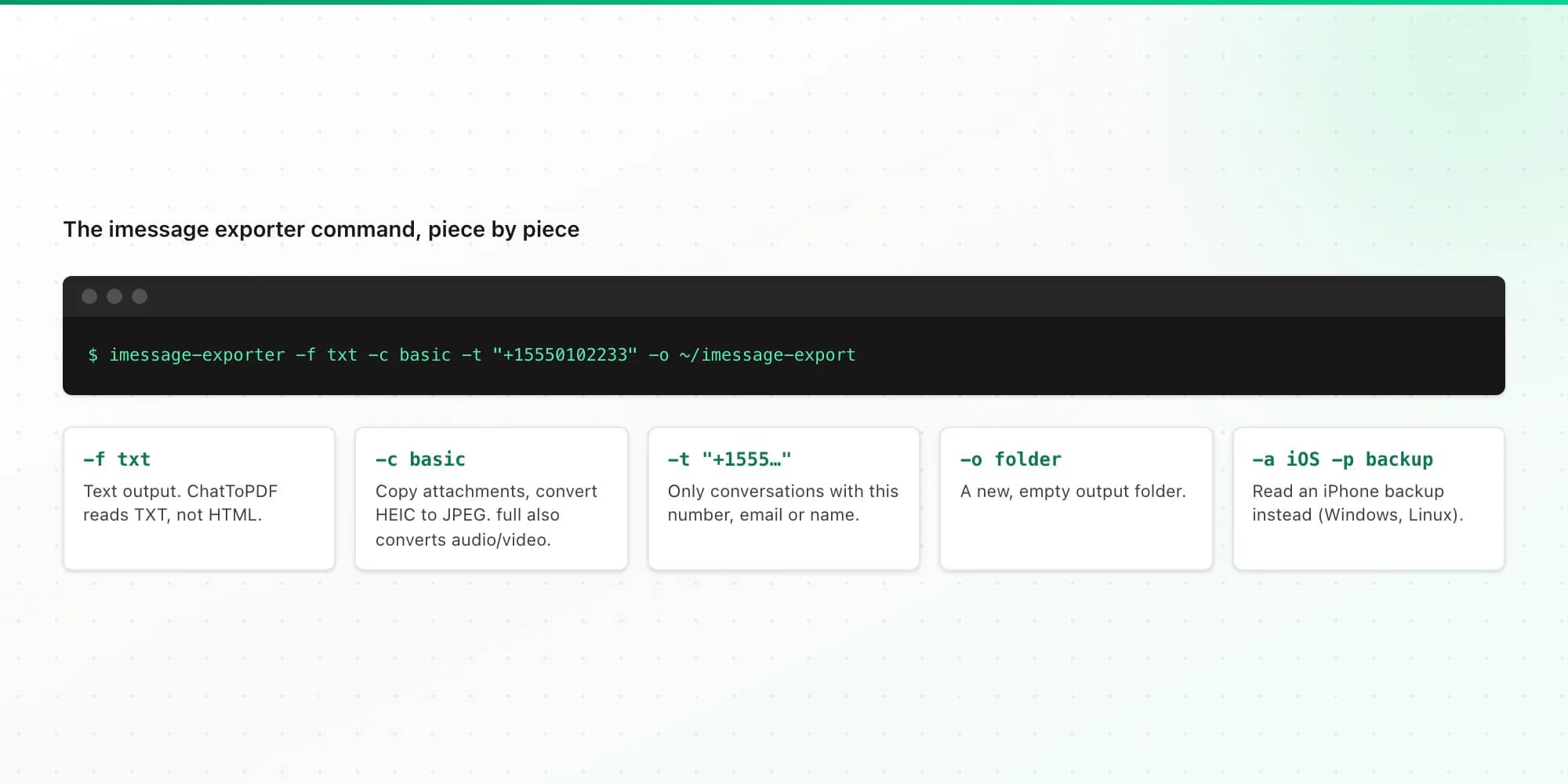
What each part does:
| Option | What it does | Why it matters for a PDF |
|---|---|---|
| -f txt | Export format: txt or html | ChatToPDF reads the TXT output. HTML output isn't supported. |
| -c basic | Copies attachments and converts HEIC images to JPEG (clone copies unchanged; full also converts audio and video) | Without a copy method, attachments stay where they are and won't be in your ZIP. JPEG displays reliably in the PDF. |
| -t "filter" | Only conversations with that phone number, email or contact name (comma-separate several) | Keeps the export to the conversation you want. Group chats that person is in are included too. |
| -o folder | Where the export is written (default ~/imessage_export) | Use a new, empty folder. The tool won't start if export files of that type already exist there. |
| -s / -e YYYY-MM-DD | Start date (on or after) and end date (before) | Handy for limiting a long history to the period you need. |
| -a iOS -p folder | Read an iPhone backup folder instead of the Mac database | The free route for Windows and Linux users. |
Voice messages. iPhone audio messages are usually .caf files, which ChatToPDF can't transcribe. With -c full, imessage-exporter also converts audio and video into MP4, and voice messages in .mp4 or .m4a can be transcribed on the $49 plan. Video conversion needs ffmpeg installed, and on Windows and Linux image and audio conversion need ImageMagick and ffmpeg too.
From an iPhone backup (any OS), add the platform and the backup path:
imessage-exporter -f txt -c clone -a iOS -p "/path/to/MobileSync/Backup/<backup-folder>" -t "+15555550123" -o ~/imessage-export
If the backup is encrypted, the tool asks for its password. On a Mac, iPhone backups live in ~/Library/Application Support/MobileSync/Backup/. On Windows, look under %USERPROFILE% or %AppData% in Apple\MobileSync\Backup, as Apple's backup location guide describes. On Windows, -c clone (copy attachments unchanged) is the simplest choice, because converting needs ImageMagick installed. For more on backups, see saving text messages from an iPhone to a computer.
Step 4: check the output and zip it
Open the export folder. You should see a .txt file for each conversation that matched, plus an attachments folder if you used a copy method. Messages that couldn't be linked to a conversation go into orphaned.txt. Open the TXT file you care about and scroll through it to make sure it's the right conversation and covers the right dates.
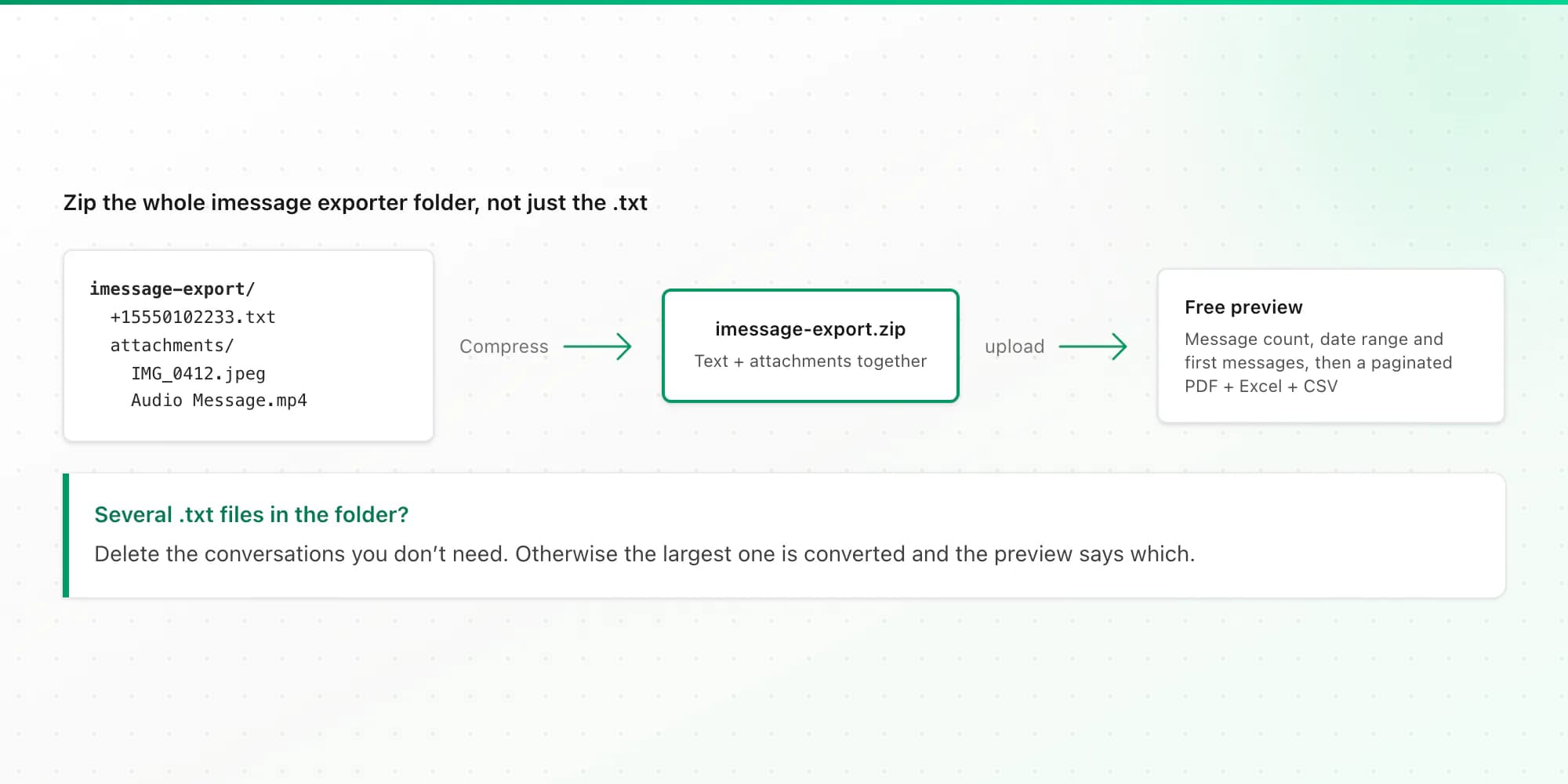
If more than one conversation file is there (for example, a group chat matched your filter), delete the ones you don't need. Otherwise I'll convert the largest and tell you which one I picked.
Then zip the whole folder, so the TXT file and the attachments folder go together. On a Mac, right-click the folder and choose Compress. On Windows, right-click and choose Compress to ZIP file (or Send to → Compressed (zipped) folder). Or in Terminal:
cd ~ && zip -r imessage-export.zip imessage-export
Upload the ZIP, not a bare .txt file. A bare text file is treated as a WhatsApp export and won't be read as iMessage.
Step 5: upload, preview and download the PDF
Upload the ZIP on the iMessage to PDF page. The free preview needs no account or email. It shows the message count, the date range and the first messages, so you can check names and dates before paying. Then pick a layout:
- Clean Document for reading and printing on a home printer.
- Formal / Legal for numbered entries with a timestamp and sender on each, if this is for a dispute. Read how to print text messages for court first.
- Book for a keepsake.
- WhatsApp Classic if you like chat bubbles.
Every PDF shows the sender, date and time on every message and "Page X of Y" on every page. Your own messages are labelled Me, or whatever label you set. Photos from the attachments folder are included on the $14 plan and above. The document is labelled iMessage or SMS based on the export, and every paid plan includes Excel and CSV files as well. Pricing is one-time per conversation: $7 for text up to 5,000 messages, $14 with photos up to 25,000, $29 with no cap, and $49 adds voice transcription. See the pricing page.
What isn't supported (yet)
- imessage-exporter's HTML output. Export again with
-f txt. - A bare .txt file. Zip it, ideally with the attachments folder.
- Apple's chat.db file itself. Run imessage-exporter on it first.
- HEIC photos. They're embedded, but I can't promise every HEIC image displays, so use
-c basicor-c fullon a Mac to get JPEGs. - Several conversations at once. One conversation per upload, the largest if there's more than one.
I built the iMessage import from the exporter's documented output format. If your export looks wrong in the preview, don't pay; the 7-day money-back guarantee also applies after purchase.
Related guides
Not comfortable with Terminal? How to print text messages from an iPhone compares screenshots, Mac Messages printing and iMazing. Android texts don't need a command line at all; see how to print text messages from Android. And if the same person also messaged you on Instagram, downloading your Instagram messages covers that export.
Key takeaways
- Install:
brew install imessage-exporteron a Mac, orcargo install imessage-exporteranywhere. On a Mac, give Terminal Full Disk Access. - Export one conversation:
-f txt -c basic -t "<number or name>" -o <new folder>. Add-a iOS -p <backup folder>to read an iPhone backup on Windows or Linux. - Zip the whole export folder with the attachments folder and upload the ZIP. TXT only; HTML and bare .txt aren't supported.
- You get a paginated PDF (four layouts) plus Excel and CSV. The preview is free and the PDF starts at $7.
FAQ
Is imessage-exporter free and safe?
It's free and open source; the code is public on GitHub. The project describes it as performing read-only operations on your Messages data, and it runs on your own computer. Your messages only leave your computer if you choose to upload the export somewhere, such as to ChatToPDF, which deletes uploaded files within 7 days.
Can I use the iMessage exporter on Windows?
Yes. Install Rust, run cargo install imessage-exporter, make a local iPhone backup with the Apple Devices app or iTunes, and point the tool at the backup folder with -a iOS and -p. Encrypted backups prompt for the password. Converting HEIC images and audio on Windows needs ImageMagick and ffmpeg, so -c clone is the simplest choice.
How do I export iMessages to PDF?
Run imessage-exporter with -f txt and a copy method such as -c basic, filtered to one conversation with -t. Zip the output folder, including the attachments folder, and upload the ZIP to ChatToPDF. Check the free preview, then download the PDF. On a Mac, a short thread can also be printed to PDF from the Messages app.
Why does imessage-exporter say it can't build the contacts index?
On a Mac this usually means your terminal app doesn't have Full Disk Access. Open System Settings, then Privacy & Security, then Full Disk Access, switch it on for Terminal, restart Terminal and run the command again.
Can I upload the HTML export instead?
Not at the moment. ChatToPDF reads imessage-exporter's TXT output in a ZIP. If you've already made an HTML export, run the tool again with -f txt into a new, empty folder.
I'm Paul, the founder of ChatToPDF. I built it after needing a long WhatsApp conversation as a readable PDF for a legal matter. I test and document WhatsApp exports, PDF conversion, voice-note transcription, and the limits people should check before relying on the result.