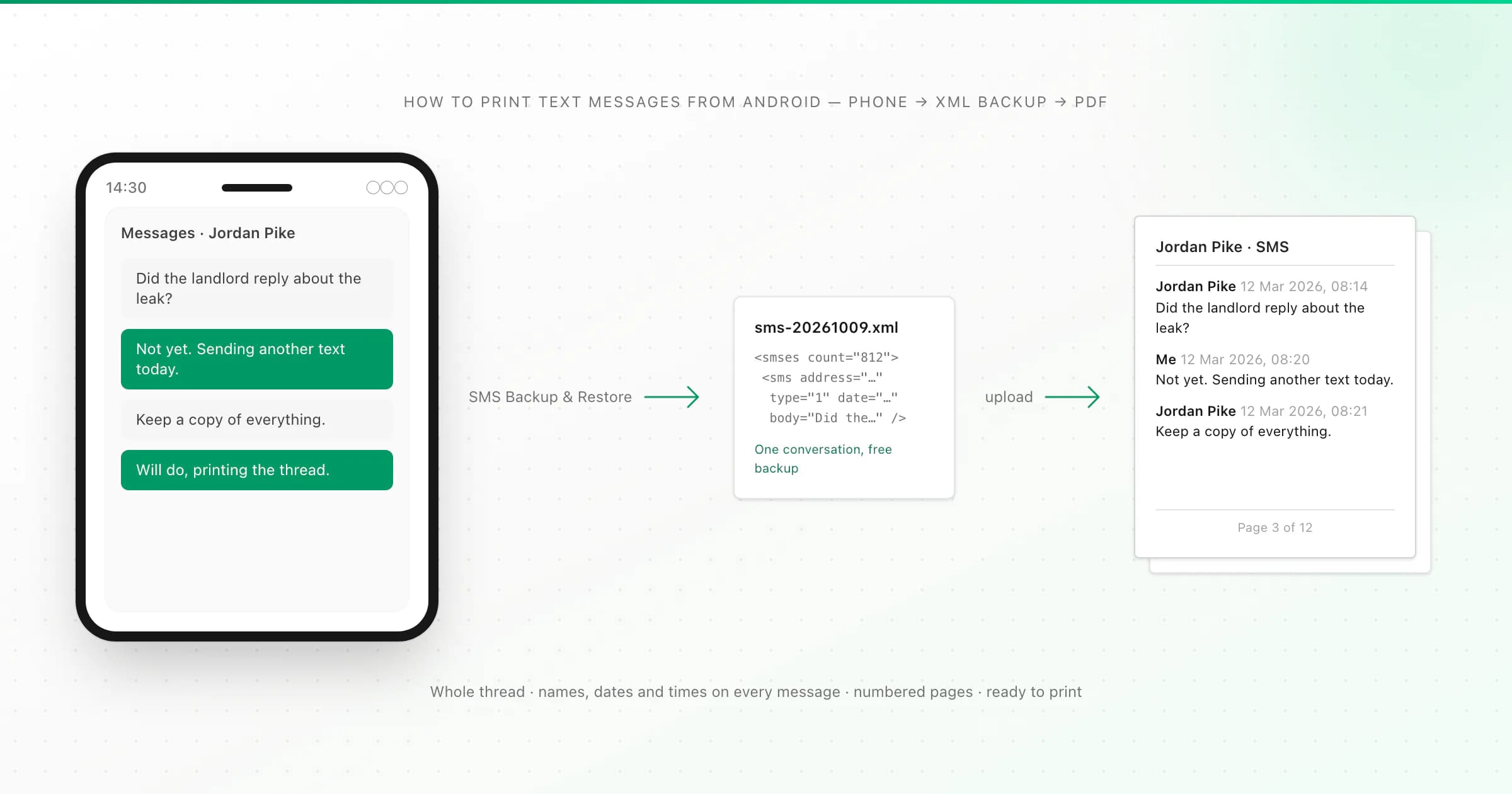
To print text messages from Android, get the conversation off the phone as a file. Google Messages and Samsung Messages have no "print conversation" button. Install the free SMS Backup & Restore app, back up just the one conversation as an XML file, convert that XML into a paginated PDF, then print the PDF from your phone or a computer.
That is the whole answer. The rest of this page is the detail: which settings to pick in the backup app, what the printout looks like, the free alternatives and where they fall short. I built ChatToPDF to turn exported chats into clean documents, and Android text messages were one of the most requested additions, so I'll also be clear about what my converter does and doesn't do.
Why Android has no print button for texts
Android's messaging apps are built for reading on a screen, not for producing documents. Android does have a system print service, but the messaging apps don't hook a whole conversation into it. So your realistic choices are:
- Screenshots. Fine for two or three messages. For a long thread you end up with dozens of images, no page numbers, and dates that say "Tue" instead of a full date.
- Forward or copy-paste into an email. Loses who said what, and the timestamps, very quickly.
- Export the conversation as a file, then print that file. This is the route that gives you the complete thread with names, dates and times on every message.
The export step is where people get stuck, because Google Messages has no export either. The fix is a third-party backup app.
Step by step: print an Android text conversation
The method below works on Samsung, Pixel, Motorola and other Android phones, because it doesn't depend on which messaging app you use. Menu labels in the backup app shift a little between versions, so look for the closest match.
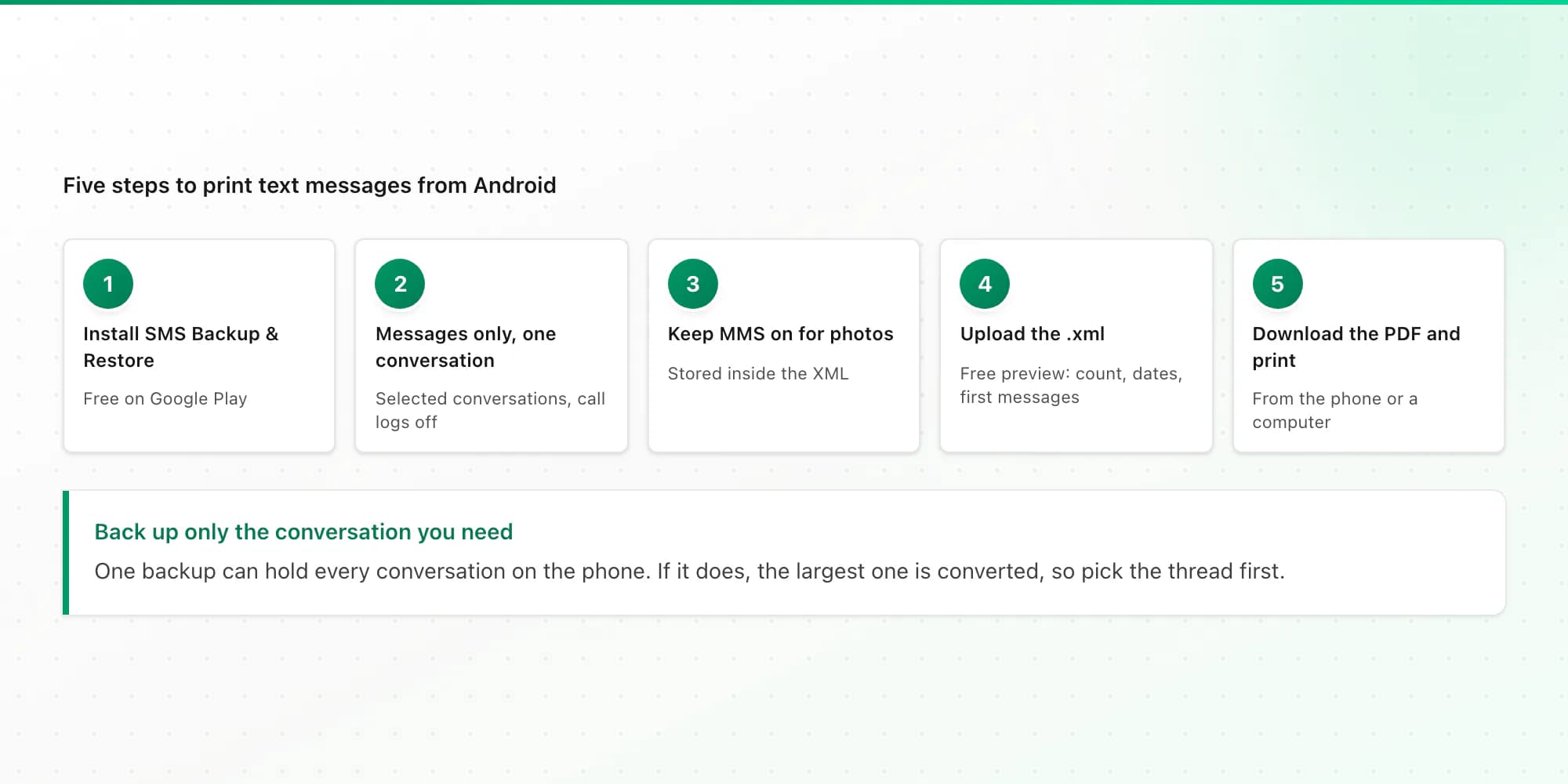
Install SMS Backup & Restore
Install SMS Backup & Restore by SyncTech from the Google Play Store. The base app is free (it shows ads; a paid Pro version removes them). It saves your texts in XML format and, per its developer's feature list, lets you choose which conversations to back up and whether to include MMS media.
Choose messages only, and only the conversation you need
Start a new backup, switch on Messages and switch off Call logs (call-log backups are a separate file we can't convert). Then use the option to back up selected conversations and tick just the one thread you want to print. This matters: one backup can hold every conversation on the phone, and if it does, ChatToPDF converts the largest one and tells you so. Backing up only the thread you need avoids that.
Include MMS if you need the photos
If the conversation contains photos or videos sent as MMS and you want them in the printout, keep the MMS option on. They are stored inside the XML file itself, so the file can get large. Our upload limit is 150 MB.
Back up to the phone or to Google Drive
Save the backup locally or send it to Google Drive, Dropbox or OneDrive. The file is named something like
sms-20261009101500.xml. You can upload it straight from your phone's Files app or from Drive.Upload the XML, check the preview, download the PDF and print
Upload the XML on the text messages to PDF converter. The free preview shows the message count, the date range and a sample of the first messages, so you can confirm it picked up the right conversation before paying anything. Then download the PDF and print it like any document: from the phone through Android's print service, or from a computer.
What the printed text messages look like
The PDF lists every message in order. Each message shows who sent it, the date and time, and the text. Your own messages are labelled Me. Messages you received show the contact's name as saved on your phone, or the phone number if that person isn't in your contacts. Every page carries a "Page X of Y" number, which makes a long printout easy to keep in order and to refer to.
A few more specifics, so there are no surprises:
- Group texts work. Group MMS conversations come through with each sender identified.
- MMS photos and videos that are inside the backup are included on the $14 plan and above. MMS audio clips appear as audio files; they can't be transcribed.
- Failed or unsent messages are kept and marked as not sent, so the record doesn't silently drop them. Drafts are skipped.
- Four layouts. Chat bubbles, Clean Document, Formal / Legal (numbered entries) and Book. For plain printing on a home printer, Clean Document is easiest to read in black and white.
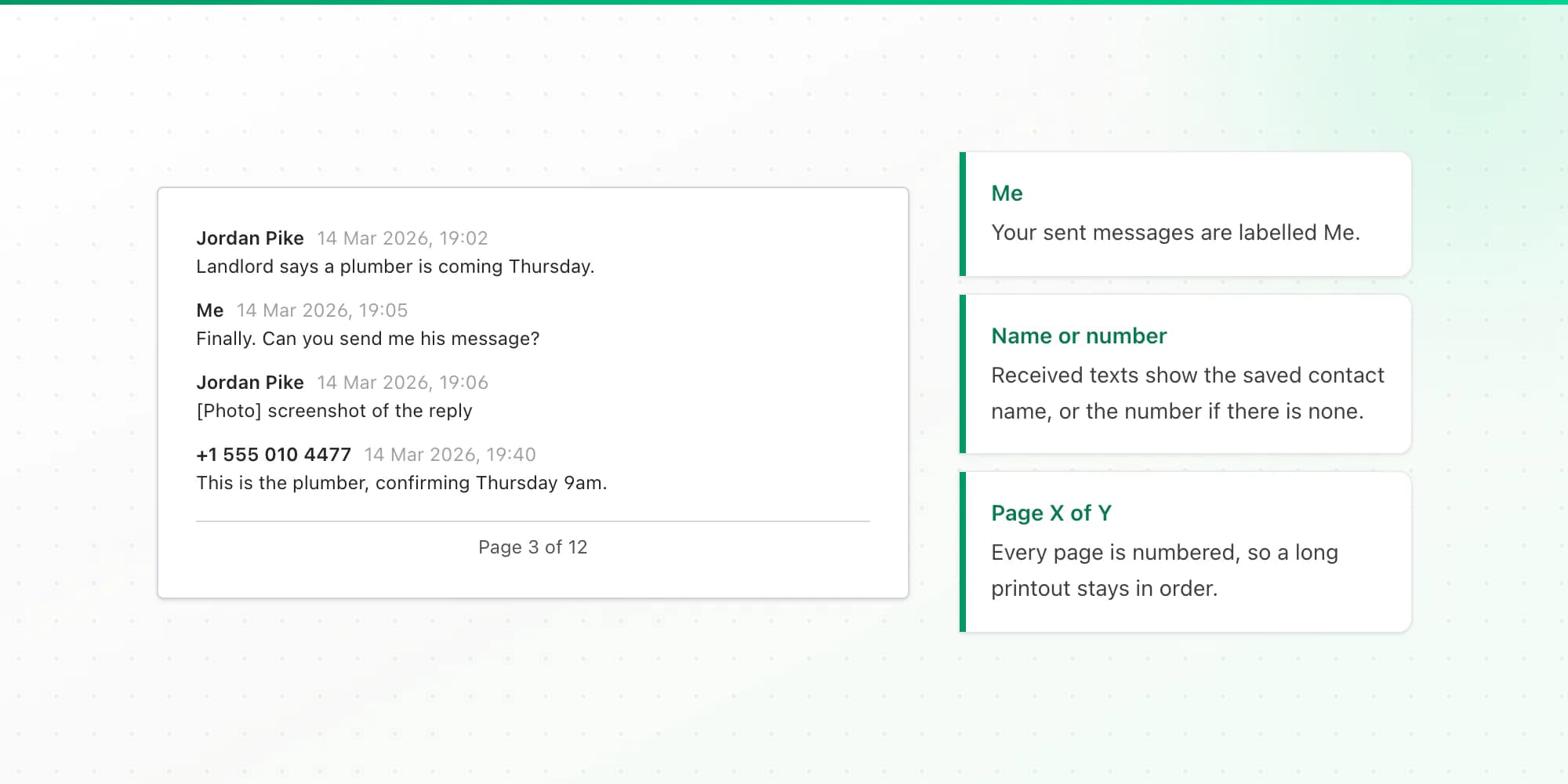
There is no table of contents and no header repeated on every page, only the page numbers. If you need the printout for a hearing, the guide to printing text messages for court covers what to check before you file anything.
Free and paid ways to print Android texts, compared
You don't have to use my converter. Here is how the realistic options stack up for a conversation longer than a screen or two.
| Method | Cost | Whole conversation | Names, dates and times | Photos | Page numbers |
|---|---|---|---|---|---|
| Screenshots, then print | Free | Only what you capture | Partly (relative dates like "Tue") | Yes, as seen on screen | No |
| Copy text into an email or document | Free | Tedious for long threads | Usually lost | No | Only if you add them |
| SMS Backup & Restore XML, opened raw | Free | Yes | Yes, but buried in XML code | Stored as encoded data | No |
| SMS Backup & Restore XML + ChatToPDF | Backup free; PDF from $7 one-time | Yes | Yes, on every message | Yes, from the $14 plan | Yes, Page X of Y |
| Paid desktop phone-manager software | Paid licence | Usually | Usually | Varies | Varies |
The backup itself is free. You only pay if you want the readable, paginated PDF. Pricing is per conversation and one-time, with no subscription: $7 for up to 5,000 messages of text, $14 for up to 25,000 messages including photos, and $29 with no message cap. Every paid plan also includes Excel and CSV versions of the same messages. All plans are on the pricing page.
Tips for a clean printout
Check the preview before you pay. It shows the first messages and the date range. If the wrong conversation came through, the backup almost certainly contained more than one thread. Go back to step 2 and back up only the one you need.
Pick a date range on long threads. If you only need a few months of a multi-year conversation, the $29 plan's date-range filter saves paper.
Print a test page first. Print page 1 and one page from the middle before sending 80 pages to the printer. Make sure names and times are legible in black and white.
Keep the original XML. The backup file is your source record. If anyone later questions the printout, the untouched XML is what it can be checked against.
Your phone isn't touched. I don't read your phone or your Google account. You upload one file, and uploaded files are deleted within 7 days.
If you also need other apps
Text messages are rarely the only place a conversation happened. iPhone texts need a different export route, which I cover in how to print text messages from an iPhone. If your goal is a backup rather than paper, see how to save text messages on Android. For WhatsApp the steps are different again, and printing WhatsApp messages has its own guide. Telegram can only be exported from a computer; see exporting a Telegram chat when you only have a phone.
Key takeaways
- Android messaging apps can't print a whole conversation, so export it first.
- The free SMS Backup & Restore app saves texts as an XML file. Back up only the conversation you need, because a whole-phone backup gets reduced to its largest thread.
- Upload the XML to get a paginated PDF: sender, date and time on every message, "Page X of Y" on every page, and MMS photos included from the $14 plan.
- Keep the original XML file untouched as your source record.
FAQ
How do I print a whole text conversation on Android?
Back up that one conversation with the free SMS Backup & Restore app, choosing messages only and the selected conversation. That produces an XML file containing every message in the thread. Upload the XML to a converter such as ChatToPDF, check the free preview, download the PDF, and print it from your phone or a computer. Screenshots only work for a few messages.
How do I convert Android text messages to PDF for free?
The free part is the backup: SMS Backup & Restore exports your texts to XML at no cost. Turning that XML into a readable PDF for free means cleaning the XML up by hand, which is slow for long threads. ChatToPDF shows a free preview of the converted messages; the full PDF costs $7 per conversation for text, one-time, with no subscription.
Can I print text messages directly from a Samsung phone?
Not as a whole conversation. Samsung Messages and Google Messages can't send a full thread to the printer. You can print screenshots, but for anything longer use the backup route on this page: SMS Backup & Restore works on Samsung phones the same way it does on other Android phones.
Will the printout show phone numbers?
Each received message shows the contact name saved on your phone, or the phone number when the sender isn't a saved contact. Your own messages show as "Me". The original XML backup file keeps the phone numbers, so hold on to it if you need to show which number a contact name belongs to.
Does the printout include pictures sent by text?
Yes, if they were sent as MMS and you left the MMS option on in the backup app. Photos and videos stored in the backup are included in the PDF on the $14 plan and above. The $7 plan is text-only.
I'm Paul, the founder of ChatToPDF. I built it after needing a long WhatsApp conversation as a readable PDF for a legal matter. I test and document WhatsApp exports, PDF conversion, voice-note transcription, and the limits people should check before relying on the result.