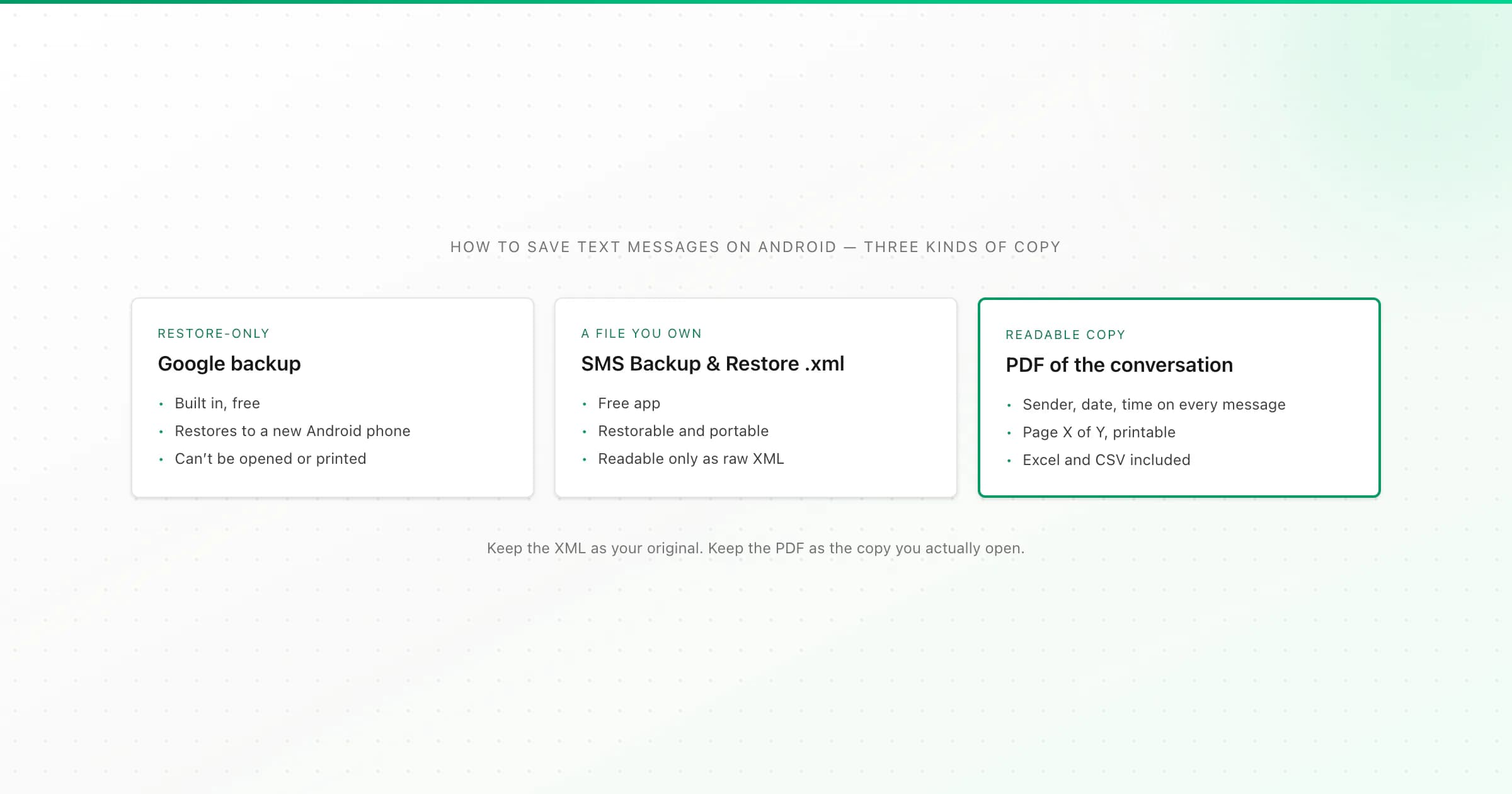
To save text messages on Android, decide what the copy is for. To move texts to a new phone, use Google's built-in backup. To keep a file you control, use the free SMS Backup & Restore app, which saves texts as XML. To read, search or print a conversation, convert that XML into a PDF. Most people want both.
I learned this distinction the annoying way: a backup that only your phone can read isn't much help when you want to show someone a conversation, or when the phone is gone. Below are the realistic options, what each one keeps and where each falls short. I run ChatToPDF, which makes the readable copy, so I'll point out where it fits and where it doesn't.
Option 1: Google's built-in backup (restore-only)
Most Android phones back up SMS and MMS to your Google account as part of the device backup. Look under Settings → Google → Backup or Settings → System → Backup; the path depends on your phone maker. Make sure backup is on and run "Back up now" before you switch phones.
What it's good for: getting your messages back after you sign in to a new Android phone with the same Google account.
What it can't do: you can't open this backup, browse it or print from it. There's no file to download. It exists to be restored onto a phone, and it only restores onto Android. If the old phone is lost and you never set up the new one from that backup, the messages stay locked away.
Samsung phones also offer Samsung's own backup (Samsung Cloud, or Smart Switch to a computer). It's the same idea: built for restoring onto a phone, not for reading.
Archiving a conversation in Google Messages only moves it out of your inbox. It's still on the same phone, so it disappears along with the phone.
Option 2: SMS Backup & Restore (a file you own)
SMS Backup & Restore by SyncTech is free on Google Play, with an ad-free paid Pro version. According to the developer's feature list, it backs up texts in XML format, can include MMS media, lets you choose which conversations to back up, and can save the file locally or send it to Google Drive, Dropbox, OneDrive or email.
How to use it:
- Install the app and start a new backup.
- Switch on Messages (switch off call logs unless you want them, which are saved separately).
- Keep MMS on if you want photos and videos saved inside the file.
- Back up all conversations, or choose selected conversations to save just one thread.
- Choose where the file goes. Somewhere off the phone, such as Google Drive or a computer, is what makes it a real backup.
The result is a file named something like sms-20261009101500.xml. Unlike Google's backup, you own this file: you can restore it to another Android phone with the same app, copy it anywhere, and keep it for years.
The catch is that XML is meant for machines. Open it on a computer and you'll see your messages buried in lines of tags and attributes, with photos stored as long blocks of encoded text. It's complete, but it isn't something you'd want to read through.
Option 3: a readable PDF copy (what to keep for reading)
This is the step most backup guides skip. If you want to read an old conversation, search it, send it to someone or print it, you need a document, not a backup.
Upload the XML to the text messages to PDF converter and you get a PDF where every message shows who sent it, the date and time, and the text, with "Page X of Y" on every page. Sent messages are labelled Me. Received messages show the contact name saved on the phone, or the number if there's no saved name. Group texts keep each sender, and MMS photos and videos in the backup are included on the $14 plan and above. Every paid plan also includes Excel and CSV files of the same messages, which is handy if you'd rather search or filter in a spreadsheet.
Two limits to know about:
- One conversation per upload. If your backup holds the whole phone, I convert the largest conversation and add a note saying which one it was. To get a different one, back up just that conversation and upload it.
- Only SMS Backup & Restore files. Other backup apps' formats, call-log backups and drafts aren't supported.
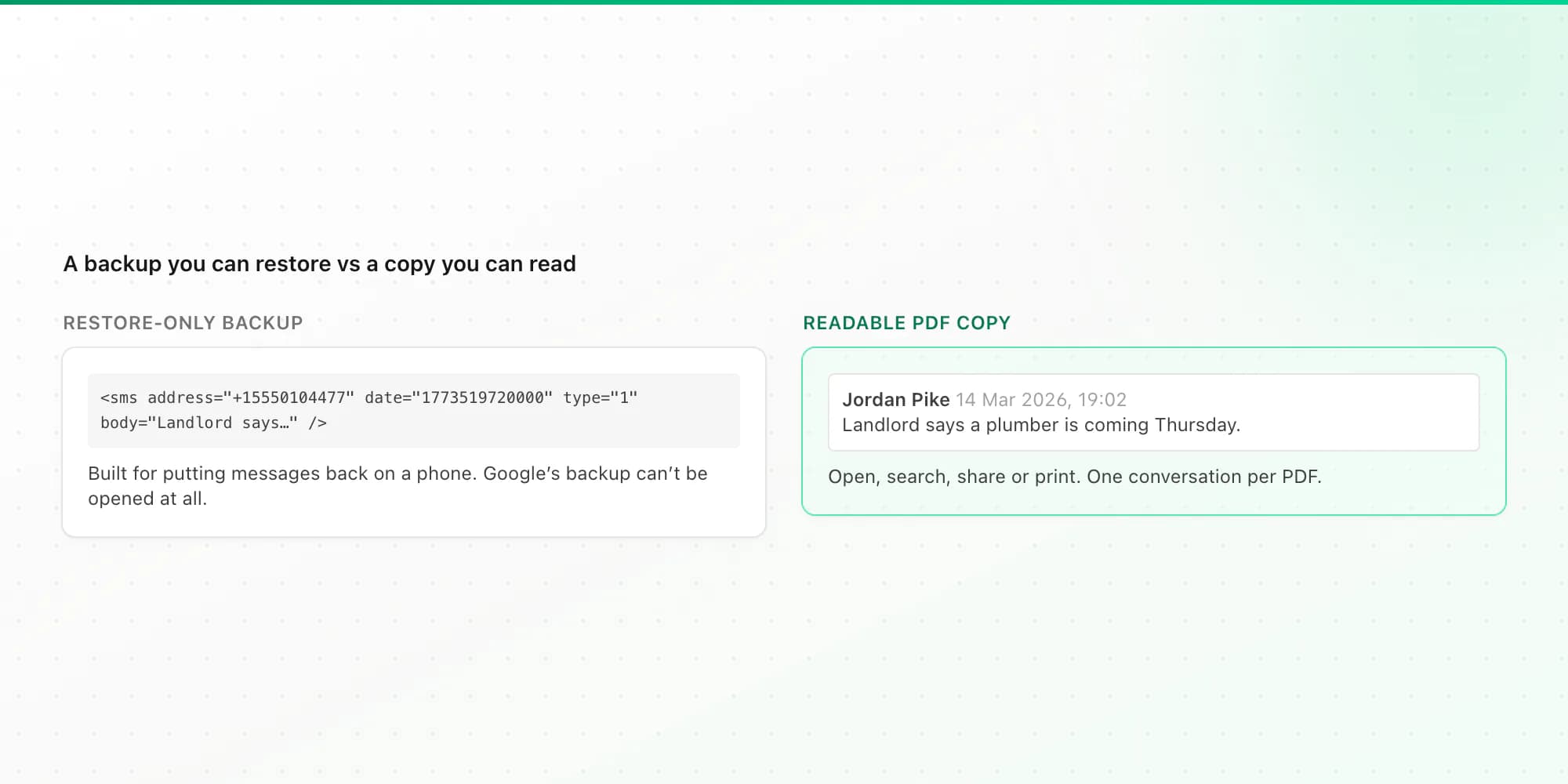
Which way should you save your texts?
| Method | Cost | Restore to a new phone | Open and read on a computer | Keeps MMS photos | Printable |
|---|---|---|---|---|---|
| Google device backup | Free | Yes (Android, same account) | No | Yes | No |
| Samsung backup | Free | Yes (Samsung devices) | No | Yes | No |
| Screenshots | Free | No | Yes, as images | What's on screen | Yes, a screen at a time |
| SMS Backup & Restore XML | Free (Pro removes ads) | Yes, with the same app | Technically, as raw XML | Yes, if MMS is on | Not usefully |
| XML converted to PDF with ChatToPDF | From $7 per conversation, one-time | No (keep the XML for that) | Yes | Yes, from the $14 plan | Yes, with page numbers |
My recommendation for most people: keep Google backup switched on for phone moves, make an SMS Backup & Restore XML of anything you can't afford to lose and store it off the phone, and turn the conversations that matter into PDFs. The XML is your restorable original. The PDF is the copy you'll actually open.
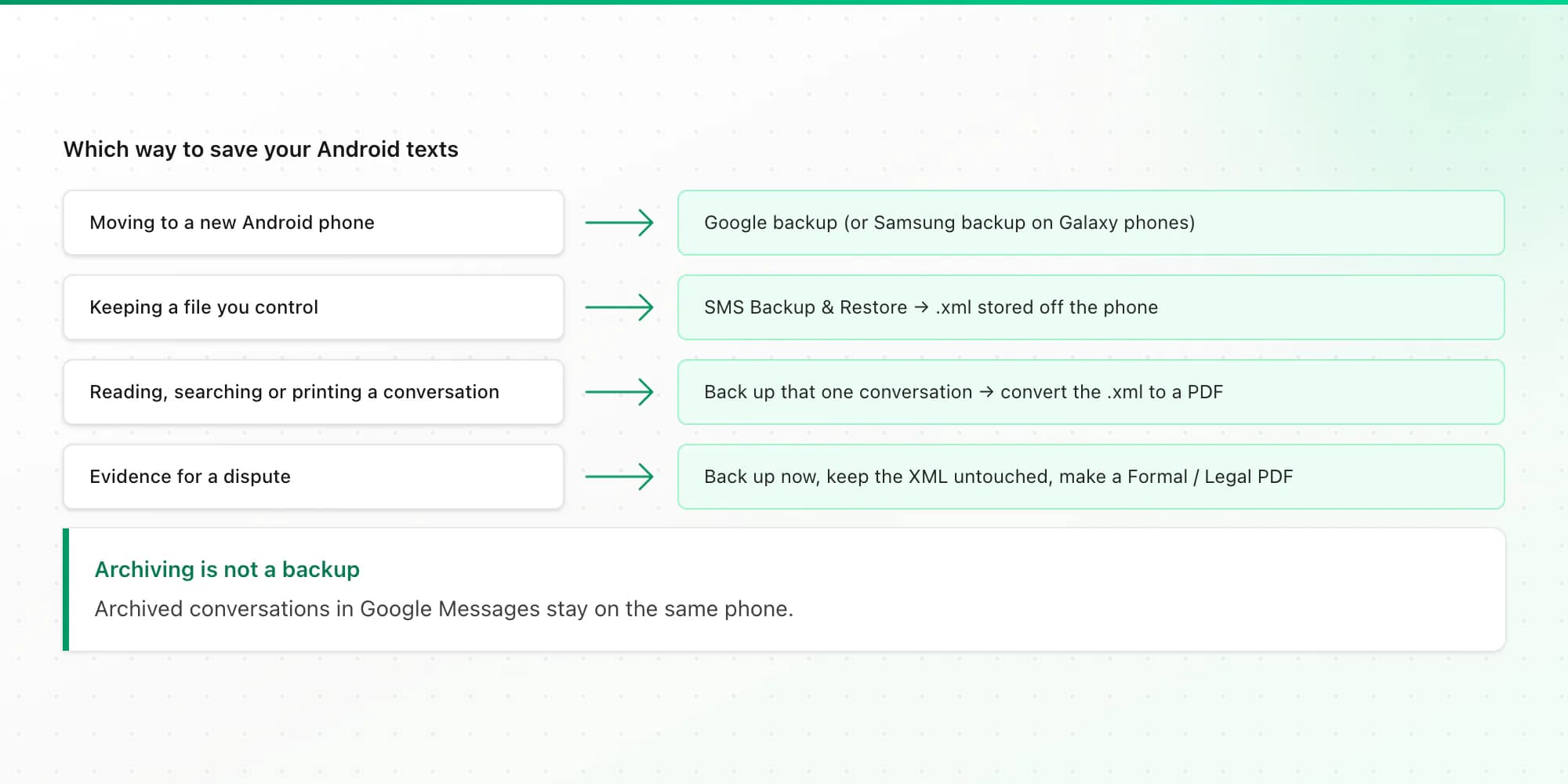
Common reasons people save texts, and what to use
Switching phones. Google's backup, or SMS Backup & Restore if you're moving between phone makers and want a file in hand.
A conversation with someone who has died. Make the XML and a PDF. A PDF in the Book layout reads like a printed book, and the XML stays as the complete original. Store both in two places.
Evidence for a dispute. Back up the specific conversation to XML before anything gets deleted, and keep the file untouched. The printing side is covered in how to print text messages for court.
Just printing a thread. Follow how to print text messages from Android for the shortest path from phone to paper.
Moving to an iPhone. Neither Google's backup nor an SMS Backup & Restore file can be restored onto an iPhone. Apple's Move to iOS app is the route for bringing texts across during setup, and a PDF copy of the important conversations is a sensible safety net before you switch. If you later need iPhone texts on a computer, see saving text messages from an iPhone to a computer.
Other apps need their own export: Instagram DMs come from Meta's data download (see how to download Instagram messages), and WhatsApp has a built-in Export Chat. Our WhatsApp to PDF converter handles that one.
Key takeaways
- Google backup saves texts for restoring onto a new Android phone. You can't open or print it.
- SMS Backup & Restore (free) saves texts as an XML file you own: restorable, portable, and readable only with effort.
- For reading, searching or printing, convert the XML to a PDF: sender, date and time on every message, page numbers, MMS photos from $14.
- Back up one conversation at a time when you want a PDF of it. A whole-phone backup gets reduced to its largest conversation.
FAQ
How do I export an entire text conversation on Android?
Android's messaging apps have no export button. Use the free SMS Backup & Restore app: back up messages only, choose selected conversations, and tick the one thread. You get an XML file with every message in that conversation, which you can keep as a backup or convert into a PDF to read and print.
Is there a way to download all my text messages?
Yes. SMS Backup & Restore can back up every conversation on the phone into one XML file and save it to your phone, Google Drive, Dropbox, OneDrive or email. Google's own backup also saves all your texts, but only as a restore point you can't download or open.
Are my text messages saved to my Google account?
On most Android phones, yes, as part of the device backup, if backup is switched on. They're saved so they can be restored to a new Android phone signed in to the same account. You can't view or download them as a file from Google, so make your own copy if you want to read them elsewhere.
How do I download messages from a Samsung phone?
Samsung's own backup is designed for restoring onto a phone. To get a file you can open, install SMS Backup & Restore, which works on Samsung phones, back up the messages you want to XML, and convert the conversation to a PDF if you want something readable.
Can I convert Android text messages to PDF?
Yes. Back up the conversation with SMS Backup & Restore, then upload the XML to ChatToPDF. The free preview shows the message count, the date range and the first messages. The full PDF costs $7 for text or $14 with MMS photos, one-time per conversation, and includes Excel and CSV copies.
I'm Paul, the founder of ChatToPDF. I built it after needing a long WhatsApp conversation as a readable PDF for a legal matter. I test and document WhatsApp exports, PDF conversion, voice-note transcription, and the limits people should check before relying on the result.