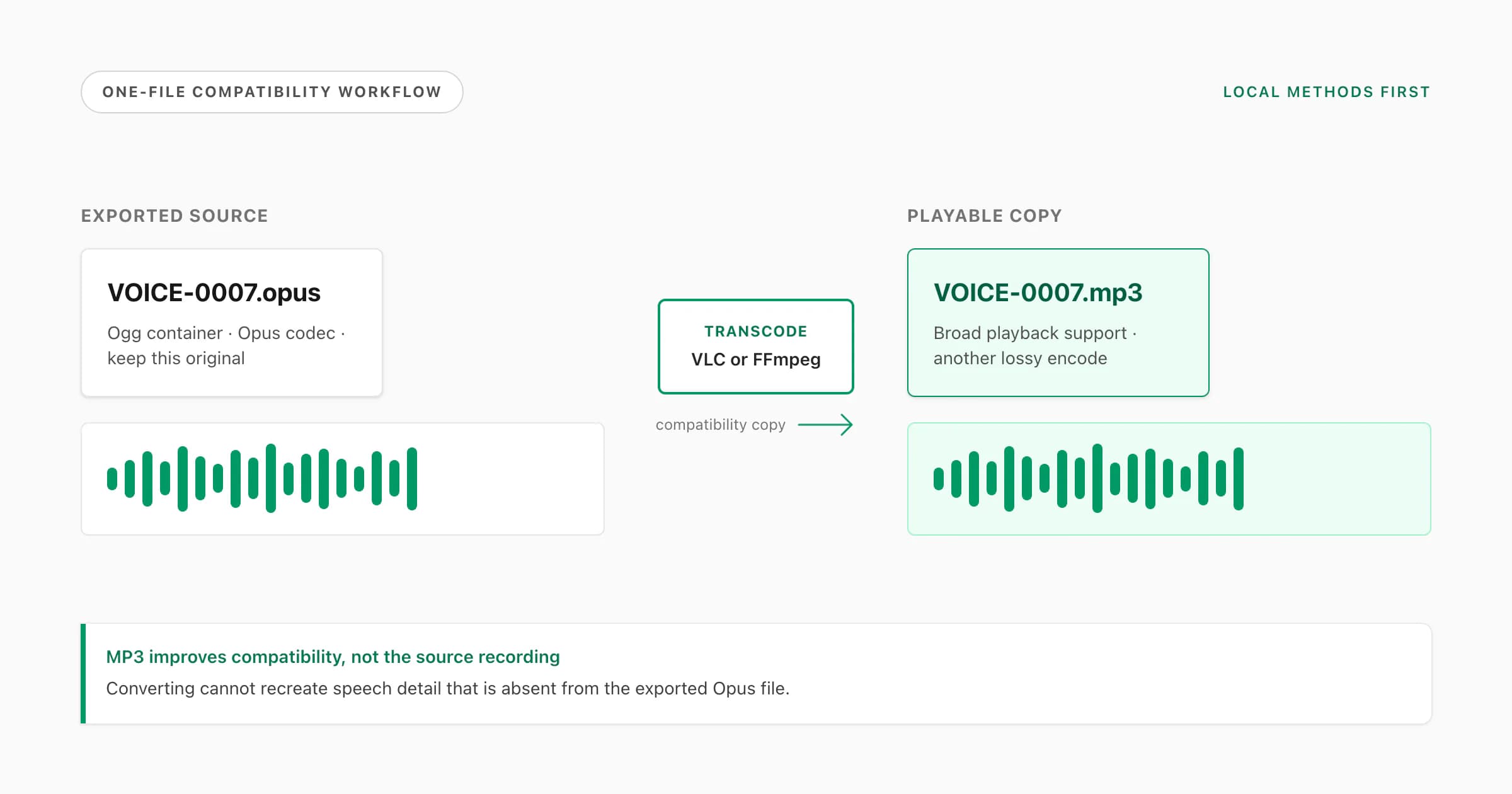
To convert one WhatsApp audio file to MP3, save or export the voice note, then open the exported .opus or .ogg file in VLC or FFmpeg and create a new .mp3 copy. Keep that job local when the recording is private. To convert the voice notes across one complete WhatsApp chat, upload the untouched media-inclusive ZIP to the whole-chat WhatsApp audio-to-MP3 converter: the free preview counts detected notes, and the $49 playable bundle returns MP3 files for successful transcodes with the original file retained when an individual transcode fails. Keep your original export because MP3 improves compatibility, not recording quality.
The quickest safe answer
If you already have one WhatsApp voice-note file on a computer, use a local converter:
- Install and open VLC from the official VideoLAN site.
- Open Media → Convert/Save on Windows, or the comparable conversion action in VLC on macOS.
- Add the exported
.opus,.ogg,.m4aor other audio file. - Choose an MP3 audio profile and a new destination filename ending in
.mp3. - Start the conversion, then open the new file and listen to its beginning and end.
The menu labels can vary slightly by VLC release and operating system. The principle does not: choose one source file, decode it, encode a separate MP3 derivative, and verify the result. The official VLC Convert and Save documentation explains the desktop workflow.
This guide owns the “convert WhatsApp audio to MP3” task. If you only need to understand why the exported file says .opus or .ogg, read the WhatsApp audio format guide. If you have not saved the note yet, start with how to download WhatsApp voice notes. Keeping these questions separate prevents an apparently simple conversion tutorial from hiding the step that actually blocks many people: acquiring the source file.
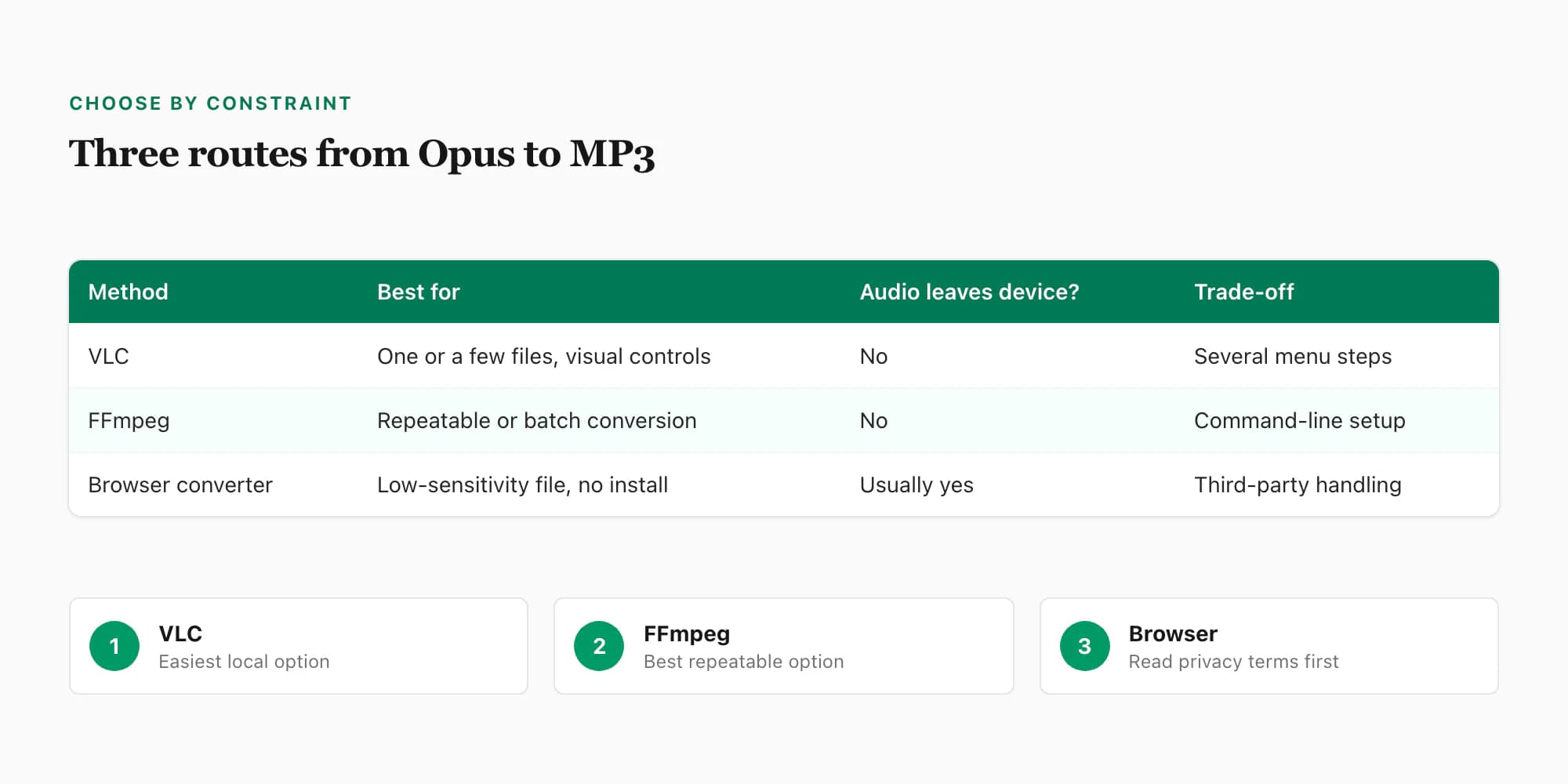
Which conversion method should you choose?
- Situation
- One or two private voice notes
- Best first method
- VLC
- Why
- Visual interface and local processing
- Situation
- A folder of exported notes
- Best first method
- FFmpeg
- Why
- Repeatable commands and batch automation
- Situation
- You cannot install software
- Best first method
- Browser converter
- Why
- Convenient, but usually uploads the audio
- Situation
- You need the spoken words
- Best first method
- Transcription
- Why
- MP3 conversion does not produce text
| Situation | Best first method | Why |
|---|---|---|
| One or two private voice notes | VLC | Visual interface and local processing |
| A folder of exported notes | FFmpeg | Repeatable commands and batch automation |
| You cannot install software | Browser converter | Convenient, but usually uploads the audio |
| You need the spoken words | Transcription | MP3 conversion does not produce text |
For a confidential client discussion, medical recording, HR conversation or private family note, local conversion is the more conservative choice. “Free online” describes a price, not a privacy model. The operator may temporarily store the recording, log metadata, use another processing provider or apply a deletion period you have not checked.
Get the WhatsApp audio file first
An MP3 converter needs an audio file; it cannot convert a voice-note bubble that exists only inside the chat interface. For one note, long-press the message and inspect the share, forward or save actions exposed by your device and WhatsApp version. Choose a destination such as Files, Drive or another installed storage app where available. The exact labels and destinations are not universal, so do not worry if your screen differs from an old screenshot.
For many notes from one conversation, use WhatsApp’s own Export Chat flow and choose Include Media or Including Media. “Without Media” produces the message transcript with media placeholders rather than the attached audio files you need. WhatsApp’s official export-chat instructions are the primary reference for the current export entry points.
The media-inclusive result is commonly a ZIP or shared archive containing a transcript plus the media WhatsApp included under the current export limits. Extract a working copy on the computer. Do not delete the archive after extraction: it is the most useful intact source bundle if you later need to check filenames, message order or whether a voice note was missed.
If your task is specifically about obtaining the files, the voice-note download guide covers a single-note route, a batch export, what to expect inside the archive and why hidden Android folder paths are a poor universal answer.
Identify Opus, Ogg and the real file properties
WhatsApp push-to-talk voice notes commonly appear in exports as Opus audio in an Ogg container, often with an .opus or .ogg extension. Ordinary audio attachments can be MP3, M4A/AAC, WAV or another format. Inspect what you actually received instead of renaming every file based on a guess.
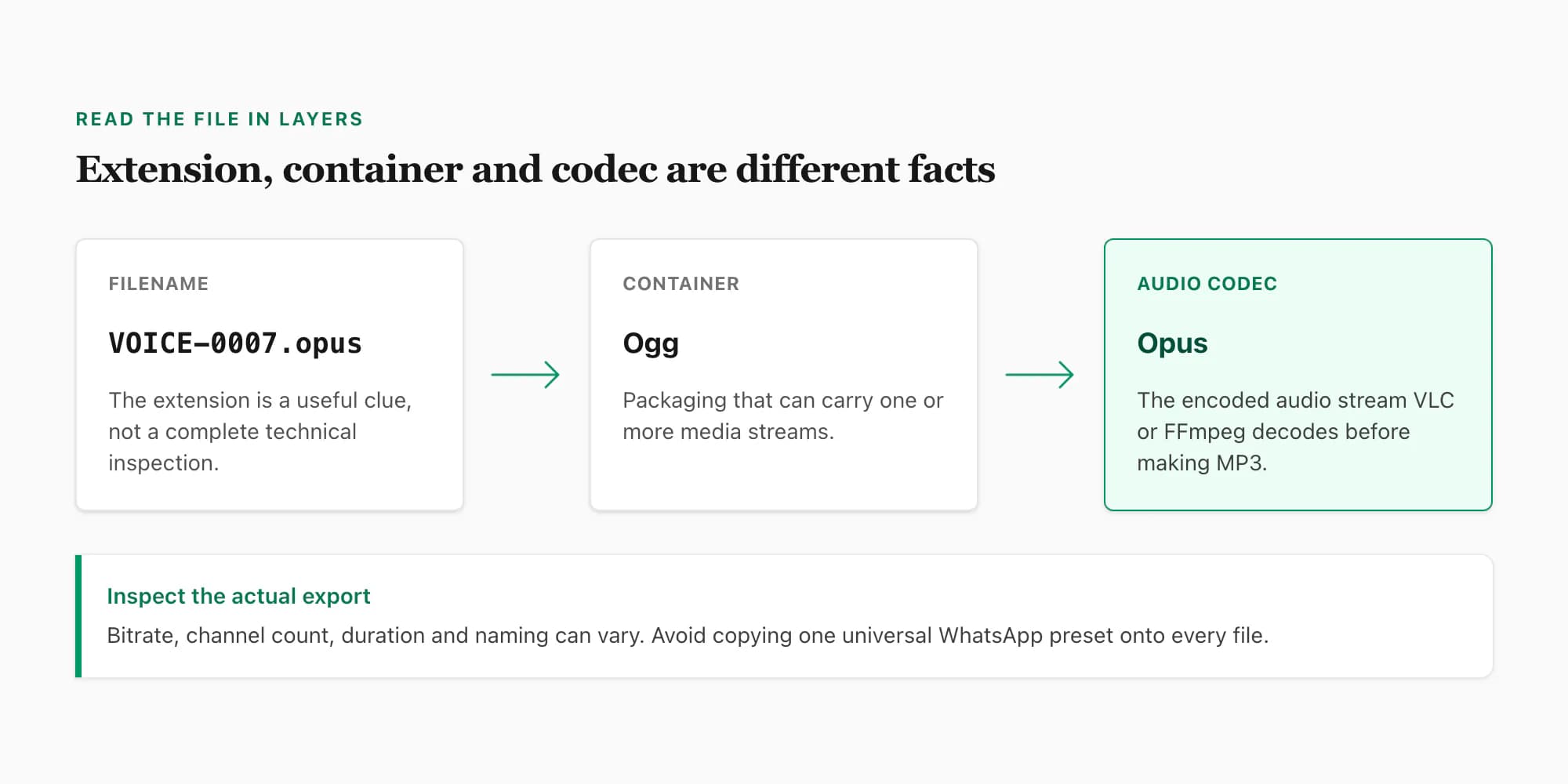
Three related terms are easy to collapse:
- Extension: the visible suffix such as
.opus,.oggor.mp3. - Container: the package holding media streams; Ogg is a container.
- Codec: the method used to encode audio; Opus and MP3 are codecs.
The IETF Opus specification, RFC 6716, documents a flexible codec capable of multiple bandwidths, input sample rates, channel arrangements and bitrates. Those capabilities are not proof that every WhatsApp file uses one fixed setting. A displayed 48 kHz decoding clock also does not, by itself, prove the recorded speech contains full-bandwidth detail.
Use VLC’s codec information panel, MediaInfo or FFprobe when exact properties matter. A useful command is:
ffprobe -v error -show_streams -show_format input.opus
Look for the detected codec, container, duration, channels and measured or calculated average bitrate. If a file has the wrong extension but valid media content, FFmpeg may still identify it. If it is empty, damaged or only a transcript placeholder, changing the suffix to .mp3 will not fix it.
Renaming VOICE-0007.opus to VOICE-0007.mp3 is not conversion. It changes the label, not the encoded audio. A real converter decodes the source and encodes a new MP3 stream.
Method 1: convert WhatsApp audio to MP3 with VLC
VLC is the best default for someone who wants a graphical local tool. It can read common Opus/Ogg exports and create MP3 without sending the voice note to a web service.
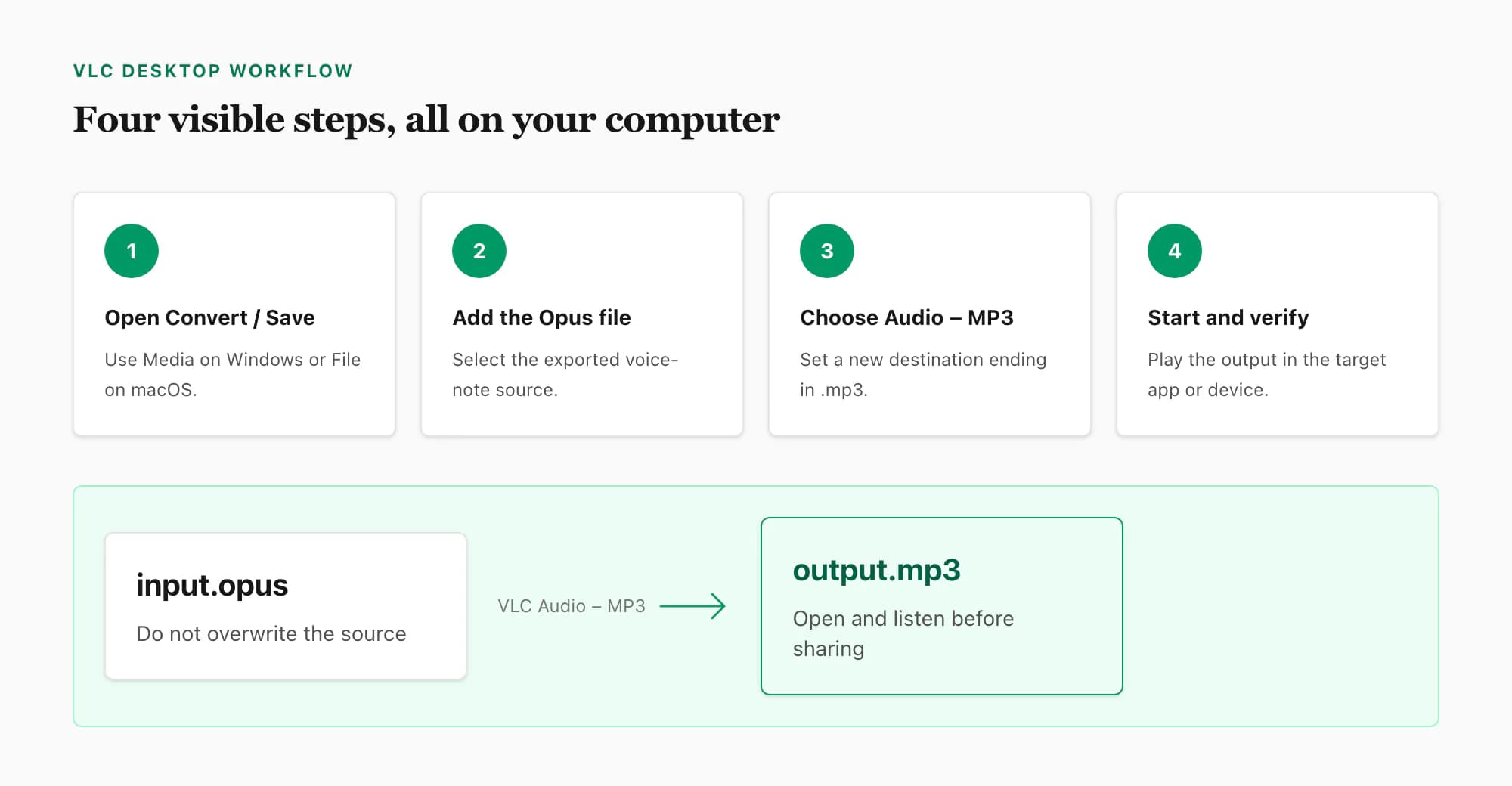
Make a working copy of the exported audio
Copy the voice note from the saved archive into a clearly named working folder. Leave the original archive and original file untouched. If several notes have similar generated names, keep the surrounding transcript open so you can relate the file to its message context.
Open VLC Convert or Save
In VLC on Windows, choose Media and then Convert/Save. On macOS, use the conversion or streaming action exposed by the installed VLC version. Add the WhatsApp audio file as the source. Do not add the ZIP itself; VLC needs the extracted media file.
Select an MP3 audio profile
Choose an Audio–MP3 profile. Set a destination filename that ends in
.mp3and does not reuse the source filename. A suffix such as-converted.mp3makes the derivative status obvious. Avoid selecting a video profile, which can create an unnecessary container or confusing output.Start the conversion and wait for completion
Run the conversion. A short voice note normally completes quickly on a modern computer, but duration and hardware affect the time. VLC may show progress in the playback bar rather than a separate completion dialog.
Verify playback and duration
Open the MP3 in the player or application that originally rejected the Opus file. Listen to the first and last seconds and compare the duration with the source. Keep both files until the output has passed that check.
If VLC creates a zero-byte file, reports that it cannot open the input or finishes instantly without playable output, first test whether VLC can play the original. Re-extract the source from the ZIP, choose a writable destination and confirm that the destination filename includes .mp3. A corrupt source or transcript placeholder cannot be repaired by changing output settings.
Method 2: convert with FFmpeg
FFmpeg is the more explicit choice. It is useful when you want a command you can repeat, need diagnostic output or have many exported notes. Download it from the official project or an operating-system package manager you trust, then confirm ffmpeg -version works in a terminal.
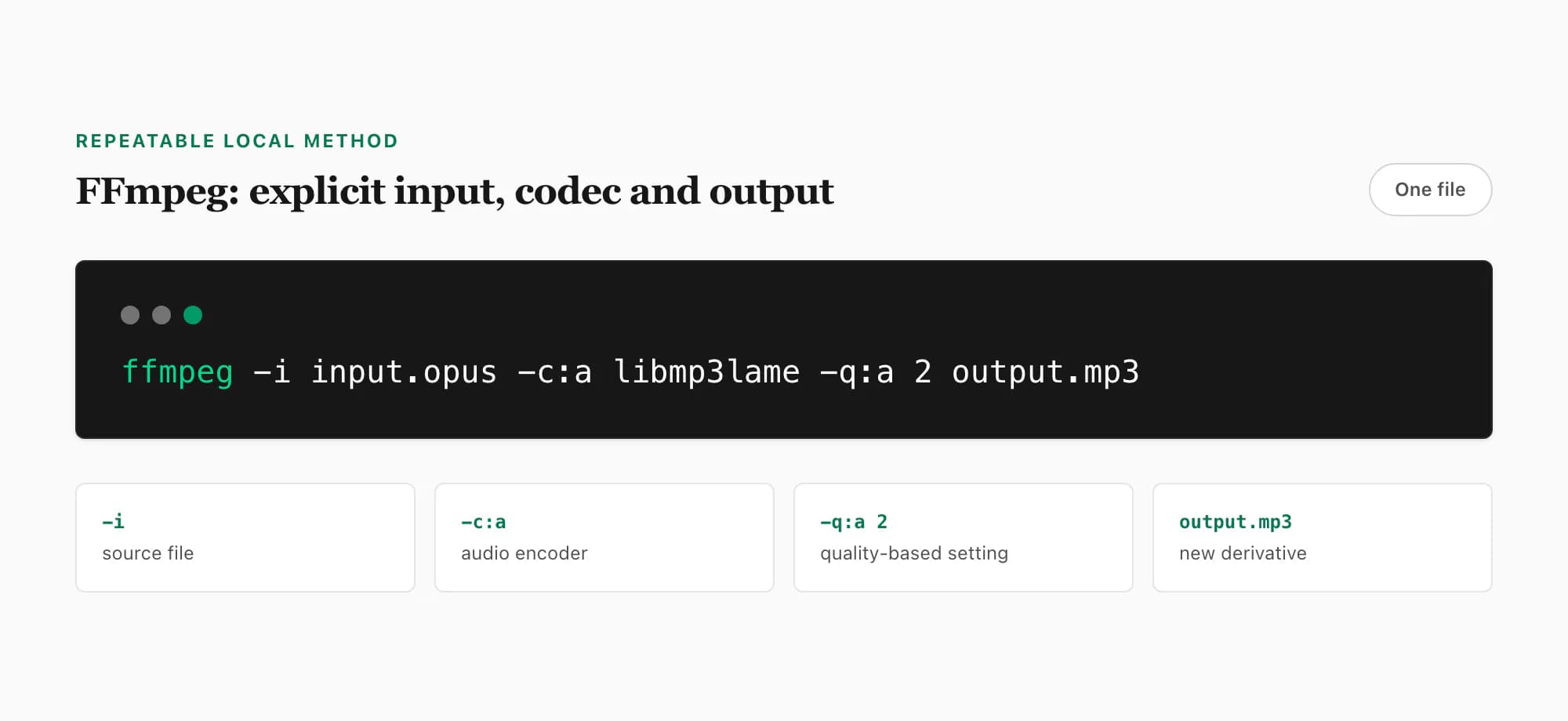
For one file:
ffmpeg -i input.opus -c:a libmp3lame -q:a 2 output.mp3
-i input.opus identifies the source. -c:a libmp3lame selects the MP3 encoder. -q:a 2 requests a high-quality variable-bitrate setting from that encoder. output.mp3 is a new file. The official FFmpeg command-line documentation is the authority for options and stream selection.
That setting is a practical compatibility default, not a promise that the MP3 contains more detail. A high output bitrate can make the derivative much larger than the compact Opus source while preserving essentially the same audible information. If file size matters more than a generic quality preset, test a representative note and compare the output in the actual target device.
For a directory of .opus files on macOS or Linux, run a batch only inside a working-copy folder:
for f in *.opus; do
  ffmpeg -i "$f" -c:a libmp3lame -q:a 2 "${f%.opus}-converted.mp3"
done
On Windows PowerShell:
Get-ChildItem *.opus | ForEach-Object {
  ffmpeg -i $_.FullName -c:a libmp3lame -q:a 2 "$($_.BaseName)-converted.mp3"
}
Test the one-file command before starting a batch. Generated WhatsApp filenames can be similar, and a careless output expression can overwrite or mix up derivatives. A separate output directory is safer for large jobs. Compare the number of source files with the number of successful outputs and review FFmpeg’s errors rather than assuming every file converted because the loop finished.
When the whole-chat MP3 bundle fits
A folder of MP3 files is enough when you only need playback. Use the whole-chat route when you also need to locate each included note in the written conversation. ChatToPDF accepts one original media-inclusive WhatsApp ZIP, creates a free detected-note preview and offers a $49 PDF plus playable audio bundle for that chat. The upload ceiling is 150 MB.
After downloading, extract the bundle and keep its folders together. The PDF's audio references point to files in that bundle; forwarding the PDF alone can leave the recipient without the recordings. Test playback on the device and PDF reader you intend to use. Successful transcodes are MP3 files; an individual transcode failure can leave the original file format in the bundle, so inspect the actual downloads.
This route leaves transcription off by default. If you need to search the spoken wording, compare the audio-to-text workflow before purchase. Converting the audio format alone does not create searchable text.
Method 3: use an online WhatsApp audio converter
A browser converter may be reasonable when you cannot install VLC or FFmpeg and the recording is not sensitive. The basic workflow is upload source, choose MP3, convert, download and verify. The difficult part is evaluating what happens between upload and deletion.
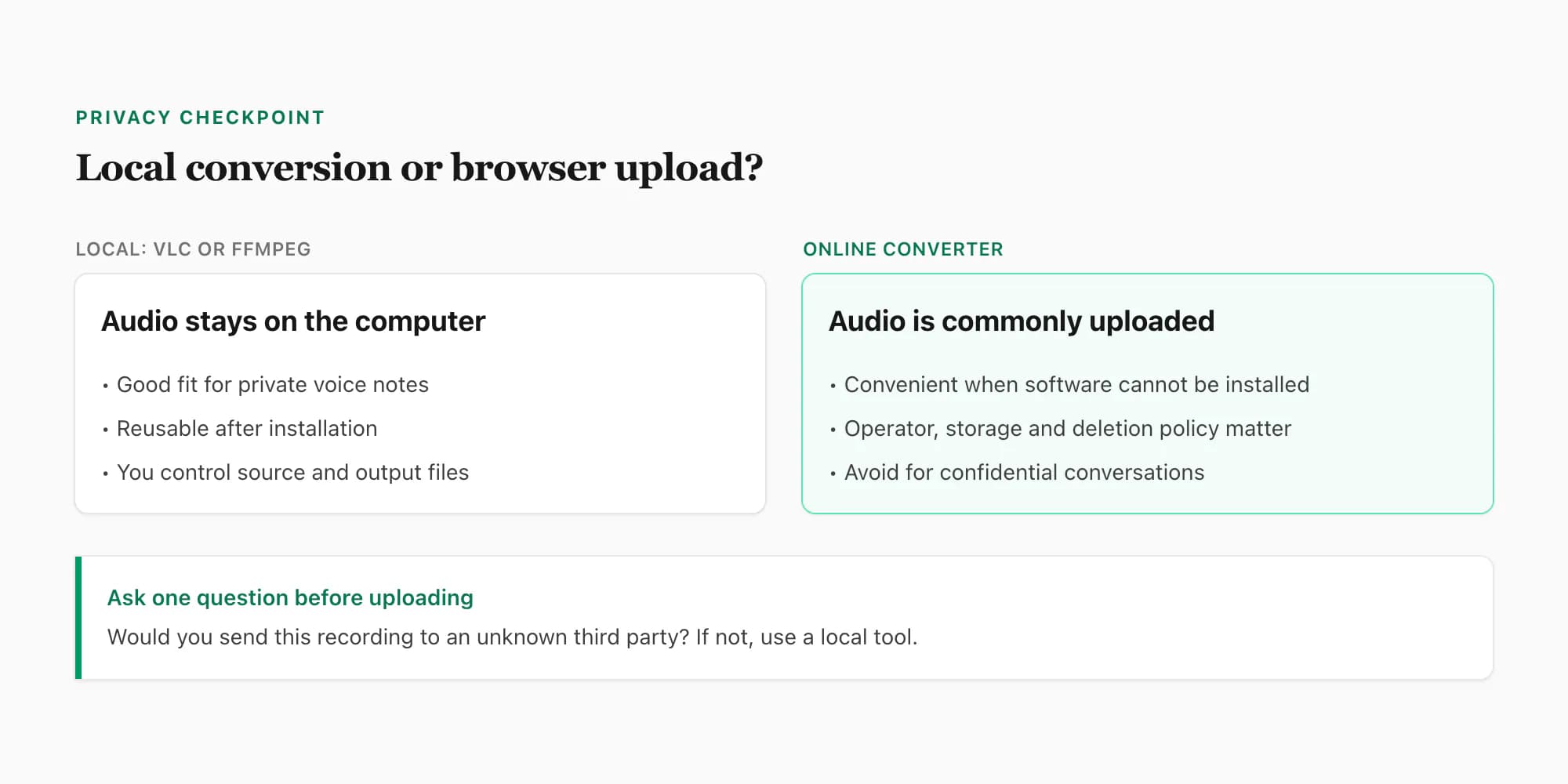
Before sending a voice note, check:
- Who operates the service and where its privacy policy applies.
- Whether processing occurs locally in the browser or on a remote server.
- Whether the service states a deletion period for uploaded and converted files.
- Whether it uses subprocessors, analytics or content for model training.
- Whether the download URL is private, expiring and protected from guessing.
- Whether the page is the operator’s real domain and uses HTTPS.
“Files are deleted automatically” is only meaningful when the operator says when, from which systems and under what exceptions. If the service gives no clear answer, treat the file as disclosed to that operator. Do not upload confidential conversations merely because the converter appears first in search results.
Some converters claim processing stays in the browser. That can reduce server-side exposure, but verify the claim through the service’s current documentation and network behavior; do not infer it from a padlock icon. HTTPS protects transport to a site. It does not prove the site never stores or processes the content.
MP3 settings, quality and preservation
Converting Opus to MP3 is lossy-to-lossy transcoding. The source has already been encoded. The converter decodes that stream and encodes it again. An MP3 quality setting can reduce additional audible loss, but it cannot recreate masked speech, clipped syllables, microphone detail or frequencies absent from the source.
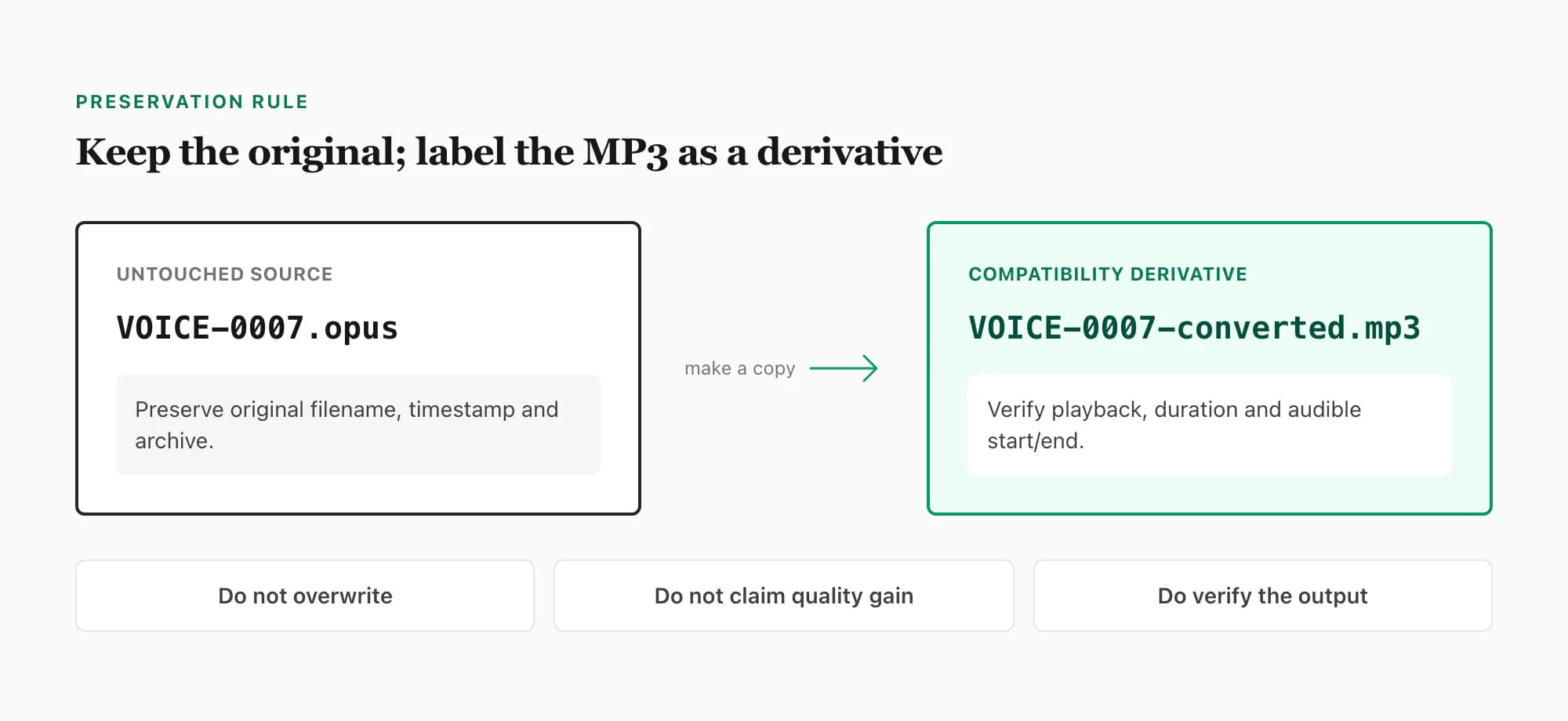
Use these preservation habits:
- Keep the original media-inclusive export ZIP.
- Keep the untouched Opus or Ogg file.
- Write MP3 output to a new folder or add a
-convertedsuffix. - Record the tool and command when the conversion matters operationally.
- Check duration and audible start/end against the source.
- Share the derivative, but return to the original for later inspection or transcription.
Do not repeatedly convert MP3 to another MP3. Every lossy generation can add artifacts. If an editor accepts the original Opus file, import that source directly. If the goal is only playback, test VLC first: you may not need to convert at all.
File size is also not a quality certificate. A 128 kbit/s MP3 made from a much smaller voice-note source can be larger because of the selected output rate, not because new information appeared. Conversely, a very aggressive MP3 setting can add obvious artifacts. Keep a representative sample, listen on the destination device and choose the smallest setting that remains acceptable for that specific use.
WhatsApp audio to MP3 vs voice-note transcription
MP3 conversion returns another audio file. Transcription returns words. Decide which output solves the problem before processing dozens of notes.
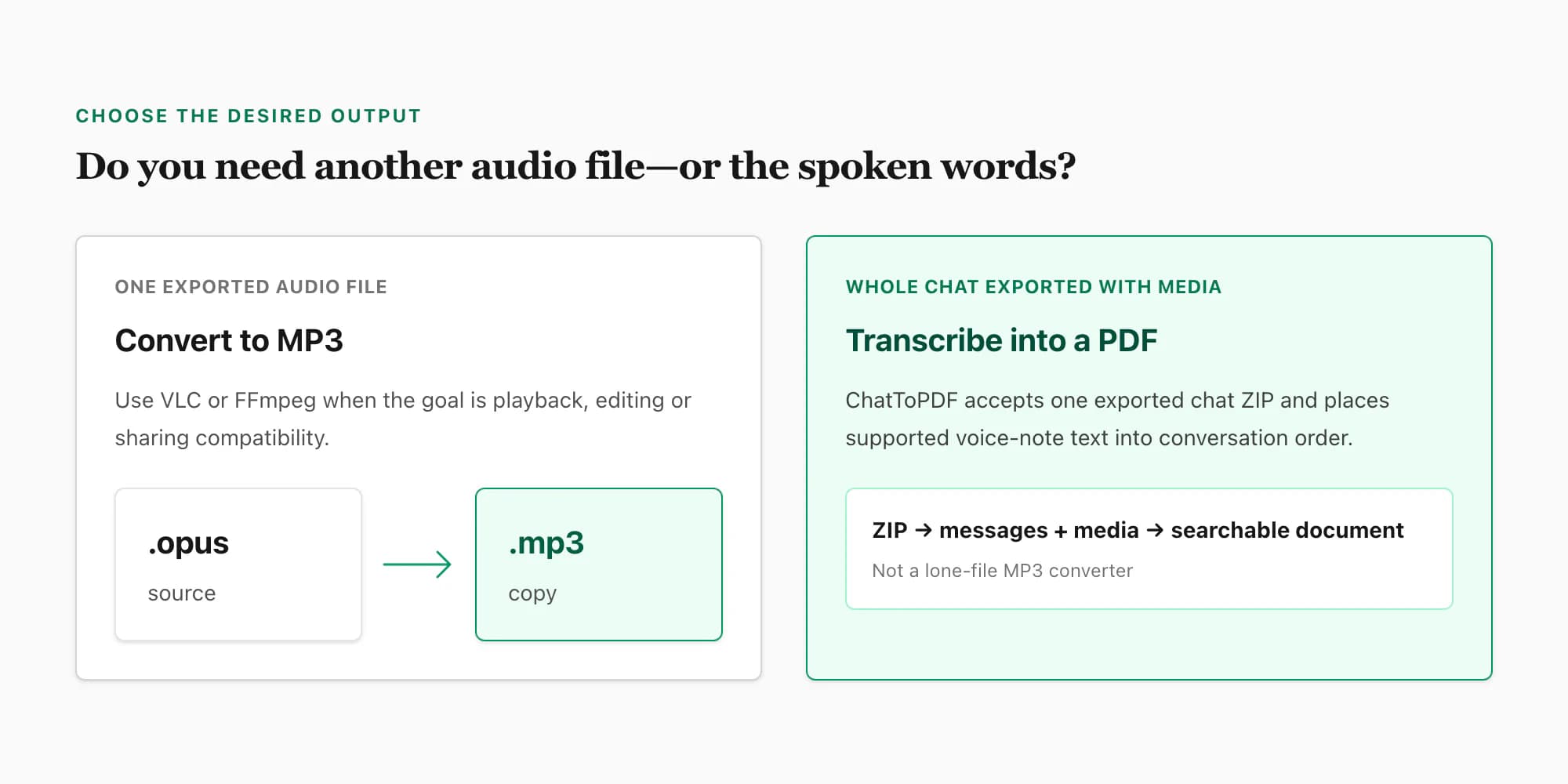
Use this guide when you have one exported audio file and need it to play in an MP3-only app, editor, vehicle, recorder or sharing workflow. Use the whole-chat WhatsApp audio-to-MP3 converter when you want to process the voice notes included across one media-inclusive conversation ZIP. Use the guide to transcribing WhatsApp audio when the goal is to read, search, review or quote the spoken content.
ChatToPDF is deliberately not positioned as a lone-file WhatsApp audio converter. Its playable workflow accepts one WhatsApp chat exported with media, detects supported voice notes inside that conversation and attempts each transcode independently. Successful files are delivered as MP3; a failed file keeps its original bytes and extension so one damaged note does not fail the whole bundle. The WhatsApp audio-to-text page owns the separate task of turning speech into searchable words. If you only drag in an isolated .opus file, that remains outside the product’s intended workflow.
That distinction matters for search intent:
- “Convert WhatsApp audio to MP3” means create a compatible audio derivative.
- “What format is WhatsApp audio?” means identify codec, container and file properties.
- “Download WhatsApp voice notes” means acquire one file or a batch from the app.
- “Transcribe WhatsApp audio” means extract spoken words and place them into useful context.
Clear ownership lets each guide answer its task directly and link to the adjacent step without pretending one tool does everything.
Frequently asked questions
Can I convert a WhatsApp voice note to MP3 without uploading it?
Yes. Save or export the audio file, then use VLC or FFmpeg locally. VLC offers a visual Convert/Save workflow, while FFmpeg provides an explicit command. Neither method needs to upload the recording for the conversion itself. Download software from its official source and write the MP3 as a new file rather than overwriting the exported original.
Can I turn an Opus file into MP3 just by renaming it?
No. Renaming .opus to .mp3 changes the filename but not the encoded stream. A real conversion decodes the Opus audio and encodes a new MP3 stream. A player that rejected the original will usually continue to reject a falsely renamed file, and the misleading extension makes later troubleshooting harder.
Does converting WhatsApp audio to MP3 improve its sound quality?
No. MP3 conversion is useful for compatibility. It cannot recreate detail, speech or bandwidth missing from the source and introduces another lossy encode. A high output setting can reduce additional damage but may create a much larger file without increasing the original information. Keep the source and avoid repeated transcodes.
What is the best free WhatsApp audio to MP3 converter?
VLC is the easiest free local option for most people, and FFmpeg is the strongest free option for commands and batches. “Best” depends on whether you value a graphical interface, automation or no installation. Browser converters are convenient, but their operators and privacy terms differ, so there is no responsible universal recommendation for private recordings.
Why is my exported WhatsApp audio an Opus or Ogg file?
Push-to-talk voice notes commonly export as Opus audio in an Ogg container. .opus is often used when the Ogg container carries Opus audio, while .ogg is a more general container extension. Shared songs and recordings can use other formats. The audio-format guide explains this distinction and the file-specific properties to inspect.
Can ChatToPDF convert one WhatsApp voice note to MP3?
No. ChatToPDF is not a lone-audio-file converter. Use VLC or FFmpeg for one saved note. ChatToPDF’s whole-chat MP3 workflow accepts the original media-inclusive ZIP, counts the included voice notes free and creates a $49 PDF-plus-audio bundle; use WhatsApp audio to text when you need conversation-level transcripts instead.
Primary references
- WhatsApp Help Center — export chat history: current first-party export entry points.
- VideoLAN VLC documentation — Convert and Save: local graphical conversion workflow.
- FFmpeg documentation: command syntax, codecs and stream selection.
- IETF RFC 6716 — Definition of the Opus Audio Codec: authoritative Opus capabilities and bitstream specification.
Key takeaways
- Convert exported WhatsApp audio to MP3 with VLC for a visual local workflow or FFmpeg for a repeatable command and batches.
- A browser converter commonly receives the recording, so read current privacy, subprocessor and deletion terms before uploading a personal voice note.
- Renaming
.opusto.mp3is not conversion. The file must be decoded and re-encoded. - Opus-to-MP3 conversion improves playback compatibility; it cannot restore missing audio quality.
- Keep the original ZIP and source file, create a clearly labelled derivative, and verify its duration and audible beginning and end.
- For the acquisition step, use how to download WhatsApp voice notes.
- For codec and container questions, use the WhatsApp audio format guide.
- For a playable bundle covering one exported conversation, use the whole-chat WhatsApp audio-to-MP3 converter.
- For spoken words across a media-inclusive chat export, use the transcribe WhatsApp audio guide or WhatsApp audio-to-text workflow.
I'm Paul, the founder of ChatToPDF. I built it after needing a long WhatsApp conversation as a readable PDF for a legal matter. I test and document WhatsApp exports, PDF conversion, voice-note transcription, and the limits people should check before relying on the result.