
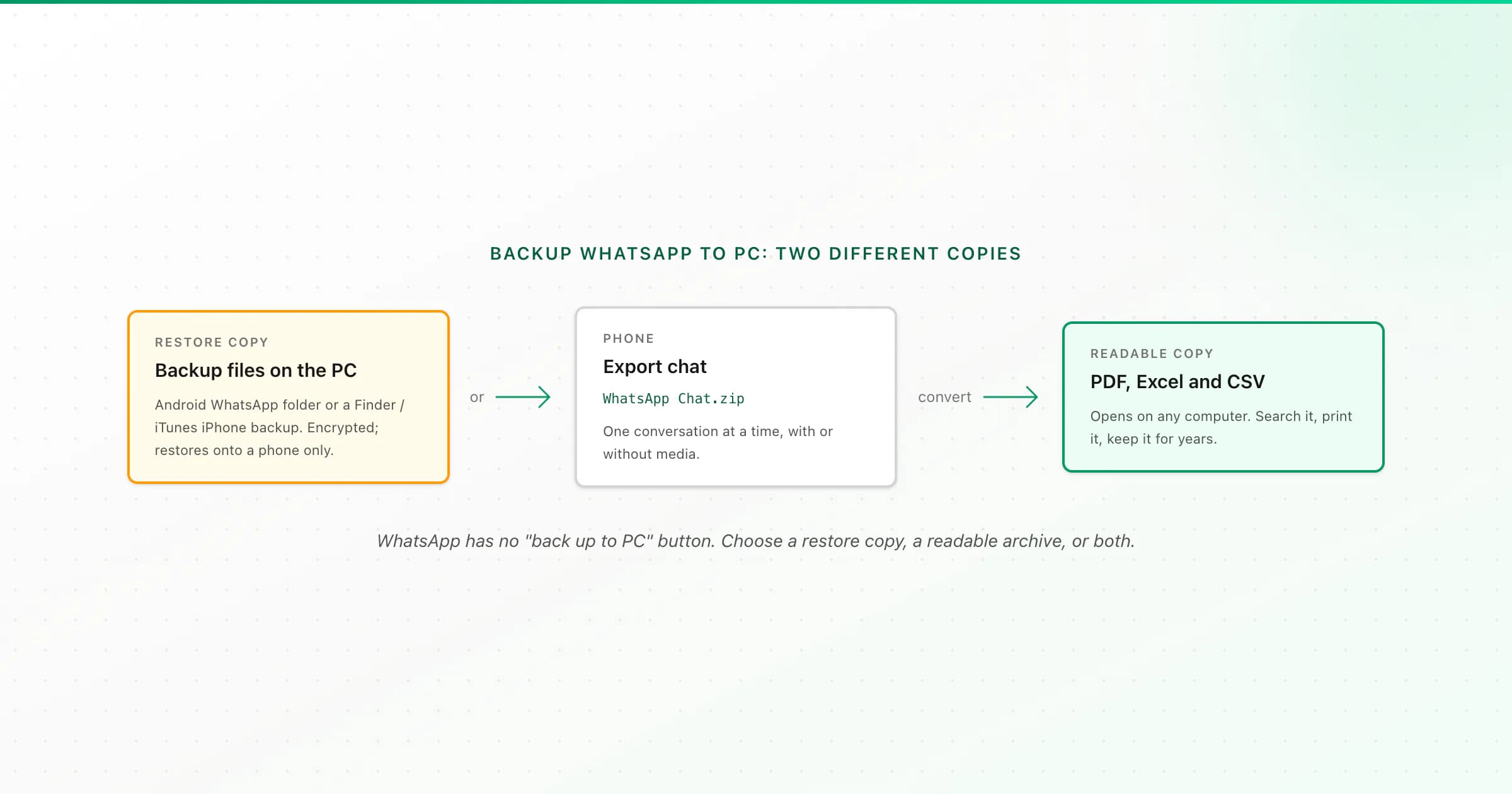
WhatsApp has no "back up to PC" button. On a computer you can keep two kinds of copy: the phone's own backup files (Android's local database or an iPhone backup made with Finder or iTunes), which you can only restore, or exported chats you can open, search and print. For a copy you can read on the PC, export.
I think most people searching this want one of two things, and they're easy to mix up. Some want insurance: "if my phone dies, can I get WhatsApp back from my computer?" Others want an archive: "I want my conversations on my PC where I can read them." The first is a restore copy. The second is an export. This guide covers both on Android and iPhone, then shows how to turn the export into files a computer actually opens.
The two kinds of WhatsApp backup on a PC
- Method
- Copy the local backup folder over USB
- Phone
- Android
- Readable on the PC?
- No, it's encrypted
- Restores into WhatsApp?
- Yes, on an Android phone
- Method
- Finder / iTunes / Apple Devices backup
- Phone
- iPhone
- Readable on the PC?
- No, it's a whole-device backup
- Restores into WhatsApp?
- Yes, by restoring the whole iPhone
- Method
- Export Chat → move file to PC
- Phone
- Both
- Readable on the PC?
- Yes: TXT, or ZIP with media
- Restores into WhatsApp?
- No
- Method
- Export Chat → PDF, Excel and CSV
- Phone
- Both
- Readable on the PC?
- Yes, formatted and printable
- Restores into WhatsApp?
- No
- Method
- WhatsApp desktop app
- Phone
- Both
- Readable on the PC?
- Only while linked and synced
- Restores into WhatsApp?
- No, it isn't a backup
| Method | Phone | Readable on the PC? | Restores into WhatsApp? |
|---|---|---|---|
| Copy the local backup folder over USB | Android | No, it's encrypted | Yes, on an Android phone |
| Finder / iTunes / Apple Devices backup | iPhone | No, it's a whole-device backup | Yes, by restoring the whole iPhone |
| Export Chat → move file to PC | Both | Yes: TXT, or ZIP with media | No |
| Export Chat → PDF, Excel and CSV | Both | Yes, formatted and printable | No |
| WhatsApp desktop app | Both | Only while linked and synced | No, it isn't a backup |
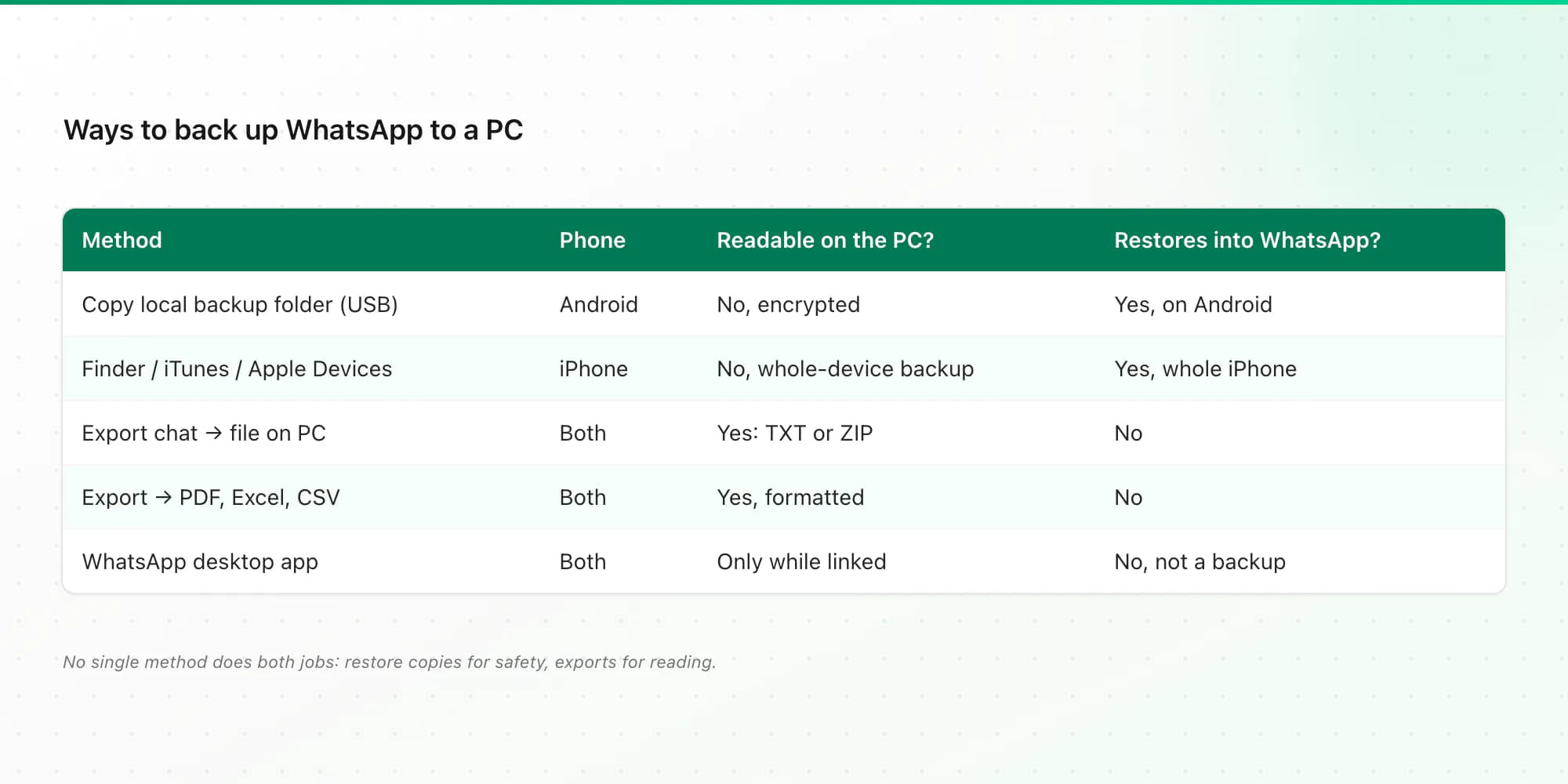
No single method does both jobs. If you care about getting WhatsApp running again on a new phone, the official cloud backup (Google Drive on Android, iCloud on iPhone) is still the simplest restore. A copy on the PC is a second line of defence. If you care about reading, printing or keeping a conversation for years, you want the export.
Android: copy the local WhatsApp backup to your PC
Android WhatsApp keeps a local backup on the phone as well as in Google Drive. You can copy it to a computer:
Make a fresh backup
In WhatsApp, open ⋮ → Settings → Chats → Chat backup and tap Back up. That refreshes the local copy on the phone too.
Connect the phone by USB
Plug the phone into the PC, unlock it, and choose File transfer in the USB notification. The phone appears in File Explorer (on a Mac, use Android's file-transfer app).
Copy the WhatsApp folder
On most recent phones it's under Internal storage → Android → media → com.whatsapp → WhatsApp. Copy the whole folder to your PC. The Databases subfolder holds files like
msgstore.db.crypt14or.crypt15(the chat backup), and Media holds photos, videos and voice notes.
What you've saved is a restore copy. The msgstore files are encrypted, so double-clicking them on the PC does nothing useful. To use them, copy the folder back onto an Android phone before installing WhatsApp, verify the same number, and WhatsApp offers to restore from the local backup. The Media folder is the exception: those photos and audio files open normally on the computer, though they aren't attached to the conversations they came from.
iPhone: back up WhatsApp to a PC with Finder or iTunes
On iPhone, WhatsApp's own backup only goes to iCloud. The way to get WhatsApp data onto a computer is a full iPhone backup:
- Mac: connect the iPhone, open Finder, select the phone, and click Back Up Now.
- Windows: use the Apple Devices app (or iTunes on older Windows versions) and choose Back Up Now.
That backup includes WhatsApp, but only as part of the whole device. You restore it by restoring the entire iPhone; you can't open the chats on the PC or pull out one conversation. If you tick Encrypt local backup, keep the password somewhere safe, because without it the backup can't be restored.
For a readable copy from an iPhone, export the chat and move the file across. I've written a separate, step-by-step guide on getting a WhatsApp chat from iPhone to a PC via iCloud Drive, a cable or email, so I won't repeat it here. On a Mac, AirDrop is the quickest way.
The readable PC backup: export, then convert
This is the route I'd recommend to anyone who wants their conversations, rather than a restore file, on a computer:
- Export the chat on the phone. Android: open the chat → ⋮ → More → Export chat. iPhone: tap the contact or group name → Export Chat. Choose with or without media.
- Move the file to the PC. Email it to yourself, save it to Google Drive, iCloud Drive or OneDrive, or copy it over USB.
- Keep the original TXT or ZIP. It's the source file. Store it in a folder you back up.
- Make readable copies. Upload it to the WhatsApp to PDF converter and download a PDF (chat bubbles or a clean document, with "Page X of Y" numbers), plus an Excel workbook and a CSV. You can also check it first in the WhatsApp chat viewer.
The trade-off is that WhatsApp exports one conversation at a time, and so does ChatToPDF: one chat per upload. If you have a handful of chats that matter, it's quick. If you want every chat you've ever had, the restore copy above is the realistic option for the bulk, and exports are for the conversations you'd want to read again.
WhatsApp also caps each export: roughly 40,000 recent messages without media, or about 10,000 with media. For a very long chat, a text-only export gets the most history.
If you'd rather work in a spreadsheet, the WhatsApp chat to Excel page shows the columns you get. Every paid plan includes the PDF, Excel and CSV together.
What about WhatsApp on the desktop?
The WhatsApp desktop app and WhatsApp Web are linked devices. They show your chats while linked, but they don't create a backup file, and they have no Export chat option. If you unlink the computer or reinstall the app, that history goes. Treat the desktop app as a convenient screen, not a copy.
Which should you do?
- Replacing a phone soon? Rely on the official cloud backup, and copy the Android local backup or make a Finder/iTunes backup as a spare.
- Need to read or print a conversation on your computer? Export it and convert it. My guide to saving WhatsApp chats compares every option, including printing.
- Chats only exist in Google Drive? Restore first, then export. Here's how to get chats out of a Google Drive backup.
- Archiving iPhone text messages too? That's a different export; see saving text messages from iPhone to a computer.
Key takeaways
- WhatsApp has no built-in PC backup. A computer copy is either a restore file or an exported chat.
- Android: copy the WhatsApp folder (Databases + Media) over USB. The
msgstorebackup is encrypted and only restores onto a phone. - iPhone: a Finder, iTunes or Apple Devices backup includes WhatsApp, but only restores with the whole iPhone.
- For a copy you can read on the PC, use Export chat, move the TXT/ZIP over, and convert it to PDF, Excel or CSV.
- The desktop app and WhatsApp Web aren't backups.
FAQ
Can I back up WhatsApp on my PC?
Yes, in two ways, but neither is a one-click WhatsApp feature. You can copy the phone's backup files to the PC (Android's WhatsApp folder, or a full iPhone backup in Finder or iTunes), which only restores onto a phone. Or you can export chats and keep those files on the PC, which you can read, print and convert.
How do I back up WhatsApp from iPhone to PC?
Make a full iPhone backup with Finder on a Mac or the Apple Devices app or iTunes on Windows. It includes WhatsApp but can only be restored to an iPhone as a whole. For a readable copy, export each chat (contact name → Export Chat) and move the file to the PC by iCloud Drive, cable, AirDrop or email.
Where is the WhatsApp backup stored on Android?
On most current Android phones, the local backup is in Internal storage → Android → media → com.whatsapp → WhatsApp → Databases, as files named like msgstore.db.crypt14 or msgstore.db.crypt15. The Google Drive copy lives in your Google account's storage under Backups.
Can I back up WhatsApp to OneDrive instead of Google Drive?
Not as WhatsApp's own backup. WhatsApp backs up to Google Drive on Android and iCloud on iPhone. You can save exported chat files to OneDrive, though: when you export a chat, choose OneDrive in the share menu, or move the file there from your PC.
How do I export an entire WhatsApp chat as a PDF?
Export the chat in WhatsApp (Android: ⋮ → More → Export chat; iPhone: contact name → Export Chat), then upload the TXT or ZIP to ChatToPDF. You get a free preview, then a paginated PDF with sender names, timestamps and photos for $7–$29 depending on chat size and media, plus Excel and CSV.
Does WhatsApp Desktop keep a backup of my chats?
No. WhatsApp Desktop and WhatsApp Web are linked devices that display your chats while connected. They don't create a backup file or offer Export chat, and the history isn't something you can restore elsewhere.
I'm Paul, the founder of ChatToPDF. I built it after needing a long WhatsApp conversation as a readable PDF for a legal matter. I test and document WhatsApp exports, PDF conversion, voice-note transcription, and the limits people should check before relying on the result.