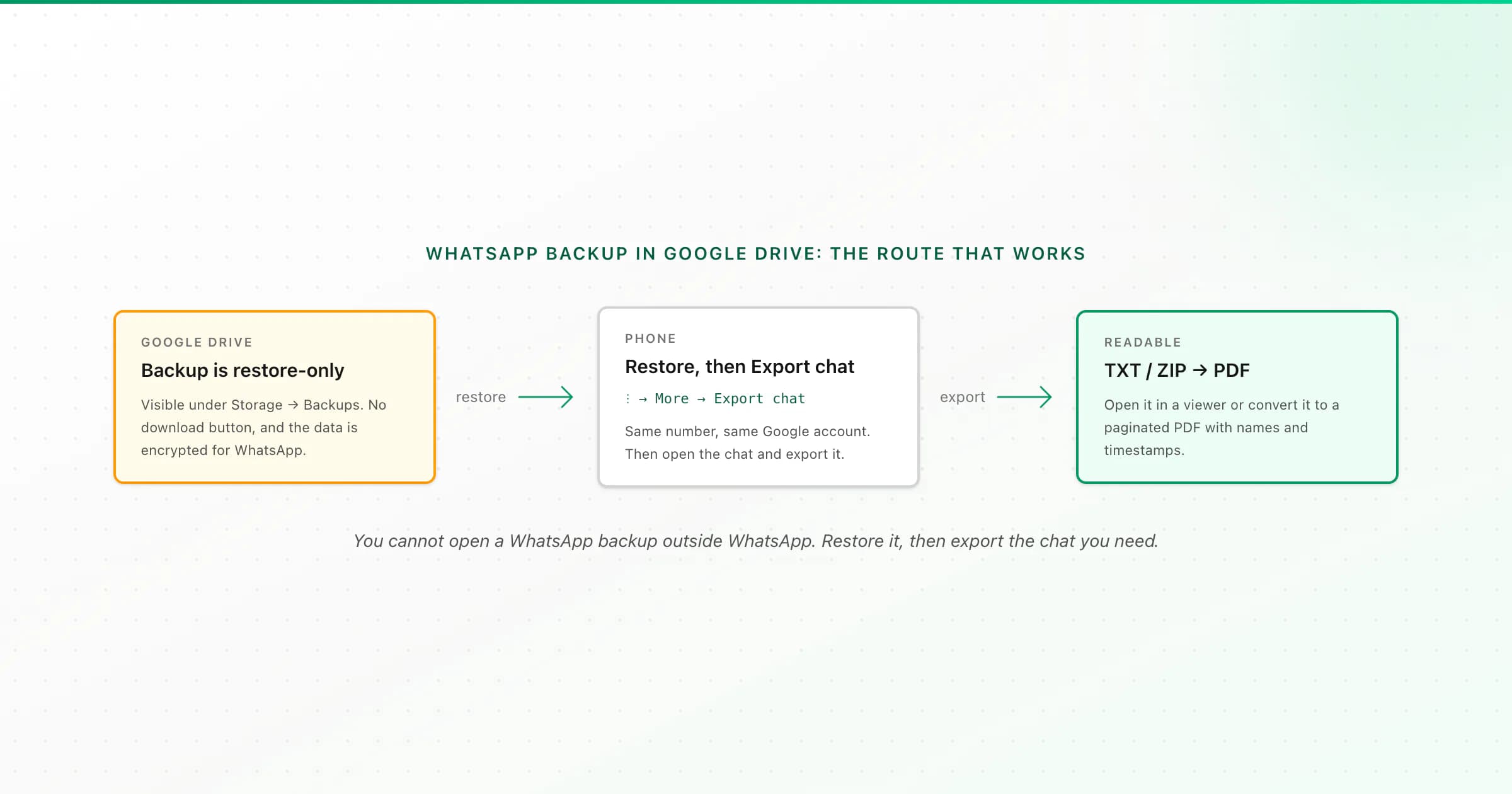
You can't download a WhatsApp backup from Google Drive as a file you can open. Drive lists it under Storage → Backups, but only lets you see or delete it, and it is WhatsApp's own encrypted restore data. To read the chats, restore the backup into WhatsApp on a phone, then use Export Chat and open that file.
I get some version of this question in support most weeks: "My chats are in Google Drive, how do I get them out?" The honest answer is shorter than people hope, so I'll give it straight and then walk through the route that actually works: what you can see in Drive, why no tool can open the backup, how to restore it safely, and how to turn the restored chat into something you can read, print or keep.
Where to find the WhatsApp backup in Google Drive
If you want to confirm the backup exists before doing anything else, check it from a computer:
- Go to drive.google.com and sign in with the Google account WhatsApp backs up to.
- Click Storage in the left menu (or the storage meter at the bottom left).
- Open the Backups tab at the top right of the storage page.
- Look for an entry named WhatsApp with your phone number. Its details show the backup size and when it was last updated.
That's everything Drive offers. Open the entry's menu and you can look at its details or Delete backup. There is no Download. The backup also doesn't appear in My Drive, and you won't find it in Google Takeout as a readable chat file either.
On the phone, WhatsApp shows the same backup under Settings → Chats → Chat backup: the Google account, the date of the last backup and its size. That screen is the quickest way to check the date before you restore anything, because restoring brings back the chats as of that moment, not today.
Why you can't open a WhatsApp backup outside WhatsApp
Three things are true of the Drive backup, and together they explain why every "WhatsApp backup reader" you find disappoints:
- It's restore data, not a document. WhatsApp writes the backup so it can rebuild your chat history on a phone with the same number. It's a database, not a list of conversations.
- It's encrypted. The messages are protected so that only WhatsApp can use them. If you turned on WhatsApp's end-to-end encrypted backup, it's additionally locked with your password or 64-digit key. Google can't read it, and neither can a website.
- Google keeps it hidden. Drive deliberately stores app backups outside your normal files, so you can manage the storage but not pull the data.
You'll see apps and websites that claim to "extract WhatsApp from Google Drive". Be careful with them. To do anything at all, they typically need your Google login or your WhatsApp verification, and some ask you to root an Android phone to grab encryption keys. Handing your account and every chat you've ever had to an unknown tool is a bad trade for something WhatsApp already does for free.
That's also why ChatToPDF doesn't open backup files. I built the WhatsApp backup viewer page to say so up front: what we read is the Export Chat file, which is the readable version of a conversation.
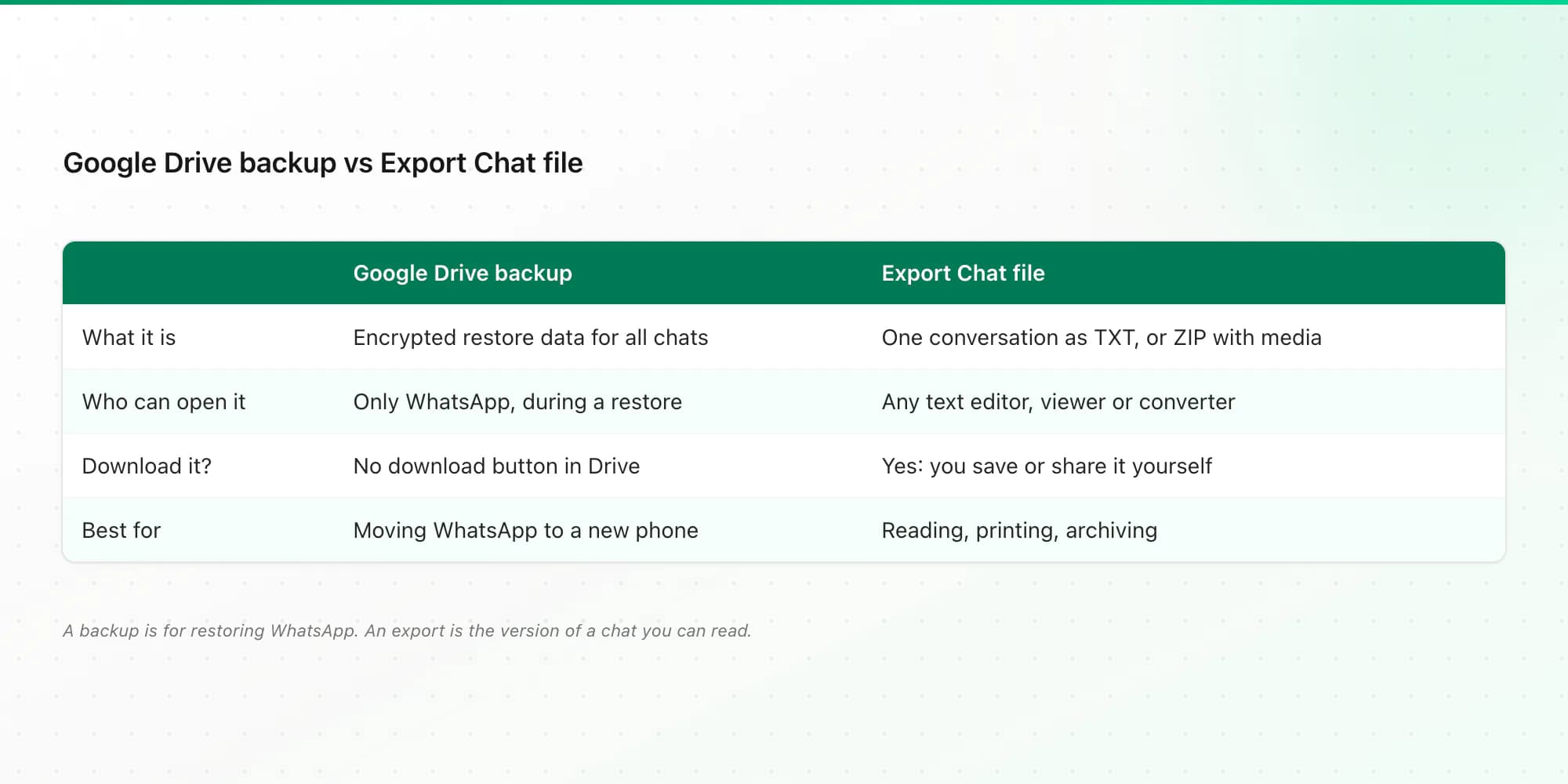
- What it is
- Google Drive backup
- Encrypted restore data for all chats
- Export Chat file
- One conversation as TXT, or ZIP with media
- Who can open it
- Google Drive backup
- Only WhatsApp, during a restore
- Export Chat file
- Any text editor, viewer or converter
- Can you download it?
- Google Drive backup
- No download button in Drive
- Export Chat file
- Yes: you save or share it yourself
- Best for
- Google Drive backup
- Moving WhatsApp to a new phone
- Export Chat file
- Reading, printing, archiving, evidence
| Google Drive backup | Export Chat file | |
|---|---|---|
| What it is | Encrypted restore data for all chats | One conversation as TXT, or ZIP with media |
| Who can open it | Only WhatsApp, during a restore | Any text editor, viewer or converter |
| Can you download it? | No download button in Drive | Yes: you save or share it yourself |
| Best for | Moving WhatsApp to a new phone | Reading, printing, archiving, evidence |
How to get your chats out of a Google Drive backup
The route is restore first, then export. If the conversation is still on your current phone, skip straight to step 4: you don't need the backup at all.
Check the backup date and account
On the phone, open WhatsApp → Settings → Chats → Chat backup (or check Drive → Storage → Backups from a computer). Note the date. A restore brings back the chats as they were at that moment. Messages sent after the last backup won't be in it.
Install WhatsApp on an Android phone signed in to the same Google account
Use a new phone, or uninstall and reinstall WhatsApp on the current one. The phone must be signed in to the Google account that holds the backup, and you must verify the same phone number. WhatsApp's restore help page covers the exact prompts if yours look different.
Tap Restore when WhatsApp offers the backup
After verification, WhatsApp detects the Drive backup and asks whether to restore it. Tap Restore and leave the phone on Wi-Fi and power until it finishes. If you use an encrypted backup, you'll need its password or key here. Without it, the backup can't be restored by anyone.
Export the chat you need
Open the conversation, tap ⋮ → More → Export chat, and choose Include media if you want photos, or Without media for text only. Save the TXT or ZIP to Files or Drive, or email it to yourself. This file is what you can actually read, and it's ordinary data you control.
Open, convert or print the export
Upload the TXT or ZIP to the online chat viewer to read it in your browser, or use the WhatsApp to PDF converter for a paginated PDF with sender names, timestamps, photos inline and "Page X of Y" numbers. The preview is free and needs no account or email.
A warning before you restore on your everyday phone. Restoring replaces the chat history on that phone with the backup's contents. If your current phone has newer messages than the backup, back it up first (Settings → Chats → Chat backup → Back up). Otherwise you'll lose whatever happened since the last backup. And because WhatsApp runs one number on one phone at a time, restoring on a second phone logs the first one out.
Can you download a WhatsApp backup from Google Drive to a PC?
Not in any useful form. There's no Drive download button, and WhatsApp's desktop app for Windows and Mac can't restore or read a phone backup. What you can put on a PC is the export: do steps 1–4 above on the phone, then move the TXT or ZIP to the computer. That file opens anywhere. If your goal is a full readable archive on your computer, my guide to backing up WhatsApp to a PC compares the local-backup and export routes for Android and iPhone.
iPhone users have the same problem one layer over: WhatsApp on iPhone backs up to iCloud, not Google Drive, and that backup is restore-only too. You can't restore a Google Drive backup on an iPhone. Switching platforms uses WhatsApp's chat transfer instead, which I cover in the Android to iPhone WhatsApp guide.
What you lose and keep in each route
A few honest limits so nothing surprises you:
- One conversation per export. WhatsApp exports chats one at a time. ChatToPDF also converts one conversation per upload, so if you need ten chats, that's ten exports.
- WhatsApp's export caps. A single export holds roughly 40,000 recent messages without media, or around 10,000 with media. Very long chats may need the text-only export.
- Deleted messages stay deleted. If a message was deleted before the backup ran, the backup doesn't have it either.
- Voice notes are audio files. They come through in a with-media ZIP. If you need them as text, the $49 plan transcribes them; the voice notes download guide covers saving the audio itself.
Related guides
- How to save WhatsApp chats: backup vs export vs PDF vs print, side by side.
- Download chat history from WhatsApp: the three things "download" can mean.
- How to export WhatsApp messages, with the export menus on both platforms.
- Saving SMS too? See how to print text messages from Android.
Key takeaways
- A WhatsApp Google Drive backup is visible at Drive → Storage → Backups, but it can't be downloaded or opened. It's encrypted restore data.
- The only way to read it is to restore it into WhatsApp on a phone with the same number and Google account.
- After restoring, use Export chat to get a readable TXT or ZIP, one conversation at a time.
- Restoring replaces newer chats on that phone, so back up first if the phone has messages the backup doesn't.
- Avoid tools that ask for your Google login, WhatsApp verification or root access to "extract" a backup.
FAQ
Where is my WhatsApp backup in Google Drive?
On a computer, open drive.google.com, click Storage, then the Backups tab. The WhatsApp backup is listed with your phone number, size and last-updated date. It doesn't appear in My Drive. On the phone, WhatsApp → Settings → Chats → Chat backup shows the Google account and the date of the last backup.
Can I download my WhatsApp backup from Google Drive to my computer?
No. Google Drive has no download option for app backups, and the WhatsApp backup is encrypted so only WhatsApp can use it during a restore. To get chats onto a computer, restore the backup on a phone, export each chat you need with Export chat, and move the TXT or ZIP file to the computer.
How do I manually restore a WhatsApp backup from Google Drive?
Install WhatsApp on an Android phone signed in to the same Google account, verify the same phone number, and tap Restore when WhatsApp finds the backup. Keep the phone on Wi-Fi and charging until it finishes. If the backup is end-to-end encrypted, you need its password or 64-digit key.
Can I read a WhatsApp backup without restoring it?
Not safely. The backup is encrypted for WhatsApp, and tools that claim to read it usually need your Google login, your WhatsApp verification code or encryption keys from a rooted phone. If the chat is still on your phone, you don't need the backup at all: export the chat directly and open the file.
Does Google Takeout include my WhatsApp chats?
Not as readable messages. WhatsApp's backup is stored separately from your normal Drive files and is encrypted for WhatsApp, so a Google data export won't give you a conversation you can read. Export the chat inside WhatsApp instead.
Can ChatToPDF open my WhatsApp backup file?
No, and it doesn't ask for your Google or WhatsApp account. ChatToPDF reads the file WhatsApp creates when you choose Export chat: a TXT transcript or a ZIP with media. Upload that for a free preview, then download PDF, Excel and CSV from $7. Uploaded files are deleted within 7 days.
I'm Paul, the founder of ChatToPDF. I built it after needing a long WhatsApp conversation as a readable PDF for a legal matter. I test and document WhatsApp exports, PDF conversion, voice-note transcription, and the limits people should check before relying on the result.